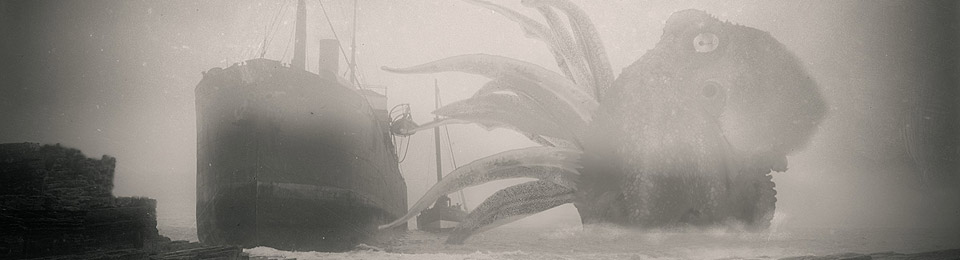
I’m pleased to say I’ve been sent a low-res PDF of the new Lovecraft graphic novel He Who Wrote in the Darkness, for review, and am currently half-way through savouring it.
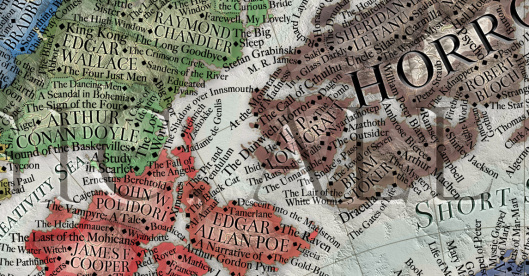
When faced with a low-res PDF many reviewers might have preferred to have been sent a proper Kindle app store review-copy. Because that would have opened with the Amazon app — an app which offers a panel-by-panel ‘guided’ view of comics when reading. For the benefit of other reviewers of graphic novels who want such a ‘guided’ view, here’s what you do when you get an awkward layered PDF (i.e.: where the text is on a separate layer that sits above the art).
1. On your Kindle tablet, add a side-load install of the wholly free Comic Time Reader app as a downloaded .APK file. It does ‘panel detection’ (aka frame-by-frame viewing, aka ‘guided view’), just like Comixology and the Amazon Kindle Viewer do for purchased comics. Given this vital feature, seemingly unique among free apps not tightly tethered to a payments ecosystem, it’s perhaps unsurprising that Comic Time Reader is not present on the Amazon App Store where it would impinge on Amazon’s business model. But it works fine on the 2017 Kindle Fire HD 10″ tablet. The only problem is that the app can’t load PDFs.
2. Then convert your .PDF to .CBR with the Windows desktop freeware Comic Book Archive Creator, at maximum image quality and with .JPG output. Unlike its only free rival Comic Rack, Comic Book Archive Creator can correctly handle a PDF with layered text when converting. Also it appears to save pages at 600dpi, which means that ‘the jaggies’ are minimal on the flattened lettering, balloons and captions. Its only problem is that it works v-e-r-y s-l-o-w-l-y and can be a bit of a system hog while it’s working.
3. If you left Comic Book Archive Creator on its default output type, rename its resulting .ZIP file to .CBR format. .CBR is just a bunch of numbered .JPG page-scans inside a re-named .RAR or .ZIP file, so it’s a very flexible format. Now send it over to your Kindle. You’re then ready to read your graphic novel in a ‘guided’ frame-by-frame manner in the excellent free Comic Time Reader. If Comic Time Reader occasionally has trouble detecting a frame edge in a complex layout, you just press and hold in one corner of the frame, then drag your finger to the opposite corner. That tells the app where the frame is.
If you end up with a ridiculously large 600Mb-to-multiGb comic, because the source input was actually high-quality at around 6800-pixels per page and/or a very long graphic novel, then do the following:
1. Simply unzip the page-images to a folder
2. Open the folder with Irfanview, shift-select all images and press “B” to run a batch reduction on them.
3. In the Batch window. selected Advanced and then set a pixel size, say 2400px on one side. Ensure you are setting your output directory to be different than the input directory.
4. Then re-zip the series of images output from Irfanview and re-name into a .CBR or .CBZ file.
Irfanview’s batch has the advantage over Photoshop here, in that it knows how to re-size the pixel dimensions of an image without needing to know the dimensions on both sides. It’s also much faster than Photoshop.