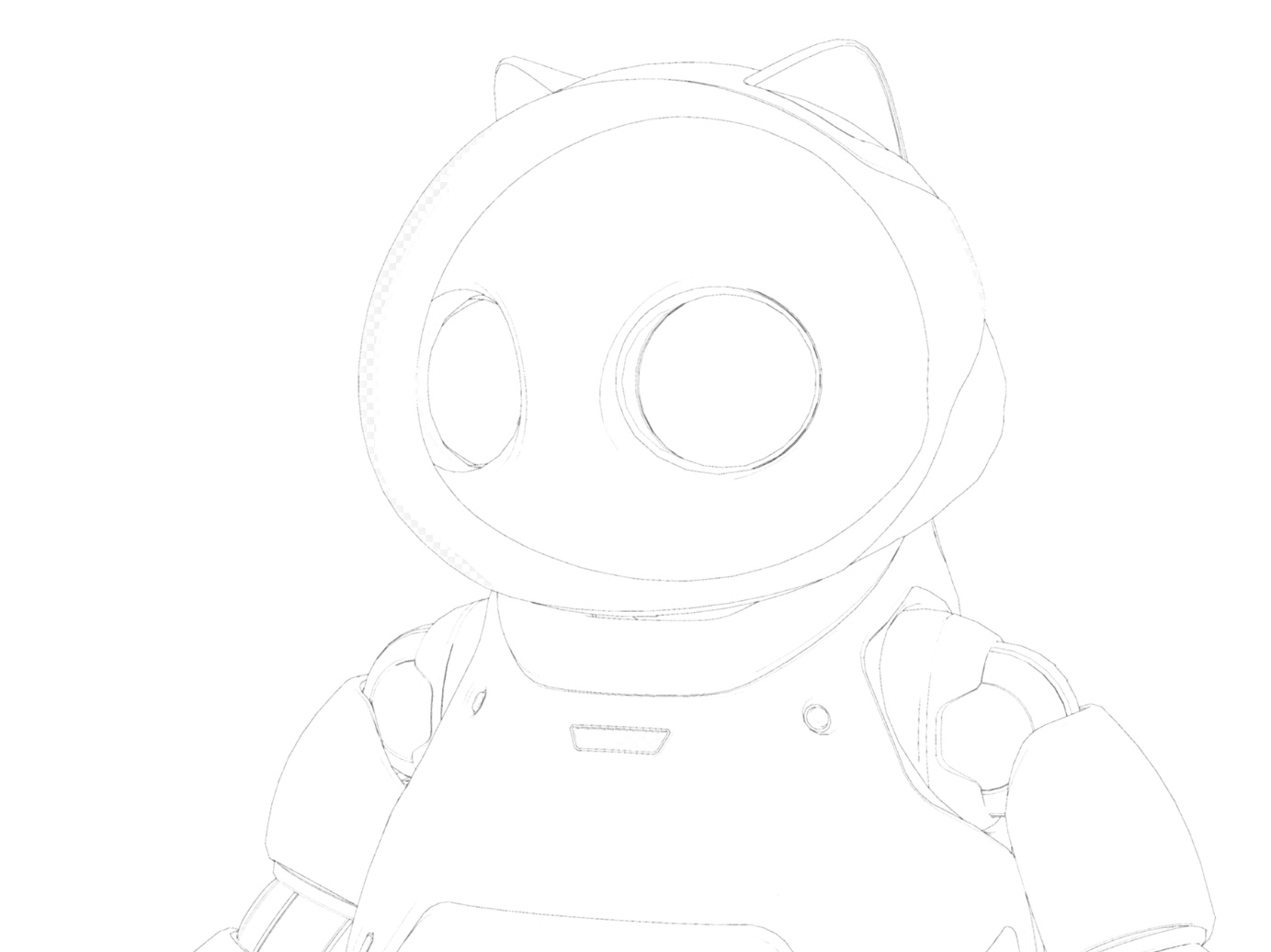
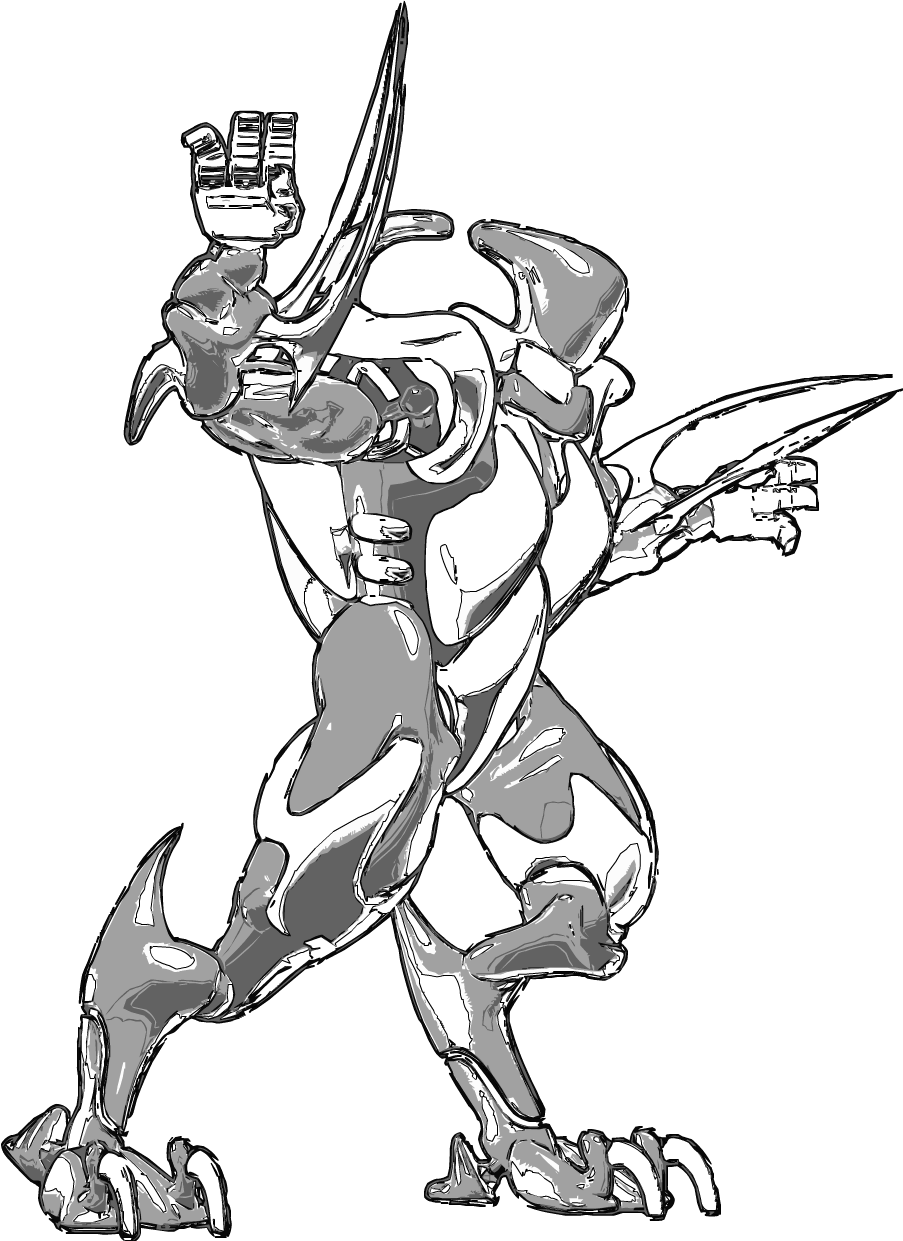
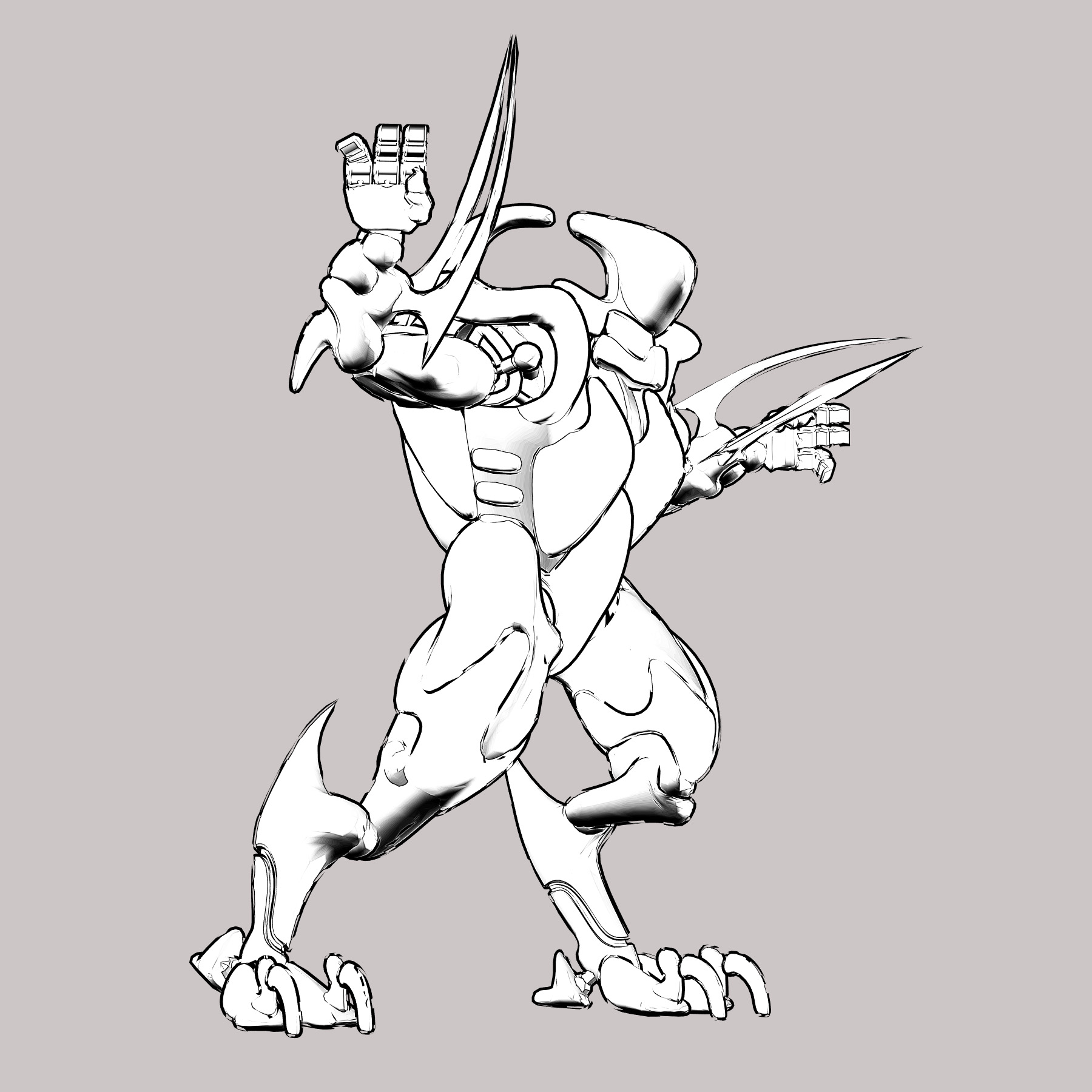
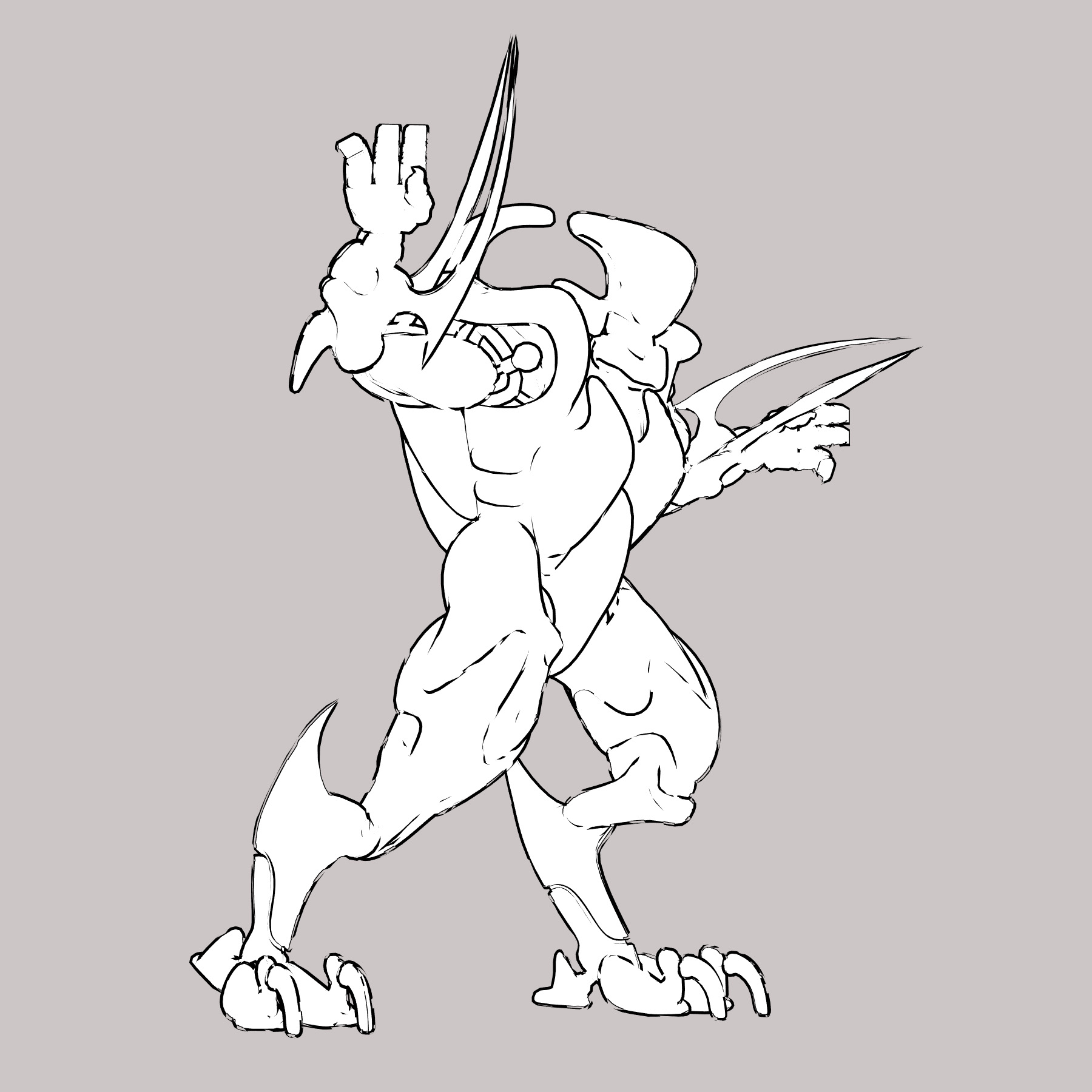
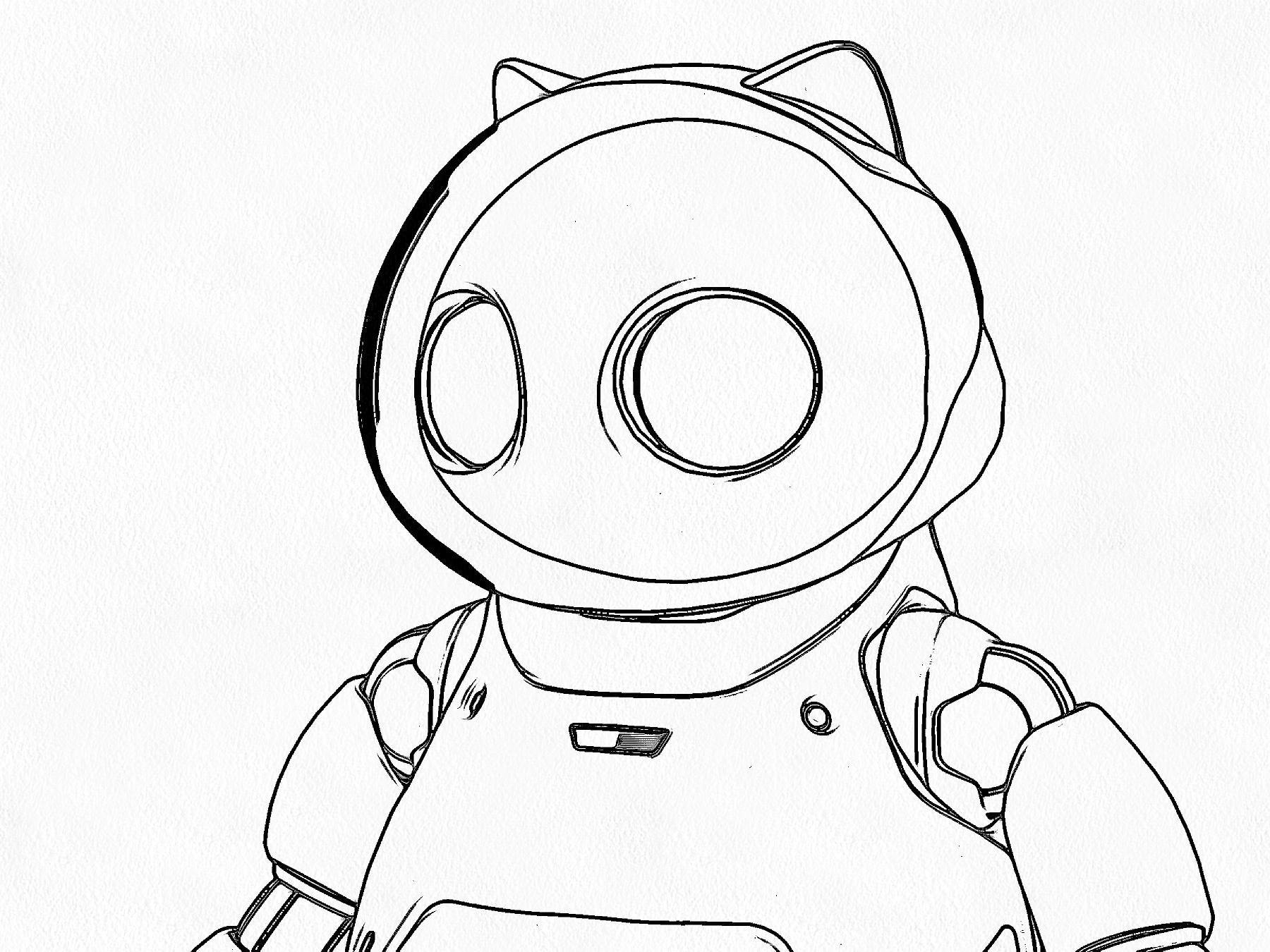
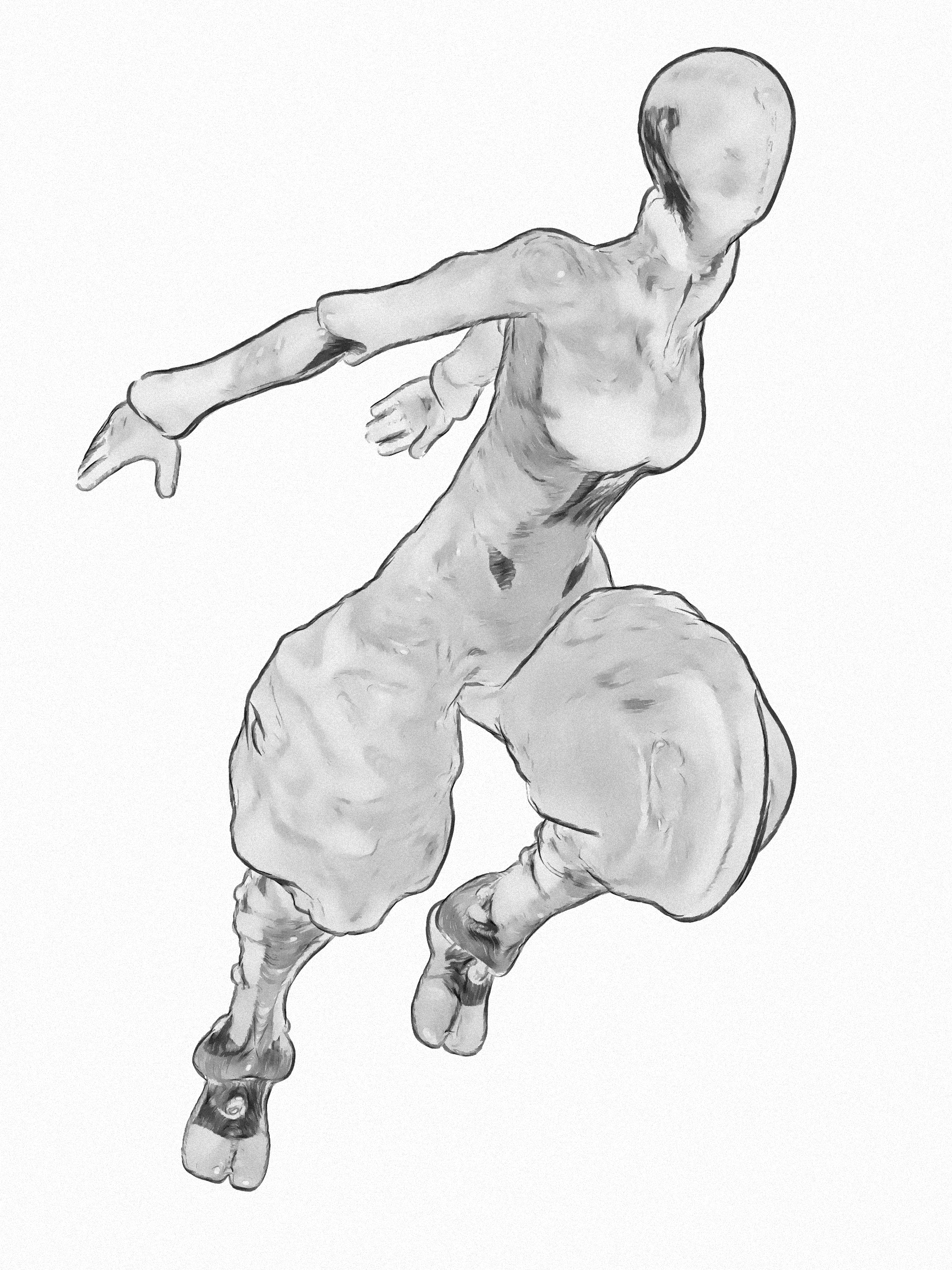
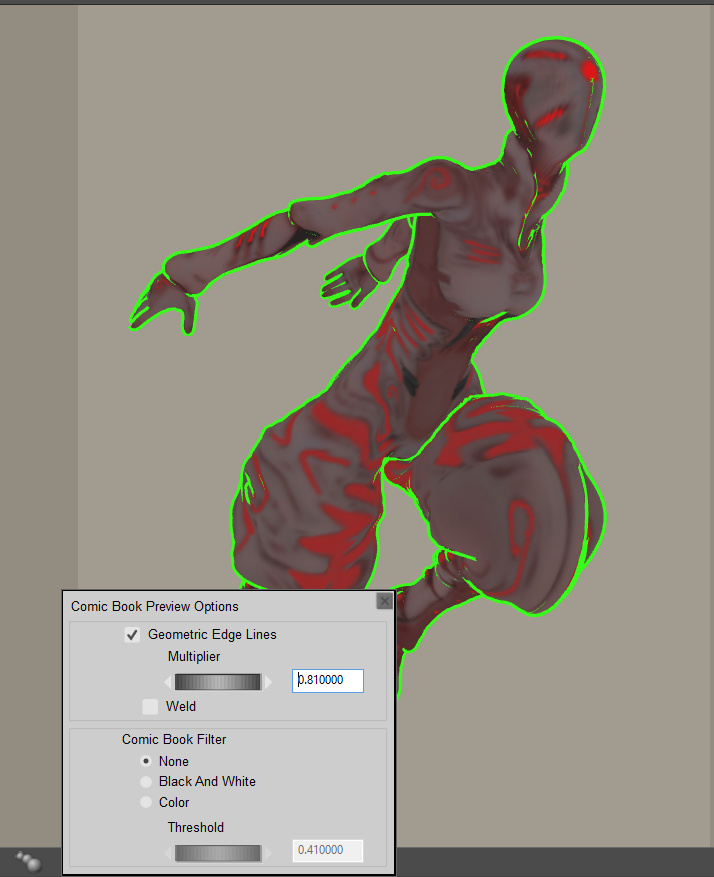
A simple three-minute video intro to how to set up a clean comic-book effect on a character with Poser 11. This effect is available in both Poser Standard and Poser Pro. It is very easily controlled, and you render in just a few seconds by using real-time Preview renders.
Category Archives: Tutorials
Tutorial: combining the best of two inks-only Poser comic-book renders
This is a tutorial in how to quickly combine the best of two inks-only renders, from Poser’s Comic Book Preview render, by using Photoshop. For future speed-of-working this tutorial can, of course, be encapsulated and semi-automated as a recorded Photoshop Action.
We’re going to manually select just a few nice lines from one render, and combine them with lines from the other render.
Why do this? To subtly boost the quality of your ink lines output from Poser’s Comic Book Preview mode, at only a small cost in time spent per comics frame. Depending on your intended style, possibly also to selectively combine sketch edge-shading, from a Poser Sketch render, with your Comic Book line-art inks.
Tools: Poser 11 (Pro or Standard) with a suitable Poser 3D character to render. Adobe Photoshop (CS6 is being used here).
What’s it called in Photoshop?: “Q” mode or “Quick Mask”.
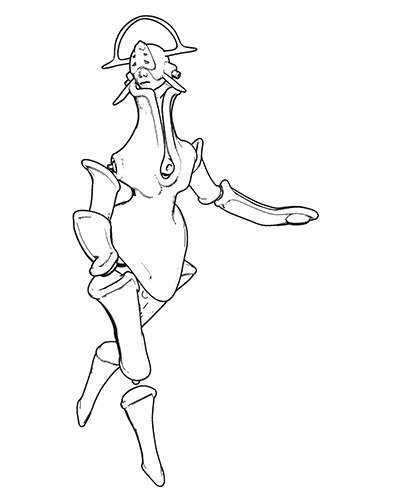
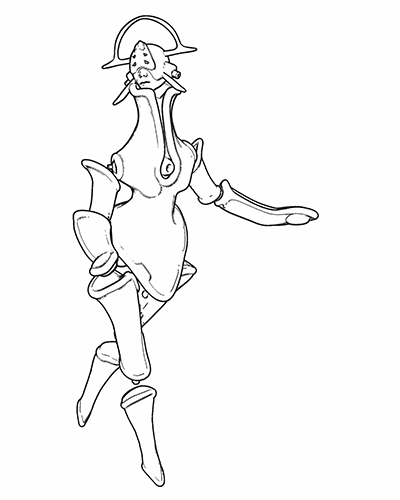
1. First render your two nearly-identical ink lines renders from Poser 11’s Comic Book Preview mode. The differences between them will perhaps arise from your selecting different Display Styles for Preview renders, or choosing Poser lights that cause new ink lines/shadows to appear in the line-art. Here I have kept the lighting fairly flat, and run a Sketch render into the Preview ink lines to make them a bit less slick and more grainy.
Animated GIF comparison between the layers:
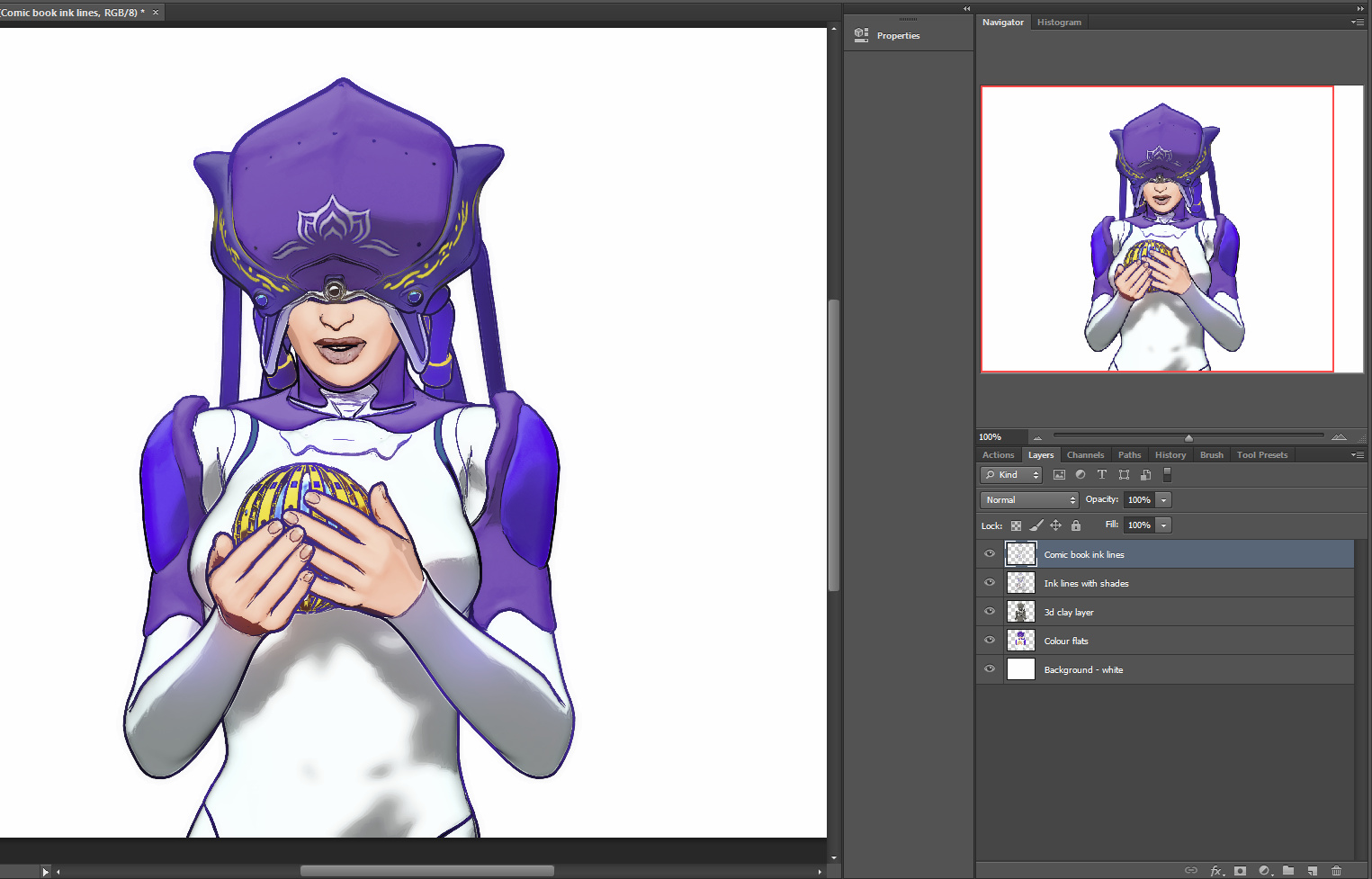
2. Bring the two renders into Photoshop, with each render placed on its own layer. The renders should be exactly aligned one above the other, and Photoshop’s “Paste in place” command may help you with that.
3. ‘Knock out all white’ from both renders (there are many free line-art Photoshop actions that do that). Then place a new white background layer behind them.
Toggle the ink layers on and off, to let you decide which needs to be renamed as the ‘bottom render’.
The ‘bottom render’ should be the one that has some nice lines you wish to add to the top main render, while junking the rest of its lines.
You choose the other render to be the ‘top’ because it’s mostly OK and barely needs changing.
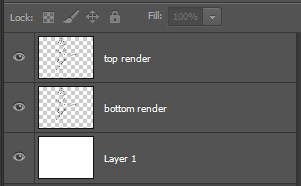
Ok, you’ve now decided which layer is to be which. It’s time to rename the layers sensibly, so that an Action can be run on them. Your saved .PSD production file will have three layers — named as: top render | bottom render | White. It should look like this…
I’ve capitalised “White” to remind you that layers are case-sensitive for Photoshop Actions. If an Action expects to find a layer called “White”, it will not run if the layer has been re-named to “white”.
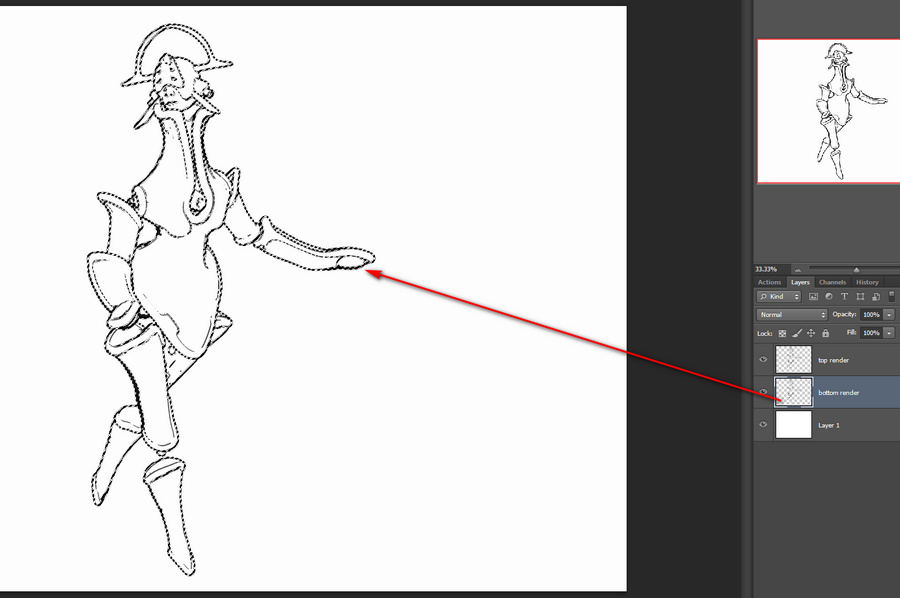
4. To make it easier to identify the ink lines of the bottom layer, we now turn the lines a uniform dark mid-green. To do this you first press ‘Crtl’ on the keyboard while clicking with the mouse cursor to select the layer thumbnail in the Layers palette. This gives you a clean automatic selection of your inks, indicated by the dotted lines…
Then you make a wholly new blank layer, and fill this blank layer with green by using the Paintbucket. Then you select the ‘bottom render’ layer and hide it.
You are now going to be working on the green lines in the copy of the ‘bottom render’. It doesn’t matter that it’s a copy, as we’ll switch back to the original soon (once we’ve selected the lines we want to keep) and then junk it entirely.
5. Ok, so how do we select those nice ink lines? With the new temporary green layer selected, you now press “Q” on your keyboard. Then you select a hard round Brush from the Toolbar and size it for picking out fine details in line-art. The brush size will depend on your render size. I tend to render in Preview to 3600px.
6. While you are in this “Q” (Quick Mask) mode, any Brush will automatically paint in semi-transparent red. That will be the only visual indication that you have entered this special mode. With this red brush you then simply paint on the active layer, and where you lay paint indicates the details you want to keep.
You can see here why we needed to add the temporary green inks layer. Without it, there would be no way to tell the difference between the black inks of the two layers.
7. Once all these details are selected, you switch back to your copy layer and make it visible. Your selection is now acting on the original inks, not the green inks. Press “Q” again. Your red painted areas now become selections with dotted lines around them. Once this happens, you hit the Delete key. Everything except the selected areas is then deleted. Now you can also delete the green inks surrogate layer, as it’s no longer needed.
Ok, you’re basically done. The above process may sound fiendishly complex, but once it’s in a recorded Action with stops and user prompts then it becomes something that can be completed with ease in 30 seconds, and you don’t need to remember anything other than where the Action is located in the Palette.
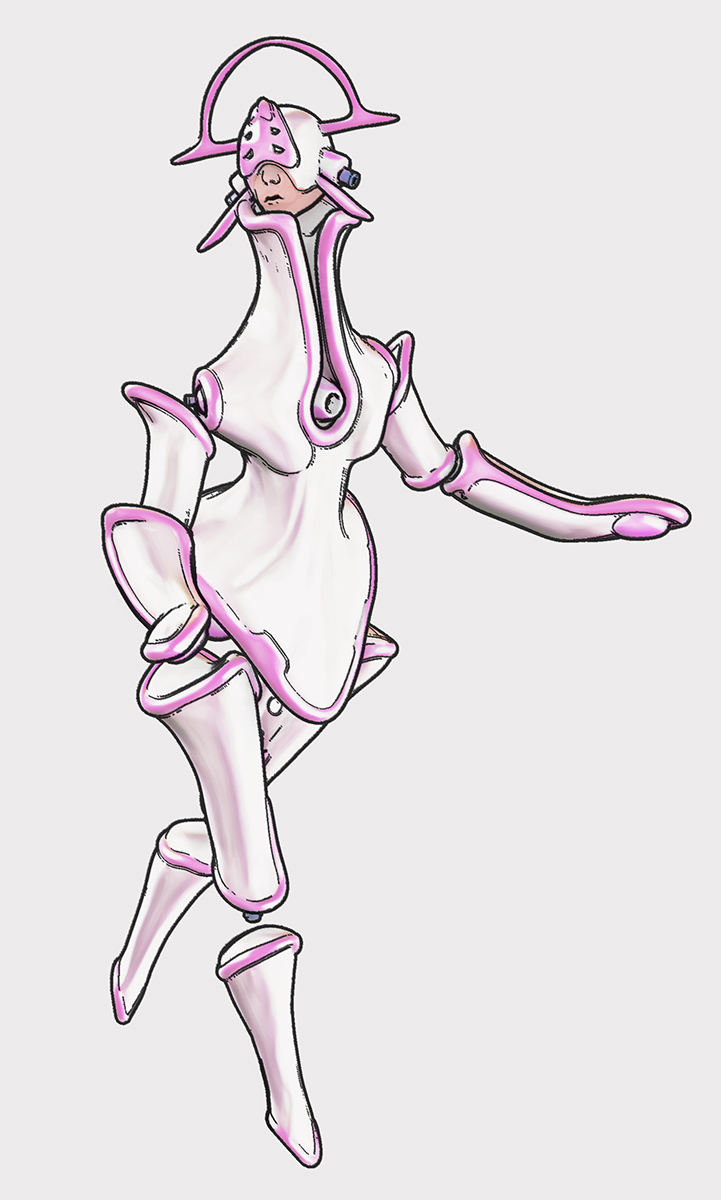
Finally, you might then select a good small inking brush, to manually add just a few completely new hand-painted lines. You can also erase any bits of the inking you still don’t like. Here that’s been done, especially fixing the mouth. The sketchy dotting on the ink lines is not that pleasing here, in combination with the smooth colour layer, and I could have produced cleaner inks from a straight Comic Book Preview render. But this is just a quick demo. Here I’ve added a filtered colour Preview render layer and a subtle Ambient Occlusion shadows layer from Firefly (which was almost as fast as Preview, since it was only doing light shadows)…
If your graphic novel has 600 frames and the above process takes a minute per frame (even with the recorded Action), plus a few more manual inking stokes just to finish off, then that’s 10 hours of additional work. But that seems a small price to pay for creating nicer ink lines.
Tutorial: Comic Preview output in Flash SWF, and how to get it to PNG
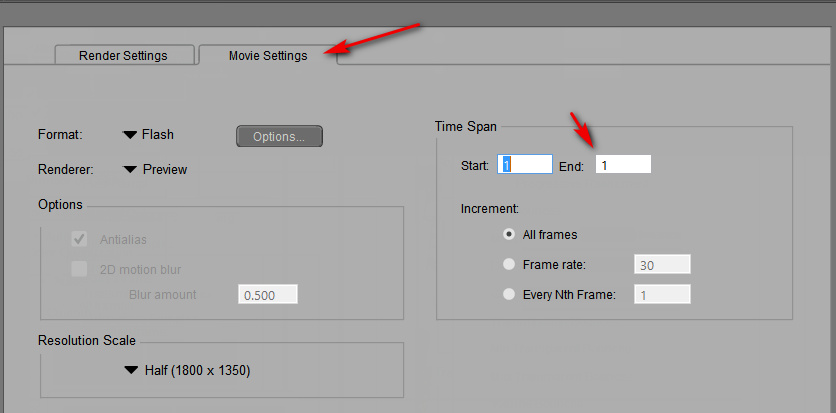
In Poser 11, saving the Poser Comic Book Preview render as a single-frame Flash .SWF movie results in yet another type of toon render. The Preview render is vectorised and saved as a single-frame .SWF file…
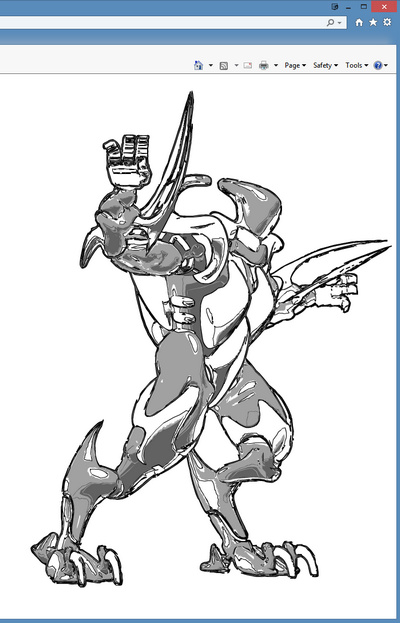
To then quickly test if your .SWF output is viable, you then simply load it in Internet Explorer browser. Even if (very sensibly) you have uninstalled Flash from your PC, the IE browser still has a native Flash-viewer baked into it and un-uninstallable. Though IE cannot then save the .SWF out as an image — a screenshot is all that can be obtained…
If you’re making webcomics that may be all you need. But what if you want it as a nice big .PNG? Well, .SWF is now a obsolete vector format. It was used by Adobe Flash, and Poser’s output of the format seems to be utterly impossible to open and save to .PNG or .SVG using freeware. I tried and searched and test-installed various utilities and possibilities. But with no luck on my test .SWF file output from Poser. Even the free JPEXS Flash Decompiler wouldn’t see the image inside it! And yet, IE displayed it with no problem!
In the end, a trial version of the full Adobe Animate (the new name for Flash) was the only free software that could do the SWF to PNG job and get the proper render out as a result! It is total overkill to install this sluggish Adobe behemoth just to get a PNG, but it works. Here’s the process:
1. In Adobe Animate, open a Stage from a template large enough to encompass your render size.
1. File > Import > Import to Stage > then load your .SWF in.
2. Then File > Export > Export Image. Uncheck “Transparency” and “Clip to Stage”. Save as an 8-bit PNG…
In practice the look of it is not that much different from a normal PNG from Poser. But, as .SWF is vector, you should also be able to save it to .SVG for editing in the likes of the open source Inkscape and (now also) Krita. It appears that one can do that from Animate, by using Tom Byrne’s free Flash2SVG plugin. Although I didn’t test that for this tutorial. But this should mean that one could export as vector just the ink lines from a Comic Book Preview render, then apply a radical new style to those lines at the click of a button.
Hopefully we’ll get a simple native .SVG vector export in Poser 12, to replace the old .SWF export.
Tutorial: Poser Sketch dimensions and custom presets
Sketch presets in Poser require the render dimensions they were made for.
For instance: you render a Preview to 2800px, to set the canvas size, then switch over into Sketch Designer with Crtl + Y. Sketch Designer thus loads with a big 2800px canvas and lets you design Sketch presets for that size of render. These saved presets should be saved with a title that indicates their required output size and requirements. For instance – “Horror inking at 2800px – Skydock light – no CBM on” (seen below).
If you then start Poser another time, and try to Sketch render with the same preset — but to, say, 3600px render size — then part of the sketch effect will be truncated at the edge that is ‘expected’ by the preset. As you can see here…
The lines will also look different. Here they are more closely packed than the looser preset was designed for, because they are being run onto a larger canvas.
Test: effect of Display Style on Poser’s Comic Book Preview b&w inks
A demo test of the effect of Display Style on Poser’s Comic Book Preview b&w inks.
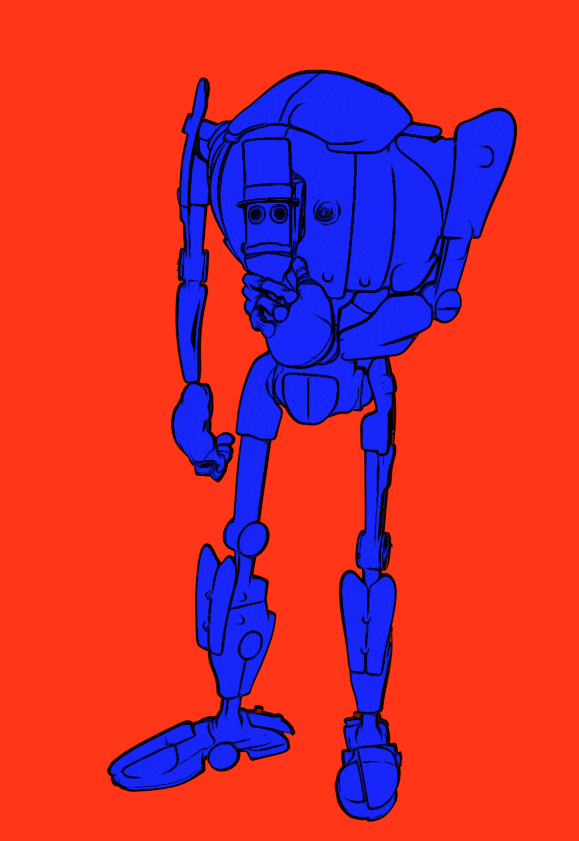
The starting renders shown below were obtained under the standard default old Poser light preset, and this only had the shadow maps on its Preview lights boosted up to 2048. The figure is the standard free robot that ships with the Poser free content pack, and is totally un-optimised for tooning. (If you save ‘2048 shadow’ lights, label them ‘do not use with Firefly’ – as lights with that setting will reliably crash Poser when making a Firefly render with them).
Poser 11’s Comic Book Preview effect is turned on, and set to b&w inks only.
With ‘three tones’ set:
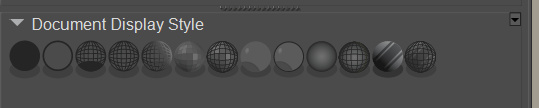
1. Texture Shaded Document Display Style.
2. Smooth Shaded Display Style.
3. Cartoon w/Line Display Style.
4. Silhouette Display Style.
With just ‘one tone’ set:
1. Cartoon w/Line Display Style.
This appears to be a useful melding of Comic Book Preview and Firefly’s Toon Outlines, but in real-time. As you can see below, only a very few of the Toon Outlines lines are missing from this.
Firefly render with Toon Outlines output only. All edges are inked. For comparison.
Interesting finding: clicking again on an already-set Document Display Style button subtly resets the Comic Book Preview inking lines. If you have “weld” turned on, it does this in a slightly different way each time you re-click, and the changes to the lines can be seen in real-time.
This potentially has negative implications for those making animations (re: ‘edge flicker’), but could be a useful feature for comics makers to note.
Possibly the cause is that the OpenGL Preview is being just a bit ‘loose’ with its real-time line calculations, and not spending computational time on finessing them to perfection?
Review: FlowScape 1.0
FlowScape by PixelForest. If Vue was real-time and fun…
Price:
Very nicely pitched. It’s a $10 purchase ($12 if you’re in the UK, as a whopping 20% sales tax is gouged). Download is 1.1Gb for the current version, and it downloaded smoothly via my Web browser.
Why?
The developer states…
“I made this because the learning curve for doing this kind of stuff in Max / Maya / Unity / Unreal is very high, so I wanted to create something for people who are not technically inclined or just don’t want to learn massive software to be able do this.”
It’s a newly released version 1.0 and there’s no import or export, just screenshot output placed into the same folder as the install. But that’s fine by me, and for those who just want backdrops for compositing wildlife and prehistoric pictures in Photoshop. Or 2D overpainting of 3D, without all the hassle and fiddling of 3D setup in full 3D landscape software.
Asset export:
No. Though I presume that renders made from it are royalty-free, and that he’s using self-made and/or CC0 public-domain landscape assets. It doesn’t look like he’s licensed SpeedTree, as the similarly real-time World Creator landscape creation tool has. Which means that export could be an option for a future FlowScape feature. For now there’s neither import nor export, but the developer is apparently working on import.
Terrain sculpting:
At present it’s not any kind of terrain sculptor (for which the nicest and cheapest solution for fantasy/sci-fi scenes is probably currently the $20 Bryce), although you can pile its big stone blocks together and create a massification that way. Default terrains in FlowScape are fairly small, but that’s fine since it presumably keeps the speed up. The low-lying land is mostly going to be covered up by vegetation and water anyway. Asset import will diminish the need for terrain sculpting.
Genuine real-time:
Yes. This is genuine “What You See Is What You Get” real-time rendering which uses a videogame engine. So you benefit from having a good graphics card, sufficiently powerful to play modern videogames, in your PC. I could run it smoothly at 1920 x 1200px, with onboard graphics only suitable for very average 2016 PC gaming. FlowScape was still very responsive, even though I was only getting 10-15 FPS.
Addons:
Winter scene assets are reportedly planned. The developer might also think about a prehistoric plants pack for the dino artists, although most of them already know how to do 3D I guess. Possibly also space-art assets for alien planets. A line of paid add-on modules would be a way to expand the sales:
* Winter/Christmas.
* Prehistoric.
* Alien Planets / Beautiful Deserts.
* The Shire (the English countryside, gates, stiles, walls and suchlike).
* Game World (like some of the ‘platformer’ games, but I mean the art-game type rather than the cheesy ‘naff toon/Sonic‘ type).
* Utopia Beach.
This might help keep the focus on fun for both the developer and the users, rather than adding technical ‘pro features’.
Documentation:
There is no user manual yet, but it’s a fairly self-explanatory interface. There is only a useful Tips and Tricks page, with advice on how to delete stuff you’ve added, and change camera FOV.
Initial roadblocks:
The main initial problem is that it works like a game and not like Windows software. One thing that completely puzzled me at first was how to break away from the isometric view and level the horizon in the camera. This was the very first thing I wanted to do, but… how? I eventually realised that my StrokesPlus mouse utility in Windows was preventing FlowScape’s ‘right-mouse and drag’ camera adjustment from working. Turning off StrokesPlus meant that I could get down to a normal-looking horizon view with clouds.
Trying to add a layer of water to the scene irrecoverably replaced the existing scene with a new and unwanted one. There needs to be a “Do you really want to replace your entire scene?” warning about that.
Workflow:
As with all videogame-based Unity/Unreal ‘software’, the camera control is initially horrible… if you’re used to 3D software like Poser. The routine, on being faced with a new terrain in its default zoomed-out isometric view, is:
1. First ‘dress’ your terrain fully while in this zoomed-out view, which is the easiest way to do it.
2. Then “Forward arrow” on the keyboard, to zoom in approximately.
3. “Right-mouse + drag” to tilt up, so that you have proper horizon view.
4. Then press the “Q” / “E” to lower and raise the camera to near the ground.
5. Then make fine movements to get the exact artistic angle. Remove elements as needed, to improve the view.
Ideally there would be a one-click sidebar icon to make this move automatically, to get you from ‘layout isometric’ to ‘artistic-picture levelled’ without so many clicks…
Scrolling the mousewheel adjusts the size of the eco-painter brush, which is the next big thing to learn. You can also delete environment elements quite easily, and it looks like you can also scale them. I’d like stuff in the scene to temporarily turn red or something, when I select it, so I know that it’s been selected.
Depth fogging:
Yes, and it works nicely. Fog distance can be set independent of the basic set of Atmosphere presets. I set a fog distance and it was “sticky” even when I changed Atmosphere presets. The Atmosphere presets are fairly limited, and there’s no Bryce style range here.
Panoramas:
Sort of. It would be nice to have a “pin the camera on a tripod and take a series of slightly angled screenshots” option, so you could then stitch them together in paranorama software to get 6k images. A future paid 360-VR panorama capture module might sort that out.
Screenshots:
Currently limited to your screen size. But I’m guessing that in future implementing Unity addons such as Instant Screenshot should allow scaling up of screenshot output “without loosing output quality”.
I’d also like to see the commercial usage status of screenshots clarified by the developer.
There’s a Reddit to post pictures on, where you can see people are already finding arty ways to use it.
Conclusion:
Even after 90 minutes with it, I can see that it’s a nice new tool for quickly making a lush landscape backdrop without needing a five-hour render. At this budget price and relative ease of use it will appeal to a wide market and the user base should quickly generate a set of tutorials videos and other documentation.
Demo:
First raw picture made with FlowScape:
After adding some male and female Bolladon from Poser into the scene, and sticking it together in Photoshop:
Updates:
* Version 1.01, early Feb 2019. Now does 8k screenshots.
* Version 1.1, mid Feb 2019. Castles, houses, cliffs, rolling fog.
Tutorial: How to remove “the speckles” on a Poser Firefly close-up render
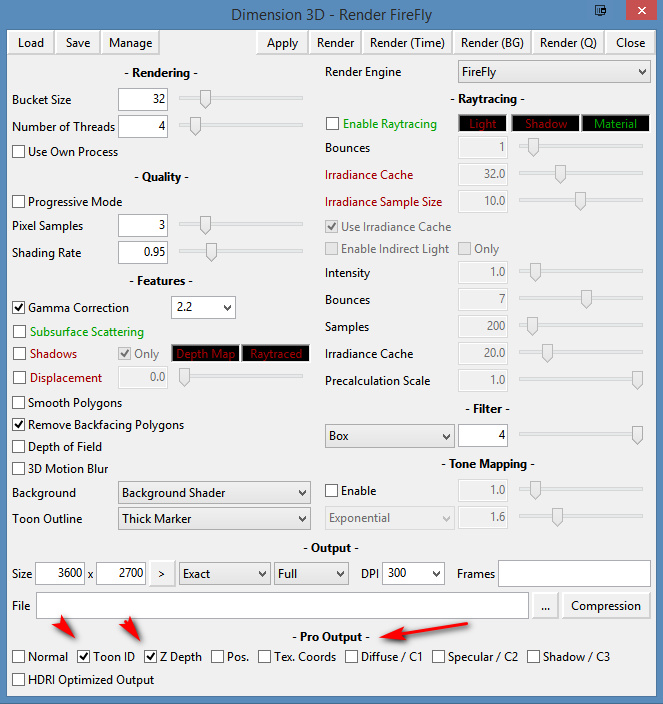
How to remove “the speckles” on a Poser Firefly close-up render, when using Toon Lines only:
An old-school Poser Firefly ‘toon outlines’ render can still be a useful output from Poser. Every single line in a scene is rendered uniformly, which in Photoshop may help you to selectively fill in gaps in the Comic Book Preview toon ink lines. Also, as I show below, this ‘toon outlines’ render can be pushed through Dynamic Auto Painter‘s “GrNovel” filter to great effect.
First, to demonstrate the speckles here is a render preset for Poser 11 that only gives you “Thin pencil | 2” toon outlines in a Firefly render. For Poser 11 this preset should be unzipped and placed in: C:\Users\YOUR_USER_NAME\AppData\Roaming\Poser Pro\11\RenderPresets — which is where the user-made presets live.
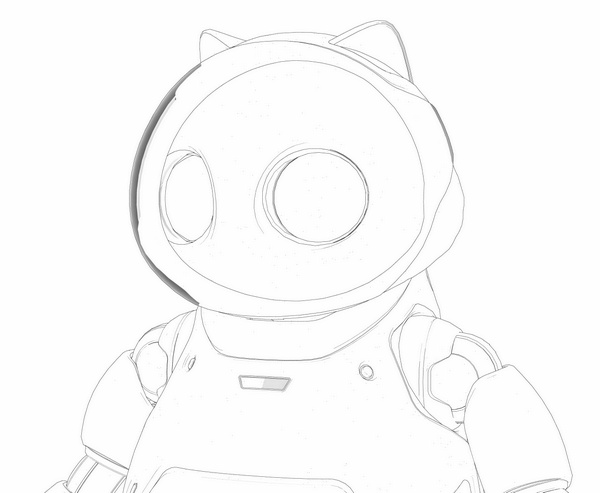
This is what this preset does on a close-up 3600px render of Poser’s Toon Kitty…
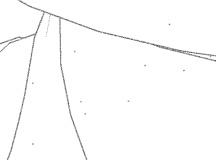
A zoomed-in detail shows the speckles:
As you can see, we have tiny unwanted speckly dots. These tend to appear the closer the camera is to objects or characters, are somewhat uniformly distributed, and are specific to this render mode and close-ups. This has been a long-standing problem with Poser ‘toon outlines’ renders.
You may not even notice these speckles, when looking at the PNG render. Until they are picked up in the render by image-processing filters, such as DAP’s “GrNovel” filter, when they can either send its effects rendering haywire or cause the spots to be enlarged and become even more noticeable.
These are different from the denser speckles caused by bump-maps on materials. To remove those, remove the bump maps.
Thus, a quick way to clean these unwanted speckles is needed. Are we going to clean them by hand? Hell, no! We can do this in Photoshop, which has the native: Filters Gallery | Filter | Brush Strokes | “Accented Edges” (which is to be preferred over “Dust and Scratches”).
On a large 3600px PNG render, try an Edge Width of 2, Edge Brightness about 24, Smoothness 4.
There are two options here, with the “Accented Edges” filter:
i) hold back the Edge Brightness to 24 and the speckles are not entirely cleaned, but made very faint.
ii) at a setting of 28 you totally remove the speckles, at the cost of making the thin “toon outlines” lines even thinner.
Here we see an “option i)” clean completed…
What possible use could this thin-lined and greyed-out mess be? As you might think. But such thin lines are not a problem, if you can then run them through something like DAP’s “GrNovel” filter which has no problem turning thin lines into fatter ink lines. Indeed, it seems like the thinner the lines, the better this DAP filter likes it. It’s like it’s expecting to work best on something like what we are giving it, a scan of thin pencil-like lines that need to be nicely auto-inked. Clearly, pencil line-art was one of the main intended targets for “GrNovel”, rather than photos.
Here’s the DAP “GrNovel” preset, at the default 2600px, run on those faint and greyed lines seen above…
A few of the speckles remain, but are hardly to be noticed even at 100% view. A harder clean would have removed them entirely.
Note that there’s an easily-missed setting on the DAP sidebar to get a bigger render out of DAP, suited to your original render size. You don’t have to accept the default and then use DAP’s native up-rez function.
This pseudo hand-inked render can then be used to augment a Comic Book Preview render from Poser, thus combining the best of both in Photoshop. Using Quick Mask mode it’s easy to paint on details you want to retain in a layer, then quickly delete the rest (Hit “Q”, paint on details with red paintbrush, hit “Q” again, then hit “Delete”). Both inks layers would first, of course, have had all white removed.
Your Comic Book Preview render’s inks-only layer could also have been run through DAP’s “GrNovel”.
Regrettably, DAP is standalone Windows software and thus doesn’t run as a Photoshop plugin. If it did, then the entire process could be automated as a Photoshop “Action”. (Update: I now see there’s a Photoshop plugin version, but it can’t do exactly the same effect as the standalone).
Update, December 2019: Dot-speckles, aka stray pixels, on lineart can be cured with the free Paint.NET software and the plugins Remove White and Stray pixel remover plugin. It’s not ideal, not being for Photoshop, but no-one seems to have made a stray pixel remover for a 2019 install of Photoshop.
PDFs in DeviantArt
It’s possible to embed a scrolling PDF at DeviantArt, and have a download button for the PDF file show up. Who knew?
Whoot to Wootha!
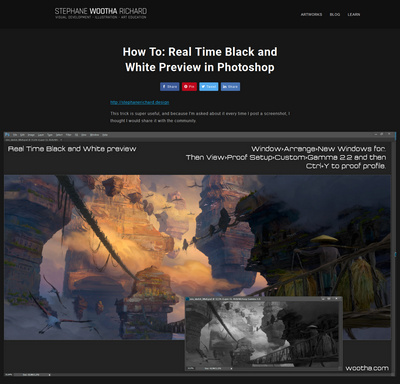
I’ve never seen this one before: Setup a Real Time Black and White Preview Window in Photoshop. Very useful for digital painters. Sadly the setup process can’t be recorded and then run as an Action (I tried), but you’ll probably memorise it once you’ve done it a few times.
Another way to quickly colour Poser lineart
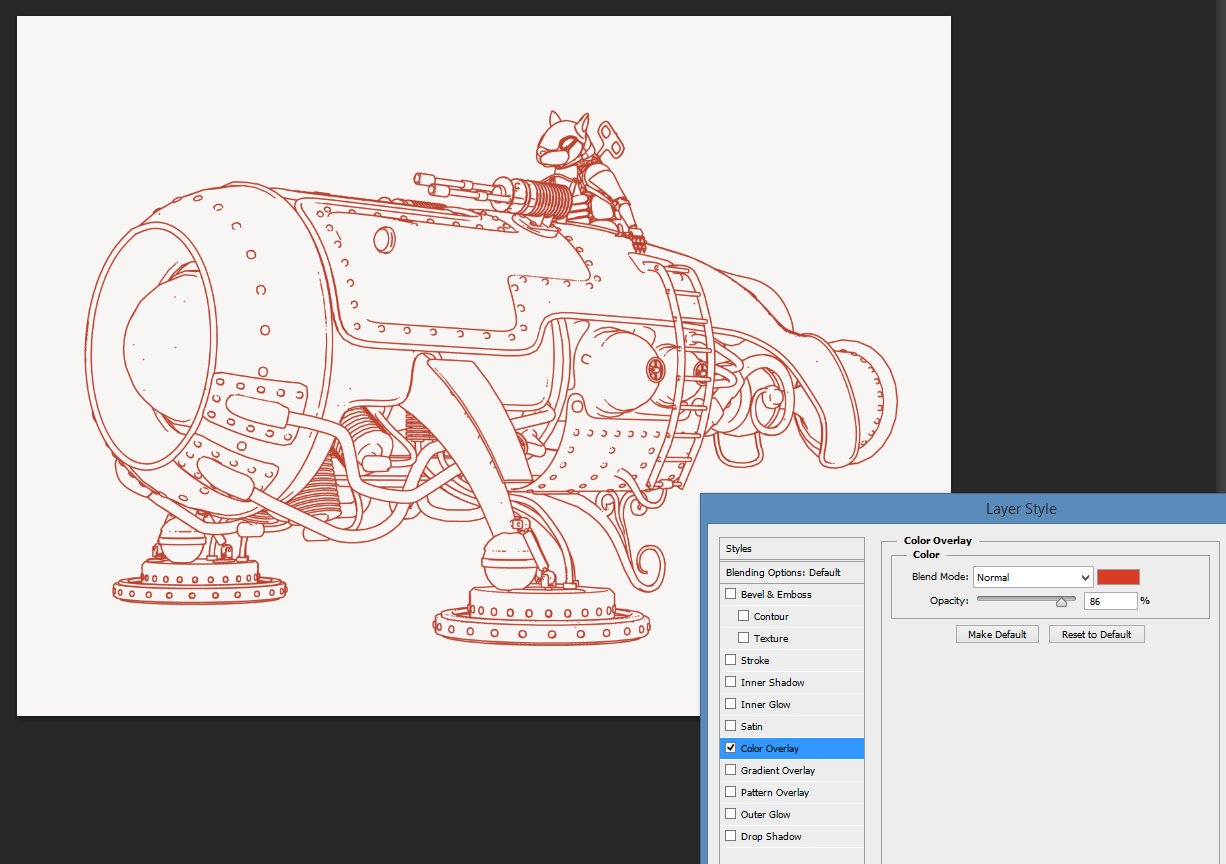
Here’s another way to quickly change the entire colour and/or line style of Poser’s Comic Book Preview or Toon Outlines lineart. It’s not the same as hand colouring with a soft brush, to partly match the colour flats layer beneath – but it’s a quick way to get the ink line colour away from black. It uses Photoshop’s Layer blending mode.
1. Open Poser’s render of your ink lines, in this case a simple toon outlines render.
2. Run a Photoshop Action on the layer that knocks out the white, leaving only the black lines.
3. Add a new white layer under the lines, so you can keep on seeing your lineart properly.
4. Top menu | Layer | Layer Style | Blending Options | tick Colour Overlay | click on Colour Overlay to open its controls.
5. Adjust the colour and settings of Colour Overlay, to taste. In this example I’ve had the ink lines become red…
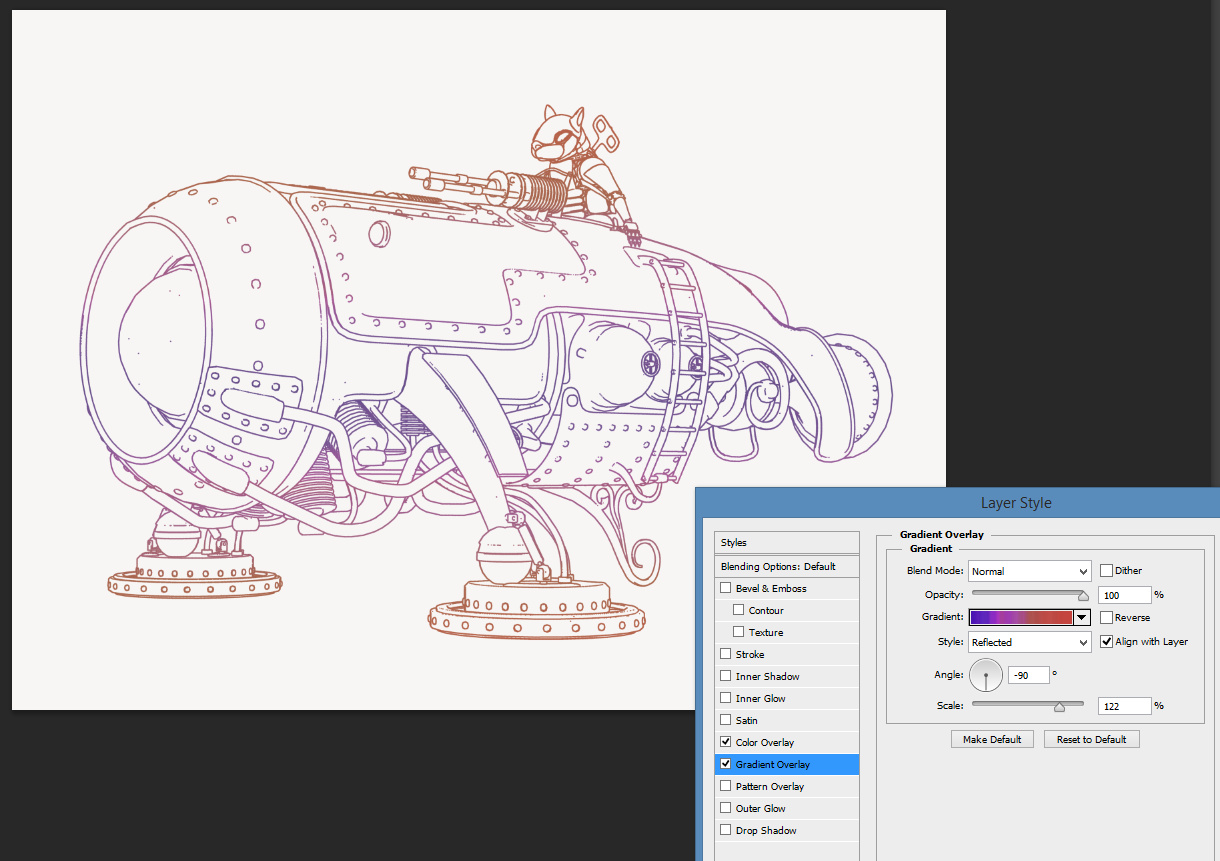
You can also simultaneously apply the next Layer blending mode, Gradient Overlay…
The stacked blending mode can be saved as a preset to the Styles palette, from where it can be easily applied to other lineart.
90-minute webinar on Poser for comics production
A new free 90-minute webinar on using Poser for comics production, “How to Create Graphic Novels and Anime Art Using Poser Pro”, from Digital Art Live and Smith Micro. It’s on YouTube in 720p. This is the second of two versions of the same webinar, presented by Tasos Anastasiades. The first run-through had some glitches, but this second one is excellent.
There’s also an in-depth interview with Tasos, to be found in the latest (Dec 2017) free monthly magazine from Digital Art Live.
Tutorial: how to make an easy pencil sketch with Poser
Poser’s Sketch Designer module probably doesn’t get as much love as it should do. It’s been around and unchanged forever, which means that most Poser users last took a serious look at it a long time ago, when running on underpowered PCs and a crash-prone Poser version. Sketching took forever, could easily crash your PC, and the render size was insufficient to do much with. Most people seem to have forgotten the Sketch Designer is even there. If they do try it, they try the official presets and find that most still take forever and still crash your PC.
But there’s a whole lot that can be done with it, and with super-quick rendering times, once you break free of the presets and work out what the sliders do. Learning how to turn off background sketching is the biggest time-saver. This done via: Background tab | Opacity 0% and just-in-case bring all the other sliders down to 0% too.
Ignore almost all of the official presets.
Turn off background and brew your own presets.
There’s also the fact that Sketch Designer results can now be quickly improved with some fairly recent additions to Photoshop’s features. For instance, here’s how to quickly fix the output from the plain vanilla “Sketch” preset, using Photoshop CS6 and higher. Here I’m using a flat IBL light, and I’m in Comic Book Preview mode in Colour with lines turned on. Basically, the scene is about as flat as it can get, though admittedly we’re still getting some indication of shading from the character’s materials.
Then we run Sketch Designer’s standard “Sketch” preset on it, after turning off the preset background and turning the sketch lines’ Opacity down to maybe 40%. If you were trying to sketch a creature with a dark material, such as a dinosaur, either re-texture or set opacity much much lower.
This is the result in a 2400 by 1800px render size in .PNG format…
You could also experiment here with turning Depth Cueing on, to see if you get fainter pencil lines further away from the camera.
Then load the PNG render in Photoshop, apply Smart Blur followed by Surface Blur, then finish with a little bit of Noise. Sketch Designer’s strange swirly-whorly Sketch patterns now look like graphite pencil shading and some artistic smudgery, but we’ve kept the linework un-blurred…
The addition of Noise is a quick and clunky emulation of paper texture, but you could omit that and blend onto a real paper texture. In that case, you might not want to lower the Sketch preset’s opacity quite as much as I have in this example.
You might also add the original Poser Sketch layer back on top as a 50% blending Photoshop layer, then go over it with a big soft Eraser to remove the knots in the whorls and just leave what looks like ‘a trace of pencil strokings, here and there’.
The only problem with Sketch renders is that when you save the render to .PNG it is not masked. But there are multiple other ways to get the mask from Poser.
Poser: tweaking Geometric Edge line colour for comics
Following my recent Poser lineart colour tutorial, many thanks to Mike Mitchell for pointing out his “Noir Style Tutorial, Pt. 8 – Step 3: Edit Materials” blog post. Mike’s post usefully points out that Geometric Edge line colour can be easily edited, in Poser’s Materials Room.
This works, but on its own it is not all that useful for my suggested Photoshop-oriented workflow of “colour flats + shading + linework” as layers. Because it can’t be applied in the Comic Book Preview mode’s B&W setting, only in its Colour or None setting. Here it is with Colour on…
And with B&W on…
As you can see, the bright green line just isn’t being picked up when B&W is turned on. Nor does it help to switch Poser’s overall Display to one of the Cartoon Display modes, or to render in Firefly with Toon Lines on. Nor does it help to use a shade of grey for the green line.
Mike’s tip would be most handy if you’re tweaking textures directly on the character, in the hope of quickly pumping out a set of single finished/usable comics renders from Poser. I haven’t yet got as far as doing the whole ‘total character materials makeover for comics’ thing — which obviously has huge potential — and currently I’m still slowly exploring the best options for getting multipass renders stacked up in Photoshop. That’s mostly because I want to find a relatively quick-and-automatable way to create consistent comic frames that look like they’re hand-drawn (aka ‘the mythical Northwest Passage to the fabled Land of the “Make Art” Buttons’). “Consistent” is the key word here, so as to avoid two hours per page of colour adjusting and tweaking shadows to get them to look alike in each comic panel and from page-to-page.
However, prompted by Mike’s note I’ve found that there’s an exception and a workaround. Simply switch Poser’s overall Display to “Cartoon w/lines” (three tones) and we get a grey-filled duplicate of the previous B&W mode. No extra ink lines are being added when compared to the B&W Comic Book Preview mode, but we do retain the green outline, albeit initially with a hair-thin black line either side of the green ink line. (I can’t see any way to colour-ramp the line with a gradient, as it has no ‘node connector hole’ in the Material Room. So it appears to me that the Geometric Edge line can only ever be a solid colour).
However, fiddle with the Comic Book Preview dials a bit and the unwanted hair-thin black lines vanish. This makes for a solid colour edge-line which is useful, for instance when used as a Colour blend layer in Photoshop. When we export this as a masked .PNG, then everything else in the render will be grey or black. Therefore it should be possible to either Colour blend or to select-extract just the coloured line. If you just want a solid colour fill on your linework, and don’t want to fiddle with fiddly adjustments layer or blending modes in Photoshop, then is seems this is a quick way to do that. Here’s Darkseal’s Nyla in a nice dark pink line…
There’s no need to make multiple renders for multiple line colours, because Photoshop can ‘Replace Colour’ with ease, or change colour of a layer using Layer Blending modes and Colour Overlay.
Tutorial: How to change Poser 11’s black comic-book ink lines to any colour.
How to change Poser’s Comic Book ink lines from hard black to… any colour you like. You can’t yet do it natively in Poser 11, although perhaps the forthcoming Poser 12 will add a feature to make that happen.
I’m assuming here that you make several quick real-time render passes from Poser. These being, for this tutorial:
i) The Comic Book ink lines from a flat IBL light-lit scene.
ii) The colour flats, with the same light, made by just turning off the same Comic Book mode’s ink lines.
iii) A 3D grey/shadows layer. In this instance, from a simple switch to the old default Poser light preset + set Display as Cartoon w/Lines. (If you’ve swung the camera before starting, make sure there’s a fairly even illumination by having your main light ‘dead-centre’, as you can see happening on my light preset icon). This layer is just used later to subtly add detail to the colour flats. Any good lots-of-shadows layer, suitable to become a greyscale, should work. It doesn’t need to be pretty, so don’t waste time tweaking it.
iv) Then you make an alternative linework render. This is made very simply by switching scene iii) from Colour to B&W in the Comic Book controls, and tweak the B&W dial slightly to get a layer with different lines and more of a 2D manga-like subtle shading to it. The horrible posterision of the shading edges doesn’t matter, as that’s easily fixed in Photoshop. (Though if you want better shadows in Poser, try taking Preview-light “Shadows” up from 512 to 2048). (If you save ‘2048 shadow’ lights, label them ‘do not use with Firefly’ – as lights with that setting will reliably crash Poser when making a Firefly render with them).
Once the two ink line layers are loaded into Photoshop with “Paste in Place”, you can knock out white, blend the two line layers and clean any stray lines and ink in missing lines. Here I’ve knocked out the white from both layers (there’s an automated Photoshop action for that), then used the eraser to clean the mouth ink lines and a couple of unwanted weird lines that were lurking below the helmet edge. I could have done much more to tidy up the linework, but this is just a demo. I then softened the posterised edges on the subtle shadowing ink-lines layer, by applying Surface Blur to the whole layer at 7 | 42.
Under the ink lines is the 3D grey/shadows layer, but converted to greyscale (with a simple Desaturate), and then set to Screen blend at 30%. That makes it blend into the Colour Flats layer below it, softening down the colour layer while also adding a bit of subtle shaping to the colours, but not so much as to provoke an “Ugh, that’s so 3D!” reaction. No watercolour shaders required.
The problem then is that when you turn the two ink line layers back on, over the colour, then the inking looks way too heavy and crudely black. To beautify we need to make the black ink lines change colour. Here’s how…
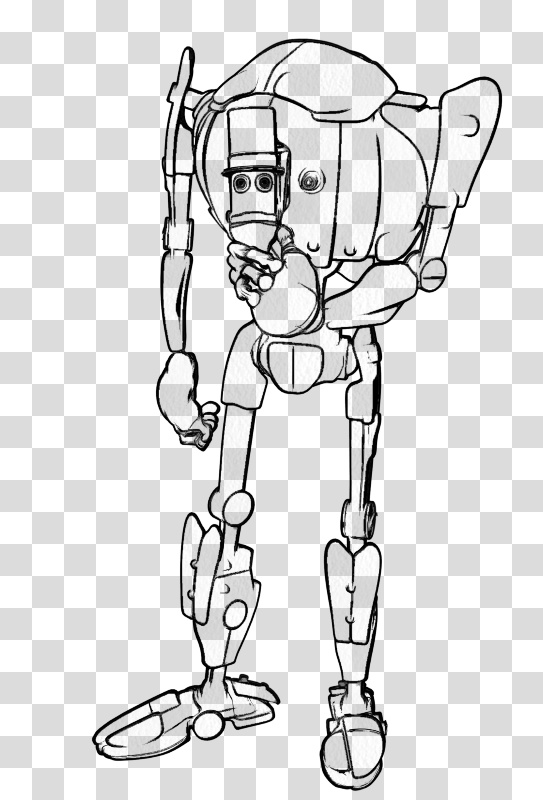
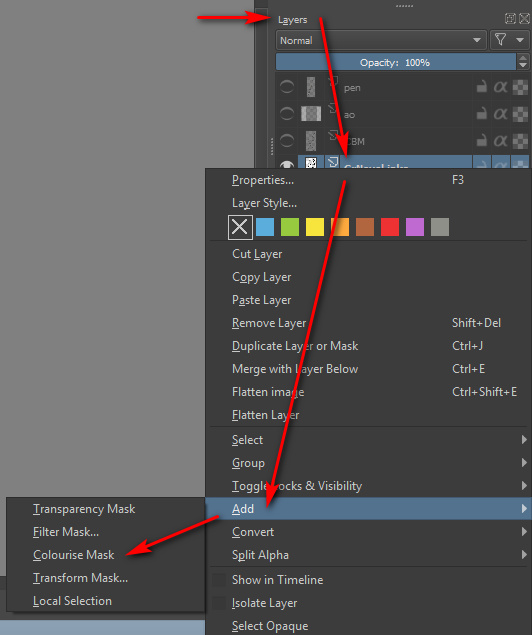
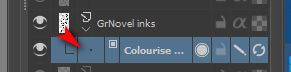
Firstly, in the Layers Pallette, turn off all but the topmost of your ink lines layers. Then click on that layer’s tweeny-weeny little checkerboard icon…
Then select a big soft brush at 100% opacity in Normal blend mode, pick a colour and simply paint over your chosen layer’s black line work. Only the ink lines should be colorised, because we turned on the little checkerboard icon.
Repeat for the next ink line layer.
Here’s the result, with the ink lines coloured up a bit so as to better match the colour flats layers below, and all layers turned on.
In the comic book colouring trade, this is known as a “colour hold” on the line.
The ink line edges are a bit jaggy here because I’m only doing a demo here so have been working with 800px 72dpi renders. Ideally you’d be working with 5000px and above. Even at that size they render quickly, because all the renders come from the real-time Preview render setting.
The flattened final frame can also be art-ified by being run through a Photoshop filter. Note how what was a clunkily-inked nose and mouth now look very nice indeed.
Here’s another and less garish version, with the same filter just run on the base layers and then with the colour layer blended. Still not ideal, as again we’ve lost some of the ‘sci-fi look’ on what was a white jumpsuit, and our carefully coloured ink lines are now shades of dark grey and white. But at least they’re not a jarringly hard black, and you get the general idea.
If you have an additional Poser Sketch Designer sketch-lines render layer, you could blend that back onto filtered versions, for a charcoal line look. That charcoal linework could also be coloured using the technique above. You can also colourise in Photoshop using the Replace Colour option (though not from a hard black) and can use the Sponge to desaturate small areas when a filter causes them to “pop” too much.
Tutorial: how to activate and load Micheal 4 and Morphs++
Here’s how to quickly load Michael 4 (M4) with his morphs in Poser, avoiding a half-hour of “where the heck is it!” searching:
1. First, install M4. Then ‘initialise’ M4 so that he can accept his vital set of Morphs++ morphs. Do this by running DzCreateExPFiles-M4.BAT and DzCreateExPFiles-M4Gens.BAT files which are both found on your hard-drive in your DAZ content directory, likely to be in: ..\Studio\content\Runtime\Libraries\!DAZ Just double-click on each of these Windows .BAT files.
The .BAT files only need to be run the first time you ever install and use M4. After that you don’t need to touch the .BAT again, until you get a new PC or re-install Windows. (I have no idea what Apple Mac users do, as .BAT is a Windows format. I assume Mac users have an AppleScript or something like that?)
Poser’s Library can show more than one runtime. Make sure you have the one containing the M4 selected. Also be sure you don’t for some strange reason have two ..\Runtime\Libraries\!DAZ\Micheal 4 folders.
2. In Poser’s Library, then find your installed base M4 character at – Library | Figures | DAZ People | Micheal 4. Load him to the stage/scene.
3. The M4 Morphs++ are found at – Library | Poses | DAZ’s Michael 4 | Morph Injections | and then look for the INJ Morphs++ M4 icon.
Select M4’s full Body on the stage, then double-click INJ Morphs++ M4 to inject the morphs. Alternatively you can go to ..\Runtime\Libraries\!DAZ and run the .BAT there as DzCreateExPFiles-M4 file.”
Give it a couple of minutes to work. There’s no confirmation that the new dials loaded. But they are there. You may need to select a body part to see them.
You may also want to run the DzCreateExPFiles-M4Gens.bat file which looks like it erm… ‘handles’ the naughty bits, separately.
4. Now randomly select almost any M4 body part and look down at the Parameters dials panel. Under Morphs | Shapes you should now have lots of new Morphs ++ dials for total control of M4. The injection of the Morphs++ worked.
Morphs++ is required by a good number of cool character presets, which in your runtime are usually labelled INJ BODY or INJ HEAD or similar. A youth (middle teens) body morph, for instance, is free at Renderosity as Connor for M4 (in Library: Pose | REC Connor M4).
And of course the Morphs++ dials can still be useful for manual tweaking. Here are the full-body ones…
5. Now save the Poser scene file with your fully morphed-up M4, so that you can quick-start making an M4-based character in future. You probably want to get away from the bland default M4 face as fast as possible, and there are many character heads available.
You may also want the M4 Magnet Fits which injects morphs in clothing, for fine fitting of too-puffy shoulders and suchlike.
The loading process is much the same for V4.


.jpg)