Fantasies Attic has a call for donations of Annual Community Gifts of Poser / DAZ freebies, for release at Halloween and Christmas. Note that pre-release testers are also very welcome.


Fantasies Attic has a call for donations of Annual Community Gifts of Poser / DAZ freebies, for release at Halloween and Christmas. Note that pre-release testers are also very welcome.
A basic DSON test.
1. Load a Genesis character to Poser 11 with DSON. Save scene file. Open it in Poser 12.
2. Switch figure to Unimesh. Ok, working in Poser 12, with morphs. The seams go away when rendering, as before. The slightly off unisex texture also looks more uniform when rendered.

But… the morphed toon figure seen here has a plain Genesis base ‘ghost’ mesh underneath it. Which cannot be selected or got rid of. This remains fixed when the upper layer is moved. This “body doubling” problem makes the whole thing impracticable, as soon as you start to pose or morph the figure. The problem doesn’t appear to be the result of the file paths. For instance, if you put the DSON conversion from Poser 11’s runtime into Poser 12’s then the same problem occurs.
Thus, if you want to use DSON for Genesis 1 and 2 in Poser for line-art, you need to do so in Poser 11. Or if you only want photoreal, then just use DAZ itself.
DAZ renders as camera-facing billboards in Poser could be another option, for background crowd scenes.
The main option for line-art is .OBJ export of a dressed and posed Genesis from DAZ, for which there’s a semi-automated scripted helper ‘Automatic OBJ’ with mesh decimation. This will work with Poser 12, with very little fiddling around. But you can’t do anything further with the figure in Poser, other than angle the camera at it and get the lines for trace-over or Photoshop filtering.
I’ve tested the Vue import of a standard .PZ3 scene saved from Poser 12. Works fine, with a couple of setup caveats.
An older Vue such as mine does not know about Poser 12 and its own dedicated runtime location(s). It only knows about Poser 11 in its Options…

There Vue needs a path set to the Poser 11 .EXE and it also needs to be set to use the Poser 11 SDK. These are easily set, just a drop-down and a file-path. No plug-in is needed, as Vue already knows about Poser and visa-versa. There was a long relationship between E-on and Smith Micro, and the importer was worked on intensively for many years.
Vue presumably needs to see the Poser 11 .EXE folder for two reasons: i) Poser knows about the runtime locations to be searched to accurately rebuild the scene inside Vue, and ii) because Vue has to locate and run the Poser 11 SDK. The SDK is presumably what then does any Poser-Vue material auto-conversions and adjustments that are needed.
Thus for a scene file with Poser 12 content, I find that you must also tell the Poser 11 Library about the new runtime at C:\Users\Public\Documents\Poser 12 Content\Runtime\ (and probably also the P12 ‘Downloads’ if that also has its own Runtime). Give Poser 11 time to index this new runtime then exit.
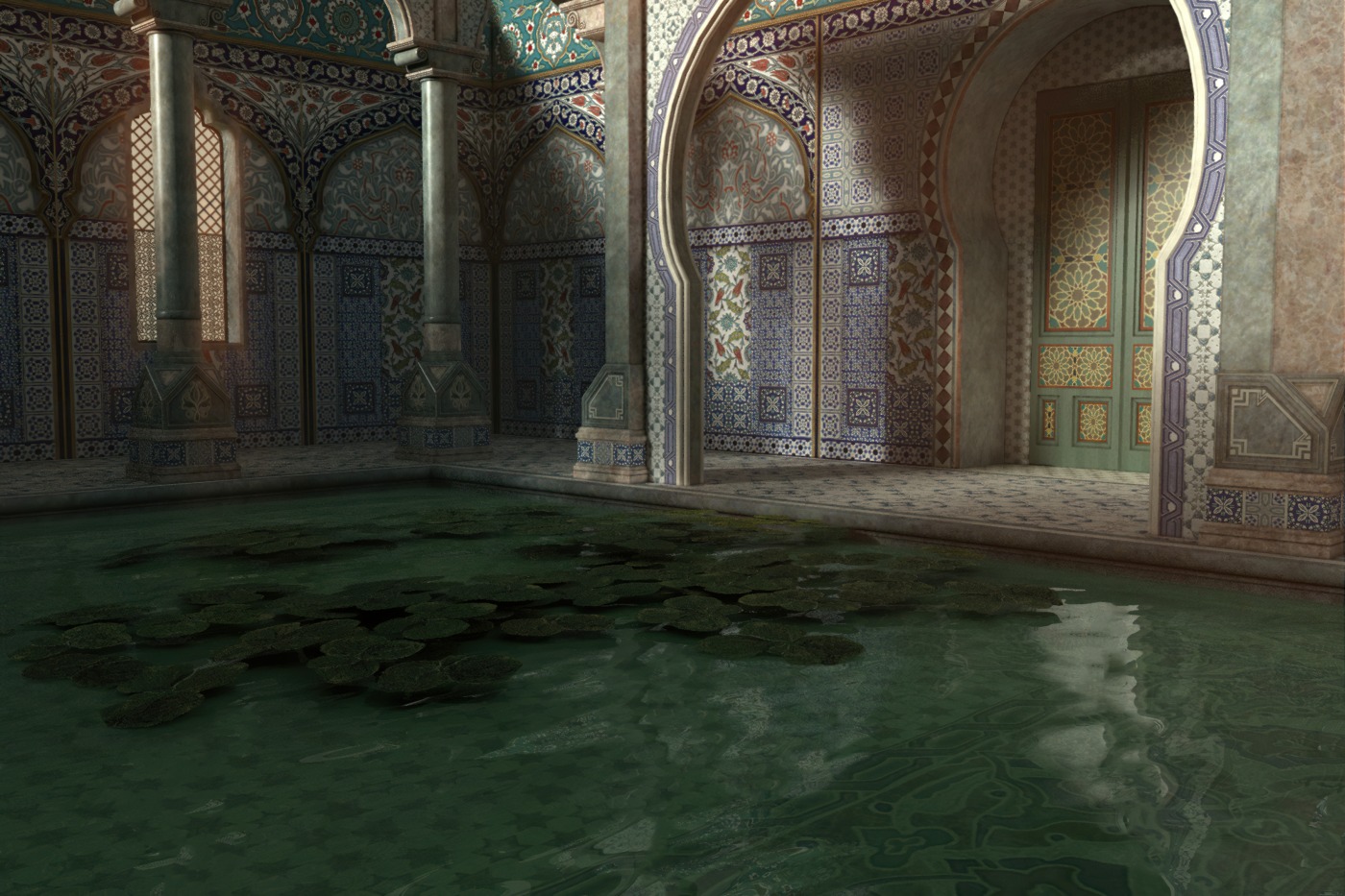
Your Poser 12 content, if saved to a Poser scene file, will then load into Vue. This is done in the usual way in Vue: New Scene | File | Import Object, load the Poser scene file and apply a Vue atmosphere…

Poser 12 content, “Pink 2.0”, in Vue. Real 3D clouds, not a photo backdrop.
It only takes a minute. To Vue the Poser 12 scene file must seem to be just a normal .PZ3 scene file from Poser 11, 2014 etc. It’s just the file paths in it that may differ, if your scene was built using content from Poser 12’s new runtime. If you only build scenes with your regular Poser 11 runtime content, you may not even need the above steps — even though you are importing a scene file saved with Poser 12.
So far as I am aware the Poser-to-Vue SDK has not yet been updated in the new subscription Vue to handle a few of the funky new Blender Cycles 2 (aka SuperFly in Poser 12) nodes. Thus the very latest Poser 12 SuperFly materials with strange funky new Cycles nodes may not convert so well. But Vue has its own fab funky materials to use, and it looks like everything else should work as with any previous Poser-Vue import.
Note also that Vue has excellent exporters… “includes integration plugins for 3DS Max, Cinema 4D, Maya and Lightwave”, though I’m uncertain what would happen to the scene if it were no longer connected to the Poser shader tree via Vue. I guess you try it and see. However, Vue is very capable on its own and a great adjunct to Poser for large expansive scenes that could also benefit from a generous scattering of foliage and some misty atmosphere.
Duplicate and Scatter for Poser 12, a free script meant for low-poly props.
Spurred by today’s release of the free PBR Material Maker, I made a bit more progress in solving the seemingly inscrutable mystery of how to set up PBR materials in Poser. I found a useful official tip from an old La Femme webinar…
“In the Library there’s a thing called Tileables, Superfly Tileables. The image maps that you get out of Substance Painter, you can plug them right into that node and you’re done. You don’t have to do anything else. Just plug those image maps in and you’re done.”
Great. They’re found here in the Poser Library, and I must say the preview thumbnails look distinctly uninviting and un-sexy. Which is probably why I’ve never paid any attention to them…

The examples load and look useful. But I cannot find a way to add the image maps. The nodes are correctly labelled, but utterly without the ability to input or swap-out any new image maps.

I guess that what you do is not replace image maps on the existing setup nodes. Rather you disconnect and delete what’s there at present. So for instance, disconnect and delete “Metallic” and then replace it with a completely new node on “Metallic” which uses (somehow) the Metallic material output from the PBR maker software. Then name the node “Metallic”.
But that assumes you know what specific type of node needs to be added, from the gazillion possibilities, for PBR to work. And then there’s the problem that the nodes in the example above don’t appear to be image-loading nodes at all. Except that they do seem to show tiled images within them.
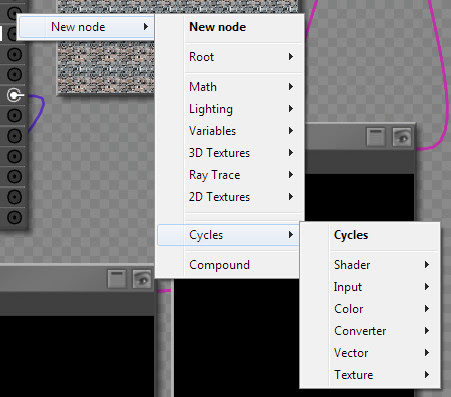
Like I said, a bit more progress… but still stumped.
How to add a simple overlay on top of an existing texture in Poser:

The overlay has not destroyed the original glossy effect, I just took that off manually to make for a simpler demonstration of the nodes.
1. At the top Diffuse node, right-click and disconnect the connector to your current 2D texture. This does not destroy the texture. It’s still there waiting to be re-connected.
2. Right-click the empty Diffuse slot and there plug in a new Math | Color Math node.
3. Set the Color Math node’s Argument to Multiply. Also have both of its values be pure White.
4. Connect the Color Math node’s Value 1 slot to the original texture map.
5. On the Color Math node’s Value 2 slot, right-click and then add a new standard 2D node.
6. On the new 2D node you then load your overlay as a square 2D image source, in the usual way. Pure b&w appears to work best.
Here we have a puny low-res dash-shading overlay for demo purposes. Nor is it even uniform, which it ideally should be…

For dash or hatched-shading of the object you may want to dial this source’s U and V scales down from their 1.0 settings, to something like 0.10 or 0.12, as seen here.
You can save this as a standard material setup, and then just switch the source texture and overlay texture. Obviously you’d use a seamless tiling texture, which I haven’t here.
Of course, it would be nice to have the overlay effect render on its own. There are two ways to do this, that I know of…
1. Also plug the overlay into the Alternate Diffuse, which should be set to white. You then see the change in the Preview. Then render again, in Preview even. In Photoshop, knock white out of the render with an automated Action.

2. Also plug the overlay into the Custom_output_1. There will be no change in the viewport.
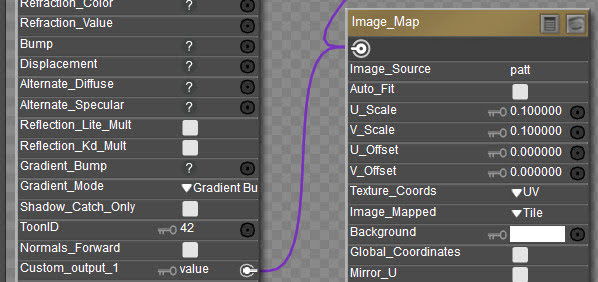
But if you render to Firefly with the following settings…

… and save as a Photoshop .PSD then you get a nice Photoshop layer of the effect on its own…

Yes, ugly seams… but this is just a quick demo. The seams could be fixed.
We still don’t have it in a form where the white is transparent, but any good Photoshop Knock Out White Action will do that.
Of course, it may be possible to just leave the whole current material setup alone, and just plug your overlay shading into the Custom_output_1. I’ve yet to investigate that. Though that would limit you to Firefly rendering only. But doing it that way should be simple and reliable enough for a script to handle automatically.
A new Poser freebie today, a low-poly 1940s scientist / investigator type to populate the background of your Poser scenes. Especially important for noir / pulp-crime comics and Lovecraftian RPG games artists, I’d say.
Once installed, found in the Library under: Figures | !DieselPunkUniverse | Character Male | Agent the Forties.
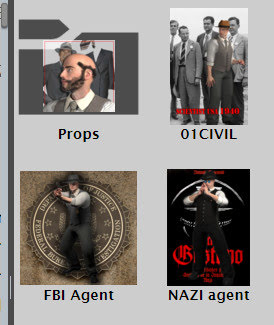
Judging by the poly-reduction tool in Poser (perhaps not a good guide?) the figure is just under 3,000 polys each, including clothes, but still looks good. So you could have 12 of these in a scene, and your higher poly heroes. You could even have a scatter script set to load and scatter 12 of them, and auto-apply poses.
The figure is found to work with poses from the main M3 partial-poses constructor pack (‘Dynamic Pose Construction Set’, no longer sold, found under ‘M3 DynamicsPCS’ in the Library).
The head accepts M3 character dial morphs (seen here is “HdFrankentn”), so you can quickly get away from the ‘stock M3 face’ which everyone goes “ugh!” at. There is absolutely no reason that any M3 has to look like a sad Poser 4 left-over.
Adding a head morph does not appear to increase poly-count, and does not need any prior INJ injected. So basically… poses and head morphs for M3 will all likely work with these figures. Aren’t you glad you kept all that M3 stuff, now?

My raw Poser test renders in real-time Comic Book. Stock Poser light preset.
Welcome to this month’s survey of recent Poser / DAZ content and scripts. Yes, it’s a week early. But I may be busy at the end of the month.
I’m pleased to say that the DAZ Store seems to have fixed their slow loading / no loading problem, which had persisted for over a year. The store is now loading delightfully fast, for me.
As usual there’s no “HD” character stuff here (most people can’t run it) and non-commercial freebies are only mentioned if obvious fan-art.
Science-fiction:
Jepe’s WonderPlantZ 3 for DAZ Studio.

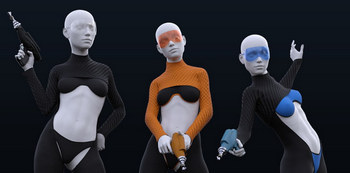
A free Space Girl Outfit for Genesis 8 Female.
The free CyborgHarry for Hivewire Horse. The horse ships free with Poser 12, with both Firefly and SuperFly materials.

A usefully generic DZ G8M ZSuit, though look at Xurge’s future-suits before you buy this.

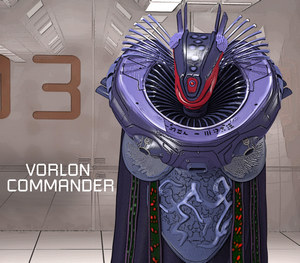
A free Vorlon Alien. Only for non-commercial Babylon 5 fan-art, obviously.
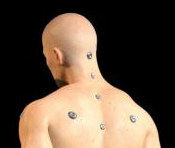
The free SY Body Sockets for Genesis 8. Cyborg body plugs. Now it just needs someone to make the tangle of fitted pose-able connectors.
The unusual alien HF Prystine for Genesis 8.
Steampunk:
Hat Couture for La Femme & L’Homme, for Poser.

The free Syncope Round Glasses for Genesis 8.

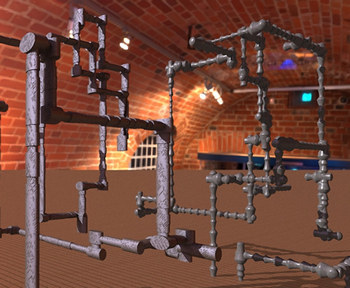
Free Fitted Pipes for Bryce. Ready-made gnarly pipework for a steam-room.
Fantasy:
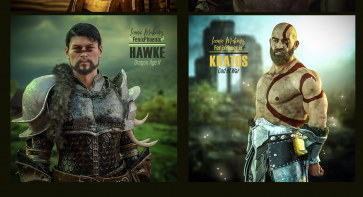
A free pack, FP Iconic Makeups for Genesis 3 & 8 Males. Non-commercial use, but that’s presumably because most of it is obvious fanart.
A free Sandclock, aka an hourglass. For DAZ Studio, and also an .OBJ version.

La Femme Warrior for La Femme and LF Warrior Poses. Pretty good. I don’t care for the warrior thing, but having a more Aiko 3 look for the flagship Poser female figure can only be a good thing.

Storybook:
Sweet and Sleepy Pillows for DAZ Studio. Probably destined for a cushion-fight in this new room for DAZ Studio.

Dynamic nightie for Diva for Dawn, for Poser.

Free socks for G8M, and textures.

Flink’s Rolling Hills – Daisy, new for Flink’s Rolling Hills base. Likely to be home to the naughty Storybook Mole.

Floppy Beach Vacation Hat for Genesis 8 Females, and a more formal straw boater hat in the new dForce Summer Tourist Set for G8F.

Toon:
Almost nothing in toon this month. But over on ArtStation, 20 Stylized Aircraft Base Mesh with .OBJ and .FBX formats. Free, but $25 gets extended commercial use.

A free Marshmallow Man for GM8. Not sure how close this is to a once-famous 1950s U.S. marketing figure, so beware of commercial use.
Hair and character:
dForce Gentleman Suit for Genesis 8. Looks usefully generic.
The DAZ Store temporary freebies page has updated. Capsces pose sets are always worth having, and here we have Ethereal Lady poses for Ninive 6. Also for G2F is the toony The Girl 6 Hair.
A free Telescopic Walking Stick of the sort given out by modern hospitals.
Free stylish Syncope Sunglasses for Genesis 8.
Lusitana. A free re-release of a universal Poser girl from 2011, made to work in “for all Poser versions”. Presumably if for some reason you have to use Poser 4, she’ll work there.
60 x Low-poly hat and headwear base meshes. With commercial use.
Gaming Poses for G8F, a set useful for those needing poses for tabletop role-playing and card/dice games.
Animals:
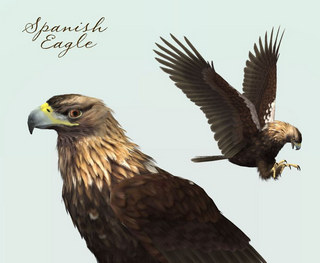
Songbird ReMix Birds of Prey Vol 6 – Eagles of the World 2. A Spanish eagle, among others. For Poser and DAZ.
Nature’s Wonders Lizards of the World Vol. 5. For Poser and DAZ.
Millennium Dog Motions 2 as AniBlocks. I seem to recall that Millennium dog / cat / sheep / lamb etc motions were cross-figure, so they may also work for other early animals.
Landscapes:
Just Beachy – Underwater Kelp Forest for DAZ Studio.

Underwater Seabed for Blender. I wouldn’t normally mention Blender stuff, but this is especially made to be “very light and easy to manage” by the expert maker RaffyRaffy.

Modular 3D Kits: Craterscape by ShaaraMuse3D. Shallow small crater impacts, lots of photoreal detail. For Poser and DAZ. Cover them with ocean and they could be underwater nests.

Modular 3D Kits: Sandwashed Desert Ruins by ShaaraMuse3D. For Poser and DAZ.
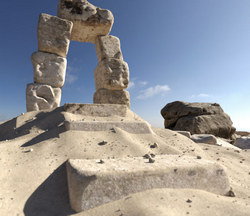
Ancient Ruins – Lost Civilization, a useful set of mixed generic props.
Mega Terrain: Swampland for DAZ Studio. ‘Beware of falling magicians’ (old Morrowind joke).
Historical:
Stonemason’s new Temple Of The Sun, a classical Chinese hilltop town setting.

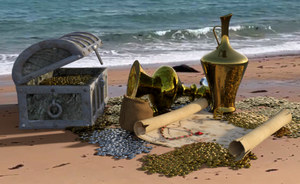
Yo ho! ho! me harties, it’s free Pirate Treasure for DAZ. See also the older free Beach Cave as a setting to try out your treasure. You’ll also be needing your new free Flintlock Pistol, m’ lad.

The Eiffel Tower for DAZ Studio. Annoy ze French copyright trolls…

Free Pilot for Michael 4 set. Appears to be American, Second World War. For Poser.
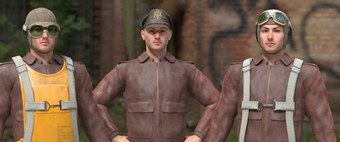
A 1950s female office suit, dForce Basic Jacket Outfit for Genesis 8.1 Female.

Utilities:
DAZ to Cinema 4D Bridge, updated. “Improved UI, better GUI”, and “Basic support for earlier versions” in the form of C4D R22 and R21.
Bone Minion for Generation 4 Poses Bundle and and useage video. Apparently a seamless on-demand pose converter. No need to have a script chug through your 15Tb runtime, for a week. The poses get converted one at a time when you try to load to a figure.
Free Node Navigation Tools for DAZ Studio. DAZ has nodes? Who knew?
dFast for DAZ Studio. Jiggling body-bits for animations, done without dForce… apparently. Don’t blame me if you spend $20 on it and then don’t like it.
A free four-layer iRay shader.
My Technical Search for Poser and Daz Studio, a search-engine for those needing technical information. Now drawing on and searching across 173 sources.
Scripts:
P12 – free Python scripts for Poser 12, my new mega-list page. Poser 12 moved to Python 3, so the software needs these new scripts.
The free SnapTo for Poser 12. A simple object-mover script for Poser 12, and should also work on a Mac in Poser 11 (unless Apple’s Weird Foibles Dept. decided to ban Python this week).
A free Poser 12 Script Starter. A neat little panel to pin stuff to, including one-click render-size settings.

Small script demos on how to Load and Render a Sketch Preset in Poser 11 and Store and Restore Render Size Settings for Poser 11 and 12.
A free pack of Poser 12 helper scripts & a perma-palette, and More Poser 12 helper scripts.
Tutorials:
Digital Comics Creative : Volume 1. A new how-to part-work publication for digital comics makers.
How to Master Material Zones webinar recording, for DAZ Studio.
Expert Compositing with DAZ Rendered Backgrounds webinar recording.
Free, the defunct Artzone Wiki 2012 archive – 50 selected pages that could still be useful for Poser / DAZ people in 2022. The Wiki is no longer online.
How to fix the ever-accumulating lights in Poser 12 scenes. A default behaviour that seems likely to be a key show-stopper for new users.
That’s it for this month. As always, please consider becoming my patron on Patreon. Even pledging a few dollars a month is a great help. Thanks.
 Posted in Companion software, Freebies, Poser, Poser 12, Python scripts
Leave a comment
Posted in Companion software, Freebies, Poser, Poser 12, Python scripts
Leave a comment
adp001’s Fake_poser is now updated for Poser 12. His Fake_poser3a.py “supports editors while writing Python scripts” for Poser. See the free Digital Art Live #56 for a short practical plain-English tutorial on getting the free Microsoft Studio Visual Code editor installed (a good replacement for Notepad++) and then this Fake_poser3a.py installed to run in it and help you with the PoserPython bits.

Also, my P12 scripts page is now many times larger than it was at launch a few days ago. Also my Technical Search tool has grown further as I’ve found older Poser 12 relevant pages, tutorials, scripts etc.
If you want to run a Python script in Poser using an assigned keyboard shortcut, you can.
1. The script must be in the software’s ScriptsMenu folder or sub-folders…
C:\Program Files\Poser Software\Poser 12\Runtime\Python\poserScripts\ScriptsMenu
2. Rename your target script filename in the following format…
my_fabulous_script###Alt+C.py
Use of Ctrl or Shift and Alt are permitted, as are capital letters. Capital letters correspond to a lowercase key-press: e.g. C = c.
3. Close and reload Poser. Try your new keyboard command to invoke the script. Tested and working on Poser 12, and once done you see the shortcut on the drop-down if you look there…

With this in place you can now also use mouse-gestures, tied to a keyboard shortcut… which in turn invokes the script.
It appears that Poser can easily memorize and restore several things using Python scripting commands. Such as lights, camera, figure etc. But not the user’s current render setting dimensions.
Here’s a demo of how to do that in a script. Working in both Poser 11 and Poser 12.
Copy and save as Store_and_Restore_Render_Size_Settings.py
|
1 2 3 4 5 6 7 8 9 10 11 12 13 14 15 16 17 18 19 20 21 22 23 24 25 26 27 28 29 |
# Restore render settings. A demo Python script for Poser 11 and 12. # Save the user's current render size settings for their scene, # do something fab, then restore the user's render size settings. import poser # Tell Poser the script expects a scene to be loaded and present. scene = poser.Scene() # Tell Poser what x,y,z co-ordinates mean in this instance. x = 0.0 y = 0.0 z = 0.0 # Get the scene's current render size dimensions. size = poser.Scene().OutputRes(x,y) # Store that current render size as data in our two named variables. sceneHorX = size[0] sceneVerY = size[1] # Set a new render size for the scene, in pixels. scene.SetOutputRes(600,400) # Do a scene render at that size, with the current render engine. scene.Render() # Set the scene render size back to the stored original size. scene.SetOutputRes(sceneHorX,sceneVerY) |
A useful basis for making a script that does a quick 600 x 450px test render, without affecting your main render dimension settings.
You could probably tweak this to save/restore other settings within a scene.
I’ve been re-listening to the Poser 12 launch webinar recording, and learned a few things…
39:53 mins – the new Cycles 2 “Adaptive Sampling works best with smaller bucket sizes”.
40:27 mins – “Branched Path Tracing works well for CPU renders, but not GPU renders”.
For me this custom SuperFly preset works so well even at a bucket size of 64…
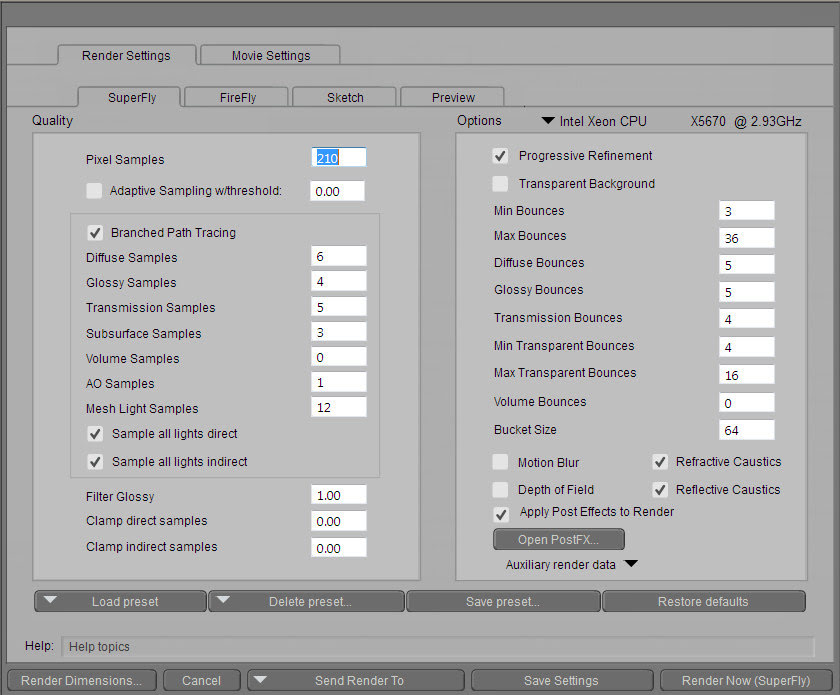
For me it closely mimics the behaviour of iRay. Not sure where I got this iRay-like preset now. One of the forums I think? I don’t know the mind-bending math/theory behind it, but it works for me. Bear in mind that this is for a Windows PC with multiple Xeon CPUs running a total of 24 render-threads, and that “Branched Path” does not play nicely with graphics cards. Your super-powered graphics card may need something completely different.
Of course, this assumes you don’t have awkward old slow-rendering Poser hair bogging down the render speed. Once you have good go-to hair, it’s best to turn it off until the final render.
If lacking hair or other boggers, this superfast preset gives instant pop in like iRay. Quick de-grain too. Fast finessing to reach a usable image. All very iRay-like, which I like. Also works very with Poser 12’s CPU-friendly and very quick denoiser. Manually cancel it after about some 20 seconds, wait a moment for Poser 12’s excellent de-noise to do its work, and you’re done.
Of course, it’s no challenger to DAZ’s iRay after it’s had a dose of Scene Optimiser. Which then lets me run three dressed and hair-ed characters in real-time iRay in the DAZ iRay-driven viewport. But the above Poser SuperFly preset may be of use to some.
Also of note, in the webinar it’s clearly stated of the Library Panel… “You can float it, but you can’t float it outside the app window. I don’t see that happening any time in the future”. But in 2022 this can now be done, and you can now float it over to a second monitor and yet still do drag and drop to the Poser stage.
Well well… who knew? Poser 12 does have a nice External Library panel feature after all. The AIR Poser 2014’s Air External Library works with Poser 12 and can drag and drop across when Windows is running two monitors + set to “Extend These Displays”. AIR is fast and rock solid. It displays an interior thumbnail on folders, which Poser 12 doesn’t yet (despite the manual saying it does). It can also look at a loaded DAZ runtime and automatically filter for what Poser can load.
At first sight the Air Library’s view of the content leaves a lot to be desired, with collapsed grey folders, no grid view for search results and tiny icons. But this can be fixed in the settings…
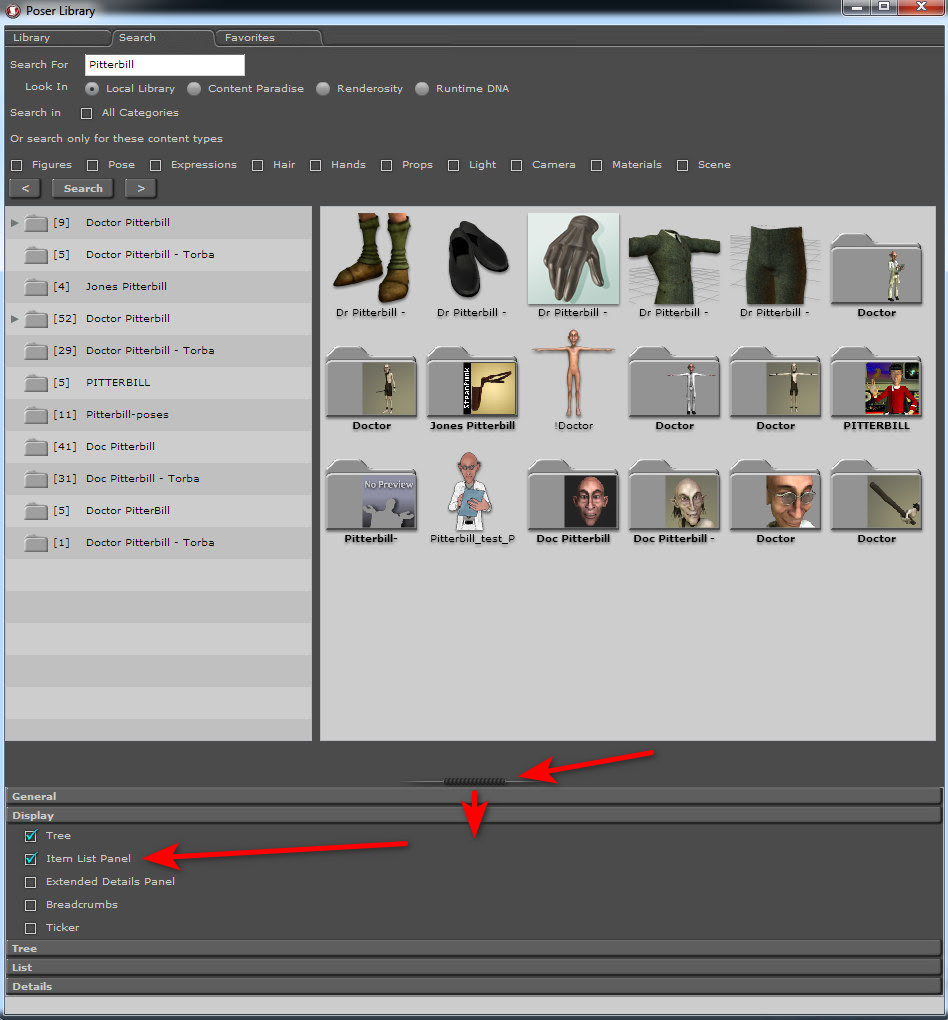
Of course not everyone has an old copy of 2014 or an OS that will let them run Air. Mac users in particular may have problems.
I find you also now do the same with either a detached Poser Library panel (it used to be that it could not be taken outside of the Poser main frame). You can even have AIR and PzDB side-by-side on a second widescreen monitor, and either can drag-and-drop to Poser 12 on the main monitor. Figures, poses, lights, they all work.
It seems this behaviour did not used to be the case. Here’s developer Charles Taylor in the official Poser 12 launch webinar: “I remember when the separate window for the Library came to be. I loved it. But I don’t see us being able to bring it back with the current implementation of the Library. You can float it, but you can’t float it outside the app window. I don’t see that happening any time in the future”.
So I guess he may have been right at that point at the time, but later a way was found and it was fixed? Because you can do it now. Or maybe it can still only be done on Windows and not on a Mac?
Who knew? 2nd Annual Swimsuit Contest at Renderosity. Deadline: 26th July 2022.

Just as the UK’s two days of summer ends, and the rain comes pouring down…
New Poser 12 users may be frustrated by the default behaviour of their light presets. Clicking on a preset light-set adds its lights to the existing lighting in the scene. Until you have a ‘hedgehog bundle’ of lights on the light-ball. Most of which are actually not doing anything in Preview, because there’s a cap on the number of lights that OpenGL can display.
The Poser 12 newbie may think: “Ah, so that’s why the ‘delete all lights’ Python script is needed” and/or “So that’s why some people don’t like using the Poser lights”. Ideally, such thoughts could be avoided if the default shipping state of Poser was that a double-click on a light preset replaces the existing scene lighting.
This can be achieved. But how? It’s quite simple…
Top menu | Edit | Preferences.
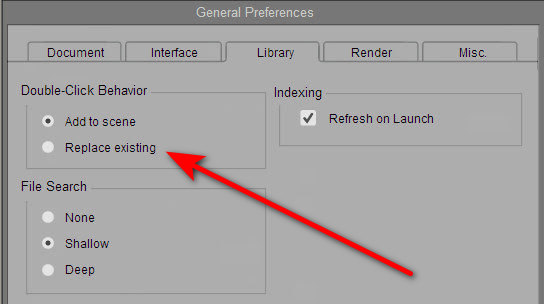
Library Tab | Double Click Behaviour | tick ‘Replace Existing’ | OK.
That’s it. You don’t even need to re-start Poser for it to take effect. Light presets now replace the existing lights, rather than adding to them. You can still add the lights in an accumulative way if you want, but you now do that by selecting the Library light preset with a single-click. Then clicking the double-tick icon at the base of the Library panel…
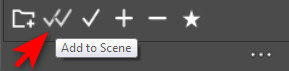
Figures are added in the same way, or can simply be dragged-and-dropped and then they won’t replace an existing figure. Props and MATs can just be double-clicked.
The behaviour is different than in Poser 11, but the above is a partial fix.
New users will also want to set Library search-depth to “Shallow”, to prevent Poser from bringing Poser to a grinding halt and spending ages looking for lost textures on badly installed or made freebies. “Deep” initially, overnight to index all the content. Then “Shallow”.