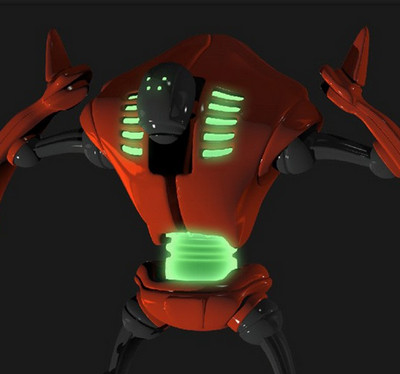
The first look at Elon Musk’s humanoid Tesla-bot, early version. Can’t be long before someone produces a DAZ Studio version…
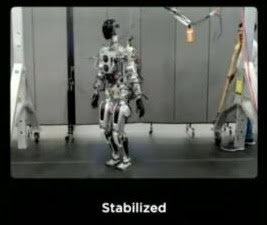

The first look at Elon Musk’s humanoid Tesla-bot, early version. Can’t be long before someone produces a DAZ Studio version…
The Amsterdam Blender Conference, set for late October 2022, is calling for Blender-made films. No deadline that I can see, but… “The list of nominees will be published a few days before the Blender Conference.”
 Posted in Companion software, Spotted in the News, The Animation Industry
Leave a comment
Posted in Companion software, Spotted in the News, The Animation Industry
Leave a comment
Reallusion’s Cartoon Animator 5 desktop cartoon production software is coming soon, and there are offers in the emails such as ‘buy an upgrade and get version 5 free when it appears’. It’s good software for making that kind of animation, especially for a small studio. Professional, fairly easy to use, very well documented and supported. Though you to be aware that you probably need to budget four times the initial ‘sticker price’, if you’re going to fully get into the expensive Reallusion ecosystem with motion add-ons and expansion packs and suchlike.

Starting soon, a six-week coaching course on AI for your art, with Vladimir Chopine.

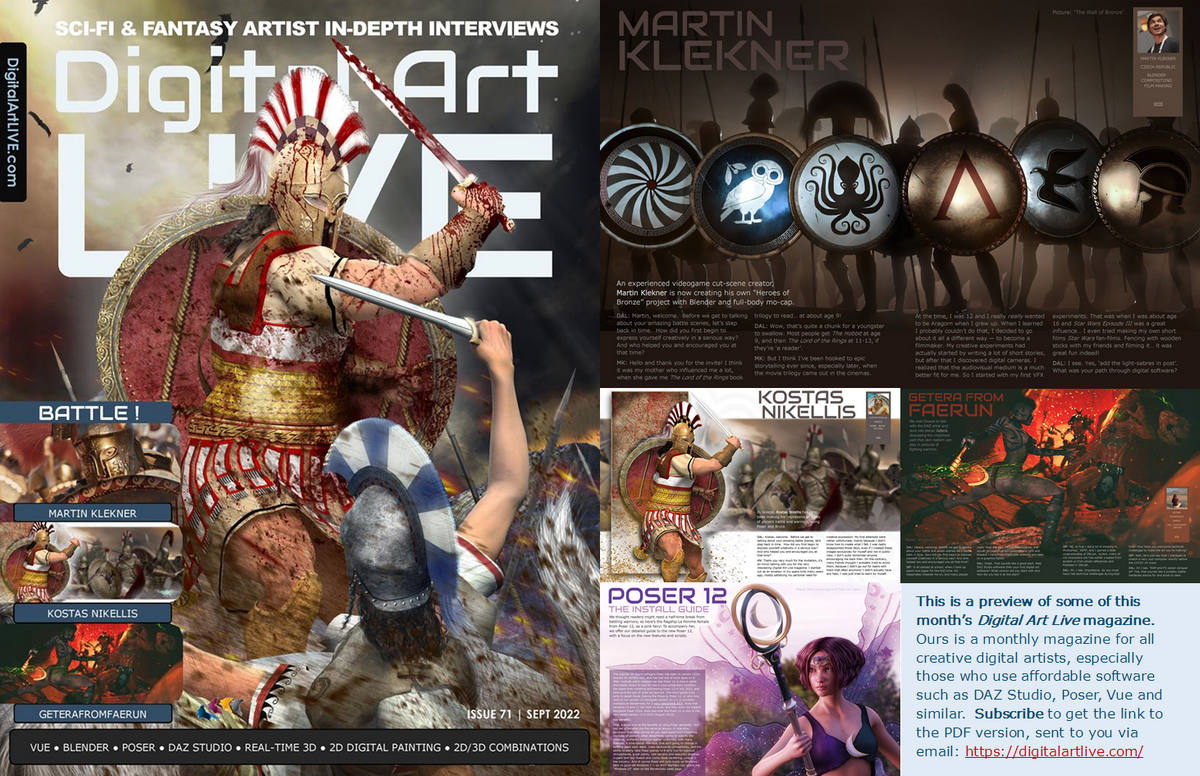
Now available, free on Gumroad, the “Battle” issue of Digital Art Live magazine. Also has a 12-page centre section on the Poser 12 software, to give some light relief in the middle. And a two-page technical primer on Poser-to-Vue.
The DAZ Freebies pages has updated.
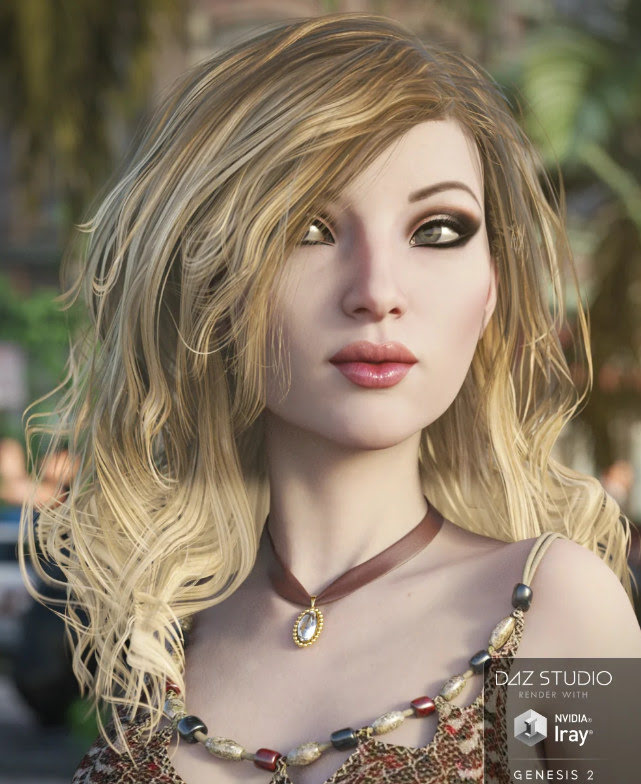
Ninive 6 Starter Bundle has Beach Wave Hair for Genesis 2, and a set of Capsces poses (always quality).
Keiko 6 Basic Poses, suited to thin toony Genesis 2 figures.
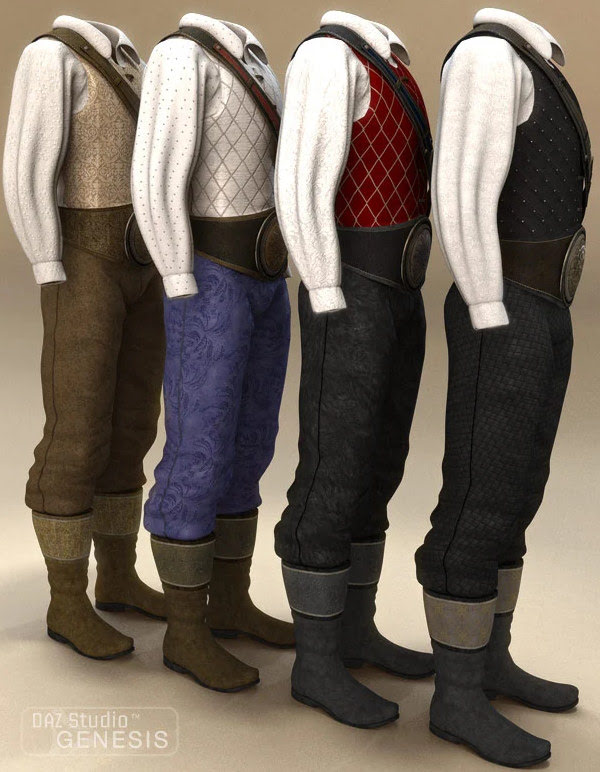
Tale Hero Textures are nice, but require the Sarsa/Val3dart “Tale Hero” (not free) for Genesis 1. The shirt has potential, for hobbits.
An interesting new re-lighting service, ClipDrop – Relight. Requires a 2D picture-upload, and you then get “as-if 3D” real-time relighting.

I’m not sure how well it would work with a picture that doesn’t look like a head-and-shoulders passport photo.
I’m guessing it may also be flummoxed by wild Poser/DAZ stuff, such as an all-action hero cyber-elephant wearing goggles, posed against a complex cyber-city background.
Doubtless this sort of capability is coming to desktop software in a month or two, if it isn’t here already in something I haven’t heard about yet. But this is a nice online demo of the capabilities.
By the way, here is the “Click to replay” code, for the above demo. A few lines of simple HTML for Web pages. I’m surprised people go overboard with massive javascripts just to add a simple animated .PNG control…

Working in Opera (Chrome), Brave (Chrome) and Pale Moon (Firefox). You’re welcome.
Most readers of this blog will already also be members of the free Digital Art Live STUDIO forum. But if not, there’s the ‘joining’ link. It’s a more Facebook-like forum, not the old type.
A fun, relaxed A.I. Generated Art : Community Workshop with Digital Art Live, this weekend. Free and booking now.

Poser 12 has updated. Now at version 12.0.1029 in Windows. The Mac version stays as it was before, for now. The forthcoming Digital Art Live magazine #71 (Sept 2022) has a detailed install guide and guide to what Poser 12 has that Poser 11 doesn’t.
Posted in Automation, Companion software, Freebies, Spotted in the News
Leave a comment
Reallusion have a new free “automatic rigging tool” for 3D characters. Equivalent to Miximo, AccuRIG 1.0 users load a T-pose or A-pose figure and apparently get back a 19-joint .FBX with…
“full-body and finger rigs for biped characters”
Seems to be genuinely free, and independent of the rest of the costly suite of Reallusion software (although it can interface with Reallusion’s ActorCore system).
No mention of face or toes rigging though. So I guess mostly aimed at quick auto-rigging of “low-poly NPCs”, of the sort needed for games. I’m uncertain how many auto-riggers gamer developers already have, but I’d guess it’s not zero. Also, I don’t see any mention that the rig can take standard .BVH mo-cap motions, or your existing iClone motions. But I guess Reallusion will hope to sell new motion packs for the figures.
It’s Windows desktop software that you download, and then ActorCore “free registration” is needed for any sort of export from it. Might be worth trying, to see how well it can do, say… the free Big Buck Bunny rabbit figure from Blender. And then how well that moves in DAZ / Poser, and if .BVH motions work.
But otherwise Poser and DAZ people probably have enough in their runtimes to provide the standard extras needed for a large scene, without having to go all around-about via the .FBX format.
Posted in Companion software, Freebies, Spotted in the News, The Animation Industry
Leave a comment
Pixar’s RenderMan 25 will for the first time feature its in-house AI denoiser, and this is “temporally stable”. Translation: when run on animation frames, this de-noiser is stable from frame to frame. When the frames are run as an animation, there’s no strange wavyness, jitter, or edges popping from sharp to blurred and back.
The devs and artist at Pixar report this feature reduces render times “two to four” times, and it also “has CPU and GPU implementations”.
But ‘what use is this to hobbyists’, you might ask. Ah, well… there will be a free non-commercial edition of RenderMan 25 by the end of 2022. The free version is reported to lack only RenderMan’s “XPU” feature — which is Pixar’s “new hybrid CPU + GPU rendering engine” that many are calling the future of high-end rendering.
Thus it sounds to me like hobbyists could have a pro-level ‘temporally stable’ AI denoiser, free and highly trained on 3D CG frames, by the end of the year. And presumably it will be able to process a folder of animation frames produced with other software. Poser 12, for instance, which has a superb Intel denoiser for stills — but this is apparently not “temporally stable” for animation.
Google is also reported to be working on an AI image denoiser, but it’s still in the Labs. Presumably this will be free and open source when it appears. Part of the larger NeRF from Google, a one-click quick image enhancer.
I cleaned my Kindle Fire HD (2017) tablet. In fact, a new fresh OS install and start over again. The Home tab’s Carousel is gone now, removed by Amazon. But it was jammed anyway, which was part of the reason for the fresh OS install.
New discoveries…
* DroidEdit. A Python code-writing tool for Android, with coloured text theme etc. On the Kindle Fire tablet version of the app store there’s only a paid version. The free version is only to be found on the Web Amazon app store, and once ‘purchased’ there it appears to be sent to your Kindle. But it never is. Oh well. No worries, as Archive.org has a Droid Edit Pro as a free .apk file to manually install. Not that I want to write code on a tablet, but if I gaze long enough at a script I can start to understand how it works. And in such a situation, I need the script to have pretty and consistent colour-coding. I’m a Brummie tinkerer who learns by looking at something that’s actually working, not from abstract ‘first principles’ and theory.
* The free Autodesk Sketchbook appears to be gone from the Kindle app store. But I had it in my Cloud library at Amazon in its £2.50 form and got it again from there. It’s also on Archive.org’s .apk stash as Autodesk Sketch Book Pro v4. Untested from Archive.org, but my old version works.
* No Clip Studio on the Kindle app store, but Archive.org has a 447Mb(!) archived copy of the app from November 2021. I assume this is the free .apk version, and you may well need to sign-in on loading it. Untested as yet. Can it perhaps be less annoying and fiddly than the desktop version? Let’s hope so.
* MediBang’s comics layout-maker MangaName is gone from the store, but can be had here. Although it may make a difference that I had it in my Amazon app library from years ago.
* No Krita on the Kindle app store. I vaguely heard they now have an Android version? But I’m not sure that would run on a Kindle Fire.
* No ToonArt on the Kindle store. I’ve only just discovered it. Such a pity it appears to require ‘face/head and shoulders’, and can’t toon-filter other things. Why is there no Photoshop desktop equivalent, I wonder? Perhaps there are software patents on the AI.
* No AIMP on the store, for playing audio and easy playlist assemblage, but that can be had free from the website.
* In Web search, I found that eTools has a dedicated app on the Kindle store. It’s getting to be better than Google for some types of search, especially hobbyist and professional technical information.
* Microsoft Teams was briefly available for the Kindle HD 10″ toward the end of 2021, but it’s now gone. At least, gone from the my model (2017). The page listing for it can no longer be found when you search the app store from the Fire, only Skype. Microsoft Skype installs, logs in and works fine. Of course, many workplaces now fetishize Teams, but you’ll just have to firmly tell them that you’re ‘Microsoft Skype only’.
Also of interest and found over at the Archive.org .apk stash…
* Pose Tool 3D. Definitely not Poser, and has ugly icons. But it works.
* LongShot, a long-scrolling screenshot maker + stitching app. Works, has a discreet narrow ad at the bottom of the main screen which is easily dismissed. Nothing more worrying than that from it, so far.
* Both Pose Tool and LongShot may benefit from the Open Source Media Merger app which automatically… “moves ../sdcard/DCIM/* and ../sdcard/Pictures/Screenshots to user specified folder”. Works fine. Takes a moment before the file is transferred to your chosen folder. Can be turned on and off.
* Four ‘vintage camera effects’ apps were tried, but all failed. The Open Source VectorCamera also failed, even the latest from the maker’s site. Wrong type of camera?
* The old Samsung Paper Artist app also failed. But it’s from a decade ago, now.
* I couldn’t find a free pixel-art / voxel-art app that also offered an isometric view/grid. Just ‘icon-maker’ type apps.
* Surprisingly, nor are there any fractal creation apps on the Archive.org .apk archive. Possibly they’re too computationally demanding for Android? Or maybe they just have the sort of obscurantist names that the desktop software has, so I can’t find them?
* No Carousel replacement, that simply does “Newly-arrived documents + cover thumbnails + sliding carousel” and then launches the selected item. Such a thing does not seem to exist.
Time for another survey-pick of what’s new in content for Poser and DAZ, since it’s been a month now since the last one. I’m looking here at the tail end of July and most of August. As usual, freebies are listed only if “commercial use”, and there’s no “HD” stuff. Fan-art is listed only if obvious, such that you would not think to try to use it in a paid comic etc.
Science-fiction:
Colony Motorbike with both Firefly and Superfly materials.

A usefully generic Worksuit for G8F. Could probably be made silvery for a more futuristic feel, and could then serve as a rider suit for the Colony Motorbike.

Moonbase Wig for G8F. Jerry Anderson’s UFO TV-series fan-art, but obviously so. Also a MoonBase Uniform DS Texturing guide.
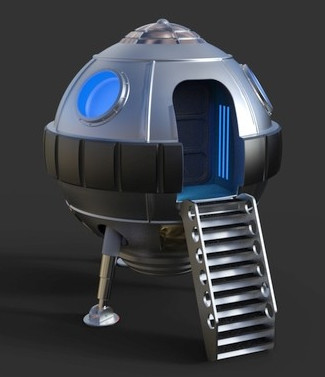
A cute little free retro Spaceship Landing Craft.
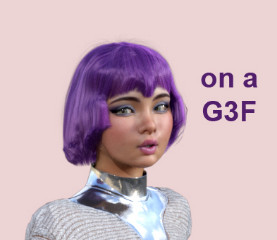
The inhabitant is probably Shooting Star. I assume this isn’t direct-copy J-pop / idol fan-art, but I guess it might be close.

Photo Props: Asteroid World. Hi-res, quality texture and modelling.
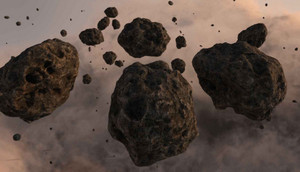
Wastewater Area. A nicely done ‘vignette’ area. Looks useful, in combination with similar DAZ settings.

Jail Talks. A grim high-security prison visitor centre. Could probably be given a more clinical white makeover, for a sort of ‘future madhouse’. See also the generic new XI Modular Futuristic Prison.
Taisha for Genesis 8, possibly of interest to classic Spock/Kirk-era Star Trek fans, as a base for re-creating the character of Communications Officer Uhura, for fan-art purposes.
Fantasy:
Blood Omen for Genesis 8. Note that this is “a small creature-feature material pack” with four materials, not the impressive figure on the main promo. Still, these kind of unusual MATs are always useful.

Medieval Wagon Train, with implausibly large mega-wagon which puts it in the fantasy category. Probably hauled by dragons or trolls.
Amun-Raw Mummy for Genesis 8. An Ancient Egyptian ‘Living Mummy’.
Storybook:
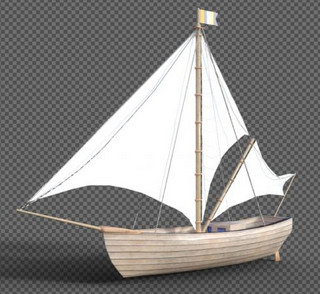
Schip, looks very suitable as a storybook boat for a group of children and/or animals.
Simple dForce Summer Pajamas set.

A free G8 piggy-back paired pose set, which might be adapted for adult/child.

A cute Star Armchair for DAZ Studio.

Songbird Remix Finches of the Caribbean Add-on. A little free pirate hat for the new Finches of the Caribbean Songbird pack.

Toon:
Toon aircraft in .OBJ.

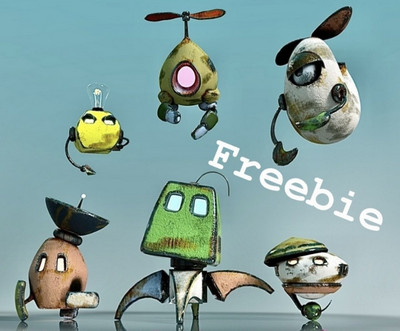
Cute flying Robot and Friends for DAZ.
Characters, poses, hair, expressions:
25 Expressions for Nursoda’s Eepo.

20 Expressions for Nursoda’s Doctor Pitterbill. Both Eepo and Pitterbill have custom face-rigs, so they can’t just take standard V4 type expressions.

Stylish Hair Mega Bundle. An appealing if expensive set, though what we really need are “looks nice + renders really fast” sets. But is it even possible to make nice hair that renders really quickly, unless it’s a displacement-mapped skullcap or has heavily been run through Scene Optimizer?
More free RAV Fredda Soft Fashion Poses Fredda. May require the paid Fredda, newly released in a new version.
Another catwalk animation set for G8F, this time with bobble… “add an animation of a female chest and change its intensity”.
A usefully generic newsreader-type dForce male suit.
Full urban hipster beard and hair. Possibly also useful for steampunk airship captains, ancient gods etc.
Animals:
Kitten For Cat Zeus. Cat Zeus is now only at Render Hub, along with the kitties.

More DAZ Dog 8 Animated Motions.
Landscapes, scenes:
dForce Dutch Milkmaid Outfit for G8F. This seems to belong more in “scenes”, as it’s a vital part of this sort of ‘old master’ painting of interiors. Purchasers of this may also want the new Studio Portrait Lighting Essentials for iRay tutorial set.

PW Mandrakia Island, a complete Greek Islands tourist resort. Really, it looks like everything’s here.
Vegetable Plot and Garden Flowers – Canterbury Bells for Daz Studio.
The Mount Olympus for DAZ Studio.
Sand and Beach Pebble iRay Shaders. Fine sea-grit and ocean-washed pebbles.
History:
Ancient battles MDBD Blood ‘n Dirt Bundle for DAZ. As geoshells, though.

Ancient Roman Simple Plebeian Domus. Generic Roman house, which might build out into a small district.
Ancient type dForce Angel Outfits. Possibly not all that authentic, but this looks like a good starting point for runtime-bashing. Great wings.

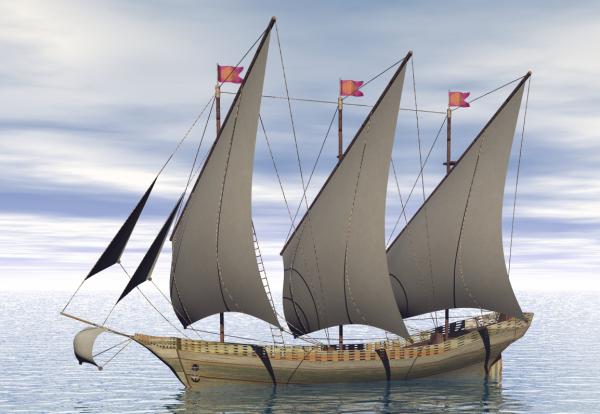
On ShareCG, a new flotilla of excellent sailing boats as .OBJ freebies. Boat06 is especially nice.

dForce U.S. Cavalry Outfit. See also Stonemason’s new Outlaw Alley Wild West town.

Agent civil 1940. Low-poly, accepts Poser M3 presets including face morphs. Good for Lovecraftian ‘Cthulhu Mythos’ type scenes.

Classic Second World War American Tank and Texture Pack.

1940/50s British Leyland Hippo Flatbed Truck and military version. For Poser.

1940s and 50s Vintage Vending Machines.

1950s American Diner Waitress outfit for G8F. A more modest and ‘home on the range’ top is in the new dForce MK Strapless Tight Dress pack.

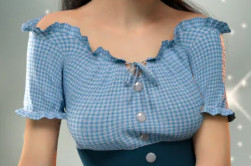
Free, retro early 1960s Strand hair 2 and 3 for Genesis Females. Which may suit the waitress outfit.
Free 1930s-70s Hooded Nib Fountain Pens.

Later in time, and also free from the same maker are Disposable Ballpoint Pens.
1960s dForce Hippy Ponchos for G8F. Also new Hippie Dance Poses.

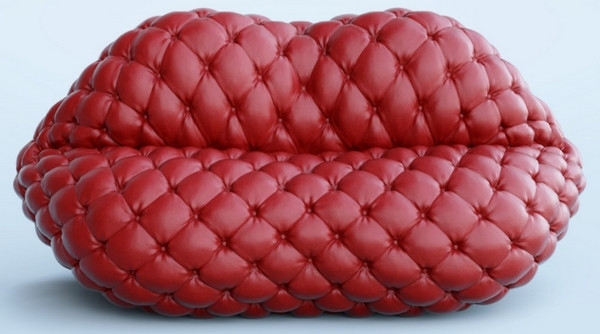
A free 1970s style Tufted Lip Sofa.
1970s Table Football.

Shaders, materials:
Universal Glow for Poser 11 and Poser 12, with light ‘spillover’. With Photoshop Action and full PDF manual.
A set of iRay Frosted Glass shaders.

Sand and Beach Pebble iRay Shaders.
Scripts and Add-ons:
Python script to disconnect all bump maps, for Poser 12. Also comes with matching render preset. The idea is to quickly get clean grunge-free line-art (only) from a Firefly render. May also be useful for Poser-to-Vue, since bump-mapping may not even be visible in a very big scene.
Bone Minion for Genesis 3 Poses Bundle. Apparently an on-the-fly pose converter. Try to load a non-G3 pose to a G3, and the script steps in and auto-converts it. Untested, but I assume it works.
SimDataSaver for Poser 12, specifically for Dynamic Cloth. “Always wanted to be able to save the Dynamic Controls Data as a Simulation pre-set? Now you can.” Sounds handy, if you use that Room in Poser.
Light shadow-blurring script for Poser. One-click to add soft ray-traced shadows to all your scene lights.
mcjHelpMeAssembleThisMachine, now in version 2, released 2021. Helps you “precisely position an object onto another object” in DAZ. Also updated, the related mcjLinks.
MCJ’s Neural Nets. Apparently with this you can train DAZ figures to auto-animate, using an AI. Now with a new Mac version. Updated a while ago, but I’ve only just noticed it.
fSpy Project Importer. Seems to be a way to import a Blender scene and also have your cameras match up in DAZ? Nice to see people wanting to go from Blender to DAZ, rather than the reverse.
A script to automatically create a DAZ ToolBar from a directory/folder of scripts.
Tutorials and magazines:
Free, Digital Art Live magazine #70 (August 2022).

Brian Haberlin’s Hellcop comic, made with Poser. About to conclude its second story-arc.
Studio Portrait Lighting Essentials for iRay as a tutorial webinar.
Poser to Vue, a quickstart guide. A more detailed guide will be in the next Digital Art Live magazine, along with a look at Poser 12.
Add an overlay on any existing texture in Poser.
Add tattoos and overlays on characters in Poser (may be out-of-date in parts).
Some practical tutorials for Poser figure rigging (may be very out-of-date in parts).
That’s it for now. More toward the end of September. As usual, if you like what I do here, please consider becoming my Patron on Patreon.