Starting soon, a six-week coaching course on AI for your art, with Vladimir Chopine.


Starting soon, a six-week coaching course on AI for your art, with Vladimir Chopine.
The free iRay to 3Delight script. A converter script that works. May be useful for those trying to make comics with DAZ, but who have a thingamajig that only adds lines to old-school 3Delight and not iRay.

1. Download and install script and its icon to ..\content\Scripts\iRay_to_3Delight (script is iray-to-3dl.dsa)
2. Load iRay thing into the scene, which for some reason you want to convert to 3Delight materials.
3. Add some old-school scene lights, so your 3Delight render won’t just be a black silhouette when rendered.
4. Go to the DAZ Studio “Surfaces” Tab/Room. The script can only do its thing from there. Select, open all items in the surfaces tree, then select the required surfaces on your figure or pop. Shift + click for “All”.
5. With the surfaces still selected, now run the script now found in Scripts | iRay_to_3Delight
6. Ensure you are in 3Delight as a renderer, and render.
There are also commercial scripts, that toggle your scenes between iRay and 3Delight. But if you only need 3Delight conversion for a few things, this freebie may be what you want.
Problem: In E-on’s Vue, the Camera Zoom / Pan controls and Nudge are way too sensitive for Poser scene imports to Vue. The settings there appear to be intended for vast three-mile wide scenes, where exact artistic framing of the picture is not so important.
Former solution: Pressing down Crtl while moving the camera used to work to damp down the camera, but now no longer does. The old manual had: “You can slow down the camera controls by holding down the Ctrl key as you move (this can be customized using the Operations tab of the Options panel).” This was good for Vue 11, Vue 2016, and still is if you have them. Not for the latest version(s).
New solution: The answer is “w” for the new versions of Vue. It is the new keyboard modifier for slowing or ‘damping’ the camera. Who knew? Not E-on’s Learning Center, certainly. No results for a search there for ‘Camera Controls’ and similar.

Customised as before with: Top menu | open Options panel | switch to Operations tab | scroll down the long list to find ‘Trigger Modifiers’.
There doesn’t seem much to be done about Nudge, though I guess a Python script could “move currently selected item down by X units” in a far smaller increment. I expect my nudge to be like Photoshop, one pixel at a time. Not 50 feet at a time.
Vue users could also use a Python script that runs through all possible settings that could have the damnable ‘Lens Flare’ enabled, and turns it off. Ideally permanently. It still takes forever to run at the end of a completed render, if enabled. You may think you’ve turned it off, but always seems to find a way to sneak back in. As Vue renders are now so fast, this is a big drag.
A 10-step Poser to Vue guide in 2022. Yes, it still works.
1. Install Poser 11. If possible, tell its Library about your Poser 12 runtime, if you also have Poser 12.
2. In Poser, make a scene with Poser.
3. Save the scene as a normal .PZ3 Poser scene file.
4. Install Vue (Vue 2016 R5, or latest subscription Vue R6, or both).
5. In the Vue “Options”, find the Poser button and set the path to the Poser 11 .EXE file’s folder. The Poser SDK version will be automatically set.
6. In Vue, New Scene, File, “Import Object…” (NOT “Import entire scene…”). Find and load Poser .PZ3 file.
7. On the import options pop-up: Group figures as single meshes. Render using Poser Shader Tree. Single Frame at “0”. (Research the other import options, as needed).
8. Ignore Vue’s legacy warning notice about your puny under-powered PC — it appears to say the same thing regardless of if your PC is a 1876 steam-driven abacus or a modern workstation with oodles of RAM and many cores. Just say “No” to having Vue over-ride your Poser scene import options with settings that it thinks are best.
9. Vue imports the Poser scene. Should not take too long. There’s a Progress Bar.
10. Frame the Poser scene nicely (Vue does not import Poser cameras), apply a Vue Atmosphere, Vue plants etc. Save file. Render.
There should be no materials tweaking required. Vue knows about Poser textures. The only thing you have to watch out for is spectacular on the lights and the sun in Vue.
Crtl is the camera movement damper key for Vue 11, Vue 2016, and W is the damper for the current versions. With this key pressed down on the keyboard, the camera moves in far small increments, more suitable for artistic framing of a Poser scene that’s smaller than the vast landscapes Vue is mainly used for.
I’ve tested the Vue import of a standard .PZ3 scene saved from Poser 12. Works fine, with a couple of setup caveats.
An older Vue such as mine does not know about Poser 12 and its own dedicated runtime location(s). It only knows about Poser 11 in its Options…

There Vue needs a path set to the Poser 11 .EXE and it also needs to be set to use the Poser 11 SDK. These are easily set, just a drop-down and a file-path. No plug-in is needed, as Vue already knows about Poser and visa-versa. There was a long relationship between E-on and Smith Micro, and the importer was worked on intensively for many years.
Vue presumably needs to see the Poser 11 .EXE folder for two reasons: i) Poser knows about the runtime locations to be searched to accurately rebuild the scene inside Vue, and ii) because Vue has to locate and run the Poser 11 SDK. The SDK is presumably what then does any Poser-Vue material auto-conversions and adjustments that are needed.
Thus for a scene file with Poser 12 content, I find that you must also tell the Poser 11 Library about the new runtime at C:\Users\Public\Documents\Poser 12 Content\Runtime\ (and probably also the P12 ‘Downloads’ if that also has its own Runtime). Give Poser 11 time to index this new runtime then exit.
Your Poser 12 content, if saved to a Poser scene file, will then load into Vue. This is done in the usual way in Vue: New Scene | File | Import Object, load the Poser scene file and apply a Vue atmosphere…

Poser 12 content, “Pink 2.0”, in Vue. Real 3D clouds, not a photo backdrop.
It only takes a minute. To Vue the Poser 12 scene file must seem to be just a normal .PZ3 scene file from Poser 11, 2014 etc. It’s just the file paths in it that may differ, if your scene was built using content from Poser 12’s new runtime. If you only build scenes with your regular Poser 11 runtime content, you may not even need the above steps — even though you are importing a scene file saved with Poser 12.
So far as I am aware the Poser-to-Vue SDK has not yet been updated in the new subscription Vue to handle a few of the funky new Blender Cycles 2 (aka SuperFly in Poser 12) nodes. Thus the very latest Poser 12 SuperFly materials with strange funky new Cycles nodes may not convert so well. But Vue has its own fab funky materials to use, and it looks like everything else should work as with any previous Poser-Vue import.
Note also that Vue has excellent exporters… “includes integration plugins for 3DS Max, Cinema 4D, Maya and Lightwave”, though I’m uncertain what would happen to the scene if it were no longer connected to the Poser shader tree via Vue. I guess you try it and see. However, Vue is very capable on its own and a great adjunct to Poser for large expansive scenes that could also benefit from a generous scattering of foliage and some misty atmosphere.
Yesterday’s ‘Jessi in SuperFly’ post has been updated. I went back to a saved scene file where the pupils were still white after eZSkin 3, before I fixed it. I started again and figure out how I fixed it. It actually wasn’t the Reflectivity or Specular. Here’s the corrected line, with the solution…
“Pupils should be black but they’re white after eZskin 3. Solution to fix: Material Room | Pupil | Alternate Diffuse node | follow the wire to the Scatter node | turn colour there to a very dark grey.”
Some people seem to think this is impossible, but all I can say is that tweaking the Alternate Diffuse node worked for me. Perhaps it’s only the case for very old figures?
How to add a simple overlay on top of an existing texture in Poser:

The overlay has not destroyed the original glossy effect, I just took that off manually to make for a simpler demonstration of the nodes.
1. At the top Diffuse node, right-click and disconnect the connector to your current 2D texture. This does not destroy the texture. It’s still there waiting to be re-connected.
2. Right-click the empty Diffuse slot and there plug in a new Math | Color Math node.
3. Set the Color Math node’s Argument to Multiply. Also have both of its values be pure White.
4. Connect the Color Math node’s Value 1 slot to the original texture map.
5. On the Color Math node’s Value 2 slot, right-click and then add a new standard 2D node.
6. On the new 2D node you then load your overlay as a square 2D image source, in the usual way. Pure b&w appears to work best.
Here we have a puny low-res dash-shading overlay for demo purposes. Nor is it even uniform, which it ideally should be…

For dash or hatched-shading of the object you may want to dial this source’s U and V scales down from their 1.0 settings, to something like 0.10 or 0.12, as seen here.
You can save this as a standard material setup, and then just switch the source texture and overlay texture. Obviously you’d use a seamless tiling texture, which I haven’t here.
Of course, it would be nice to have the overlay effect render on its own. There are two ways to do this, that I know of…
1. Also plug the overlay into the Alternate Diffuse, which should be set to white. You then see the change in the Preview. Then render again, in Preview even. In Photoshop, knock white out of the render with an automated Action.

2. Also plug the overlay into the Custom_output_1. There will be no change in the viewport.
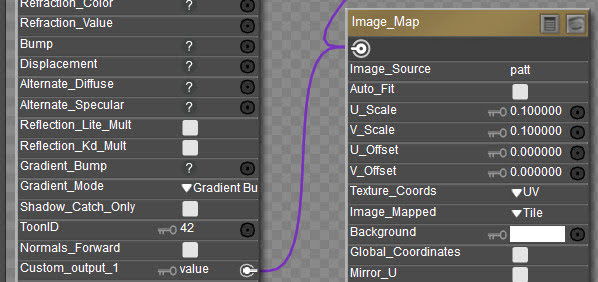
But if you render to Firefly with the following settings…

… and save as a Photoshop .PSD then you get a nice Photoshop layer of the effect on its own…

Yes, ugly seams… but this is just a quick demo. The seams could be fixed.
We still don’t have it in a form where the white is transparent, but any good Photoshop Knock Out White Action will do that.
Of course, it may be possible to just leave the whole current material setup alone, and just plug your overlay shading into the Custom_output_1. I’ve yet to investigate that. Though that would limit you to Firefly rendering only. But doing it that way should be simple and reliable enough for a script to handle automatically.
If you want to run a Python script in Poser using an assigned keyboard shortcut, you can.
1. The script must be in the software’s ScriptsMenu folder or sub-folders…
C:\Program Files\Poser Software\Poser 12\Runtime\Python\poserScripts\ScriptsMenu
2. Rename your target script filename in the following format…
my_fabulous_script###Alt+C.py
Use of Ctrl or Shift and Alt are permitted, as are capital letters. Capital letters correspond to a lowercase key-press: e.g. C = c.
3. Close and reload Poser. Try your new keyboard command to invoke the script. Tested and working on Poser 12, and once done you see the shortcut on the drop-down if you look there…

With this in place you can now also use mouse-gestures, tied to a keyboard shortcut… which in turn invokes the script.
I’ve been re-listening to the Poser 12 launch webinar recording, and learned a few things…
39:53 mins – the new Cycles 2 “Adaptive Sampling works best with smaller bucket sizes”.
40:27 mins – “Branched Path Tracing works well for CPU renders, but not GPU renders”.
For me this custom SuperFly preset works so well even at a bucket size of 64…
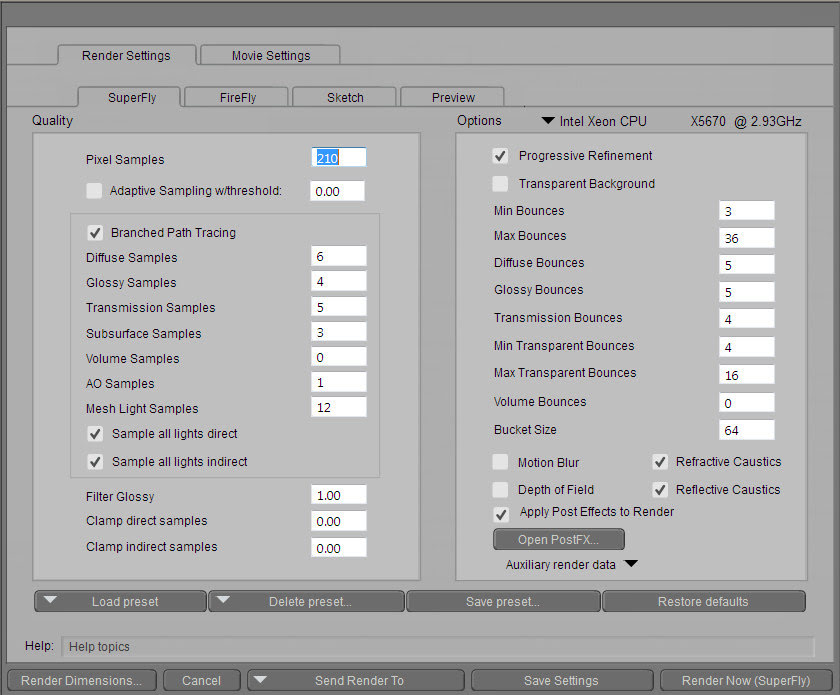
For me it closely mimics the behaviour of iRay. Not sure where I got this iRay-like preset now. One of the forums I think? I don’t know the mind-bending math/theory behind it, but it works for me. Bear in mind that this is for a Windows PC with multiple Xeon CPUs running a total of 24 render-threads, and that “Branched Path” does not play nicely with graphics cards. Your super-powered graphics card may need something completely different.
Of course, this assumes you don’t have awkward old slow-rendering Poser hair bogging down the render speed. Once you have good go-to hair, it’s best to turn it off until the final render.
If lacking hair or other boggers, this superfast preset gives instant pop in like iRay. Quick de-grain too. Fast finessing to reach a usable image. All very iRay-like, which I like. Also works very with Poser 12’s CPU-friendly and very quick denoiser. Manually cancel it after about some 20 seconds, wait a moment for Poser 12’s excellent de-noise to do its work, and you’re done.
Of course, it’s no challenger to DAZ’s iRay after it’s had a dose of Scene Optimiser. Which then lets me run three dressed and hair-ed characters in real-time iRay in the DAZ iRay-driven viewport. But the above Poser SuperFly preset may be of use to some.
Also of note, in the webinar it’s clearly stated of the Library Panel… “You can float it, but you can’t float it outside the app window. I don’t see that happening any time in the future”. But in 2022 this can now be done, and you can now float it over to a second monitor and yet still do drag and drop to the Poser stage.
New Poser 12 users may be frustrated by the default behaviour of their light presets. Clicking on a preset light-set adds its lights to the existing lighting in the scene. Until you have a ‘hedgehog bundle’ of lights on the light-ball. Most of which are actually not doing anything in Preview, because there’s a cap on the number of lights that OpenGL can display.
The Poser 12 newbie may think: “Ah, so that’s why the ‘delete all lights’ Python script is needed” and/or “So that’s why some people don’t like using the Poser lights”. Ideally, such thoughts could be avoided if the default shipping state of Poser was that a double-click on a light preset replaces the existing scene lighting.
This can be achieved. But how? It’s quite simple…
Top menu | Edit | Preferences.
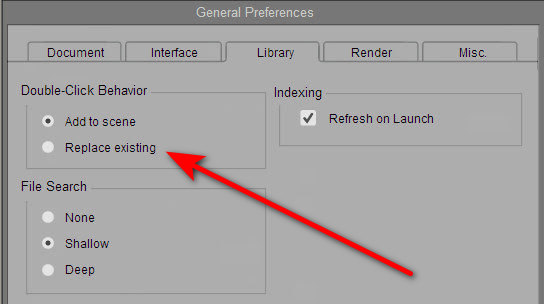
Library Tab | Double Click Behaviour | tick ‘Replace Existing’ | OK.
That’s it. You don’t even need to re-start Poser for it to take effect. Light presets now replace the existing lights, rather than adding to them. You can still add the lights in an accumulative way if you want, but you now do that by selecting the Library light preset with a single-click. Then clicking the double-tick icon at the base of the Library panel…
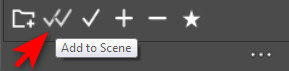
Figures are added in the same way, or can simply be dragged-and-dropped and then they won’t replace an existing figure. Props and MATs can just be double-clicked.
The behaviour is different than in Poser 11, but the above is a partial fix.
New users will also want to set Library search-depth to “Shallow”, to prevent Poser from bringing Poser to a grinding halt and spending ages looking for lost textures on badly installed or made freebies. “Deep” initially, overnight to index all the content. Then “Shallow”.
Discovered too late for inclusion in the forthcoming isometric issue of Digital Art Live magazine, “How To Convert OBJ to VOX color” with a new summer 2022 freeware .OBJ to voxels ‘voxeliser’ software…
“Convert your .OBJ and .MTL to the native .VOX format, including color and textures”
…and also automatically make the object look like it was built with those funky voxel cubes. Warning: the software is new and still at the level of command line input.
Note however that Qubicle 3.x can do this same process already, and with a very nice GUI too, albeit for $25. You do have to start with a small model though. It’s not going to cope well if you try to feed it Stonemason’s Urban Future scene or a Genesis figure, from DAZ / Poser.
Quickstart in Qubicle:
1. Export from Poser / DAZ / Blender a viable .OBJ file, with a viable .MTL and loading materials (easier said than done). Poly-reduce if needed.
2. Top menu | Voxelize | “Load Mesh” | Load .OBJ.
3. Top menu | Voxelize | “Scale Mesh” | Type in a scale factor, “Preview” and see what it looks like after that.
4. Looking good? Top menu | Voxelize | “Convert to Matrix”.
Everything in Qubicle has to be held with a ‘Matrix’, indicated by a yellow holding line around the model’s volume. If you want to colour or edit the model further, you first ‘enter’ the ‘Matrix’.
1. Load a standard figure. Here we have Aiko 3.

As you can see, horrid blocky eyelashes appear in non-photoreal line-art rendering…

2. To fix, enter Carrara’s Model Room. Use the camera to get a good view of the figure’s head. Her ten-trillion control points look confusing, but there’s an easy way to select just the eyelashes.
3. Top menu | Selection | Select by… | Shading Domain.
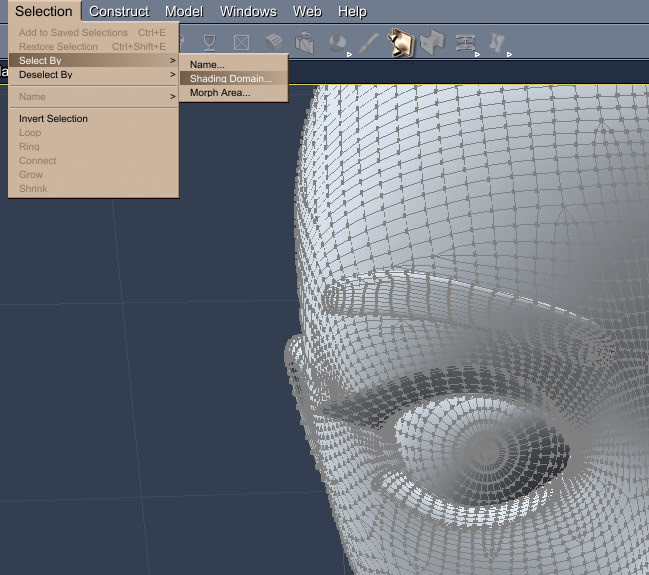
4. Choose “Eyelashes”. They are then highlighted in red.


5. Select the Scale tool (the ‘twin triangles’ icon), and make them really small. Then select the Move tool, and slightly push them back into the head.

That’s it. Line renders will now appear to omit the eyelashes. You could probably do the same with fat (rather than thin line) geometry eyebrows.

Incidentally, another problem discovered with Carrara. A bit of a deal-breaker, even for occasional work. No drag-and-drop of clothes / poses from PzDB onto the scene/figure, as can be done with Poser and DAZ. Since getting Carrara to see / interact with / load from a Content Library is such a nightmare, then if PzDB can’t be used… Carrara can’t be used either.
And Poser 11, as you can see here, effortlessly gives line-art that is just so much better. And does so in WYSIWYG real-time, and with no need to fix eyelashes…
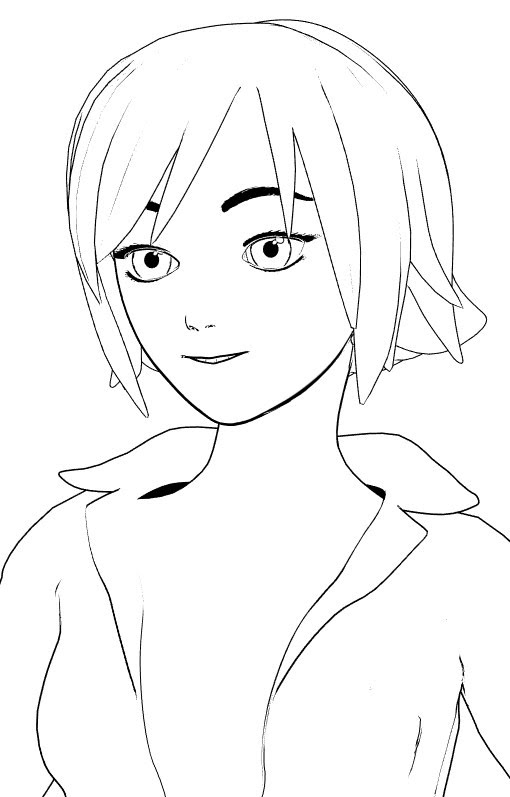
Raw Poser real-time render, Aiko 3.
The only drawback of Poser is that for best results you need to render line-art, colour flats and shadows, and then composite the three real-time renders in Photoshop. Still, not bad for what now costs $53.
 Posted in Comics, Companion software, The Animation Industry, Tutorials
Leave a comment
Posted in Comics, Companion software, The Animation Industry, Tutorials
Leave a comment
A new free two-hour webinar for Reallusion’s Cartoon Animator software. “Create Motion Comics Fast using Cartoon Animator”, now online as a YouTube recording along with a public link to a 3Gb(!) project file.
I was mildly excited. But on clicking through the video, the example appears to just a slow anime. A slow pace, and a few Ken Burns style slow-zooms and pans, does not make a motion comic. The title is thus a bit misleading. It’s certainly not the sort of panel-based motion comic you’d make with the dedicated motion comics software MotionArtist.
Posted in DAZ Studio, Special Offers and Discounts, The Animation Industry, Tutorials
Leave a comment
Now on the DAZ Store, How to Master Material Zones in DAZ: Tutorial Guide.

After a little wrangling and bashing I was able to get the DAZ 3D Bridge for Photoshop, posted about yesterday, fully running. Including its “Update” and “AutoUpdate” features.
Required:
1. As per my tutorial yesterday, the latest DAZ Studio 4.20.0.17 64-bit, and its latest DS4_3DBridge_1.13.0.17_Win64.exe Bridge. This Bridge then installed to both DAZ 4.20 and to my 64-bit Photoshop 2018. The latter is here superfluous though, as we also need to get another and 32-bit Bridge plugin into Photoshop CS6 to get the Bridge fully functional.
and
2. Photoshop CS6 32-bit, with its 32-bit plugin installed from an old DS4_3DBridge_1.6.2.70_Win32.exe installer I found on an old backup DVD. Note that install of this requires a DAZ Studio 4 32-bit version to be present (I used an old 4.12.x 32-bit), or else the vital Bridge install will be refused. 32-bit parity between the two is important. You may also want your old DAZ 4.12 Pro serial to activate the 32-bit DAZ, though that is probably not needed. No serial was needed for the Photoshop side of the old 32-bit Bridge. No damage was done to my DAZ Studio 4.20.0.17 64-bit by the install of an old 32-bit version over in C:\Program Files (x86)
It’s possible you don’t even need that old 32-bit Bridge installer, as a there’s also a current 32-bit one still available in your DAZ Product Library. The current is DS4_3DBridge_1.13.0.17_Win32.exe

Usage:
Then I just load Photoshop CS6 32-bit, load its 32-bit version of the DAZ Bridge, it will then auto-launch my latest DAZ Studio 4.20.x 64-bit. Then, the 32-bit CS6 plugin can happily talk to the latest Bridge script/camera in the 64-bit latest DAZ Studio. Update and Autoupdate work perfectly. Importing an iRay render into Photoshop also works fine. Use the 3D Bridge camera. I assume it’s all direct script-to-script talk at that point, and thus no .EXE bit-parity is required.
So… the problem appears to have been that everyone had moved on to 64-bit Photoshop, partly breaking the Bridge’s “Update” and “Autoupdate” features. But the current plugin still works fine if you give it a 32-bit Photoshop CS6 with an old 32-bit Bridge plugin located in Photoshop’s plug-ins directory.
I should say that all this happens for me in Windows 7 64-bit, and that later versions of Windows may not be so co-operative.
Also found: the original Bridge PDF User Guide from 2008. Never updated, it seems.