New on Archive.org to borrow, Secrets of Poser Experts : tips, techniques, and insights for users of all abilities : the eFrontier official guide (2007). This is the first time it’s been on Archive.org.
Category Archives: Tutorials
Denoising in Photoshop CS6 32-bit in 2023
DAZ’s free Photoshop Bridge only fully works when using 32-bit with a 32-bit Photoshop. Ideally Photoshop CS6. As I’ve explained before here on MyClone, here and here.
But imagine you’ve got it working and are auto-sending renders to a comic-book page that’s set up in Photoshop. Each render drops into a comic-book panel. But, since there’s a lot to render on each page, the renders are quick and grainy and have ‘fireflies’. This grain will not matter so much, if you’re then filtering them using a non-naff artistic Photoshop filter (Mediachance, Sketchmaster 2018, some G’MIC filters).
But what if you’d just like to denoise a photoreal render? Sure you can filter with an NVIDIA-only denoiser, back in DAZ Studio. But that feature has never worked for me, and I guess my NVIDIA graphics card is just not worthy. Or you could lift the shadows and create a flatter and more comic-book look with the Exposure Value and Shutter Speed sliders in DAZ. Less shadows, less noticeable grain and fireflies.
True, there’s a free mcjDenoise plugin for DAZ which actually uses Intel’s OIDN. But it can only be applied to the stack of recent renders. Thus it can’t work to process the render that’s to be automatically sent to Photoshop via the Bridge.
Ideally there would be a Photoshop plugin that uses the open-source Intel OIDN denoiser. Which has a superb AI model especially trained to clear 3D renders. This plugin would speedily fix all the grain and fireflies, in one click. But, rather surprisingly (given the potential market and the very open licence) no-one has made such a thing. There are only two Windows GUI standalones.
What about other AI-powered denoiser plugins for Photoshop? The Topaz AI Denoise plugins were available for CS6, but… only for 64-bit and they were trained for megapixel night photographers, not 3D renders. There were three or four pre-AI denoiser plugins for 32-bit, but they were expensive and (even if still available) are not ideal now.
Thus the fallback in 2023 would be the free and actively developed G’Mic plugin suite. Its 32-bit .8BF is happy to run as a Photoshop CS6 32-bit plugin. Currently in G’Mic, the 2022 filter Testing | Afre | Denoise appears to be the quickest/best on 3D renders. In fact it’s near-instant, which is very nice. But obviously it’s not as good as OIDN. The results are softer than OIDN, and not all noise is cleared. But it’s better than nothing, and if your comic-book page is destined for digital-only… then it may be good enough.
And don’t forget that .PSD is a portable format, so you can do all the render-catching and layout in CS6, and then load the CC 2018 or higher for postwork and filters.
But the ideal for CS6 would be that someone plugs OIDN into G’Mic in the near future.
Tutorial: Blank Boi to storybook Space Boy
Blank Boi to storybook Space Boy:
Requires:
Blank Boi base figure.
BlankDolly.
Elf Basics.
Blank Boi Nose freebie prop.
Blank Boi in Space freebie clothing set.
1. Load the Blank Boi base figure in Poser. To be found installed in Poser (totally counter-intiuitively) under Figures ..\3DZToonz\BlankBoi\BlankBoi.cr2
2. Load Elf Basics hood and clothing to head and body. Found under Figures ..\Elf Basics. Conform if needed.
3. Load Pose ..\BlankDolly\ Normal Shader | Dolly body gets you the eyes seen here.
4. Props | Blank Boi Features | Nose. Load to head.
5. Adjust DollyEars morphs on ears (from BlankDolly) for pointiness. Set ears slightly off-centre for added quirkiness. A little postwork clean-up will be needed re: the conjunction of the ears and the hood, when seen at at certain angles.
6. Hide (make ‘not visible’) the end of the elf boots. This makes him less obviously a generic fantasy figure. Set the “Feet swap” morph to “2” for the new ‘toon feet’ seen added below.
7. Props ..\Blank Boi In Space | BB Space Pack for an oxygen backpack. If the .OBJ is lost on loading, it’s to be found in ..\Runtime\Geometries\treasurechest\bboiclothes
8. Apply Aiko 3 poses. V3 also, but those poses will tend to reposition the figure somewhere else on the stage.
9. Change the material diffuse colours to a more space-y colour scheme.
10. Render in flat colour and lineart, and combine these two renders in Photoshop…
Not ideal. The ears are sometimes seen inside the hood. The neck-joint needs more of a spacesuit-like air-seal. The feet are ok, but not great. There are probably better figures with which to make a whimsical space-adventure storybook, but the Boi is fairly cute and it could be done. The lack of a mouth is a great advantage, since you wouldn’t have to be constantly tugging at that to get it to look right, or manually drawing it in.
Stop Shreddit videos
Here’s a uBlock Origin filter that blocks all autoplaying image-loops on Reddit forums. I go to Reddit for information and occasional images, not video memes…
|
1 2 |
! Block all autoplaying video loops on reddit.com www.reddit.com##:xpath(//div[contains(@data-testid,"shreddit-player-wrapper")]) |
Also…
|
1 2 |
! Block all autoplaying video on reddit.com www.reddit.com##:xpath(//video[contains(@preload,"auto")]) |
Paste these into your filters list, and save. Reload the page.
You’re welcome.
How to use Ocenaudio as a simple ‘video to audio’ extractor
How to use Ocenaudio as a simple ‘video to audio’ extractor. No need for online services or questionable free software from Whereizitagin.
1. Open Ocenaudio (the excellent freeware replacement for Audacity). Drag drop the .MP4 video file on the sidebar.
2. It will be opened as if an audio file.
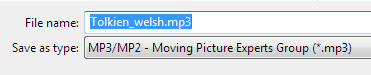
3. Save it as .MP3. There will be a progress-bar, showing time remaining for conversion. It’s that simple.
PD Howler’s new 3D capabilities
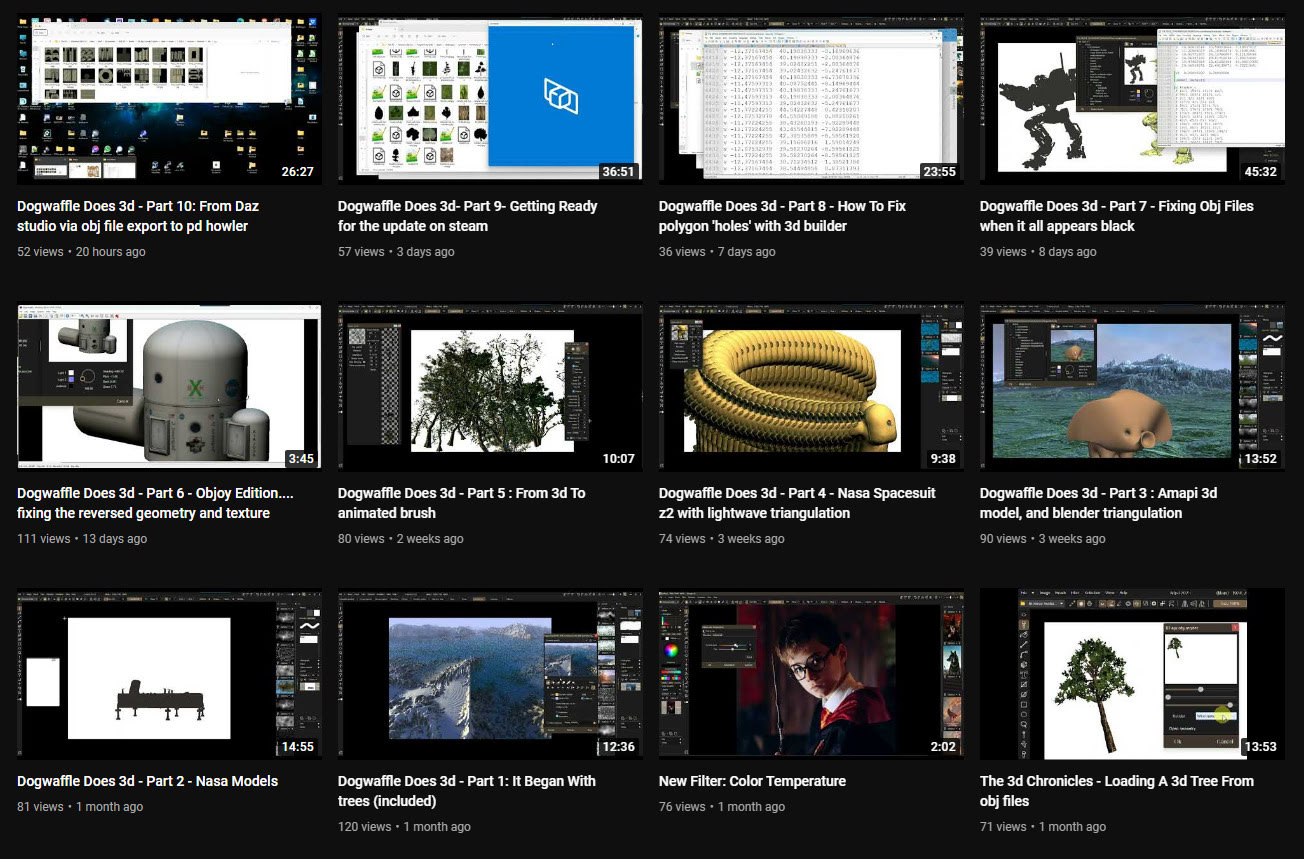
In the last month the PD Howler software (aka Dogwaffle) has been accompanied by ten new YouTube videos showing the new 3D capabilities in the latest version. The latest one is on working with DAZ Studio exports.
DSpeech on test against Balabolka
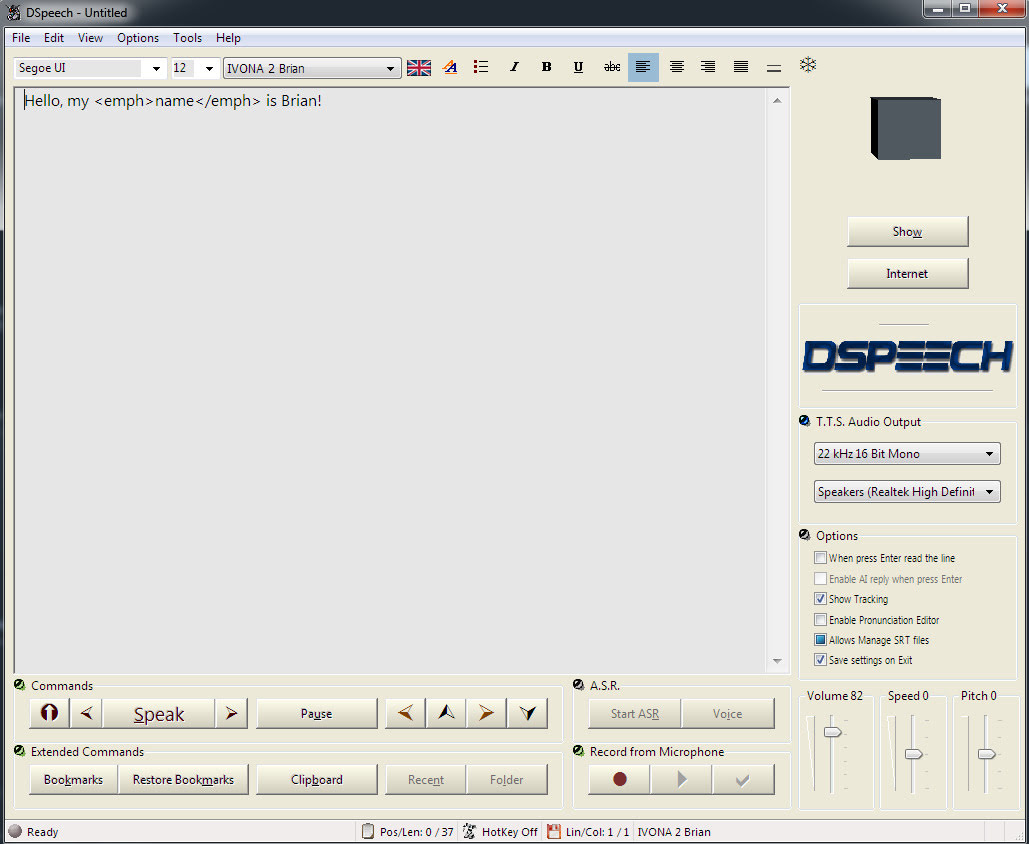
It seems rather odd to consider old-school text-to-speech software and SAPI5 voices, at a time when Poland’s ElevenLabs is doing such great things with AI-generated voices. But I’m always one to cherish old Windows freeware, and at present all the new AI voices are online and require a monthly/yearly subscription. So I was pleased to find an alternative freeware to Balbolka for desktop PC text-to-speech using SAPI5 voices. Many such voices are also now abandonware on Archive.org, the key companies having since been sold on several times.
Made in Italy, the DSpeech TTS freeware used to be fairly basic, but it’s improved enormously since about 2016. Though this is not a fact reflected in its rather basic 1990s-style download page, which you’ll have to overlook. This freeware is now in version 1.74 (spring 2022), It’s genuine one-man freeware, made in Italy, and is feature-comparable with Balbolka though a bit rougher in UI and Help translation to English.
The DSpeech download link uses only a .GIF button, so if you have a .GIF blocker in your Web browser, then you instead right-click the page and ‘View Source’. You should then see a live working link to the download in the HTML…
The English manual is included in the software. There’s no Windows installer, just unzip where you want and run it.
SCRIPTING: Beyond the usual control tags, DSpeech supports basic scripting including voice-recognition and script loops. Which is unusual. Apparently it can even read out VLCplayer movie sub-titles in real-time, in a chosen SAPI5 TTS voice and speed.
TAGS: The tagging menus make switching voices easy. There’s better right-click support than in the latest Balabolka for adding tags, though that’s not saying much. When you highlight a word in DSpeech, and add a tag, the word is not wrapped with a closing and opening tag, it’s deleted. Urgh! Having right-click is great, but… the rest of the tag insertion system is not good.
LOQUENDO: DSpeech is supposed to support Loquendo ‘voice expressions’ (laugh, sigh etc) via the Italian Loquendo 6 Italian ‘Paola’ and ‘Luca’ TTS voices, combining words with special expressive tags such as \_Laugh and suchlike. Later the tag syntax was changed to \item=Laugh in Loquendo version 7 voices. But while these v6 voices work fine in any DSpeech, and v7 voices work fine in DSpeech v.1.72.29 (December 2018, not the latest 1.74.x), their expressive cues no longer vocalise in DSpeech. You just hear silence.
Spanish Loquendo 7 voices (not 6) can however ‘express’ when used in Loquendo’s own Java-based TTS Director, which came with the Loquendo SDK. See YouTube for examples and useful links.
Regrettably neither the Loquendo 6 or 7 voices can even be played in the other TTS freeware Balabolka, though they do show up on its voice menu. It thus seems that properly-working Loquendo voices are limited to…
* Loquendo 6 (any voice) on DSpeech 1.74.x or earlier. Loquendo 7 not supported on the latest DSpeech.
* Loquendo 7 (Spanish) on DSpeech 1.72.29 (or earlier?), or Loquendo 7 (Spanish) on Loquendo TTS Director with SDK and Spanish pack.
The Spanish version 7 voices do however have ‘expressives’ that work fine with Loquendo TTS Director 7, which was Windows freeware which shipped with the developer/API/SDK kit. This success at least showed me that the problem was not with my PC or a 32-bit / 64-bit Windows clash, at least for version 7 voices.
Yet it’s strange. Obviously DSpeech could, at one time, play the ‘expressives’ in the Loquendo 6 voices. But, no longer, it seems. Switching back to an older DSpeech 1.72.29 didn’t cure the problem, but it did usefully fix the playing of the Loquendo 7 voices. I suspect that Loquendo 6 voices now have a 32-bit / 64-bit problem on 64-bit Windows, despite the player and voices both being 32-bit.
Loquendo TTS Director voices have a complete list of expressives in the C:\Program Files (x86)\Loquendo\LTTS7\data\voices\Soledad\SoledadGildedParalinguistics.sde file (change name for each voice). Open it in Notepad++ to see the list in plain-text. For instance, Soledad has the following, and obviously you can also mix and match and tone-shift…
\item=Ah
\item=Ah_01
\item=Ah_02
\item=Ay
\item=Ay_01
\item=Breath
\item=Breath_01
\item=Buh
\item=Buh_01
\item=Buuu
\item=Buuu_01
\item=Cataplum
\item=Cataplum_01
\item=Click
\item=Click_01
\item=Click_02
\item=Cough
\item=Cough_01
\item=Cough_02
\item=Cry
\item=Cry_01
\item=Cry_02
\item=Cry_03
\item=Ehm
\item=Ehm_01
\item=Epa
\item=Epa_01
\item=Hey
\item=Hey_01
\item=Hiccup
\item=Hiccup_01
\item=Hiccup_02
\item=Laugh
\item=Laugh_01
\item=Laugh_02
\item=Mhmm
\item=Mhmm_01
\item=Mhmm_02
\item=Mhmm_03
\item=Oh
\item=Oh_01
\item=Ohoh
\item=Ohoh_01
\item=Ops
\item=Ops_01
\item=Prrr
\item=Prrr_01
\item=Shhh
\item=Shhh_01
\item=Sigh
\item=Sigh_01
\item=Sigh_02
\item=Singing
\item=Singing_01
\item=Smack
\item=Smack_01
\item=Smack_02
\item=Sniff
\item=Sniff_01
\item=Sniff_02
\item=Sniff_03
\item=Snore
\item=Snore_01
\item=Swallow
\item=Swallow_01
\item=Throat
\item=Throat_01
\item=Throat_02
\item=Throat_03
\item=Uff
\item=Uff_01
\item=Ups
\item=Ups_01
\item=Whistle
\item=Whistle_01
\item=Whistle_02
\item=Whistle_03
\item=Whistle_04
\item=Whistle_05
\item=Yawn
\item=Yawn_01
\item=Yawn_02
\item=Yeee
\item=Yeee_01
\item=Yuhu
\item=Yuhu_01
\item=Yuhu_02
\item=Zas
\item=Zas_01
Easier to just paste these all in and cut out what you don’t want. Rather than wrestling with menu-based insertion.
VOICEWARE: DSpeech has support for reading with a VoiceWare TTS, but not for a vital aspect of the voice. The first version of the TTS VoiceWare voices (e.g. VW Bridget, British) had different inflections on words if you added ! ?! or !? (again, see YouTube for demo and useful links). But this feature of the voice is not supported in DSpeech. It is supported in Balabolka. So this is another deal-breaker for DSpeech.
CONCLUSIONS: Despite what at first glance seems to be DSpeech’s more intuitive right-click tag adding, Balabolka is on several counts the superior tool for longer-form editing. It properly wraps highlighted words in starting/closing tags, which is vital if you’re TTS-coding something longer than a paragraph. It also supports VoiceWare’s ! ?! and !?, useful for one of the best British voices.
I thus suggest using the latest Balabolka for freeware TTS scripting and recording, and the old Loquendo TTS Director + its Spanish voices for creation of vocal FX, pitch and speed-shifted to match the voice being used in Balabolka. Then embed these vocal FX as audio clips in Balabolka. This is not as ideal as having Balabolka support Loquendo (it refuses to even read their voices), but it’s a viable workaround.
The ideal would be to have a standard SAPI5 voice that was ‘expressives only’, for use in Balabolka. A sort of audio FX bank, that could be reliably called with a simple tag (such as \_sneeze etc). But so far as I can see, that doesn’t exist, other than by chopping bits from my Dictionary of British Pronunciation for TTS.
Finally, note that TTS Director only ‘sees’ its own Loquendo voices, and is therefore no good as a general SAPI5 TTS script editor. TTS can be done in Adode Captivate (used for super-Powerpoint ‘e-learning’ creation) and in CrazyTalk / Cartoon Animator, but the editing is not at all comparable to Balaboka.
Find the G8.1 FASC face controller interface in DAZ Studio 4.21.x
How to find and load the G8.1 FASC face controller interface in DAZ Studio 4.21.x.
1. You first install Genesis 8 Starter Essentials pack, if you have not already done so. It should be in your Library at the DAZ store. Possibly you have not installed this since before Genesis 8.1 was introduced, so you need to do it again — it now also includes the 8.1 stuff.
These are chunky downloads, and will take a while for those on slow connections. Extract the .ZIP and install as usual. Those with an install manager may do things differently, but this is the old-school way.
2. Load Genesis 8.1 from the DAZ Library (you do this from Genesis 8 Female or Male folder, not the 8.1 folder, for some reason).
3. In the Genesis 8 | Developer Kit folder…
4. … you will find the FACS (face controls interface) loader icon, the one with the powder-blue background…
5. Load this to a default Genesis 8.1 figure. You don’t need to first select the Head. In the hierarchy list you will now see that a FACS interface has been added.
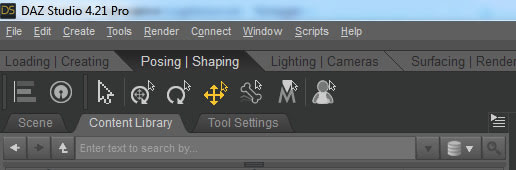
6. Switch the DAZ Studio UI over to the Posing / Shaping tab, and the controls will become visible.
In practice, though, they appear to be far more trouble that they’ve worth. The huge main problem being that it’s very difficult to easily select each face controller ‘chip’, by simply clicking on it. 90% of the time, no matter what selection movement-type you have activated up-top…
… the attempt to select a face control chip by clicking on it fails to do or activate anything. Sometimes it selects and lets you work with it, but most of the time it doesn’t. It doesn’t matter where you click — the arrow, the plus sign, or exactly on the wireframe wire — most times nothing happens.
The alternative option of using the control sliders, which are alongside and do the same thing for each control chip, works fine. Though there you have the hassle of scrolling up and down the big list, and trying to work out what each control name refers to on the face.
A standalone Intel OIDN de-noiser with GUI… Merry Christmas!
I dug up a free Windows GUI version of Intel’s CPU Denoiser, aka the open-source OIDN. This is standalone AI-powered desktop software made by a guy in Japan, and which no-one but some Lightwave guys seem to have ever heard about.
You feed it your partially-completed .PNG render, which has noisy ‘fireflies’ you want to clear. It works back to Windows 7, on SSE4.1 CPUs or better, and with most 64-bit OS’s.
So… no need to worry if Santa didn’t bring you an expensive $800 NVIDIA graphics card, or worry about wrangling with many dependencies on other bits of software such as ImageMagick.
It just works, and beautifully. Merry Christmas!
USE:
1. Download and unzip OIDN-gui from GitHub.
2. Run OIDN.exe and the simple graphical user-interface will appear.
Here you load the same target .PNG render into all three slots, “Beauty”, “Albedo” and “Normal”. Then “Run Denoiser”.
DAZ iRay can do the regular render (here called “Beauty”). But if you did also have additional auxiliary/buffer/canvas renders, then your “Normal” would help preserve subtle bump-mapping, while the “Albedo” would do the same for fine textures. And apparently these two work in tandem, so both would be needed.
But you may have already stripped most bumps with the DAZ Scene Optimiser, and have no complex fine-patterned clothes in the scene. If so, then you’re smiling.
There is however another way to add detail back into a denoised render. In Photoshop you drop the output over the original, as a new layer. Then you ‘paint the detail back in’, by running a soft-edged small Eraser brush over the bits where you need most details (eyes, eyelashes etc). This reveals the detail beneath… and hopefully doesn’t reveal any pesky fireflies.
In tests an old 32-thread Intel workstation took about 2 seconds on a single 1920px render, and gave great results even without having the proper “Albedo” and “Normal” auxiliary/buffer/canvas renders available. The denoised image is saved with the same file extension and type, in the same folder, but the filename will have ‘-denoised’ added.
It seems you can batch process a series of animation frames with this (untested by me). But here you should know that OIDN is not “temporally stable”. Which in plain English means that when the animation is run ‘you may see some slight waver or detail-popping’ across strongly denoised areas.
That’s it. There is a later version by the same maker, re-written for QT. But that has no regular Windows .EXE file, so far as I can see.
There’s another Windows GUI option here, but it’s drag-and-drop with no batch. The above software does batch.
Note: Not needed in Poser 12 and also the latest E-on Vue, as in both cases Intel’s OIDN is built-in. The above advice is mostly for DAZ and Poser 11 users.
Release: Hampelmann 1.7 for Poser 12
The script Hampelmann 1.7 for Poser 12 has been released, free. It allows you to easily control figure-parts, with the mouse and/or keyboard. Here’s the basics of how to install and then use it for the first time in Poser 12.
1. Download the new Hampelmann 1.7 for Poser 12, extract the folder and and install by copy-paste of the folder to…
C:\Program Files\Poser Software\Poser 12\Runtime\Python\poserScripts\ScriptsMenu
Rename the new sub-folder there to something a bit more descriptive, such as P12-Hampelmann-v17-figure-controller or similar.
2. Download the old Hampelmann 1.6, extract. With this you want everything except the scripts. Copy only the config and img folders and the help files (not the scripts) to your new…
C:\Program Files\Poser Software\Poser 12\Runtime\Python\poserScripts\ScriptsMenu\P12-Hampelmann-v17-figure-controller
This .ZIP also gets you the help / instruction pages, not included with with the 1.7 .ZIP file. You might want to make a shortcut link to these pages, on your desktop.
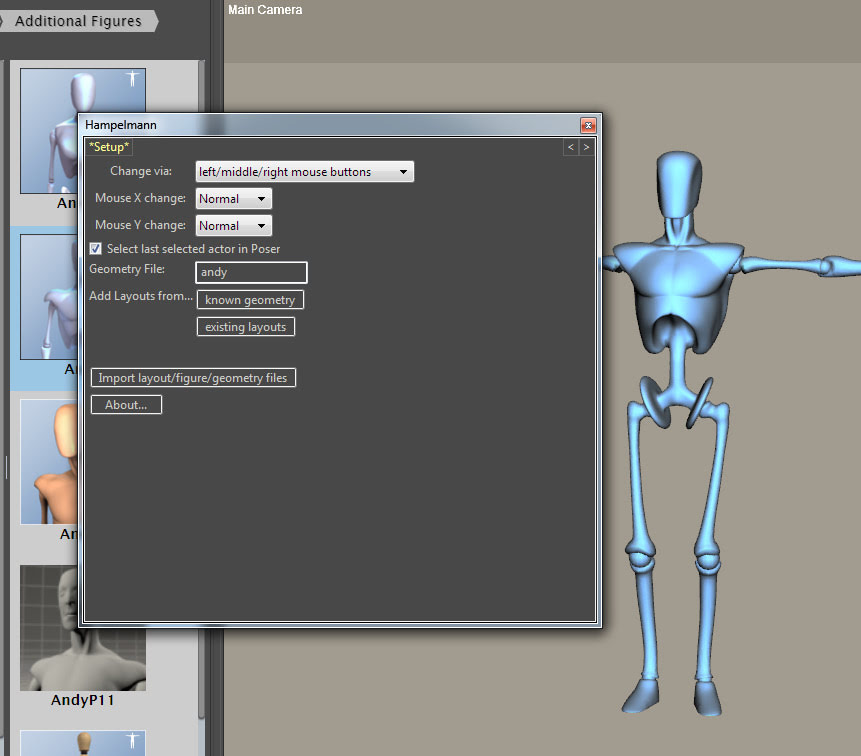
3. Run Poser 12, place a test figure such as the standard Andy on the stage (Library: Character | Additional Figures | Mannequins | Andy).
4. Run Hampelmann 1.7 (Top Menu | Scripts | P12-Hampelmann-v17-figure-controller | Scripts | Hampelmann_17).
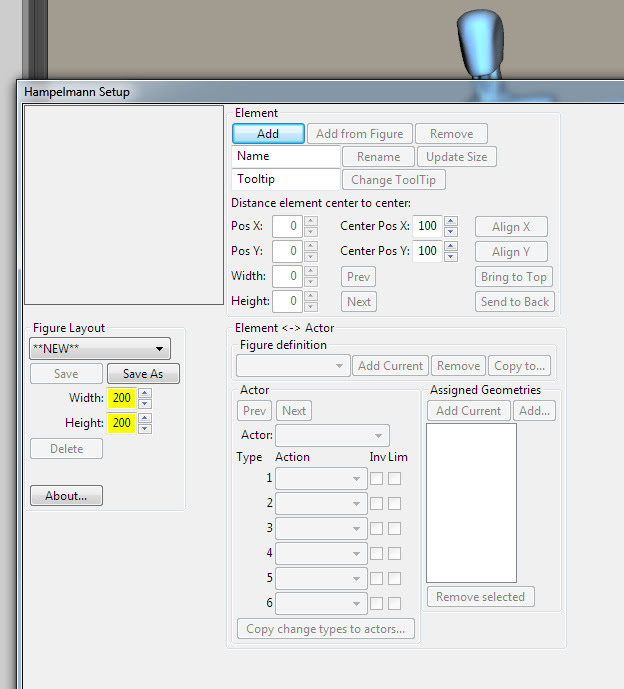
You should see this…
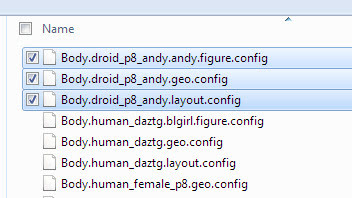
Click on “Import layout/figure/geometry files”. Then locate the folder you extracted from 1.6, the one with the layouts and config files in it called config_files. There are a confusing range of files in there. I had success with Andy by importing all three at once, and was then instantly taken to the figure posing screen. It worked, so… success.
Now click on a body part on the Hampelmann panel (not on the figure on the stage), and a click-hold of the mouse will gently move that part of the figure. Right button for back/forwards, left button for up-down. You get the idea. Sensitivity of movement can be easily adjusted with a single slider.
That’s the basics. There are detailed and rather daunting instructions in the 1.6 help files, if you need more guidance. And yes, it can work with more than one figure on the stage, and can switch between them.
It looks like can also create your own setup files for any Poser figure, via working with the companion Hampelmann_Setup.pyc script.
Scene Building in Blender
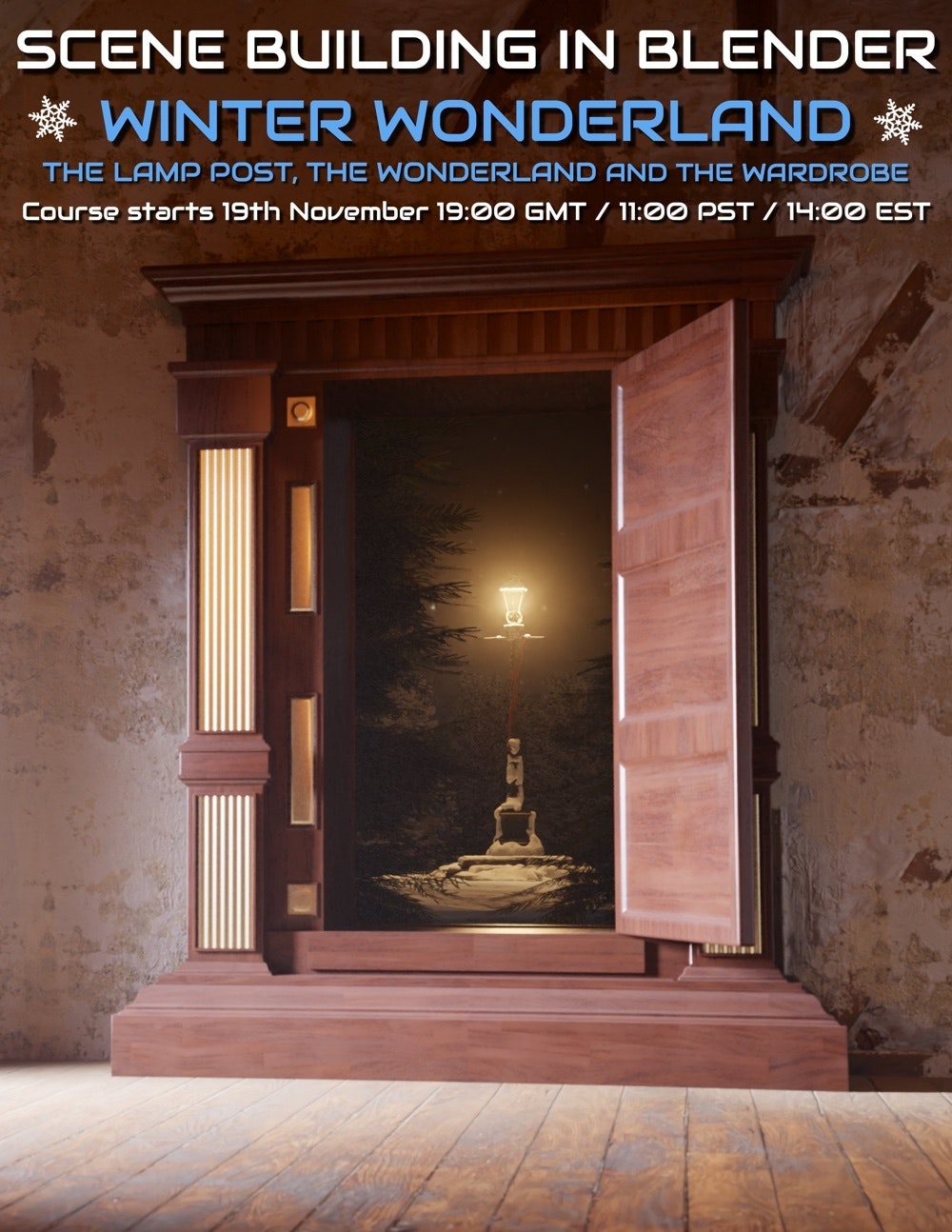
A new community course for beginners to learn Blender by creating a scene via modelling and texturing, Scene Building in Blender : Winter Wonderland. Starts Saturday 19th November 2022, and then runs Saturdays.
The scene is akin to the famous Narnia fantasy books for children: the wardrobe ‘portal’ into the snowy Narnia, with the lamppost as the first thing to be encountered there.
Published: Digital Comics Creative, Volumes 3 & 4
New and available now on Gumroad, Digital Comics Creative, Volumes 3 & 4 – Secrets of Poser 11 and Line-art Filters. Both volumes are bundled together as a bumper 100-page magazine-style PDF, great value at the introductory price of $15 (will soon be $18).
The earlier Volume 1 (Introduction) and Volume 2 (focused on DAZ Studio for comics) are also available. Volumes 5 and 6 are set for release in 2023.
Six-week coaching course, AI for your art
Starting soon, a six-week coaching course on AI for your art, with Vladimir Chopine.
iRay to 3Delight
The free iRay to 3Delight script. A converter script that works. May be useful for those trying to make comics with DAZ, but who have a thingamajig that only adds lines to old-school 3Delight and not iRay.
1. Download and install script and its icon to ..\content\Scripts\iRay_to_3Delight (script is iray-to-3dl.dsa)
2. Load iRay thing into the scene, which for some reason you want to convert to 3Delight materials.
3. Add some old-school scene lights, so your 3Delight render won’t just be a black silhouette when rendered.
4. Go to the DAZ Studio “Surfaces” Tab/Room. The script can only do its thing from there. Select, open all items in the surfaces tree, then select the required surfaces on your figure or pop. Shift + click for “All”.
5. With the surfaces still selected, now run the script now found in Scripts | iRay_to_3Delight
6. Ensure you are in 3Delight as a renderer, and render.
There are also commercial scripts, that toggle your scenes between iRay and 3Delight. But if you only need 3Delight conversion for a few things, this freebie may be what you want.
Vue’s magic “w”
Problem: In E-on’s Vue, the Camera Zoom / Pan controls and Nudge are way too sensitive for Poser scene imports to Vue. The settings there appear to be intended for vast three-mile wide scenes, where exact artistic framing of the picture is not so important.
Former solution: Pressing down Crtl while moving the camera used to work to damp down the camera, but now no longer does. The old manual had: “You can slow down the camera controls by holding down the Ctrl key as you move (this can be customized using the Operations tab of the Options panel).” This was good for Vue 11, Vue 2016, and still is if you have them. Not for the latest version(s).
New solution: The answer is “w” for the new versions of Vue. It is the new keyboard modifier for slowing or ‘damping’ the camera. Who knew? Not E-on’s Learning Center, certainly. No results for a search there for ‘Camera Controls’ and similar.
Customised as before with: Top menu | open Options panel | switch to Operations tab | scroll down the long list to find ‘Trigger Modifiers’.
There doesn’t seem much to be done about Nudge, though I guess a Python script could “move currently selected item down by X units” in a far smaller increment. I expect my nudge to be like Photoshop, one pixel at a time. Not 50 feet at a time.
Vue users could also use a Python script that runs through all possible settings that could have the damnable ‘Lens Flare’ enabled, and turns it off. Ideally permanently. It still takes forever to run at the end of a completed render, if enabled. You may think you’ve turned it off, but always seems to find a way to sneak back in. As Vue renders are now so fast, this is a big drag.