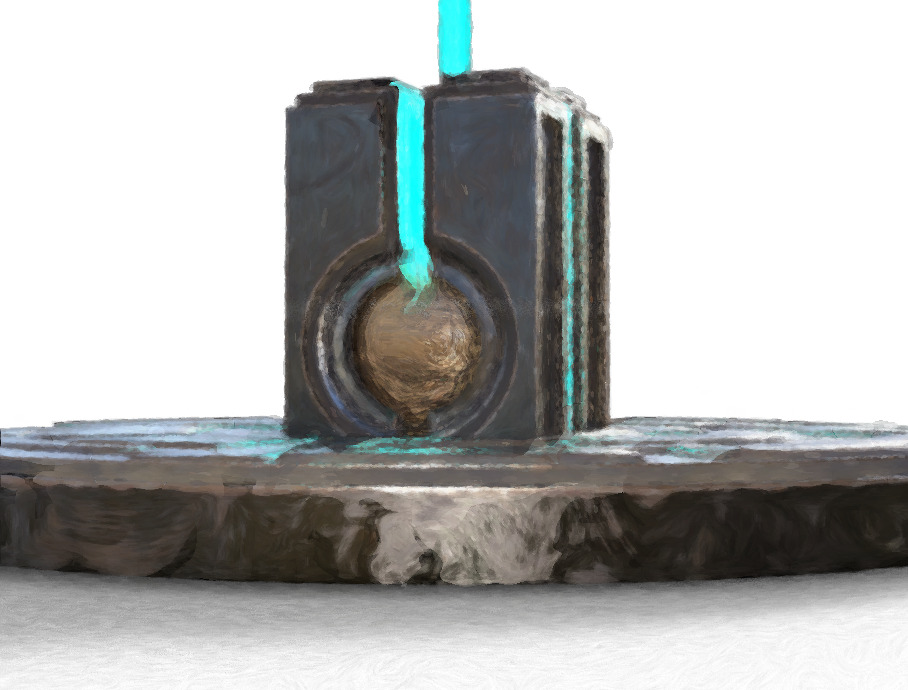
DALL.E 2. has launched in beta. $15 effectively buys you three or four text prompts per day, across a month. The lucky beta “users get full usage rights to commercialize the images they create”. There’s also a bung for those around the world who can’t afford that… “Artists who are in need of financial assistance will be able to apply for subsidized access.”
Category Archives: Companion software
Release: Material Maker 1.0
RodZilla’s Material Maker 1.0 is now available. It’s standalone desktop software for making PBR materials and more, and is a simpler-to-use open-source alternative to Adobe Substance 3D Designer and Substance 3D Painter. Version 1.0 (July 2022) adds 13 new nodes (inc. noise: dilate, erode, mask), undo/redo system, animated materials, sprite-sheet output, and more.
Free as ‘name your own price’ as a download on itch.io, but of course donations are encouraged for this very worthy software. For Windows, Mac (now ‘signed’), and Linux.
The nodes display will look familiar to anyone who knows the Poser Material Room.
Video intro at YouTube.
Fake Poser updated
adp001’s Fake_poser is now updated for Poser 12. His Fake_poser3a.py “supports editors while writing Python scripts” for Poser. See the free Digital Art Live #56 for a short practical plain-English tutorial on getting the free Microsoft Studio Visual Code editor installed (a good replacement for Notepad++) and then this Fake_poser3a.py installed to run in it and help you with the PoserPython bits.
Also, my P12 scripts page is now many times larger than it was at launch a few days ago. Also my Technical Search tool has grown further as I’ve found older Poser 12 relevant pages, tutorials, scripts etc.
Poser 12’s External Library
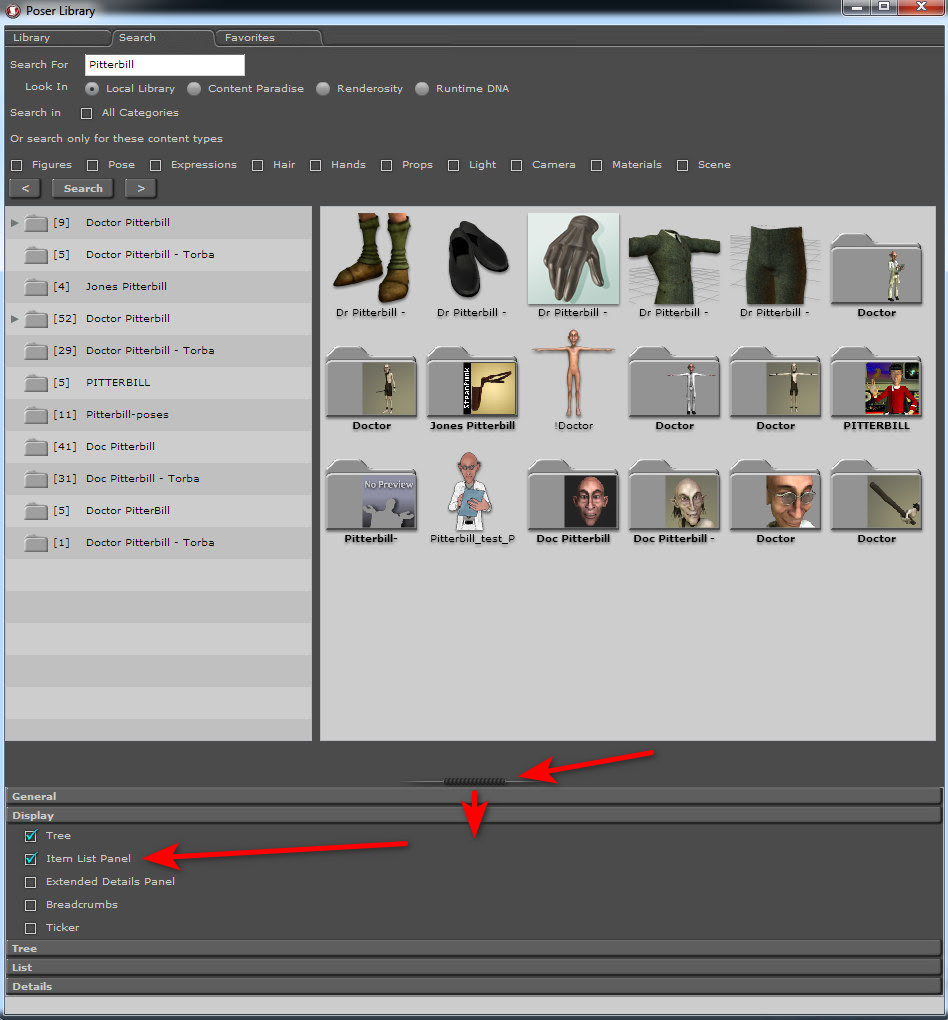
Well well… who knew? Poser 12 does have a nice External Library panel feature after all. The AIR Poser 2014’s Air External Library works with Poser 12 and can drag and drop across when Windows is running two monitors + set to “Extend These Displays”. AIR is fast and rock solid. It displays an interior thumbnail on folders, which Poser 12 doesn’t yet (despite the manual saying it does). It can also look at a loaded DAZ runtime and automatically filter for what Poser can load.
At first sight the Air Library’s view of the content leaves a lot to be desired, with collapsed grey folders, no grid view for search results and tiny icons. But this can be fixed in the settings…
Of course not everyone has an old copy of 2014 or an OS that will let them run Air. Mac users in particular may have problems.
I find you also now do the same with either a detached Poser Library panel (it used to be that it could not be taken outside of the Poser main frame). You can even have AIR and PzDB side-by-side on a second widescreen monitor, and either can drag-and-drop to Poser 12 on the main monitor. Figures, poses, lights, they all work.
It seems this behaviour did not used to be the case. Here’s developer Charles Taylor in the official Poser 12 launch webinar: “I remember when the separate window for the Library came to be. I loved it. But I don’t see us being able to bring it back with the current implementation of the Library. You can float it, but you can’t float it outside the app window. I don’t see that happening any time in the future”.
So I guess he may have been right at that point at the time, but later a way was found and it was fixed? Because you can do it now. Or maybe it can still only be done on Windows and not on a Mac?
Release: freeware voxelizer for .OBJs
Discovered too late for inclusion in the forthcoming isometric issue of Digital Art Live magazine, “How To Convert OBJ to VOX color” with a new summer 2022 freeware .OBJ to voxels ‘voxeliser’ software…
“Convert your .OBJ and .MTL to the native .VOX format, including color and textures”
…and also automatically make the object look like it was built with those funky voxel cubes. Warning: the software is new and still at the level of command line input.
Note however that Qubicle 3.x can do this same process already, and with a very nice GUI too, albeit for $25. You do have to start with a small model though. It’s not going to cope well if you try to feed it Stonemason’s Urban Future scene or a Genesis figure, from DAZ / Poser.
Quickstart in Qubicle:
1. Export from Poser / DAZ / Blender a viable .OBJ file, with a viable .MTL and loading materials (easier said than done). Poly-reduce if needed.
2. Top menu | Voxelize | “Load Mesh” | Load .OBJ.
3. Top menu | Voxelize | “Scale Mesh” | Type in a scale factor, “Preview” and see what it looks like after that.
4. Looking good? Top menu | Voxelize | “Convert to Matrix”.
Everything in Qubicle has to be held with a ‘Matrix’, indicated by a yellow holding line around the model’s volume. If you want to colour or edit the model further, you first ‘enter’ the ‘Matrix’.
PoseRay updates
A new 2021 version of PoseRay, a simple freeware Windows utility for converting Bryce .DFX to .OBJ files.
You may want to uncheck “Reorient” for best results, in some cases, before importing your .DFX mesh.
Cartoon Animator webinar
A new free two-hour webinar for Reallusion’s Cartoon Animator software. “Create Motion Comics Fast using Cartoon Animator”, now online as a YouTube recording along with a public link to a 3Gb(!) project file.
I was mildly excited. But on clicking through the video, the example appears to just a slow anime. A slow pace, and a few Ken Burns style slow-zooms and pans, does not make a motion comic. The title is thus a bit misleading. It’s certainly not the sort of panel-based motion comic you’d make with the dedicated motion comics software MotionArtist.
Release: Easy Toolbox ZBrush Plugin
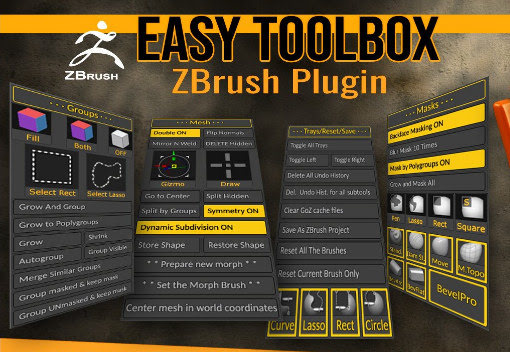
Looking rather useful for $3.50, Easy Toolbox ZBrush Plugin aims to speed your work with the software’s uncongenial and confusing interface, by…
“gathering together, in a single interface, many of the most useful functions of ZBrush that you use all the time.”
Release: Kinetix 1.5
The ‘video to mo-cap’ tool Kinetix 1.5 has been released. It’s a free browser-based service. Formerly you used stock figures to transfer the mo-cap from a video of a moving figure. But it appears that with this update your own figures can now be imported in .FBX format. Which may make the service of more interest to DAZ and Poser users. They’ve also removed the ups-selling micro-payments system.
Up and running with 3D in Photoshop, via the free DAZ Bridge
Here’s how to get the free DAZ Bridge running with Photoshop, and streamline a chunk of the workflow with my additional automated script.
1. Download the Bridge.
BRIDGE: Most people will want the 64-bit installer current at DS4_3DBridge_1.13.0.17_Win64.exe and this is working with the latest DAZ Studio 4.20.x. DAZ Studio lacks Poser’s ability to render to a multi-layered Photoshop .PSD, so this is the only official way to get renders over to a layered Photoshop file.
PHOTOSHOP: In this 64-bit case you need a 64-bit Photoshop that also supports 3D. Adobe recently pulled all 3D support from Photoshop, for rather murky reasons. Technically that should not matter, as all we’re doing here is bringing in a 2D render via a Bridge. But you may still want to revert to an older 3D version of Photoshop. The following tutorial assumes Photoshop 2018 on Windows.
2. Install the DAZ bridge. In the installer, you specify the plugins directory for the version of Photoshop you want to target. In this case…
C:\Program Files\Adobe\Adobe Photoshop CC 2018\Plug-ins
3. Once installed, go look in your regular Photoshop’s ..\Plug-ins directory and you should see a new ..\DAZ 3D folder there, and inside that a psdzbridge.8li file. Success.
4. Now load Photoshop. Open the backdrop image (aka ‘background’, aka ‘backplate’) you want as the base layer for your picture, above which your 3D DAZ renders will appear as adjustable layers. Ideally this backdrop is not at some huge size, but rather more like 1800-2400px wide. Then you run the Bridge script thus…
6. The Bridge’s mini UI panel will then appear in Photoshop. DAZ Studio will also be auto-launched at the same time, if it wasn’t already running. Give it time to load. In DAZ you will see you now have a special camera which is being used to get and pass the renders, and you will automatically be looking through that camera.
7. In DAZ, the Backdrop now needs to match the same one you have open in Photoshop. I wrote a script that automatically takes care of all the fiddly steps involved in this: it first invites the user to select and load the same backdrop they’ve already loaded in Photoshop. Ignore other manual switches, as the script will take care of them. This is how you load a backdrop image…
Then, once you’ve done that, the script continues. It auto-sets the Viewport ratio to the new backdrop, then also matches the current render size to it in pixels, and finally it turns off visibility of the backdrop in renders. The script also sets the iRay Max Time (i.e. maximum render time) to 30 seconds.
* Script (save as Photoshop_Bridge_helper_script_for DAZ_Studio.txt and then rename to .dsa).
(I have a tutorial here on how to pin a script to your DAZ UI’s ‘Scripts’ menu).
8. Both DAZ and Photoshop should now have the same auto-magically matched backdrops. Set up your prop or figure in DAZ, via the special Bridge camera, so as to match the backdrop in terms of position and lighting.
For 64-bit users to get a cutout render on transparency, you need to first click “Preview Image”. This doesn’t Preview in 64-bit (see below for details) but does set up “Render to New Layer” to render onto transparency. 32-bit users with CS6 need no such workaround.
In Photoshop and via the Bridge’s mini UI, you then “Render to New Layer”. The resulting render will perfectly match the backdrop in Photoshop, and will also be a cutout on transparency.
And the DAZ render time is now reasonable, taking 30 seconds to get into Photoshop. The seconds can be adjusted at the foot of my script. Adjust the time to as long as you can bear…
// Max Time in seconds
oProperty.setValue(30)
oProperty.getValue()
Yes, sadly 64-bit users have to do a proper full render in DAZ before it’s brought into Photoshop. Because the Bridge’s “Preview” button no longer works in 64-bit. What “Preview” was supposed to do was… “create an image or layer in Photoshop using the current DAZ Studio viewport image.” But for most this no longer works. Bridge now only works fully if you can use this method which involves having CS6 32-bit on a 64-bit system.
Thus for most people the best way to get an iRay render into Photoshop with any speed is to manually cap the render time to just 30 seconds, which my script does for you. At my default of 30 seconds the iRay render’s result is grainy, yes… but that doesn’t matter for me. The aim in Photoshop is “painterly via a filter”. The grain thus gets smushed away by the filter, and the painterly effect is perhaps even helped along a bit by the grain….
Alternatively you could try setting your DAZ engine to use a superfast custom iRay preset you have working with a ninja $1,000 graphics-card, or manually set the near real-time render-engine of OpenGL, after my script has run.
The advantages of rendering to layers over a matched background are various. Layers can be filtered differently or faded out for a ‘depth fog’ effect. Cutout edges can be stroked. Layers can be moved or deleted without having to go back into a big 3D scene. Very large complex pictures can be built, potentially with many elements, without burning out your PC trying to render some DAZ mega-scene all in one go.
That’s it. Enjoy, as the DAZ Photoshop Bridge could have cost you $200 back-in-the-day!
Release: 3DCoatPrint 2022
A new wholly-free and seemingly perpetual version of the 3DCoat software, in the form of 3DCoatPrint 2022. This is the latest version and is even partly licensed for commercial use. Ah, but how is it crippled? Well it’s…
* capped at “40,000 triangles on export” as a .STL mesh for 3D printing.
* has no “paint and retopology toolsets”.
* apart from 3D printing, “other uses may only be for personal non-profit activity.”
That appears to be it. So 3DCoatPrint looks reasonably good, even if you have no interest in inflicting yet more plastic junk on the world. Possible use-cases:
* you want a more rational sculpting replacement for Zbrush / Blender, and yet don’t need a Zbrush round-trip interface working with Poser / DAZ Studio.
* you “sculpt for greyscale render + partial auto-colour + paint-over”, making elements for assembly as 2D concept paintings.
* you specifically target the ‘low-poly look’ aesthetically, and might even find the 40,000 triangle limit a creative spur.
The software works on Windows 7 and up. Regrettably it’s not just “download an .EXE and install”, through. You do have to ‘sign up’ / ‘sign in’ to get it. Which suggests there’s some sort of online leash which could eventually pull your access, years down the line.
Release: KeyShot 11.2
Last noticed here as KeyShot 10.2 in June 2021, a year later KeyShot 11.2 is out. 11.x’s bugs are fixed and there are some nice new features…
* “a new 3D Paint system, making it possible to texture assets within KeyShot by painting directly onto the surface of the model”. Plus Layers, Material Management.
* the ability to “import animations in .FBX” will also please many.
* and “a Python 3-based scripting console” for scripted automation.
The bad news is that “sales of perpetual licences are discontinued” for this nice and relative easy-to-use software. All versions are now “subscription-only”. Even the entry-level version now costs $588 per year. It’s now “Windows 10 only”, too. Sigh.
Digital Art Live #69 / PlantCatalog’s new ‘English oak forest’
The latest Digital Art Live magazine is now available as issue 69. Free, but small donations are now encouraged via Gumroad to help keep it going. This month’s theme for the midsummer issue is “The Misty Isles”, loosely based around mythic and mystical ideas of our own British Isles.
In related ‘British landscape’ news, which sadly came just too late for inclusion in Digital Art Live #69, Vue’s grand English oak forest official pack is now available…
“This PlantCatalog update adds everything you need to create a full English oak forest, including trees, mushrooms, ferns, dead undergrowth and more.”
Brilliant, just add Robin Hood. Also in the pack are native lichen, moss, and even ‘pollarded’ willows (they grow alongside English rivers and large streams, and are harvested for their withies)…
Accessed for Vue via E-on’s standalone sister-software PlantCatalog. The PlantCatalog plants… “can be used both within [the subscription] VUE as procedural files and within any other 3D application as baked polygon meshes, with or without wind animation.”
Also interesting is that with this update to the software, all… “existing PlantCatalog species files are now up to 60% smaller than before.” Thus saving hard-drive space.
3D G’MIC
3D .OBJ import and lit manipulation in the free G’MIC, developing nicely and coming soon in version 3.1.3. And since G’MIC for Photoshop also works as a standard .8BF plugin in other graphics software, then they’ll also get the same 3D import capabilities.

Of course, older versions of Photoshop have 3D, but G’MIC will be able to provide simple 3D import for all current versions. From which, for some rather murky reasons, Adobe has ripped out all the 3D features.
Update: now released. Rather clunky at present, and .OBJ only (i.e. missing textures are likely). Experienced 3D users will be best to render in DAZ, Poser, KeyShot etc and export as a masked .PNG file.
Release: Blender 3.2
Release: Blender 3.2 final has been released. Among the many changes:
* new tools for polygon painting,
* ability to paint in sculpting mode,
* sculpting mode can “paint on millions of polys”,
* improved smooth algorithm for Grease Pencil, with ‘keep shape’ option,
* users can make “asset collections” in the new assets browser, and “thumbnails are automatically generated”,
* in-out improvements for .FBX files,
* and shader improvements for Eevee.
Over at DAZ, the DAZ to Blender Bridge has also updated. “Support for Blender 3.x”.