
I’ve fixed the broken download links on this blog’s Stuff for free page. The download links there are on SendSpace, and these links only lasts for 30 days — unless someone resets the link back to 30 days by downloading the file. There may thus be times in the future when the downloads become unavailable again.
Author Archives: jonahjameson
It lives!
Posted on
by
 Posted in Companion software, DAZ Studio, Housekeeping, Poser, Real-time animation, Spotted in the News, Vue
Leave a comment
Posted in Companion software, DAZ Studio, Housekeeping, Poser, Real-time animation, Spotted in the News, Vue
Leave a comment
Posted in Companion software, DAZ Studio, Housekeeping, Poser, Real-time animation, Spotted in the News, Vue
Leave a comment
Hi again! After nine months of hiatus, I’m pleased to say that I’ve regained the jurn domain, and with it this blog. Almost everything on the blog still seems to be working as usual, even the Pinterest sidebar gallery. The “Stuff for free” links will be fixed soon. The WordPress blogging software install has been updated to the latest secure version, the Classic Editor plugin installed to rescue the posting UI from ‘makeover mania’, and the blog seems ready to roll again.
I think I’ll do a series of three seasonal “best of new Poser/DAZ content” surveys as a catch-up, rather than trying to monthly ones: summer 2018; Autumn/Fall 2018 and Winter 2018/19. Watch for those here soon.
But first, a quick glance at what’s new or coming soon with tasty creative software since early summer 2018.
In 2D:
* the free open source painting software Krita 4.x has made several vital upgrades, and is now in 4.1.7 which came out just before Christmas. A very fine bit of software, and the laggy brush-engine of version 3 is now really fast and smooth. Lovely brush engine / library too, and brush stabilisation built in.
* SketchBook Pro went wholly free on Windows, though that caused its Android app version to become unavailable on the Kindle Fire tablet. In my opinion, Krita 4.x should now be your choice for desktop painting, before taking the painting to Photoshop for finishing.
* the full 1.0 version of the free open source vector / .SVG software Inkscape is due relatively soon and is currently available in alpha. Sadly there’s still no Illustrator .ai import support for older .ai files — it was such a huge mistake to remove that.
* the Photoshop behemoth continues to roll onwards, and just this week Adobe swallowed the Substance Designer / Substance Painter folks, and will subscription-only it in November. I hear that the very latest Photoshop version also has sufficiently good brush stabilisation to make the Lazy Nezumi Pro plugin defunct, although for inking line-art the latest Krita (free) is probably now the way to go.
* Digital Auto-Painter 6.0, the standalone set of ‘painterly’ picture filters.
* CrazyTalk Animator. Set to be re-named to the bland and un-findable ‘Cartoon Animator’, with the ‘coming soon’ version 4. Whatever the name, it’s still fine software for 2D animation and also for speeding up production of comic-strip / webcomics-style comics, with good balance of ease-of-use and power. Version 4 will bring ‘smart’ IK, motion re-targetting between characters, and more. Version 4 is due March/April 2019.
In 3D:
* Poser continues development and is now in 11.1.1.x and has a new official DevLog which lists changes and has news from the new development team. Access the patches and updated content for Poser from the latest version via the Download Manager.
* The new Lightwave, just revealed, promises seamless and automatic Unreal integration. Which suggests that there may be an easy path there from Poser scene > Lightwave > Unreal. Though there may not be a Lightwave 2019 upgrade to the Poser Pro plugin for Lightwave for a while.
* Cinema 4D had an major update, though nothing in it really grabbed me. The same was true for Keyshot.
* The real-time World Creator 2.0 is built on the Unity engine and I was lucky enough to get a review copy at RC14, and the eight-page review for that was published in Digital Art Live magazine #32 (Sept 2018). Difficult (but not impossible) to use without a really powerful graphics card, though.
* FlowScape is a fun simple real-time ‘natural landscape generator’, built on Unity. As with World Creator you’re probably going to need a whopping great graphics card to run it smoothly.
* Vue has gone ‘annual subscription’ and also changed the user interface. But I’ll be sticking with my Vue 2016 R4, which was the last before the UI changes and other problems started. I have no idea if the tight Poser integration has been retained in the new version, but I assume it has.
* MoI 4.0 (Moment of Inspiration) should be out soon. A nice fairly easy NURBS modeller that’s worth taking a look at.
Freeships!
Daniel Maland’s free 3D Meshes in .OBJ on DeviantArt. Plus some in Vue .VOB format. Only a few bits of fan-art, such as the Normandy from Mass Effect, and the Fading Suns Labship.

New for Poser and DAZ, March 2018
Here’s my pick of the month’s new releases for Poser and DAZ, slightly delayed by Renderosity’s image servers being so frequently unreachable/slow in the last few days.
Science fiction:
The superb Bradbury Suspended Rail System by The AntFarm. With pylons, track, wiring, and interiors.

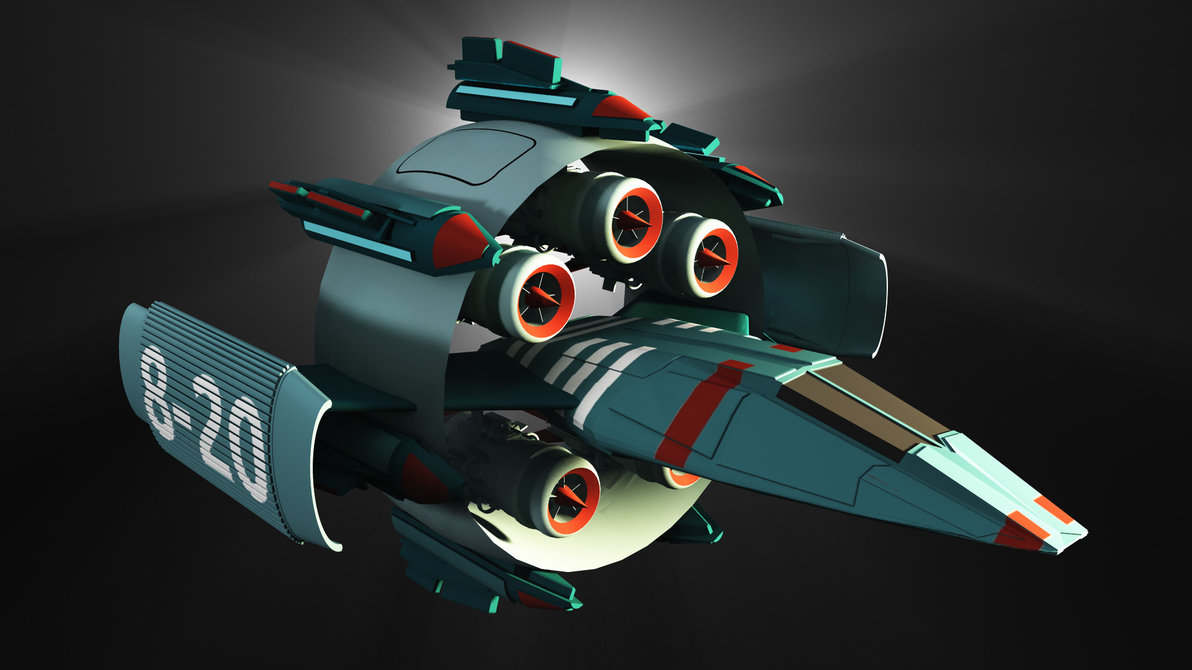
Jet Pack “Hyoga” for Genesis 8 Female.

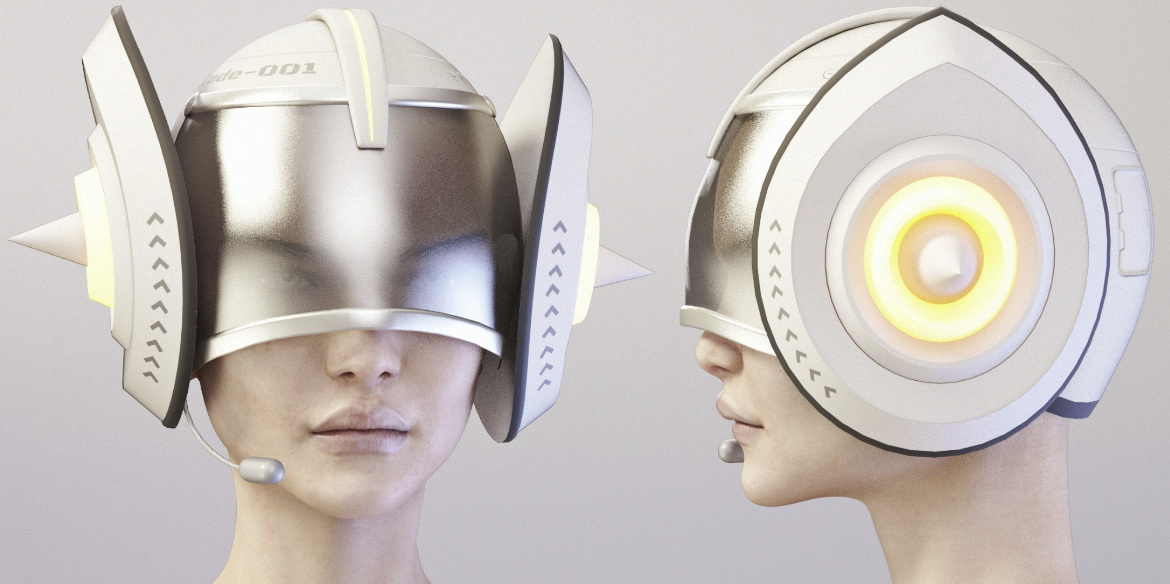
Your jet-packer could be flanked by futuristic air-boarders by using Stylized Helmet, Airboard and Poses for DAZ Studio and G8 / G3. The helmet not so good-looking from the front, though.
Got a mining planet scene? Neoquad for DAZ Studio offers an interesting possibility for having floating ‘mining pods’ with ‘mining pick’ legs.

Alien Queen for Genesis 8 Female.

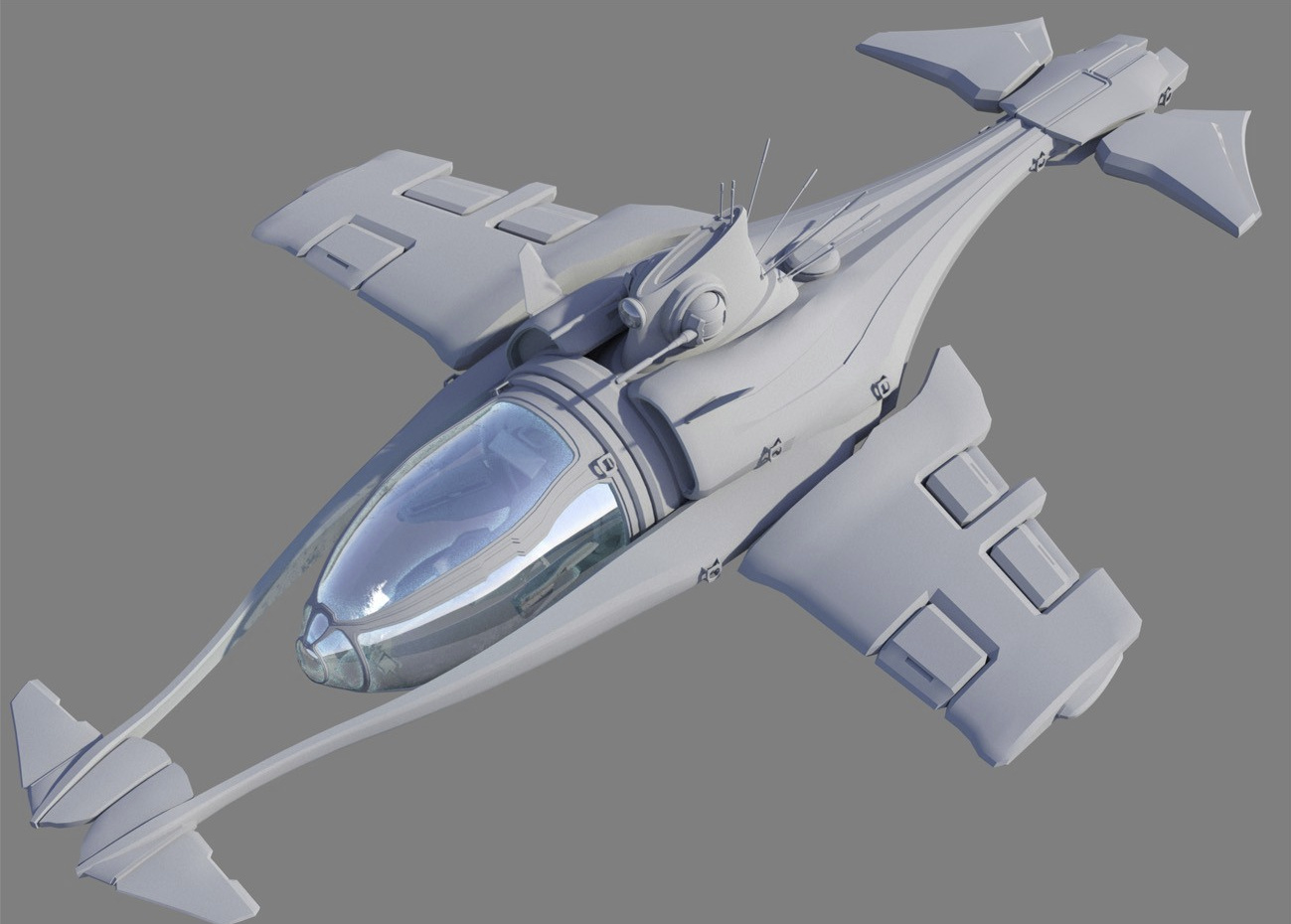
ATVE: A.E.C.O. is a nice sleek underwater vehicle, with G8 pilot poses.
Sci-Fi Cryogenic Room for DAZ Studio.

Ourias’s world : bundle car 1, low-poly but still detailed flying cars, for use in the middle distance in your retro sci-fi city scenes.

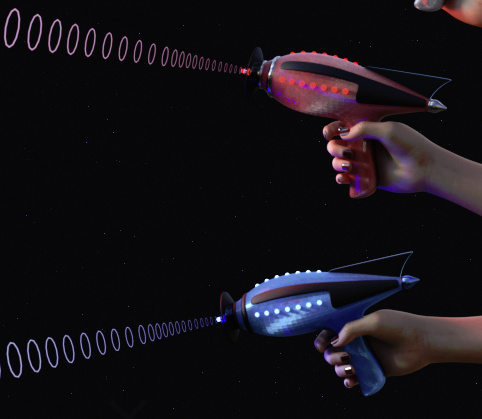
Morphing SciFi RayGun for G8F and G8M, with hand poses and gun morphs.
Steampunk:
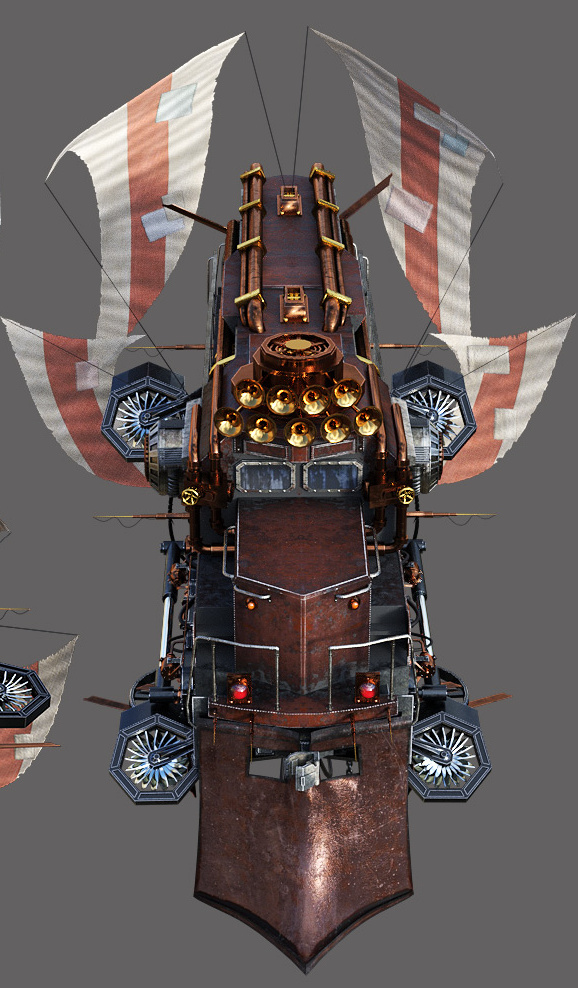
Steam Train is a superb movie-quality flying steampunk creation from Powerage.
A free Hot Air Balloon and basket, for Poser.

Fantasy:
A free Long Tongue Prop for DAZ Studio, suitable for a variety of fantasy monsters. Note that you must credit “squarepeg3d” if this is used in your renders.

Prae-Pearl Hair G3/G8, for DAZ Studio.

A MortemVetus freebie, formerly on the old RuntimeDNA store, returns as the free Morphing Treasure Map.

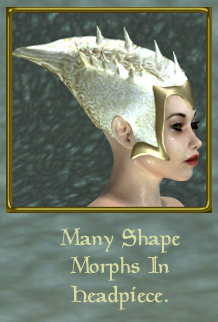
Daughter of Dagon for V4, an organic aquatic clothing set, with an interesting headpiece that morphs.
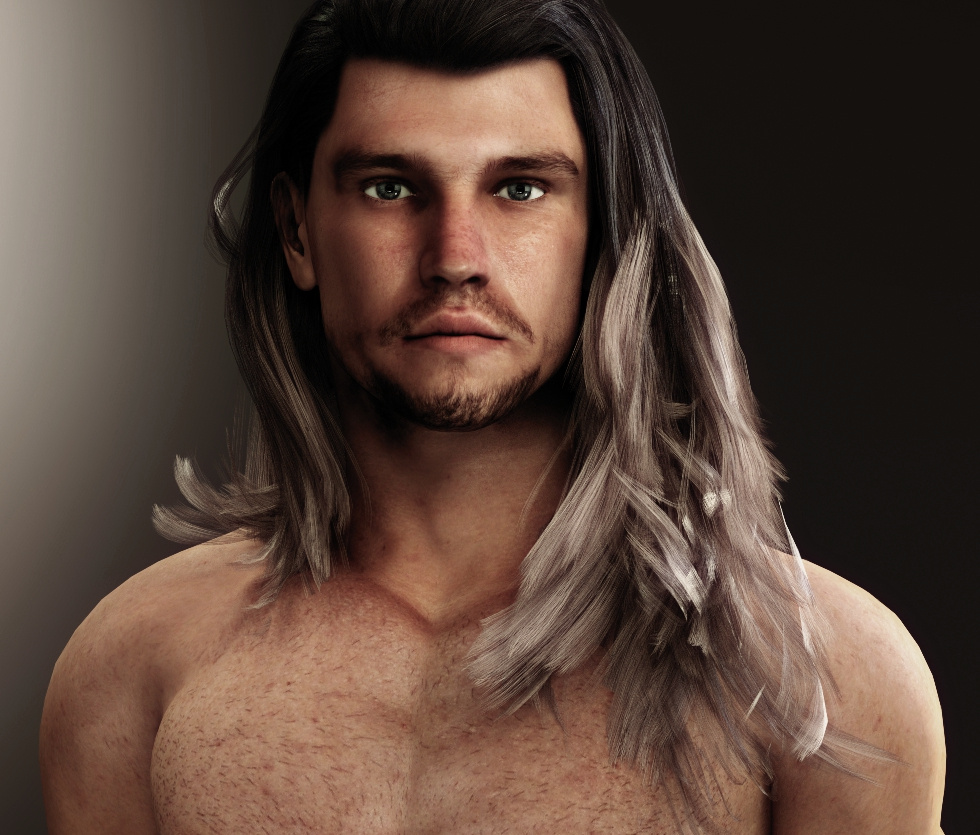
Always good to see a new custom-morph M4 figure for Poser, and this one suits fantasy art. Jorgen M4.
Fan art:
A big Smial for the Butterfly House for Poser. Has potential for conversion to the frontage of a Hobbit hole, though it would need a heavy makeover. The first thing to do would be hide the geometry of the front step, and replace it with organic rounded flagstones.

Get Rowling around the house, with HP Boggles for Ollie 8 for G8M, a Harry Potter-style house-elf…

Hide the juicy fishiies, it’s an HD Gollum-alike! Glumgurgle HD for the new Ollie 8 for G8M.

“Ah, think the Great Walt sees you not, do you…” SW Yuda for Poser and DAZ Studio.

Historical:
Flock of Geese for Grumman Goose adds U.S. Coast Guard, U.S. Navy, Royal Air Force and other makeovers to the Grumman Goose amphibious aircraft (aka ‘flying boat’) which could land on water.

If you want to make your own unique pin-up ‘squadron emblems’ for the nose of such planes, there’s the new Pin Up Box Bundle, a huge set of pin-up poses in the style of the 1940s and 50s, for G3F and G8F.

Cigarette for G3F and G3M, a complete accessories set including hand poses. Not sure if you also get a 2D billboard with smoke, but there are plenty of Photoshop ‘smoke brushes’ out there.

Toon and semi-toon:
Ollie 8 for G8M, an excellent new figure for G8M and Daz Studio. Plus an Ollie 8 HD Add-On. Presumably named for Ollie, of Oliver & Hardy fame.

The free Rotten Eggs for Poser. 14 poses and various textures. Formerly a freebie on RuntimeDNA, so you may already have it in your runtime.

Animals:
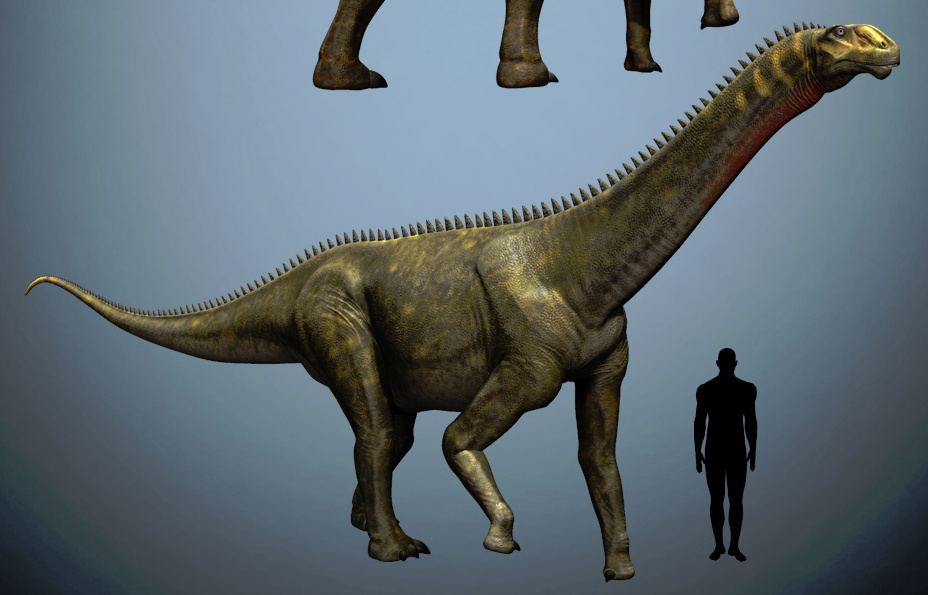
Mierasaurus, another quality dinosaur from Dinoraul, for Poser.
Scenery:
ShaaraMuse3D’s 3D hi-res photoreal scenes are always welcome, and the new The Last of Winter for Poser is a 13-item set suitable for campfire scenes and similar. May also interest Vue users.
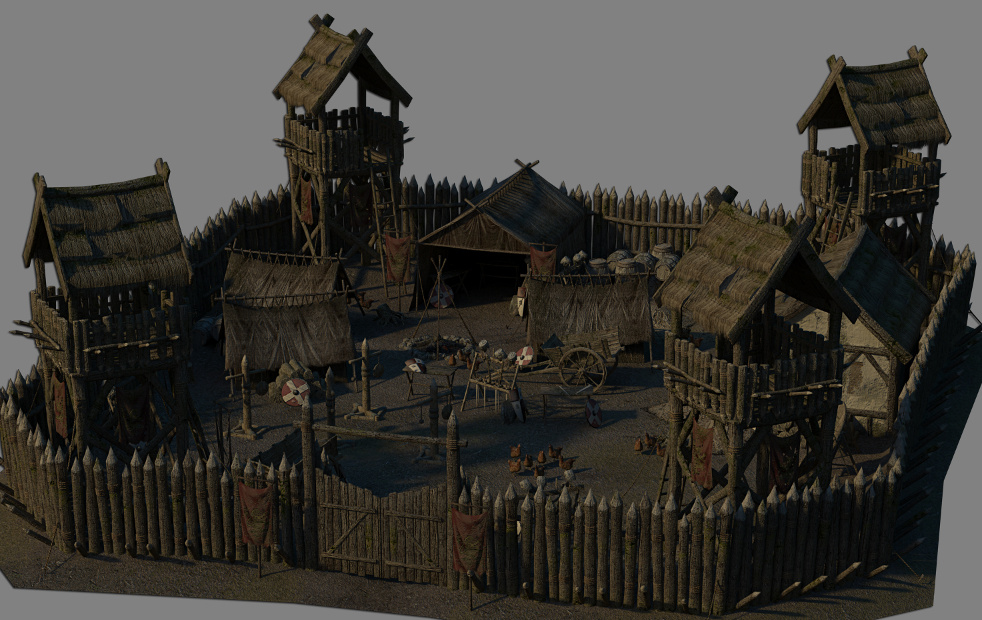
Got too much global warming on your roads? Clear it away with the free Pisten Bully for Poser, complete with driver posers for V4/M4.

Easy Environments: ExoPlanet IV for Poser and DAZ Studio. Also suitable for scenes with camels, lost temples, pod-racers etc.

Skellig Island. Crude textures and some abrupt sharp edges on the geometry, but it may be suitable for making renders for 2D overpainting, if you need to depict the circa 650s monastic life on the islands around Lindisfarne etc. Or to make ‘old Luke’ fan-art for the (very iffy) new Star Wars movie.

Skellig Island could be used with the new dForce Midnight Monk for Genesis 3.
Utilities:
The free PP2 Exporter v2.1a for DAZ Studio. This an update of the old PP2 Exporter, so you can export in Poser format from inside the latest DAZ Studio. Comes with a user guide.
That’s it, more picks next month!
Sculptris Pro announced
Two new additions to ZBrush 2018, coming soon…
* “Sculptris Pro … ignore the constraints of polygon distribution and just — sculpt! … begin with any shape or model, whether it has ten polygons or ten thousand. There is absolutely no need to worry about having enough polygons to capture details. … simply brush across the surface. Sculptris Pro will dynamically add and reduce polygons wherever and whenever it’s needed, freeing you to focus entirely on the look you’re trying to achieve. Start with a sphere, cube, cone or any other mesh and have some fun with Sculptris Pro.”
* Project Primitive … “Project Primitive is a unique deformer that offers a new way to blend multiple pieces of geometry together. Use multiple primitives to reshape a mesh, cut into a surface, build up from another mesh, and more.”
Vue 2016 R5
E-on has announced a Vue 2016 R5 patch. Be wary about simply applying it though, as they’ve made changes to the whole User Interface…
“Many UI/UX and navigation improvements, with homogenized navigation manipulation throughout the whole UI, and several dialog and editors redesigned.”
Erk! Nope. The only reason I can see to upgrade is that R5 apparently has a fix to import a Poser 11.2 scene more accurately (it seems some bit of the process broke in R4, re: Poser 11.2 against 11 or 11.1).
Update: Actually the UI is not too bad. It’s not a total makeover, more like a series of small tweaks.
Release: Krita 4.0
Posted on
by
Posted in Companion software, Freebies, Natural media emulation, Spotted in the News
Leave a comment
Posted in Companion software, Freebies, Natural media emulation, Spotted in the News
Leave a comment
Krita 4.0 has been released. It’s the free ‘open source’ painting software. I tried 3.0 and it’s pretty good… if you can’t afford Photoshop, Sketchbook Pro or ArtRage, in that descending order. Have tried many, I’d say that starting in Sketchbook Pro and then finishing off the picture in Photoshop (with the Lazy Nezumi stroke smoother plugin) is the ideal way to do it. Both are highly optimised, so that you can use large brushes on large canvases without lag. Depending on your hardware, the same can’t be said of many of the lesser painting apps.
Anyway, Krita 4.0 is free and it may be worth a look if you’re trying out 2D digital painting software. Here are the new features…
PDFs in DeviantArt
It’s possible to embed a scrolling PDF at DeviantArt, and have a download button for the PDF file show up. Who knew?
Poser and DAZ to glTF 2.0 for Facebook?
Facebook seems to be all set to become the next tumbleweed-haunted MySpace, the way it’s going with censorship, data leaks, fake news, and ‘pay to reach your audience’ lockdowns on content. But for now it’s still adding new features. For instance users can now post 3D models on their Facebook posts, though only using “glTF 2.0” files.
How might Poser and DAZ Studio users get a glTF 2.0 file? Well you:
1) Output from Poser or DAZ Studio to Collada .DAE (easier said than done, a lot of times). Note that Collada export is Pro version only, in Poser 11.
2) Then you can use the official Collada2glTF to get a glTF file. Though it’s a command-line tool on GitHub, eeek!
3) Then it appears that when you upload the completed glTF 2.0 file to services such as Facebook, a back-end engine (which you don’t need to know about) will grab it and make it lightweight enough for speedy loading in the Web browser. Presumably it does this by reducing the poly-count and texture sizes. Facebook also has a size-limit on the file, and presumably its back-end will crunch your model down to that size.
If your initial Collada export is getting all scrumpled up, as often happens, then Facebook has a FBX2glTF which accepts the more reliable .FBX format. But be warned that it’s also currently a fearsome-looking command-line tool on GitHub.
Looking rather more user friendly is SketchUp’s free glTF 2.0 exporter plugin, though at only 61 views in a month it’s not currently a plugin that’s getting much lurv. And good luck with trying to get Poser and DAZ characters into SketchUp.
There’s also an online service glTF Model Converter which can handle .OBJs, but note “the timeout limit is 2 minutes and the maximum file size is 10 MB”. I also got loading errors on the Web page widget, but that could be due to my browser. Might be worth a try though, with a small prop. A DAZ/Poser content developer might be able to showcase small bits of their forthcoming product that way, on Facebook.
If you can run native Python there’s also a BatchGltf, offering a graphical user interface. I’m guessing that might be suitable for integrating into the forthcoming Poser 12 as a Python script for glTF 2.0 exporting?
2020 vision
Demos for the NVIDIA RTX are unleashed as a technology showcase this week, the Game Developers Conference. The RTX holds out the promise of…
“real-time ray tracing to game developers and content creators”.
It’s centred around the Volta GPU system, which NVIDIA says is… “multiple integers faster” than previous generation architectures when it comes to ray tracing. Microsoft is reported to be on board as a partner, with a… “new DirectX Raytracing (DXR) API. Any GPU capable of DirectX 12-class compute should be able to run DXR”, and a few game studios are working on demo games.
But it seems it’s not going to be boxed and in the $300 racks at the stores anytime soon. According to NVIDIA the technology is likely to take some “years” to mature, and for consumers to have the zippy hardware that can run it fully. I’d guess… perhaps by the year 2020?
Daz To Maya plugin
Posted on
by
Posted in Comics, Companion software, DAZ Studio, The Animation Industry
Leave a comment
Posted in Comics, Companion software, DAZ Studio, The Animation Industry
Leave a comment
DazToMaya 1.1 plugin, with auto-conversion of materials for Arnold/Vray in “Maya 2016 or higher”.

I imagine most DAZ Studio photoreal users will be happy sticking with the quality of their iRay / Reality renders. But for a modest $30 the new plugin may interest small-studio Maya users, people who need to more quickly import DAZ’s royalty-free content while doing work for clients.
Of course there’s also the possibility of tooning a DAZ scene in Maya. I’ve never really looked at Maya’s toon capabilities before, but I had a look just now. It appears the default toon effect is certainly not up to Cinema 4D standards. I searched in vain for a screenshot example of a Maya toon render that wouldn’t cause derisive snorts of laughter among readers/buyers of graphic-novels. But all the likely examples I lit upon turned out to be done in Unity or Unreal Engine, or Blender, or were highly customised Vray. Or they obviously took an enormous amount of time and fiddling to set up. But if you want to check it out, I read that Maya’s basic toon rendering engine is to be found at: Maya | Surface | Ramp Shader, and judging by the documentation it’s fairly tweak-able.
But it’s obviously nowhere near as good as the ink and toon effects in Cinema 4D, and remember that Poser Pro 11 to Cinema 4D is really easy to do via Smith Micro’s plugin.
Admittedly Arnold may get a good toon render option soon, though that’s not yet available. Possibly there are others for Arnold that I don’t known about. And Vray also appears to have basic toon shaders and can be tweaked. So there may also be options to explore there.
But for making still renders for comic-book frames etc it still looks best to load the DAZ character or prop into a $60 copy of Poser 11 (or export as .OBJ, if a Library load can’t be done). Then in Poser set up a flat IBL light and turn on the real-time Comic Book Mode. Thus getting a superior and quicker effect. Even more so, if you’re willing to swop out grungy 3D textures for something more toon-friendly.
Arnold Toons
Arnold is set to get a toon shader, currently in testing.


More samples here. Arnold has plugins for Cinema 4D, 3DS Max and others. Cinema 4D already has superior tooning in two of its versions, but 3DS Max users may be interested in an alternative toon renderer.
Unreal Studio launches
Unreal Studio is now available. No, it’s not the long-awaited virtual movie-studio based on Unreal. Architects and product designers will upload their CAD or 3DS Max files to the Unreal Studio servers, and then Unreal will send them back a real-time Unreal Engine render. There’s a plugin for 3DS Max that examines the textures and suchlike, and auto-converts if needed. Unreal Studio is currently in a free beta until November 2018, but is then set to be $49 a month. May be useful for some, perhaps especially for animated turnarounds, but you have to wonder why someone can’t run 3DS Max to Unreal Engine locally — if all it needs is a plugin and it’s producing a genuine real-time render.
For the boot
I was interested to hear about the surprisingly robust approach taken by the French when training their new VFX talent…
“[our] French counterparts [who run university VFX degrees, teach on] courses four or five years long, and cull students from the course who don’t meet the quality expected.” (Tom Box, interviewed in the latest edition of 3D World magazine)
In the UK it’s overwhelmingly a three-year degree. Although there tend to be a lot of first-year drop-outs, the duffers who remain on the course after that tend to be tolerated right through to graduation. They’re too often graduated as well, at management insistence, if only with a 3rd class degree. In France, it seems, the teachers have more control and thus a degree course’s reputation trumps the income from a student’s fees / the university’s student retention-rate statistics.
Stalled at the station
How can there not be a single Stylish makeover theme for Artstation, when there are 37 pages of such themes for changing how DeviantArt looks? Bizarre.