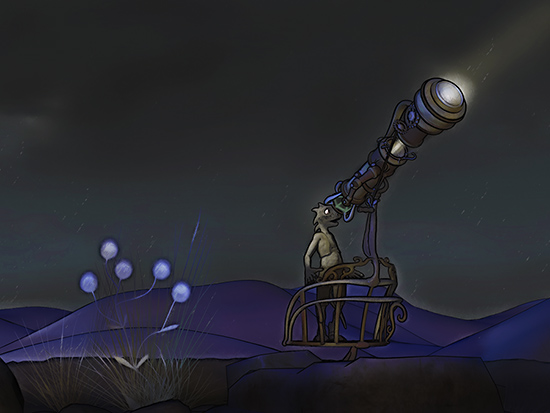
Emulating 2D hand-drawn, via 3D in Poser 11. ‘By Moebius’, or as close as you’re going to get to that style without actual hand-drawing. All layers are real-time or near real-time renders.

Emulating 2D hand-drawn, via 3D in Poser 11. ‘By Moebius’, or as close as you’re going to get to that style without actual hand-drawing. All layers are real-time or near real-time renders.
You have a complex scene in Poser. You load in a new prop or figure and… the new prop or figure is nowhere to be seen! You then have to tear your scene and carefully composed camera framing apart, to find the new item.
Is this is a problem you have, as a new Poser 11 user? Do you wish there was something like Poser’s native “Drop to floor” command, but named something like… “Centre selected item in camera”?
There is a way to do it, and it’s actually better than the native “Center item in camera”. It’s Ockham’s Python Scripts: SnapTo script. Only works on Windows. If you’re on Windows, here’s how to install and use it.
Update: There is now also a working Mac-friendly equivalent for it.
1) Download and un-zip. In Poser 11 you place the script in: C:\Program Files\Smith Micro\Poser11\Runtime\Python\poserScripts\ScriptsMenu to have it show up in Poser 11’s Scripts menu. It’s really really important to get right down to that last ..\ScriptsMenu folder and not stop at ..\poserScripts and think you’re there!
Then rename the script so that the filename has basic instructions. For instance…
SnapTo.py
becomes
SnapTo-SelectItem-StartScript-SelectDesination.py
The name of the script then serves as a quickstart reminder on how to operate it when you’re in the midst of creating a scene.
2) OK, so you built your complex scene. Load your character into it. Here we have Nursoda’s “Fon” character loaded into a scene via drag-and-drop from the PzDB library software, and… he’s nowhere to be found. He’s gone, lost somewhere in a vast desert. Could be anywhere.
So now we need to use the script we just installed. Find it at the top menu, under Scripts.
3) The name of the re-named script reminds you to:
i) have the item selected that you want to move before you start the script;
tip: ensure the item did not auto-conform to something when you dragged-and-dropped it. If it did then un-conform it — and also make sure you select with the main ‘Body’ element;
iii) you then start the SnapTo script;
iv) then you wait for the script to finish loading (there’s a progress bar);
v) after a few seconds the progress bar should read “Waiting to select destination”. Then you simply click-select the item in your scene that you want the lost prop or character to move to.;
vi) the script then moves the lost object.
Here I selected the observation deck of the steampunk telescope as the move destination. The script won’t also scale and rotate the moved item to match the destination, as I’ve done here with Fon to make a prettier basic picture. But the script moves things quickly and it saves a lot of trouble.
The only problem you may have is with a pre-dressed character loader-preset, as he may leave his clothes behind. You’ll need to re-dress.
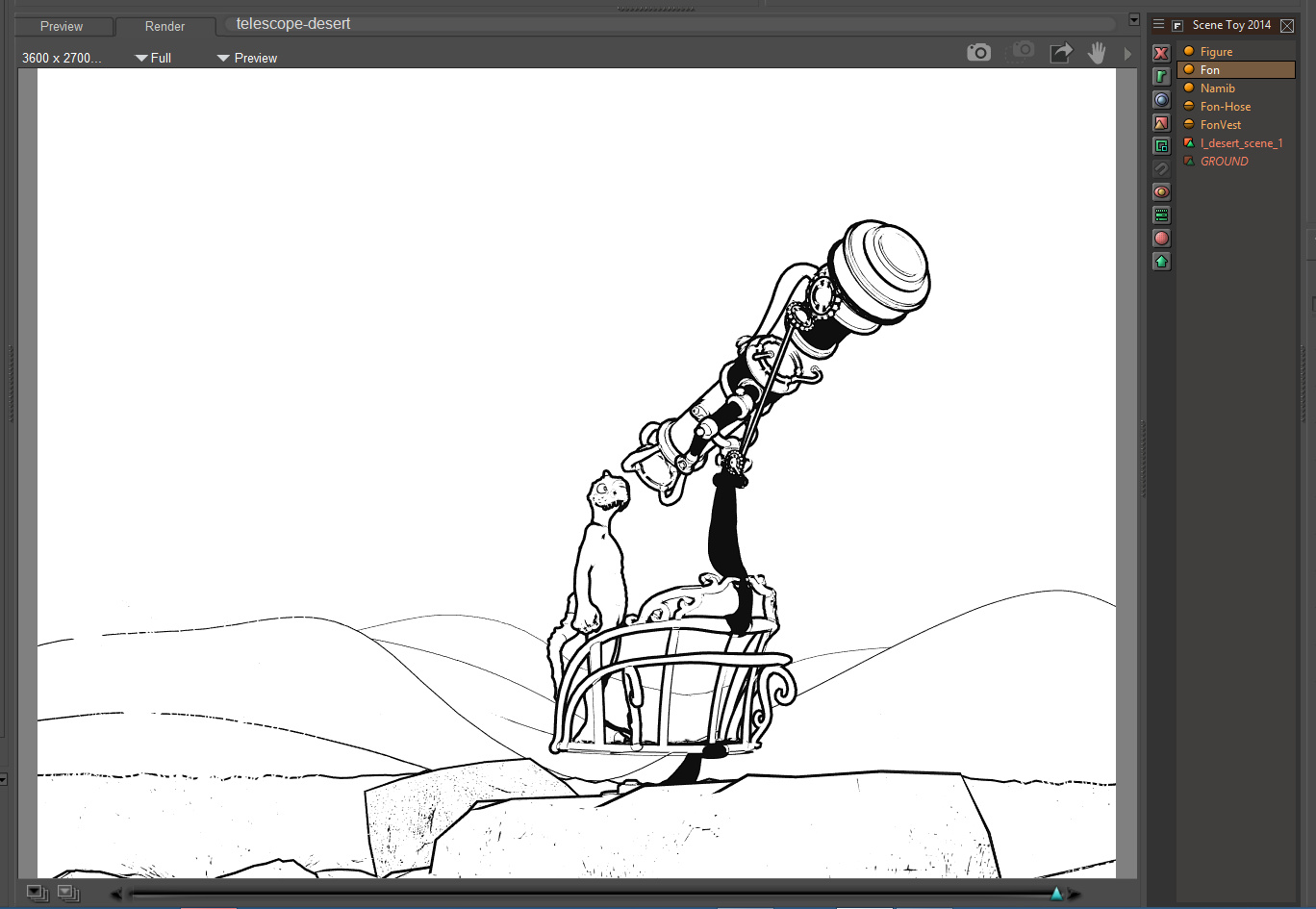
Hopefully Poser 12 will integrate this operation as a native button, but until then Ockham’s vital script does the job fine in Poser 11. He also has a variant script, to “move the currently selected camera to the clicked location”, useful for working with very large or complex scenes, which can be used on a Mac. But note that the main SnapTo use Tkinter as part of the scripts, which means Mac users cannot run it — take it up with Apple and their fickle support-policies dept., not the makers of Poser.
A couple of webinars coming up.
1. Reallusion have a free “Importing & Animating DAZ Genesis 8 Characters in iClone” webinar on 11th September 2019. Update: YouTube link.
2. Carrara and Vue webinars from DAL, on 21st and 28th September 2019.
 Posted in Comics, DAZ Studio, Freebies, Poser, Spotted in the News, Tutorials
Leave a comment
Posted in Comics, DAZ Studio, Freebies, Poser, Spotted in the News, Tutorials
Leave a comment
A free Visual Narratives Workshop on making digital comics, with Digital Art Live. This coming Sunday, 28th July 2019.

All the buttons in Flowscape 1.3, covered, for the first time in a detailed 43-minute walkthrough of the software, aimed at beginners. Free on YouTube.
Whatever you may think about ‘the ultimate price-tag’ on Reallusion’s software, or the radical UI makeover and new render-engines in iClone, as a company they do provide excellent support and tutorials. And the new Cartoon Animator 4 is fine software which is also useful for comics makers of a certain type. Today Reallusion uploaded an hour of detailed new tutorials on the vital skill of how to set up a “360 head” in their new Cartoon Animator 4 software…

Basics of Head Composition in CTA 4, and Full 360 Degree Head Creation Part 1 and Part 2.
There’s also a new 20 minutes video that dives into the details of all the Face Key Editor Enhancements in CTA4, which offers the user detailed creative control over the resulting frame-by-frame animation.
One of the problems with the old MojoWorld software is that, even when you full-screen the software, the “instant preview” window is very small. Here is that preview window, seen actual size on a modern 1920px desktop monitor…

So tweeny-weeny, so cute, but… a pain on the eyes and the neck, on a big widescreen monitor! The user can do certain things to improve it. In its Settings controls you can set render size to: ‘Large’ and ‘Auto-update’. While its ‘Render Quality’ is best left at Default (it makes little difference, but is slightly the fastest of the three options).
So the user can do some things to improve it, but can’t actually enlarge its size. Wouldn’t it be great to get a bigger view? Like this…

Is there some freeware that can do that? What about a Windows magnifier software? Nope… I looked for hours and there’s absolutely nothing that can grab a section of the screen and show it in an enlarged fixed window like this. They all want to play “follow the cursor, and show what’s under it”.
There is a solution, and it comes from a surprising direction. It’s the popular free video player VLC Player. Here are the instructions…
1. Launch the latest VLC Player. From the top menu, go: Media | Open Capture Device | Capture Mode | Desktop | 12 FPS | Play. You have now set up a live video-stream of your desktop. Don’t worry, it’s not being sent to some dodgy blokes in Ecuador, and is staying within your PC!
2. From the top menu, go: Tools | Effects | Video Effects | Crop | then you will need to play around with the pixel offsets to suit your screen. You may need to ‘jiggle it a bit’ until the section of the screen you want to isolate pops out into an ‘enlarged’ mode, but you’ll soon get the hang of how its ‘indenting the screen’ and thus enlarging it. Here are my settings on a big widescreen desktop monitor…
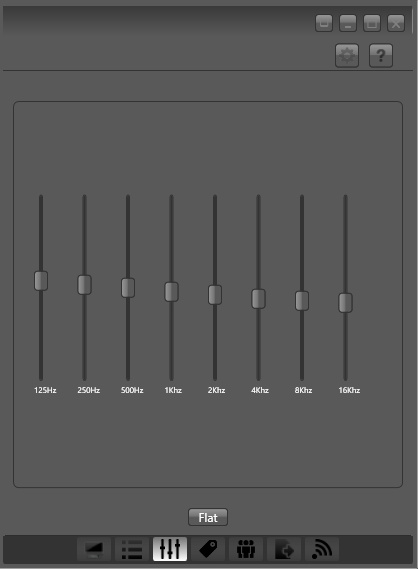
Optionally, you can also have VLC do a very slight real-time sharpen, which is controlled from the same Video Effects tab — the Sharpen slider is found under ‘Essential’. You can even send the image into black and white and slight change the contrast, to get a sense of how the greyscale values of the picture will visually “read”.
3. When happy with the view, effect and magnification level, grab the VLC Player window and place it in the bottom right of the screen (as seen above). Then go to the top menu and set: View | “Always on top”. This forces VLC to be visible, even when MojoWorld is the active window.
You then work with MojoWorld as usual.
Optionally, in MojoWorld if you mouseover on the native instant-preview window, then you can click once on it to “Enhance”. That’s pretty quick on a modern PC, little more than a second. After doing that Enhance, here’s a comparison at actual-size of the two views, the native instant preview and the VLC stream of that section of the desktop…

Not ideal, but better that the native preview. You’re getting an entire planet rendered in WYSiWYG in near-real-time, and as such some pixellated blockiness seems a small price to pay.
There are a few drawbacks:
1. You lose instant access to your “random cam” dice buttons, because the corner of the VLC Player windows is covering them up. If you want access to them you have manually grab the VLC Player window by its top bar, and slide it down for a few moments, then manually side it back up. But that’s easily done, and then you can re-select the MojoWorld window and go back to the JogNav buttons.
2. You get a slight ‘mouse cursor flicker’, due to VLC capturing the stream.
3. It’s overkill for fast-rendering planets. On a fast modern PC you’d get a preview that’s nicer and almost as fast by just doing a quick 600px render on the lowest settings.
The above technique should work on any older software where the instant preview is of a fixed size.
Welcome to another personal survey and pick of the fresh content that’s been newly released in March 2019, for use with DAZ Studio and Poser.
Science fiction:
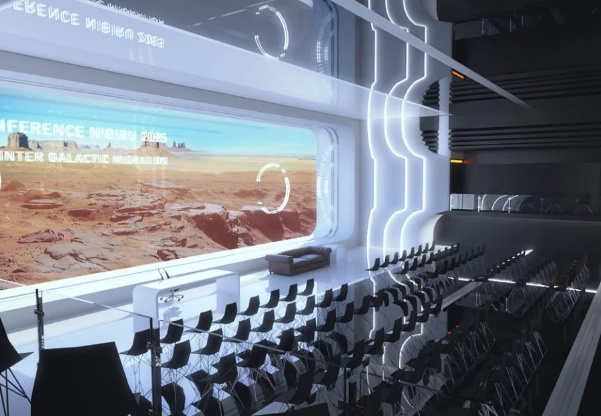
Nibiru Auditorium for DAZ Studio.
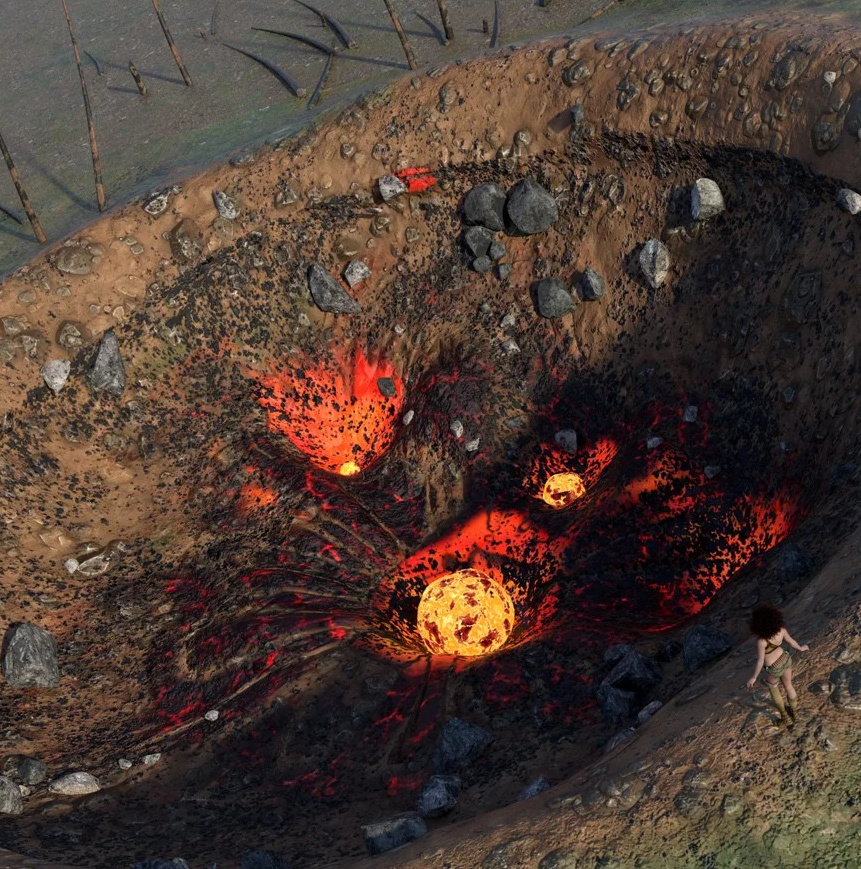
Meteor and Ship Crash Site. With the choice of either the spaceship or the glowing meteor.
Spaceship Wreckage, for a larger scale.

Sci-Fi Atmosphere Processing Deck. With 28 camera presets and camera-matched lights.

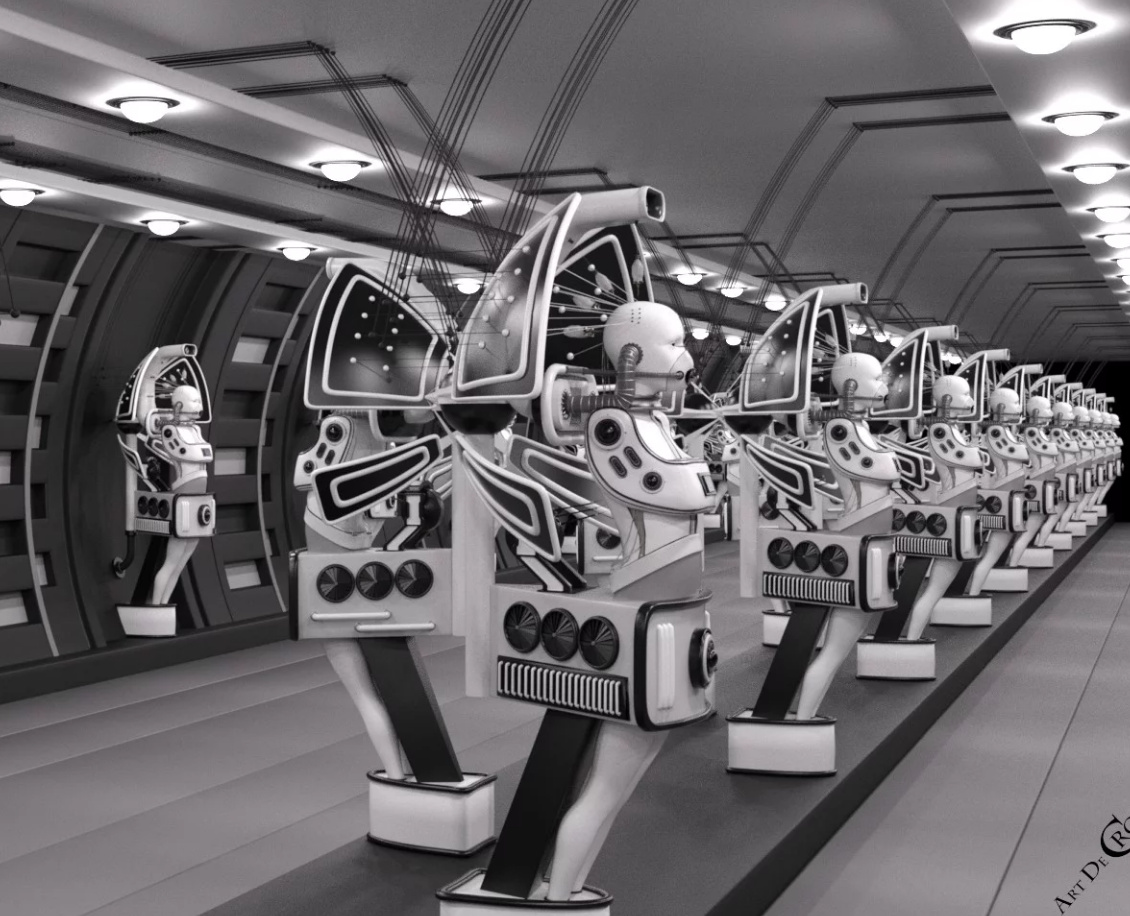
Assimilating Brain Unity, an unusual robot/cyborg production factory.
SOF-1A for Genesis 3 and 8 Female.

Steampunk:
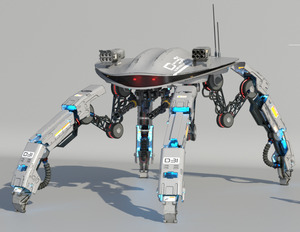
Junkhead is a cute rigged robot, given away as a low-poly freebie.
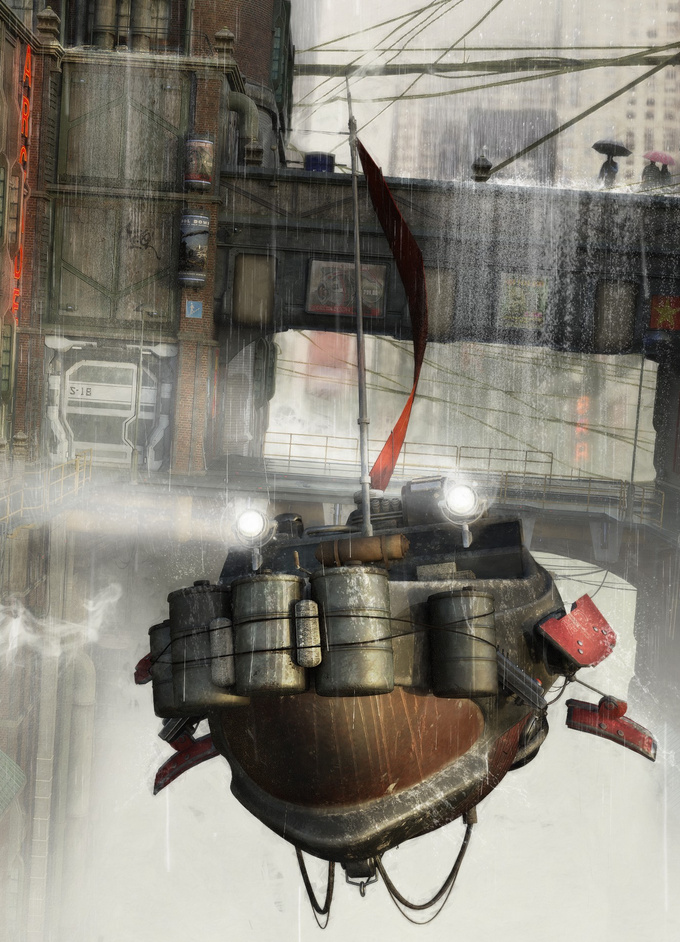
At SketchFab, a new steampunk rifle, albeit at $29.

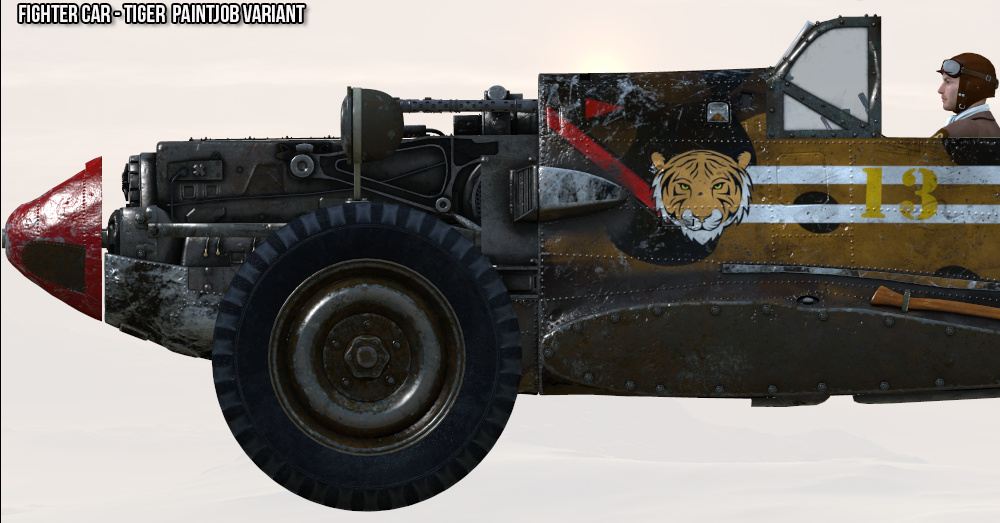
Wasteland Warriors – The Fighter by Cybertenko. A 1940 style fighter plane, converted. For Poser with M4 poses. Also has a Moebius vibe, re: The Airtight Garage.
Historical:
1920s and 30s style Flapper Cloche Hat.
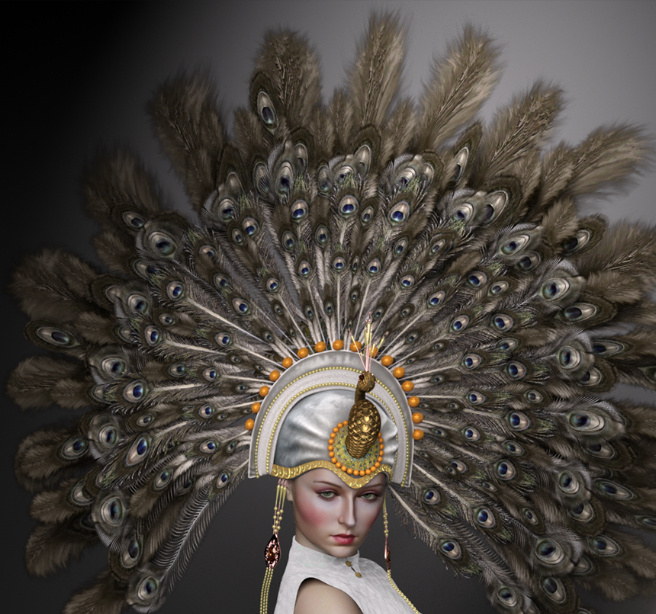
1920s and 30s style Flapper Showgirl Peacock-Feather Headdress for G8F.
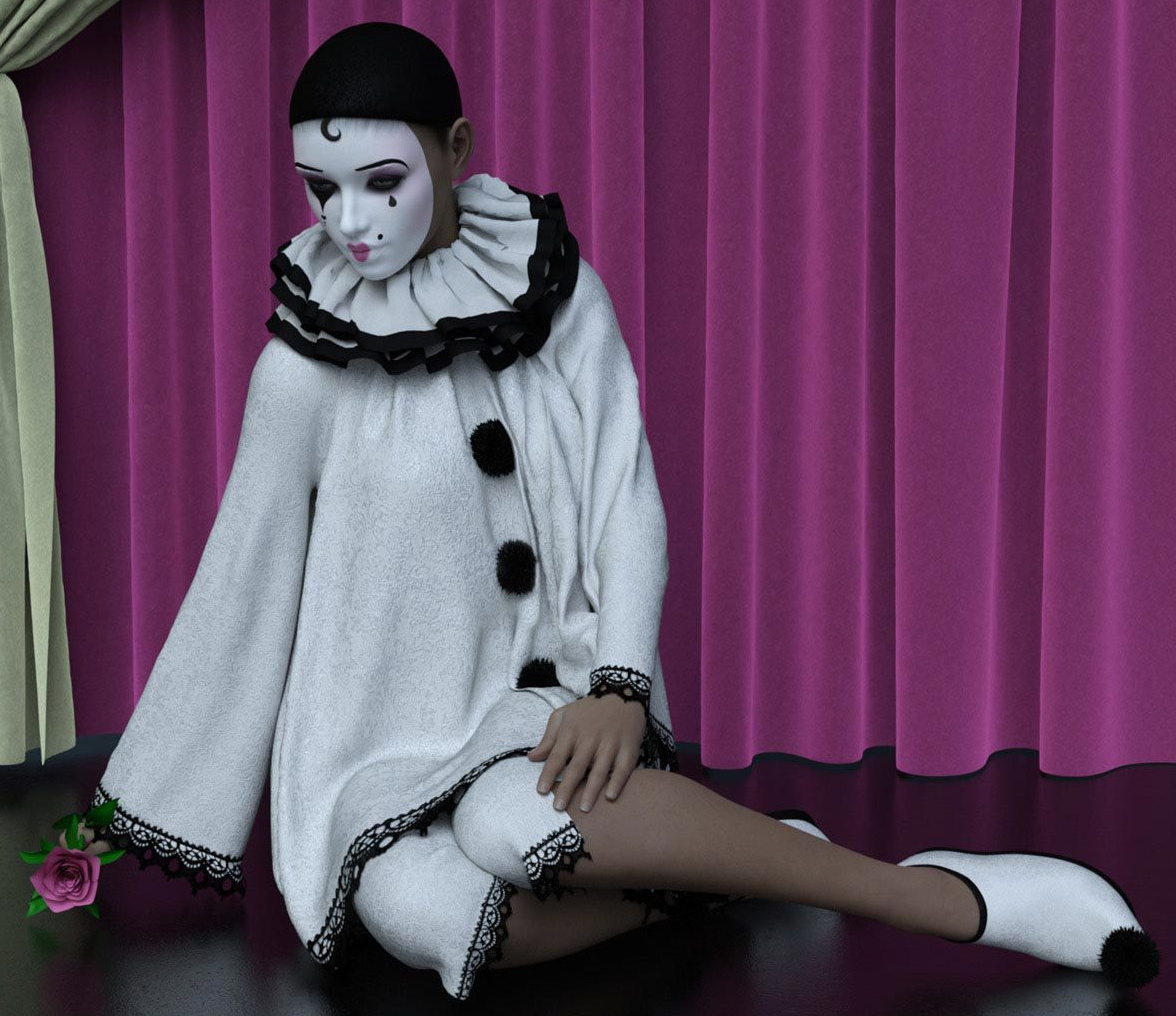
Curtain Call for G8F. Possibly also useful for storybook, re: a “doll’s house come to life”, and similar.
Suitcase Collection Vol I. Travel-worn vintage suitcases for DAZ Studio.

The Streets Of Asia 4 by Stonemason. As you can see clearly here, a choice of lots of possible camera angles and views, which is one of the great things about Stonemason’s 3D set design…
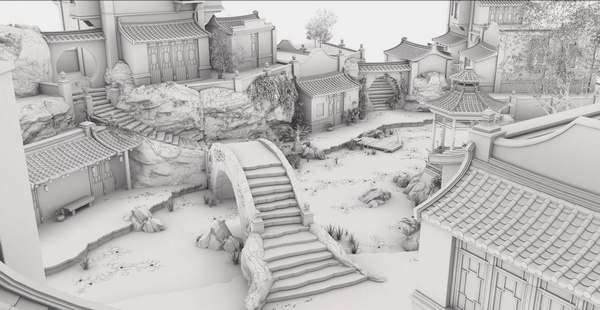
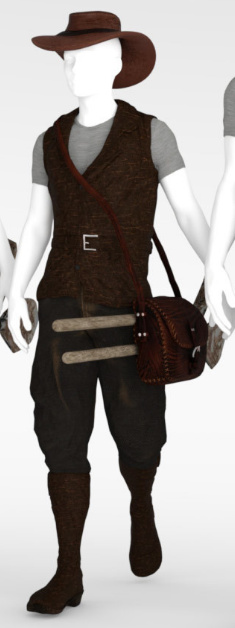
… and he’s probably after the Giant Cicadas or the Rare Orchids.
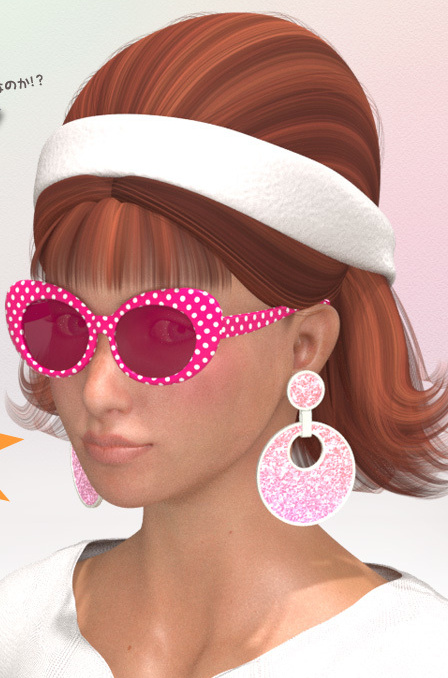
Mid 1960s-style freebie Accessories for LaFemme in Poser 11. Also Matching boots and heels.
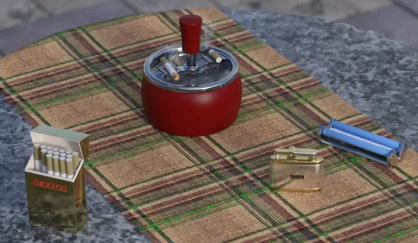
Late 1960s Reel to Reel and Chair scene, and for added period authenticity some new Smoking Props.

A James Bond / Mission Impossible style Vault Room with lazers.

Late 1940s-style Gas Station Island, free in Vue and in .3DS format. The new 1960s style ZWorld Winter Gas Station could probably be adapted to fill out around these vintage pumps.

There’s also a new At the Car Wash expansion for a Gas Station setting.

M1919 Browning Machinegun for Poser.

Gatling Gun, with ammo carriage.

Old-style British Police Constable for M4 for Poser, aka a ‘copper’ or a ‘bobby’, from the days when they were still to be seen on the streets and without riot gear / paramilitary machine-guns. The puffy shoulders are a bit ‘meh‘, but a few flicks of the Liquify tool in Photoshop would cure that on still renders. The helmet could also be used as an Imperial pith-helmet with spike.

dForce Roman Cavalry for Genesis 8 Male and Daz Horse 2. Now there’s something you don’t see every day. Deacon215 has a variety of other authentic Roman items.
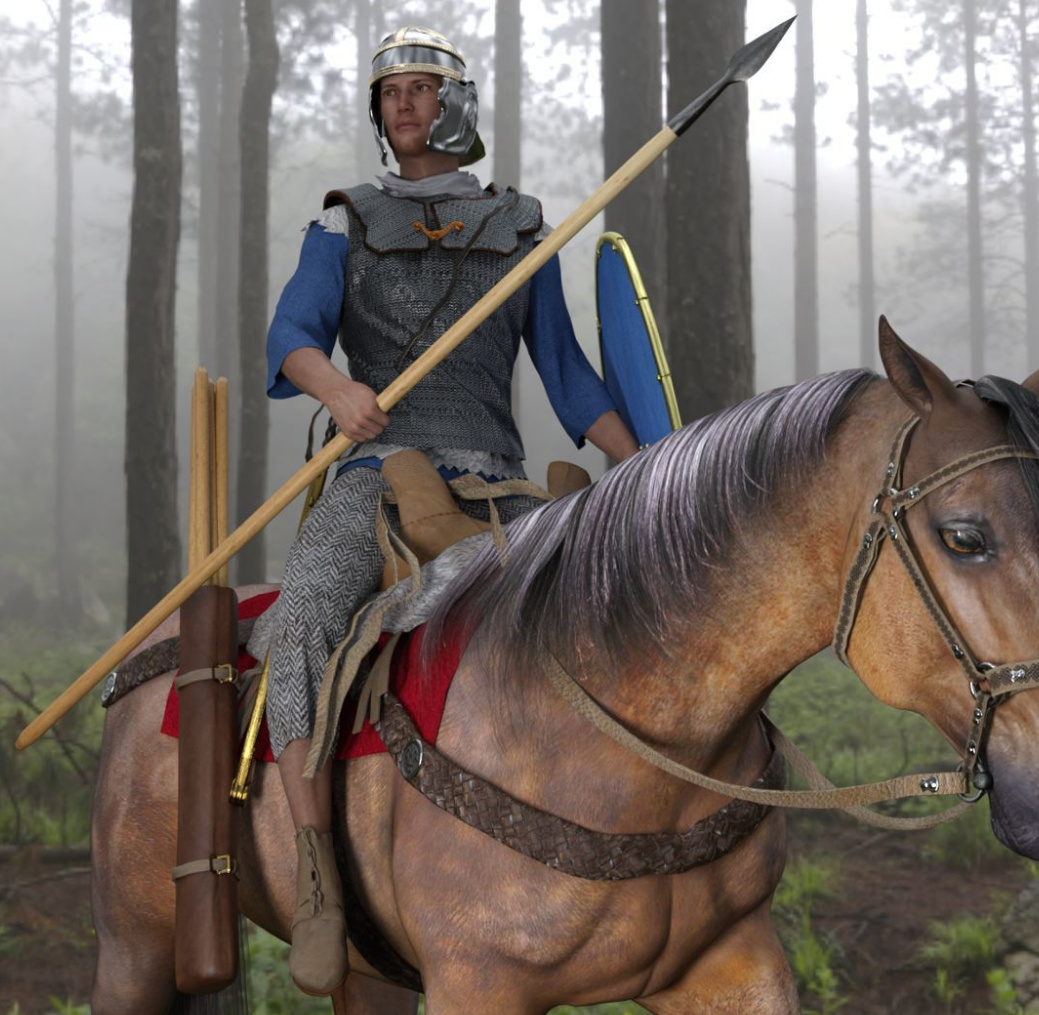
If you find you need some Roman deities to nebulously appear to your cavalrymen in the woods, look at the new Chronicles of the Gods Outfit for Genesis 8 Male and Universal Horns for Genesis 8 Male and Genesis 8 Female.

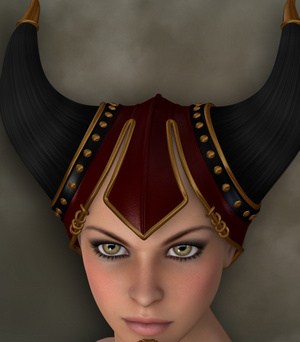
Fantasy and early medieval:
Moyra’s Classics – The Exotics, including a magical mage texture set for the earlier Desert Mage for Genesis 3 Male from a few years ago.
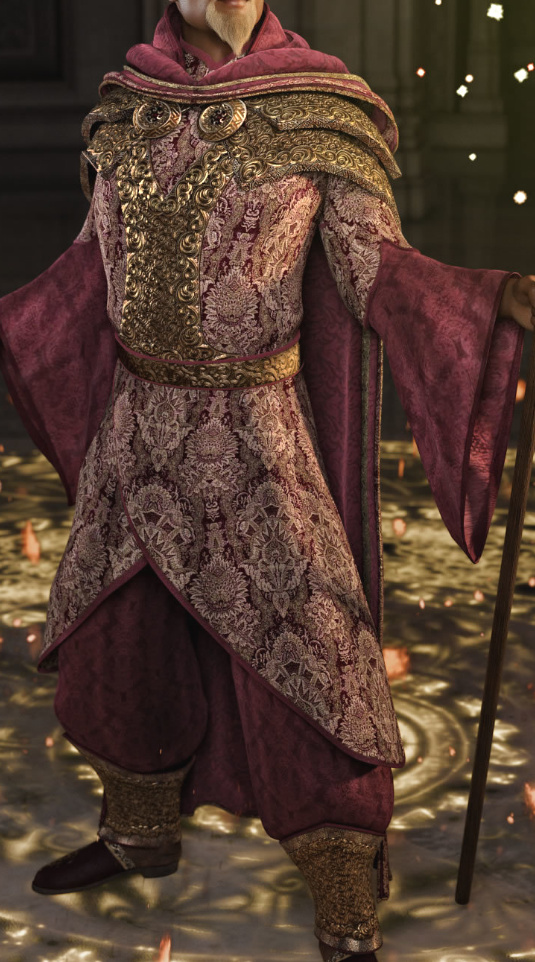
dForce Desert Robe Outfit for Genesis 8 Female. The plainer texture set also makes it suitable for Biblical and other scenes from antiquity.
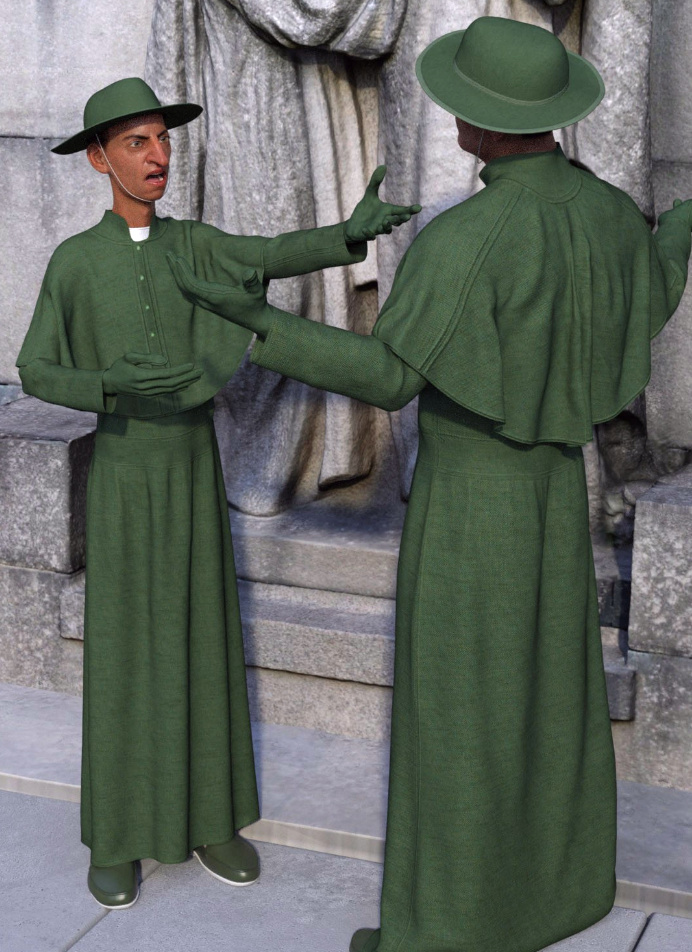
dForce Inquisitor Robe for Genesis 8 Male.
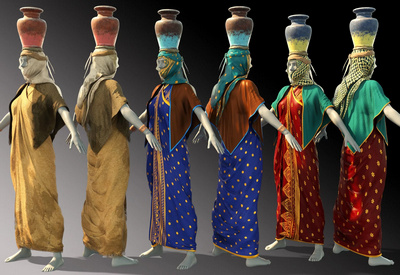
dForce Fantasy Banner is a new freebie for DAZ Studio, by Greendragon And Smida at DeviantArt. Includes wind-tattered versions.

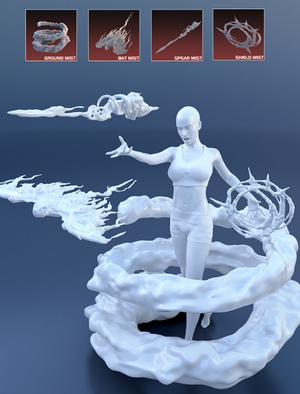
Vampiric Dark Mist Props and Poses for Genesis 3 and 8 Female. Seen here in solid, but the textures apply the mist effect.
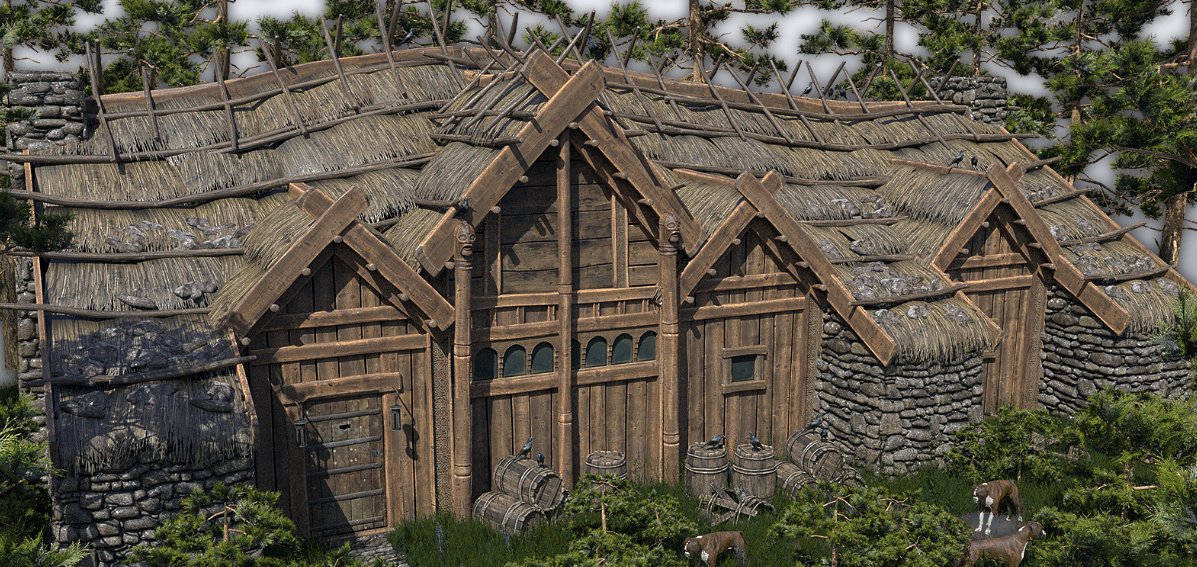
Medieval Small Village Manor for Poser. Highly detailed and currently at a very reasonable $9. Also a matching Small House to serve as a side-building or (add windows up-top) a guard house at the moat.
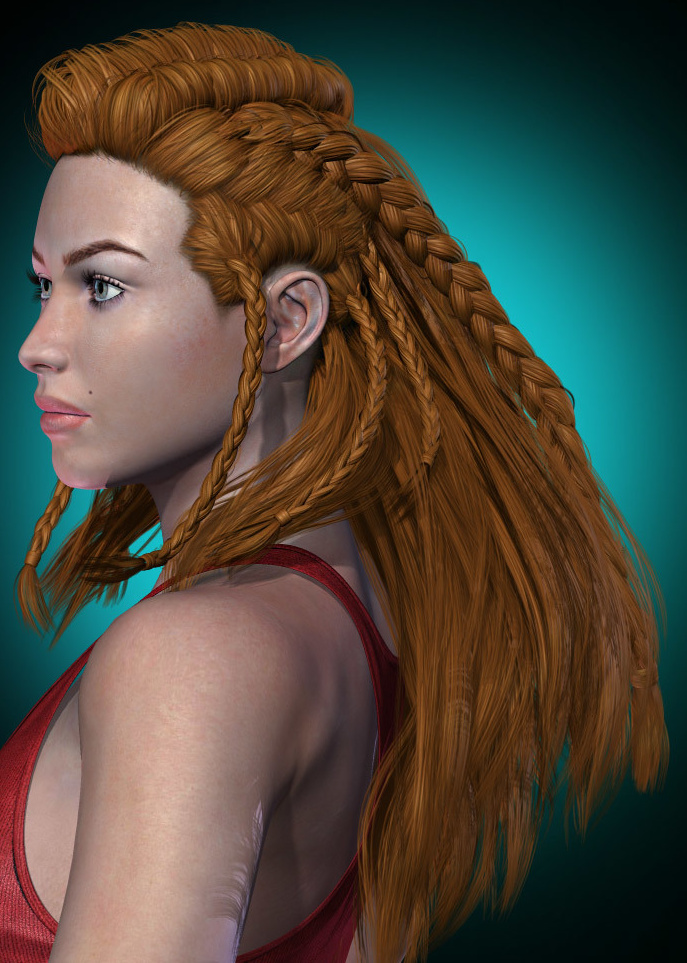
Hr-216 Hair for V4 and Poser, for the Saxon shield-maiden look.
Aldwyn for Michael 4 for Poser. A MortemVetus figure which I seem to remember vanished with the sad demise of RuntimeDNA, and has now become available again at Renderosity.

Characters:
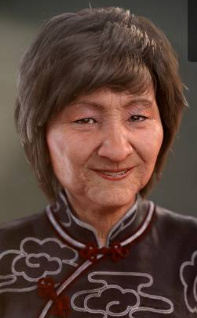
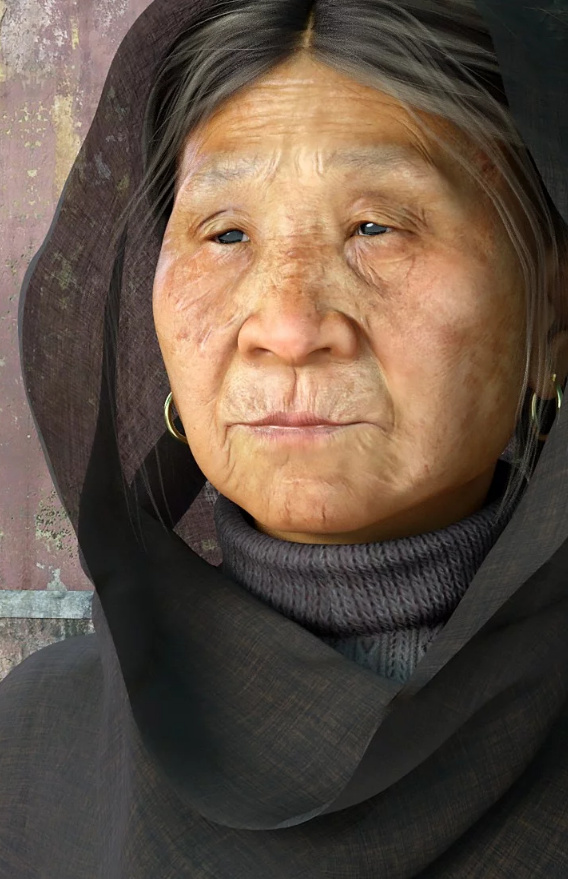
Mrs Chow 8 for G8F.
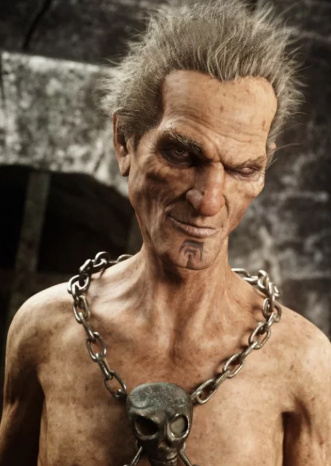
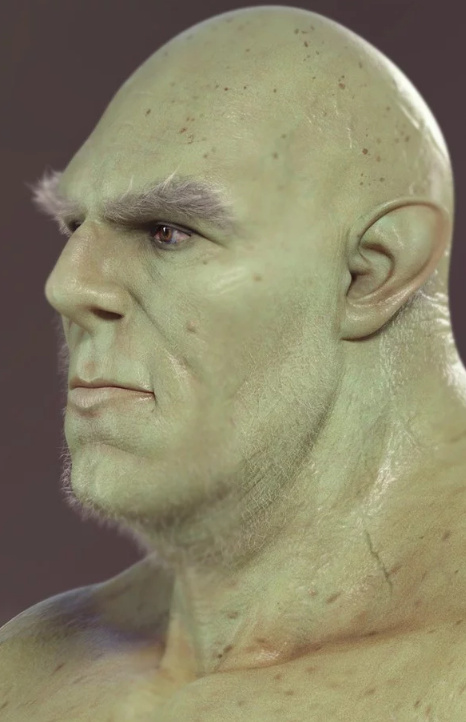
Ogrec for Genesis 8 Male, a characterful ogre with a dash of Hellboy.
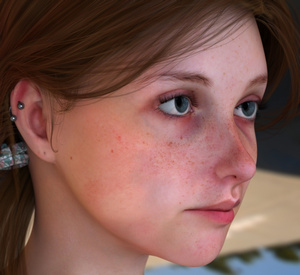
Aurora La Femme for the free La Femme in Poser 11, with the same HD level of textures, plus an additional morph set for La Femme.
Toon:
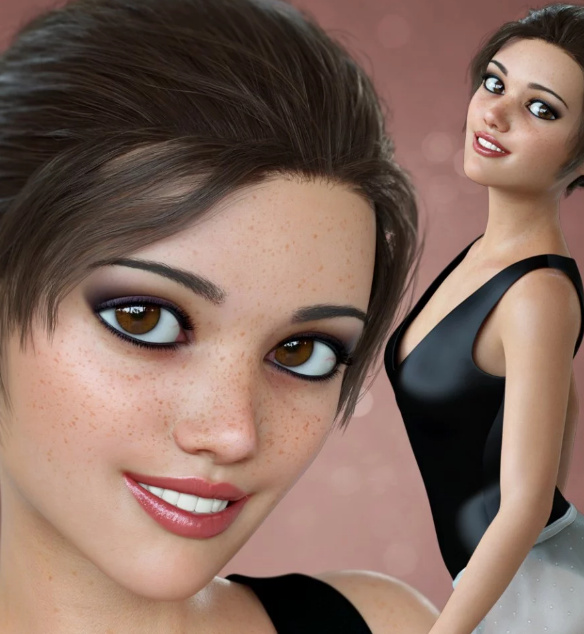
Tess for Genesis 8 Female. A fine stylised semi-toon look for G8F, with the toon look accentuated here by the heavy eye-liner.
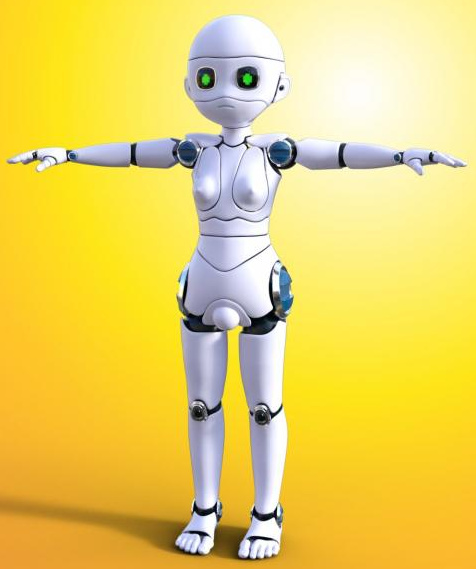
Grobot. Amazingly flexible and adaptable, and now free. Poser 11 not on the list, but she works well for me in Poser 11. There’s also a Poser 11 fix version if you find you need one.
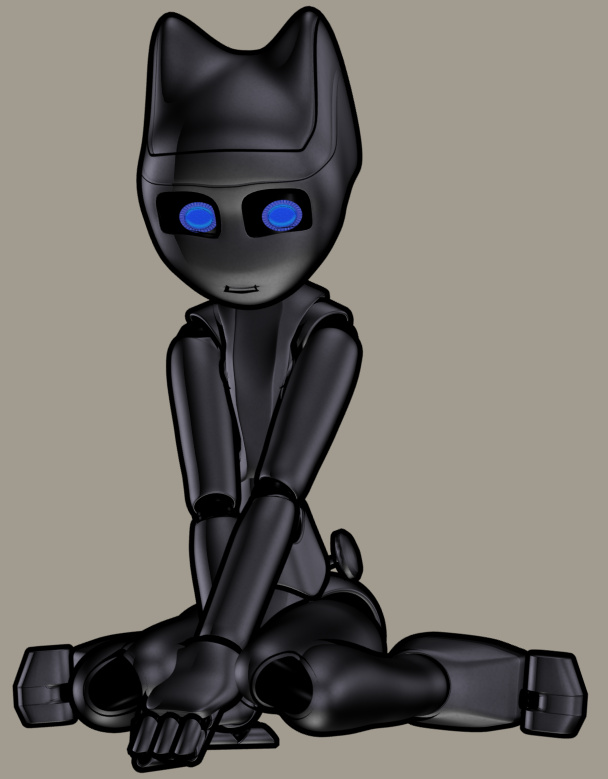
Lolo Bot for DAZ Studio, a freebie.
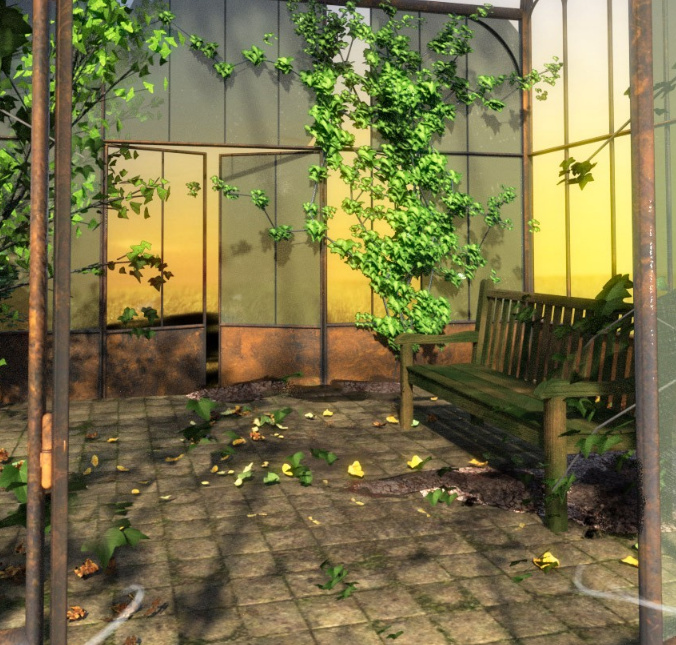
Carnivorous Plant HD with iRay materials. And a vintage Glass House (greenhouse) to house it in.
Also of note in ‘toon’ is that Mr. Sparky’s Poser freebies are now available at Attic’s Free Zone.
Storybook:
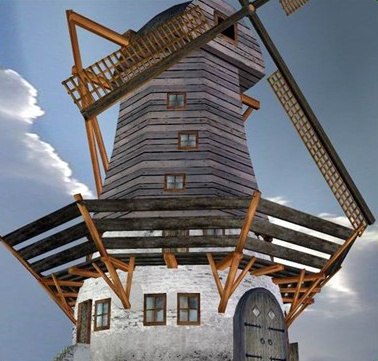
Norfolk Windmill from DryJack, for Poser and DAZ Studio. And for the hill-crest on which the windmill stands, iREAL Animated Hybrid Tree for DAZ Studio. Complete with Animate 2 AniBlocks ‘blowing wind’ animations.
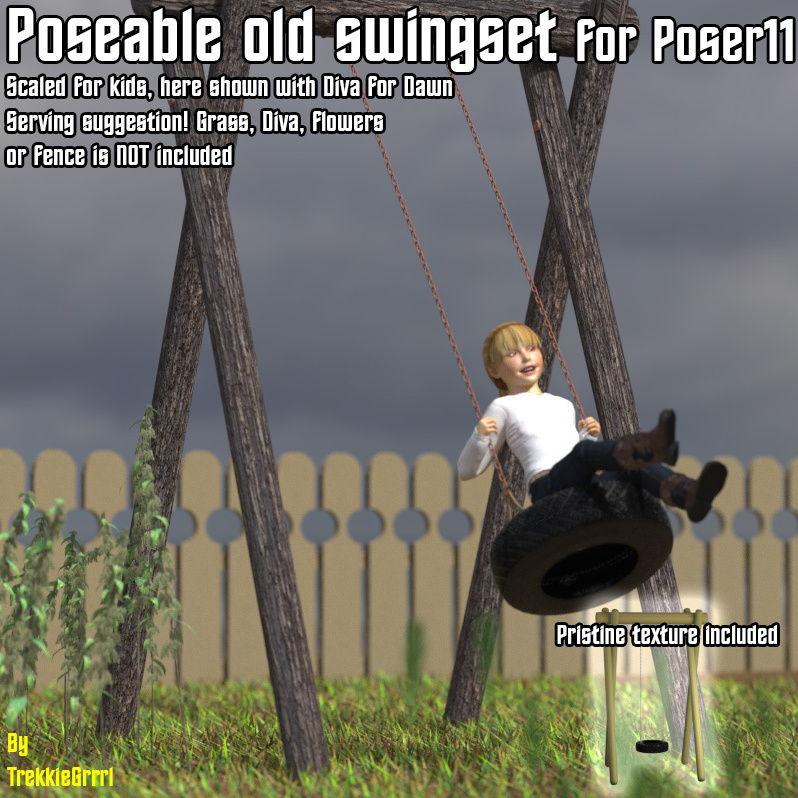
Poseable Swing for Poser, with new and aged materials. Free.
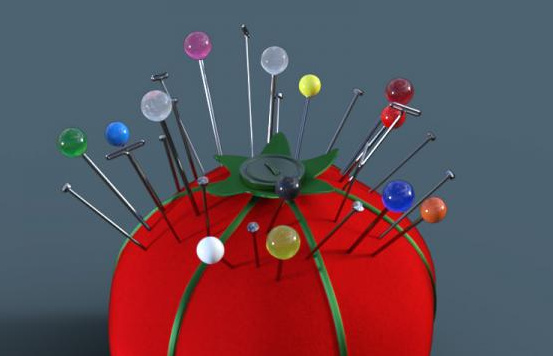
Granny’s pin cushion with pins, a freebie for DAZ Studio. Useful as a backdrop for mice characters and similar.
BBarbs’s ongoing set of free Small Child Poses, realistic and believable poses for G8, is growing larger by the day.
Creatures:
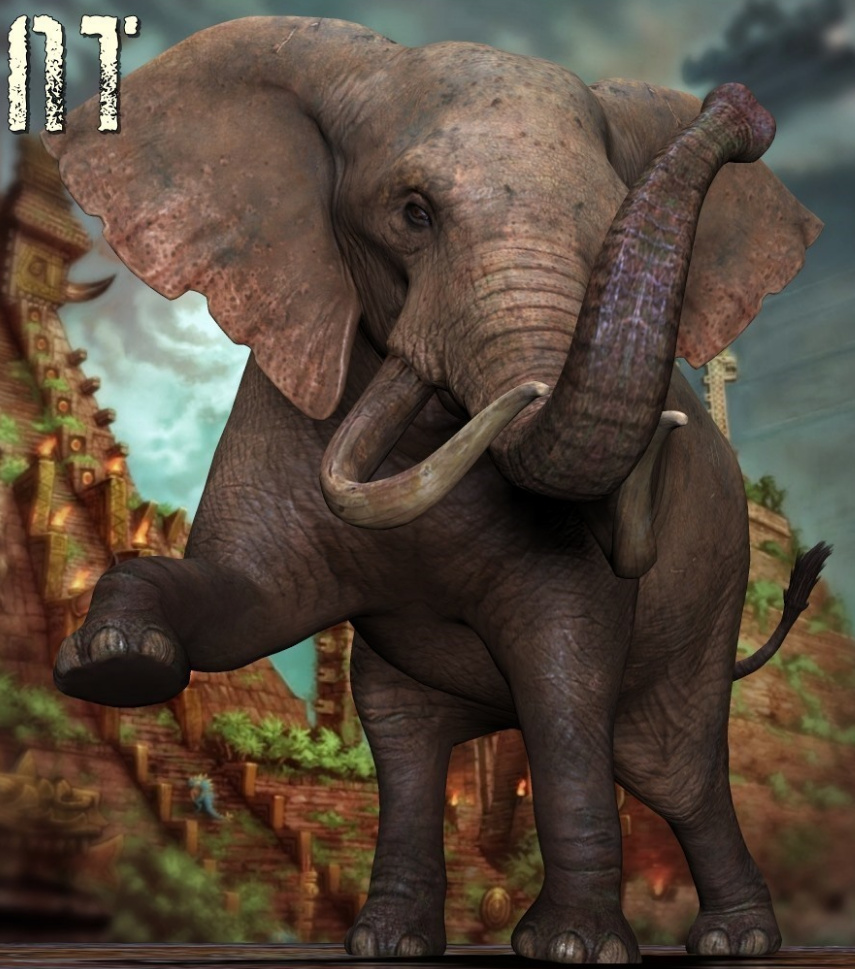
Crab. A realistic big crab for DAZ Studio. Presumably someone will now make some beautiful mottled textures for it.
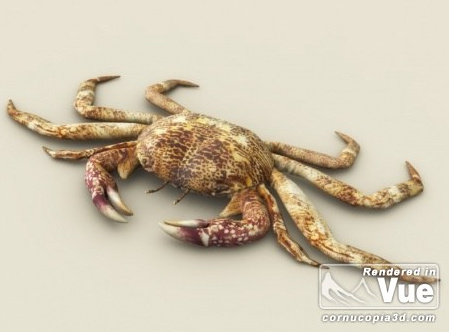
Tyrannosaurus Rex 3. Fits with the latest scientific understanding, and also has optional 8k textures.

Hell Creek Modules. Highly detailed dinosaur terrain of 66 million years ago, complete with egg nests. Sections could also be made to serve as a backdrop for a desert oasis tent, by removing the redwood-type trees, and putting a water-well on the nest mound.
Landscapes:
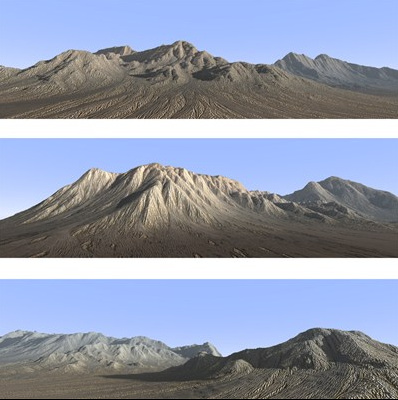
The ArtStation marketplace is starting to get a bit interesting, for landscapes.
Sweet Spring for Vue at $12.
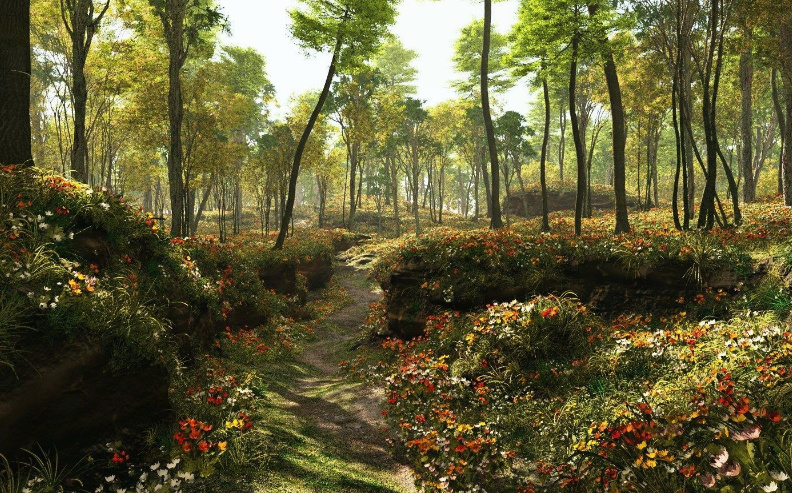
Lagoon for Vue at $12. Would make for a great setting for an early Babylonian lagoon city, such as Eridu.
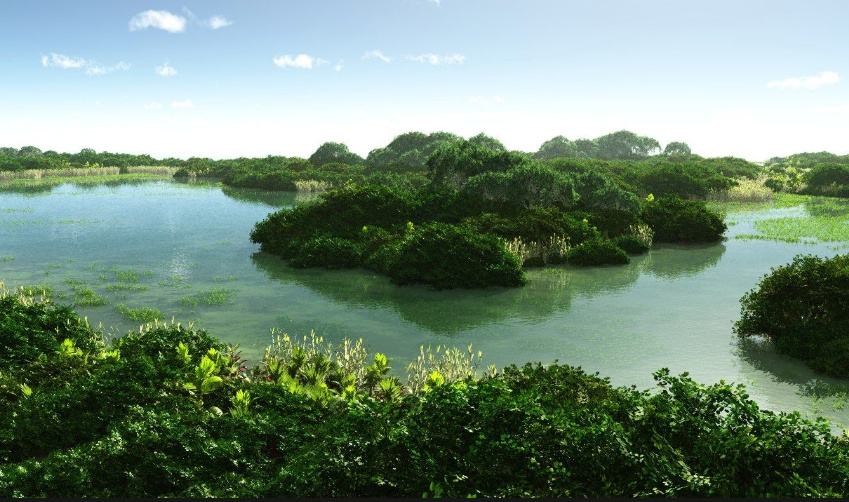
FLUIDOS Presets: Waves for the FLUIDOS water simulation plugin for DAZ Studio.
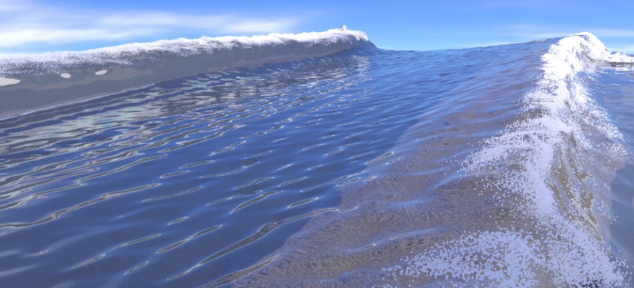
The waves might be used with the new cute little Cave and waterfront for DAZ Studio. I’d have liked to have seen some close-ups in the previews, though, to see how well the textures hold up.
Weathered Civilization for Poser. An unusual terrain prop, with HD textures.

Moon Base tutorial, from 3D to 2D in Photoshop, at $6. The 3D software is left unspecified.

Tutorials:
Tinkering with Textures in DAZ Studio. Are you a DAZ Studio beginner, wondering what all those sliders and tweakables do for the materials? Break away from the presets, and discover step-by-step ways to make your scene’s materials unique.
New dForce Discoveries. I’m amazed at some of the things being done with the new dForce in DAZ Studio, but it seems much more can be done.
Scripts:
Universal Pose Splitter for DAZ Studio. Works with all Genesis types, and Victoria 4, Michael 4, The Kids 4. Select one part of a pose, split it out and save it.
Poser Python script to pick colour & assign to ToonID. Get a coloured mask for each prop and character in your scene. If working with the current fully-patched version of Poser 11, you may need a slight workaround to get a ToonID render out to Photoshop.
Poser Process Command dictionary for Python in Poser. Free.
And finally… a simple but multi-use dForce G8F Tie as a freebie.

That’s it, more picks next month.
This is a tutorial for complete and utter beginners with ZBrush, who just want to test the exciting new NPR features in ZBrush 2019.
This tutorial uses the only method I found that worked in ZBrush 2019 that gives proper anti-aliasing on a large canvas — without which NPR filters are useless. Thus much of this first tutorial shows how to wrestle ZBrush into a setup suited to NPR destined for the pages of a comic or magazine. I’m not an expert, just a fellow total newbie who carefully worked out what the workflow is supposed to be.
1. Firstly, don’t even try to understand ZBrush’s baffling and non-standard user interface, unless you’re willing to spend at least a day just watching tutorials on it.
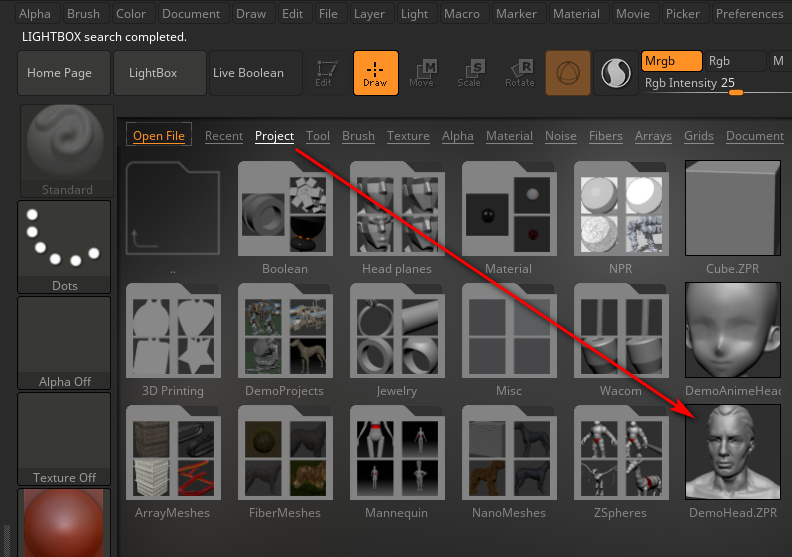
Instead, just load ZBrush. You will then be asked to pick a preset project from the Library. Pick a good choice for a NPR test, such as the obvious default “Demo Head”. Double-click on the head’s preview icon, to load it. We see a flickering old floppy-disk icon appear. Then after a few moments a little text message will appear in the upper left, saying that the project is loading. Wait for this to finish loading before continuing.
2. Now we need to force ZBrush to use full maximum-strength anti-aliasing on a big canvas. NPR filter effects, such as hatching and line-art, are no use if there’s no powerful anti-aliasing going on, and also if the final render size we get is puny. Thus there is a vital need to first set up a large Canvas. To do this go to: Top Menu | Document | Double.
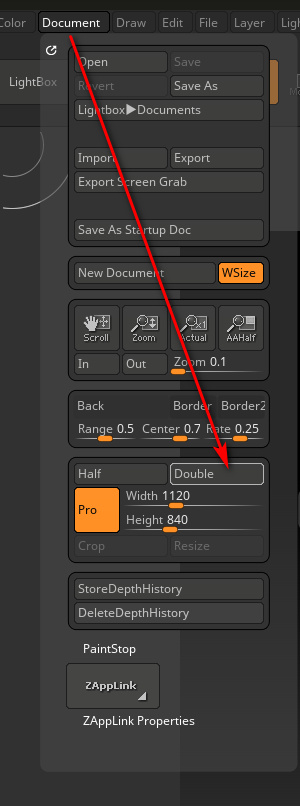
3. Press the “Double” button twice. The second time will trigger a Windows alert. Click “Yes”.
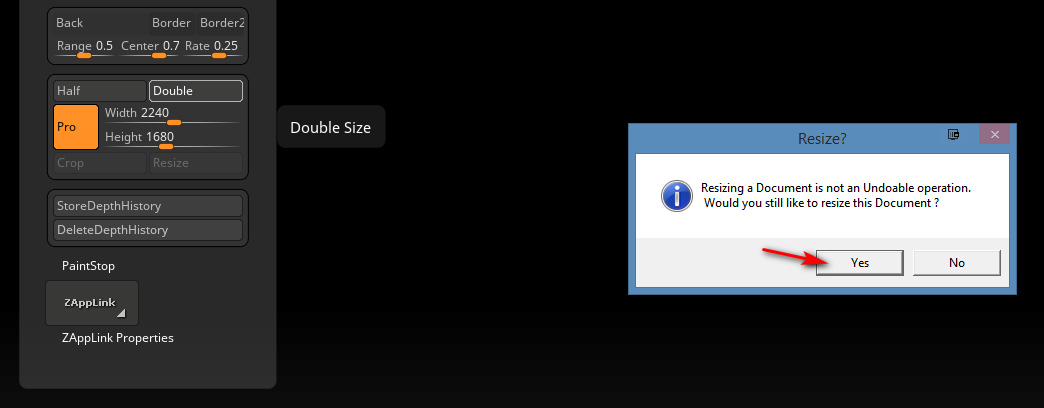
You can go up to 8k on the Canvas, but if you do ZBrush becomes very sluggish and unresponsive. It seems that 2 x Double is the ideal.
(Incidentally if you were wondering what the orange “Pro” button here is, it doesn’t mean you’re on “Professional” settings. It means the “Pro-portions” of the Canvas are locked together).
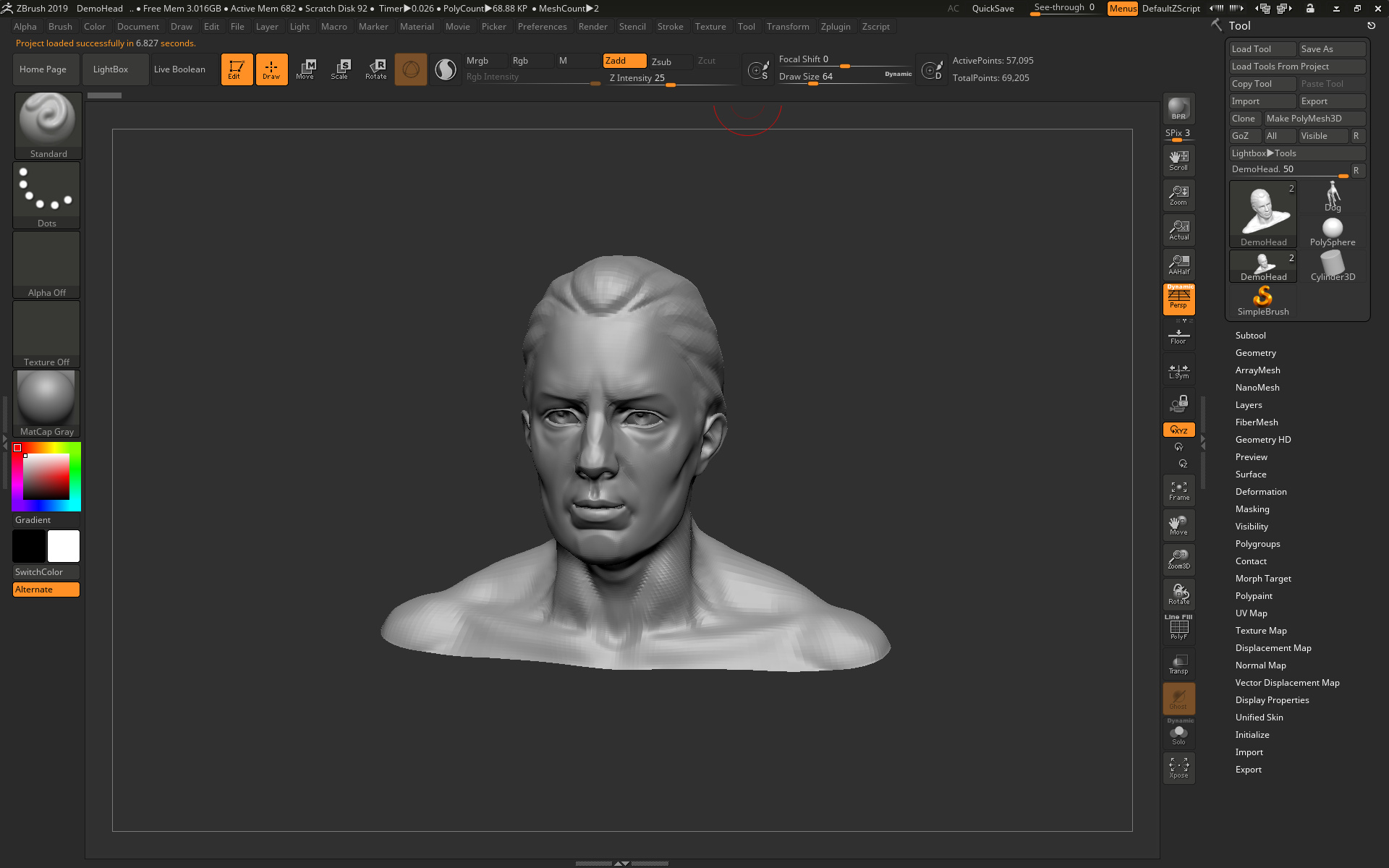
The head will now look terribly jaggy, as we can see here…

But don’t worry, as we’re going to delete this horrid head. We’ll replace it with a fresh identical one. The new head will match the new big Canvas size we just set in the Document menu, and it will be much smoother.
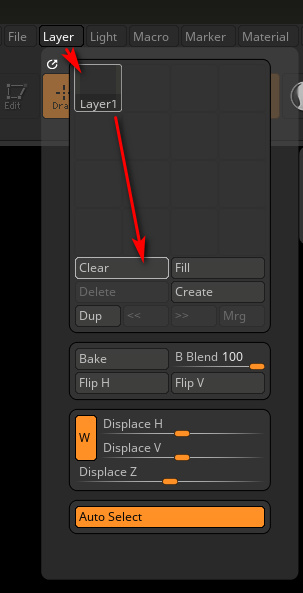
4. But first we must now go: Top Menu | Layer | and then with Layer 1 selected we press “Clear”. This deletes the first head. OK, we now have a large cleared Canvas at a size that’s theoretically feasible for production use for comics.
5. Now we load the same head model onto the Canvas again. To do this, first glance over on the upper-right hand side of the UI — where the “Tool” panel should be visible. This glance is just to ensure the brush is set to “DemoHead” as it should be.
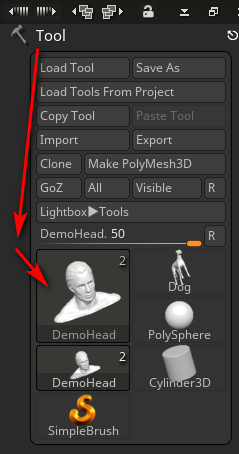
Then we left-click with the mouse near the upper left edge of the Canvas, and drag-hold to “draw out” (i.e.: place and then enlarge) the DemoHead onto the Canvas.
(At this point there’s also an alternative route, of bringing in your own .OBJ model. ZBrush can’t handle .FBX files, or if it can it’s not in my version. Import is also done over on the Tools panel on the upper-right, via the “Import” button. But let’s assume we’re continuing with the default head, for our NPR test Update: FBX import is now possible for ZBrush).
6. Then once the object is roughly placed on the Canvas we immediately press “T” on the keyboard to escape from the the “DragRect” placing tool. We have to press this button now, or we’ll never be able to escape the “DragRect” mode and will be trapped in it. ** It’s absolutely vital not to skip past this step and omit it! **
7. Then we go on to adjust the head with the side-toolbar buttons (“Move”, “Zoom 3D”, “Rotate”) so that it has the angle and position we want. Then over on the right hand toolbar we click “AAHalf” and then “Frame” (not the other way around!). This sets up a basic anti-aliasing trick and frames the head on the Canvas. Only when the zoom factor is exactly 50% are the contents anti-aliased by ZBrush, or so I’m told.

8. Then the head’s mesh needs to be smoothed a bit, to make it a better test subject for NPR. Press Ctrl + D twice on the keyboard, to smooth the head’s mesh by subdividing it. It appears that ZBrush will only let the user subdivide a mesh three times. OK, so after doing that we have a nice smoothed head, centred on a large Canvas, and with a basic anti-aliasing trick applied.

The basic setup is now done. Sadly we can’t now save this changed project file and have it carry the large canvas settings within it. Save it and load it again, and it just loads into the puny default canvas size. So far as I can see there’s no way to force ZBrush to always use a higher default Canvas size. It always loads to a useless 1479 width, which then needs to be manually doubled and doubled again.
All this fiddly setup rigmarole should really be made far easier by ZBrush, like ONE BUTTON with ONE CLICK, and the button labelled “Automated Setup for Print”. But for now, at least, we have the basics all set up.
9. OK, now we can finally open the NPR Presets Library, by going: Top Menu | Render | BPR Filter | Lightbox > Filter.
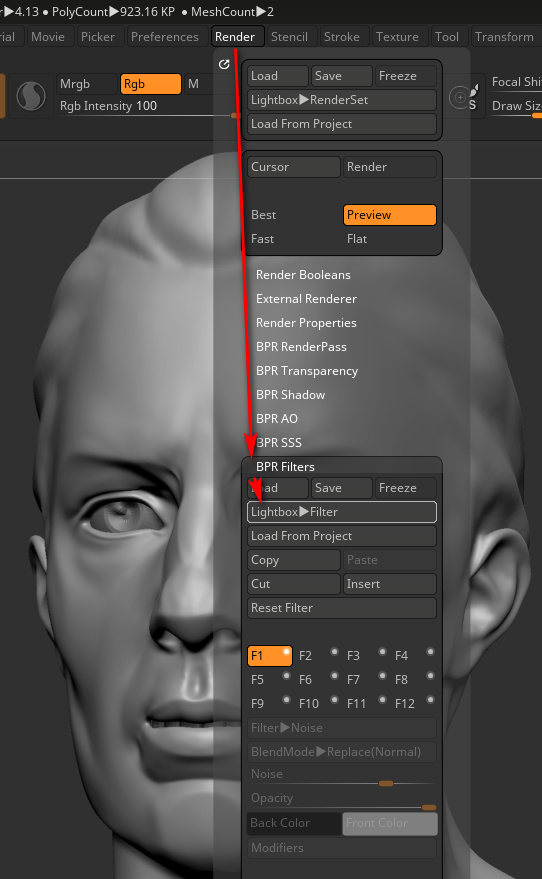
Confusingly, in ZBrush “BPR” = “Best Preview Render”, and the acronym has nothing to do with “NPR” (Non-Photoreal Rendering). Yet the “BPR Filter” menu item is how we drill down to preview and load the NPR presets.
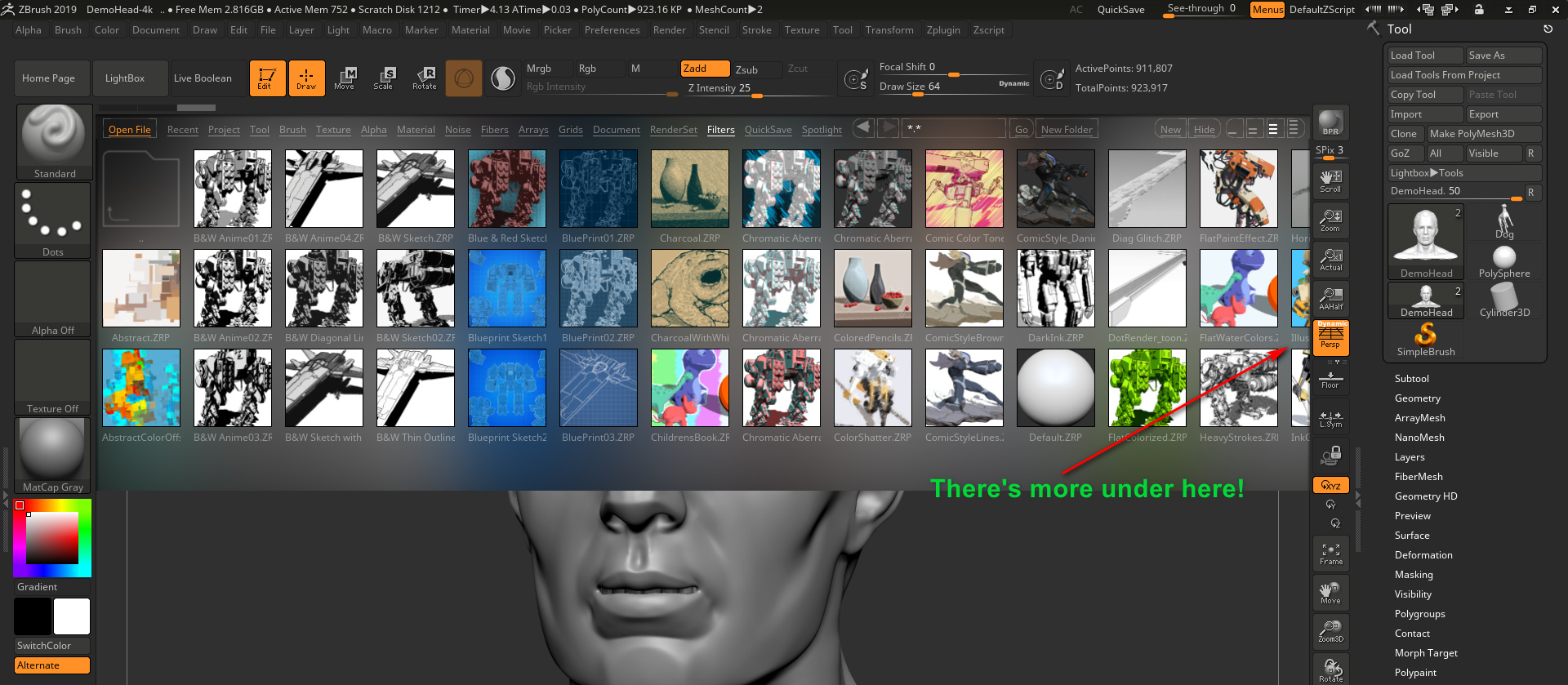
Don’t they look lovely? But, as seen here, some are hidden from the user. Why the Library display can’t just show everything in one single view, I don’t know. These hidden presets can be revealed by left-clicking anywhere on the preset library display, but only if the user knows to hold-and-drag the left mouse button over toward the right. Doing this will slide the Library presets view over to the right, thus revealing the hidden presets. So far as I can tell there’s no way to see them all together, all at once, in ZBrush.
But here I’ve Photoshopped them together…

10. Choose and load an NPR preset, by double-clicking on its visual preview. We should see a text message briefly appear, up in the top left of the user interface. This will say something like: “Opening a ZBrush Filters file…”. It might take about ten to fifteen seconds.
It’s quite possible that nothing will then happen to the sculpted head on your Canvas. The user may be puzzled by this — didn’t the slick demo videos for ZBrush 2019 show the NPR filters being instantly applied in real-time? Yes. But that only seems to happen for some of these NPR filters. For the rest, it seems we need to then manually press the “BPR button” that’s located at the top of the right-hand bar…

“BPR” = “Best Preview Render”, which seems to translate as… “OK, ZBrush… make a Preview render at the best quality you can”. On a large canvas this may take a while. First the basic render is done, then ZBrush will appear to pause while it also adds the NPR effect we just selected. Then it will lay the NPR effect on top…
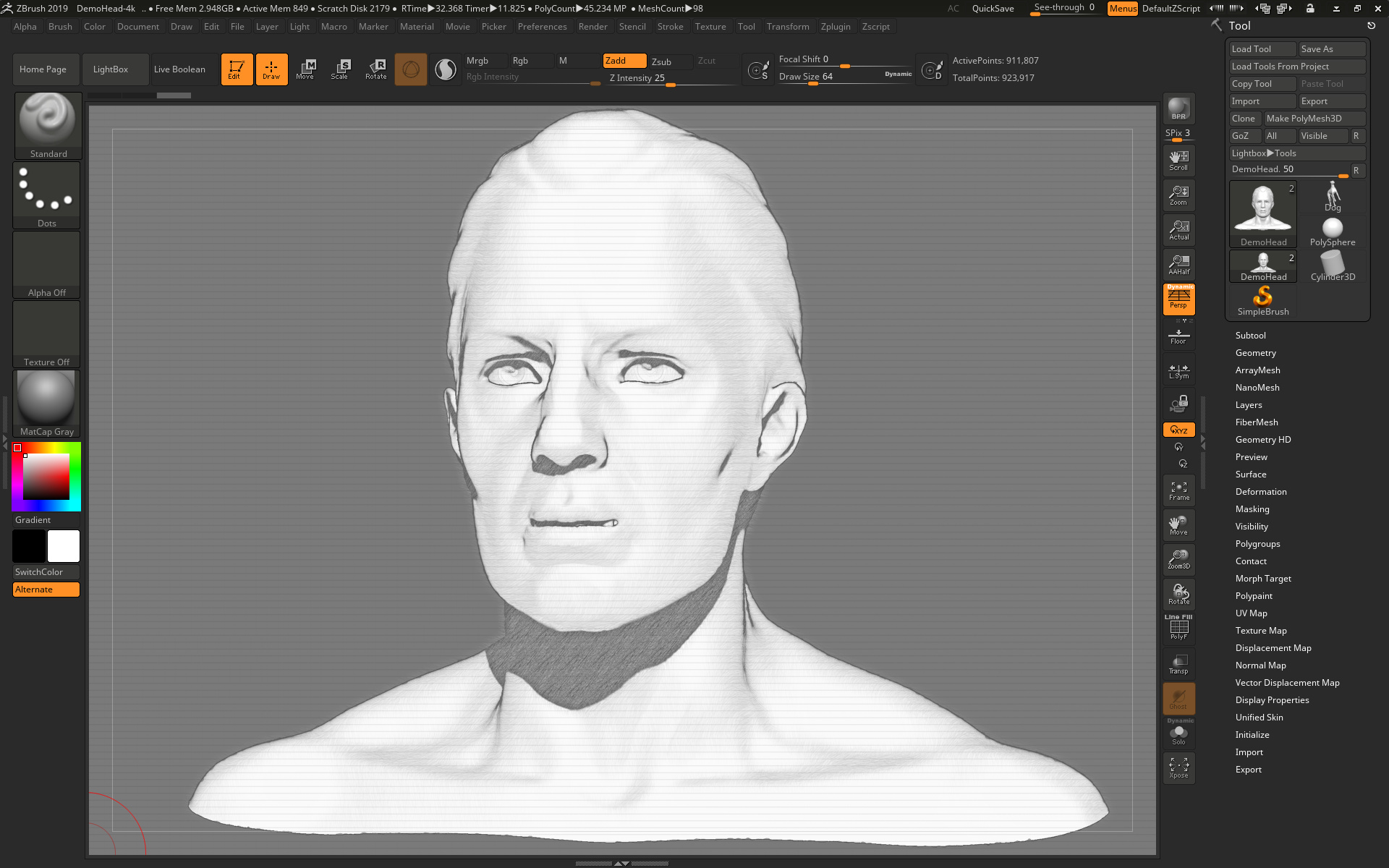
See how nice and smooth it is. No jaggies. That’s because of the tedious ‘big Canvas’ setup we did at the start.
Note that this NPR effect only seems to work on the BPR Preview render mode, not on “Best” render mode.
11. Now we want to save this final render to a file. Go: Top Menu | Document | Export, set a file name and folder destination.
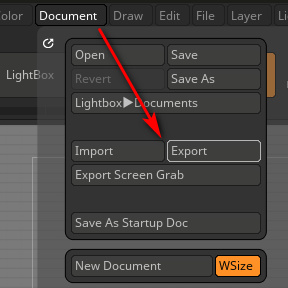
The newbie user might think that’s it, and go off looking for the render they think they just saved. But that’s not it. What ZBrush is now showing on the screen only looks like the Canvas. It isn’t the Canvas, it’s actually an Export window that only looks like the Canvas…
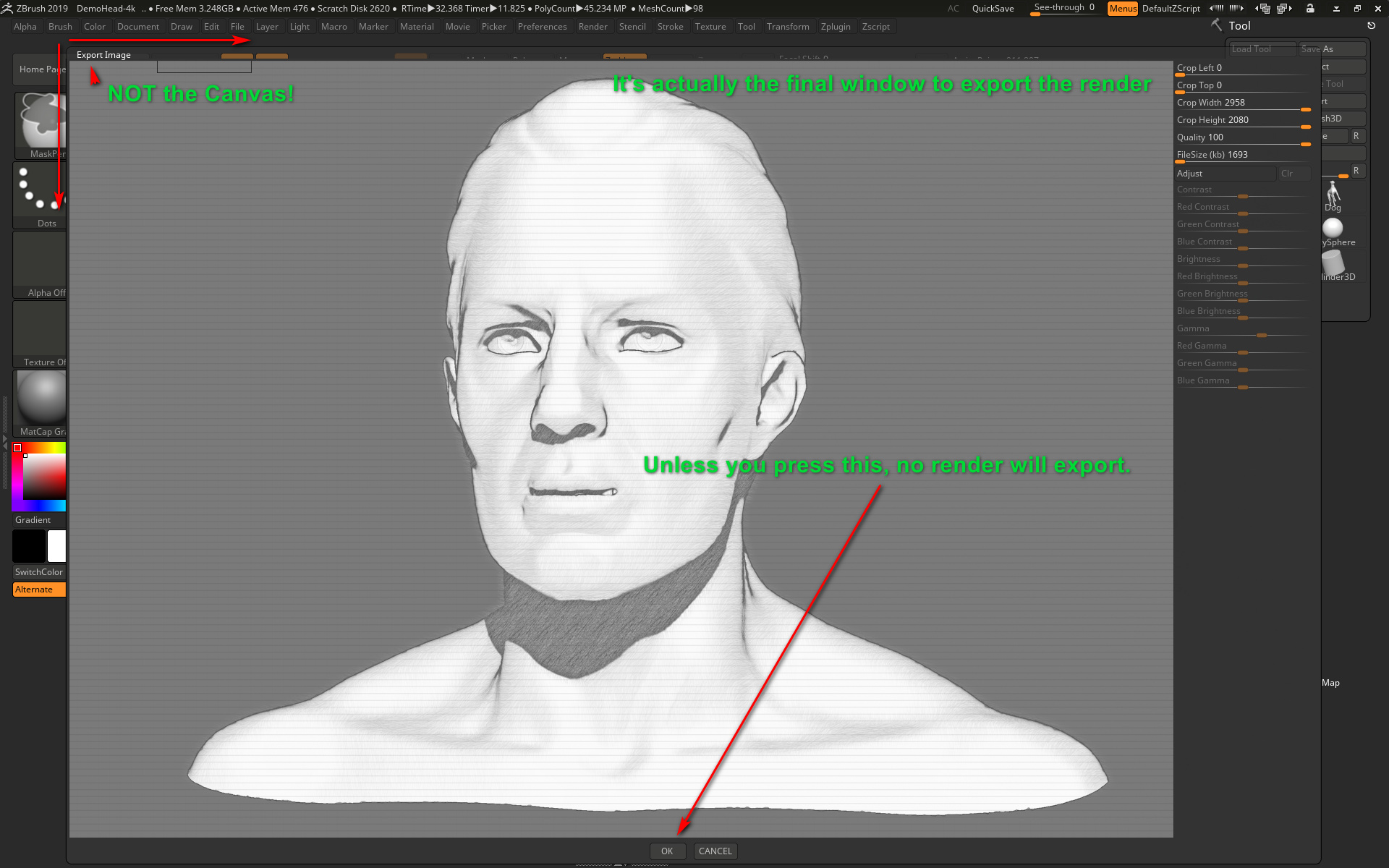
Only once the final vital “OK” button has been clicked, do we at last get the render saved.
It may be disappointing to find that the model is stuck in the middle of the big Canvas, and is barely 1k once cropped out. But it seems that that’s the way ZBrush rolls, in order to get anti-aliasing. It’s only 72dpi (ZBrush can go no higher) but is just about an adequate size for a comic-book panel on a six-panel page. Though it is going to cause severe frowns from a magazine editor who wants a cleanly anti-aliased full-page cartoon illustration or front-cover at 6000 pixels and 600 dpi. The same is going to be true of publishers of children’s books, posters, t-shirts etc. A 1200px 72dpi render is just rubbish, to them.
(Apparently one can zoom to see the whole Canvas, then “Zoom 3D” to resize the model to fill the Canvas, then render and get a really big render with the object filling the render. That might get you a 4000px object, but the problem there is that it’s not anti-aliased. So far as I can tell, full useful AA is only applied when you click the “AAHalf” button, and doing that unavoidably shrinks the object back down into the centre of the Canvas.)
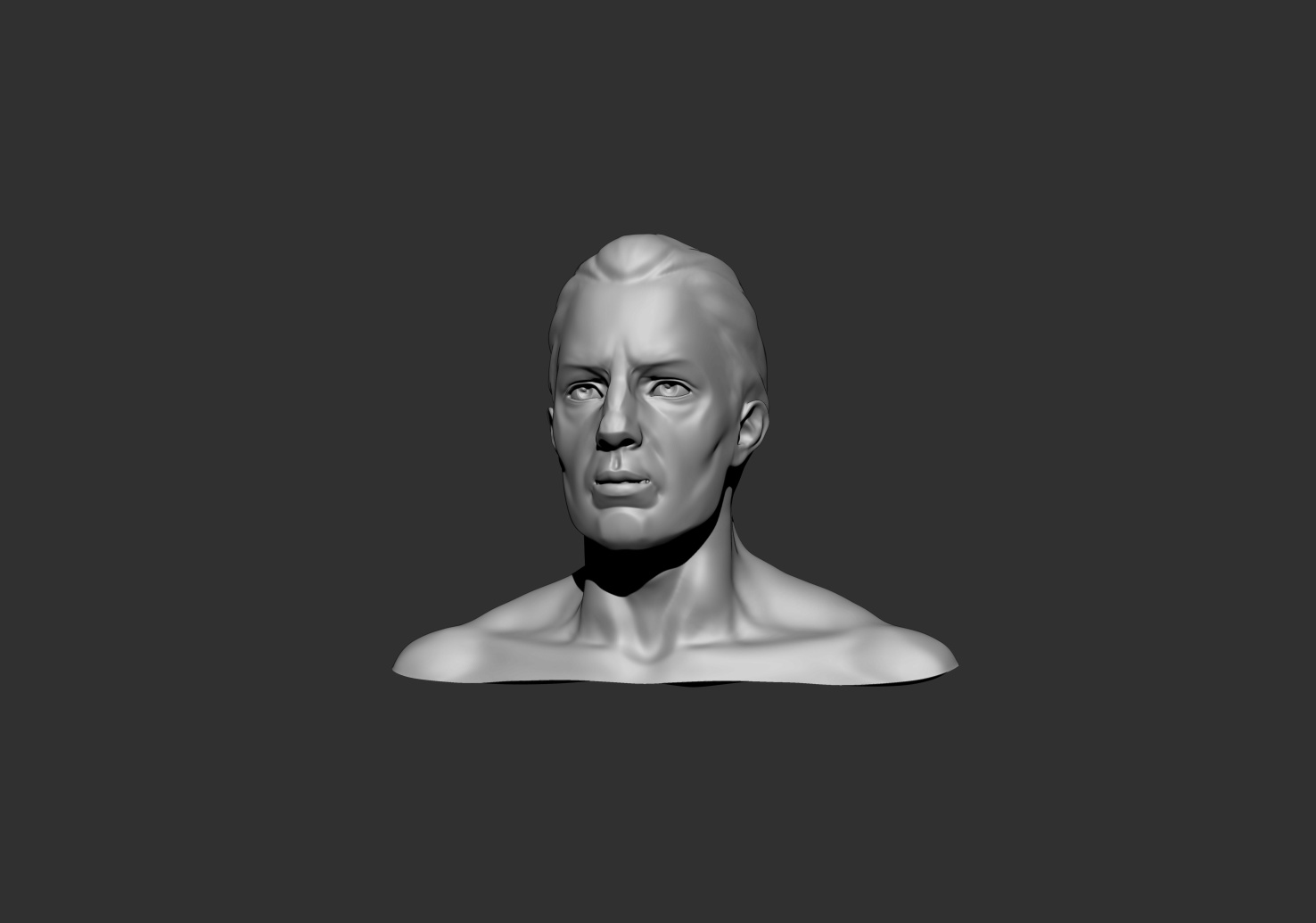
In some ways it might actually be quicker to just take a screenshot of the final render-export window, and forget the save from ZBrush. Both the screenshot and the export will be 72dpi. Then you could just paste the clipboard straight into the likes of a Comic Life frame. It won’t be masked, but then (unlike Poser 11) neither is the PNG exported from ZBrush.
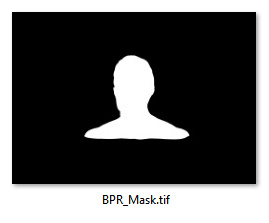
You can however also very easily and quickly save additional render types from ZBrush, such as a simple mask as a .TIF render…
Over in the “Zplugin” folder, there should be a “ZBrush to Photoshop CC” plugin, which can apparently also export and bundle all the rendered BPR layers into an aligned Photoshop .PSD file.
OK, that’s it for Part One. Now that we’ve wrestled ZBrush into an approximately NPR production-ready form, in Part Two I’ll look at the NPR effects themselves and if they’re worth having.
How to turn .WEBP images to .JPG, easily and for free.
What is it?: the .WEBP format is an image file that still experimental and without defined standards, but is occasionally found being used commercially in early 2019.
Where does the problem lie?: Most modern Web browsers are fine at displaying them, but once they’re downloaded locally to Windows they become a pest. Windows 8 can’t preview them as visual thumbnails in the file explorer. (I’m guessing that Windows 10 may also have problems with them, as they appear to be a ‘Google thing’?)
What’s the fix?: I was unable to find anything that ‘fixed’ Windows 8.1.1x to show previews of downloaded .WEBP files, in either Windows Explorer or Explorer++. However, for now, the best workaround seems to be simple quick conversion…
1. Get the free IrfanView and its plugin installer pack. The plugins enable .WEBP support.
2. When Windows can’t preview a downloaded .WEBP file, right-click and open it with IrfanView and save it as a .JPG at 100%, to the same folder and with the same filename.
3. Delete the .WEBP files.
IrfanView has batch convert capabilities, if you’re saddled with a whole folder full of these pests.
The Dynamic Auto-Painter (DAP) ‘GrNovel preset’ often leaves blue in the result it gives. Even with straight inked line-art from Poser’s Comic Book Preview renders. Here’s how to remove the blue at source, rather than with the Channel Mixer or desaturate in Photoshop.
1. Right-click the GrNovel preset and open the Template editor.
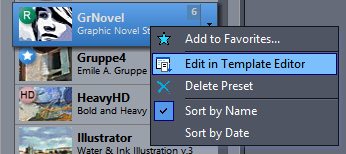
2. In the window that opens, click to go onto the second tab, and there find and click the Reactor button.

3. This then loads the Reactor Effect window. Dial down the ‘Colour Coverage’ to zero, to remove the blue. Taking the adjacent ‘Colour Saturation’ down to zero may also help speed the effect, as it’s no longer needed (since there’s no colour for it to work on).

4. OK. Save as new preset. Click “Save Main Template”, and you will be prompted to choose a name to save your custom preset under…
While you’re at it, you may want to back up presets that you’ve made. If you also have Photo Reactor (the Photoshop plugin version) your DAP custom presets are at:
C:\Users\YOUR-USER-NAME\Documents\ReactorPlugin\Presets
I read on the official Poser Forum that rendering in Poser 11 was was both faster and more convenient when using the Render Queue Manager. I thought it would be useful to write a quickstart on this feature, as it exists in the latest fully patched and updated Poser 11 Pro. Since the only YouTube video on it is now out-of-date.
Things to know, straight off, as a new Poser user:
* “Render Queue” is a Poser Pro-only feature.
* “Render Queue” was only for Firefly renders in Poser 11. But apply patch SR3 or higher, and Superfly can also use it.
* “Render Queue Manager” is not the same thing as Poser’s internal “Render in Background”. “Render Queue” is for stacking renders, so they automatically render one after the other. As such it can save quite a bit of time on a multi-render project.
* Rendering is done by a separate programme in the background. On many new 64-bit multi-core Windows systems this should make rendering faster, and Poser far more responsive while rendering. Again, this will save you time in your workflow.
* There is also something called “network rendering”, where the rendering task can be shared across many PCs on a network. This was introduced for Firefly in Poser version 11.0.3.
Short version:
1. Load and tweak your Poser scene. Save. Do a small test render, then set your full render size and quality in Render Settings | Firefly or Superfly.
2. Go: Top Menu | Render | Render Queue. The Render Queue Manager launches as a new standalone window, asks for the filename and folder it should save to, then goes off and starts rendering.
3. You then carry on with other work in Poser or Photoshop etc, while the rendering is done by a separate programme in the background.
Long and tedious version:
1. OK. First, where is it? Well, if you downloaded Poser 11 and its extras a while ago, look to see if you have a ‘Queue Manager’ sitting in your Start folder alongside Poser 11…
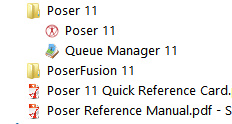
If you don’t see it there, check you have it at: “C:\Program Files\Smith Micro\Poser 11\QueueManager.exe”. If it’s not there, check in your Smith Micro Download Manager to see if you actually downloaded all the various bits needed for Poser 11 Pro.
Let’s assume you find it’s installed. Now go find your set of serial numbers that came with Poser 11 Pro. Copy-paste the serial for the Queue Manager, as you may be needing it in a moment.
2. Launch Poser 11 and load and set up a test scene. Save. On the latest version of Poser the “Render Queue” is then found on the Top Menu | Render | Render Queue…
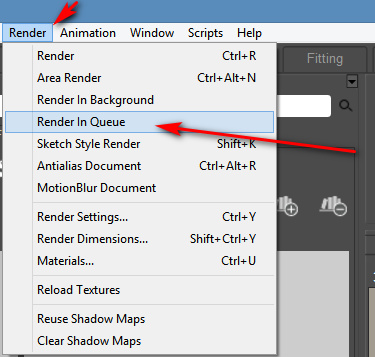
On revisiting the “Render Queue” I found that this menu item remained curiously ‘greyed out’ and inactive for me, even when I switched to the relevant tab in Render Settings. I found that what I actually had to do first was make a small test render using a Firefly / Superfly render engine. Doing this caused the “Render Queue” menu item to become active and selectable.
3. Now, clicking on the active “Render Queue” item should launch the Render Queue Manager .EXE window. If this is the first time you’ve ever launched it, it will need the serial number to be input. Then you will first be asked to set a filename and destination folder for your render, then asked to give the QueueManager.exe Firewall permissions (which only needs to be done once, at launch).
QueueManager will stay open and waiting after the first render completes, hoping to be sent more renders.
In the Windows Control Panel | All Control Panel Items | Windows Firewall | Advanced, you may then want to make the Firewall settings permanent. Once done, this should mean that you won’t be asked each time it launches…

OK, it’s up and working. “Process jobs locally” if you’re on a single desktop PC…

From now on you just skip merrily through the simple version of my tutorial, as given above.
MOVIES? Rendering multiple movie frames is apparently currently more problematic, for those with the latest patch applied. It can be temporarily accomplished through a MovieRenderToQueue.py Python script. Apparently a vital button on the Movie panel in Render Settings was removed with the latest patch, along with the advanced Auxiliary Render Type switches. There’s a simple workaround for the Auxiliary Switches and the Poser devs reports that the Movie queue button should be back in Poser very soon…

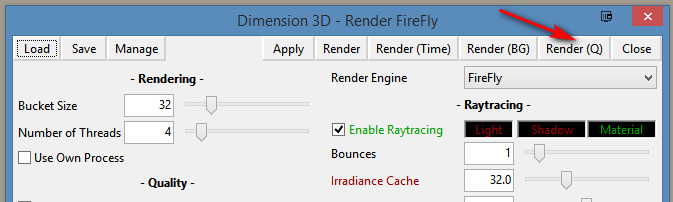
ALTERNATIVE ACCESS: One can also access the “Render to Queue Manager” command via the official partner script for Firefly. This is found under Top Menu | Scripts | Partners | Dimension 3D | Render Firefly. Or it can simply be invoked by pressing Shift + F on the keyboard.
NETWORK RENDERING: You’ll of course get the full benefit of using the Render Queue Manager if you’re using it to render across several PCs. As we’ve seen, the Render Queue Manager is a separate .EXE file and on Windows you’ll be running it on Windows 7 or higher. Render Queue can ‘network render’ across several such machines, only if: i) the Render Queue Manager version on your slave PCs is the same as on your main PC; ii) each .EXE has been activated with the serial (not the same as your main Poser 11 or PoserFusion serials); and iii) you have all the remote and desktop Firewalls set up correctly. Each .EXE will need to be given both inbound and outbound permissions through the Firewall. All this is needed to that the main PC can talk to the network PCs, and the network PCs can talk back.
If you do lots of large renders or animation with Poser then you’ll want to look at advice on building a dedicated render network or base unit. Some advice is to be found here. Looking for the apparently-required 2 x CPU “2x X5650” to “2x X5690” refurbished Xeon workstation on eBay suggests that about £400 should get you something quite powerful (24 render threads) under your studio desk. That’s comparable with the cost of a high-end graphics card, but gets rendering off your PC entirely so you can get on with other work. It also means you don’t have to faff around with upgrading the PC’s PSU, fitting a huge slot-in card, fan-noise, summer overheating etc.
AUTOMATE PREVIEW AND SKETCH RENDERS? For renders other than Firefly, you might want to look at setting up Windows automation software like JitBit Macro Recorder, which records and automates software clicks, and then set wait-times (such as 60 seconds per Preview render, allowing a 3600px Preview render ample time to complete). You could also try to have JitBit use keyboard shortcuts only, to make your automated macro/action independent of User Interface changes and screen size. Obviously this doesn’t take the renders off to another programme or PC, but there is some ‘background’ automation involved.
Posted in Comics, Companion software, Freebies, Natural media emulation, Poser, Tutorials
2 Comments
I’ve spent some time working through Krita 4.x’s G’MIC-QT filters. They’re the equivalent of Photoshop’s native filters + some nice plugins, all rolled into one plugin. Krita is the leading ‘open source’ graphics software, and both Krita and G’MIC-QT are free. G’MIC-QT ships integrated into Krita.
Below you see my trusty test-bot for the G’MIC-QT filters. Quite a dark raw Poser Preview render, and not at all optimized for tooning. That top-hat is going to be a particular challenge.
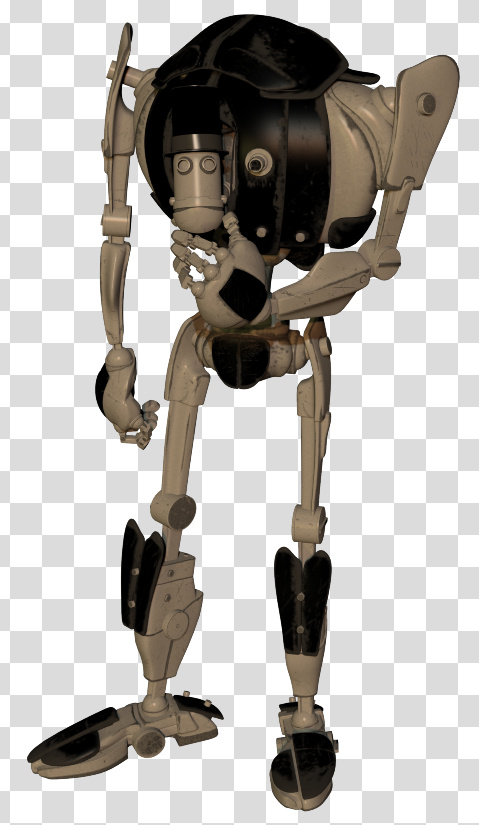
I was looking for things that can’t be done more easily in Photoshop.
Here are the G’MIC-QT filters I noticed and worked with, for good or bad:
1. Artistic. Brushify. A nice but mundane paint effect with the default settings. The drawbacks, even on default, are that: i) it takes a ridiculous amount of time to process; and ii) it paints into a background that should remain transparent. Still, the ‘real thick paint’ effect is nice, and it takes far less time that it would take you manually overpaint a render.
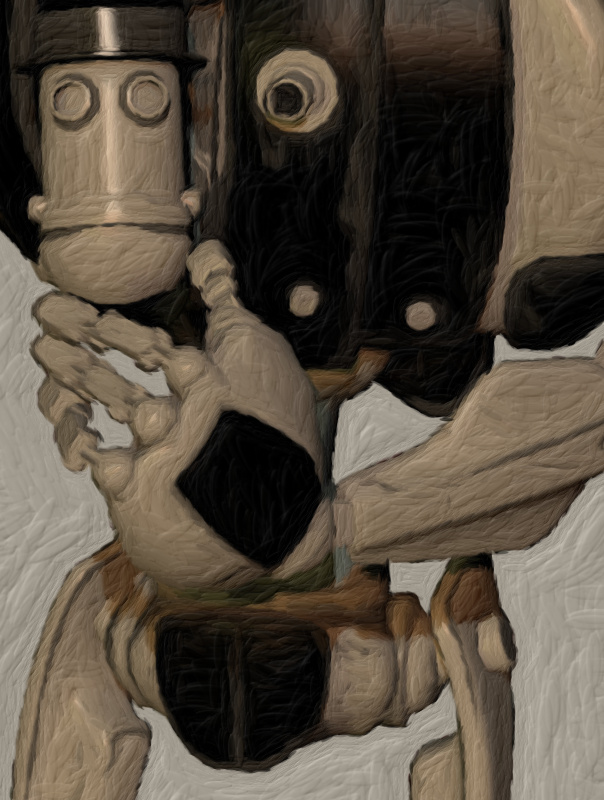
2. Artistic. Cartoon. This just gave the usual “Ugh, 3D run through a Photoshop filter!” look, of the type that only pleases those who have never actually seen the inside of a decent comic-book. Horrid. Rip it out and burn it, now!
3. Artistic. Cutout. This had something to recommend it at a setting of 6 0 6. You might want to take a quick look at this before your pay good cash for one of the TOPAZ Clean / Simplify Photoshop plugins. That said, even on a workstation this filter takes a very long time to run, like 90-120 seconds! Also you get some posterization artefacts that you would not get with Topaz Clean.
4. Artistic. Felt Pen. I was able to work it up to a custom effect I saved as ‘Felt Pen Burnoff’, which burned off most of the 3D grunge. It ran very fast, but the applied effect was not great when seen at 100%. It worked much better when seen reduced, at 33%. Still, to get this from such an unpromising 3D render is quite impressive.
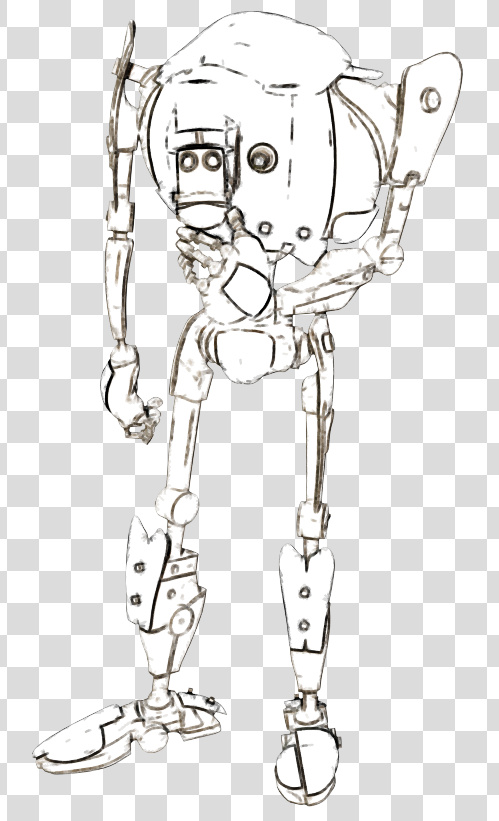
As you can see, it doesn’t add a holding line around the edge. Though that may be because I was using a .PNG cutout with transparency.
5. Artistic. Pen Drawing. It doesn’t quite give the effect you might expect from the name. It’s more like a basic toon filter, and is too close to a recognisable ‘standard Photoshop filter’ look for my tastes. Can be sort-of acceptable, though only if ramped up to maximum settings. There are only two sliders, so I assume there’s not much more that can be done with it.

6. Artist. Sketch. Capable of some awful crap, as most such filters are. But I also crafted the unusual custom preset seen in action below, which is like an oil glaze on thick smeared pencil. The setting took three minutes to process a 3600px picture, but the results were rather nice when viewed at 100%. Zooming out just makes the figure look like they’ve been dipped in motor-oil and dried off a bit, which is not so pleasing. I could imagine that 100% crops from this, placed into panels, could form the basis of a graphic novel style for a macabre story.
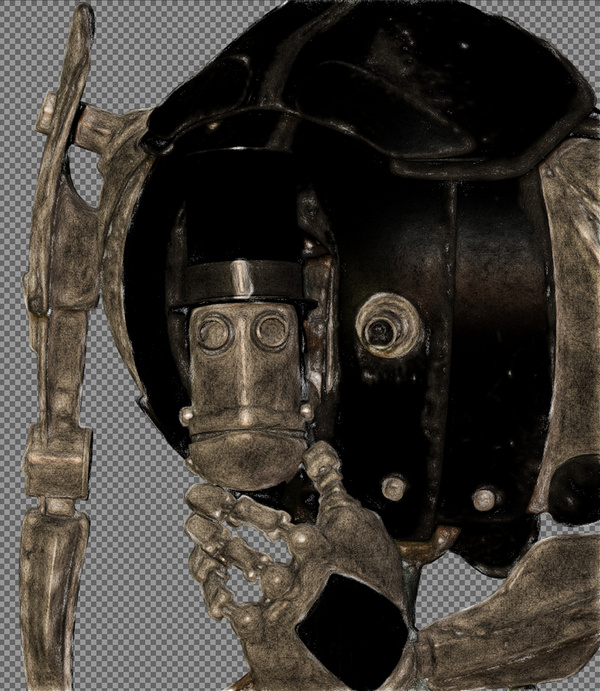
7. Black and White. Charcoal. Quite tricky to control, and frankly not very impressive as charcoal. But… also capable of a reasonable basic stipple effect, which I saved as my ‘Stipple’ preset. Though, as you can see, it doesn’t like to run across black or near-black.

8. Black and White. Engrave. Despite the name, this is of interest for comics makers. I was able to work it up to several pleasing effects and save these as presets.
One I named ‘Skritchy Pen’, which took two minutes to run…

Another preset I called ‘Berni Wrightson’, which took about 90 seconds to run. I love how the engraving lines follow the contours fairly neatly, which is never the case with such filters. How it does that I don’t know, but it does. It doesn’t even have the 3D mesh to ‘follow’.
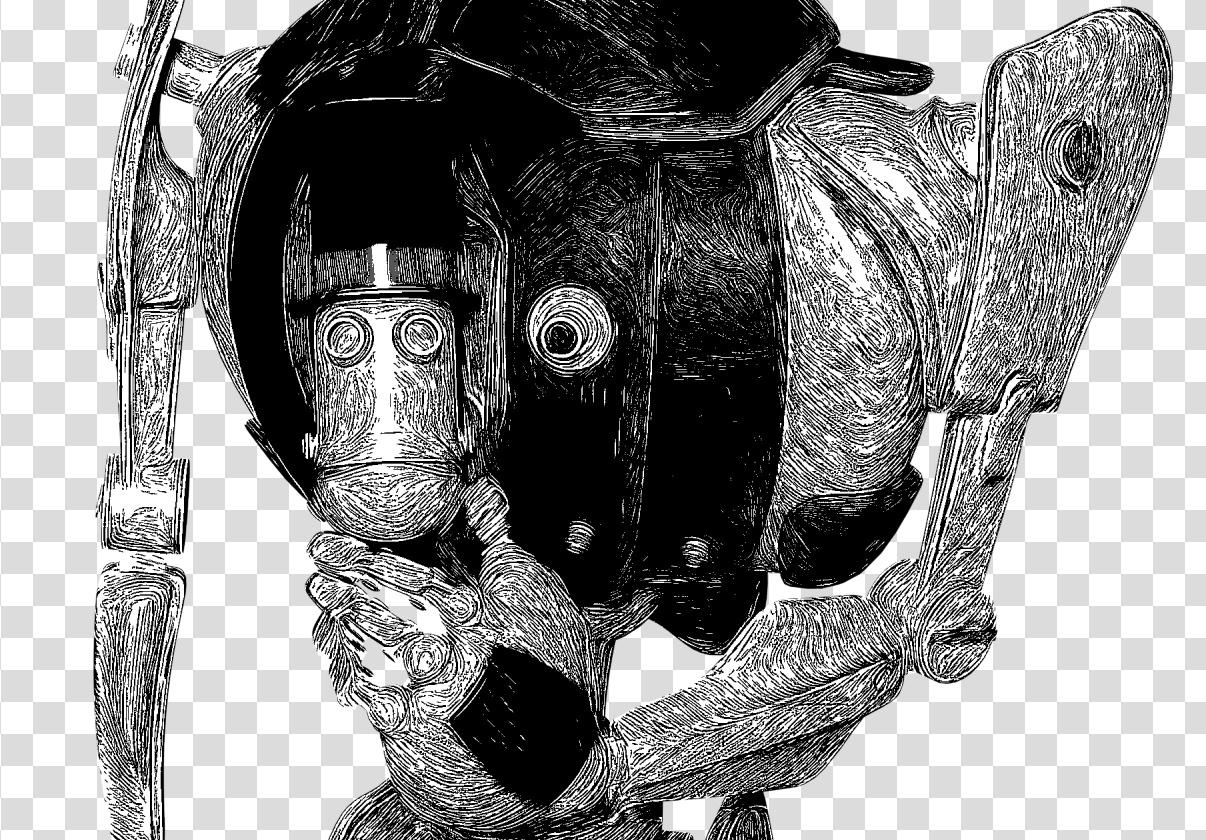
Another custom preset I made I called ‘Comic with Inks’, which was fairly fast with no anti-aliasing, but it took two minutes once its anti-aliasing was on. Very impressive, given the less-than-ideal source material. I’m not particularly keen on such dense blacks, but one might find ways of toning them down without too much work. Retexturing the Poser model would probably do it, at the risk of simply turning the blacks white.

These thin lines look like they might fat-ify quite nicely if run through DAP.
9. Black and White. Pencil. Nothing like a pencil, it’s more like maybe Posterize in Photoshop. Meh…
10. Colors. Detect Skin. Unusual. This may interest someone who does a lot of skin renders in Poser and DAZ Studio.
Thus I got about eight good useful custom presets with it, which I’m pleased with.
It’s possible to save user presets in G’MIC-QT, though with typical Krita awkwardness in naming they are called something very different. Your “Faves” are thus not just bookmarked favorite filters. They also capture the settings of the filter at the moment the ‘Fave’ is saved.
I don’t see any way to extract and share individual ‘Faves’, though you can back them up as they’re in the C:\Users\YOUR_PC_NAME\AppData\Roaming\gmic\gmic_qt_faves.json file. This is just a text file and can be opened with the Notepad++ freeware. Looking at the structure of the file it looks like someone used to code could, with great care, copy-paste a preset from someone else’s ‘Fave’ .json file and thus import it.

And, lastly, I don’t see anything in G’MIC that can do what DAP’s ‘GrNovel’ filter can do. Though G’MIC looks powerful enough to replicate it, if someone cares to try.
This tutorial shows you how to get a ‘pseudo Toon ID’ render from Poser, using a quick Preview render. As such this method works in both Standard and Pro versions of Poser, and gives you what is effectively a ToonID render layer (usually a Pro feature). Rather usefully, it also uses the real-time Preview render mode, rather than a slow Firefly render.

1. Set up your scene as usual and get to your final artistic framing and lighting. Save to MyScene-final.pz3. Render your final renders as usual. Without making any changes, then make a working duplicate of your final scene, MyScene-toonID.pz3. You need to work on a duplicate from now on, as you’re going to mess with the scene a bit.
2. Go up to the top menu: Display | Cartoon Settings | One Tone.
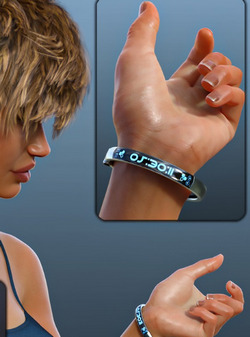

3. Go down to the Document Display Style icon palette, and set Cartoon Display mode. Everything goes flat. Each flat colour you see is being driven by the Diffuse colour in the relevant scene material.

4. Now, you may be happy with what you see. Lots of clearly defined flat colours, just begging to be precisely and easily selected with the Magic Wand or Colour Select in Photoshop. In which case make a Preview render and save your ‘pseudo Toon ID’ image. Take it into Photoshop and ‘Paste in place’ to align it precisely on top of the other layer(s). You’re done. Bring on the Magic Wand and Paintbucket!
5. Are things not looking right? Lights should not make a difference, given the combination of Display modes your scene is in. But try scrapping your scene’s existing light rig and replacing it with one single ‘flat’ IBL light. ‘Flat’ meaning it is pointed straight at the scene and is causing as little shadowing as possible.
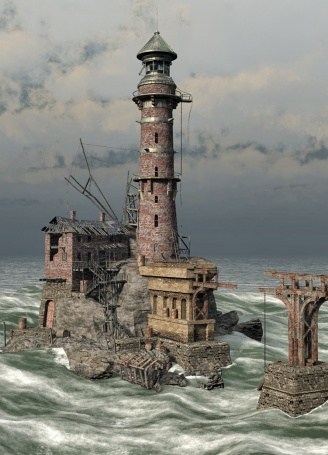
6. It could also be that some or all of the colours in your scene are too similar. You may have dark greys on top of dark greys for instance, as was the case with these sludgy dinosaurs before they were jazzed up a bit.
You could jazz up your too-similar colours by going into the Material Room, select each and every Material and change the Diffuse colours manually. But you may have too many materials in a big scene for that to be viable. What to do?
i) If you have MATWriter Panel 2014 installed in Poser 11, you’re in luck. These make it really easy to change Diffuse colours in bulk across each character and prop, and XS even uses the Windows Colour-picker for the colour selection.
ii) The free EZMat has a Randomise script that does the same per character/prop with auto randomisation of the Diffuse colour.
Be warned that you need to work on backup copies of your scene with these!
Once you’re done, don’t forget to go back up to the top menu: Display | Cartoon Settings | and set Poser back to ‘Three Tones’ or whatever you usually have set there.
For comparison, here is a default ToonID render layer from Poser Pro. Without any colour adjustment done in Poser, in Photoshop the default ToonID layer usually requires a quick Auto Contrast and then a Brightness/Contrast tweak to make it visible and its parts selectable. That’s been done here. Note that the opacity mapping has been handled by Poser much more nicely than the above Preview method, albeit at the cost of render time. On the downside, we don’t have a selection area for the eyes, which we do have on the ‘pseudo ToonID’ render, but those could be manually input in the Material Room (change the toonID number to something very high, i.e. six figures).
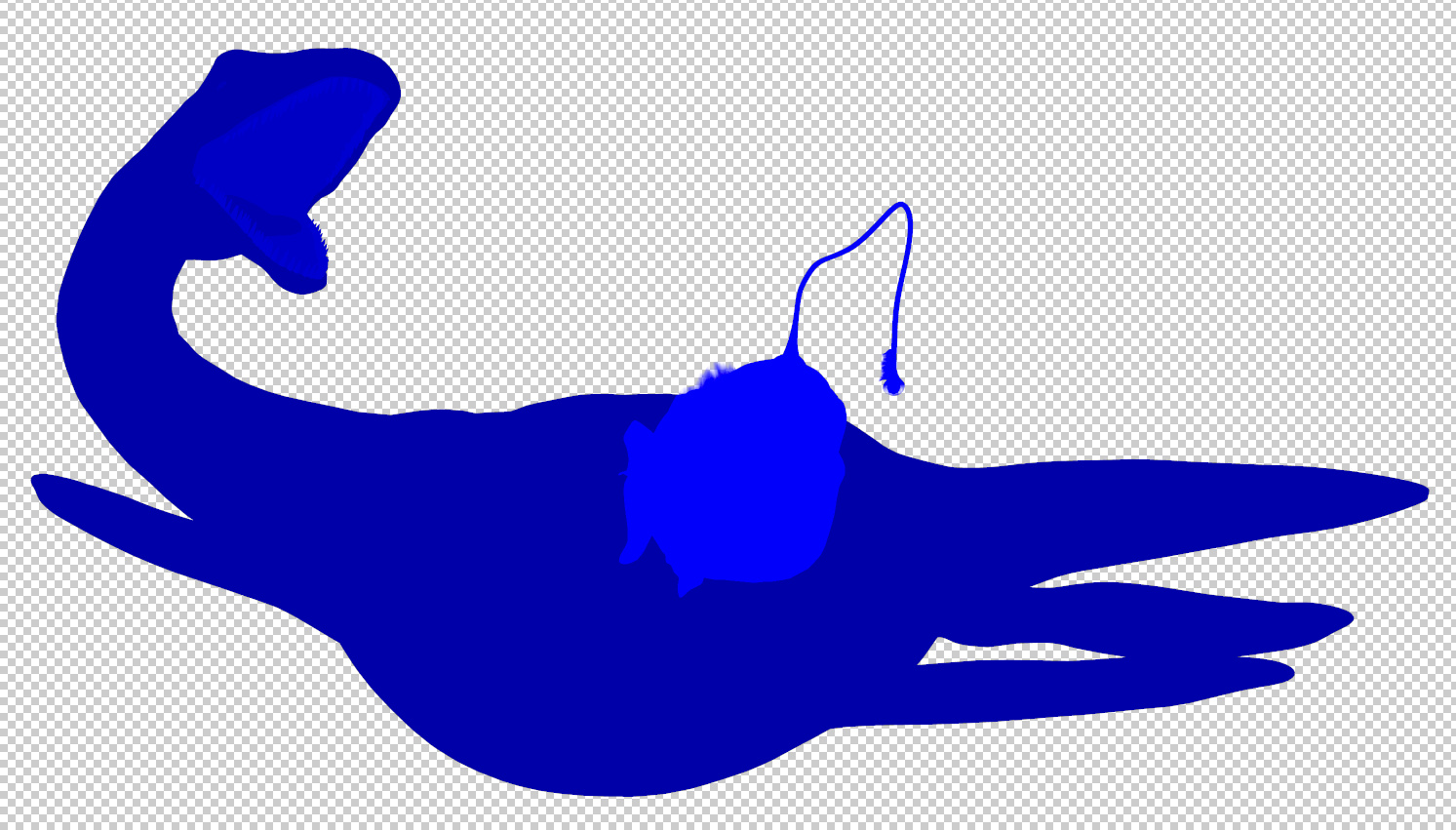
There is a free script that will quickly and vividly block-colour the ToonID channel for each character and prop in your scene.