A new 2021 version of PoseRay, a simple freeware Windows utility for converting Bryce .DFX to .OBJ files.
You may want to uncheck “Reorient” for best results, in some cases, before importing your .DFX mesh.
A new 2021 version of PoseRay, a simple freeware Windows utility for converting Bryce .DFX to .OBJ files.
You may want to uncheck “Reorient” for best results, in some cases, before importing your .DFX mesh.
Now that this blog is self-hosted I can display Python and other code rather better. After trying a half dozen possibilities I settled on the free WordPress plugin Urvanov Syntax Highlighter. Works with the Classic editor in txt mode, and has none of that Blocks nonsense.
Embedding in a post is via a form, or more simply via a blog code snippet…
|
1 2 3 |
<pre class="nums:false lang:python decode:true " > add code here <pre> |
It has a very large range of display colouring options. Doesn’t mess with the Python code, so if the plugin fails the code is still valid in plain-text. Doesn’t mess with stuff in existing code tags.
Copy-paste, save as a .py Python script. Make sure the ” ” are not fancy curly quotes. They need to be straight quotes… " "
|
1 2 3 4 5 6 7 8 9 10 11 12 13 14 15 16 17 18 19 20 21 22 23 24 |
# A Python script to load and render a Sketch Preset in Poser 11. # Do the usual setup stuff. import poser scene = poser.Scene() # Tell Poser we are going to want to load a Firefly options preset. option = scene.CurrentFireFlyOptions() # Set Firefly as the render engine. scene.SetCurrentRenderEngine(poser.kRenderEngineCodeFIREFLY) # Load the Sketch render preset, and Firefly will # accept it even though it's not a .prp Firefly preset. # Note that the backslash is required on the file path. option.LoadPreset("C:\sketch_preset.pzs") # Now the important bit, we have the script switch # Poser's render mode to Sketch. scene.SetCurrentRenderEngine(poser.kRenderEngineCodeSKETCH) # Do the render with the current Sketch preset and Sketch # engine, and adopt the other current render settings. scene.Render() |
Yous custom Sketch presets are found at:
C:\Users\YOUR_USERNAME\AppData\Roaming\Poser Pro\11\SketchPresets
or
C:\Users\YOUR_USERNAME\AppData\Roaming\Poser\12\SketchPresets
A new free two-hour webinar for Reallusion’s Cartoon Animator software. “Create Motion Comics Fast using Cartoon Animator”, now online as a YouTube recording along with a public link to a 3Gb(!) project file.
I was mildly excited. But on clicking through the video, the example appears to just a slow anime. A slow pace, and a few Ken Burns style slow-zooms and pans, does not make a motion comic. The title is thus a bit misleading. It’s certainly not the sort of panel-based motion comic you’d make with the dedicated motion comics software MotionArtist.
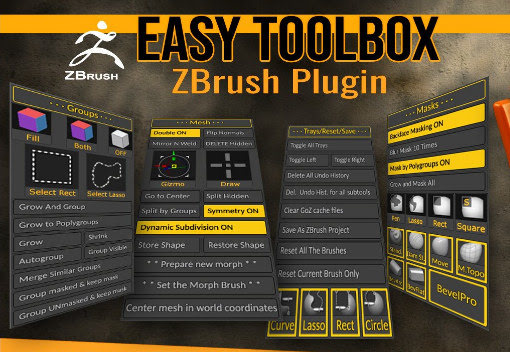
Looking rather useful for $3.50, Easy Toolbox ZBrush Plugin aims to speed your work with the software’s uncongenial and confusing interface, by…
“gathering together, in a single interface, many of the most useful functions of ZBrush that you use all the time.”
The ‘video to mo-cap’ tool Kinetix 1.5 has been released. It’s a free browser-based service. Formerly you used stock figures to transfer the mo-cap from a video of a moving figure. But it appears that with this update your own figures can now be imported in .FBX format. Which may make the service of more interest to DAZ and Poser users. They’ve also removed the ups-selling micro-payments system.
My Technical Search engine has updated. Sources now include 142 sites, forums or pages. Now with some added Japanese and German goodness, plus these new additions…
My own blog is also now back in the Google Search index, and thus in Technical Search, though is not yet fully indexed by Google Search.
Now on the DAZ Store, How to Master Material Zones in DAZ: Tutorial Guide.
After a little wrangling and bashing I was able to get the DAZ 3D Bridge for Photoshop, posted about yesterday, fully running. Including its “Update” and “AutoUpdate” features.
Required:
1. As per my tutorial yesterday, the latest DAZ Studio 4.20.0.17 64-bit, and its latest DS4_3DBridge_1.13.0.17_Win64.exe Bridge. This Bridge then installed to both DAZ 4.20 and to my 64-bit Photoshop 2018. The latter is here superfluous though, as we also need to get another and 32-bit Bridge plugin into Photoshop CS6 to get the Bridge fully functional.
and
2. Photoshop CS6 32-bit, with its 32-bit plugin installed from an old DS4_3DBridge_1.6.2.70_Win32.exe installer I found on an old backup DVD. Note that install of this requires a DAZ Studio 4 32-bit version to be present (I used an old 4.12.x 32-bit), or else the vital Bridge install will be refused. 32-bit parity between the two is important. You may also want your old DAZ 4.12 Pro serial to activate the 32-bit DAZ, though that is probably not needed. No serial was needed for the Photoshop side of the old 32-bit Bridge. No damage was done to my DAZ Studio 4.20.0.17 64-bit by the install of an old 32-bit version over in C:\Program Files (x86)
It’s possible you don’t even need that old 32-bit Bridge installer, as a there’s also a current 32-bit one still available in your DAZ Product Library. The current is DS4_3DBridge_1.13.0.17_Win32.exe
Usage:
Then I just load Photoshop CS6 32-bit, load its 32-bit version of the DAZ Bridge, it will then auto-launch my latest DAZ Studio 4.20.x 64-bit. Then, the 32-bit CS6 plugin can happily talk to the latest Bridge script/camera in the 64-bit latest DAZ Studio. Update and Autoupdate work perfectly. Importing an iRay render into Photoshop also works fine. Use the 3D Bridge camera. I assume it’s all direct script-to-script talk at that point, and thus no .EXE bit-parity is required.
So… the problem appears to have been that everyone had moved on to 64-bit Photoshop, partly breaking the Bridge’s “Update” and “Autoupdate” features. But the current plugin still works fine if you give it a 32-bit Photoshop CS6 with an old 32-bit Bridge plugin located in Photoshop’s plug-ins directory.
I should say that all this happens for me in Windows 7 64-bit, and that later versions of Windows may not be so co-operative.
Also found: the original Bridge PDF User Guide from 2008. Never updated, it seems.
Here’s how to get the free DAZ Bridge running with Photoshop, and streamline a chunk of the workflow with my additional automated script.
1. Download the Bridge.
BRIDGE: Most people will want the 64-bit installer current at DS4_3DBridge_1.13.0.17_Win64.exe and this is working with the latest DAZ Studio 4.20.x. DAZ Studio lacks Poser’s ability to render to a multi-layered Photoshop .PSD, so this is the only official way to get renders over to a layered Photoshop file.
PHOTOSHOP: In this 64-bit case you need a 64-bit Photoshop that also supports 3D. Adobe recently pulled all 3D support from Photoshop, for rather murky reasons. Technically that should not matter, as all we’re doing here is bringing in a 2D render via a Bridge. But you may still want to revert to an older 3D version of Photoshop. The following tutorial assumes Photoshop 2018 on Windows.
2. Install the DAZ bridge. In the installer, you specify the plugins directory for the version of Photoshop you want to target. In this case…
C:\Program Files\Adobe\Adobe Photoshop CC 2018\Plug-ins
3. Once installed, go look in your regular Photoshop’s ..\Plug-ins directory and you should see a new ..\DAZ 3D folder there, and inside that a psdzbridge.8li file. Success.
4. Now load Photoshop. Open the backdrop image (aka ‘background’, aka ‘backplate’) you want as the base layer for your picture, above which your 3D DAZ renders will appear as adjustable layers. Ideally this backdrop is not at some huge size, but rather more like 1800-2400px wide. Then you run the Bridge script thus…
6. The Bridge’s mini UI panel will then appear in Photoshop. DAZ Studio will also be auto-launched at the same time, if it wasn’t already running. Give it time to load. In DAZ you will see you now have a special camera which is being used to get and pass the renders, and you will automatically be looking through that camera.
7. In DAZ, the Backdrop now needs to match the same one you have open in Photoshop. I wrote a script that automatically takes care of all the fiddly steps involved in this: it first invites the user to select and load the same backdrop they’ve already loaded in Photoshop. Ignore other manual switches, as the script will take care of them. This is how you load a backdrop image…
Then, once you’ve done that, the script continues. It auto-sets the Viewport ratio to the new backdrop, then also matches the current render size to it in pixels, and finally it turns off visibility of the backdrop in renders. The script also sets the iRay Max Time (i.e. maximum render time) to 30 seconds.
* Script (save as Photoshop_Bridge_helper_script_for DAZ_Studio.txt and then rename to .dsa).
(I have a tutorial here on how to pin a script to your DAZ UI’s ‘Scripts’ menu).
8. Both DAZ and Photoshop should now have the same auto-magically matched backdrops. Set up your prop or figure in DAZ, via the special Bridge camera, so as to match the backdrop in terms of position and lighting.
For 64-bit users to get a cutout render on transparency, you need to first click “Preview Image”. This doesn’t Preview in 64-bit (see below for details) but does set up “Render to New Layer” to render onto transparency. 32-bit users with CS6 need no such workaround.
In Photoshop and via the Bridge’s mini UI, you then “Render to New Layer”. The resulting render will perfectly match the backdrop in Photoshop, and will also be a cutout on transparency.
And the DAZ render time is now reasonable, taking 30 seconds to get into Photoshop. The seconds can be adjusted at the foot of my script. Adjust the time to as long as you can bear…
// Max Time in seconds
oProperty.setValue(30)
oProperty.getValue()
Yes, sadly 64-bit users have to do a proper full render in DAZ before it’s brought into Photoshop. Because the Bridge’s “Preview” button no longer works in 64-bit. What “Preview” was supposed to do was… “create an image or layer in Photoshop using the current DAZ Studio viewport image.” But for most this no longer works. Bridge now only works fully if you can use this method which involves having CS6 32-bit on a 64-bit system.
Thus for most people the best way to get an iRay render into Photoshop with any speed is to manually cap the render time to just 30 seconds, which my script does for you. At my default of 30 seconds the iRay render’s result is grainy, yes… but that doesn’t matter for me. The aim in Photoshop is “painterly via a filter”. The grain thus gets smushed away by the filter, and the painterly effect is perhaps even helped along a bit by the grain….
Alternatively you could try setting your DAZ engine to use a superfast custom iRay preset you have working with a ninja $1,000 graphics-card, or manually set the near real-time render-engine of OpenGL, after my script has run.
The advantages of rendering to layers over a matched background are various. Layers can be filtered differently or faded out for a ‘depth fog’ effect. Cutout edges can be stroked. Layers can be moved or deleted without having to go back into a big 3D scene. Very large complex pictures can be built, potentially with many elements, without burning out your PC trying to render some DAZ mega-scene all in one go.
That’s it. Enjoy, as the DAZ Photoshop Bridge could have cost you $200 back-in-the-day!
A new wholly-free and seemingly perpetual version of the 3DCoat software, in the form of 3DCoatPrint 2022. This is the latest version and is even partly licensed for commercial use. Ah, but how is it crippled? Well it’s…
* capped at “40,000 triangles on export” as a .STL mesh for 3D printing.
* has no “paint and retopology toolsets”.
* apart from 3D printing, “other uses may only be for personal non-profit activity.”
That appears to be it. So 3DCoatPrint looks reasonably good, even if you have no interest in inflicting yet more plastic junk on the world. Possible use-cases:
* you want a more rational sculpting replacement for Zbrush / Blender, and yet don’t need a Zbrush round-trip interface working with Poser / DAZ Studio.
* you “sculpt for greyscale render + partial auto-colour + paint-over”, making elements for assembly as 2D concept paintings.
* you specifically target the ‘low-poly look’ aesthetically, and might even find the 40,000 triangle limit a creative spur.
The software works on Windows 7 and up. Regrettably it’s not just “download an .EXE and install”, through. You do have to ‘sign up’ / ‘sign in’ to get it. Which suggests there’s some sort of online leash which could eventually pull your access, years down the line.
Last noticed here as KeyShot 10.2 in June 2021, a year later KeyShot 11.2 is out. 11.x’s bugs are fixed and there are some nice new features…
* “a new 3D Paint system, making it possible to texture assets within KeyShot by painting directly onto the surface of the model”. Plus Layers, Material Management.
* the ability to “import animations in .FBX” will also please many.
* and “a Python 3-based scripting console” for scripted automation.
The bad news is that “sales of perpetual licences are discontinued” for this nice and relative easy-to-use software. All versions are now “subscription-only”. Even the entry-level version now costs $588 per year. It’s now “Windows 10 only”, too. Sigh.
The latest Digital Art Live magazine is now available as issue 69. Free, but small donations are now encouraged via Gumroad to help keep it going. This month’s theme for the midsummer issue is “The Misty Isles”, loosely based around mythic and mystical ideas of our own British Isles.
In related ‘British landscape’ news, which sadly came just too late for inclusion in Digital Art Live #69, Vue’s grand English oak forest official pack is now available…
“This PlantCatalog update adds everything you need to create a full English oak forest, including trees, mushrooms, ferns, dead undergrowth and more.”
Brilliant, just add Robin Hood. Also in the pack are native lichen, moss, and even ‘pollarded’ willows (they grow alongside English rivers and large streams, and are harvested for their withies)…
Accessed for Vue via E-on’s standalone sister-software PlantCatalog. The PlantCatalog plants… “can be used both within [the subscription] VUE as procedural files and within any other 3D application as baked polygon meshes, with or without wind animation.”
Also interesting is that with this update to the software, all… “existing PlantCatalog species files are now up to 60% smaller than before.” Thus saving hard-drive space.
Time for another survey-pick of what’s new for Poser and DAZ Studio, in June 2022.
Science-fiction:
Modular Sci-fi Chamber. Simply but stylish and believable. For added visual effect, have the ceiling be transparent revealing stars, swirling nebulae etc.

A free Astronaut sculptured bust. Useful clutter for your starship conference room (although by that time all decisions will of course be made by bio-AIs in nano-seconds across quantum-space).
Free today, only. DAZ Platinum Club Anniversary 2021 Mega Pack 4 with lots of sci-fi goodness. Get it while it’s hot.

Steampunk:
A free simple Compact Mirror for the hand.

A free toony steampunk Cannon.

M3D Victorian Hair, Facial Hair, Hats, and Aging for G8M.
Fantasy:
Moonboat for Poser by 1971s. Appears to be new, as I don’t have it in my runtime under that name. Though it is similar to early 1971s boats.

Free Antlers for G8 Female.
Storybook:
Ponytail Hair Accessories – Set 1 and Set 2. For the 3-in-1 Low Ponytails Hair.

An unusual free Candy Hat.

The above led me to a freebie I missed in 2021, Lea Hair. For some reason this is a huge half-gigabyte download!

Toon:
Flossie for La Femme for Poser.

Fancy Cats – Tuxedo and EveryDay Dogs – Beagle for Melody and Micah, and Furries for Melody and Micah. I have a guide to setting these up, re: their base dependencies, finding and loading order.

Masataka for Walther 2.0 for DAZ Studio. A manga style character for G8M.

Patrick base mesh, affordable and with a permissive licence. It wouldn’t take too much work in ZBrush or Blender to turn this into H.P. Lovecraft.

Carnivora for DAZ Studio iRay. Plants go wild!

Landscape:
A modular Deep Rainforest by ShaaraMuse3D, for Poser and DAZ. Looks great. Could be paired with the new Tanglewood – Tormented Trees for a more Avatar-ish look.

Medieval Ruin – Modular for DAZ Studio. Medieval, but has a nice fresh feel about it.
Photo Props: Chiselled Blocks by ShaaraMuse3D.
Animals:
Savannah Cat for Cat Mars for DAZ Studio.

Songbird ReMix: Birds of Legend for Poser and DAZ.
Historical:
The Domus of Victory Training Arena. A nice small gladiatorial training area from antiquity. Though no spectator poses. Could be paired with the new Majestic Plaza.

Shakespeare’s Puck for G8M.

A free Flintlock Pistol for DAZ Studio. And from the same maker, a free classic Wild West Colt Peacemaker pistol for DAZ Studio.

A free 1910s European Street Lamp Type 1.
The free Erte inspired dForce dress #3 for G8F. Looks great. Remove the 1920s hat, add rusty textures and it could work well as a steampunk outfit.

A free Vintage late-1950s dForce swing coat for G8F.

Free Low Poly Hair, 1970s cheerleader style and colour materials.
Characters, poses, hair:
Free, Five Soft Fashion Poses for G8. The listing page is confused, so ignore the ‘for Poser and Windows 10 only’. It’s for DAZ. This appears to be a free sampler for the larger paid pack RAV Fredda Soft Fashion Poses 25.

A new “Hr” from Ali is always welcome, the latest is Hr-252.

D9S Brianna for La Femme for Poser. Excellently done, in that I can’t tell it’s based on La Femme. Has a sort of ‘1930s Berlin’ feel.

Kneeling Poses 001 for G3F and G8F. Could be useful for those who need a lot of such poses, e.g. a children’s garden bug-hunt or a tunnel-based thriller. See also the new HF Creeping Poses for G8F.
HID Lucy for G8F, another high-quality Emma Whatsername clone.
Software, utilities and scripts:
Node Navigation Tools for DAZ Studio. Here “node” means in the figure hierarchy (i.e. body, hand, feet etc). This script set can be linked with keyboard shortcuts to let you move up/down the hierarchy without having to squint at or open a long list.
Select the BODY script for Poser.
Bone Minion for Generation 4 Poses. Appears to be a reliable on-the-fly conversion utility for old poses. Looks very useful.
It looks like Renderosity is keeping Poser 11 Pro at $52, at least for now. What a superb bargain, especially if you want to make non-photoreal renders from 3D.
Tutorials and more:
The Geometry Editor: An In-Depth Tutorial Guide. In three hours, “14 case studies to demonstrate how effective the geometry editor is” and what you can do with it in DAZ Studio. Indexed and searchable video. Looks good.
The latest Digital Art Live magazine #69 (June 2022).
That’s all for June. More next month!
A small script to select the BODY in Poser 11. Should work in nearly all cases, re: figure types. Buttonize it on the XA Toolbar, for a one-click BODY select.

Save as a .py script.
|
1 2 3 4 5 6 7 |
# A simple Poser script to select BODY on the figure in the scene. import poser scene = poser.Scene() figure = scene.CurrentFigure() actor = scene.CurrentActor() # Setup done, now set current figure to its Figure | BODY root scene.SelectActor(figure.ParentActor()) |
You can also tweak the script, to select any body part you regularly need to select on a figure over and over again.
Actually Poser already has the BODY select built in, though. Press 2 on your keyboard to instantly move the figure selection from the currently selected body-part up to the main BODY. So the script is only for those who don’t want to be constantly peering down at their keyboard to find the “2” button, and prefer to have everything in front of them in the UI.
Alternatively you could use a mouse-gesture software, and assign a ‘B’ gesture to Press 2 on the keyboard.