There’s a new worldwide student competition from the makers of Manga Studio (now called Clip Studio). They’re calling for digital comics artists who are at degree level, in a technical/vocational school, or even in a formal “school art club or extracurricular art program”. There are loads of prizes, from Celcys and their partners, including Wacom Cintiq pen-monitors. Entry is free, and the deadline is early May 2019.
FlowScape updates
I’m pleased to see that the new FlowScape, reviewed here a week ago, has updated already. With a new Map Maker and 8k screenshots.
The new Map Maker adds an orthographic map maker with a grid overlay. To access this you go to the main top-left menu button (the house icon) and then click “Map” in the drop-down menu. Then press F8 to save the map images at 7680 x 4320px. Though F8 fatally crashed Flowscape for me. Nor can one use the normal camera sidebar-icon to get the map screenshot, in that mode.
However making a normal-view screenshot with the normal camera sidebar-icon is fine. And it also gave me an 8k screenshot, which is nice, at the cost of freezing the software totally for about 20 seconds. The clouds stop moving, and 20 seconds later they start again, which is how you know the screenshot is being made. But since it’s writing out a 15Mb .PNG file, the delay is understandable.
So… while the Map Maker is of no real use to ordinary non game-making mortals, the 8k screenshot is worth the upgrade for artists.
Don’t, however, just overwrite your existing folder and expect FlowScape to work. It seems to require a new folder for each install. It picked up my previous save-points fine, though.
Video tutorial: the comic-book effect in Poser 11
A simple three-minute video intro to how to set up a clean comic-book effect on a character with Poser 11. This effect is available in both Poser Standard and Poser Pro. It is very easily controlled, and you render in just a few seconds by using real-time Preview renders.
Amazon Kindle Fire 10″ guide update
I first had my Kindle Fire HD tablet at Christmas 2017, at a bargain price, and it’s done great service. I wrote a short but detailed guide for new users at that time, which appeared on this blog. That post encapsulated what I’d learned on how to set up the Fire and the best apps. I’ve now updated that post…
* AIMP is now my preferred audio player on both Desktop and Kindle. AIMP has a fine free Android app that can be ‘sideloaded’. It does easy bookmarking of audio files.
* The NX Player app is also free, and was the only genuine freeware I could find that is able to play the audio streaming from your PC over wi-fi, when using the open-source desktop freeware “Stream What You Hear” on your PC.
* Comic Time is another fine free comic book reader app I’ve found in the last year.
* OneCast is definitely the best free podcatcher for podcasts. Excellent coverage and all nine of my regular podcasts could be found in its lists. Superb interface, no ads or nags.
* Screen On is the best genuinely free app to keep your Kindle from dimming or rebooting while you listen to music on wireless bluetooth headphones. The 2017 Kindle Fire’s bluetooth coverage and power/range is excellent compared to a £10 USB stick transmitter. With the aid of Screen On, the Kindle can be used as a base-station for bluetooth headphones.
* To send Web links to things like YouTube videos, without some Cloud sharing service or QR codes or similar, just set up a Trello board for your links and drag/drop the link onto a card there. They then show up in your Kindle browser, which is also pointed at the Trello board. When you drag and drop onto a Trello card, it embeds a live clickable link to the Web URL. Thus there’s no tedious copy-paste involved anywhere in the process. I looked long and hard for a simple way to pass live clickable Web links between a PC and a tablet, and this was the best.
Tutorial: combining the best of two inks-only Poser comic-book renders
This is a tutorial in how to quickly combine the best of two inks-only renders, from Poser’s Comic Book Preview render, by using Photoshop. For future speed-of-working this tutorial can, of course, be encapsulated and semi-automated as a recorded Photoshop Action.
We’re going to manually select just a few nice lines from one render, and combine them with lines from the other render.
Why do this? To subtly boost the quality of your ink lines output from Poser’s Comic Book Preview mode, at only a small cost in time spent per comics frame. Depending on your intended style, possibly also to selectively combine sketch edge-shading, from a Poser Sketch render, with your Comic Book line-art inks.
Tools: Poser 11 (Pro or Standard) with a suitable Poser 3D character to render. Adobe Photoshop (CS6 is being used here).
What’s it called in Photoshop?: “Q” mode or “Quick Mask”.
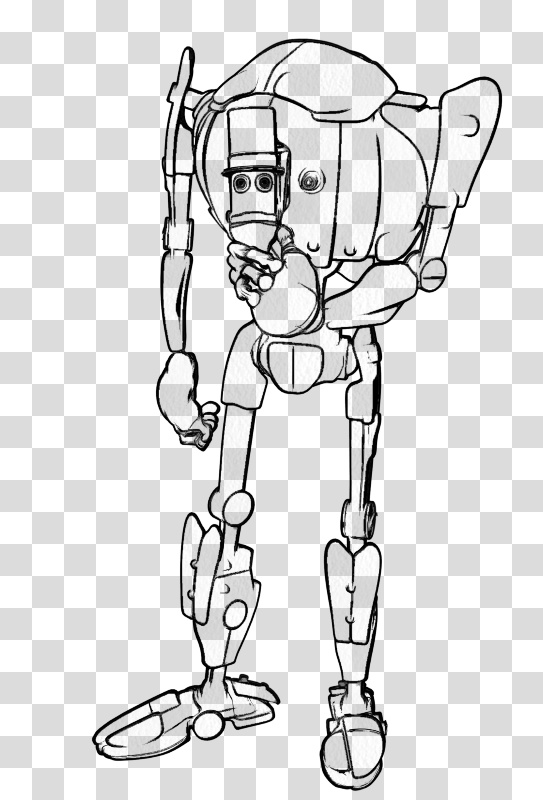
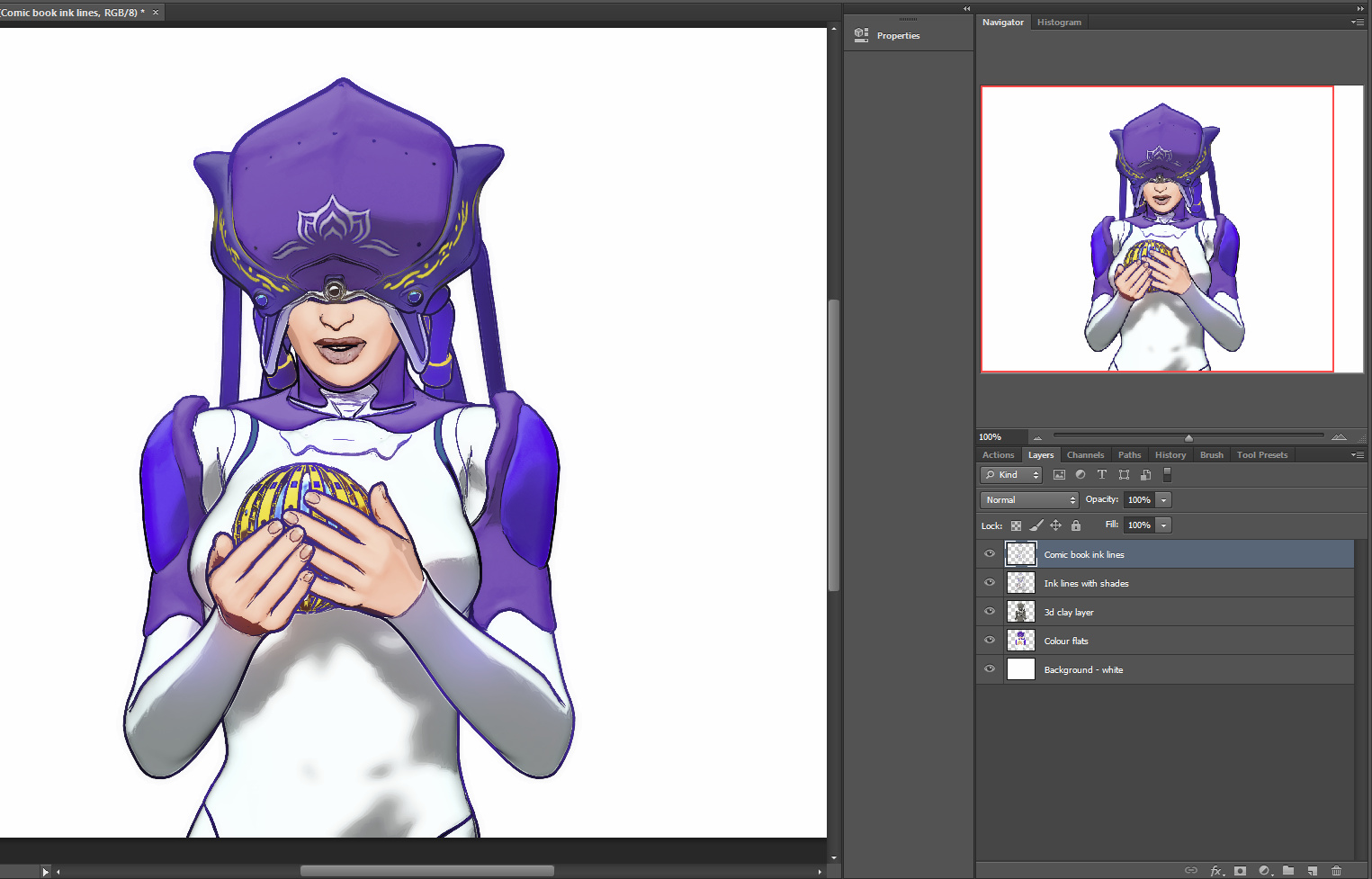
1. First render your two nearly-identical ink lines renders from Poser 11’s Comic Book Preview mode. The differences between them will perhaps arise from your selecting different Display Styles for Preview renders, or choosing Poser lights that cause new ink lines/shadows to appear in the line-art. Here I have kept the lighting fairly flat, and run a Sketch render into the Preview ink lines to make them a bit less slick and more grainy.
Animated GIF comparison between the layers:
2. Bring the two renders into Photoshop, with each render placed on its own layer. The renders should be exactly aligned one above the other, and Photoshop’s “Paste in place” command may help you with that.
3. ‘Knock out all white’ from both renders (there are many free line-art Photoshop actions that do that). Then place a new white background layer behind them.
Toggle the ink layers on and off, to let you decide which needs to be renamed as the ‘bottom render’.
The ‘bottom render’ should be the one that has some nice lines you wish to add to the top main render, while junking the rest of its lines.
You choose the other render to be the ‘top’ because it’s mostly OK and barely needs changing.
Ok, you’ve now decided which layer is to be which. It’s time to rename the layers sensibly, so that an Action can be run on them. Your saved .PSD production file will have three layers — named as: top render | bottom render | White. It should look like this…
I’ve capitalised “White” to remind you that layers are case-sensitive for Photoshop Actions. If an Action expects to find a layer called “White”, it will not run if the layer has been re-named to “white”.
4. To make it easier to identify the ink lines of the bottom layer, we now turn the lines a uniform dark mid-green. To do this you first press ‘Crtl’ on the keyboard while clicking with the mouse cursor to select the layer thumbnail in the Layers palette. This gives you a clean automatic selection of your inks, indicated by the dotted lines…
Then you make a wholly new blank layer, and fill this blank layer with green by using the Paintbucket. Then you select the ‘bottom render’ layer and hide it.
You are now going to be working on the green lines in the copy of the ‘bottom render’. It doesn’t matter that it’s a copy, as we’ll switch back to the original soon (once we’ve selected the lines we want to keep) and then junk it entirely.
5. Ok, so how do we select those nice ink lines? With the new temporary green layer selected, you now press “Q” on your keyboard. Then you select a hard round Brush from the Toolbar and size it for picking out fine details in line-art. The brush size will depend on your render size. I tend to render in Preview to 3600px.
6. While you are in this “Q” (Quick Mask) mode, any Brush will automatically paint in semi-transparent red. That will be the only visual indication that you have entered this special mode. With this red brush you then simply paint on the active layer, and where you lay paint indicates the details you want to keep.
You can see here why we needed to add the temporary green inks layer. Without it, there would be no way to tell the difference between the black inks of the two layers.
7. Once all these details are selected, you switch back to your copy layer and make it visible. Your selection is now acting on the original inks, not the green inks. Press “Q” again. Your red painted areas now become selections with dotted lines around them. Once this happens, you hit the Delete key. Everything except the selected areas is then deleted. Now you can also delete the green inks surrogate layer, as it’s no longer needed.
Ok, you’re basically done. The above process may sound fiendishly complex, but once it’s in a recorded Action with stops and user prompts then it becomes something that can be completed with ease in 30 seconds, and you don’t need to remember anything other than where the Action is located in the Palette.
Finally, you might then select a good small inking brush, to manually add just a few completely new hand-painted lines. You can also erase any bits of the inking you still don’t like. Here that’s been done, especially fixing the mouth. The sketchy dotting on the ink lines is not that pleasing here, in combination with the smooth colour layer, and I could have produced cleaner inks from a straight Comic Book Preview render. But this is just a quick demo. Here I’ve added a filtered colour Preview render layer and a subtle Ambient Occlusion shadows layer from Firefly (which was almost as fast as Preview, since it was only doing light shadows)…
If your graphic novel has 600 frames and the above process takes a minute per frame (even with the recorded Action), plus a few more manual inking stokes just to finish off, then that’s 10 hours of additional work. But that seems a small price to pay for creating nicer ink lines.
The reluctant Femme
Ah, the Renderosity site’s total outage (here in the UK and probably elsewhere) seems to be a DNS server problem. Switching from my ISP’s default DNS over to 9.9.9.9 (the Quad9 DSN) did nothing, same problem. But using Google’s own DNS at 8.8.8.8 got me through to Renderosity.
However, on going to get the new La Femme character from my shopping cart I had the message “Shopping Cart Items do not meet the Minimum Purchase Price of $3.50”, since her price was $0.00. I had no idea that there’s now a “Minimum Purchase Price”! When did that happen? So, it seems one can only get a free item if one first pays $3.50 for some other item. Which means it’s not actually free.
Well… I was going to download and do some nice demos and a test with La Femme, and post them in various places (including a magazine), telling people she was free. But she’s not free, so now that will have to be put on hold.
La Femme 1 – major new Poser figure
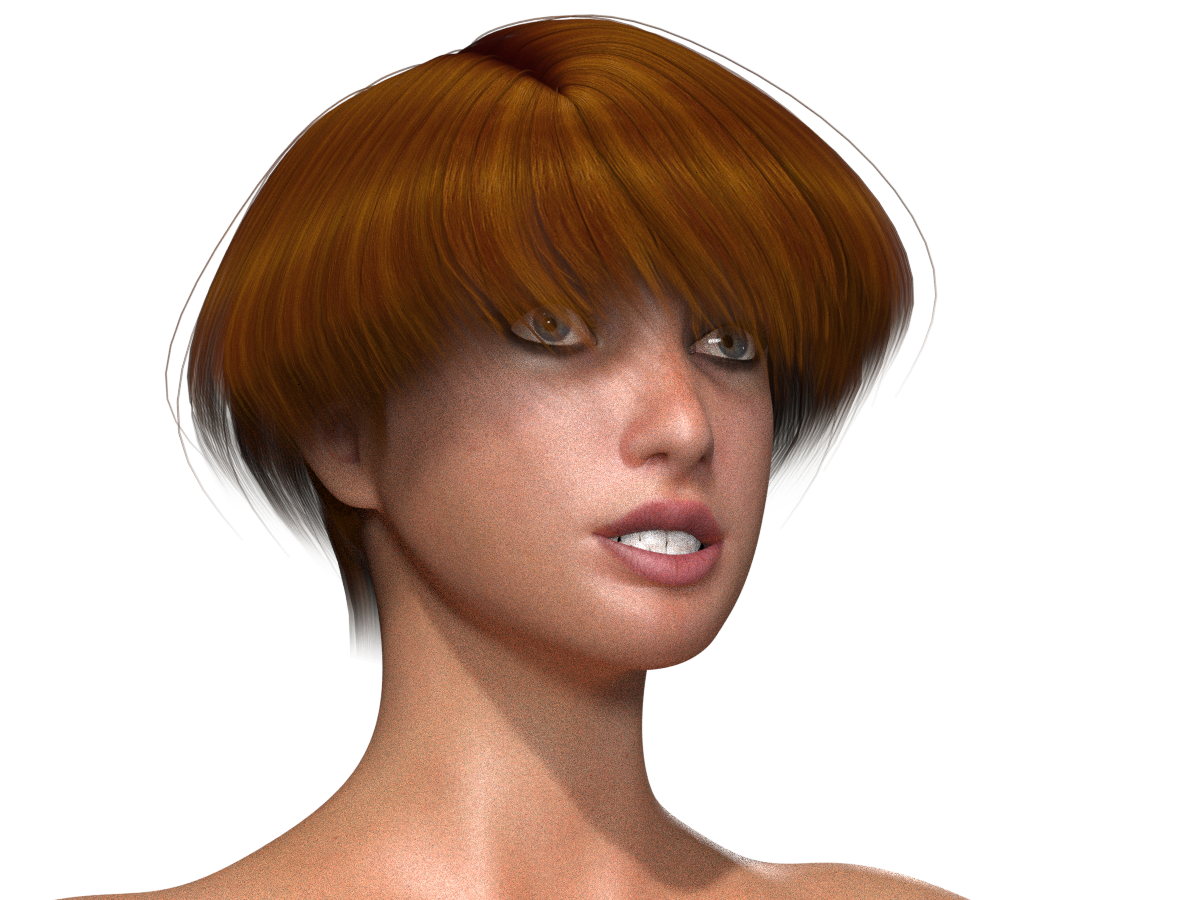
The Renderosity store and Smith Micro have teamed up on sponsoring the development of a new female figure for Poser. La Femme 1 immediately suggests ‘Princess Diana’, aided by an early 1980s vibe due to the choice of hairstyle for the promo. Which, in my book, is no bad thing…
But she’s obviously not a simple Diana-alike. I’m generally fine with the standard V4/M4 and the Genesis 2-3 figures, but it’s always nice to see a really good looking flagship character. In this case with …
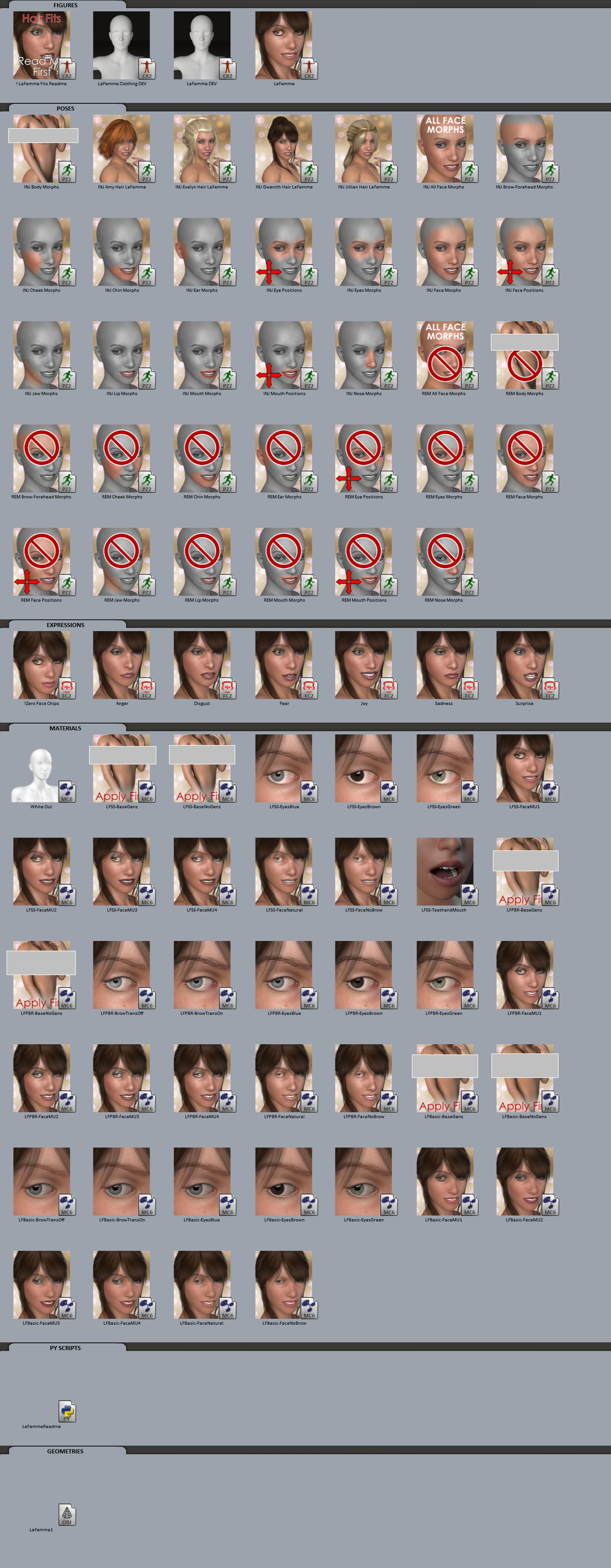
“advanced rigging … body control handles … highly detailed texture maps and hybrid materials that work in both FireFly and SuperFly … smooth natural joints … 30 face-control chips for natural expressions”
Great, and with a very very subtly ‘toon’ look (which here in the UK would be called ‘a little bit horsey’) which I’m guessing should suit a comic-book heroine well. Which, again, is a good thing in my view, and helps get the viewer past the ‘uncanny valley’ response to 3D humans. Generally, she’s vastly more appealing that the similar recent community attempts to create some sort of rival to DAZ’s Genesis.
For the moment, she’s free on Renderosity*, discounted from a $30 ‘normal’ price. Straight onto my Renderosity shopping cart, though… the Cart seems to be unresponsive at present.
Once the Cart is responding and she’s installed it’ll be interesting to see: how fast she and her default morph set and high-res textures load to the stage; if she can take V4 clothing and poses without a lot of hassle and poke; how easily she can be adjusted to render speedily in SuperFly on a PC without a ninja graphics-card while still retaining reasonable skin quality.
La Femme has some paid morph addons, La Femme Body Kit MR which is a big bundle of additional body morphs. And Femme Fatale HD Morphs which offers ultra-fine body detailing for those who want it. With these and La Femme, it looks like Poser is now at parity again with DAZ Studio in terms of their flagship female figures (G8F and La Femme).
* Update: I’m sorry, I misinformed readers on this. She’s not actually free, as there’s a minimum purchase price on Renderosity now, of $3.50.
Freebie: Spot/hide the joint
A new free DAZ Studio script set for Genesis 3 Female, just released. It appears that you select the joint of the character you want to display and run the script. “Joints whose Limit setting has been cancelled are displayed in green”.
So presumably, when you’ve applied a character pose and selected “Turn limits off”, this script visually identifies where exactly the character’s joints are pushing beyond reality. It looks a useful timesaver for character and pose makers, and testers, and may also help artists who have a complex animation scene where something has gone awry but they’re not sure what or where.
There’s also a script to hide multiple body joints at once, presumably similar to how you can quickly hide multiple parts with Scene Toy in Poser but done automatically. It looks like you can use the script to hide say… the Left Collar, and then all the connected bits of the left arm and hand will also be automatically hidden along with it.
Test: the free FotoSketcher
I downloaded the standalone FotoSketcher 3.4 for Windows, just to give it a quick try. Having read on a SketchUp architectural forum about its ability to speedily and nicely render hatching into 3D shadows. It’s true. I liked its “Line and Ink 1” preset, and this rendered very quickly into an ambient occlusion shadows render from Poser. It even has a cool “paint on” brush, which selectively reveals the hatching and cross-hatching effect. It’s an elegant and nicely subdued implimentation of the look.
However, it seems far too primitive in its controls. In terms of allowing the user to make adjustments of things like scale, pattern and angle. To be really useful such software would have to… i) angle the hatching according to the perspective gradient direction of the shadow layer beneath/around the brush, perhaps aided by the direction of brush travel, and ii) weight the density of the hatching being laid down, according to the shadow density beneath it. This is the sort of ‘shadows-and-edge to weighted hatching’ I’m thinking of, though this is not what FotoSketcher does…
The rest of the effects in FotoSketcher are the usual range of recognisable photo filters. It’s nice that FotoSketcher is genuine freeware, and it may be all you need for adding a subtle hatching effect for blending in Photoshop with a Poser sketch render. But I found that the software is not ‘a keeper’ for me, even though free.
Alternatives? Digital Auto Painter (DAP) would be the obvious choice for everything except the hatching, and although DAP is admittedly moderately expensive it would be the better choice if you can afford it. I’ve also just found that DAP has a Photoshop plugin, albeit under a confusingly different name.
If you need more advanced hatching and stipple than FotoSketcher, test the free-trials of Photoshop plugins like: Engraver III; Artistic Halftone for weighted stippling; and even the old Flaming Pear India Ink.
In Poser, Rust-Icator for Poser will also let you layer effects without replacing existing texture maps. These can include hatching overlay tiles of up to 4000px. This shows up in Preview, but while it suits cylinders and teapots well it is not so easy to get a good look with it on a per body-part basis on a character. A better option might be to consider making a Texture Atlas for the figure and inking it by hand, an option for comics I have yet to explore.
DAP has a Photoshop plugin
Ah, this is interesting. I’ve discovered that MediaChance’s standalone Dynamic Auto Painter (DAP) and its “GrNovel” filter has a Photoshop plugin from the same company. The plugin version was released in 2017. I had previously bemoaned that DAP was not a Photoshop plugin, re: the potential fast batch processing of Poser comic renders using its “GrNovel” filter.
But the ‘Reactor Player for Photoshop’ plugin has more or less the same “GrNovel” filter in it! Albeit under the different name of “Graphics Onetone”. This means the processing of Poser renders with it can be automated inside Photoshop, using Actions. Perhaps not very reliably, as the plugin seems flaky compared to the robustness of the standalone DAP. The effect also seems to be slightly less refined in its inking than the standalone.
It seems to help stability if the plugin is fed a picture at the DAP standalone canvas size of 2400 pixels width, rather than 3600 pixels. Also if it’s run in 64-bit Photoshop.
And the slight difference in effect between the Player plugin and the standalone DAP may also be able to be fixed. Because there’s also a visual editor for the plugin’s effects, called Photo Reactor, which allows tweaking of the filter and home-brewing of new ones. It’s kind of like a modern Filter Forge.
While this Photo Reactor editor is ‘spaghetti’ node-based (eek!), it has a ‘Tone Mapper’ module. This sounds interesting for devising an ink-pen hatching effect that eats into a shadows-only Poser render — in a way that follows the tone gradient of the shadows. I will investigate further, when time allows.
Here’s what I’ve learned recently about Poser and comics production
I’ve recently taken a deep-dive into using Poser 11 to emulate 2D comics and natural media. Here’s what I learned that’s new to me:
* There are very few good toon materials that work in Preview in Poser (and thus with Comic Book Preview mode) and do useful stuff. While there are some, we could do with more variety.
* Poser’s Sketch Designer is far more powerful than it’s given credit for, especially if the output is then filtered in Photoshop. You just have to be careful that you’re making custom presets for use with set render dimensions and know how to turn Sketch off in the background of your picture. Sketch doesn’t just do Sketch, either. It can also get very painterly, and a custom preset can be designed that gives a scene a good underpainting that is suitable for overpainting in software such as Krita.
* DAP’s “GrNovel” filter is an excellent third-party tool for filtering inks-only and B&W renders from Poser 11’s Comic Book Preview mode. I’ve yet to work out how to get rid of the little bits of blue colour it adds, but a desaturate conversion to greyscale usually does the trick on flat toon ink renders. It defaults to 2400px, which makes the ink lines rather grainy. This setting (only two changes) gives a much nicer inked result, and a 4800px output, albeit while taking longer to process…
* There are no Moebius-style inking Photoshop or Krita brushes. There are zillions of grungy cross-hatching brushes, but nothing to aid and speed up Moebius-style ‘dash, dot and fence-rail hatch’ inking of clear-line comics.
* Rendering short ‘fur’ in Poser’s hair room can give you a sort of dashed shading that wraps around a character’s mesh. A masked .PNG of the hair can be rendered, and you should theoretically be able to use it as a stippling or dash-hatching inks layer. Wrestling a hair layer into looking like Moebius-style inking is probably not viable, though.
* A subtle ambient occlusion ‘shadows’ layer from Poser seems a useful way of keeping shading consistent across hundreds of comic frames made with Poser’s Comic Book Preview, without having the 2D output turn into a muddy and unpleasing mash-up of 2D and 3D.
* As well as burning off the textures from a 3D model (very easily done, with the Comic Book Preview B&W dial) it’s also possible to use Display Styles in combination with different lights to get different variants of a B&W line-art look with shadowing.
* Close-up renders made with the Firefly + toon outlines have unwanted speckles on them. Update: they’re mostly caused by bump-maps.
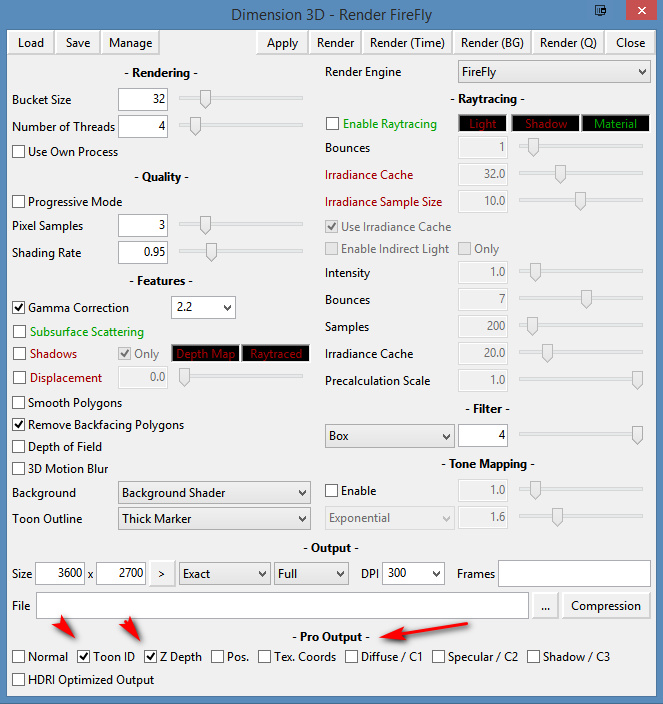
* When using Preview + flat toon lighting, a Poser Display Style of ‘Cartoon w/Line + One Tone’ can be a viable alternative to a Firefly ToonID layer. Such a layer is used in Photoshop when you have a layer stack of ink outlines on top of colour flats, and want to quickly paintbucket in a new colour or make a quick precise selection of an area.
* Saving the Poser Comic Book Preview render as a single-frame Flash .SWF movie also results in yet another type of toon render, albeit one that’s not easy to get out to a .PNG file.
Tutorial: Comic Preview output in Flash SWF, and how to get it to PNG
In Poser 11, saving the Poser Comic Book Preview render as a single-frame Flash .SWF movie results in yet another type of toon render. The Preview render is vectorised and saved as a single-frame .SWF file…
To then quickly test if your .SWF output is viable, you then simply load it in Internet Explorer browser. Even if (very sensibly) you have uninstalled Flash from your PC, the IE browser still has a native Flash-viewer baked into it and un-uninstallable. Though IE cannot then save the .SWF out as an image — a screenshot is all that can be obtained…
If you’re making webcomics that may be all you need. But what if you want it as a nice big .PNG? Well, .SWF is now a obsolete vector format. It was used by Adobe Flash, and Poser’s output of the format seems to be utterly impossible to open and save to .PNG or .SVG using freeware. I tried and searched and test-installed various utilities and possibilities. But with no luck on my test .SWF file output from Poser. Even the free JPEXS Flash Decompiler wouldn’t see the image inside it! And yet, IE displayed it with no problem!
In the end, a trial version of the full Adobe Animate (the new name for Flash) was the only free software that could do the SWF to PNG job and get the proper render out as a result! It is total overkill to install this sluggish Adobe behemoth just to get a PNG, but it works. Here’s the process:
1. In Adobe Animate, open a Stage from a template large enough to encompass your render size.
1. File > Import > Import to Stage > then load your .SWF in.
2. Then File > Export > Export Image. Uncheck “Transparency” and “Clip to Stage”. Save as an 8-bit PNG…
In practice the look of it is not that much different from a normal PNG from Poser. But, as .SWF is vector, you should also be able to save it to .SVG for editing in the likes of the open source Inkscape and (now also) Krita. It appears that one can do that from Animate, by using Tom Byrne’s free Flash2SVG plugin. Although I didn’t test that for this tutorial. But this should mean that one could export as vector just the ink lines from a Comic Book Preview render, then apply a radical new style to those lines at the click of a button.
Hopefully we’ll get a simple native .SVG vector export in Poser 12, to replace the old .SWF export.
Demo: Drawn to the Elder Things…
Poser’s Sketch Designer is generally regarded as ‘an Elder Thing’, a monstrous old beast that’s liable to eat your PC with memory-hogging line-sketching. It’s not, actually, and once you turn background sketching off it can run very quickly. But what better to test my new Poser ‘horror’ Sketch preset on than one of H.P. Lovecraft’s Elder Things!
It runs at 2800px on a standard ready-for-Firefly character and light, but here a flat ‘straight’ colour Preview render has also been colour-layer blended in on top of the Sketch render in Photoshop. The wings were isolated with the aid of Scene Toy 2014 and rendered with a lighter preset (semi-transparency tends toward solid black) and then also composited in Photoshop. The eye-dots were dabbed in with a suitable star brush.
It’s not entirely successful. Because while the detailed line-work looks great at 100%, it turns to shmush n’ mush one you reduce the picture in size. Still, for comic pages made from 100% details and tuned to a 10″ tablet screen, it might work.
Tutorial: Poser Sketch dimensions and custom presets
Sketch presets in Poser require the render dimensions they were made for.
For instance: you render a Preview to 2800px, to set the canvas size, then switch over into Sketch Designer with Crtl + Y. Sketch Designer thus loads with a big 2800px canvas and lets you design Sketch presets for that size of render. These saved presets should be saved with a title that indicates their required output size and requirements. For instance – “Horror inking at 2800px – Skydock light – no CBM on” (seen below).
If you then start Poser another time, and try to Sketch render with the same preset — but to, say, 3600px render size — then part of the sketch effect will be truncated at the edge that is ‘expected’ by the preset. As you can see here…
The lines will also look different. Here they are more closely packed than the looser preset was designed for, because they are being run onto a larger canvas.
Test: effect of Display Style on Poser’s Comic Book Preview b&w inks
A demo test of the effect of Display Style on Poser’s Comic Book Preview b&w inks.
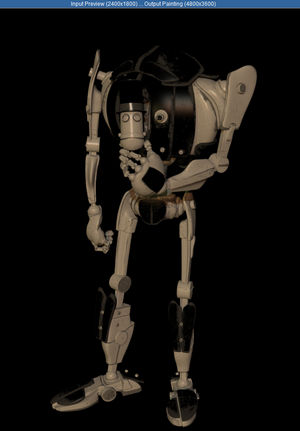
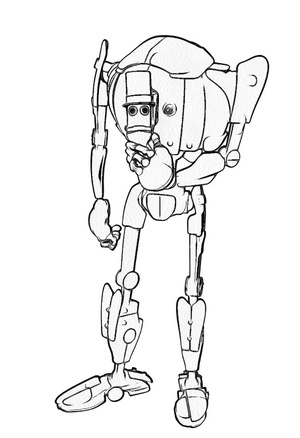
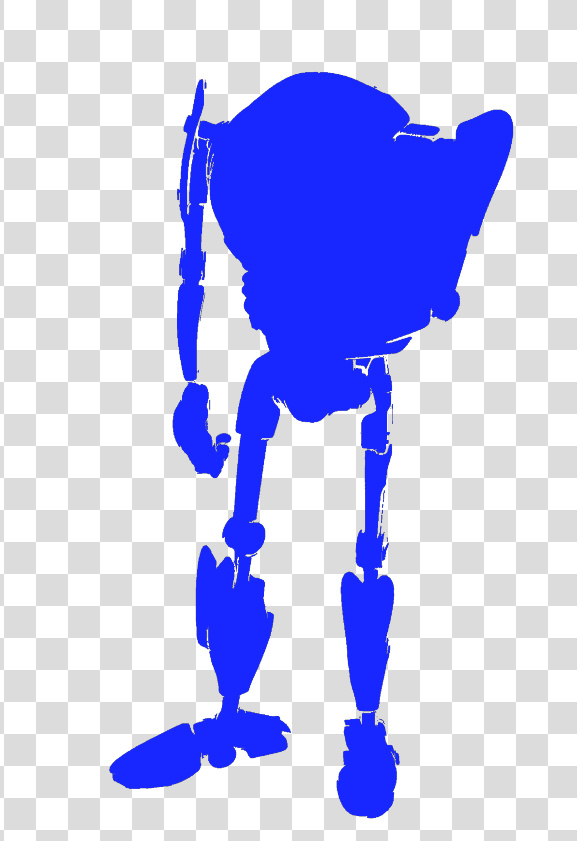
The starting renders shown below were obtained under the standard default old Poser light preset, and this only had the shadow maps on its Preview lights boosted up to 2048. The figure is the standard free robot that ships with the Poser free content pack, and is totally un-optimised for tooning. (If you save ‘2048 shadow’ lights, label them ‘do not use with Firefly’ – as lights with that setting will reliably crash Poser when making a Firefly render with them).
Poser 11’s Comic Book Preview effect is turned on, and set to b&w inks only.
With ‘three tones’ set:
1. Texture Shaded Document Display Style.
2. Smooth Shaded Display Style.
3. Cartoon w/Line Display Style.
4. Silhouette Display Style.
With just ‘one tone’ set:
1. Cartoon w/Line Display Style.
This appears to be a useful melding of Comic Book Preview and Firefly’s Toon Outlines, but in real-time. As you can see below, only a very few of the Toon Outlines lines are missing from this.
Firefly render with Toon Outlines output only. All edges are inked. For comparison.
Interesting finding: clicking again on an already-set Document Display Style button subtly resets the Comic Book Preview inking lines. If you have “weld” turned on, it does this in a slightly different way each time you re-click, and the changes to the lines can be seen in real-time.
This potentially has negative implications for those making animations (re: ‘edge flicker’), but could be a useful feature for comics makers to note.
Possibly the cause is that the OpenGL Preview is being just a bit ‘loose’ with its real-time line calculations, and not spending computational time on finessing them to perfection?