Smith Micro’s official one-hour webinar is now on YouTube, going into detail on The Making and Using of La Femme.
How to find and use the Render Queue Manager in the latest Poser 11
I read on the official Poser Forum that rendering in Poser 11 was was both faster and more convenient when using the Render Queue Manager. I thought it would be useful to write a quickstart on this feature, as it exists in the latest fully patched and updated Poser 11 Pro. Since the only YouTube video on it is now out-of-date.
Things to know, straight off, as a new Poser user:
* “Render Queue” is a Poser Pro-only feature.
* “Render Queue” was only for Firefly renders in Poser 11. But apply patch SR3 or higher, and Superfly can also use it.
* “Render Queue Manager” is not the same thing as Poser’s internal “Render in Background”. “Render Queue” is for stacking renders, so they automatically render one after the other. As such it can save quite a bit of time on a multi-render project.
* Rendering is done by a separate programme in the background. On many new 64-bit multi-core Windows systems this should make rendering faster, and Poser far more responsive while rendering. Again, this will save you time in your workflow.
* There is also something called “network rendering”, where the rendering task can be shared across many PCs on a network. This was introduced for Firefly in Poser version 11.0.3.
Short version:
1. Load and tweak your Poser scene. Save. Do a small test render, then set your full render size and quality in Render Settings | Firefly or Superfly.
2. Go: Top Menu | Render | Render Queue. The Render Queue Manager launches as a new standalone window, asks for the filename and folder it should save to, then goes off and starts rendering.
3. You then carry on with other work in Poser or Photoshop etc, while the rendering is done by a separate programme in the background.
Long and tedious version:
1. OK. First, where is it? Well, if you downloaded Poser 11 and its extras a while ago, look to see if you have a ‘Queue Manager’ sitting in your Start folder alongside Poser 11…
If you don’t see it there, check you have it at: “C:\Program Files\Smith Micro\Poser 11\QueueManager.exe”. If it’s not there, check in your Smith Micro Download Manager to see if you actually downloaded all the various bits needed for Poser 11 Pro.
Let’s assume you find it’s installed. Now go find your set of serial numbers that came with Poser 11 Pro. Copy-paste the serial for the Queue Manager, as you may be needing it in a moment.
2. Launch Poser 11 and load and set up a test scene. Save. On the latest version of Poser the “Render Queue” is then found on the Top Menu | Render | Render Queue…
On revisiting the “Render Queue” I found that this menu item remained curiously ‘greyed out’ and inactive for me, even when I switched to the relevant tab in Render Settings. I found that what I actually had to do first was make a small test render using a Firefly / Superfly render engine. Doing this caused the “Render Queue” menu item to become active and selectable.
3. Now, clicking on the active “Render Queue” item should launch the Render Queue Manager .EXE window. If this is the first time you’ve ever launched it, it will need the serial number to be input. Then you will first be asked to set a filename and destination folder for your render, then asked to give the QueueManager.exe Firewall permissions (which only needs to be done once, at launch).
QueueManager will stay open and waiting after the first render completes, hoping to be sent more renders.
In the Windows Control Panel | All Control Panel Items | Windows Firewall | Advanced, you may then want to make the Firewall settings permanent. Once done, this should mean that you won’t be asked each time it launches…
OK, it’s up and working. “Process jobs locally” if you’re on a single desktop PC…
From now on you just skip merrily through the simple version of my tutorial, as given above.
MOVIES? Rendering multiple movie frames is apparently currently more problematic, for those with the latest patch applied. It can be temporarily accomplished through a MovieRenderToQueue.py Python script. Apparently a vital button on the Movie panel in Render Settings was removed with the latest patch, along with the advanced Auxiliary Render Type switches. There’s a simple workaround for the Auxiliary Switches and the Poser devs reports that the Movie queue button should be back in Poser very soon…
ALTERNATIVE ACCESS: One can also access the “Render to Queue Manager” command via the official partner script for Firefly. This is found under Top Menu | Scripts | Partners | Dimension 3D | Render Firefly. Or it can simply be invoked by pressing Shift + F on the keyboard.
NETWORK RENDERING: You’ll of course get the full benefit of using the Render Queue Manager if you’re using it to render across several PCs. As we’ve seen, the Render Queue Manager is a separate .EXE file and on Windows you’ll be running it on Windows 7 or higher. Render Queue can ‘network render’ across several such machines, only if: i) the Render Queue Manager version on your slave PCs is the same as on your main PC; ii) each .EXE has been activated with the serial (not the same as your main Poser 11 or PoserFusion serials); and iii) you have all the remote and desktop Firewalls set up correctly. Each .EXE will need to be given both inbound and outbound permissions through the Firewall. All this is needed to that the main PC can talk to the network PCs, and the network PCs can talk back.
If you do lots of large renders or animation with Poser then you’ll want to look at advice on building a dedicated render network or base unit. Some advice is to be found here. Looking for the apparently-required 2 x CPU “2x X5650” to “2x X5690” refurbished Xeon workstation on eBay suggests that about £400 should get you something quite powerful (24 render threads) under your studio desk. That’s comparable with the cost of a high-end graphics card, but gets rendering off your PC entirely so you can get on with other work. It also means you don’t have to faff around with upgrading the PC’s PSU, fitting a huge slot-in card, fan-noise, summer overheating etc.
AUTOMATE PREVIEW AND SKETCH RENDERS? For renders other than Firefly, you might want to look at setting up Windows automation software like JitBit Macro Recorder, which records and automates software clicks, and then set wait-times (such as 60 seconds per Preview render, allowing a 3600px Preview render ample time to complete). You could also try to have JitBit use keyboard shortcuts only, to make your automated macro/action independent of User Interface changes and screen size. Obviously this doesn’t take the renders off to another programme or PC, but there is some ‘background’ automation involved.
Freebie: GroBot for Poser is now free
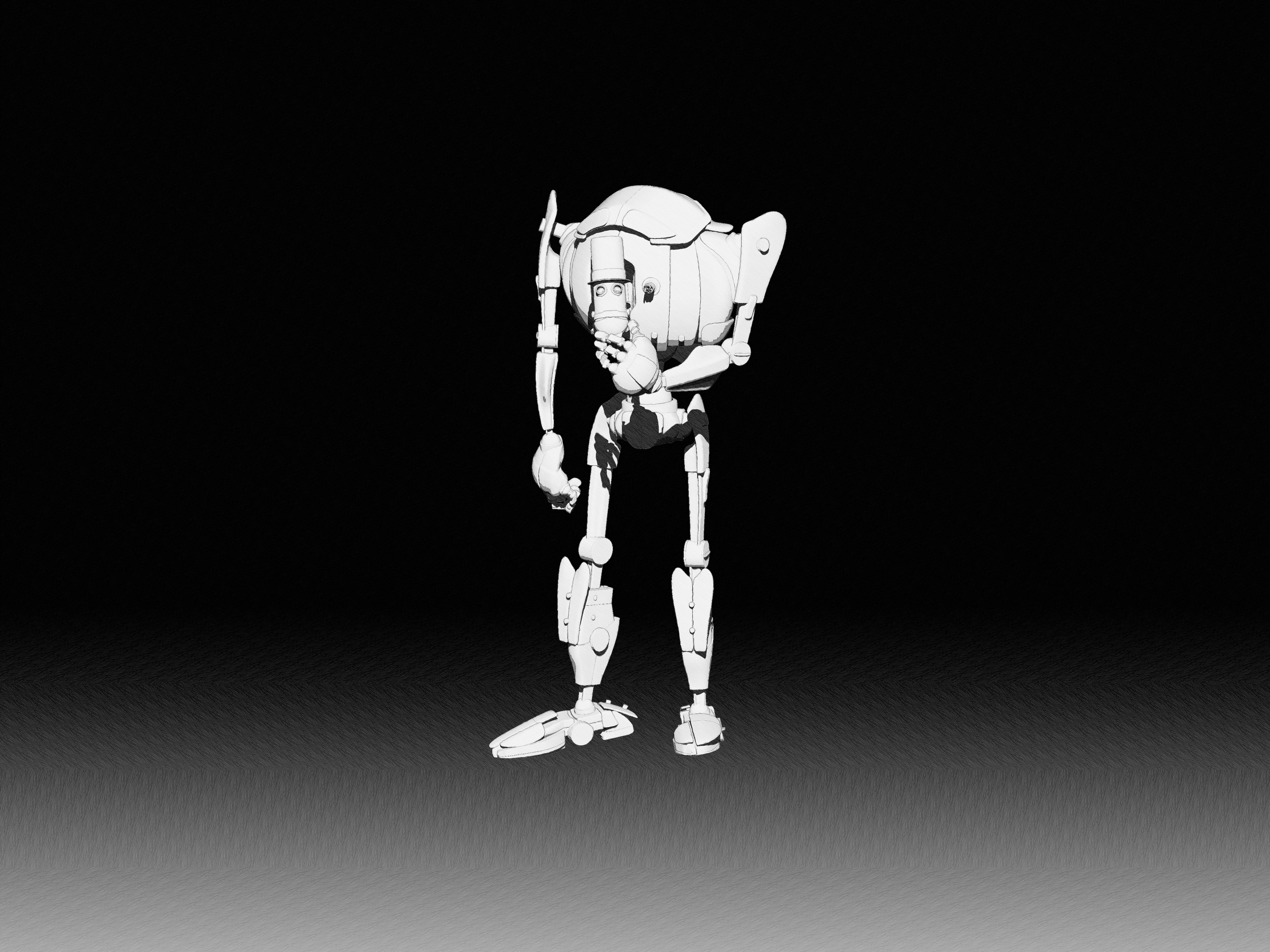
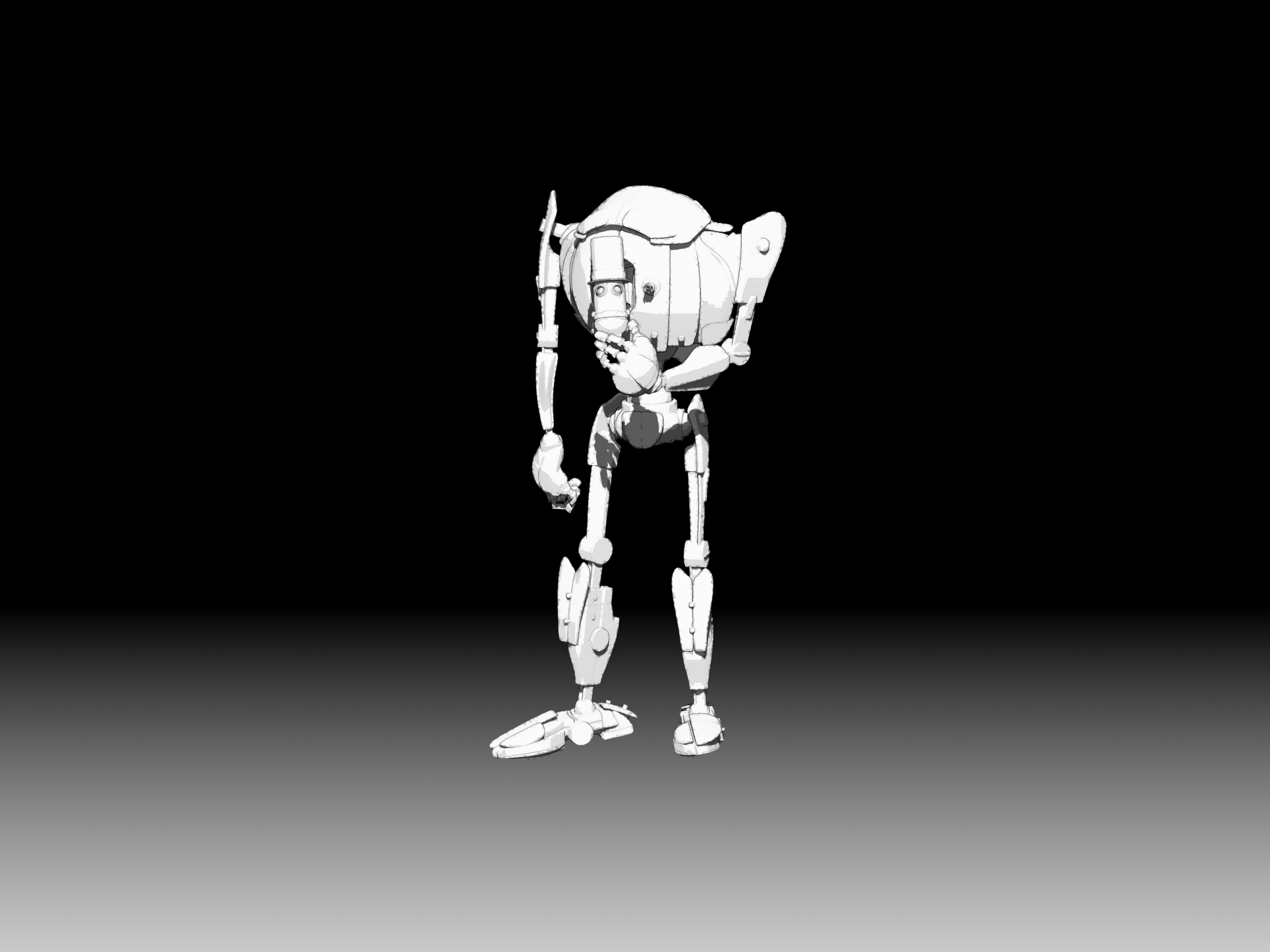
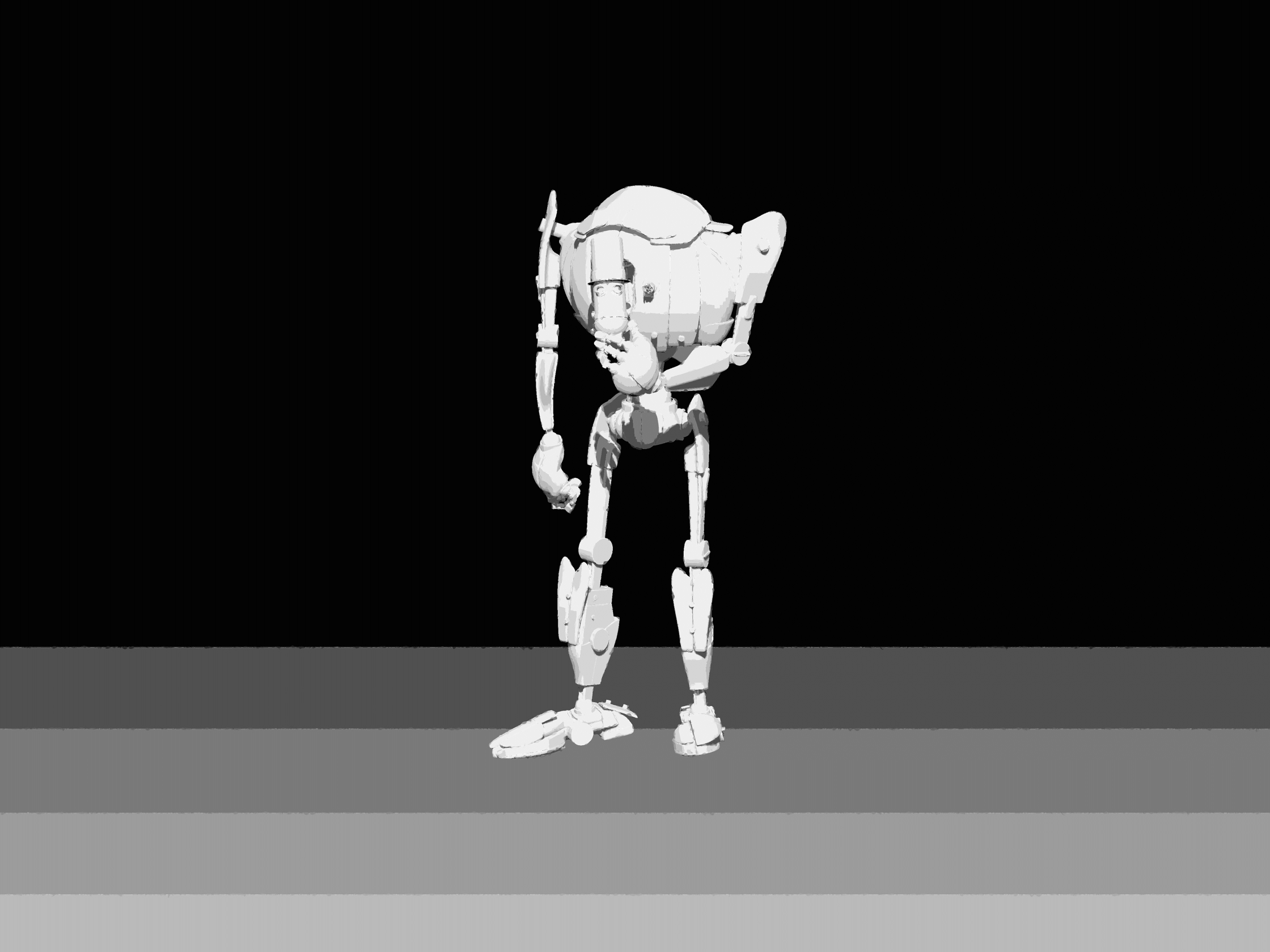
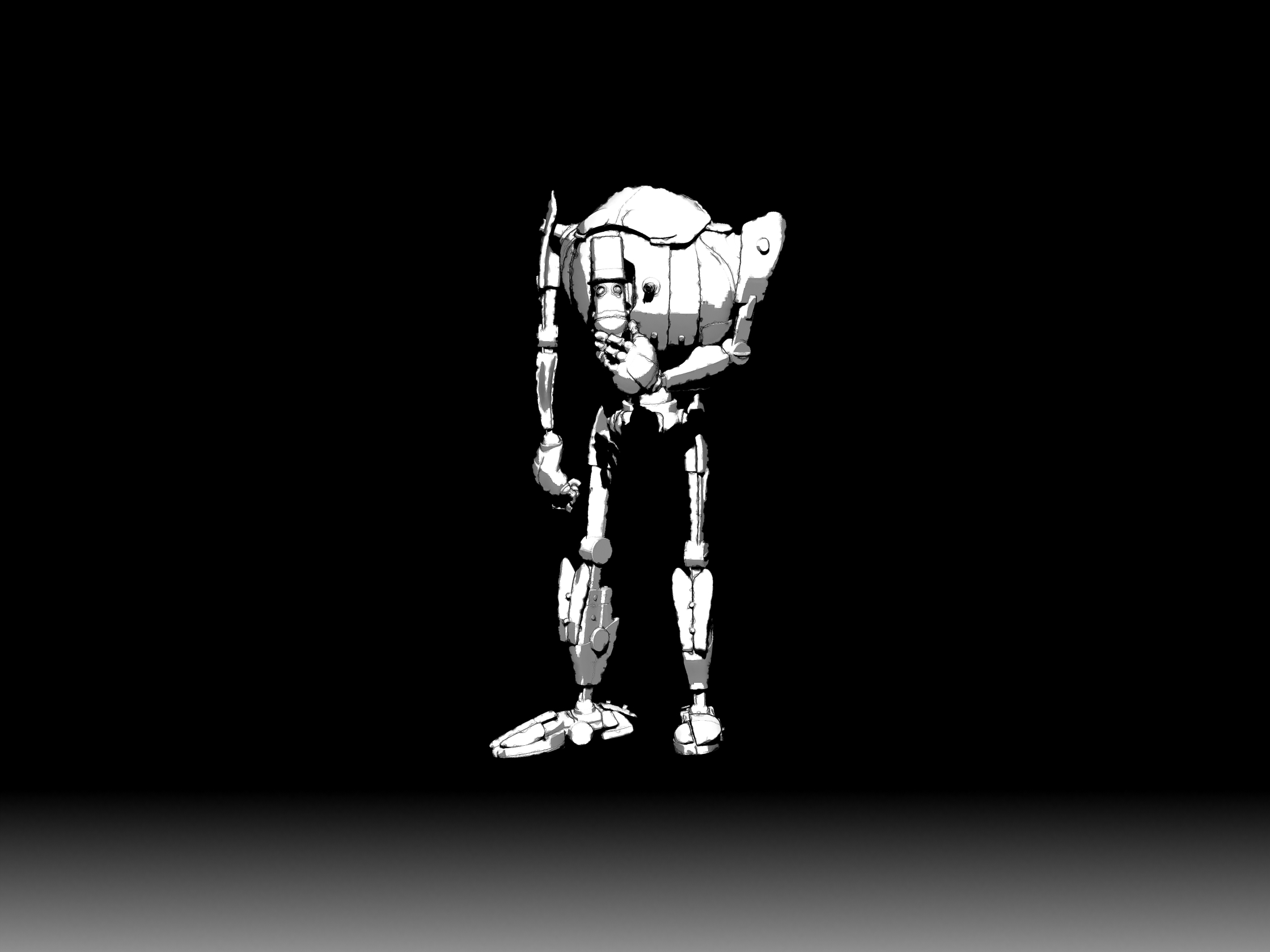
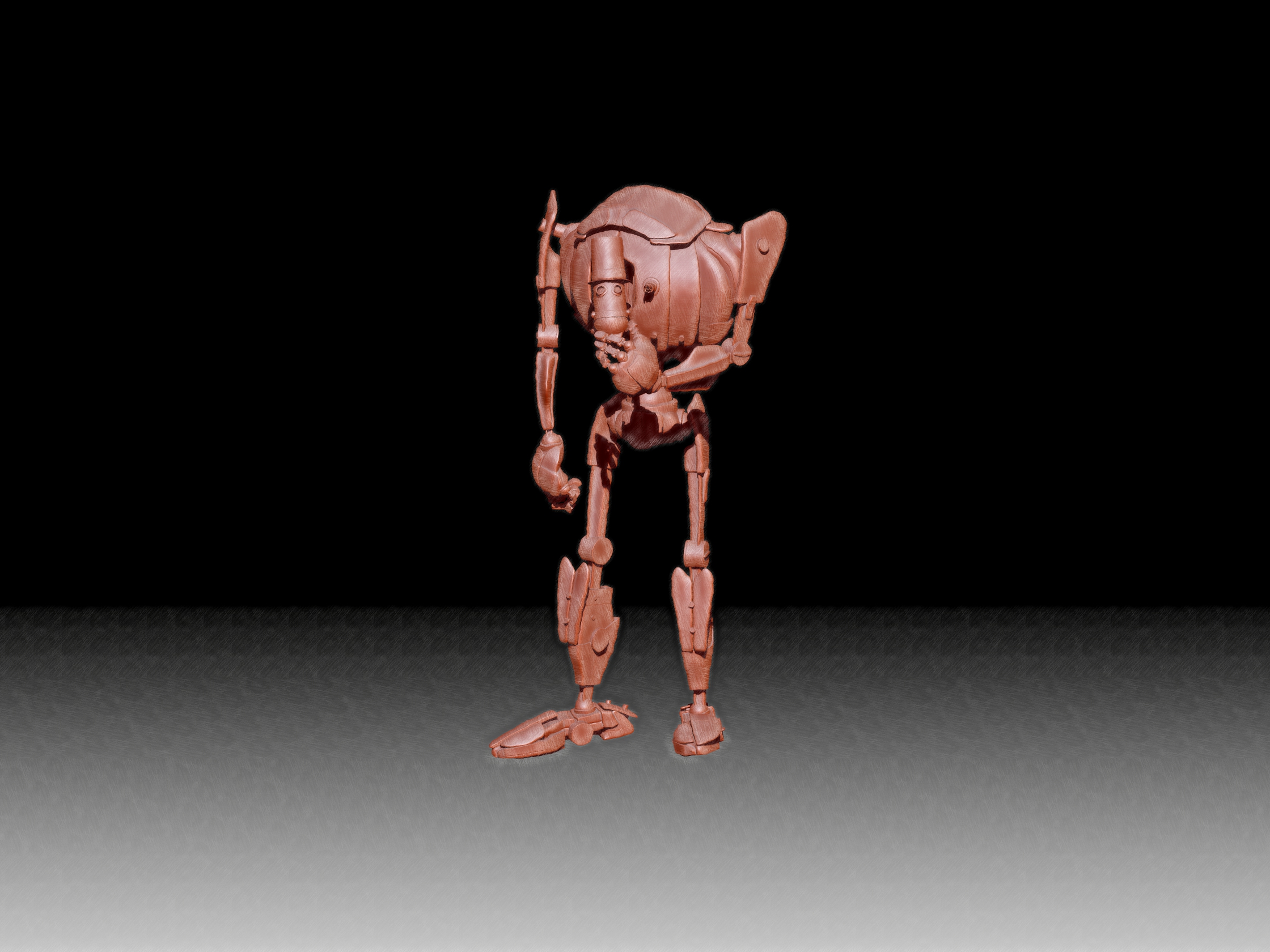
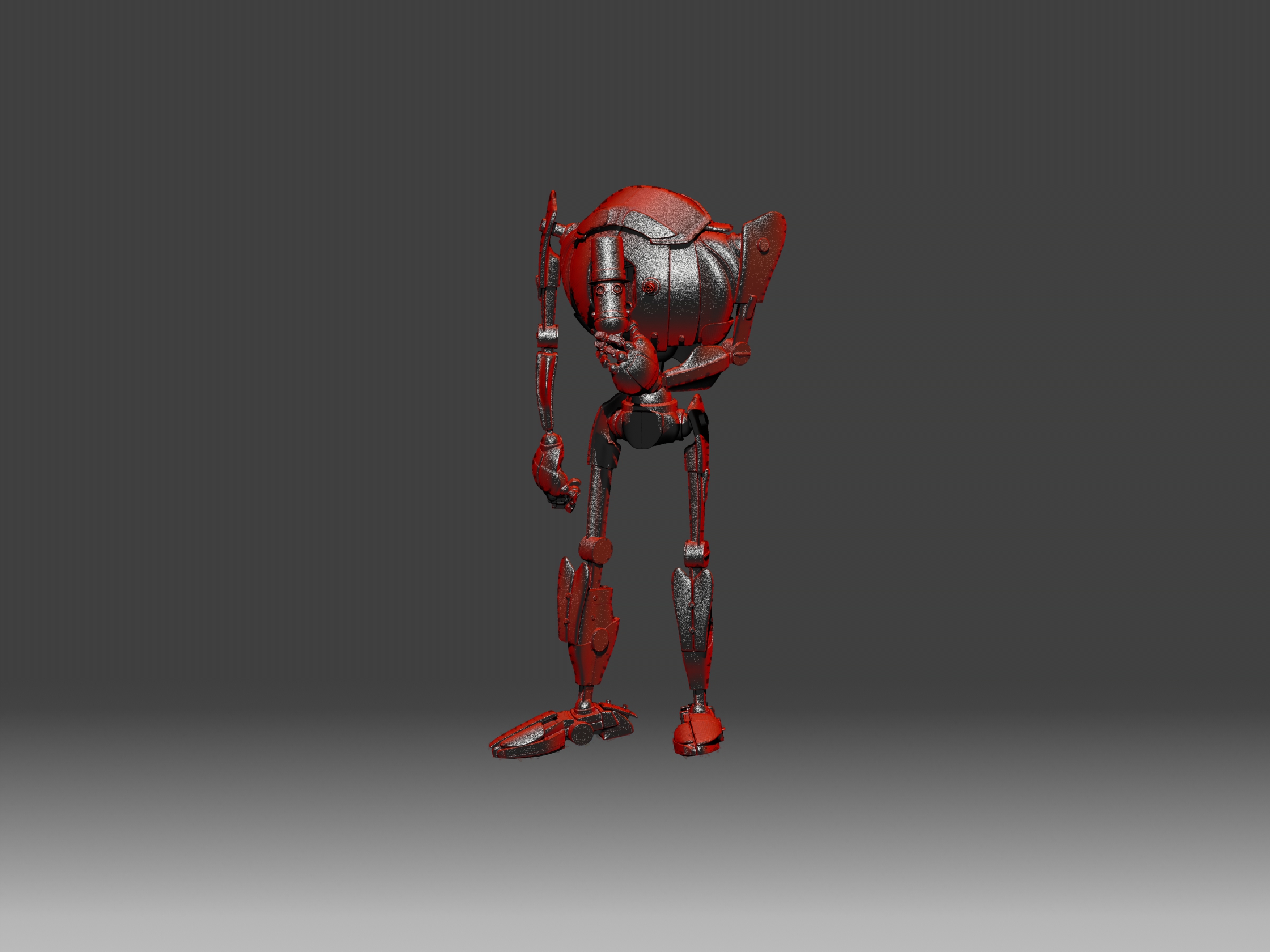
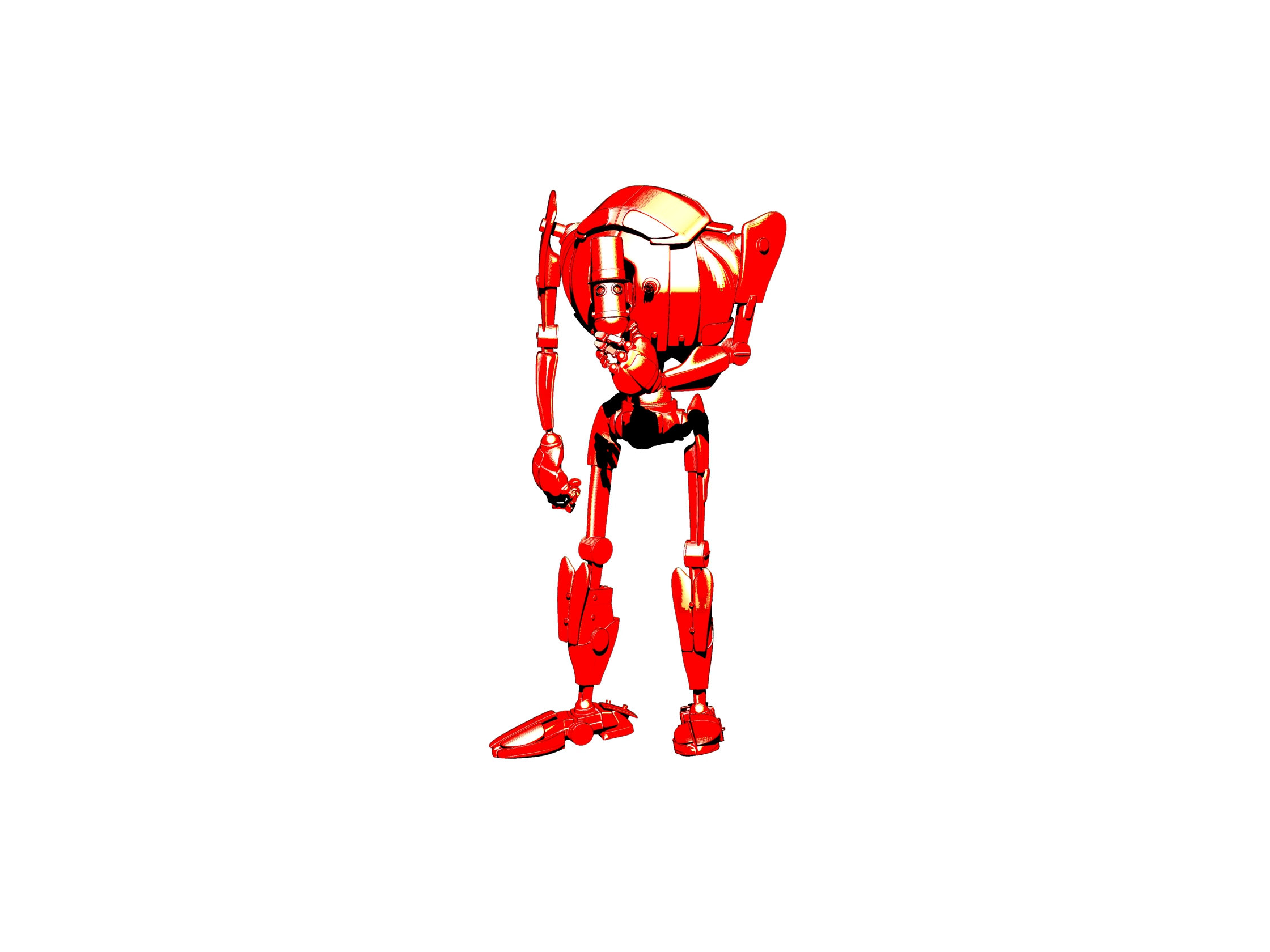
Now free as of yesterday, GroBot for Poser by Sci-Kwon-Do (Michael Seiber). A super-flexible super-morphable Poser toon robot character. Commercial use is kindly retained on making the character a freebie. In the large mix of shapes, there’s a nice toon cat-bot.
When the maker was selling this character on Renderosity, he stated it “doesn’t work properly” in Poser 11. I installed anyway, a simple copy/paste/merge of the runtime folder in the .ZIP. I then loaded Poser 11 and found the character’s parts under ‘GroBot’. As far as I can tell it’s just the preset poses that sort-of don’t work, and there’s an easy workaround for them.
The base figure loads fine from GroBot in Poser 11. All her Poses, Characters and MATs are found under various ‘GroBot’ folders. ‘Kitty Stand’ and ‘Kitty Squat’ characters work fine in terms of auto-application of the Kitty morph, but then adding any other new pose reverts her morphs to the standard GroBot robot shape. I guess this is the problem with Poser 11. However, there’s an easy workaround for this slight problem.
GroBot is quite a dramatic demo of how a character might make extreme morph changes and take extreme poses and yet remain smooth in Poser. One finds the morph dials by selecting the body and finding the ‘FBM’ Morph dials. “Kit-10” is the Kitty cat morph and it’s easy to control. Simply re-apply this morph to a set body pose, to get the Kitty feature back on the body again after applying a preset pose. You can also flatten the chest by slightly tweaking the ‘Gro-illa’ dial.
As you might expect, with her black MAT on she doesn’t respond well to Poser 11’s Comic Book Preview mode in b&w inks. But put the pink MAT on and she looks superb in that mode…
All the above pictures are in real-time Preview mode.
So, she works great in Poser 11, you just need to apply a little workaround when working with the preset poses. She doesn’t appear to accept any preset poses except her own, though some from other characters will move her arms, others her legs. The maker states “have limits turned ON, and IK turned off”, so that may help with third-party poses.
As a Kitty she could probably use a tail, but I recall noticing that she has a flexible ‘whip’ prop and that could probably serve.
Update: There’s a patch, Grobot For Poser 11, making her work better in Poser 11. Though you’ll want to read the readme.txt first. I did and I decided I’d stick with the original and my workarounds for now.
Call: Google Summer of Code 2019
Google Summer of Code 2019: Call for Coders! You’ll be at university but also already be involved with development of an open source software (such as the free Krita, hint hint…). You’ll focus on one hands-on project, and will have mentors to help you. Google will bung you a nice stipend, and most likely a fat bundle of t-shirts too (that last bit is just my guess). Individual student application begin: 25th March 2019.
Release: Electra for Photoshop
I’m always pleased to see a new Photoshop plugin from Richard Rosenman. He’s just released Electra, for all your sparking needs. From a tiny spark in a cyborg’s eye to a massive superhero-tastic ‘Amazing Arc from Above’ that gives the hero his superpowers.
Sadly it’s not one of his many excellent freebies, and your headphones may throw off more than a few sparks when you read the price… “$49.99”. Ouch. But it’s for Photoshop CS5 and above, and it will even run in Corel Painter 12 and above.
The plugin is one to try as an overlay for the new free Poser prop, Updated Morphing Beam prop for Demoleculizer, perhaps…
Your alternative plugins here would be: ‘Electrify’ in Alien Skin Eye Candy; ‘Electrify’ in Xenofex 2. I suspect that when Xenofex was retired, that was when ‘Electrify’ was added to Alien Skin Eye Candy, so they’re probably the same thing. I’m fairly sure that Corel ParticleShop also does something in that line (though perhaps a bit more ‘faery fireflies’), although that’s a hefty price.
Semi-automatica from Japan
Some recent semi-automatica from Japan. For animation, of a sort, but also with obvious use for comics makers who only need slightly different variants between comic frames.
1. Live2D Euclid 1.0. Illustrated 2D characters in 3D space, seemingly auto animated (once you have the character set up)…
Their less turn-tastical but more polished version of this is their Live2D Cubism 3.0 software. 3.0 appeared in 2017, and it’s now at 3.3. As with Euclid you also feed it a multi-layer 2D .PSD file from Photoshop, but with Cubism you can only set up relatively subtle camera-facing animations. Looks interesting, and there are templates to base your new characters off…
Sadly the software is a monthly subscription, but reasonable at around $10 per month. There’s a free trial for Windows and Mac, with translated UI, and an English manual. It’s interesting to know that this software is out there. But without looking at it too deeply I’d suspect that the latest CrazyTalk Animator (soon to be Cartoon Animator 4.0) would be feature-comparable and possibly easier to use. Though possibly more expensive if Cubism has a thriving hinterland of low-cost third-party animation and template packs over in Japan.
2. PaintsTransfer. AI-assisted auto-painting of line art. The user first places and adjusts ‘wheels’ over the line art, then indicates general colours at the centres of these. A first approximation of the colouring is tested, and then if the auto-colour is broadly acceptable the user refines it by placing further colour dots onto the wheels. The code has been released, but it’s not for Windows.
Again it’s interesting, but Krita 4.0 seems to be the most vigorously-developed choice for auto-colouring of line-art at present. Note that the free Krita also has the ability to auto-colour by greyscale value (e.g. lighter tones become skin-pink)…
3. Anime generation with AI, in a recent conference presentation. Give it three keyframes, have the AI intelligently interpolate the animations in between, to generate 16 flowing frames.
A glimpse at the future of semi-automated AI-assisted workflows! Next stop, 3D strand ‘autohair’ from a photo…
Release: digiKam 6.0
Still missing your old Picasa software? The new digiKam 6.0 has just been released. It’s polished and free ‘open source’ software for handling, searching and previewing your entire picture library. 6.0 now supports video files, and major cloud services including Pinterest (though 500px is sadly missing). It also has the usual features that one expects these days, such as face detection, ‘visual similarity’ sorting, tags, etc. It’s new to me, but it looks and work fine. I see thumbnails and quick-preview for Photoshop .PSD files. The nice dark user interface is found under Settings | Themes.
While it’s obviously aimed at the “show me a ton of metadata” guys, working in fields such as wedding and magazine photography, there seems no reason why it can’t be a useful way to view and sort your 3D renders and animations. Be warned however, that this isn’t Picasa and and the initial set up of ‘albums’ is way harder than it needs to be. But it’s genuinely free.
Regrettably there’s no real perfect mid-ground in this sort of free software. There’s ‘ugly but freeware’ like Faststone and XnView, or pro-feature overkill slickness in software like digiKam (similar to Photo Supreme, incidentally, if you need a paid option). The free IrfanView would be an absolutely perfect mid-ground software for this, but it lacks just one vital feature — folder bookmarking. Of course, there’s always Picasa itself, and though it may have been abandoned by Google it’s still free and still works fine in Windows. It has movie and Photoshop .PSD support, and can launch a picture in IrfanView with a right-click on its thumbnail.
On fit ghosts
This is my demo of the slight mis-registration that a Poser comics artist may in some circumstances encounter, after running Poser’s Comic Book Preview inks through DAP’s ‘GrNovel’ filter to make them a touch more artistic. Here the ‘GrNovel’ inks layer has been experimentally blended in Photoshop with Soft Light at 50%, rather than simply having its white knocked out. This gives a lovely look to the scene, but means that we can see that its inks are not quite aligning with the underlying colour flats layer. As a result of the blending mode, you can see ghosting that reveals that the mushrooms in the scene lack a firm ‘fit’ with the inks layer above them. This mis-alignment would also be even more visible on some of the tree branches, if the glow effect were not masking it. The choice of a pale background makes this worse.
So there’s sometimes a reason to prefer the original Poser inks, because the funkier you make the filtering of your inks, the less the inks will align with your colour flats layer beneath. Especially if the colour flats have themselves been filtered, and carry their own toon edge. The lesson here is: try to keep your colour flats as flats, and don’t also add ink or pencil-like lines to them, if you’re then going to add another layer of inking on top (as is the case in the experimental picture seen above, in which I foolishly laid another ink layer over an already processed finished picture).
A dark background will however usually cover up and ‘absorb’ such problems. The lack of visual acuity in the non-artist audience will also mask much, as 85% of them probably won’t even notice that anything is wrong, even with the pale background. Also keep in mind that when reading a comic, the eye becomes quite forgiving of such defects as it skips from panel to panel.
That said, if you set your story at night or in a dark forest, then not only will you have to worry less about backgrounds, but you may also get away with fudging around such layer registration problems.
Incidentally, the glow effect here is just a third of the original Poser inks, with their white knocked out and a chalk Layer Style effect applied. Yes… when applied to inked line-art, Photoshop Layer Styles can be used for more than making cheesy extruded-3D lettering — who knew?
Krita’s G’MIC-QT and Poser line-art
I’ve been experimenting to see what Krita’s G’MIC-QT filters can do to plain inked line-art output by Poser’s Comic Book Preview. This follows on from my previous test of G’MIC-QT filters on a straightforward 3D Preview render from Poser.
Here’s my test-kitty, a 3D character which ships for free in the content bundle of Poser 11 (in the Content Library under ‘Toys’). In Poser, only thin Comic Book ink lines were output, in B&W. This was to test ‘fattening’ filters such as DAP’s ‘GrNovel’. But I thought it would also make a good test render here, for this test of Krita.
* The first preset I made I called ‘Send to Moebius’, which works for a character filling 1000px on a 1200px height PNG output from Poser. The filter gives the lines a continental comics ‘clear-line style’, akin to the great Moebius — though of course without his distinctive dash-hatch contour shading. It takes 30 seconds to run, at the cost of some jaggies on shallow curves.
Still, for a clear-line style with slight Moebius-style ‘dotting’ of the lines, it’s not bad for 30 seconds on a straightforward Poser comic render. The dotting occurs where there are ultra-thin lines, which may be a method of controlling in Poser how often the dotting will occur when filtered. The same effect can’t be had on a 3600px render.
* ‘Felt Pen’ could also be made to produce dotting, more extensively and more quickly, but it wasn’t a pleasing effect.
* ‘Kuwahara’ on a radius of 1 could also do a nice felt-pen like effect, with less uniformity of the line density. But the problem here was an ugly skritchyness at the edges. ‘Pen Drawing’ was smoother but had more line density uniformity. Neither were really that all pleasing.
* ‘Charcoal’ could make the lines much darker, fatten them a bit and give them a nice grainy look. But again, at 1200px the jaggies are a problem. Better to Sketch into the ink lines in Poser, using the Sketch Room.
* It was possible to have G’MIC-QT’s ‘Engrave’ filter keep only certain fatter lines, erasing others, which was an interesting effect. It ran in about 20 seconds at 1200px. However, it doesn’t seem to have uniformly selected only the fattest lines, making it rather pointless.
So while I’m pleased to get the ‘Send to Moebius’ preset, it was the only nice one I was able to get.
Poser/DAZ New Content Survey – Jan/Feb 2019
Right then… it’s time for a survey of the recent new Poser and DAZ content. If you want to see my last one, a huge six-month catch up for May 2018 – Jan 2019, it’s here.
But the new post below only surveys and picks out interesting / unusual / useful new content released in the last month, from the 23rd January 2019 onwards.
Science fiction:
Hoverbike Poses for Genesis 8 for the Yamaki Hover Bike.
If you need police hover-vehicles for the persuit, see the new Speeder.
Most readers will already have sci-fi armour suits, but I do like the new Supersonic Sci-Fi Suit for G8F. It’s not too over-the-top or gaudy, and appears to have some nice slight wear on the edges.
Jewel Of The Nile for G3F and G8F. Rather impractical to ride a camel with, I imagine, but it also has uses in a futuristic sci-fi setting. It’s “a HQ realistic coin veil”, though it doesn’t appear to have dForce.
Bubble Hair for Genesis 8 Female. Unusual, and again I can image a sci-fi / superhero story in which the movement of the hair can be thought-controlled, like Medusa in Marvel’s Inhumans.
Elsewhere for DAZ Studio. This is not well-served by its Store preview, but turns out to be ‘alien planet’ rock-pools (aka tide-pools), done to Oskarsson’s high standards. With strange Yuggothian fungi, alien plants, and glowing lurkers beneath the water. It’s not for everyone, but I like the look of it.
Robo Cleaner by Coflek-gnorg, for Poser and DAZ Studio. Highly detailed robot street-cleaners, for everything from your Blade Runner street scenes to your 2000AD-style Robo-busters tribute comic.
The persnickety supervisors of the lowly Robo Cleaners might be the new Osy21 low-poly floaters on CGTrader, at just $2 in FBX format.
Also from Coflek-gnorg is a fab Pulp-era Sci-fi Flying Saucer complete with detailed interior. Definitely one to look at if you’re planning to make an ongoing retro sci-fi toon comic and are in need of a ‘star’ spacecraft.
Monsters:
Lycan HD werewolf for Landon 8 for G8M. DAZ Studio.
Fantasy:
The flood of dForce-enabled clothing continues, though very little of it has been fantasy and sci-fi in the last month. A huge exception is the dForce Wing Ranger for Genesis 8 Female. Fabulous Hollywood-level work, here. She comes with a good bow and arrow too. Fits the new Meshworkz Dragonfly, which serves as her winged steed.
Jars with eyeballs in. You can never have enough of them, and the new It’s Magic for DAZ Studio has them, along with much else.
FG Place of Power for DAZ Studio, combining a magician’s lair, library and steampunk elements. I was about to pass this over as ‘just another medieval alchemist lab’, aided by the too-dark preview renders. But on closer investigation it seems to offer something a little different, and is nicely priced at $19. Worth a look, if this is your thing.
Retro and historical:
It’s unusual to see a new release for Bryce, but Battis Khamba Chattri is an Indian temple scene. Also available for Vue.
Task Force for Short Sunderland for Poser, by Cybertenko. Paint makeovers of the famous Second World War Sutherland flying-boat, and a new dinghy. For some, it may be worth the $6 just to get such a detailed wartime dinghy. It seems you don’t get the poses shown, but I’m guessing these may be included with Cybertenko’s Sutherland packages?
The Explorer For G8F from Sixus 1. A set of jungle explorer clothing, iRay-ready textures and grip poses. As you can see, it could fit well with the dinghy seen above, for a jungle river trip.
Minnie 1920’s Dancer Headdress for G8F. It’s not headwear that you’re going to use everyday, certainly, but it reflects the over-the-top hat-culture of the 1920s and it’s definitely unusual.
Singing in the Rain for G8 in Daz Studio. A complete set with scene, props, G8 poses and rain.
Conquistador Outfit and Armor for Genesis 3 Male. A full Spanish soldier outfit, which is something you don’t see every day. May also have runtime-bashing potential for those making other outfits for the period.
WW1 Trench, No Man’s Land. A battle-scarred First World War trench with accessories and a no-man’s land border.
Army Camp Barracks. Modern accessories, but I imagine only an hour’s tweaking would be needed to make this suit the 1970s/80s.
For the Army Camp also see the new Leopold HD for Genesis 8 Male.
Unusual props and magnets:
dForce Magnet for DAZ Studio. Pin a magnet to your dForce clothing, and have your character appear to be pulling or lifting their clothing. The built-in dForce takes care of all the physics of the cloth draping.
Marquee Light Letters by Cybertenko. Classic fairground, movie theater and dressing-room lights for Poser, with the bulbs throwing off emissive light in SuperFly renders.
For DAZ Studio there’s also the new Broadway Light Bulb Letterings and Real Neon Letters.
Such ‘bulb letters’ might be combined, as ‘bulbs only’, with the new Synergy ABC – Poses for G3F-G8F…
Morphing Splat for DAZ Studio, with 50 morphs. Splatting and pooling liquid.
Also look at the latest Messy FX Set 2: Food Mess for Poser, free on Renderosity.
La Femme:
The new La Femme Base Figure for Poser 11. She now has a small flood of everyday and club-style dresses and hairs on Renderosity. Almost no freebies that are worth having though, and nothing that appeals yet in terms of sci-fi, fantasy, armour etc.
La Femme injection for Prefittter-CR2. Works with The Prefitter to get V4 clothing ready to go to Poser’s Fitting Room (Pro only). This seems to be the best ‘V4 to La Femme’ solution at present, in the absence of a Crossdresser 4 file for La Femme.
Landscapes:
Flinks Snow Grounds 1 and Snow Grounds 2 as OBJs. A collection of detailed snow terrain tiles. The materials suit either Poser or DAZ.
The Snow Grounds could be paired with the new HD Upturned Winter Boats for Poser, from ShaaraMuse3D.
Dried Out River for Poser, by ShaaraMuse3D. Shaara’s usual HD scene with 4k textures and a full preload preset. One could of course add just a bit of water, to make shallow trickling pools. Good for those with dragonflies and small lizards in their runtime. Likely to also interest Vue users.
Wild Flowers Vol 5 – Woodland Plants and matching new grass. Said to be “Perfect for macro renders”. Also look at the recent Teeny Tiny Plants, also from Martin J. Frost.
Animals:
This month it’s only the dragonfly seen above, and Nature’s Wonders Lizards of the World Vol. 4 which is another fine release for Poser from nature expert Ken Gilliland. And has DAZ presets.
Toons:
A poor month for toons, but I see that Darkseal’s toon Squidy for Poser is now on CGBytes, having been on the now-vanished Content Paradise.
Storybook:
New on CGTrader a modern children’s public library / reading-room for a reasonable $30 in OBJ. Royalty-free renders.
Need a modern librarian for your library? The new dForce Eloise Outfit for Genesis 8 Female and dForce Eloise Outfit Textures gives you one nice pattern texture for it…
Dayana & Karina Bloom HD for Genesis 8 Female. With the sort of face-shape that would suit a modern comic-book aimed at 9-12 year olds. Comes with a matching older sister who is more of a regular human.
Deco Vignette II for DAZ Studio. I guess you’d have to make this a central Howl’s Moving Castle-style ‘magic door’ for your story, to get your money’s worth.
Town Circle, a traditional German/Austrian-style village centre.
Nursoda has also kindly released several freebies at Renderosity recently, for his characters, but note that they’re flagged as ‘non-commercial use only’.
Utilities:
RSSY Clothing Converter from Michael 4 to Genesis 8 Male. Convert clothing from M4 to G8M, in DAZ Studio. Seems to be relatively simple and well-documented.
PoseConverter for Poser – Updated. A free Python script with user interface, that works inside Poser. Convert pose presets from one Poser character type to another. Only has two converter modules at present.
That’s it, more picks next month!
G’MIC 2.5 preview
The G’MIC filters are is now available in a preview of the next 2.5 version. This adds the filter Artistic | ‘Stylisation’, as well as some colour-grading filters.
‘Stylisation’ attempts to style-transfer the style of one picture onto the content of another. The main demo picture that’s been shown of this filter makes it look a bit of a gimmicky tech-demo. However, on looking at the full range of samples, and especially the hatching transfer, it seems to be more powerful than it’s made out to be. It seemed worth a look.
It will come to Krita eventually, but I felt that the safest way to try the new filter was via installing it to a download of GIMP, which also hosts it. The 2.5 preview installer for GIMP is in Index of files/prerelease_windows/ as the gmic_gimp2.10_qt_win64.exe file. Using the .exe means that there’s no messing around with unzipping and copy/pasting and hoping for the best.
1. The first thing I discovered was that G’MIC for GIMP had my Krita-made presets in it. It seems all G’MICs use the same Appdata folder. Nice. No, not so nice. A new install can destroy your carefully crafted custom Favourite presets, if the filter they call has been removed!!
2. The second thing I noticed was that G’MIC for GIMP has presets under ‘Testing’ and there’s a whole set there by PhotoComix. His ‘Pheonix Steam-Pencil’ at first seemed to be the one that had a lot going for it. But while this was quick to run (20 seconds), regrettably it failed to reproduce the look of the preview (seen below) onto the actual image. The problem here seems to be that it’s merging with the original and it seems there’s no way around that merge.
Testing also has Samj | ‘Contour Drawings’. This a curious filter that appears to extract contour lines from their background? Useful for map makers, perhaps.
Also under Testing | Telperion | ‘Mc Pendraw’ was very promising in its Preview, seeming to combine a comic-book filter with stipple. But it also failed to deliver in what it sent to the original.
3. And finally, I got to test the new Artistic | ‘Stylisation’. I got it to run and played with the settings, but just couldn’t get anything satisfactory out of it. Possibly there’s a knack with it, and we’ll eventually get a YouTube video of how to do a clean crisp transfer.
“What bare rock can tell…”
I exported a 196Mb test .OBJ export terrain from the new Gaea 1.0 landscape sculpting software. Possibly if I had started adding more effect layers to the terrain, the file-size of the .OBJ would have been larger. But, as it is, I thought it would be useful for readers to see what a corner from one of Gaea starter preset terrains looks like when exported as a mesh and rendered in Vue 2016. No smoothing or other fix was applied to the mesh.
I simply applied a basic ‘Grey Rock Photolayers’ for relatively speedy rendering (speedy by Vue standards), a vanilla Vue ‘Afternoon’ Atmosphere, and a bit of sea for decoration. The camera is looking across a small section at the corner of a 1k terrain. Gaea 1.0’s free version is limited to 1k terrains. But with a suitable material on it the terrain looks adequate for hobbyists making widescreen pictures of vast and distant terrain.
As you can see, you don’t want your camera too close to ‘bare rock from Gaea’ unless you’re going to: i) noodle on it with with some Photoshop postwork; ii) hide it in shadows or with foreground objects (swooping spaceship, balcony etc); or iii) cover it up with a Vue ecosystem.
Bryce 7 didn’t do so well. Ten minutes to import the mesh, and then unable to make it look even half-decent.
How to get Gaea 1.0 from outside the USA
Ah, solved… the new landscape software Gaea appears to be region-locked in terms of the download of the free version!
After days of being blocked, I turned on a VPN in my browser and pretended to be in the USA… and the installer began downloading immediately! Thus it must be blocking us, here in the UK. Anyway, I now have 1.0.14x installed. So, use a VPN (such as the free Browsec) if you can’t download it from your location.
The first thing I wanted to know was if it was possible to get a simple .OBJ mesh, and do so easily. It is. To export a terrain you…
1) “Set” or “Enable” a Node. This cryptic message is unexplained but appears to mean that you press F3 on each node on the sample terrain to mark it for export, then add a “Mesh” node at the end of the node-chain, and also F3 it.
2) Then you press the “Build” button, open the “Build” window and set it to 1k resolution (the limit on the free version) and “Build”.
3) You quickly end up with a set of PNGs in C:\Users\YOUR_USER_NAME\Documents\Gaea\Builds\ If you also added a Mesh node, you get a fat .OBJ — even 1k resolution landed me with a 196Mb .OBJ file.
“Hello QT!” – using Krita with Poser renders
I’ve spent some time working through Krita 4.x’s G’MIC-QT filters. They’re the equivalent of Photoshop’s native filters + some nice plugins, all rolled into one plugin. Krita is the leading ‘open source’ graphics software, and both Krita and G’MIC-QT are free. G’MIC-QT ships integrated into Krita.
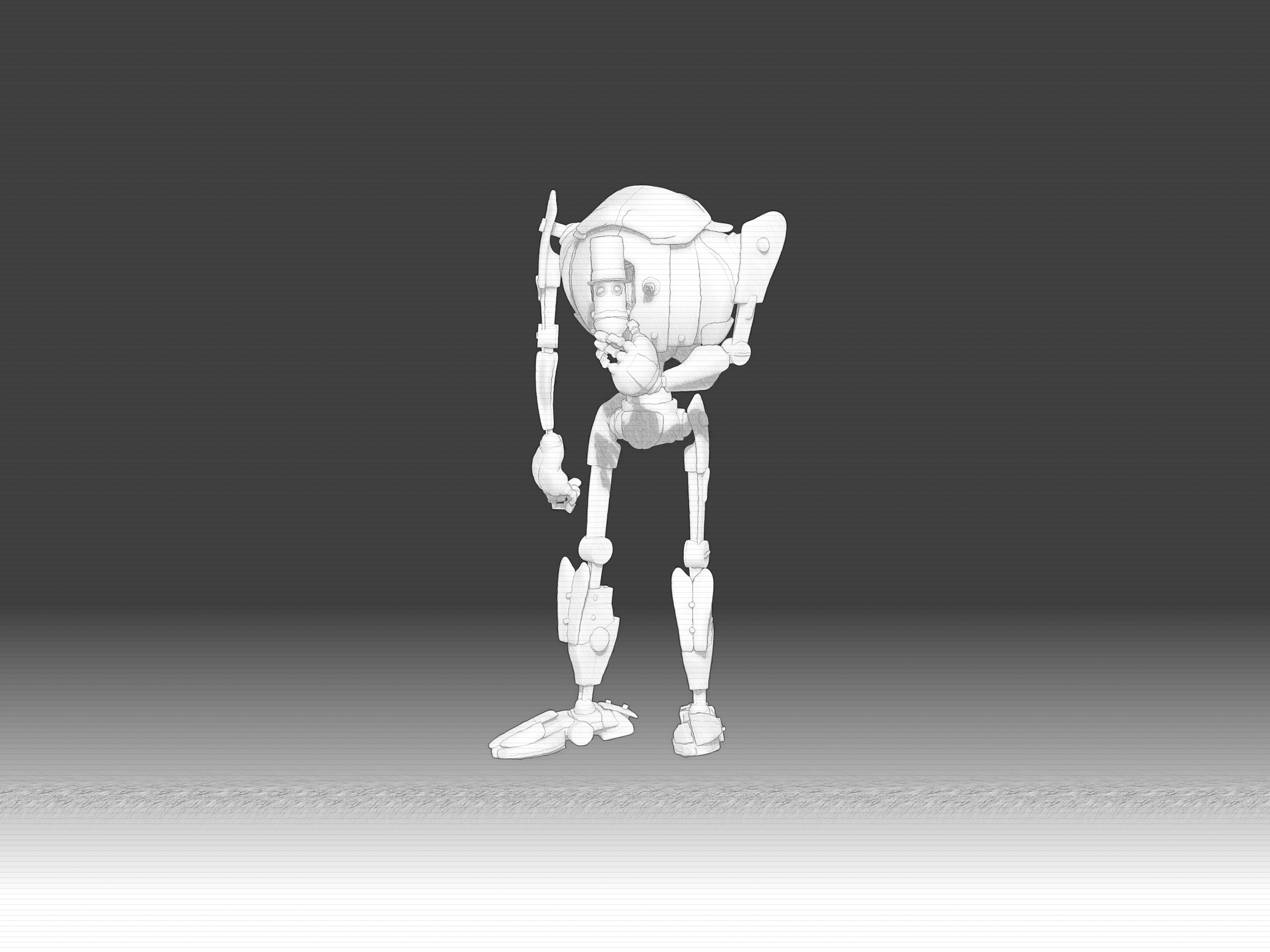
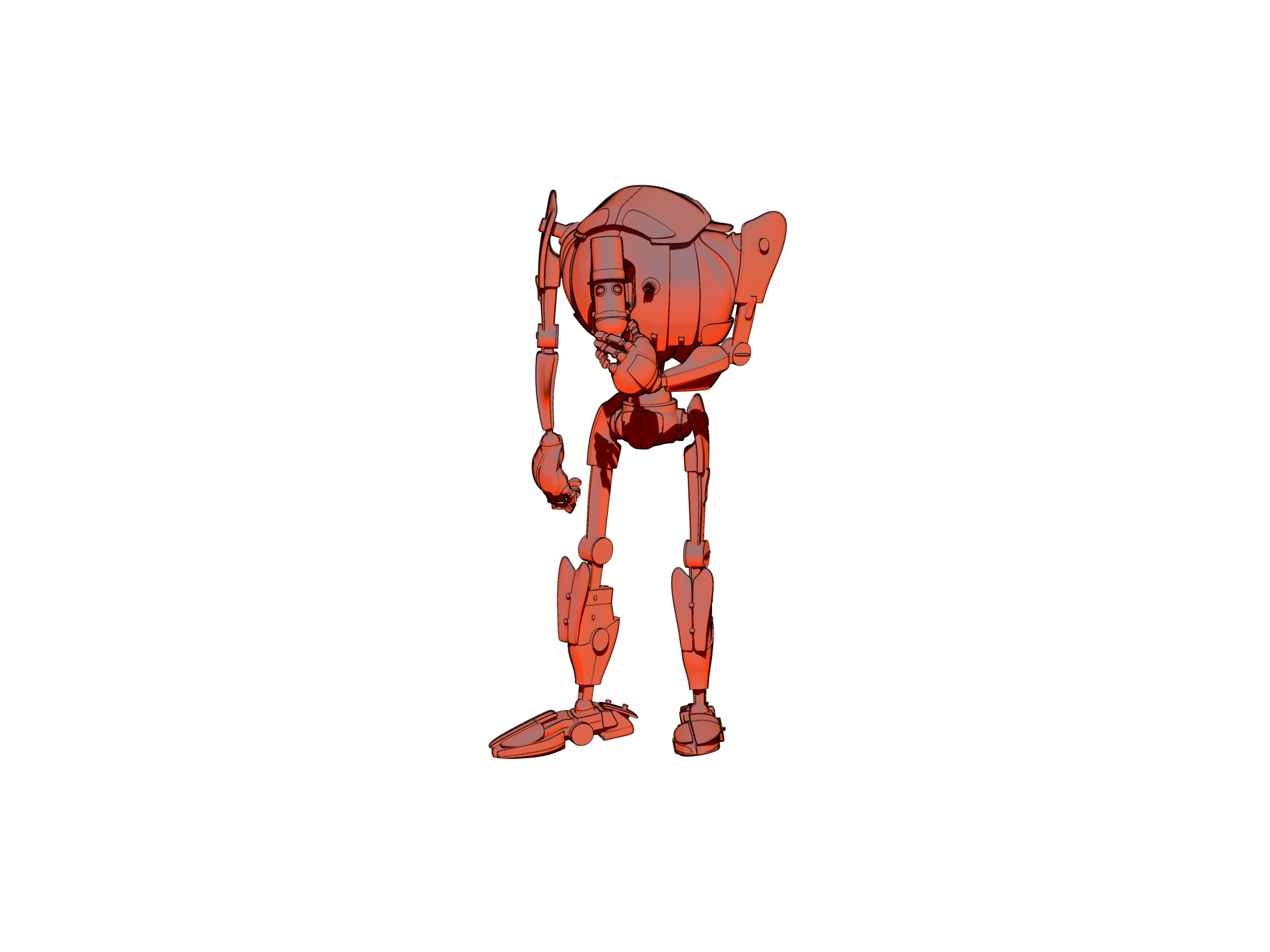
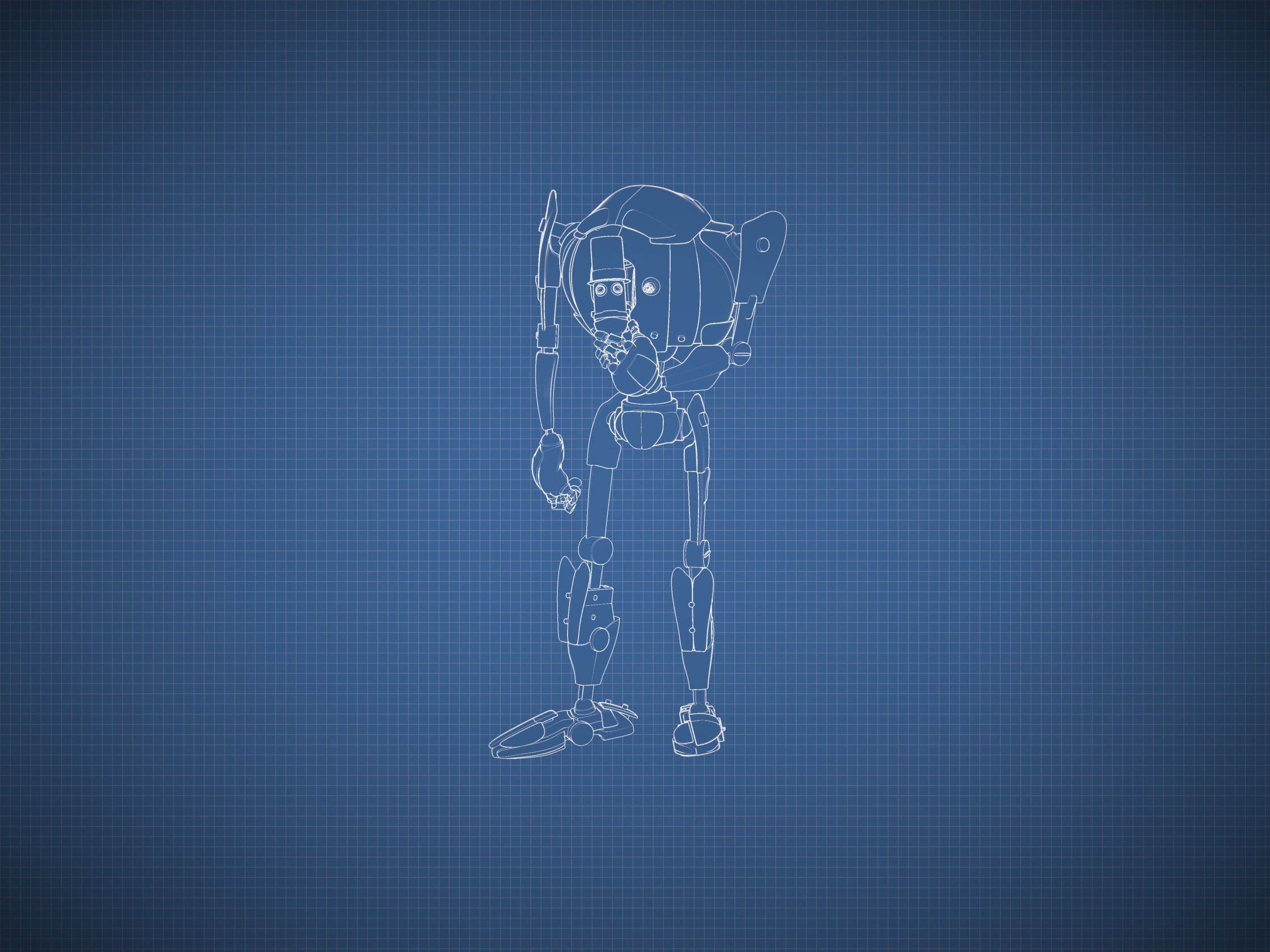
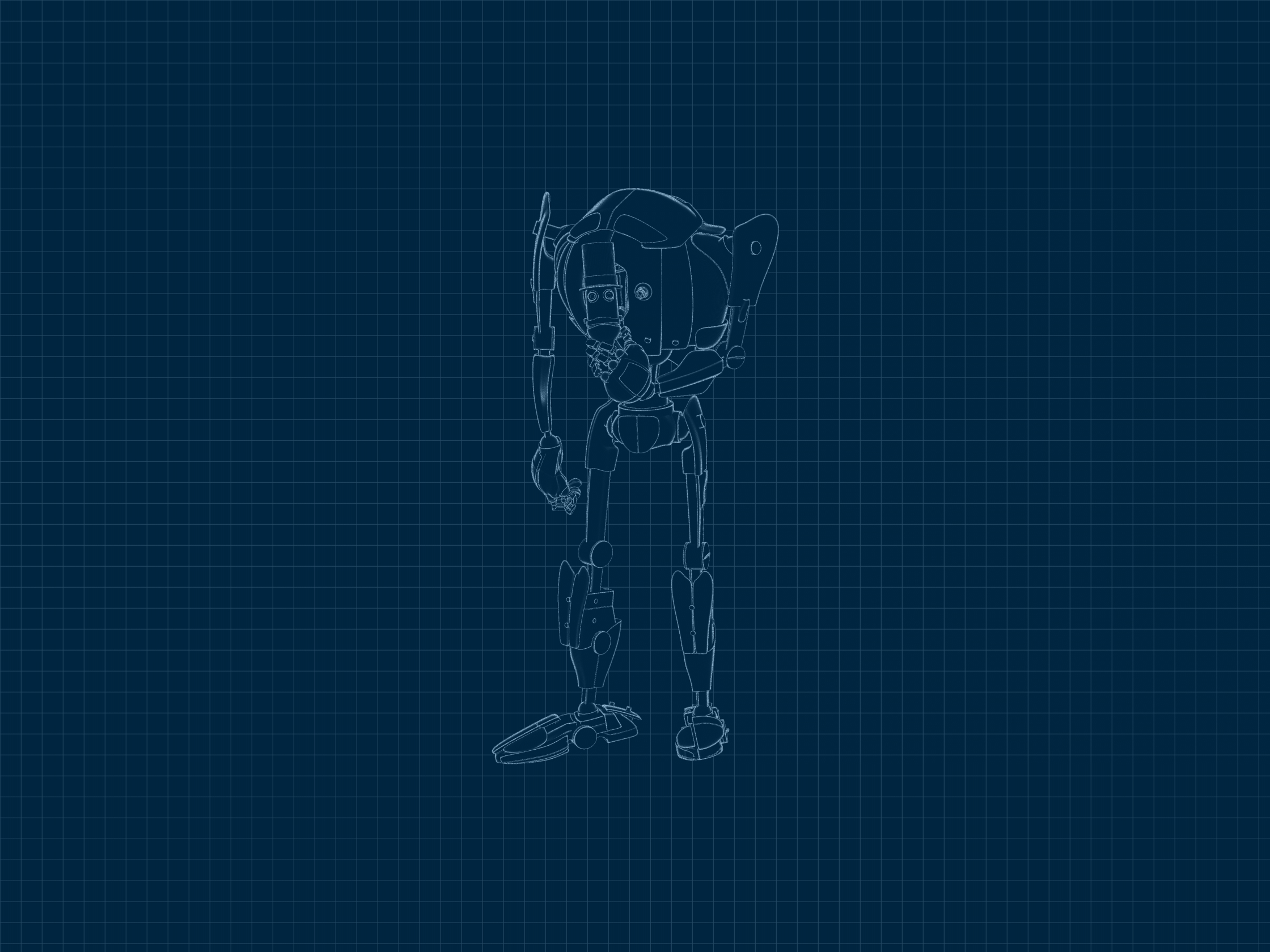
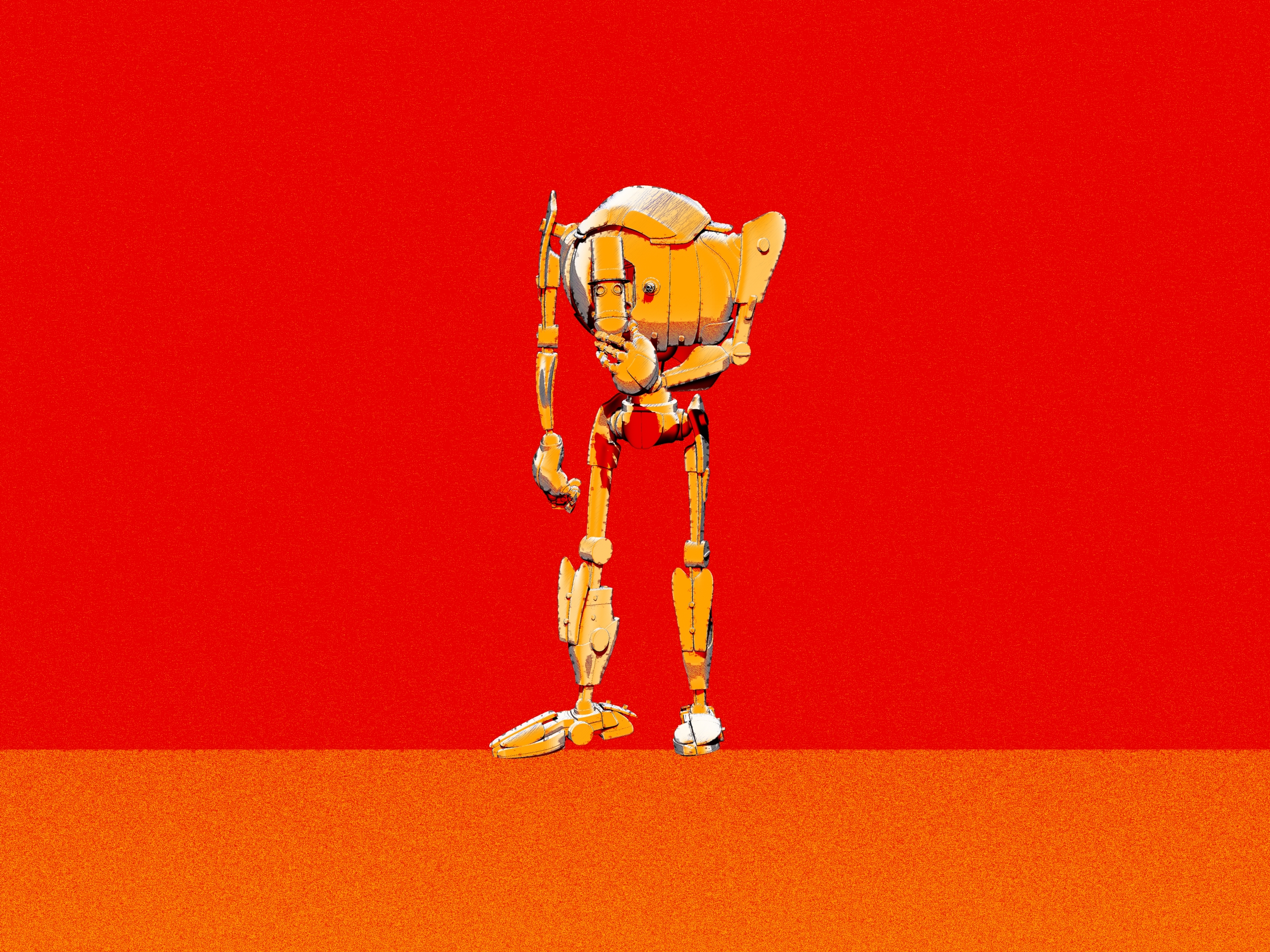
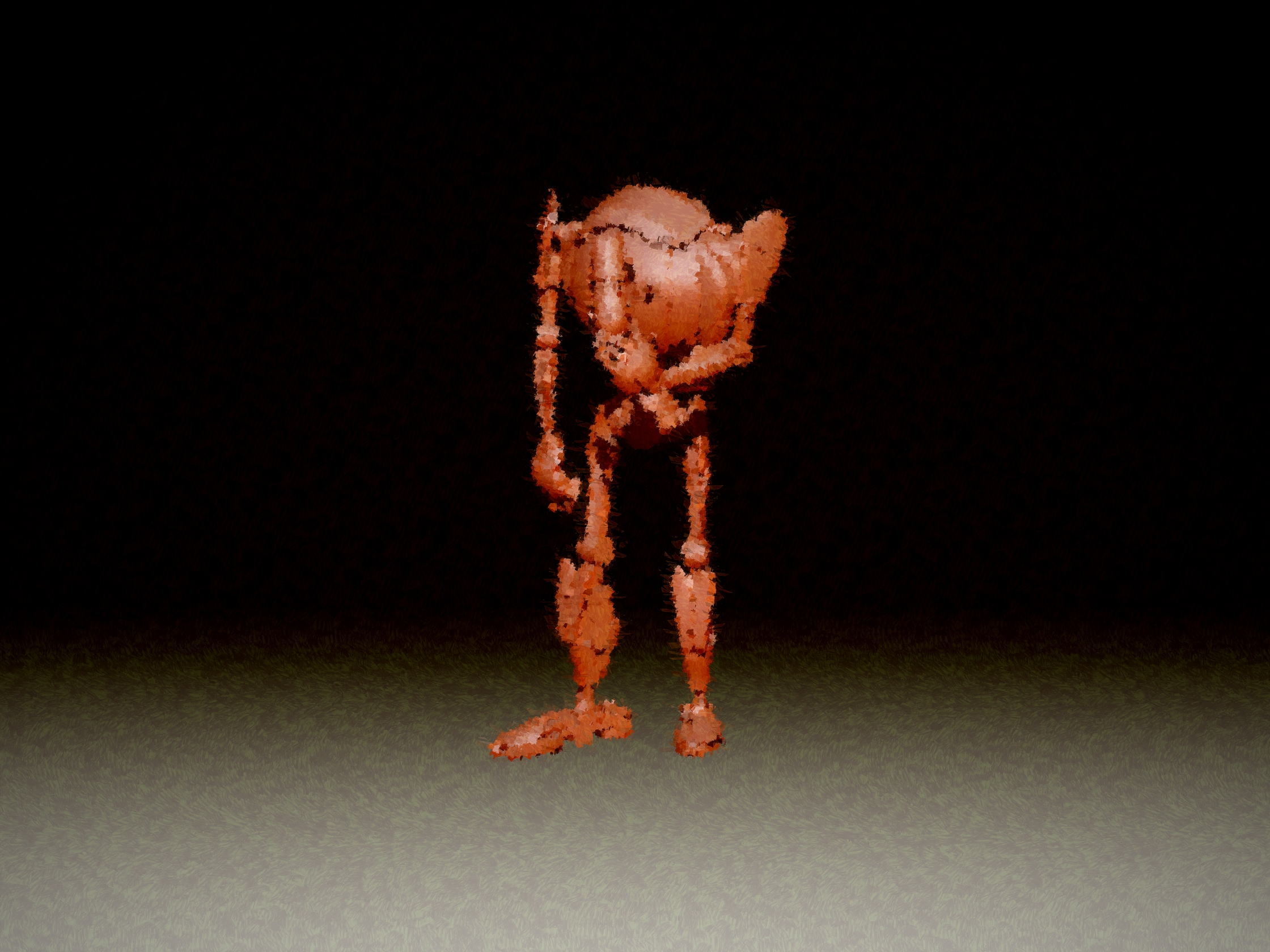
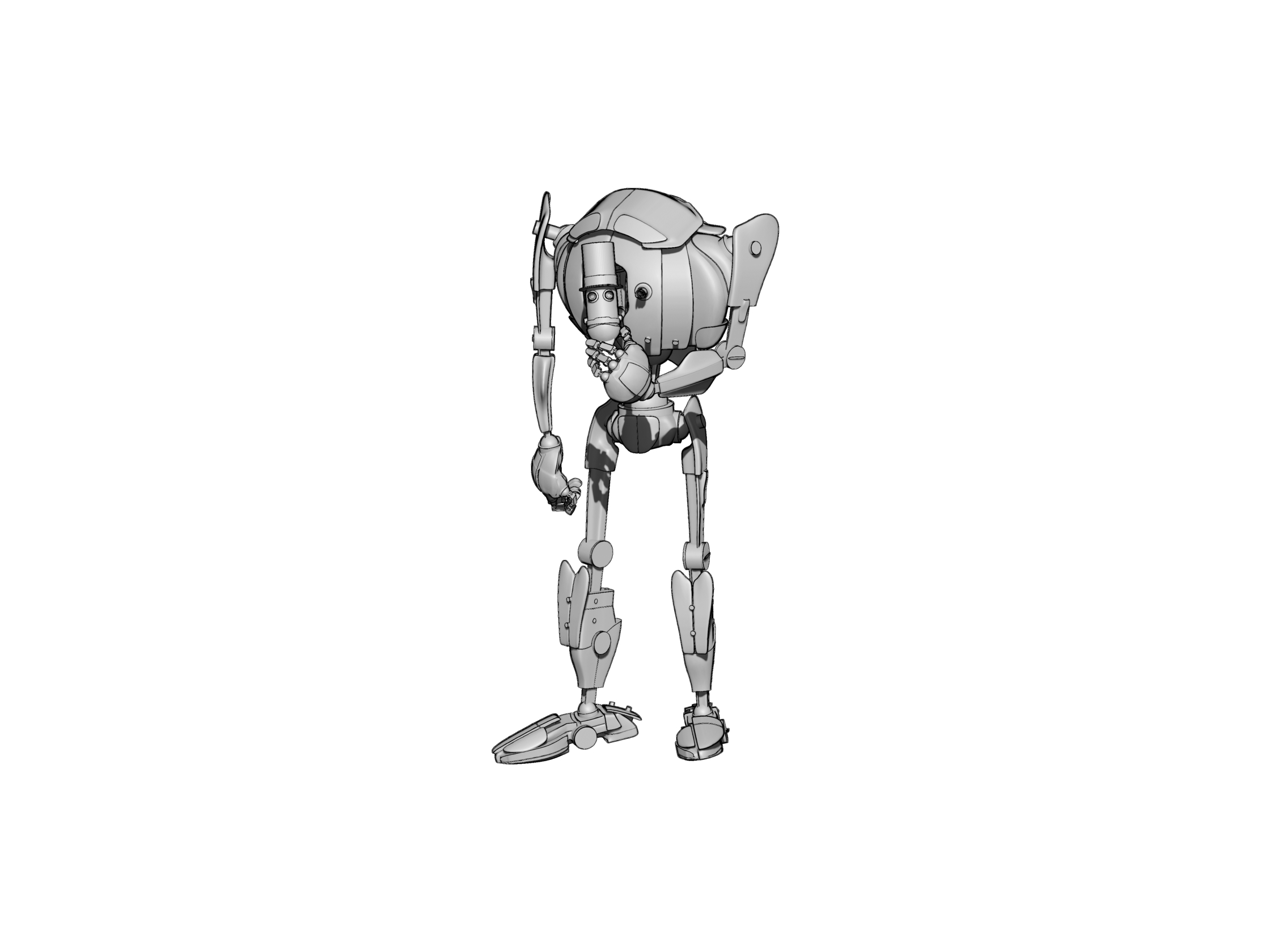
Below you see my trusty test-bot for the G’MIC-QT filters. Quite a dark raw Poser Preview render, and not at all optimized for tooning. That top-hat is going to be a particular challenge.
I was looking for things that can’t be done more easily in Photoshop.
Here are the G’MIC-QT filters I noticed and worked with, for good or bad:
1. Artistic. Brushify. A nice but mundane paint effect with the default settings. The drawbacks, even on default, are that: i) it takes a ridiculous amount of time to process; and ii) it paints into a background that should remain transparent. Still, the ‘real thick paint’ effect is nice, and it takes far less time that it would take you manually overpaint a render.
2. Artistic. Cartoon. This just gave the usual “Ugh, 3D run through a Photoshop filter!” look, of the type that only pleases those who have never actually seen the inside of a decent comic-book. Horrid. Rip it out and burn it, now!
3. Artistic. Cutout. This had something to recommend it at a setting of 6 0 6. You might want to take a quick look at this before your pay good cash for one of the TOPAZ Clean / Simplify Photoshop plugins. That said, even on a workstation this filter takes a very long time to run, like 90-120 seconds! Also you get some posterization artefacts that you would not get with Topaz Clean.
4. Artistic. Felt Pen. I was able to work it up to a custom effect I saved as ‘Felt Pen Burnoff’, which burned off most of the 3D grunge. It ran very fast, but the applied effect was not great when seen at 100%. It worked much better when seen reduced, at 33%. Still, to get this from such an unpromising 3D render is quite impressive.
As you can see, it doesn’t add a holding line around the edge. Though that may be because I was using a .PNG cutout with transparency.
5. Artistic. Pen Drawing. It doesn’t quite give the effect you might expect from the name. It’s more like a basic toon filter, and is too close to a recognisable ‘standard Photoshop filter’ look for my tastes. Can be sort-of acceptable, though only if ramped up to maximum settings. There are only two sliders, so I assume there’s not much more that can be done with it.
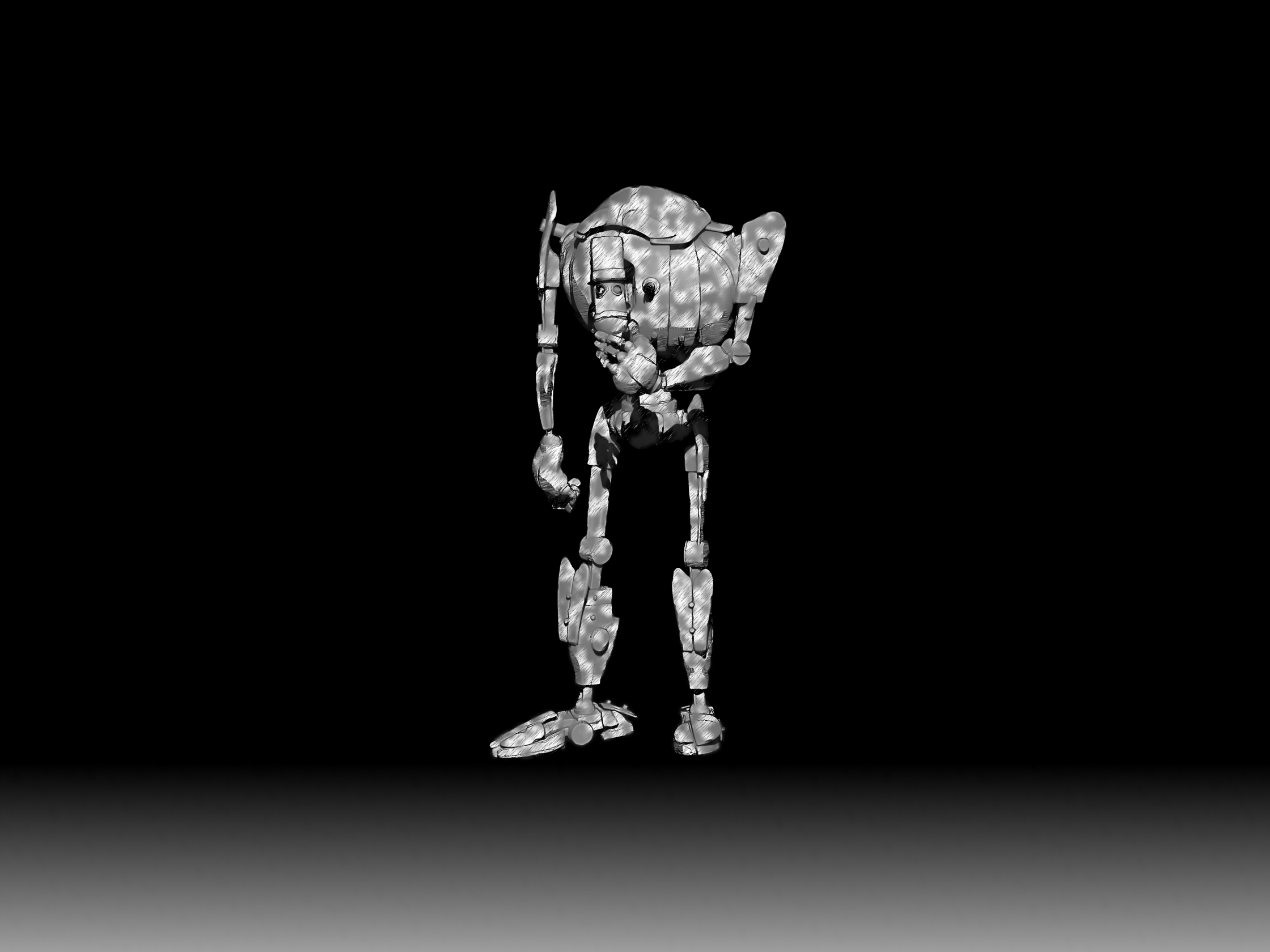
6. Artist. Sketch. Capable of some awful crap, as most such filters are. But I also crafted the unusual custom preset seen in action below, which is like an oil glaze on thick smeared pencil. The setting took three minutes to process a 3600px picture, but the results were rather nice when viewed at 100%. Zooming out just makes the figure look like they’ve been dipped in motor-oil and dried off a bit, which is not so pleasing. I could imagine that 100% crops from this, placed into panels, could form the basis of a graphic novel style for a macabre story.
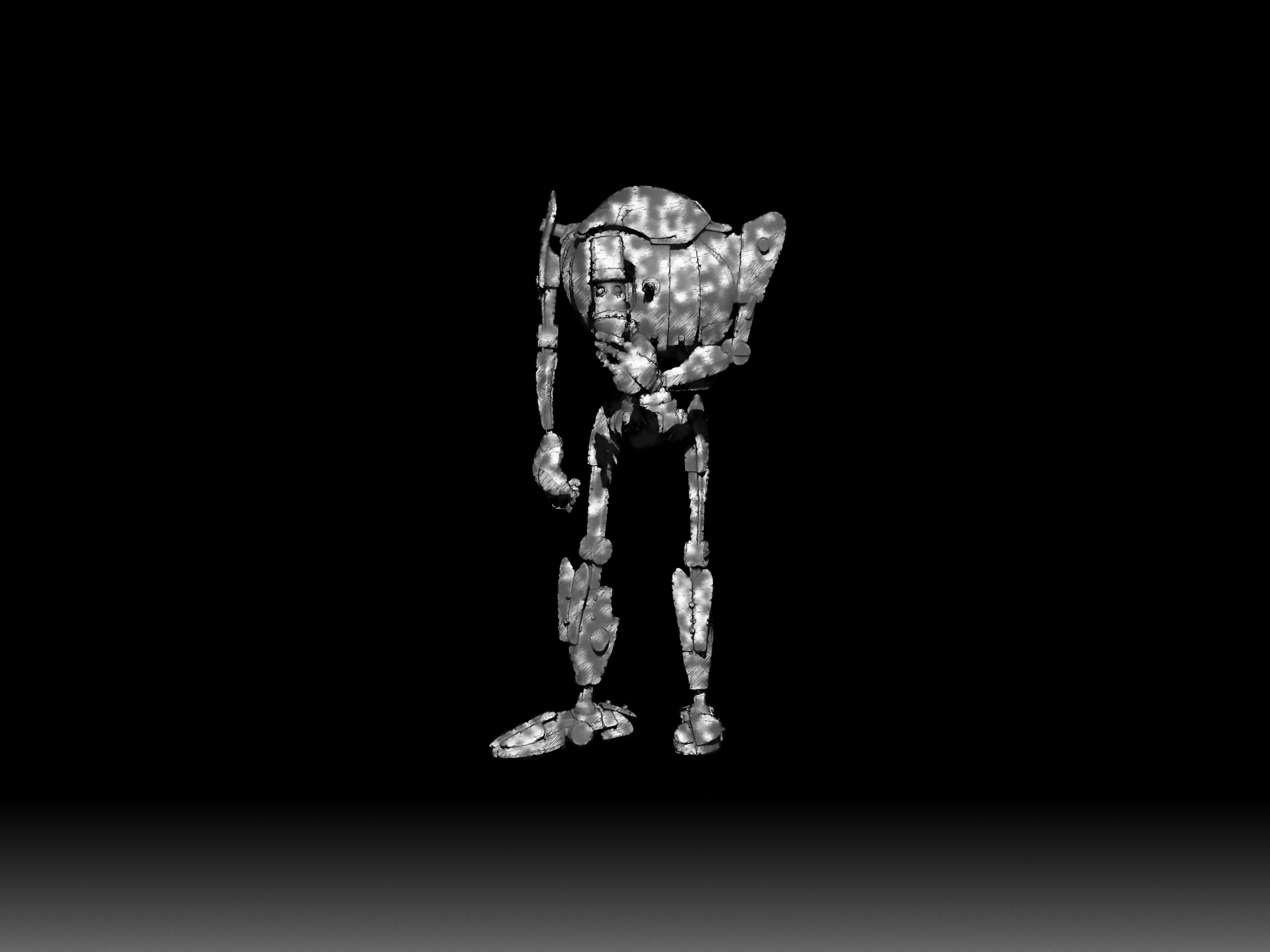
7. Black and White. Charcoal. Quite tricky to control, and frankly not very impressive as charcoal. But… also capable of a reasonable basic stipple effect, which I saved as my ‘Stipple’ preset. Though, as you can see, it doesn’t like to run across black or near-black.
8. Black and White. Engrave. Despite the name, this is of interest for comics makers. I was able to work it up to several pleasing effects and save these as presets.
One I named ‘Skritchy Pen’, which took two minutes to run…
Another preset I called ‘Berni Wrightson’, which took about 90 seconds to run. I love how the engraving lines follow the contours fairly neatly, which is never the case with such filters. How it does that I don’t know, but it does. It doesn’t even have the 3D mesh to ‘follow’.
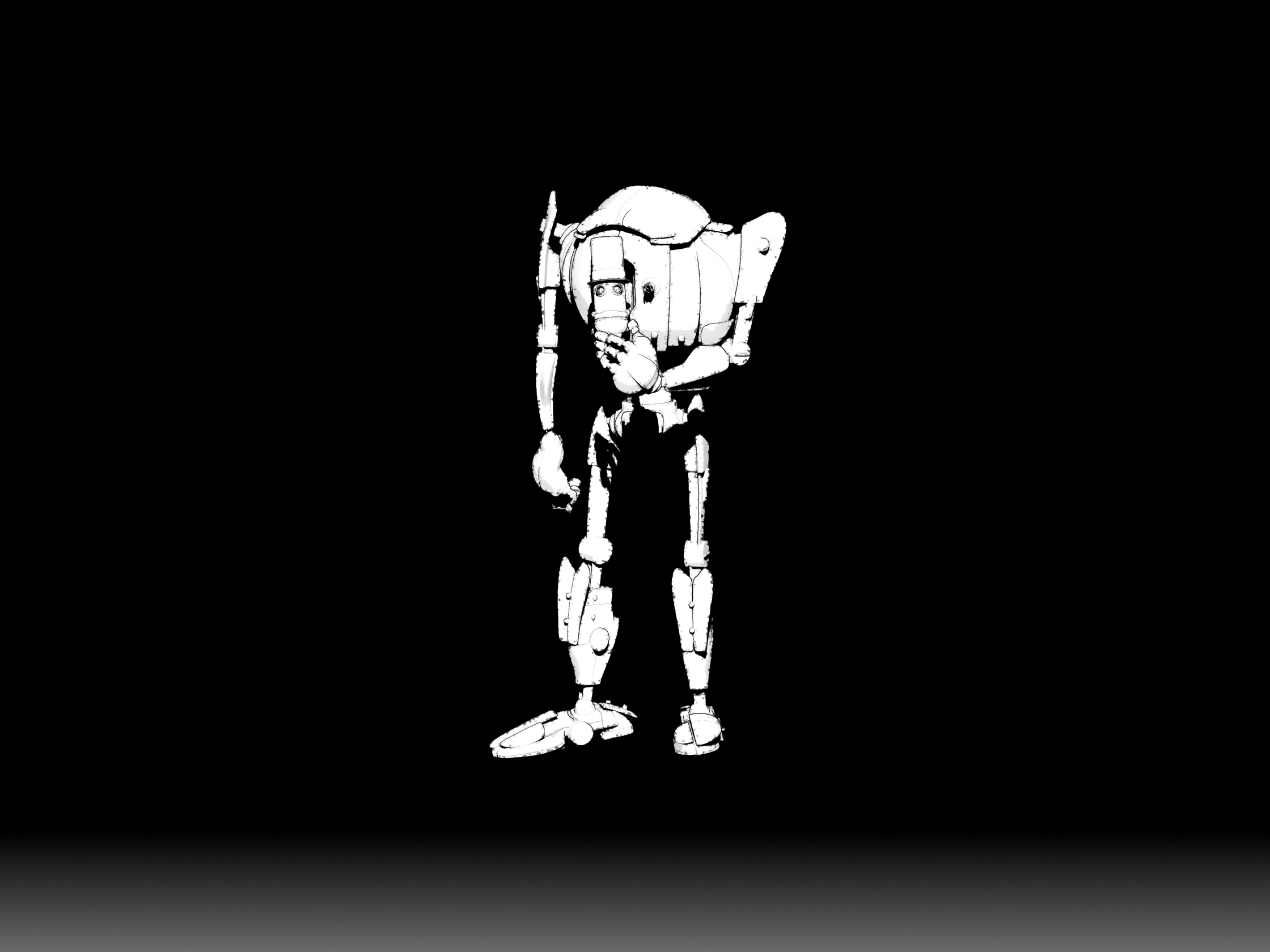
Another custom preset I made I called ‘Comic with Inks’, which was fairly fast with no anti-aliasing, but it took two minutes once its anti-aliasing was on. Very impressive, given the less-than-ideal source material. I’m not particularly keen on such dense blacks, but one might find ways of toning them down without too much work. Retexturing the Poser model would probably do it, at the risk of simply turning the blacks white.
These thin lines look like they might fat-ify quite nicely if run through DAP.
9. Black and White. Pencil. Nothing like a pencil, it’s more like maybe Posterize in Photoshop. Meh…
10. Colors. Detect Skin. Unusual. This may interest someone who does a lot of skin renders in Poser and DAZ Studio.
Thus I got about eight good useful custom presets with it, which I’m pleased with.
It’s possible to save user presets in G’MIC-QT, though with typical Krita awkwardness in naming they are called something very different. Your “Faves” are thus not just bookmarked favorite filters. They also capture the settings of the filter at the moment the ‘Fave’ is saved.
I don’t see any way to extract and share individual ‘Faves’, though you can back them up as they’re in the C:\Users\YOUR_PC_NAME\AppData\Roaming\gmic\gmic_qt_faves.json file. This is just a text file and can be opened with the Notepad++ freeware. Looking at the structure of the file it looks like someone used to code could, with great care, copy-paste a preset from someone else’s ‘Fave’ .json file and thus import it.
And, lastly, I don’t see anything in G’MIC that can do what DAP’s ‘GrNovel’ filter can do. Though G’MIC looks powerful enough to replicate it, if someone cares to try.
Release: QuadSpinner’s Gaea 1.0
QuadSpinner’s new landscape sculpting software has been released. You may remember their name if you’ve been a Vue user in recent years. QuadSpinner’s Gaea is not for Vue, though. It’s a standalone Windows software. It’s also rather affordable, with a very sensible scaling price.
Of course there are already a variety of well-polished terrain makers out there, from trusty old Bryce 7 at $20 on the DAZ Store, up to the latest Terragen at $$$s. There are also newer game-engine based tools such as World Creator 2, which I reviewed in depth a while back, and the new FlowScape which I recently reviewed here on this blog.
How is Gaea different? Well, I have to say I haven’t tried it yet, only researched it a bit to work out what it is and isn’t. It’s made by very experienced landscape folks who know what the industry needs in a workflow. Simplicity, for instance. Gaea appears to be focussed on presenting an obvious-even-to-interns workflow and super-quick creation of quality terrain meshes. So it sounds like it can be likened to ‘a KeyShot for terrain makers’. Which would be very welcome, if that’s a correct characterisation of the software.
That said, I see that Gaea does have power under the hood, and also has… nodes. The mere mention of which is enough to have some 3D artists running for the exit. You’re also likely to need a very hefty PC if you’re going to be working at 8K with complex erosion and a filter stack on top. That said, it seems you can ignore the nodes and just work with manageable mesh sizes.
So it’s another welcome entry in the landscape sculpting field, and the $99 Indie price is right. It’s driven by your CPU, so doesn’t require a £500 graphics card (GPU). Even better, if you can tolerate a 1k limit then the price is free! And even generously allows commercial use…
Currently the site’s download slots appear to be saturated, though. It just gives timeout after timeout, for me. But I guess I just keep trying for the download. I can’t find any download mirrors they might have set up to take up the slack.