The latest FlowScape has added “Desert Biomes“, after the oceanic deluge of the last update.
More Poser 11.2 gleanings
Added to my guidance article on how to go about your Poser 11.2 install…
* As I understand it, Poser in now 64-bit only, from version 11.2 onward.
* Files saved from Poser 11.2 load correctly in Vue R5. [No PoserFusion plugin is needed for the old Vue, but I’ve no idea about Poser and the new ‘subscription Vue’].
* [Another backup location, before installing…] It’s possible you also saved SuperFly custom or tweaked render presets to C:\Program Files\Smith Micro\Poser 11\Runtime\prefs\RenderPresets\SuperFly so check the dates there and .ZIP if needed.
* Kabuking’s Poser Python tools scripts are working fine in 11.2.
* The Dial Manager 2015 script/plugin is working fine in 11.2.
* The DSON plugin (for auto-import of Genesis figures and .duf props from DAZ Studio) seems to work fine. I’m told it may have slight problems when installing it, which means that you may just need to manually set your path to the relevant Poser directory.
* .PSD export with layers is fine.
How to get and use a ‘depth pass’ render from Poser 11.2
Now that all Poser 11 users have the Poser Pro features, and now that the auxiliary render-switches have returned in the latest Poser Pro 11.2… we can all do depth-pass renders in Poser!
(Background: The mini-drop-down for the z-buffers had gone missing from the UI in 11.1.1.35540 and the public release before that, though these render-passes were still there and could still be fully accessed by D3D’s Firefly script and any other Python script that called them. The ability to send multiple animation frames to the Queue Manager also returned with version .35540, which had had to be done via temporary script in the meantime.)
1. To prepare to do a depth-pass, first set up your scene and use a suitable light. Take a look through the “Top” camera, to make sure your props and characters really are correctly-placed in terms of distance from each other.
2. Apparently, in order to get a z-depth pass, you don’t need go to Materials Room | select “Atmosphere” | click “Create Atmosphere” | Select “Depth Cued” and adjust distances and fog colour. But I could be wrong on that. If you can’t get a z-depth that looks good by following the steps below, try adding this to the workflow.
3. At this point I changed the lighting to a darker type, so that the depth fog will show up better later on in the tutorial.
Render settings | Firefly render. I suspect it’s important that you have “Raytracing” ticked to get a z-depth pass, but I could be wrong. Along with your main render, switch on the “Z depth” auxiliary render switch. This tells Poser to render out a depth-pass along with your other renders.
4. Save your render via the little arrow icon, found up in the top-right of the render window.
Save as a .PSD file. A .PSD is a layered Photoshop file. One of the layers it contains is the “Z depth” render pass.
5. Load the .PSD in Photoshop and look in the Layers tab. You should see a layer marked “Z”, which will be turned off by default.
Turn that layer on and then Invert it [ Top menu | Image | Adjustments | Invert ] then set its Layer blending-mode to “Lighten”. With the main render sitting below it in the layer-stack, adjust the Z layer’s blending to taste. Here I have 60% blending opacity to turn a dark render into one where there’s some noticeable depth haze happening…
For deeper fog, duplicate the layer with some opacity to it, and also try adding other blend modes to the mix.
If you don’t have Photoshop you can also use open source graphics software, to open a .PSD file and do the invert and blend trick.
If you have a good version of Vue that can import a Poser scene, you can also do atmospheric fogging that way and quite quickly. Vue does it the brute-force way, but the effects can be very pretty and quite quick provided you have no clouds. The above Poser method, however, is a ‘cheat’ to save render time. You can probably also greatly enhance the effect by turning on “Atmosphere” correctly in Poser.
That’s it. You can of course use it on far more creative scenes, such as an army of mammoths and war-towers emerging from a dust-storm, etc. I’ll be looking more closely at the Atmosphere in Poser in a future post.
NeoNav for V4
As I’d expected from Darkseal, my new Sci Fi Bling NeoNav for V4 toons up quite nicely in Poser. I picked it on on sale for $2.50, and though I see the sale price has increased to $4.60… but it’s still on sale.
Brom for $10
Capsces has a small sale of older Poser toon stuff on the DAZ Store, including the useful-for-comics Brom for M3 and his amazing morphs, which are great in themselves but then also give access to various famous faces. Update: no longer sold.
Brom for Poser is currently down at $10 on the DAZ Store. (You’ll only see the discount if you’re logged in). Don’t be fooled and assume this is the just one semi-toon character as shown in the store preview. You’re buying this for the morphs, with which M3 can be hundreds of faces and body shapes. Brom’s head morphs do not require the M3 Head & Body Morphs pack, which is no longer sold.
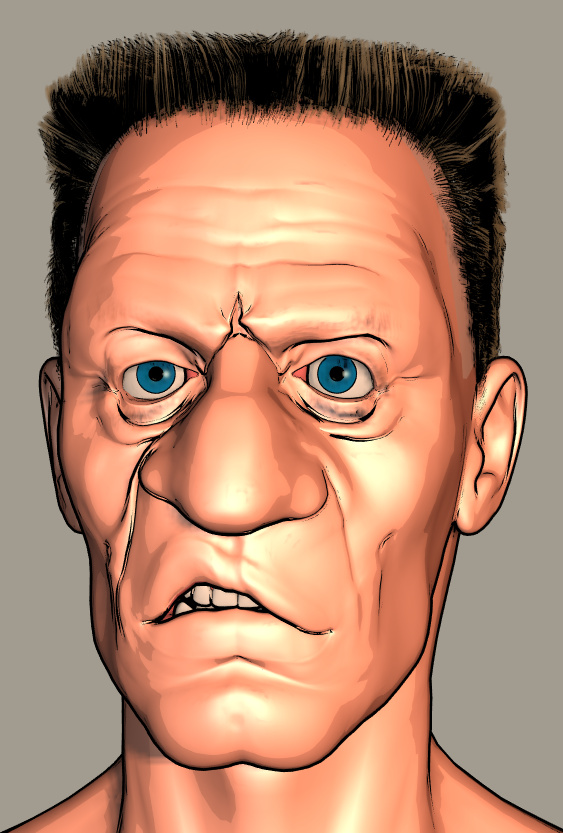
Below I have Michael 3 (M3) with the regular morphs in Poser 11.2, the Brom head morph set injected, and a custom head preset. Real-time rendered in Smooth Shaded + Comic Book preview, and run by two simple lights.
No re-texturing, just a standard start-up M3 texture. No tweaking of the edges in the Materials Room, which is why the eye-edges are too thick. If you’ve been following the excellent made-with-Poser comic Sonata, you’ll recognise the basic approach.
For some reason such wrinkled and ridged faces look great in Smooth Shaded display mode + Comic Book inks. Unfortunately we appear to lack any mesh eyebrows for M3, that ink up nicely in Comic Book Preview mode.
Here’s a preview of just a few of the many semi-toon Brom presets that ship with Brom…
PoserFusion plugins for Poser 11 – last chance to get
I see that the PoserFusion plugins for Poser 11 are still available for me, via the old Smith Micro Download Manager — open the SM Manager with your special PoserFusion plugin serial number (not the regular serial number). There are four plugins which allow import of Poser scenes to Cinema 4D, Maya, 3DS Max, and Lightwave, but you’ll need to step back a few versions on these big-beast programmes. For instance, the PoserFusion plugin for Cinema 4D still works fine with C4D R17 (update: and R18 and 19, or so I’m told). Vue 2016 R4 didn’t need a plugin, with Vue able to natively import a Poser scene. The new subscription version of Vue can still handle easy import of Poser scenes.
I found that all four PoserFusion plugins were lurking on my hard-drive, downloaded some time ago, in my: C:\Users\USER_NAME\SmithMicroDLM\Downloads\release\Poser11\PSFU\win directory.
On cut and pasting these out to save them, and re-starting the Manager, I was still able to access them afresh via download…
So this could be your last chance to get them, as I imagine that the SM Manager will cease to recognise serial-numbers fairly soon. Apparently Renderosity are not going to maintain these plugins, but that might just be a forum rumour. There’s a certain amount of mis-information flying around at present and I’ve seen nothing official on it.
The PoserFusion plugin for Cinema 4D still works fine with C4D R17 (some Forum voices say R19), with both old saved Poser files and saved file from the new 11.2 version. Basic C4D workflow is…
1. Top menu in C4D. Plugins | Poser. Tell C4D where to find the Poser runtime, if needed.
2. Clicking this adds a ‘Poser Object’ to the panel showing the list of scene content and materials, so that C4D knows how to handle what it’s about to have loaded.
3. In the panel beneath, Find “Object Properties”. Click the “…” button and load your Poser file from there.
4. Then once the Poser scene has loaded in, it will lack materials. Click “Load Materials” to have C4D go get the Poser materials from your runtime and load them onto the scene.
You can’t send cameras across, so you can’t later composite 1:1 with a C4D render and a Poser render.
For those finding this post in the future: this relates to the handover of Poser 11 from Smith Micro to new owners Renderosity, which happened this weekend with the 11.2 update.
Poser 11.2 install – an unofficial guide to the free content bundles
Yesterday I posted a install guide for 11.2. Today it’s the turn of the content bundles.
What’s actually in the ‘new and improved’ free content bundles for buyers and owners of the newly released Poser 11.2?
Below is my annotated listing of key .ZIP files. These are manually extracted, and then you copy-paste-merge the ../runtime/ to your Poser runtime directory/folder…
C:\Users\Public\Documents\Poser 11 Content\Runtime
Then they show up in Poser, once the re-indexing has finished.
1) Common Files:
HiveWire3D_BabyLuna.zip
HiveWire3D_DawnBaseContent.zip
HiveWire3D_DawnBaseFigureAndTextures.zip
HiveWire3D_DuskBaseContentAndGorilla.zip
HiveWire3D_DuskBaseTextures.zip
HiveWire3D_Horse.zip
All the above are obvious. Look these up on the HiveWire Store if you’re unfamiliar with them. Baby Luna, and the generic Adult Dawn and her male partner Dusk. Dusk has a very good Gorilla makeover, for which there’s paid Poser Fur and a pose-pack at the HiveWire Store. I’m slightly tempted by the Gorilla, but without the paid-for fur and poses there’s not much point.
Also the Hivewire Horse base, for which there are many add-ons and makeovers at HiveWire.
LaFemmeContent_01.zip
LaFemmeContent_02.zip
LaFemmeContent_03.zip
La Femme is the flagship Poser female figure. This is not La Femme herself, but rather the freebie bundle with the extra content such as clothes, hair. I noticed Georgia and Bennie hair and also pose presets for these hairs.
Also noticed were two large sets of quality expressions. Girl Gear, Sweet Rebel and Elf clothing. Romantic Dress, Daisy Dress, some t-shirts and sportswear and other bits. For most people this will be a must-have for the extras, even if they already have the La Femme base. Apparently new first-time users of Poser 11 will now see La Femme as the default ‘start-up scene’ character, so I guess her base figure must be in the main installer.
On the forums it was said that La Femme would also ship with some new total-makeover characters, but I think what they meant was a set of slightly different Femme faces…
PoserPremiumContent_Figures.zip
Maisie with Tempesta3D’s ‘Angel’ toon makeover and matching hair. You may want to try to toon Maisie in Preview, so you’ll need to know how to make her control chips invisible. It’s a single dial turn…
A few other characters including a ‘poison dwarf’ (UniDwarf 2018), and an unusual skeleton.
PoserPremiumContent_3DScenery_01.zip through 03.zip
All good scenery and building items, you’ll want these. Also a folder for Bryce skies, ported to Poser.
PoserPremiumContent_PropsAndTransportation.zip
Again, useful bits and pieces (see some of the visual previews below). A complete detailed VW camper-van with paint presets which seems new to me. Cool fantasy spears and FX for them, and seemingly new.
2) Legacy Files:
ZLegacyContent_Poser-Props.zip
This also has modern thriller-style scenes that shipped with Poser 11 when first released. Also some natural plants, among other things. Worth having.
ZLegacyContent_Poser-Cartoons.zip
Robo-Kitty! Renderosity are missing a trick by hiding away SAK Robo Kitty (one of the best 3D characters ever made!) in this easily-overlooked legacy ZLegacyContent_Poser-Cartoons.zip file. Play to your strengths, Renderosity. Poser does superb tooning and this is still your leading free toon character, the toon equivalent of La Femme! Here, the Kitty is further hidden away, by being found under “Toys” once the .ZIP is installed.
The Robo-shark will also be fun for kids to make pictures with.
ZLegacyContent_Poser-Animals.zip
Some of the old Poser animals are still worth having, especially if you’re doing work with Poser’s real-time Comic Book rendering. The housecat still toons quite well. Some of the wild animals in particular are still useful, as they’re going to be in the distance in a scene and you’re likely to want a lot of them. They’re not heavy system resource users, so you can have herds and flocks in the hazy distance, or five giant octopii with poses etc.
ZLegacyContent_Poser-Hair.zip
You may also want this just for the P6 Jessi strand-hair, which can render relatively quickly in Firefly and then provides a good basis for over-painting or compositing more hair in Photoshop.
There are male James P6 equivalent hairs too. A pack of SuperFly shaders for this type of hair was recently released.
ZLegacyPoser11-installminimum_basic.zip
This has the useful ‘Primitives’ shape set (basic box, cone, pyramids, coils etc), and other things.
There’s no sign in this .ZIP of the PoserFusion plugins for Cinema4D etc. They’re not needed for Vue, at least up until Vue 2016. (I’ve no idea if the new subscription edition of Vue still works with Poser files or not). Where Maya/3DS/Lightwave/C4D users now get the PoserFusion plugins from is a bit of a mystery. Update: they’re here.
OK, I then merged the above extracted .ZIP files (but without Luna, Dawn/Dusk, Horse, Gorilla) into their own 10Gb runtime. Then I merged that super-merge with my existing Poser runtime, telling Windows to skip files if they already existed (“Skip these files”). Then I had PzDb re-index the runtime as a visual library with thumbnails. Here’s the pick result, had by scrolling through just “what’s new” for existing Poser 11 users.
Two big bundles of La Femme expressions. Here she has the Aurora La Femme character makeover.
Tropical desert-edge plants.
There’s much more than that, but those are my picks.
Now, finally, let your Poser re-index its content for 90 minutes while you go off and have a snack. It has a lot to re-index. Once the yellow wheel is pulsing (re-indexing), leave it to it, as you won’t find the new content otherwise and you may be wrestling with the software as the re-indexing process hogs your PC’s memory.
Also, I can confirm that drag-and-drop from the PzDB library software still works fine in Poser 11.2.
Poser 11.2 install – my workflow
Poser 11.2 is available and here are my unofficial notes on the install procedure.
As I understand it, Poser in now 64-bit only, from version 11.2 onward.
1. Locate your file or email containing your Poser serial numbers. It’s possible they won’t be needed for the install, but you’ll need at least one of them to get the free content bundle at the download page. (Update: At this point you may want to start the Smith Micro Download Manager one last time and get the PoserFusion plugins).
2. Clear space on your hard-drive as required. Plan on having 30Gb spare, if you also download and un-zip all the bonus content. You’ll need space for the installer downloads, the install and its expanded runtime, and the bonus .zips and their extracted runtimes, before you then start deleting the installers.
3. Download the required files for Poser 11.2 and also access the free content .zips if required (those are behind a serial-number access box and can be added later if needed). At around 1.3Gb for the main files, I downloaded overnight and the servers were stable. Renderosity is using Amazon servers so they’re rock-solid.
4. If you’ve used Poser a lot, you’ll want to backup your preferences and customisation. On Windows, first navigate to C:\Users\YOUR_USER_NAME\AppData\Roaming\Poser Pro\11 and make a .ZIP file containing what’s there.
It’s possible you also saved SuperFly custom or tweaked render presets to C:\Program Files\Smith Micro\Poser 11\Runtime\prefs\RenderPresets\SuperFly so check the dates there and .ZIP if needed.
You now have a ZIP backup of all your settings and preferences, preferred launch state, custom Sketch presets, custom render presets etc. Copy the .ZIP(s) somewhere safe.
5. Backup your installed Python scripts in the same way, from C:\Program Files\Smith Micro\Poser 11\Runtime\Python\poserScripts\ If Windows won’t let you make a .ZIP while within C:\Program Files then copy-paste the files out somewhere else. Also, did you edit your .ini file to have a script launch with Poser? If so, you’ll also want to be sure you have that too (poserStartup.py, should be in \poserScripts).
6. Backup C:\Users\Public\Documents\Poser 11 Content\Runtime\Libraries which is the Poser 11 native runtime where you’ve probably saved custom expressions and custom lights to. I know I had.
7. Selectively backup C:\Users\Public\Documents\Poser 11 Content\Runtime\Textures by sorting by date, then seeing what new folders you may have added there. For instance, I see I put the ‘Vince Banga’ SuperFly shader pack there when I first installed Poser, and wouldn’t want to lose those. You probably don’t want to save the entire default Textures folder, as it’s probably weighing in at 5Gb or more!
8. Ok, now close down Poser 11 if for some reason it’s running. Close down anything else that might get in the way of an install or hog memory etc.
9. Ok, start your downloaded ‘Install Poser 11.exe’ file. At 1.2Gb in size, expect Windows to ponder and prod the installer for 40 seconds before launching.
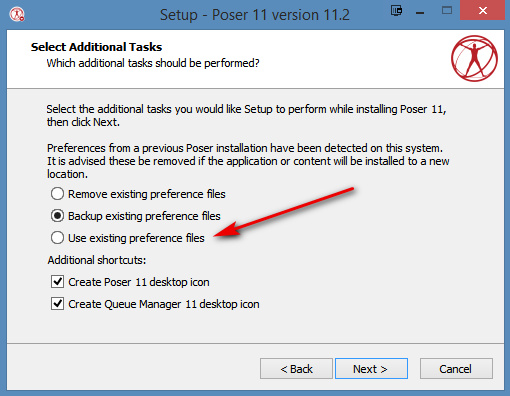
10. Once running, the Poser 11.2 installer wanted to backup, rather than use, my existing preferences. I had to explicitly tell it to use the old preferences…
I suspect this is probably a fairly vital step, so ponder it carefully.
11. Install took about five or six minutes. I decided not to launch Poser 11 on completion, as I wanted to run PoserSupport.exe as well. This may not be needed, as the main installer may have done this on my behalf already. I suspect that was the case, actually, as they were both placed in the same folder.
12. In the Start menu and on the desktop I now had shortcuts pointing to…
C:\Program Files\Smith Micro\Poser 11\Poser.exe
Interesting. Not to ..\Renderosity\.. ? Nope, seems not. The path to .exe is exactly the same as the old Poser. Perhaps if I had accepted ‘Backup preferences’ it would have been different?
13. Load ‘er up and… you may not actually need to paste in your serial number. I found I didn’t have to. Check Help / Registration. While you’re there you may want to un-check “Send usage data to…”.
On checking Help | About Poser you’ll see the new version number in the corner.
14. Load a scene and check your vital Python scripts. I had read in the Renderosity forums that ‘D3D’s XL – Extended Library’ no longer worked, but everything I needed still worked. These were checked by me and work…
* SceneToy 2014 (I see there’s now a new version of this, interestingly, but the old one works fine).
* SnapTo.
* Rust-Icator.
* D3D’s XS eXtended Shader Manager.
* D3D’s Render Firefly panel.
* Kabuking’s Poser Python tools.
* Dial Manager 2015 script.
* Snow Machine 2.3 (Firefly and Preview only) (not vital, but fun).
I see that we even have the Auxiliary Render Data drop-down restored to the Firefly render panel. Hurrah! It had gone missing a few incremental 11.1.x update versions ago. Now you no longer have to get to its functions by using D3D’s Render Firefly panel script. This is the easiest way to get a depth-pass render, now available to all since we all have Poser Pro now.
Drag-and-drop from the PzDB third-party library works fine, and works the same as it did before. ‘D3D’s XL – Extended Library’ is also set to get an update tweak to get it working again. There’s already a P3DO opening fix for the P3DO library plugin. Apparently the current Reality rendering plugin is broken and will need a minor update soon. Update: the fix is now available for Reality and D3D’s scripts.
15. The UI appears unchanged, and retained my preferred 1.20 scaling. I don’t see the Renderosity Store integration in the content library. Perhaps that only happens if you use the “Search” tab and click the cloud icon to “Show Remote Results”? I’ve never used that, as if I have to search I use the third-party PzDB library. So that’s good, there’s no ‘all-singing all dancing’ Store parked in the corner of my Poser.
So, it all went fairly smoothly for such a potentially precarious handover.
The PoserFusion plugins (connecting Poser with Cinema 4D etc) can no longer be accessed for download inside Poser itself (Help | PoserSupport), and nor are they currently in the list of bonus or legacy .ZIP files. Nor are they inside the more obvious .ZIPs there. Update: they’re here.
Files saved from Poser 11.2 load correctly in Vue 2016 R4.
I’ll make another post here when I see what’s in the bonus content download packs…
Update: it appears the Queue Manager can be installed by running the main installer again and choosing the relevant drop-down. Poser and Queue Manager version-numbers no longer need to align, in order to work together after install. (The later Poser 11.3 is said to also add a desktop shortcut to Queue Manager 11, after install).
Update: Updating to the next incremental version number (e.g. 11.2.271 to 11.2.284) appears to require a re-download of the 1.2Gb “Install Poser 11.exe”. That’s a bit of a drag, and also a risk, as presumably every time the user may forget to tick “Use Existing Preference Files”, in which case their custom presets and preferences are wiped. Take care when doing such an incremental upgrade.
Update: The DSON plugin (for auto-import of Genesis figures and .duf props from DAZ Studio) seems to work fine. Note that if you were for some reason running a 32-bit DSON plugin, you now need the 64-bit version of DSON. A 64-bit Poser can’t handle a 32-bit DSON plugin.
Update: .PSD Photoshop export, with renders saved out as layers, is fine.
Update: the serial number ‘ping’ to the server is said to be once every 28 days. Therefore Poser 11 should not auto-check with the licence server every time you load it.
Update: I added a script-fix link, for Reality and D3D (see above).
DAZ Store – freebie and $2.50 sale
Currently free on the DAZ Store, the steampunk Riae Outfit for V4, with hair. The hair is a figure and ‘grown’ by Poser’s Hair Room, and thus doesn’t show up in Poser’s real-time comic-book mode. Here I’ve replaced the Riae Hair with Moetan’s Up_Hair which is short hair that works fine in Poser’s Preview.
The real-time Ink lines from Poser have here been run through Krita’s G’Mic filter (modified Hard Sketch).
Also, there’s a small sale on at the DAZ Store at present. You might usefully check your Wishlist. Here’s what I bagged for just $10, from the $2.50 page.
There’s a lot of Darkseal Poser stuff (much of it good for tooning, though steer clear of the BioSkins) and also a sale on old Cornucopia3D store models, all at $2.50 each. Note that the Render Passes tutorial I chose to take a look at weighs in at 1.7Gb (3.5 hours). It was made in 2013, so is likely out-of-date (update: yes it is, substantially). It uses Photoshop CS5 for the Photoshop bits.
The Medieval Village and SteamPunk Lost House, despite their size and detail are less than 50Mb each. They’re in unlocked .OBJ format, not Vue licence-locked.
I’m very pleased to get the Lost House. It had been on my Cornucopia3D store wish-list for a while, then the site vanished, and now I have the House for just $2.50! Nice.
DAL #42: the Comics issue
The latest Digital Art Live, the free monthly magazine for science-fiction and fantasy artists — Issue 42: Comics.
Adobe de-fuses Fuse
The increasingly-beleaguered Adobe has reportedly killed its Fuse CC software. The “3D character generator” will not be updated for the macOS 10.15 next month, and “all downloads will be removed in September 2020”. The online Mixamo.com component will however maintain an offering of a stock library of characters with… “dozens of new ready-to-use 3D characters” coming soon. I’m guessing it’s possible that a few student/indie videogame makers may mourn the loss of Fuse, but it’s no great loss for artists.
I imagine this move by Adobe may something to do with Reallusion’s Character Creator, which is not software I’m taking much notice of… but which I hear has recently had some strong improvements.
Moebius style in Poser: demo
Tutorial: a Poser script to find your lost prop
You have a complex scene in Poser. You load in a new prop or figure and… the new prop or figure is nowhere to be seen! You then have to tear your scene and carefully composed camera framing apart, to find the new item.
Is this is a problem you have, as a new Poser 11 user? Do you wish there was something like Poser’s native “Drop to floor” command, but named something like… “Centre selected item in camera”?
There is a way to do it, and it’s actually better than the native “Center item in camera”. It’s Ockham’s Python Scripts: SnapTo script. Only works on Windows. If you’re on Windows, here’s how to install and use it.
Update: There is now also a working Mac-friendly equivalent for it.
1) Download and un-zip. In Poser 11 you place the script in: C:\Program Files\Smith Micro\Poser11\Runtime\Python\poserScripts\ScriptsMenu to have it show up in Poser 11’s Scripts menu. It’s really really important to get right down to that last ..\ScriptsMenu folder and not stop at ..\poserScripts and think you’re there!
Then rename the script so that the filename has basic instructions. For instance…
SnapTo.py
becomes
SnapTo-SelectItem-StartScript-SelectDesination.py
The name of the script then serves as a quickstart reminder on how to operate it when you’re in the midst of creating a scene.
2) OK, so you built your complex scene. Load your character into it. Here we have Nursoda’s “Fon” character loaded into a scene via drag-and-drop from the PzDB library software, and… he’s nowhere to be found. He’s gone, lost somewhere in a vast desert. Could be anywhere.
So now we need to use the script we just installed. Find it at the top menu, under Scripts.
3) The name of the re-named script reminds you to:
i) have the item selected that you want to move before you start the script;
tip: ensure the item did not auto-conform to something when you dragged-and-dropped it. If it did then un-conform it — and also make sure you select with the main ‘Body’ element;
iii) you then start the SnapTo script;
iv) then you wait for the script to finish loading (there’s a progress bar);
v) after a few seconds the progress bar should read “Waiting to select destination”. Then you simply click-select the item in your scene that you want the lost prop or character to move to.;
vi) the script then moves the lost object.
Here I selected the observation deck of the steampunk telescope as the move destination. The script won’t also scale and rotate the moved item to match the destination, as I’ve done here with Fon to make a prettier basic picture. But the script moves things quickly and it saves a lot of trouble.
The only problem you may have is with a pre-dressed character loader-preset, as he may leave his clothes behind. You’ll need to re-dress.
Hopefully Poser 12 will integrate this operation as a native button, but until then Ockham’s vital script does the job fine in Poser 11. He also has a variant script, to “move the currently selected camera to the clicked location”, useful for working with very large or complex scenes, which can be used on a Mac. But note that the main SnapTo use Tkinter as part of the scripts, which means Mac users cannot run it — take it up with Apple and their fickle support-policies dept., not the makers of Poser.
Three webinars for September
A couple of webinars coming up.
1. Reallusion have a free “Importing & Animating DAZ Genesis 8 Characters in iClone” webinar on 11th September 2019. Update: YouTube link.
2. Carrara and Vue webinars from DAL, on 21st and 28th September 2019.
G’MIC for Photoshop: underway soon
Excellent news from Silvio Grosso, who linked to a job advert in July (now sadly expired)…
the French G’MIC team has hired a developer who will make G’MIC with Photoshop as a .8bf filter. Starting work 1st October 2019 and with the post sponsored for a year.
G’MIC is the excellent filter set in GIMP, and (as a Krita-specific fork) in Krita.
Update, December 2020: Now mature as gmic-8bf.