A practical tutorial in comic-book FX upscaling and extraction using AI, using local Windows tools…
Category Archives: Tutorials
Successful test – adding LORAs
Adding a LORA to the recent Poser to SD 1.5 workflow.
Vintagecomic at 0.63 strength.
Crab Grass at 0.35 strength.
Moebiuscolor at 0.55 strength
All managed to keep the registration with the original render, in terms of re-coloring via Photoshop’s layer blending.
There are many more LORAs to experiment with. But these three suggest the workflow is robust enough not to be thrown too far out by adding a LORA.
Successful test – restore the Poser colour
Another Poser to SD experiment.
1. Take the final from the Poser to SD 1.5 workflow shown earlier…
2. Give it a simple “desaturate” in Photoshop (better b&w conversions are available).
3. Have Photoshop enlarge the crude original source for the Img2Img input, to 1024px. Then paste it over the top of the 1024px final.
4. Set the Poser render’s Photoshop layer blending mode to ‘Colour’…
The colours of the original Poser render are thus restored, which across a comic-book page and pages will give you the Holy Grail of consistent colouring across different SD images. You’re welcome.
5. Flatten layers, tweak Curves and Brightness in Photoshop, to add more graphic ‘pop’ and/or suit the intended lighting for your story.
Obviously the Poser source we used here is a bit crude…
… and you might get better making another finer render to be used only for Colour blending in Photoshop. If sticking with the real-time Preview render, note you’ll get better colouring by rendering Preview using more than the default 512px material textures.
Don’t forget you might also lay on a 30% blending layer with a Smooth Shaded render from Poser, made under a suitable light, which will add back some shadow and volume (for those hankering desperately for ‘the 3D look’). Then there’s Poser’s Sketch renders too, to play with.
Successful test – the final
A follow-on to my earlier tutorials, using two Poser renders and an SD 1.5 model (in InvokeAI) as if it were a Photoshop filter — keeping everything in the Poser renders stable, but having SD change the style to something that regular comics readers wouldn’t laugh and jeer at.
Here the background stays stable because the 786x Firefly lineart-only render, being used in the Controlnet at 87%, now includes the background as well. This stops the background from getting ‘SD gloopy’. The figure outline can be masked in Photoshop, because it stays the same as a figure-only Poser render.
Quite a nice strong graphic style, I think, that would be suited to a four or five-panel comic-book page. Obviously you’d work it over a bit with the dodge and burn tools in Photoshop, and re-ink some bits. And you’d power up the lens choice, camera angles, figure expressions and suchlike. Maybe also experiment with lighting in Poser, since you can’t prompt for it in SD when used like this.
The SD 1.5 model Photon is meant for photography, but it’s an excellent early model that isn’t polluted by manga/anime and does what you tell it to. Unlike ADAM it doesn’t get in the way too much, when you push it towards a graphic illustration. The WASMoebius embedding is not really needed, strangely, but I left it in anyway as some may want to experiment with pushing it further. The problem with doing that, though, is that you’d lose panel-to-panel consistency in the comic, which is the whole point of this workflow.
Enjoy.
Successful test – the background
Definitely getting there, in the quest to use Stable Diffusion 1.5 like a Photoshop filter. This is another follow-on from my two previous tutorials for Poser with SD.
The final result
To obtain this final result, for the Img2Img source I started again with exactly the same Poser scene, camera and light as before, but this time I dropped AS’s Hanyma Platform for Poser (now no longer sold) to the scene as a background prop. Poser’s Comic Book inking applied to both.
Raw scene in the Poser UI.
Then I made a quick Preview render of this scene at 768 (remembering to boost the texture sizes from 512), and then in Photoshop used the Glitterato plugin to add a quick starry sky.
In InvokeAI this replaced the previous figure-only Img2Img image, but the Firefly lineart Controlnet image stayed the same, thus giving a fixed figure outline that matches that of the Poser render — possibly important for later consistent colouring.
In this experiment I also added a Moebius LORA, which knows what our hero Lovecraft looks like. No additional prompting is needed to account for the backdrop, since the CFG is so low.
The final result at 1024px
It’s all going a bit ‘black on black’ (arrgh!) for this quick demo, but a non-background SD generation of the figure alone can then be used in Photoshop to mask (Crtl + click on layer, invert) and then fade or lighten the background a touch (as I believe Brian Haberlin does) so as to make the character stand out a little more. And ideally your comic script would try to avoid ‘black cat in a coal cellar’ settings, for this reason.
Simply using the new Img2Img as the Controlnet, replacing the Firefly outlines render? Nope, that doesn’t keep the detailing on the character or keep him consistent across a quad of generations. The Canny Controlnet needs to be focused just on the character, in the same way the comic reader’s eye is. Going from 768px to 1024x in the Img2Img seems to give SD some creative wiggle-room, despite the low CFG. Since it’s a low CFG for the Img2Img, there’s not much shifting in the details of the background. This seems to be the sweet spot: good model, Img2Img with a low CFG but slight upscale, and use the Controlnet with pure Poser Firefly lineart to keep the figure stable and in lockstep with your Poser renders. Presumably all this would also work for two characters interacting.
By having both character and backdrop generated by SD, there’s some SD gloop and later a loss of flexibility when putting the frame together in Photoshop. But one also avoids the need to mask, extract, defringe, colour-balance etc. It may be possible to prompt for lighting and get it, but I haven’t tried that yet.
Obviously for a comic you’d also start breaking free of the stock camera lens and use foreshortening etc for a more dynamic look. Poser has a special camera dial that makes that very easy.
Successful test – the ‘proof of workflow’
Here’s a follow on from last night’s Successful test – Poser to Stable Diffusion enhancement, a proof-of-concept (or perhaps more accurately proof-of-workflow for the compositing. It’s crude, and he’s meant to be on an airship which isn’t shown, but it shows it can all work.
1. Rerender the Poser Firefly line-art at 4 x the original 768px (i.e. 3027px square) as a .PNG file.
2. In Photoshop I then run this render through GMIC and a custom filter for line-art (very similar to Dynamic AutoPainter’s Comic filter, but free). This turns the thin lines into chunkier ‘inked’ lines. Takes about 40 seconds, but does the job.
3. Size the GMIC result back to 1024px and place it over our final 1024px outcome from the successful test. Set the new layer to Multiply blending mode, and adjust opacity to suit. Flatten, and then select and cut out the figure from the white background. Defringe. Then have Photoshop add a thick ‘holding-line’ around the figure’s outline (Stroke 5px, black). This latter item helps subtly isolate the figure from the background it’s going to be pasted onto.
4. Reselect the resulting cutout figure and drop over a suitable backdrop. Here for speed I’ve merely selected a SD landscape experiment and given it a very crude tooning effect via a Photoshop filter — a final frame would have a much better lineart background. But it serves for now. Make a white layer behind, and fade the background a little by simply opacity-blending it with the white. This is why, ideally, you want figures and backgrounds as separate elements.
5. Colour balance the figure with the background. Flatten layers, tweak the Curves in Photoshop to add contrast and ‘pop’ (without things getting all ‘black on black’). Slot into the page-layout’s frame and add a text box. You’re done.
The demo is very basic and crude, especially the pose and background. But it proves that one can go from a Poser render to a finished comics panel and have it look somewhat acceptable for storytelling purposes. Especially considering the start point was this…
The workflow may sound fiddly, but once nailed down a Poser Python script could handle the renders in one click. Then a set of custom Photoshop Actions would handle much of the rest. Regrettably Stable Diffusion software, despite being built on Python, omitted to add Python scripting for UI and rendering automation.
Successful test – Poser to Stable Diffusion enhancement
Another experiment in using Stable Diffusion on a Poser render, as if it were a Photoshop filter.
1. Load and pose the figure and any figure-props in Poser. Here the standard Meshbox H.P. Lovecraft figure is being used, with a brass telescope from Steampunk Balloon. The M4 pose applied is meant to be gripping some rigging rope (not visible here) on a steampunk airship.
2. In Poser, use the Materials python script that ships with every copy of Poser, to lift the scene’s Gamma to 1. For comics you might also apply, as I did here, a good bright even light that tends to flatten things out (a ‘flat light’ as I call them). These measures means the dark suit can now be seen properly — one of the most fatal problems in making comics from 3D is the unfathomable tendency for makers to accept lots of ‘black on black’. Add a Comic Book outline via the Comic Book Preview panel, and render in Preview. This will help the Canny edge detection later on. Output to .PNG format at 768px square.
3. In Poser’s good old Firefly renderer, use my lineart-only render preset to just get the lines. This type of render gives you all the lines, not just the ones Comic Book Preview chooses to show. Render to 768px square, .PNG file. We do lose the hair, which is just an image texture. But the next step will bring it back.
4. Combine the two .PNGs in Photoshop. Do this by dropping the Firefly lineart on top of the Gamma-lifted Preview render, set the layer to Multiply, and adjust to taste. Here I also set a white backdrop layer, since the PNGs otherwise have embedded transparency. To lighten things up a bit more, I also blended a little into the white background.
5. Now start the free InvokeAI. Import your final Step 4 .PNG and use it for both Img2Img and also in the Canny Controlnet. Use the settings seen in the screenshot-combo above, making sure to get them all. You may of course need to juggle the prompt and negative prompt, if using your own test render. The Stable Diffusion model being used is the free Another Damn Art Model (ADAM) 4.5, available at CivitAI.
That’s it. Upscale the best 1024px result 2x so you can mask, cutout and defringe cleanly in Photoshop, if planning to composite the character onto a background. The intended destination is as part of one frame in a comic-book page, thus the roughness and a few imperfections (visible when the image is scrutinised at a large size) don’t really matter. The lack of contrast and colour vibrancy is also a good thing, as it can be tweaked up later on — it would be trickier to try to subdue garish colours / high contrast.
Should also work nicely (not yet tested) if you start with a figure + lighting-matched backdrop render. But obviously having the figure and backdrop separate could make adjustments on the comics page easier in Photoshop (slightly blur or lighten the background, to make the characters stand out etc). You may also want two very different characters interacting, and thus would likely want to deal with them separately and then bring them together in Photoshop.
The Stable Diffusion result is of course not perfect, but you can pick the best from 4 or even 8 image-generations. Here he’s acquired a ring on his finger, and the jawline is too ‘1930s heroic’ and not really ‘Lovecraft deformed’ enough. But the silhouette of the figure and prop match perfectly with the Poser renders, which means you can get consistent colour throughout a comic-book page (here’s how: greyscale, get a full colour render from Poser, size it to fit and lay on top, then set Photoshop’s blending mode to Colour).
One thing I tried along the way was prompting for Cary Grant (the 1930s movie actor). It does pretty well, and SD must have been trained well on his images. Consider using an M4 with a ‘somewhat-Cary morph’ and just prompting for the old movie star, for a more or less consistent head. Or try some other big movie star of the 1920s and 30s. I think the difficulty I had with getting an exact (Lovecraft) was that the ADAM model doesn’t really ‘know’ him well. But it’s the best I’ve yet found for this sort of ‘SD as Photoshop filter’ workflow, being very strong and thus working well at low Img2Img settings.
Part two: Successful test – the ‘proof of workflow’.
New for Poser and DAZ – February and March 2025
Welcome to another page of my judicious ‘picks’ from the wealth of new releases, for use with the Poser and/or DAZ Studio software. My last such survey was in mid February, so here I cover six weeks.
As you may have heard, the large freebies website ShareCG is about to vanish. The new owners no longer want it around. Indeed, it had appeared to vanish earlier today, in a welter of PHP error messages… but is now back up. How long it will stay up is unknown. As such it’s being archived as a partial archive at Archive.org. Among other freebies, all Poser Python scripts have been archived. Including those of the master-scripter Structure, who did not put his scripts under the ‘Scripts’ category. See below for links to the rescue archives. I’ve also fixed the ShareCG links in my scripts directory pages for Poser 11 and Poser 12/13.
Science fiction:
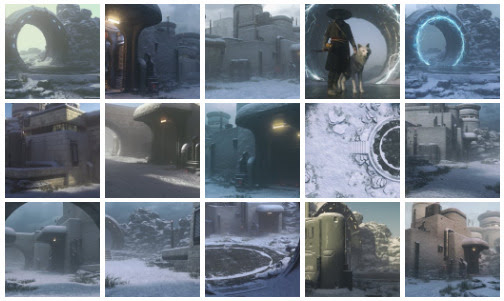
Stonemason’s new Arctic Outpost scene.
Sci-fi Force Field with a number of variants.
Multi Purpose Pick-up, also working via anti-gravity, for your spaceport loading-bays. Similar in design to those in Sky Captain and the World of Tomorrow.
Corruption Builder for DAZ, alien plants for a creepy planetscape. Or perhaps a subway infestation.
Need to blast those nasty corrupt pods? Currently free on DAZ, Secret Underground Props.
Gothic and horror:
Gargoyles of Notre Dame – Set 1: Northwest Tower and Old Stone for Gargoyles of Notre Dame Set 1 (requires the other set). Nice.
Need a gargoyle-master, who sculpts/controls the gargoyles? Weird Neighbour for G8.1M.
Need to destroy the gargoyles? Just pop ’em in the RuralCottage Oven for Poser for a bake-to-smithereens.
Steampunk:
Steampunk Mask-goggles for G8F.
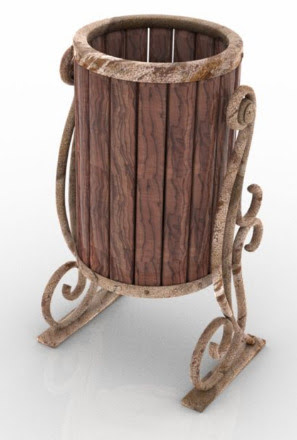
Free, a Curious Street Bin in .OBJ format.
Fantasy:
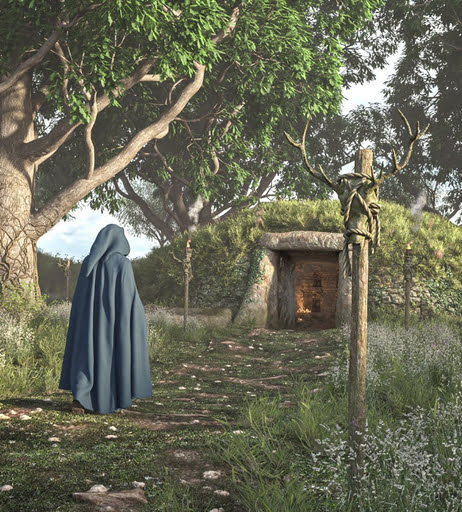
Round Barrow for Simple Grasslands Expanse (requires Simple Grasslands Expanse).
Currently free on DAZ, Giant Lore for Genesis 3 Male. Body and head presets for giant trolls etc.
A free Wreath Decor Crown in .OBJ format. Possibly useful for wood-gods, etc.
D&D Book with cover, clasp and simple open/close.
EArkham’s ZWorld Vile Crawlers II: Dungeon Monsters. Various forms of snake-monster.
Toon:
Veggies Collection for DAZ. I assume this isn’t close to fan-art, but check before commercial use.
A simple low-poly Cartoon Spaceship, free. Suitable for backgrounds, not close-ups.
Cozy Cartoon World – Kitchen Props.
Figures and parts:
Hair Pack for G9 Male, strand-based for DAZ.
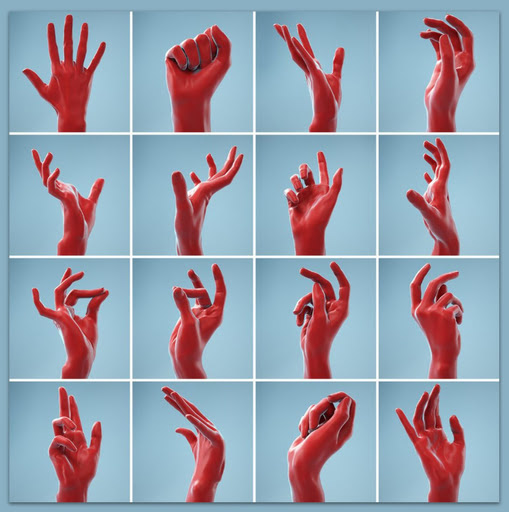
13 Single Hand Poses, props scanned from real hands and packaged in a high-res .FBX format.
V4/M4 still rocks! Free, V4-M4 Rockstar Poses – Guitarists.
Show and Hide Partial Body Poses for G8 and G9.
Lon for M4, a distinctive male head-morph.
Currently free at DAZ, David 5 for the original Genesis figure.
Klyngar for Genesis 9. Fairly obviously a Star Trek Klingon male, so non-Trekkies beware of accidental commercial use.
Landscapes and environments:
Japanese Garden and see also the free Japanese Shrine maiden costume for G9F.
Need moss for your Japanese garden? The new Moss System for DAZ.
EVERYPlant Rope Bridge for Vue. Also available for Poser and DAZ. See also the new freebie Jungle Bridge for DAZ, with its own HDRI file.
Animals:
Nature’s Wonders Beetles and Nature’s Wonders Beetles of the World Volume 1. Plus the free Nature’s Wonders Beetles – Extras.
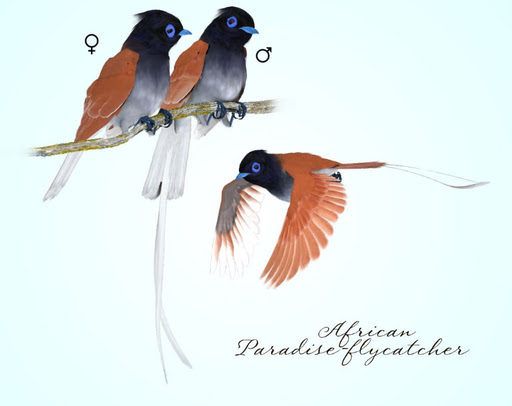
Songbird ReMix Cool & Unusual Birds 4. A pack of the most attractive and fave birds.
Anniemation’s Capybara. Similar in look to the one in the new must-see Blender animated movie Flow, but one can’t copyright a Capybara… so commercial use should be ok.
A new DA Sheep for DAZ Horse 3. Looks as though it’s suited to flocks rather than close-up cuddles.
flLittle Leopards for the Hivewire Housecat. DAZ iRay ‘spots and stripes’ materials for the Hivewire Housecat.
Historical:
A complete and detailed Medieval War Camp for DAZ.
Retro 1930s pulp sci-fi Ajax Spacewoman for La Femme 2.
Rooftop Base, which with a little adaptation could be 1940s Hell’s Kitchen in New York city. Most of Brooklyn’s kids didn’t have rooftop access, but Hell’s Kitchen kids did… and they often made the rooftops their ‘gang HQ’.
Archives:
On 28th March 2025 it was announced that the long-running freebies website ShareCG was soon to close. It appeared to have closed today 4th April 2025, but is now back up again. How long it will stay available is unknown, but it looks like it’s teetering and may be going down very soon. Save anything you want locally, now.
Given this, the site has been selectively archived and is currently uploading (hopefully) to Archive.org as a 1.6Gb .torrent. This includes the Web pages associated with the freebies (often giving vital instructions for use), plus the thumbnailed category-browsing pages (with page URLs, which will perhaps enable the WayBack Machine to show the full page). Here: SHARECG Backup 1.6Gb. Please note this is a new upload, being attempted via .torrent upload, and thus may take a few days to be ingested. Then it should ‘seed fast’ via Archive.org’s servers — though you should still be able to get the .torrent running, just over several days rather than downloading in 30 minutes. The rescue collection as such is Creative Commons Attribution, which seemed the best balance among Archive.org’s limited options. But please note and respect restrictions for individual items.
Also separate bundles for PhilC’s ShareCG Poser scripts and software and Flufz’s ShareCG freebies and Poser scripts. These enabled me to fix the Poser scripts directory pages at this blog.
Tutorials:
SHARECG Backup 1.6Gb has a backup of the site’s Poser and DAZ tutorials.
How to attempt taking a Poser Firefly line-art only render, to Stable Diffusion 1.5, in InvokeAI. With settings.
Make Things Look Handcrafted in Blender (Blender Geometry Nodes Tutorial).
Optimize iRay Renders Guide for DAZ.
Using AI to Texture 3D Blockout Renders & Transform into Key Art, for the free InvokeAI.
ArtSquirrel tests the state of 3D digital sculpting in the latest Blender.
Also, note that it’s been discovered that Library drag-and-drop works from Poser 12 and 13 across to the Poser 2014 stage. Since Poser 12 is only $29 now (from Clip Studio’s Graphixly store), effectively this means old-school users of Poser 2014 have an alternative library option. Install both, run both, then use Poser 12 simply as an efficient drag-drop Library.
Scripts and other auto-helpers:
SHARECG Backup 1.6Gb has a full backup of the site’s Scripts pages and files.
My pages for Poser 11 scripts and for Poser 12 and 13 scripts have been updated. ShareCG links, likely to be broken very soon, now point to archived versions. Not much I can do about older ShareCG links in my content surveys etc. But at least you can still plug the URLs into the Wayback Machine and see what the page looked like.
A survey of tools for extracting individual panels from comics in an automated way. It’s a surprisingly knotty AI/computer problem.
New software releases:
VoicePal, Windows freeware with quite reasonable offline text-to-speech (TTS) in US and UK and other free voices, plus the promise of more advanced AI voices ‘coming soon’. Tested, and it does what it says. But… no advanced AI voices yet. Still, perhaps of use to animators and YouTube tutorial makers.
Test review: AKVIS Coloriage AI 15.x. Basically, it now offers the DeepAI Image Colorizer… but locally and for the Windows desktop with no Python-hassle. Which is nice. Interestingly, it also understands b&w comic-book pages that have a reasonable amount of greyscale on them, and keeps the page-gutters white at the same time. There’s a hefty price tag on it though, $90 + local sales tax. And the Black Friday discounts are usually paltry.
“Diffusion Self-Distillation for Zero-Shot Customized Image Generation”, a paper demonstrating another large step towards AI-generation for comics, which for regular comic-book readers will require hyper-consistent characters, hair and clothing. Though given ChatGPT’s new method of using AI like a Photoshop stylising filter (not yet released as local open source), such things may be moot fairly soon. On that you’ll likely have heard the headlines about all the ‘President Trump, Studio Ghibli-style’ memes ‐ that was the new AI-filter in action. Once that AI-tech hits local PCs, comics-makers sitting on vast Poser/DAZ runtimes are going to be very happy.
The fiddly but very capable comics production software Clip Studio 4.0 has been released, with an underwhelming “Draw directly on 3D models” feature. Which is not like Grease Pencil in Blender, it turns out. Pity.
That’s for now, more later in the springtime!
Firefly line-art only render, to Stable Diffusion 1.5
Set up and pose your 3D figure, in Poser 12 or 13. Use this Disconnect bump maps script and Poser render preset for P13 to get a clean old-school Firefly ‘line-art only’ render with ‘the speckles’ removed, rendered at maybe 1800px. The advantage of this, over Poser’s Comic Book mode, is that Firefly shows all lines.
Reduce it to 768px, take it into a good Stable Diffusion 1.5 model and use with ControlNet ‘Canny’ and suitable prompts (seen here). Here the free model/checkpoint is ADAM v4.5. Don’t forget Clip Skip 0, which seems to help in getting a plain background.
The 3D figure used here is from Nursoda. Very difficult to get the hippy ‘pebble glasses’, and the head shape and hair ‘go manga’. It’s also difficult to prevent SD from trying to make everything female. If you could find a Poser character which didn’t go manga/female, and which 99% kept the shape/outline, then you could use a colour render from Poser as a base colorising blending-layer in Photoshop. Doing that could give you consistent colouring for comics etc.
New for Poser and DAZ – January and February 2025
Time for another survey of the new releases for Poser and DAZ Studio, and also a nod to other notable software, utilities and tutorials. My last such survey was at Christmas 2024, so this covers about the last seven weeks. Just my picks, as usual.
Science fiction:
DMs Hexa Zone, a rare sci-fi setting from DM. For DAZ. See also the new SE Futuristic Hall.
Hover Vehicle for Poser. Nice, in that I can almost believe that’s some kind of Hyperloop-compatible flying car of the future.
Retro-cycberpunk XI Neo Noir Car. Possibly going to gatecrash the new Sci-Fi Transport Tunnel.
Peep Box, for a sleazy ‘lower levels’ sci-fi setting. For Poser and DAZ.
Colony Meat Locker for body/robot storage on a space colony. Poser and DAZ.
Gothic and horror:
Poisen’s new Elysium. 30 different .OBJs for creating unique combinations for your celtic/tribal walls, shrines etc.
A free Catbus, sort of Miyazake fan-art, so I guess it shouldn’t be used commercially.
Currently free on DAZ, the i13 Library Pose Collection, half of which are non-sexy poses suitable for gothic libraries etc.
JW ShapelessM Morphs for Genesis 9. For when your guy gets stuck in the teleporter.
High-quality sheet Draped Ghosts.
Steampunk:
AJ Steampunk Lighthouse for Poser and DAZ.
Steampunk Mask for GF8.
dForce Princess Petra’s Gothic Dress for Genesis 9.
XI GSB Classroom, a Steampunk classroom. Possibly near to fan-art (? Harry Potter etc), so check before commercial use. Also a matching XI GSB School Courtyard. See also the new Punting on the River and Cathedral Hallway Restaurant which could easily serve as the headmaster’s office/staff-room. All for DAZ.
Fantasy:
DMs Hidden Treasure for DAZ Studio.
SY Essential Creature Morphs Genesis 9. Hooves, three fingers etc.
Storybook:
Cozy Cartoon World Living Room for DAZ Studio.
RA Warm and Cute K4, warm winterwear for Kids 4 figures.
Toon:
Free Kappa-kun for Poser, a Japanese-influenced standalone figure.
Free, Tobby elfkin preset for Genesis 8 Male.
Free, toon vampires for Genesis 9 Toon.
Characters, figure clothing and figure animations:
Elon for M3 LowRes. Free.
Free hair and eyebrows meshes for Genesis 9.
Landscapes and environments:
Isis Lock, a classic set of British inland canal locks, with a Millennium-style cast-iron bridge.
Industrial Warehouse Environment for DAZ. Possibly useful for making workplace training videos and graphics. Though it’s quite small (no long aisles for the pickers to race around on electro-trolleys).
EVERYPlant US Great Basin Biome for Poser, a complete plant set. Also for DAZ.
EVERYPlant Great Basin Bristlecone Pine for Poser. Looking like just the sort of thing you might want to export to Vue. Vue export still works, you just need to also have Poser 11 on the PC, so Vue can see the Poser 11 SDK.
A free Dragons Lair and bridge. For DAZ.
Waterfall Builder kit for DAZ. See also the new Riverstone Gorge for DAZ.
Animals:
Nature’s Wonders Mantises and Nature’s Wonders Mantises of the World Volume 1 expansion. Biologically correct posable models. For Poser and DAZ.
Wombat by AM, with wearable fur preset.
Quoll by AM, with wearable fur preset. Apparently these are real, but with a little recolour could easily be fantasy/sci-fi.
Herbie, a sandy desert style chicken.
Emperor Penguins for DAZ, with furry chicks.
Historical:
A huge but rather believable castle for Bryce, Bryce_Castle_1. Free. Could be exported to Vue.
MS24 Abandoned Train Depot for Vue.
BV141 Asymmetrical Reconnaissance Aircraft. A wartime German spy plane. For Poser and DAZ.
Tutorials:
Creating texture overlays in Poser and fixing any broken Python scripts.
Optimize iRay Renders in DAZ.
Tutorial: Where and How to Install Poser Content for DS – Part 1 and Part 2.
How to photobash (combine multiple assets into a final image) 10x faster using the ‘Photoshop of AI’, the free Invoke AI.
“Weird black and white blobs might be the secret to controlling AI images”. Again, a tutorial for the free Invoke AI. Stark contrast changes can ‘guide’ the underlying image formation process, along with correct prompting.
David Revoy tells you all about All about LIQUIFY in Krita on YouTube. Krita is the free painting and drawing software, and now quite mature.
Updated, the AI list for artists using Stable Diffusion 1.5. New LORAs which offer particular non-photoreal styles in painting, sketching, illustration etc.
Scripts and other auto-helpers:
A script for DAZ Studio that tells you what version of Genesis character is, in your saved scene.
A useful Python script for Stable Diffusion users who have collected large local LORA stashes. The script reads the LORA name from the plaintext .PNG metadata, as found in an old image you might want to recreate. It then looks in your local LORA library, finds the LORA required to recreate that image, and copies it into your active Stable Diffusion LORA folder. You’re then ready to go, without a lot of faffing around trying to manually find the required LORA.
Got an Amazon WishList? Your personal notes on your items all became unreadably small and grey, recently. The browser UserScript ‘Amazon Wishlist item user-comments / user-notes – fix’ fixes the problem.
New software releases:
The new release Audiblez 4.0, now with a graphical user-interface. Free and open source. Create local AI audio voice readings and audiobooks, using the CPU rather than your graphics card. Possibly useful for animators who require non-robotic voices and long-form audio, produced locally.
The excellent freeware Anytxt Searcher has a new release and can now also run on Mac and Linux, as well as Windows. It quickly searches across the text inside your desktop PC’s documents. You can use regex for proximity search, by selecting ‘Regular Match’ in the search-type drop-down and then using (for example)…
\b(?:billboard\W+(?:\w+\W+){1,9}?script|script\W+(?:\w+\W+){1,9}?billboard)\b
This regex will find all instances of billboard occurring within nine words of script. You can see how useful proximity search might be if you have one of the local archives of Poser forums, such as those available on Archive.org.
The Poser 12 for $29 offer is still on, at Clip Studio’s web store Graphixly.
That’s all for now! More picks in the springtime.
Restore Drag and Drop from the Poser and DAZ library software ‘PzDB’
How to restore Drag and Drop from the Poser and DAZ library software PzDB, on an older Windows OS.
Problem: Likely you have been installing various Microsoft updates and C++ redistributables and so on, on an older version of Windows. These may have overwritten elements which enable drag and drop of files from software which uses an underlying MS Access 2007 database. As a consequence, your PzDB may have lost its ability to drag-and-drop from the search results, to load the chosen file into your Poser viewport.
Solution: Get the Microsoft Office Access Runtime and Data Connectivity 2007 Service Pack 3 (SP3) at the Microsoft Update Catalog. There get the accessrtsp3-en-us cab.
Once downloaded, right-click on and unzip the .cab as if it was a normal .zip file. Once done, double-click the accessrtsp3-en-us.msp installer. The Access 2007 components will be updated. There will be no ‘success’ message, but you can tell if it worked. No need to reboot now.
Launch PzDB and your drag-and-drop capability should have returned. It worked for me. Also seems to have repaired some lost functionality on the top menu icons.
Be aware that this will overwrite the core mso.dll in C:\Program Files (x86)\Common Files\microsoft shared\OFFICE12 with a possibly older version than you have. This may affect Office 2007 programs such as Word and Excel.
The alterative for drag-and-drop is to use the bare-bones but excellent external AIR library in Poser Pro 2014. It’s amazingly quick at providing results. This does, however, require that Poser 2014 be running first. The Air library can launch without first launching Poser Pro 2014, but then its search-box does not return results. So 2014 does need to be running. You will also need to update AIR to the latest version, for security. What you don’t get with the Air library is PzDB’s sophisticated grouping and tagging.
Grotto’s Vampire demo and AI test
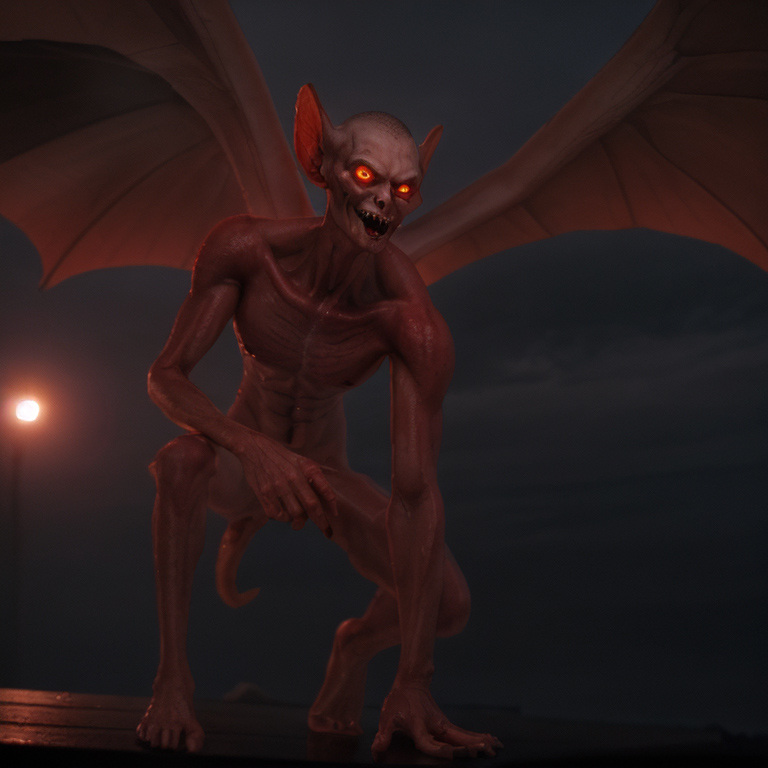
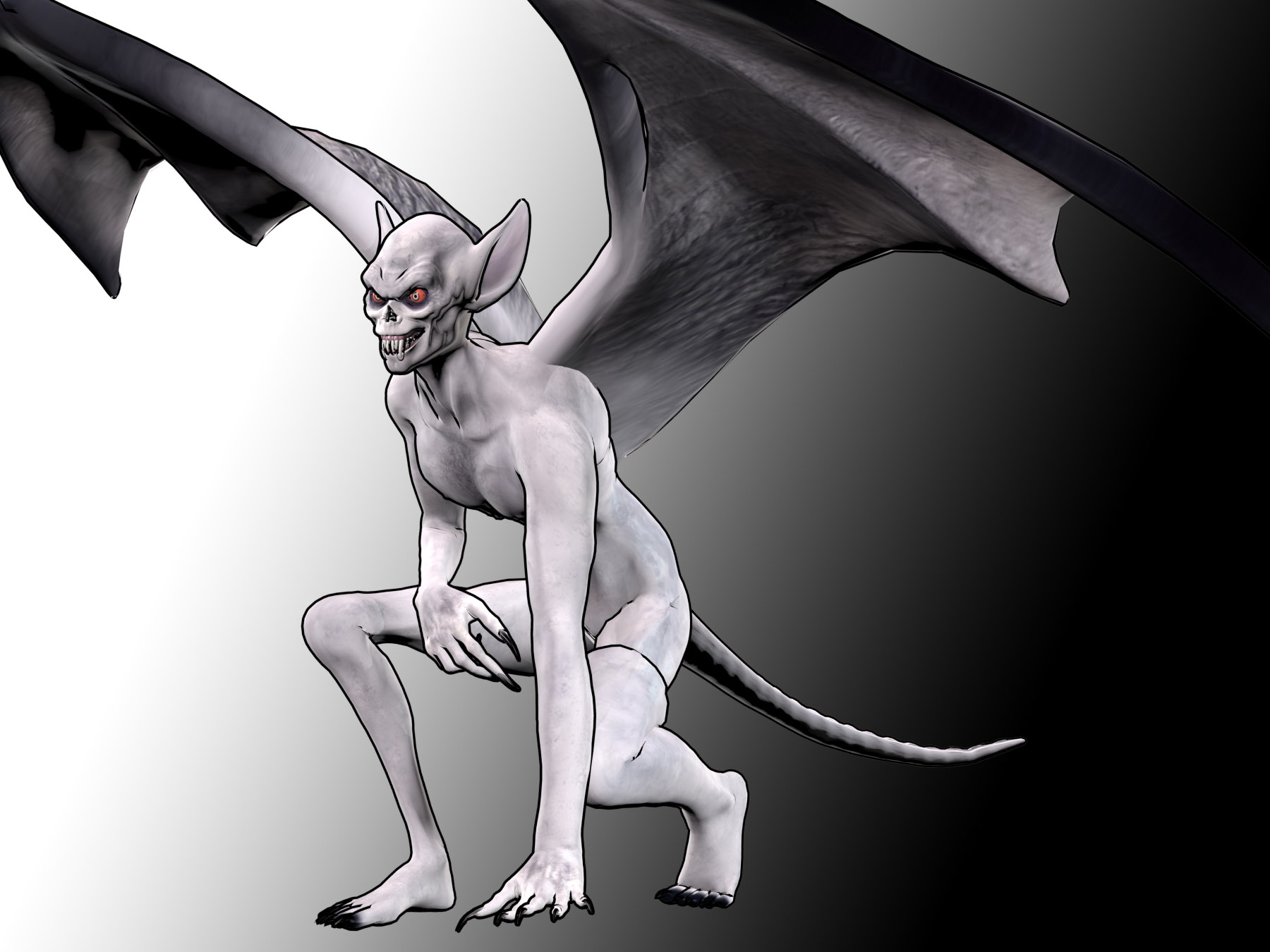
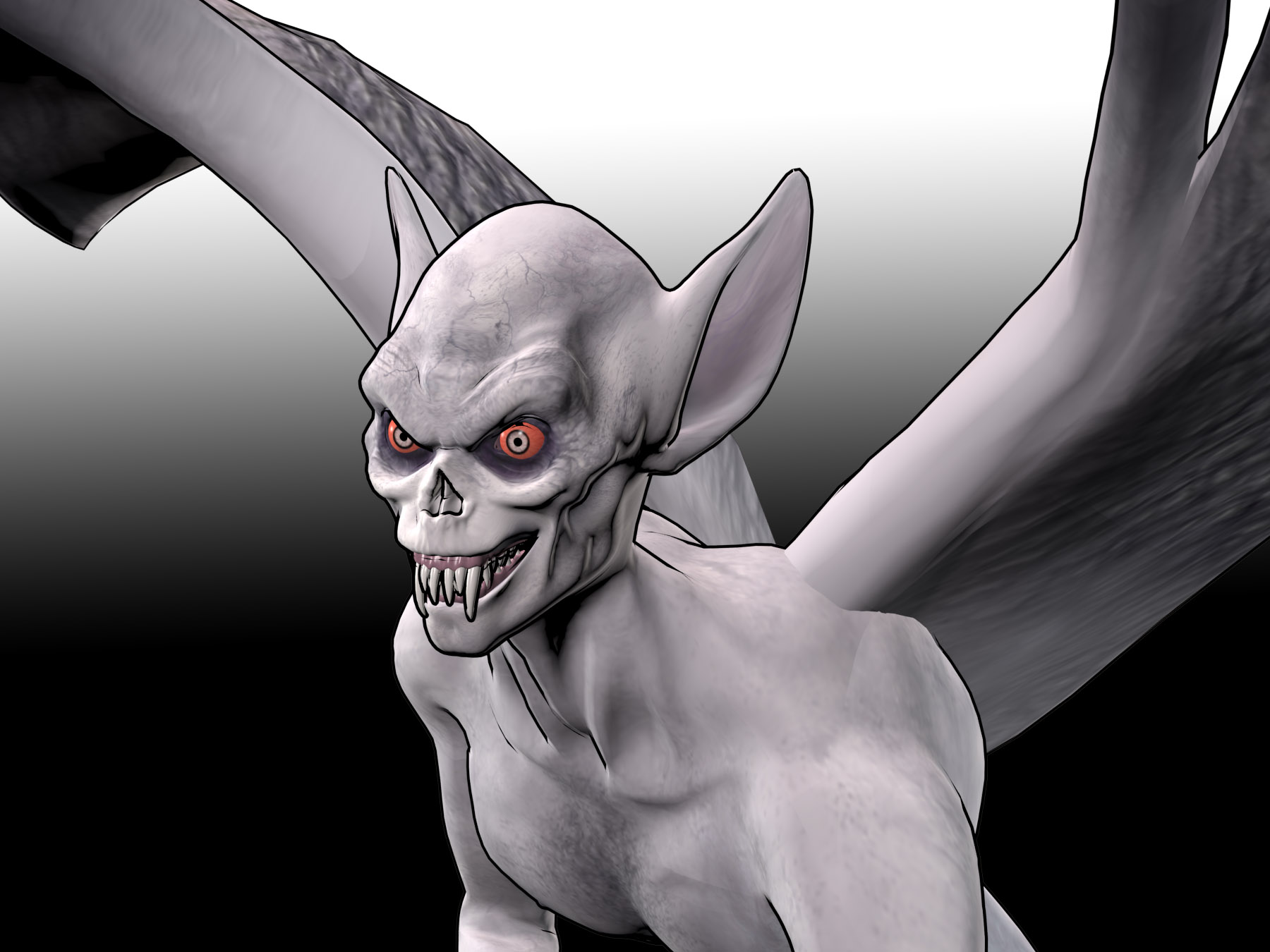
A quick demo of the Grotto’s Vampire for Michael 3 Poser figure from Renderosity, which I had in this year’s ‘Black Friday sale’. Rendered in the Poser software, with some ‘secret sauce’ for the final rendering.
Install and load:
1. Install both .ZIP files to the Runtime, as usual.
2. Figures | DAZ People | and load Michael 3 to the Poser stage. Select BODY rather than Hip. No special M4 morph packs are required.
3. Figures | Grotto’s Vampire | add wings and tail to M3.
4. Pose | G VAMPIRE MORPH-MATL | and load GROTTO VAMPIRE ALL. This loads the morphs. There are 60 custom morphs with dials.
5. Pose | G VAMPIRE MORPH-MATL | and load GROTTO VAMPIRE. This loads the default textures.
6. Pose | G VAMPIRE POSES has a range of preset poses for the figure. See also: Expressions | G VAMPIRE EXPRESSIONS and Hands | G VAMPIRE HANDS
7. Save the base vampire figure to the Library, choosing “Whole Group” when prompted. Now you won’t have to set up the figure again in future.
Here are a few demo render in Real-time Comic Book. Less successful at taking line-art than Mr. Happy, a figure from the same maker. But still well worth having, packed with morphs, and it can take M3 poses and expressions. Possibly also additional M3 head and body morphs.
OK. Now a little experiment. Render to a basic real-time Comic Book + Smooth Shaded render. Make it a 768px square .PNG from Poser…
I then tried “rendering” it with AI. Specifically with InvokeAI and the epicRealism v5 photoreal model. I dropped the .PNG into a ControlNet (‘Canny’ edge trace) and after a few goes and some tinkering with the text-prompt I had this in about six seconds…
The final prompt was…
Positive: A vampire at night, kneeling on a building in Gotham, stormy night, red eyes, dead shiny meat skin, fangs, wings, high detail, dramatic lighting, film-noir lighting
Negative: Batman, female.
Is it Poser, is it AI? It’s both. Just another way of rendering.
Installing and troubleshooting a RTX 3060 graphics card
Hurrah! Through the great kindness of a benefactor, who was upgrading to a blisteringly fast 40x series card, I now have a MSI GeForce RTX 3060 Ventus 2X 12GB graphics-card. I had sort of expected I might be gifted it, but I wasn’t sure until he actually got his new card.
So… for the aid of other perplexed card-wranglers, here is my step-by step guide to how to install a 3060 12Gb card to a HP Z600 workstation PC (with Windows 7 as the OS).
1. First, the happy Z600 owner needs to acquire a 6pin to 8pin PSU cable adapter. A Z600’s PSU has only one cable to power a graphics card, and it’s the wrong sort for a 3060 card. But first unlatch the PC’s case-front, and make absolutely sure the card cable is clipped to the PSU box and is actually available. It should be a small black 6-pin connector marked “P10”. Ok, it it’s there you now purchase a ’10cm PCI Express PCIe 6 Pin to 8 Pin Graphics Card Power Adapter Cable’ for a few dollars, from eBay. This additional cable will adapt the Z600 power supply cable to feed the new card’s 8-pin.
2. You may also need a newer type of monitor cable. My MSI graphics-card has one HDMI out (v2.1, supporting 4k display) socket and several DisplayPorts (v1.4a) sockets. Work out what cable you need and order accordingly, to connect the card to the monitor(s).
3. Ok. Download the Display Driver Uninstaller (DDU) freeware for Windows. Unless you first uninstall your existing card’s drivers, the new 3060 will send “no signal” to the monitor and the new NVIDIA drivers will also refuse to install. To get around these joint problems we need to first cleanly uninstall everything from NVIDIA, and shutdown the PC ready to fit the new card. DDU does this easily and automatically. Place DDU in its own folder, and extract. Don’t run it yet.
4. Download the NVIDIA GeForce 472.12-desktop-win7-64bit-international-whql.exe drivers for Windows 7. These are recommended on Windows 7 forums, and are also recommended by rival card company GigaByte for exactly the same card specs. Rival card maker MSI just sends buyers to the NVIDIA website and hopes for the best, which… won’t end well with Windows 7.
5. Ok, unbox and unwrap. Gently remove the thin protective sleeve from the card’s PCI slot connectors, to reveal the row of gold ‘teeth’ at the base of the card. These will soon be connecting the card to the motherboard PCI slot. Make sure there are no flecks or damage on these, but try to keep your fingers off them. Place the extracted card on top of its protective wrapper, ready for lifting in and fitting into the PC.
6. Open the PC case. With a flat-head screwdriver, remove the foam-top box. Four screws hold this to the inside of the Z600’s case box. If it’s not removed then the new big card will prevent the case lid from closing, later on.
7. Right, we’re ready. Load the Display Driver Uninstaller freeware, choose the third option (‘close down the PC on finishing, to fit a new card’). The old drivers are then fully uninstalled and the OS cleaned of traces of NVIDIA. The PC shuts down.
8. Now with the PC shut down you ease out the two restraining clips at the back of the Z600, which allows the pulling back of a metal bar holding in the fitted PCI cards. You can now gently ease out the old graphics card, and carefully unclip the end section. Place it somewhere safe. Now remove a second small metal panel-cover from the back of the PC, as the new card is big and needs not one but two panels empty. One rear panel-slot will allow access to the card’s monitor connectors, while the other will vent heat.
9. Fit the new card. It’s heavy, so get a good grip. Ease it in at one end of the slot, then slowly press in the other end until you hear the socket’s clip ‘snick’ home. Close the two clips at the back of the PC, to restore the small metal retaining bar. Once the card is firmly seated and locked in, connect the power cable via the short adapter cable you purchased.
10. Connect the monitor cable to the card, and restart the PC. Turn on the monitor and press on its plastic ‘internal buttons’ to tell it to use HDMI or Displayport, if you were using something else before. If the cables are working and the monitor is in the same era as the card, then you should see Windows starting up. In super-tastic old-school VGA 800px mode! That’s because we don’t have the new drivers installed yet.
11. Ok, now go to your saved 472.12-desktop-win7-64bit-international-whql.exe installer and run it. The installer will (hopefully) refrain from saying ‘not compatible’. As it might have done, had you had tried to install with the old card and drivers still in place. Instead it will now install the new fresh drivers, and then reboot the PC. You have two choices, drivers or drivers plus NVIDIA extras. If you want some control then include the extras. My particular MSI card also has MSI’s Afterburner software (free, download it from their site) which can make it easier to ‘overclock’ the card and also gives you your juicy card stats in a slick GUI.
12. Your new 3060 card should now be driver powered, running properly and driving your monitor. With the full 12Gb of memory detected on the card, too. Make sure all physical connections are secure, and close up the case. In the Windows Control Panel, switch your audio back to ‘via Speakers’ to get it working again. NVIDIA’s own sound driver, installed along with the graphics driver, will have hijacked the audio and that’s why your headphones will suddenly be silent.
That’s it.
I don’t recommended installing later NVIDIA drivers than 472.12 (Sept 2020), for Windows 7. I tried a later installer, but then the software windows and menus became noticeably sluggish and the NVIDIA Control Panel crashed on launch. I used DDU to uninstall, and re-installed 472.12. Everything was nice and smooth again. With these drivers you won’t get the TensorRX speed-up that NVIDIA added to the drivers for generative AI users. But with the magic new LCM Lora that hardly matters any more.
By the way, I don’t know who informed me that Poser 11 didn’t support 30x series NVIDIA cards, but they were wrong. A big 3600px SuperFly render happens in seconds on the new card, using Poser 11. Possibly what they meant was that P11 doesn’t support the advanced OptiX capabilities of a 30-series card.
Update: Some comments from gamers suggested it sounds really noisy. But for even heavy AI generation (a batch of eight) using InvokeAI 3 the card stays whisper quiet. I have no problems with fan-noise, but the fans are on (you can feel the air flow). I can only assume the gamers were running a heavy game at 120fps at 4k, and stressing the card.
G8F to Stable Diffusion Openpose
Free and easy, G8F to Openpose, for Stable Diffusion UIs with ControlNet. Available now.
1. Get the free Daz Studio G8_OpenPoseRig V1.0. The end result is intended for Stable Diffusion’s ControlNet / Posenet module, which accepts images of poses in the Openpose format.
2. Once unzipped and manually merge-installed to the DAZ top-level content folder, open DAZ Studio and find G8_OpenPoseRig in the Library. It’s not under People | G8 Female. Instead it’s under Figures | Rogue Pilot | Open Pose Rig. Great if you know that, but almost un-findable if you don’t.
3. Load the G8F via !FullScene and switch the DAZ Studio viewport’s real-time rendering to Smooth Shaded. Apply a pose. Add another figure, if you want a two-person picture from SD. Tweak the bone positions in Posing / Shaping, if required. You can also load a proper G8F alongside, to see the pose on a more human figure.
Ideally you’ll then render this special Openpose skeleton at the standard SD image-generation size of either 512px, 768px (for SD 1.5) or 1024px (for SDXL), output to a .PNG file. It doesn’t matter if figures are highlight-selected or if viewport widgets are visible. The viewport clutter won’t be in the render.
(Yes, they look like .BVH stick-figures, but are not. So far as I can tell the only way to convert .BVH to Openpose is by dropping the .BVH onto this special G8F and then rendering a frame).
4. That’s it. Drag and drop the .PNG render into your ControlNet’s input window. Your subsequent Stable Diffusion image generation will then, assuming you have a suitable workflow and a pose-aligned prompt, ‘more or less’ conform to the figure poses in your Openpose guide-image. It’s not going to be exact, the Openpose being more of a guideline for SD. (If you want ‘exact’ you instead need Bondware Poser 12 or 13, and drop a Firefly lineart render into a Canny Controlnet, then use a low CFG with Img2Img using a full render).
Expressions are instead controlled with a prompt, and perhaps guided by the addition of a LORA. SD is weak at generating several things, and subtle controllable expressions is one of them.
Note the comment on the G8_OpenPoseRig page asking for this freebie to be updated for ControlNet 1.1, which he says can handle finger-bones and thus hands. This freebie doesn’t support these 1.1 style hands, and it hasn’t yet been updated for them. Thus… for 1.1+ hands support you would instead need Poser 12 or 13 with Ken’s paid OpenPose for Poser 12 plugin script.
Note that Ken’s scripts are encrypted and thus require Windows 10 or higher. Note also that Poser 12 can currently be had for $29.
Free scripts and workflows to convert older poses to G8F:
Many old poses in .PZ2 Poser format can just be drag-dropped to a G8, and may be ‘good enough’. But if you need more precise conversion, try…
V3/A3 Pose Transfer to G8F (Victoria 3, Aiko 3). Also try these scripts.
V4/A4 Pose Transfer to G8F (Victoria 4, Aiko 4).
G1F Pose Transfer to G8F (Genesis 1)
G2F Pose Transfer to G8F (Genesis 2).
G3F to G8F Pose Adjust Scripts.
You might also look at the DAZ Pose Converter (Standalone), also free. Half the many commenters just can’t get it to work, the other half think it’s ‘the best thing since sliced bread’. Apparently it can do batch conversion, if you can get it to work. I couldn’t.
Putting a 3060 card in a Z600
I have a faint chance of getting hold of a Nvidia RTX 3060 12Gb graphics card. To aid others, here are the results of my few hours of advance research re: putting a 3060 in a reliable old HP Z600 which has fast Xeon CPUs (a workstation that was once ‘the PC of choice’ for Poser users)…
Is it even possible?: Yes (video 1, video 2).
Windows 7 NVIDIA drivers: Yes, from August 2022. These support all the 30 series cards, but not the 40 or the coming 50 series. A HP Z600 workstation runs best with its dedicated Windows 7 drivers. Though many gamers just slap Windows 10 on a SSD and hope for the best. (Update: 472.12-desktop-win7-64bit-international-whql.exe are what’s needed for Windows 7, and they also support 12Gb cards).
Windows drivers tweaked for AI: No, not the newer and allegedly ‘AI tweaked’ drivers, at least not if you’re using a Z600 with the expected Windows 7 OS and the original set of workstation drivers.
DAZ Studio: The highest you’ll go with Windows 7 drivers is DAZ Studio 4.21.0.5 (November 2022), due to DAZ’s huge hike in NVIDIA driver requirements.
Poser: You’ll have to say goodbye to photoreal GPU rendering in Poser 11, as only Poser 12 and 13 support 30 series cards. I was misinformed. The 30-series is supported by P11. Perhaps it’s the OptiX rendering that’s not supported?
Card length/width: Yes, length should be just about fine though you want to get one of the shorter versions to be sure. Most of them are also fat things, so make sure you have the width as well, and no other sound cards etc in the way.
Slots on the motherboard: Yes, your card should be PCIe x16 and the Z600 has the required PCIe x16 slot. Make sure you push the new card into the slot your current graphics card is sitting in, and firmly seat it. Remember which slot was being used for a card, when you pull the old one out.
PCIE: Should be fine. Your 3060 card uses PCIE 4.0… but PCIE 4.0 is fully backwards compatible with the PCIE 2.0 (aka Gen2) used by your PCIe x16 slot. Actually I guess the difference may help your motherboard cope with the fast card?
Adequate Z600 power supply: Yes. A standard Z600 PSU pumps out 650W, and they’re reliable and modular (very easily replaceable). At least 600W is required loading and unloading huge Stable Diffusion checkpoint files into the card’s VRAM. The power-spiking will shorten the life of a weaker PSU.
Z600 power-supply cable already in use? A Z600 PSU has only one cable for a card. Unlatch the case front and make absolutely sure it’s clipped to the PSU and available. It should be a black 6-pin marked “P10”.
Z600 power-supply cable has suitable pins: No, it only has six. But there’s an easy fix — a simple ’10cm PCI Express PCIe 6 Pin to 8 Pin Graphics Card Power Adapter Cable’ for a few dollars. These are widely available on Amazon or eBay. The PSU should give the card 216W of power via the PCI-e cable/adapter, plus 75W drawn from the motherboard card-slot. This will be more than enough to fully power the card…
Fitting the adapter also usefully gives you another 10cm to reach the card socket, if required. I’ve read of no problems with melting, but it’s best to check the cable after a few hours of heavy use, and again a few days later.
From the above linked video, showing a fitted RTX 3060 card in a Z600.
Will it connect my monitors? You’ll have to look at your monitor cable(s) and connector types. I have both a normal monitor and a draw-on-the-screen XP-Pen monitor to connect. The card will likely only have one HDMI (v2.1, supporting 4k) and several DisplayPorts (v1.4a).
Card noise: I read that a 3060 can be noisy when two fans are spinning at full tilt in heavy max-settings gameplay. I’m not sure how much strain a real-time iRay viewport or AI work would put on such a card, but I guess the fans will spin up. There is an unofficial way to reduce voltage and thus make the fans quieter, while also saving power. There is also now an official way (Nvidia’s “0dB Technology”) to have the fans turn off when the PSU is at a low wattage + the card is below a safe temperature. Thus they won’t be whirring all night, if the PC is mostly idling along with a few torrents.
Air flow: Never jam the back of the Z600 up against a wall, and especially if you’re adding a big new card. It needs a free outward flow of air at the back. The case is superbly designed for good air flow and heat dispersal, but before fitting the card you might also de-dust the outer vents.
Electric bill: Yes, potentially quite a lot higher. A Z600 that shipped with an old standard NVIDIA Quadro 2000 would have a card drawing about 62w max. You’ll likely be more than doubling that with a 3060. Maybe 140w, and going up to 170w if you’re a heavy game player or overnight batch renderer. Your PCI-e cable/adapter cable from the PSU (650w, pushing 216w to the card cable) should handle a 170w power draw with no problem, but there will be a higher electric bill over time. Especially if the card is running overnight on renders, batch AI etc. Effectively, it could be like your home having an extra 100w light-bulb burning, all the time. But you may be able to reduce energy-use elsewhere in the home, to compensate.