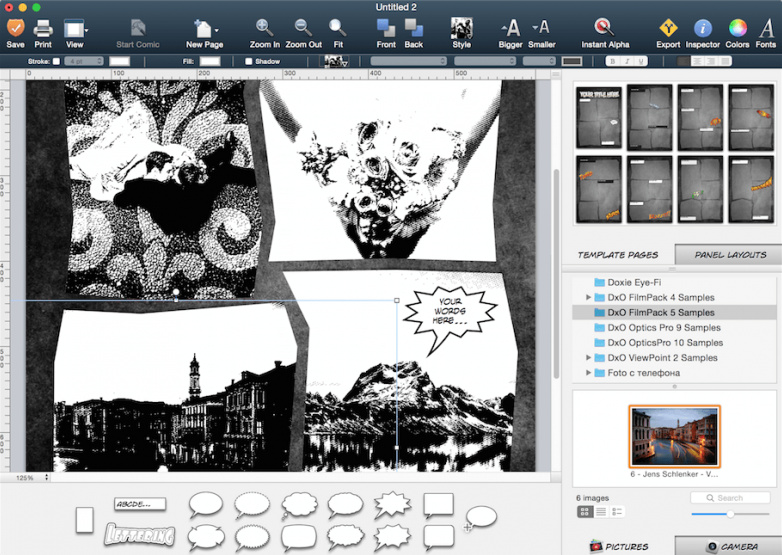
Clip Studio Paint (formerly much better known as Manga Studio) has just been released for the iPad.
Category Archives: Comics
Reconstructing the “Marvel Method”
Below is my itemisation of the “Marvel Method” of making a comic-book, as best as I can make it out from reading various interviews from Stan Lee / Jack Kirby glory days.
The method began at Atlas and would later change and morph at Marvel in the 1970s, but here’s what it was meant to be originally in the early days of Marvel…
1) Stan Lee wrote (or told face-to-face, sometimes with physical play-acting) a quick loose plot treatment for the comic’s next issue, ranging in length from a simple paragraph to a page or two. Just a plot with beginning – middle – end, and some general indications of where each scene might be set and what the character motivations/reactions might be at specific points. There were almost no detailed descriptions for the artist to follow, unless Lee wanted something very specific or innovative in a particular scene. The ending might also be made quite specific, in terms of exactly how things should end up in the final scenes.
2) The artist would break this story down into pages of framed art, pace the story across the number of pages available (sans splash page). The character designs and relationships/motivations had of course already been set up by previous issues of the title, so the artist could work pretty much ‘on automatic’ in that respect. Then he laid out the story across each page, with rough pencils. He might have to micro-plot specific scenes that the wider plot seemed to require, and/or bring a secondary character into the scene if that was needed. He added visual emphases and visual “cliffhanger” moments.
Obviously here the “Marvel Method” assumed a top-flight action artist like Kirby etc, as the method is not going to work with talent that has lesser visualisation and pacing skills. Or with comics that talk-talk-talk rather than show. Or with comics that need elaborate multi-issue pre-plotting and fiddly sub-plots.
3) The artist of course knows to leave space on the penciled pages for caption boxes or dialogue balloons, but doesn’t indicate exactly where they would be. He likely adds margin notes on the top of the page, to: i) explain the action to the writer, if the pencils are very rough or he’s invented a filler scene; or ii) repeat the section of the writer’s plot he’s covering, to jog the writer’s memory and/or for future reference later down the production line. That would be especially important if the plot had been delivered verbally.
4) The artist then added the splash (opening) full-page to summarise the story, meaning the story as they had imagined it on the page.
5) Stan Lee then came back into the process. He approved the penciled art pages for conforming to his basic plot, picked up errors and misinterpretations (most likely via notes to the inker, such as “the people in this cafe need to be more seedy-looking, please”).
7) Stan Lee penciled in the placing and size of the caption boxes, and suitably sized balloons, so as to meld these well with the artwork. Lee also said in one interview that he invented and penciled in all the sound-effect words (THHWONK! etc) at that point. This means the writer must also have an excellent sense of graphic design and spacing in page layout.
8) Once that was done he had a good idea of how wordy each page could be. He then wrote the copy for the caption boxes and dialogue/thought balloons, so as to fit with what was in the panels — the facial expressions, the details shown in the settings, any new elements the artist added etc. His captions would also help fill in plot aspects that were not being conveyed by the visuals.
Stan Lee: “And I found, as I was doing it, it made it much more enjoyable. Because I wasn’t looking at blank paper in a typewriter, but I was writing copy [dialogue, captions] for people, for drawings that I was looking at, with expressions and actions. I felt carried away.” [He would also ‘act out loud’ his ideas for lines, trying out how they sounded, in the same way that Robert E. Howard had done in the 1930s].
9) Small gaps left over in the layout might be filled with occasional footnotes to the reader, which referred them back to events in previous issues or in other titles. This helped to cross-sell titles to readers, and also helped the creatives keep track of continuity.
10) Did Lee also pencil in the lettering of his copy-writing? I guess it would have saved him typing time, and it seems he did — as in one interview he admitted: “I write the captions and dialogue [aka ‘the copy’], usually right on the original artwork”. This would also have helped with exactly fitting the copy to the space available on the page, making the finished page look even more elegantly arranged. Which means the writer also has to have lettering and copy-fitting skills, albeit not in ink.
The penciled and laid-out and written pages were presumably then photographed as a backup, and then went off to the inker of the artwork. Then to a letterer and colourist, under the supervision of an editor.
That, as best I can re-construct it, is how it was done.
Graphic Medicine
Graphic Medicine : the interaction of comics & healthcare. A very vigorous and dedicated website complete with: an occasional podcast; a blog; a long-running “This Week in Graphic Medicine” news/link digest; reviews of strips and graphic novels; and even a long-running annual conference (2018: Vermont, east coast of the USA / 2019: Brighton UK).
The new relatively-affordable 10-inch tablets with 1920px screens are going to provide an excellent platform for such comics. Add to that Poser’s speedy comic-book rendering abilities and vast royalty-free content library, and there seems to be a huge open opportunity here for talent to get into creating healthcare comics, and then to teach others to make them. That would have to be about teaching people to make them in a non-naff way, a way which meets the high 2D standards which both kids and regular adult comics-readers now expect. Ugly grainy 3D textures with a few toon lines over the top, and “wanna-be-3D-really” shadows, are not going to be acceptable in a therapeutic context.
Rift Guardian tooned
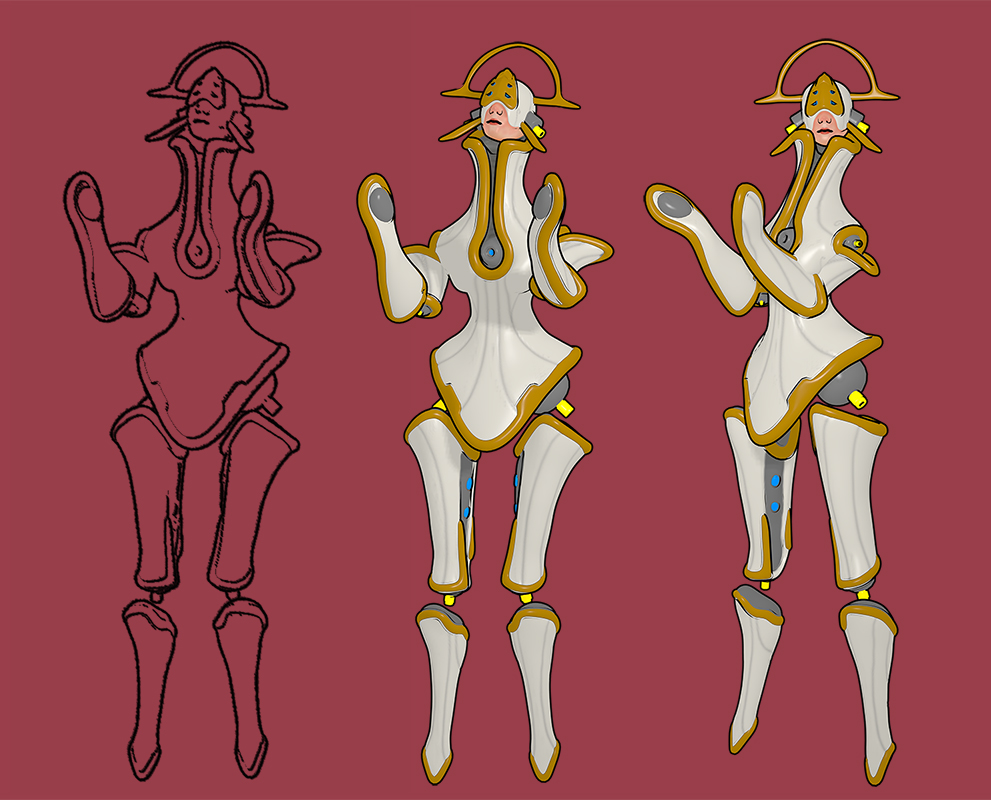
I picked up Rift Guardian for Poser, in a recent DAZ sale, and I’m pleased to say it toons up beautifully in Poser 11’s Comic Book mode, without even having to change any textures.
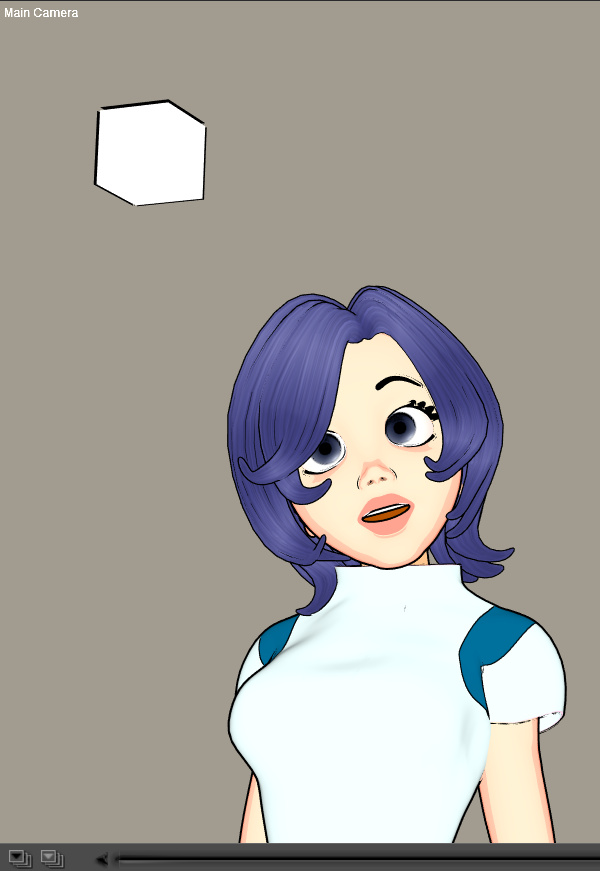
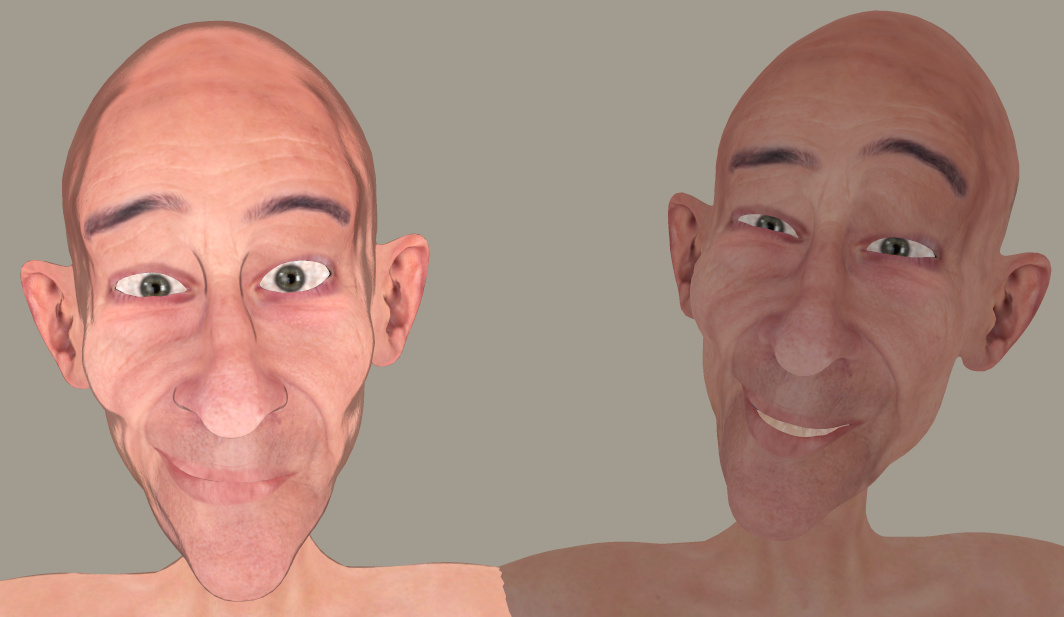
Left figure: my custom ‘2000AD’ Poser sketch preset, run on the Comic Book mode b&w lines only. (12 seconds render). Right figures: Straightforward Comic Book mode (flat lighting, one extra light for brightness), default 3D textures. (5 second renders at 6000 pixels).
I discovered that Darkseal’s standalone characters take Nursoda character poses, though of course not all suit Rift Guardian.
Manga Studio at half-price
Smith Micro currently have one of their periodic 50% software sales on the 2D comics maker’s choice, Clip Studio (aka Manga Studio). Get the lesser ‘Pro’ version for $25, or the more fully-featured Clip Studio Paint EX for $87. The latter being the real ‘pro’ choice.
As many readers will know, Clip Studio was formerly called Manga Studio. It’s the same software, just a new name. The reason for the change was that the Japanese developers of the software, Celsys, required all their worldwide translators and agents to use the Japanese name — Clip-Studio — so as to have uniform global branding. I don’t think they were aware of the unfortunate connotations of the word ‘clip’ in English — naff ‘clip-art’; clipped as in ‘shortened, lesser, cut-down’; and ‘clip-joint’ being slang for a sleazy scam.
Anyway, the deed is done and the name is changed now.
If you have Poser then I guess you’re probably not going to be very dependent on the stock 3D mannikin figures, which ship with Clip Studio Paint EX. Though they do look kind of handy if you’re drawing by hand. They may even be useful for quickly story-boarding your comic / nailing down your panel layout, before setting things up in Poser.
Though I should point out that Clip Studio is very complex, as complex as Photoshop in its own way. So, if you already have your Poser PNG character/prop/background renders in a folder, it’s only fair to point out that the software Comic Life 3.5 could be a much easier alternative in which to do your panel layouts and lettering. (Ignore Comic Life 3’s very cheesy kiddy-fied marketing material, it’s perfectly capable of slick quality output).
But back to Clip Studio. EX is the version that can do 3D import, which is great if you need something that goes beyond the stock rag-dolls or the couple of manga schoolkids which ship with the software. Such as complex clothes, sci-fi uniforms, ten-headed monster-dogs from the planet Wuff-Wuff, that kind of thing. I’ve tried the demo without becoming a user of the software, but last I heard 3D import is best done as .FBX (which allows some re-posing) and .OBJ (static), and these can be imported with materials intact if you first package everything (materials, .MTL and 3D mesh) up into a single .ZIP file.
The EX version also allows multi-page documents and also helps with the printing specs. I read that it can even export for a Kindle ereader or as an .ePub.
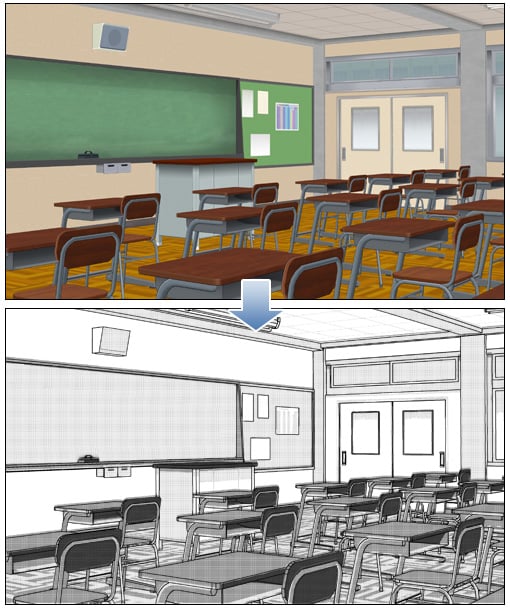
I see that EX also offers “Convert 3D objects into 2D LT (line and tones)”. But it appears that this is a fixed-pixel-width toon line outline, not to be compared with the more artistic results one can get with flat lighting and Poser’s Comic Book preview mode…
You can see it’s also adding manga zip tones, rather intelligently.
“Now, where did I put that Sonic Screwdriver…”
I was pleased to find another H.P. Lovecraft for Poser, albeit as a morph for the older character of Michael 3. It’s OK-ish, but without the required morphs it’s not as accurate as the dedicated character from Meshbox. I discovered that there are quite a few packs of “famous faces” made for M3 and still floating around, as I had a quick look around and a runtime search for superhero freebies for M4 / Freak 4. I dug up a David Tennant (Doctor Who) and an Edgar Allan Poe, both for M3, for instance.
Such faces are mostly for M3 and require the Head morphs from the ‘Michael 3.0 Head & Body Morphs’ pack [update: no longer sold]…
1. Load M3 base character from Figures | Daz People
2. Then go to Pose | !M3 All Morphs INJ | ! All Head Morphs.
3. Then select the Head of M3, and load your character head.
Many such also benefit from the Brom morphs.
It’s not the “David Tennant for M4, that looks nothing like him”. It’s another one, tucked away in an old multi-pack of superhero morphs for M3. The problem with a David Tennant as Doctor Who is, of course, finding the Fabulous Hair of Cosmic Awesomeness that will also look good in Poser’s Comic Book mode. The hair is so Awesome it has whole blogs devoted to it, and deservedly so.
Fancy trans-mapped hair is no good for Poser’s Comic Book preview renderer. Though Maraboo Hair looks like a useful starter, if you wanted to render in full 3D. The popular Reivel Hair was also a possibility.
In the end, the M3 hair seen above was down to a surprising combination of the ancient Ben hair and the almost-as-ancient M3 Star Trek hair for McCoy.
The Ben hair can be easily detached in pieces and re-positioned over the McCoy base, and as long as you don’t delete the base scalp (hide it in the body) the Ben hair doesn’t revert to bare guide hairs.
The David Tennant Poser-portrait above is just an alpha version, and I haven’t even checked it against reference photos yet. But it’s already somewhat recognizable. The M3 coat has a strange forward bump, as if it’s expecting V4 to drop in at any moment, but it’ll do for now.
Poser Python Tools – a review
I took a risk and purchased the old Poser Python tools with source code, currently on a $7 clearance discount from Renderosity. I was curious about what the eyetarget.py and materialtoon.py scripts do. The scripts were made by Kazuhiro Eguchi in Japan in 2010, and last updated 2012, and as such the documentation on the store is sparse. They are not a Merchant Resource. I installed them in Poser 11 Pro SR6 to C:\Program Files\Smith Micro\Poser 11\Runtime\Python\poserScripts\ScriptsMenu\ and tested with M4 and Doctor Pitterbill.
Random face.py
Randomize Face works only on V4 and M4 and Kids 4 (K4) with Morphs++. This doesn’t respond to Undo, so use with care. The expressions are quite subtle, and are not cumulative, so this seems to be for when you just want to get V4/M4/K4s’s face away from the default without the bother of finding an expression preset. Kind of useful, but not hugely.
Possibly you might get it to work with other characters, such as A3, if you were prepared to edit the script and put in the A3 face morph names?
eyetarget.py
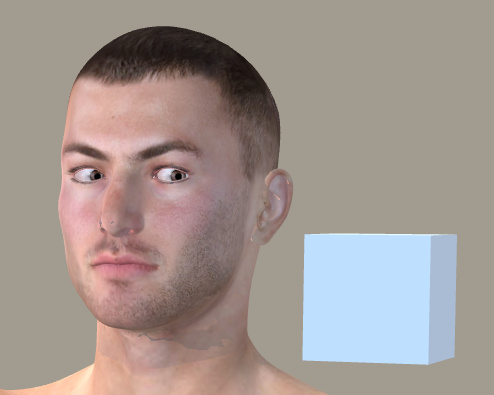
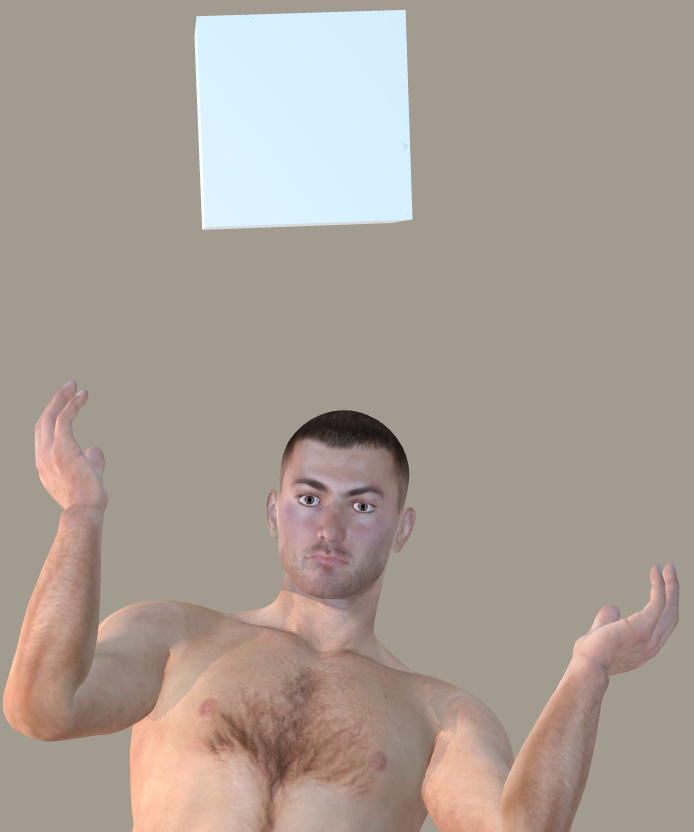
I was very pleased with eyetarget.py which works fine on M4. Select the M4 head, then the script loads a simple cube about three feet in front of the character’s eyes. Move the cube, both the eyes follow to “look” at it. Meaning, no need to fiddle about with posing the eyes. So far as I’m aware this is the only working ‘Look at…’ Python script, either commercial or free. It also worked on Aiko 3, more or less…
The cube is automatically invisible in both SuperFly and Firefly renders, without turning it off. It can be turned off for Preview (Properties panel | Visible | off), and gaze direction remains. Delete the cube and the eyes return to default. Eye positions created with the cube can’t be saved as presets to Expressions.
It can also be turned off with a few additional lines of Python code…
scene.SelectActor(scene.Actor("Figure EyeTarget"))
actor = scene.ActorByInternalName("box_1")
actor.SetVisible(0)
I guess it’s just a very quick way to do the fiddly manual setup of a ‘Look at…’ for the eyes. But to me this feature is worth the $6 on its own, though regrettably it doesn’t work at all with standalone characters like Doctor Pitterbill (even though the script suggests it should grab onto any head part labelled “eye”). For Pitterbill, and presumably for other Nursoda characters, you have to manually set up the “point at” for each eye, and then the cube works well. This is done by loading the script and then selecting an eye and from the top menu bar going: Object | Point at. Then you do the same for the other eye.
Any character with huge toon eyes doesn’t cope well with being pulled about by a box, though as you can see above I did have success with Aiko 3. All Poser characters should come with a script for posing the eyes that works like this, and there should be a drop-down menu to tailor the offsets for each character’s eye-size.
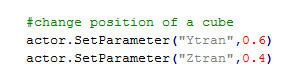
The well-commented script can be edited in Notepad++ and presumably the cube’s two basic movement parameters can be fiddled with to get a slightly better fit for a non V4/M4 character…
But I suspect the script would have to be hacked to load two cubes, one for each eye. That would also allow adjustments for big-eyed toon figures, though would still not be as useful as the sort of dedicated eye-plate that comes with the likes of Toonboy Sam.
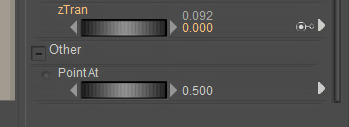
For a less abrupt eye movement, after apply the script you can also click on each eye, and scroll down to the bottom of its Parameter dials list. There you will see a new “Point at” dial. By default, this is at 1.0. Set it to 0.5 for subtler movement.
Random Pose.py
This is much more dramatic and wild than the random face. If you want someone falling wildly from a window, this is going to give you a quick pose. You can also run Symmetry.py which mirrors the pose from one side of the body to the other and thus gives the random pose a bit more balance. Could also be used in combination with a reset pose to default script and a partial selection of body parts, to tone it down.
invisible cube.py
This loads the invisible cube again, but this time it’s not connected with the eyes. You can parent it the character’s head, and then pick them up and move them around the scene more easily than otherwise. Again, the cube doesn’t render. Useful, if you get frustrated at grabbing a character to move them and find you’ve only grabbed the hair. Again, you could do this manually, but if you have a big battle scene with lots of background characters it’s the sort of thing that will save time.
material copy.py
Fairly self explanatory, and although basic it usually appears to work fine (though can also be a bit temperamental in some circumstances). Place a material onto some small part of the prop or body, copy it to multiple other surfaces.
material amb red.py
If you have a grey cast to your character’s skin, perhaps because of the light they’re in, this boosts the warmth of the skin tone by reddening it.
material toon.py
Again, it worked as described in Poser 11. It changes the selected materials to use a toon shader with edge shadow effects. It appears to load for each character or prop in a scene, so if you find your Poser scene unresponsive after application, it’s probably because there’s another instance of the material toon.py panel waiting for your input down in your taskbar.
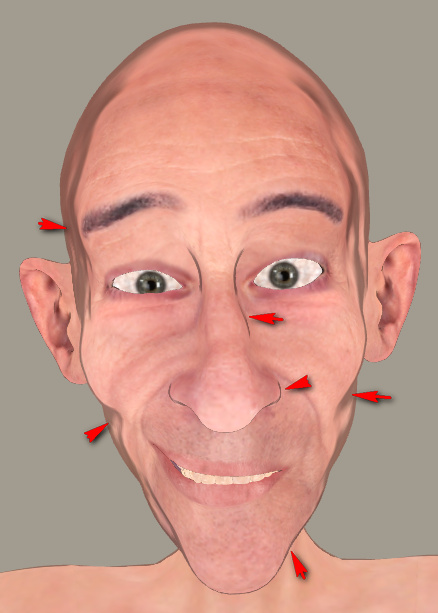
Here’s Pitterbill with a simple toon shader applied to all surfaces, ultra-flat lighting (left-hand render). It’s just a basic blended / ramped toon effect, but a quick way to get it over the existing materials.
Adding the basic Comic Book mode with flat lighting shows how far the toon shader is helping, even though the 3d photo textures are still making it look far from hand-drawn/painted. He’s picking up useful nose ridge lines and nostril lines from the toon shader only. And the Comic Book mode is then inking them.
If the Toon shader is temporarily disconnected, and the Comic Book mode is applied, it shows it was the toon shader producing the nice nose-ridge and nostril lines.
Those were the pack’s scripts that interested me, but there are more. Worth $7 for the quick setup of the two types of invisible boxes, and the material toon.py looks interesting for quick tooning in combination with the Comic Book preview mode.
Rust-Icator for Poser, working in Poser 11
I’m pleased to say that Rust-Icator for Poser and Grime-Inizer for Poser (the latter no longer sold) work in Poser 11. They seem a simpler script/texture-based alternative to the new materials layer-blending possibilities in Poser 11 and SuperFly. For instance, they offer a very simple way to apply a blended cross-hatching texture, without fading the underlying material or changing its appearance.
They’re billed as…
“… one-click age and decay effects you can use on everything in your scene … can be applied to ANY surface – human skin, clothes, props, hair – like any other shader. Existing texture maps will not be replaced. The shaders incorporate math nodes so the original texture is still visible beneath them.”
These scripts (aka Rusticator etc) were updated at the DAZ Store fairly recently. I can confirm that the latest Rust-Icator for Poser runs fine in the latest Poser 11 Pro version (SR6) under Windows…
There is however a forum report suggesting that modern Mac users have the ‘wrong type of Python’ for this to run. Could be that it’s now effectively Windows-only, but that’s just my guess.
They also seem a bit temperamental about launching from the Poser Library. Firstly they are found under “Pose” and not “Materials”. Figures they like, Props they don’t. If there’s no response from clicking on a Library icon, then use the alternative route of File | Run Python Script… which seems to always work fine even on props. ..\Runtime\Python\poserScripts\DraagonStorm\Grunge\RustShader\MHGSrustcracked.py is your target.
There are three duplicate sets of the scripts, one for Poser 8, Poser 9, and other named MHGS. The MHGSrustcracked.py and other MHGS versions ran fine in Poser 11, from File | Run Python Script… Do not delete the older P8 / P9 versions, thinking you won’t need them. Because it seems that the working MHGS versions require or call them in some way.
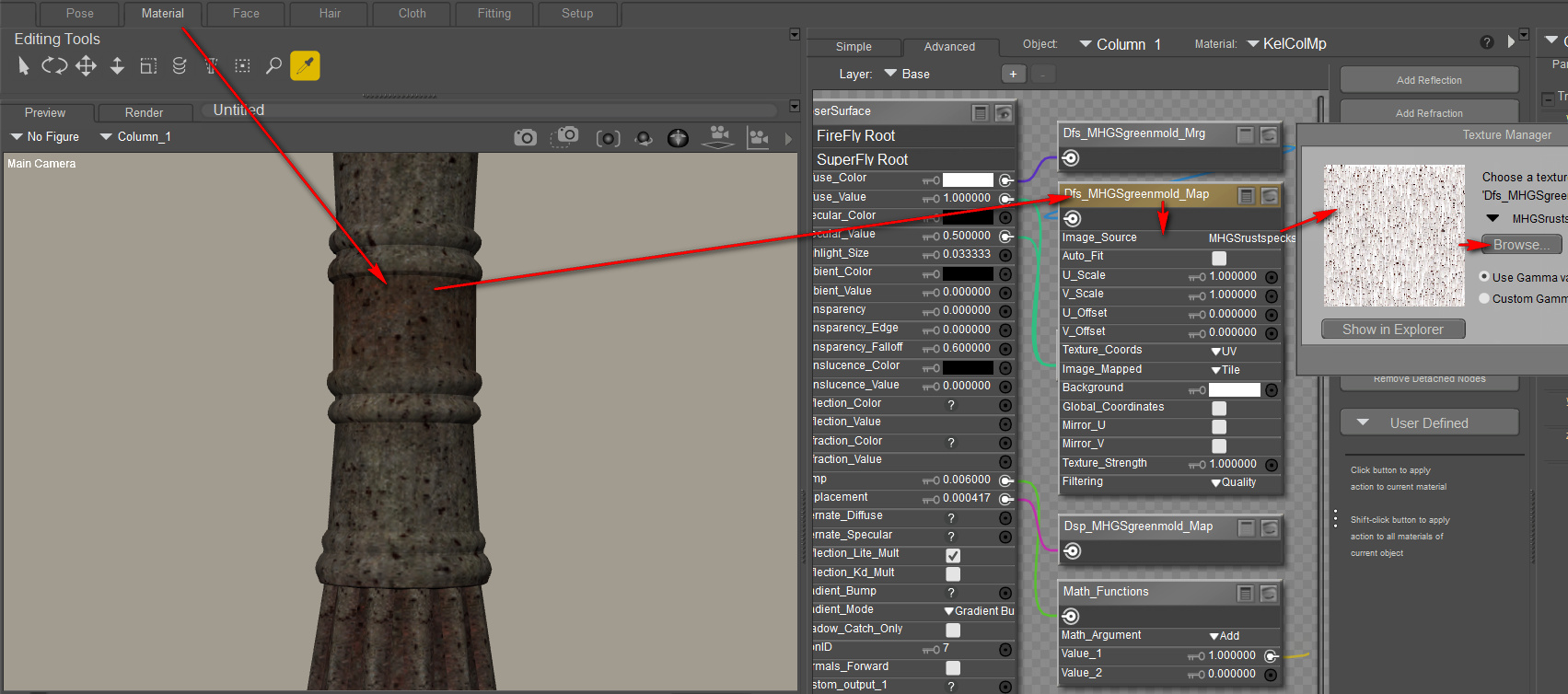
The scripts call up 4,000px textures from the runtime, which can be swopped out easily in the Materials Room…
For less memory-muching, a smaller file can be loaded and scaling then dialed down from 1.0 to 0.1. Here I’ve switched to a piffling little 130px cross-hatching tile, which isn’t even optimised for seamless tiling…
Works in Preview, Firefly, SuperFly and Sketch.
Poser 11’s Sketch Designer and the Comic Book mode
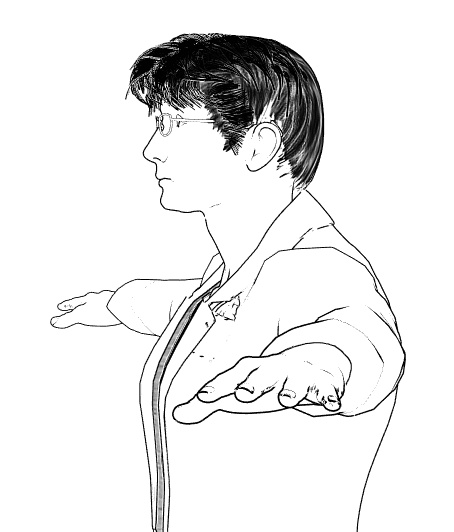
When I first loaded up Poser 11 Pro I fairly quickly discovered that the old Sketch Designer is happy to noodle its sketch-render magic along the new Comic Book mode’s toon lines, and thus create a simple soft-charcoal line, for later Photoshop blending into the hard-ink Comic Book toon lines.
I more or less stopped there, happy to have a sort of ‘grease pencil’ line. But after some more experiments today I’ve discovered it’s possible to use Poser’s Sketch Designer to create a different type of ‘rough sketch’ Comic Book line, and at the same time to render Sketch Designer’s lines into the base materials too.
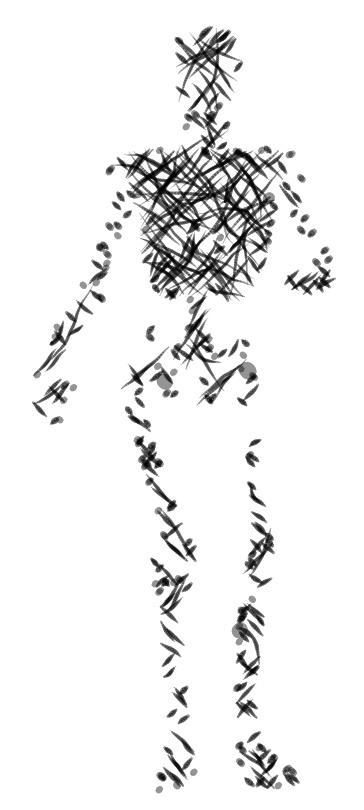
Here’s the stock Andy 3D character in a flat light, with a simple slightly-shaded plain texture and with the normal Comic Book mode inking lines applied. Next to him is the Andy with some of my home-brew Sketch presets applied into the Comic Book lines, plus another preset where I was trying to get big chunky ink lines.
I’ve also discovered (or perhaps re-discovered, after many years?) that you can preview and design a new Sketch render preset in 4000px. First turn off all the Sketch Designer’s also-sketch-lines-into-the-background panel sliders (which speeds it up enormously) and do any old Sketch render to that size, then leave the finished render ‘live’ while going back to: Render | Render Settings | Sketch Designer. This time the Sketch Designer will take some seconds longer to load. That’s because it’s now picking up the settings from the finished render and offering you a live preview at a huge 4000px. As such you’ll have to pan wildly across the preview, to get your object back into view again. But you can then design Sketch presets which work for a 4000px render…
Sadly it seems to be no way that convincing traditional cross-hatch ink shading can be done this way, except perhaps as a very lucky accident for one-off character portraits. By ‘convincing’ I mean I need it to work like a human inker would — follow and hug into the shadows, follow curved surfaces with a suitable angle-of-attack, and not start whorling and swirling about. Update: it can be done, but needs tight control of other variables.
Still, while the Sketch Designer has its limitations in terms of realistic cross-hatching , it’s also fairly easy to take it far away from its usual ‘teeny-weeny hairlines’ default presets…
For reference, if you want to share any Sketch Designer presets you’ve made, your personal ones get stored as .pzs files in one of Poser 11’s many obscure hidey-holes, at:
C:\Users\USERNAME\AppData\Roaming\Poser Pro\11\SketchPresets
Wanted: a Poser 11 script for quickly applying a colour-adaptive toon material to all selected surfaces
There appears to be a need for a Poser script to quickly apply a colour-adaptive toon material to all surfaces.
There are of course several automated material-replacer Poser scripts, which can work en-masse. For instance, you pick one material .mt5 and then apply it to all your selected materials on a character or prop. Simple script panels such as Transfer Material will do single textures, and XS Shader Manager (looks old, but it still works fine in Poser 11.2) will do much more. MATWriter Panel lets you save a MAT file preset once you have everything applied.
But with Poser 11’s new Comic Book mode, what we now need is a script which does such a replacement, but… which first reads the base colour in the material to be replaced, and then automatically adjusts the colour of the newly applied material accordingly.
For instance: I want to replace all materials on a prop with a neutral two-tone toon material. Where the new material replaces a red material, its colour will be automatically switched to more-or-less the same red colour as it replaces.
I’m not sure if this is possible. The script would presumably need to…
1. Look at the material’s base bitmap, and any colour shading that was being applied on top of that.
2. Then output a ‘best guess’ at a suitable replacement output colour.
3. Then adjust the duo-tone toon material’s colour ramp accordingly.
Having such a script would speed up the process of toon material replacement across a large scene, for use with the Comic Book mode in Poser 11.
One can of course ‘burn off’ much of the prop’s 3D material colour, when using the Comic Book mode (see below). But even when at optimal burn-off, it’s still sometimes not ideal…
Which is why such a script would be useful. It would be like the old llanimeall.py script, but intended to quickly optimise all materials to work with Poser 11’s Comic Book preview mode.
Update: in the animation industry such things are apparently called Matcap (MAT capture) shaders.
Incidentally, I found that the old llanimeall.py Anime script is still available via the WayBack Machine. It’s been overtaken by the Poser 11 Comic Book mode, but some users may still want it for something. For Poser 11 the script goes into C:\Program Files\Smith Micro\Poser 11\Runtime\Python\poserScripts\ScriptsMenu where I have a FavoriteScripts\Toon Shaders folder.
I sort-of got the script working again, at least on some test shoes, by pasting the whole /runtime/ folder (found in the .zip) underneath that…
But it gives multiple error-messages, and is obviously unable to do the vital mat-cap bit. The script only ever worked on Poser 10 (not 2014, which was the Pro version of 10), and I’ve never heard of anyone but the maker Digitani who was able to actually make his script work.
But even if you don’t want the script, the LLToon.mt5 and LLAnime.mt5 materials may be useful to study, and can presumably be applied en-masse using one of the scripts linked at the top of this blog post.
Three-panel widescreen grid for comics
This is a fascinating video breakdown of Darwyn Cooke’s approach to superhero comics layout. At first glance it seems to be a format aimed at a less-able juvenile reader who was raised on movies and TV, and who thus who needs a more ‘widescreen movie experience’ without having to weave their eye across a complex series of panels.
Yet the comic, “The New Frontier” (collected in one volume in 2015) is hailed as a classic moment in DC’s post-2000 output, and a powerful homage to the golden age of DC. I’ve never been a DC fan, but I’ll have to take look at that one. Update: comic is excellent, the animated movie adaptation is mediocre.
It occurs to me that it would be much easier for a Poser comics-maker to make a 28-page commercial comic this way. There are only three widescreen panels on each page, which means Poser scene setups would be reduced in number. Wrestling with the framing would be reduced. And when one had the finished panel pictures, all the complex layout and fiddly design considerations of the page are then radically simplified. There’s also fewer boxes and less text to add to the page, and less fiddly colouring via the Toon ID layer. The downside is it’s going to take a whole lot more pre-production story-boarding to get it right, and a restrained story script which ‘shows-not-tells’.
Comic Life 3.5, 50% off
Another Black Friday/Cyber Monday discount spotted. The $30 Comic Life 3.5 is a Windows and Mac software tool to quickly make pages of comic-book frames, into which you then drop your pictures, and then add speech balloons and dialogue boxes on top. The graphics wizards can do this with Photoshop, of course, but it’s somewhat easier with Comic Life where everything is streamlined. It does have some very cheesy templates, to appeal to teachers and kiddies who want to make fun chuckle-comics about their pets. But look past that and it’s a useful bit of software for speeding up comics production. Version 3.5 introduces a way to quickly link the comic’s typed script and the speech balloons on the page, and adds other fixes and upgrades from earlier versions.
Use the checkout code: CYBER50 to get it for $15. Sadly they use a checkout system that adds country sales tax, so you do pay VAT in the UK on the final amount. That makes it £10.50 in the UK. It’s a one-time payment, not a subscription, and PayPal is accepted.
Lazy Nezumi Pro – brush line-smoothing for Photoshop
Ever wondered why Photoshop doesn’t have real-time line-smoothing for its brushes? It’s probably a market-driven thing, rather than about the technology. My guess is it’s something to do with not wanting to cross into Adobe Illustrator territory.
Anyway, there is a way to get excellent line-smoothing in Photoshop. You just install the Lazy Nezumi Pro plugin. The software’s landing page makes it look rather complicated, but that’s mostly just the settings options. It’s actually quite simple, and you’ll get good results with default presets. It’s very light on your PC system resources, too. It’s only for Windows.
Also works with Corel Painter, Sketchbook Pro, Manga Studio and others, though they all have line-smoothing in one form or another.
CrazyTalk Animator 2.1
The affordable and user-friendly CrazyTalk Animator is now in version 2.1…
* 64-bit version.
* Now has a Mac version.
* Masked PNG output, for use in Powerpoint.
* Support for semi-transparency on import (from Flash only?).
* Variable outline-width (but no Photoshop-style artistic-line Styles, yet).
Can you storyboard one frame every 20 minutes?
A new Cartoon Brew article “How Long Should It Take To Draw A [animated TV series] Storyboard Panel?”. The math is here.
“A 25-year veteran of the TV animation industry recently sat down to figure out the average amount of time it takes to draw a board panel. […] an average of 20 minutes, based on a script with equal parts action and acting, and importantly, no revisions.”
It seems that, traditionally, 11 minutes of TV animation took six weeks to fully storyboard for production. Arguably, some children’s animation has generally become much more complex in each shot since the 1990s. Compare Wacky Races with Gravity Falls, for instance. But it appears that, rather than the time worked increasing due to the complexity, it’s actually decreased in the industry.