The UK’s Marcus Johnson has a new 2D RPG Random City Map Generator for just $1 on ArtStation, and the licence allows… “up to one commercial project (up to 2,000 sales or 20,000 views).” It hooks into the free Substance Player, and needs it to work. Not sure what the output resolution and anti-aliasing is like, but presumably one could wrangle these into an isometric view and then pop 3D rendered PNGs on top.
Category Archives: Automation
ClipStudio – innovative new features demo
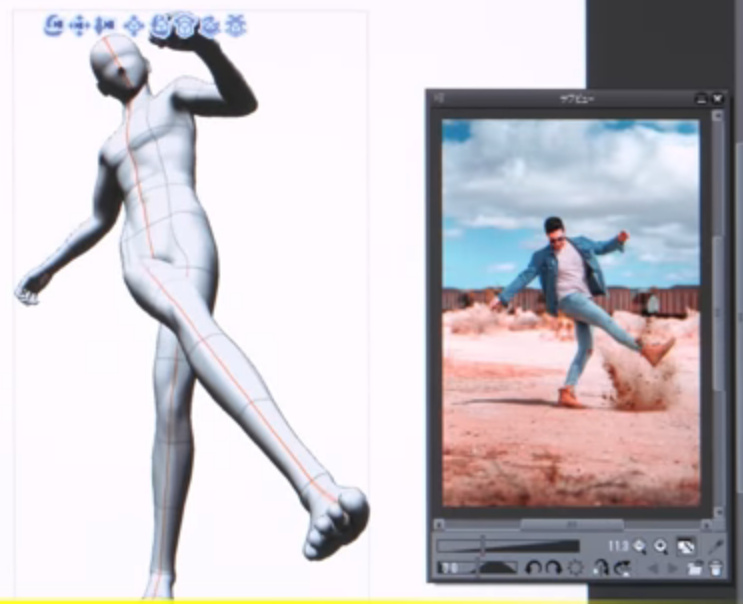
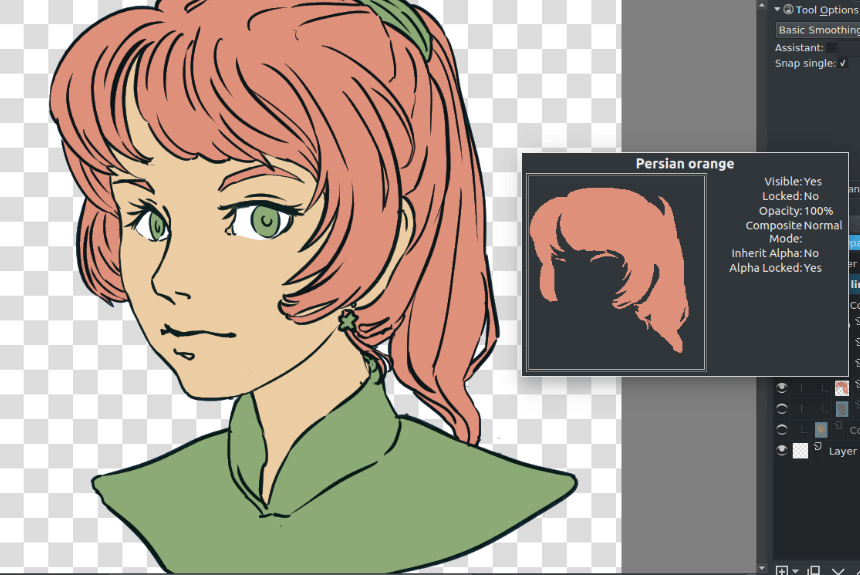
The paid ClipStudio (aka Manga Studio) has a new short video demo of its new ‘autocolour line art’ and ‘pose extraction’ tools. The autocolour gives ClipStudio parity with the free Krita 4.x, and the semi-automated pose extractor is only in quite experimental stage at present. Notice how there’s an abrupt jump-cut in the video as we jump from the basic and rather clunky pose extraction…
… to something that’s obviously had a quite a bit of hand-tweaking…
Still, that it can be done at all is very promising for the future. And it’ll surely be coming to other software, as the research for it is in the public domain.
New post-tag on this blog: ‘Automation’
I’ve been blogging quite a bit recently on automation in graphics software, and have gone back over the posts and tagged them with a new tag: “Automation”.
Manga Studio: automated pose-extraction from photos
A nifty bit of automation, added to the latest Clip Studio Pro (aka Manga Studio), 1.8.6 which was released 28th February 2019. Feed the “Pose Scanner” a picture of a pose, and it will attempt to automatically pose the 3D dummy that resides inside Manga Studio and which is meant as a drawing-guide.
Note how, in the example given, it’s only getting a rather approximate fit. You’d probably do better, in terms of getting pose both believable and lively, by just inking over the photo itself. Still, if you wanted to save a repeatable preset and were willing to further tweak the auto-pose, then it could provide a starting point for crafting the preset. You might also get better results from photos made in your own green-screen setup in your home-studio.
This feature is only a beta “technology preview” at present, but I’d assume it’s based on public research and thus may be coming to other software in time. I assume that the approximate pose extraction is automatic, and doesn’t require the user to draw lines on the photo.
Possibly this sort of thing is already common as a visual toy in smartphone apps. But, not being a connoisseur of such things, I don’t know about them.
How to find and use the Render Queue Manager in the latest Poser 11
I read on the official Poser Forum that rendering in Poser 11 was was both faster and more convenient when using the Render Queue Manager. I thought it would be useful to write a quickstart on this feature, as it exists in the latest fully patched and updated Poser 11 Pro. Since the only YouTube video on it is now out-of-date.
Things to know, straight off, as a new Poser user:
* “Render Queue” is a Poser Pro-only feature.
* “Render Queue” was only for Firefly renders in Poser 11. But apply patch SR3 or higher, and Superfly can also use it.
* “Render Queue Manager” is not the same thing as Poser’s internal “Render in Background”. “Render Queue” is for stacking renders, so they automatically render one after the other. As such it can save quite a bit of time on a multi-render project.
* Rendering is done by a separate programme in the background. On many new 64-bit multi-core Windows systems this should make rendering faster, and Poser far more responsive while rendering. Again, this will save you time in your workflow.
* There is also something called “network rendering”, where the rendering task can be shared across many PCs on a network. This was introduced for Firefly in Poser version 11.0.3.
Short version:
1. Load and tweak your Poser scene. Save. Do a small test render, then set your full render size and quality in Render Settings | Firefly or Superfly.
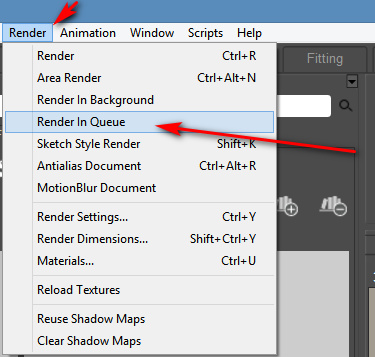
2. Go: Top Menu | Render | Render Queue. The Render Queue Manager launches as a new standalone window, asks for the filename and folder it should save to, then goes off and starts rendering.
3. You then carry on with other work in Poser or Photoshop etc, while the rendering is done by a separate programme in the background.
Long and tedious version:
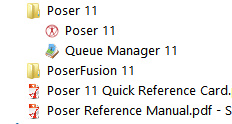
1. OK. First, where is it? Well, if you downloaded Poser 11 and its extras a while ago, look to see if you have a ‘Queue Manager’ sitting in your Start folder alongside Poser 11…
If you don’t see it there, check you have it at: “C:\Program Files\Smith Micro\Poser 11\QueueManager.exe”. If it’s not there, check in your Smith Micro Download Manager to see if you actually downloaded all the various bits needed for Poser 11 Pro.
Let’s assume you find it’s installed. Now go find your set of serial numbers that came with Poser 11 Pro. Copy-paste the serial for the Queue Manager, as you may be needing it in a moment.
2. Launch Poser 11 and load and set up a test scene. Save. On the latest version of Poser the “Render Queue” is then found on the Top Menu | Render | Render Queue…
On revisiting the “Render Queue” I found that this menu item remained curiously ‘greyed out’ and inactive for me, even when I switched to the relevant tab in Render Settings. I found that what I actually had to do first was make a small test render using a Firefly / Superfly render engine. Doing this caused the “Render Queue” menu item to become active and selectable.
3. Now, clicking on the active “Render Queue” item should launch the Render Queue Manager .EXE window. If this is the first time you’ve ever launched it, it will need the serial number to be input. Then you will first be asked to set a filename and destination folder for your render, then asked to give the QueueManager.exe Firewall permissions (which only needs to be done once, at launch).
QueueManager will stay open and waiting after the first render completes, hoping to be sent more renders.
In the Windows Control Panel | All Control Panel Items | Windows Firewall | Advanced, you may then want to make the Firewall settings permanent. Once done, this should mean that you won’t be asked each time it launches…
OK, it’s up and working. “Process jobs locally” if you’re on a single desktop PC…
From now on you just skip merrily through the simple version of my tutorial, as given above.
MOVIES? Rendering multiple movie frames is apparently currently more problematic, for those with the latest patch applied. It can be temporarily accomplished through a MovieRenderToQueue.py Python script. Apparently a vital button on the Movie panel in Render Settings was removed with the latest patch, along with the advanced Auxiliary Render Type switches. There’s a simple workaround for the Auxiliary Switches and the Poser devs reports that the Movie queue button should be back in Poser very soon…
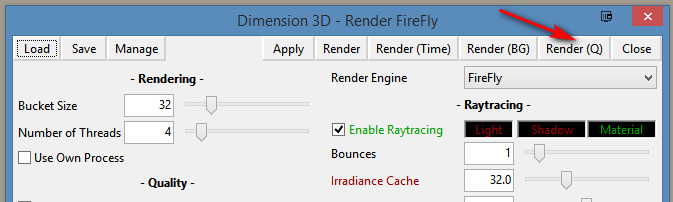
ALTERNATIVE ACCESS: One can also access the “Render to Queue Manager” command via the official partner script for Firefly. This is found under Top Menu | Scripts | Partners | Dimension 3D | Render Firefly. Or it can simply be invoked by pressing Shift + F on the keyboard.
NETWORK RENDERING: You’ll of course get the full benefit of using the Render Queue Manager if you’re using it to render across several PCs. As we’ve seen, the Render Queue Manager is a separate .EXE file and on Windows you’ll be running it on Windows 7 or higher. Render Queue can ‘network render’ across several such machines, only if: i) the Render Queue Manager version on your slave PCs is the same as on your main PC; ii) each .EXE has been activated with the serial (not the same as your main Poser 11 or PoserFusion serials); and iii) you have all the remote and desktop Firewalls set up correctly. Each .EXE will need to be given both inbound and outbound permissions through the Firewall. All this is needed to that the main PC can talk to the network PCs, and the network PCs can talk back.
If you do lots of large renders or animation with Poser then you’ll want to look at advice on building a dedicated render network or base unit. Some advice is to be found here. Looking for the apparently-required 2 x CPU “2x X5650” to “2x X5690” refurbished Xeon workstation on eBay suggests that about £400 should get you something quite powerful (24 render threads) under your studio desk. That’s comparable with the cost of a high-end graphics card, but gets rendering off your PC entirely so you can get on with other work. It also means you don’t have to faff around with upgrading the PC’s PSU, fitting a huge slot-in card, fan-noise, summer overheating etc.
AUTOMATE PREVIEW AND SKETCH RENDERS? For renders other than Firefly, you might want to look at setting up Windows automation software like JitBit Macro Recorder, which records and automates software clicks, and then set wait-times (such as 60 seconds per Preview render, allowing a 3600px Preview render ample time to complete). You could also try to have JitBit use keyboard shortcuts only, to make your automated macro/action independent of User Interface changes and screen size. Obviously this doesn’t take the renders off to another programme or PC, but there is some ‘background’ automation involved.
Semi-automatica from Japan
Some recent semi-automatica from Japan. For animation, of a sort, but also with obvious use for comics makers who only need slightly different variants between comic frames.
1. Live2D Euclid 1.0. Illustrated 2D characters in 3D space, seemingly auto animated (once you have the character set up)…
Their less turn-tastical but more polished version of this is their Live2D Cubism 3.0 software. 3.0 appeared in 2017, and it’s now at 3.3. As with Euclid you also feed it a multi-layer 2D .PSD file from Photoshop, but with Cubism you can only set up relatively subtle camera-facing animations. Looks interesting, and there are templates to base your new characters off…
Sadly the software is a monthly subscription, but reasonable at around $10 per month. There’s a free trial for Windows and Mac, with translated UI, and an English manual. It’s interesting to know that this software is out there. But without looking at it too deeply I’d suspect that the latest CrazyTalk Animator (soon to be Cartoon Animator 4.0) would be feature-comparable and possibly easier to use. Though possibly more expensive if Cubism has a thriving hinterland of low-cost third-party animation and template packs over in Japan.
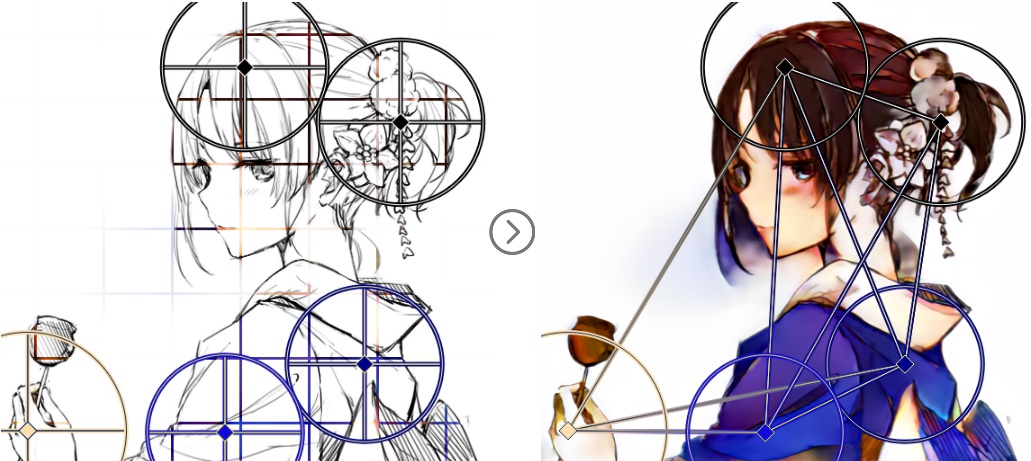
2. PaintsTransfer. AI-assisted auto-painting of line art. The user first places and adjusts ‘wheels’ over the line art, then indicates general colours at the centres of these. A first approximation of the colouring is tested, and then if the auto-colour is broadly acceptable the user refines it by placing further colour dots onto the wheels. The code has been released, but it’s not for Windows.
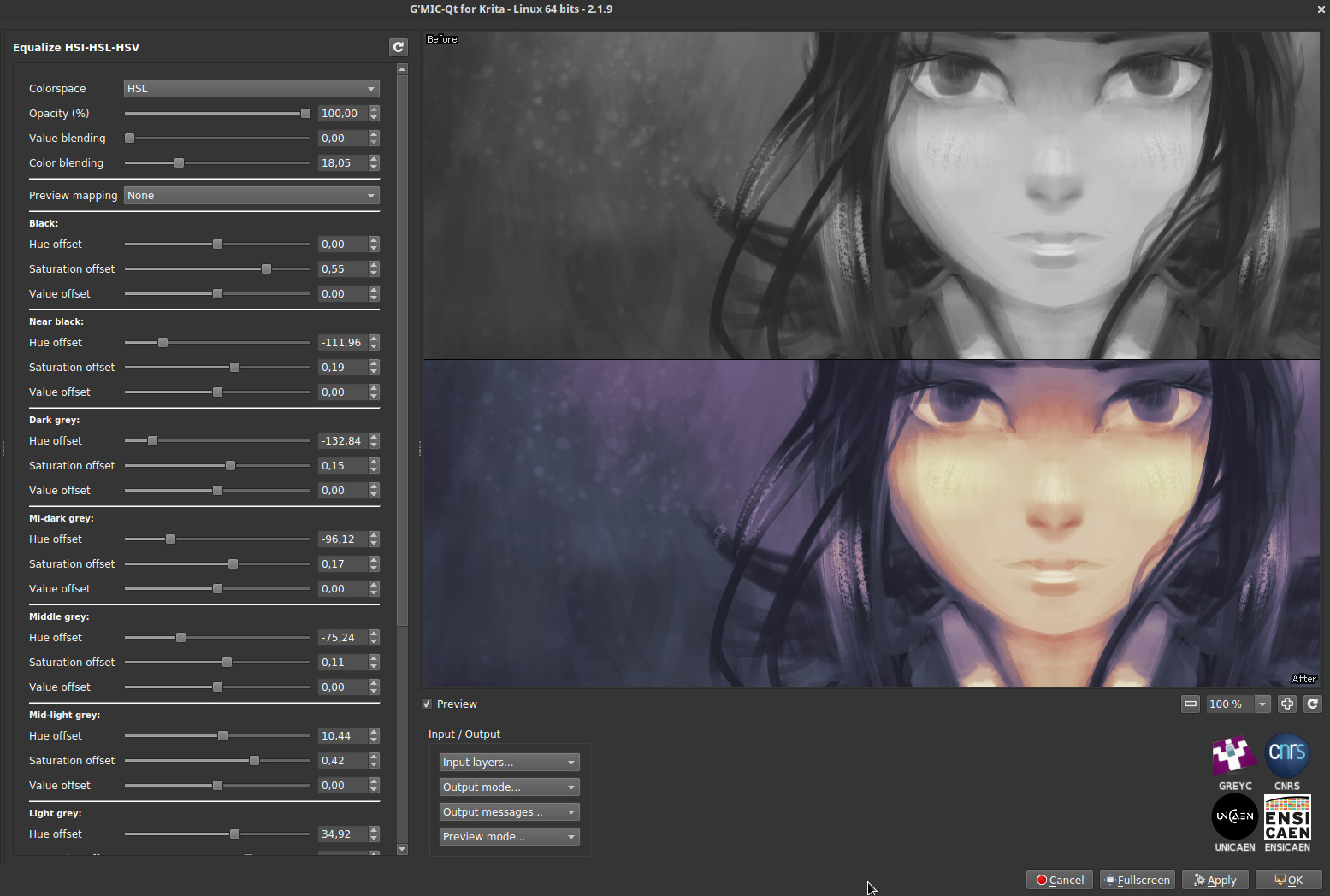
Again it’s interesting, but Krita 4.0 seems to be the most vigorously-developed choice for auto-colouring of line-art at present. Note that the free Krita also has the ability to auto-colour by greyscale value (e.g. lighter tones become skin-pink)…
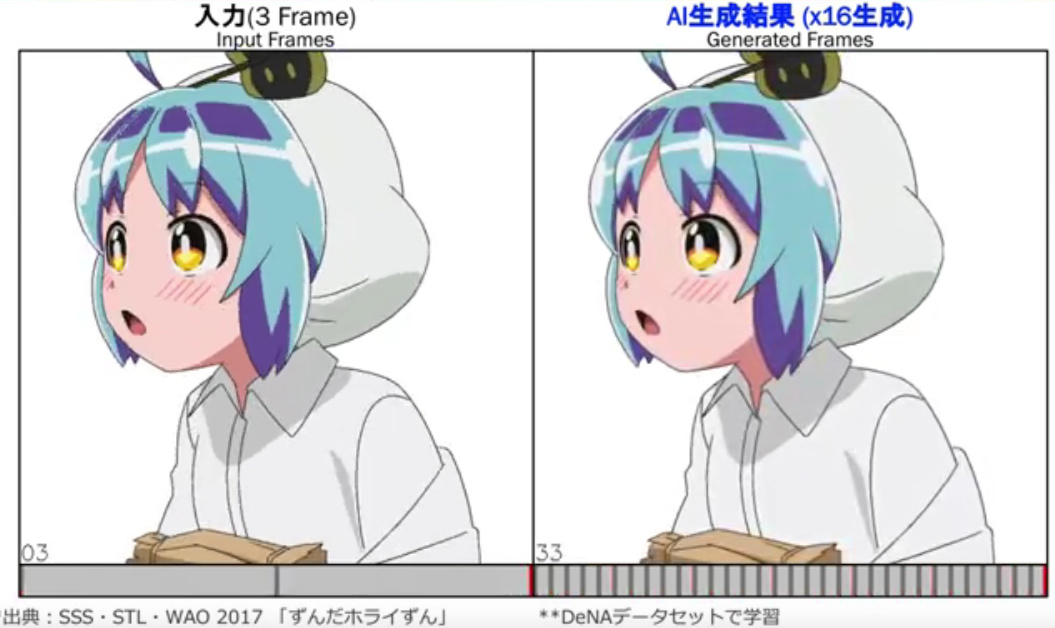
3. Anime generation with AI, in a recent conference presentation. Give it three keyframes, have the AI intelligently interpolate the animations in between, to generate 16 flowing frames.
A glimpse at the future of semi-automated AI-assisted workflows! Next stop, 3D strand ‘autohair’ from a photo…
MultiFill 2.0 for Photoshop – a line-art autofill tool
“MultiFill is always free to use.” Hmmm… I like the sound of that. Even better, as of January 2019 it is now in Multifill version 2.0.
What is MultiFill? It’s a 64-bit Photoshop plugin (CS6 and higher) that auto-fills black-and-white line-art with random flat colour. “Like the inked line-art made by Poser’s Comic Book Preview mode?”, you ask. Yes, indeed.
The drawbacks are three…
* it doesn’t make sensible choices of colour.
* it only works on black inks on pure white, not black ink on transparency.
* thus you can’t easily separate the colour flats from the inks. But there’s a partial way to get around the latter.
It’s advantages are also three…
* it’s blindingly quick, compared to Krita. A fraction of a second and it’s finished.
* it’s free and runs in Photoshop.
* it has a simple interface.
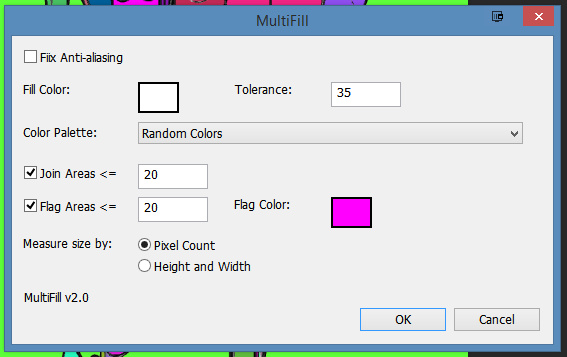
Install. Find the plugin under Filters | Peltmade. Duplicate your Poser Comic Book Inks layer, make a new white layer, and merge the inks with it. This is the layer you’ll run MultiFill on. Invoke MultiFill. I found these settings good…
Though you can choose from a long list of colour combos…
A fraction of a second after being run, it’s done the business. You no longer have to worry about gaps in Poser’s line-art. Just paintbucket on top of the flat colour islands to re-colour. Which is still going to take some time, and because the lines are on the same layer as the colours, you’ll sometimes hit the lines with the paintbucket.
However, if you place your original inks layer on top of the MultiFill-ed layer, then accidentally hitting the lines on the lower layer will appear to have no effect. That’s the workaround I talked about above.
However, I think Krita 4.x is to be preferred. Krita…
* is iterative… you can build toward the correct paint-in while making small corrections.
* keeps inks and colour flats on their own layers.
* can work cleanly with ‘white knocked-out’ line-art inks.
* doesn’t produce so many hard-to-reach little niggly bits of colour.
* has a ‘restore transparency to the background colour’ option.
See my Tutorial: How to autocolour Poser lineart with Krita 4.x.
However, what MultiFill 3.0 could do, to work with 3D output from the likes of Poser, would be to sample a colour layer directly below it (i.e.: the standard 3d colour render). Then autofill the line-art with flats keyed to the sampled colours. Of course, Photoshop’s native Cutout filter can do something similar with a plain colour render from Poser, but I’m imagining that MultiFill 3.0 could offer something far cleaner in terms of pure flat colour islands.
Tutorial: How to autocolour Poser lineart with Krita 4.x
Poser 11 makes excellent line-art from 3D content, using its Comic Book Preview mode. This effect can easily be switched into plain black-and-white, giving you just the ink outlines for a character, scene or prop. (See my video demo of this).
The free open source Krita 4.x can add to your options here, by providing you with another layer of colour for your art. It does this by cleverly auto-colorising the inked line-art it gets from Poser.
Here is the workflow for how to do this in Krita 4.x, with screenshots. Note that this is very different from how it was done in Krita 3.x.
Obviously what follows is a very simple two-colour example done for this tutorial, and I could have got more funky with auto-painting colours into the line-art.
1. First set up your exported Poser render layers in Photoshop. The layers will usually be…
Shadows.
Inks.
Colour Flats.
Background.
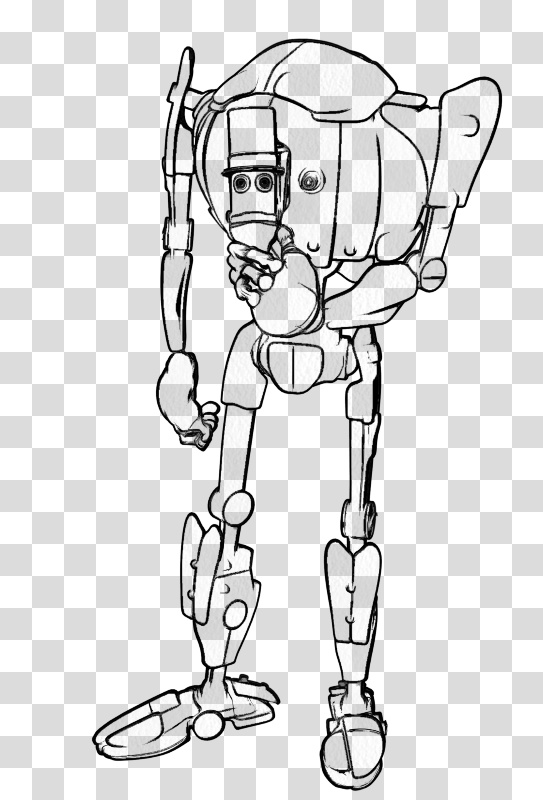
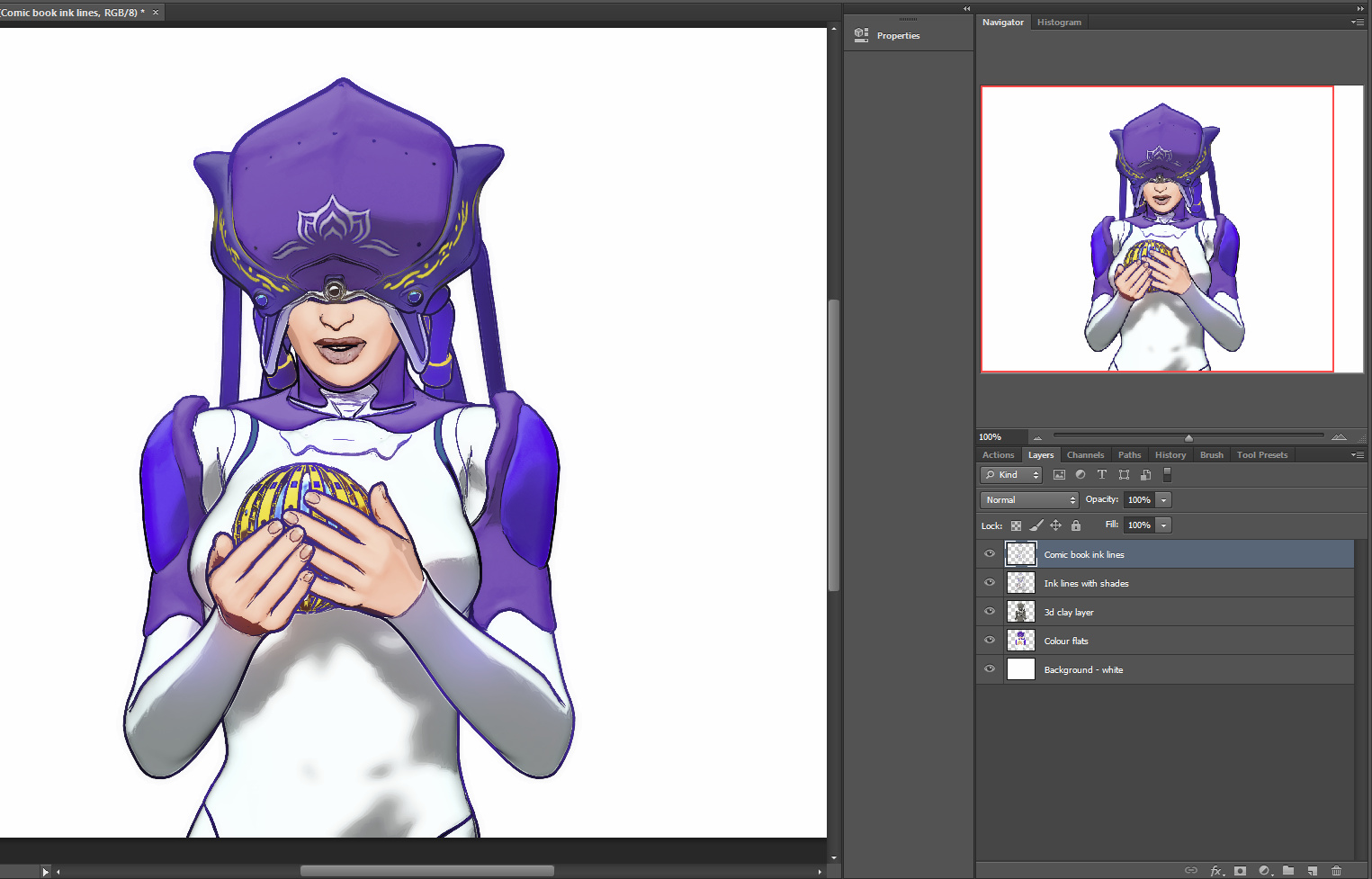
You then run the usual Photoshop Action to remove all the white on the Inks layer, to get this result…
Then you save to an unflattened .PSD Photoshop file.
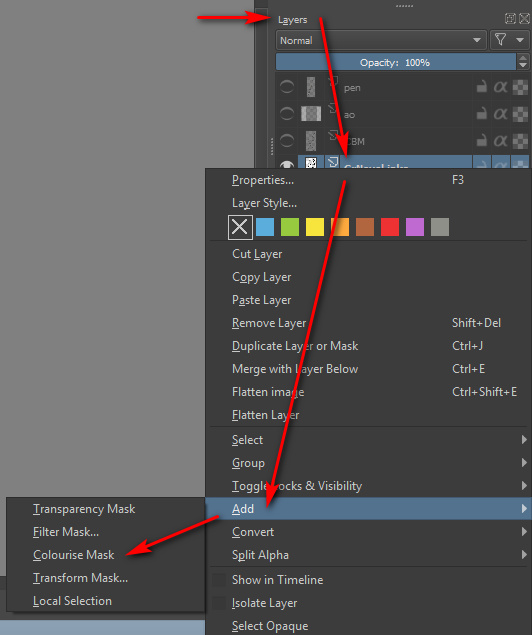
2. Now start Krita 4 and open your new layered .PSD file. In Krita’s Layers palette, right-click on your chosen Inks layer. A menu will pop up, and you then select: Add | Colourize Mask…
Krita will then add and auto-name a new sub-layer, which sits directly below the Inks layer…
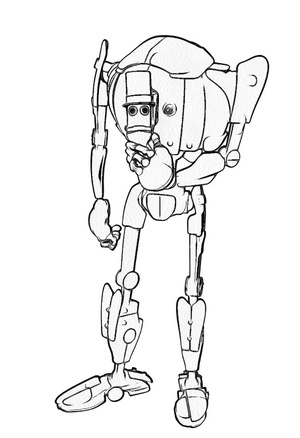
3. Now you make an absolutely vital initial selection in the Krita user interface, which isn’t mentioned in the Manual. You go over to the Toolbar and select the “Colourise Mask Editing Tool” icon. The Tool you need to select is the paintbrush icon with a sort of ‘glowing tip’, which should be near the Eyedropper…
This Tool stays selected in the Toolbar even as you then select a suitable brush or pen from the Brush Library. DO NOT EVER select the normal Brush icon on the Toolbar, as this will mess things up over in the Tool Options.
You then roughly paint and dab colours where you want them to be auto-painted by Krita. It’s important to also indicate a background colour, even if you don’t want a background colour, as the auto-colour process can only fill the entire canvas. I’ll show you how to get rid of the painted background in step 6 of this tutorial.
Dabbing and squiggling the colours can be done with the mouse, but will be easier and more pleasant to do with a pen-monitor such as a Wacom or Ugee. Ideally with a good level of zoom-in. Here it’s very crude and just two colours…
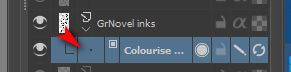
4. Ok, you’ve completed your basic indication of where Krita is to lay in its auto-colours. Now go back to the Colour Mask layer and click its end-icon, the one that vaguely resembles a recycling icon…
Clicking this icon triggers Krita’s ‘autopaint’ process, and Krita works out how the colour dabs should spread out to meet each other and the ink lines. Doing the calculations for this may take a while on a large canvas with complex colouring. You should see a tiny ‘progress bar’ while this process happens. The default settings in Krita should be able to intelligently cope with gaps in the line-art.
5. With the auto-painting run completed, you then switch back to normal mode simply by clicking on the pencil icon on the layer…
Clicking this pencil icon reveals your fully auto-coloured line art…
If the colouring is not quite correct, you can fix it. To do that you click what has now become a cross icon instead of a pencil…
… and this returns you back to ‘colour dab’ mode, and there you can edit, erase and add to your dabs and strokes. You can also tweak some settings over in the Tool Options. When you’ve made your corrections, click the ‘recycling’ icon again to run the auto-paint again. It should only take a couple of tries to get it right.
6. Now you tell Krita that you want a transparent background colour. For instance, in this example we can make the outer red be transparent when Krita ‘paints’ into the line art.
Regrettably Krita’s manual can be utterly baffling in its instructions on how to do this, if you naturally used a regular paint brush to dab your colours on the line-art. It merely says: “We want to have the [red colour] transparent. In the tool options of the colorize editing tool you will see a small palette.” But if you selected a normal paint brush then: i) you will have no clue that the “Colourise Mask Editing Tool” lives over on the Toolbar; and ii) because you never selected this “Colourise Mask Editing Tool”, there will be no mini-palette. The Tool Options docker will not reflect your active use of the ‘Colourise Mask’ layer, and it will be stuck in ‘normal brush mode’.
However, you followed my instructions above in Step 3 — to find and pick the “Colourise Mask Editing Tool” for painting colours, before selecting a brush from the Library. This means that your Tool Options docker is correctly showing this by default…
In this Tool Options docker we can now scroll down to find a line of colour chips at the bottom. Each of the colours found here represents a paint colour you used on your line-art a moment ago. We then select the red colour chip and click the ‘Transparent’ button. We then update the layer’s paint effect, and the red is gone…
We now just have the colour-filled line art and the original background layer underneath it. The red colour has simply vanished, cleanly and without leaving any ugly fringing.
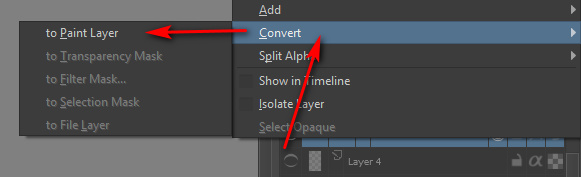
7. Once you you are happy with Krita’s auto-paint, select the Colourise Mask layer and right-click on it, then choose…
Convert > to Paint Layer.
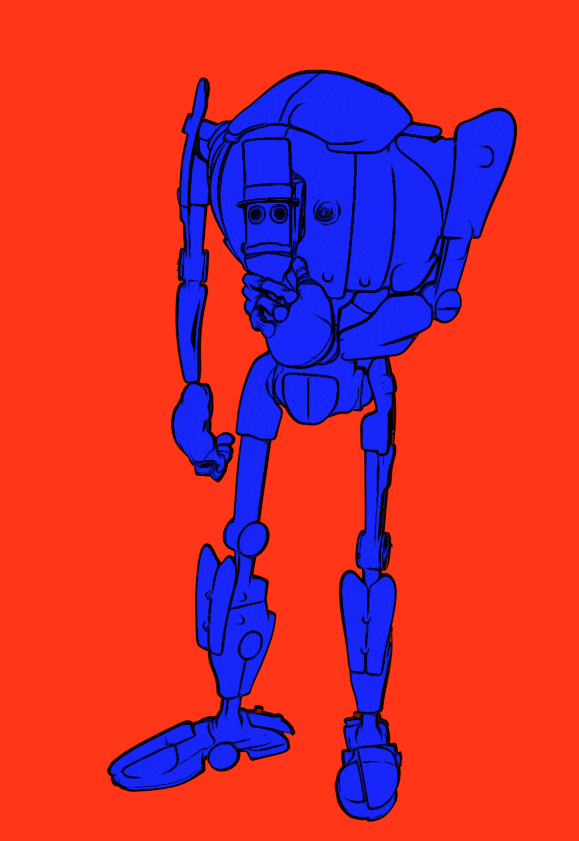
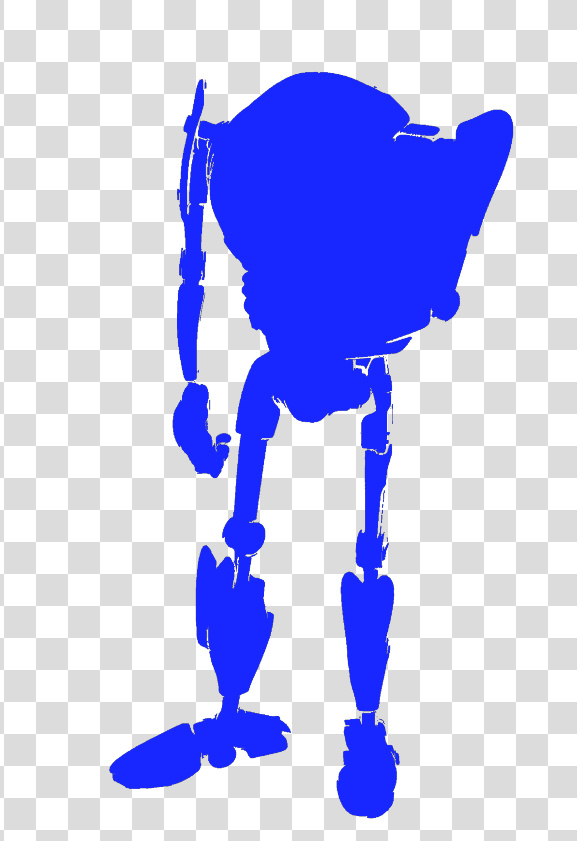
This is what the raw converted paint layer looks like on its own. If we had made more paint dabs on the line-art, obviously we could have got a far more complex colouring in of the line-art…
Here’s a very slightly more complex example of what can be done, and how it’s possible to save each paint layer as its own ‘island’ of colour…
Ok, then you’re done in Krita. Save the .PSD and load it up again in Photoshop. You can then use this new Krita layer to interact with the Colour Flats layer you had from Poser. It could also interact with a shadows layer to colourise the shadows.
The above workflow sounds complex, to accurately describe it and to warn about the pitfalls. But once you learn it, it is fairly quick.
For some types of Poser scene it can also be mimicked and bypassed inside Poser by a render using:
Single ‘flat’ IBL light, ‘flat’ meaning it is pointed straight at the scene.
Top menu, Display | Cartoon Settings | One Tone.
Set Cartoon Display mode in Document Display Style icon palette.
Then make a Preview render.
This gives you a pseudo ToonID Preview render, onto which you can paintbucket new colour, depending on how many colour segments you have. If you only have eight segments you’re fine, but if you have 200 segments per frame then you’d be at it all day.
Lastly, automation. Sadly Krita isn’t Photoshop, which means we can’t encapsulate this somewhat fiddly workflow in a semi-automated Action. But I don’t know of anything that can do what Krita can do here, inside Photoshop.
3D Map Generator: Atlas
I hadn’t looked at the Photoshop-based 3D map maker ‘panels’ for a while now. Last time I looked they were ‘sort of OK’, and all came from the same maker in a bewildering set of variations and version numbers. But development on these has continued, and the new 3D Map Generator: Atlas looks as though this solo developer has more or less nailed it in terms of easy textured 3D mesh generation from Google Maps. My thanks to Stefan Holzhauer for drawing my attention to this class of ‘Photoshop panel’ software again.
For a mere $21 U.S. the new 3D Map Generator: Atlas works as a panel inside Photoshop 2015.5 or higher. ‘Atlas’ first appeared in summer 2018 (which probably explains why I missed news of it), and is now in a bugfixed version 1.2.
“What can a puny PS panel do”, you might think, but judging by this detailed workflow video… it can load and interface with Google Maps, automatically grab the greyscale heightmap there, and with only minimal manual jiggering of two Photoshop layers, can produce a decent 3D mesh using Photoshop’s own 3D tools. Here’s the video of it in action and tandem with Google Maps. It can even export the resulting mesh as an .OBJ file…
But then the important question is… “can I use Google Maps data commercially?” The answer appears to be “No”. Because even though Google is using public-domain NASA data (Landsat 8) it’s also done lots of private-sector work to clean, rectify and align the tiles. Here’s a quote from Klaas Neinhuis from Jan 2017 on polycount.com, on the matter…
“I’ve spoken to them [Google] and it doesn’t make sense financially to use Google Maps content. I’d need to get a ridiculously expensive license, but the user would also need an expensive license.”
So, while 3D Map Generator: Atlas is going to be of interest for hobbyists, educational users and artist overpainters of 3d scenes, if you create commercial-use map renderings this way — artistic isometric tourist maps for the local tourist board brochures, say — then you’ll still need to go instead to the public-domain for your heightmaps and overlays. Or pay a GIS/mapping nerd $100 to go get the good high-res heightmap and satellite overlay from the public domain for you. Of course, there may be workarounds to get 3D Map Generator: Atlas to use public domain data, but my searches didn’t immediately discover a tutorial on that.
Personally I have a noted workflow and archived public domain datasets for the whole of the UK, with which I know I can produce a viable OBJ mesh for any bit of the UK’s underlying terrain as a result. I used this a few years ago for re-envisioning local Iron Age landscapes using Vue. But it’s still a few hour’s work to get to a good mesh, and involves wrestling with 3DEM and GRASS. So it’s good to know that a $21 Photoshop plugin, such as 3D Map Generator: Atlas, could do the job far more swiftly inside Photoshop. Albeit not for commercial purposes.
Update: I see there’s also what appears to be an easy automated solution over in Adobe After Effects, albeit at a rather high cost. The plugins GEOlayers 2 (mapping) with Trapcode MIR (create 3D meshes in AE) can work together to create maps and terrains, with GEOlayers able to automatically hook into a number of public free mapping tile servers.
Towards A.I. assisted comics layouts
What if we had an AI-powered drafting machine for comics layouts?
Let’s say we sit down 300 comics artists in a university exam hall. We give each of them three scripts, and ask them to devise a 12-page comics layout for each. These scripts are standard storytelling, with beginnings, middles, ends. A limited number of characters. The usual action. The usual timeframing.
We specifically ask the artists to do quite rough layouts that only involve architecting the frame size and position, selecting the usual stock camera angles, indicating character positions, and suggesting some basic props and vehicles. No complex backgrounds. Perhaps a different colour could be used for each element, to help the A.I. decide which is which — frames in green, buildings in blue, characters in red, props in orange, balloons in pink.
Could the A.I. then analyze each frame and each page of all these standard-layout comics, ‘seeing’ how they match to the relevant points in the three stories and finding commonalities of approach among the artists?
Could it then devise enough machine-learned rules, so that when it is fed a fourth story, it can automatically ‘draw’ its own rough ‘machine layout’ that fits that new story pretty well? Needing only some adjustment by humans here and there, and perhaps an application of a hypothetical ‘Kirby-ize filter’ to get a little more foreshortening and ‘pop’ on characters and props?
Maybe. Such robo-assistance will surely come, eventually, especially for the more formulaic type of comic. In the meantime, a hypothetical giant “Encyclopaedia of Comic Books Layouts and Camera Angles” would be a handy thing to have. When your comic script demands a “bird’s eye view down into an alleyway”, you’d just type ‘alley’ and set the camera-height slider to ‘high view’, and 24 curated examples from historic comics pop into view to inspire you.
Wanted: a Poser 11 script for quickly applying a colour-adaptive toon material to all selected surfaces
There appears to be a need for a Poser script to quickly apply a colour-adaptive toon material to all surfaces.
There are of course several automated material-replacer Poser scripts, which can work en-masse. For instance, you pick one material .mt5 and then apply it to all your selected materials on a character or prop. Simple script panels such as Transfer Material will do single textures, and XS Shader Manager (looks old, but it still works fine in Poser 11.2) will do much more. MATWriter Panel lets you save a MAT file preset once you have everything applied.
But with Poser 11’s new Comic Book mode, what we now need is a script which does such a replacement, but… which first reads the base colour in the material to be replaced, and then automatically adjusts the colour of the newly applied material accordingly.
For instance: I want to replace all materials on a prop with a neutral two-tone toon material. Where the new material replaces a red material, its colour will be automatically switched to more-or-less the same red colour as it replaces.
I’m not sure if this is possible. The script would presumably need to…
1. Look at the material’s base bitmap, and any colour shading that was being applied on top of that.
2. Then output a ‘best guess’ at a suitable replacement output colour.
3. Then adjust the duo-tone toon material’s colour ramp accordingly.
Having such a script would speed up the process of toon material replacement across a large scene, for use with the Comic Book mode in Poser 11.
One can of course ‘burn off’ much of the prop’s 3D material colour, when using the Comic Book mode (see below). But even when at optimal burn-off, it’s still sometimes not ideal…
Which is why such a script would be useful. It would be like the old llanimeall.py script, but intended to quickly optimise all materials to work with Poser 11’s Comic Book preview mode.
Update: in the animation industry such things are apparently called Matcap (MAT capture) shaders.
Incidentally, I found that the old llanimeall.py Anime script is still available via the WayBack Machine. It’s been overtaken by the Poser 11 Comic Book mode, but some users may still want it for something. For Poser 11 the script goes into C:\Program Files\Smith Micro\Poser 11\Runtime\Python\poserScripts\ScriptsMenu where I have a FavoriteScripts\Toon Shaders folder.
I sort-of got the script working again, at least on some test shoes, by pasting the whole /runtime/ folder (found in the .zip) underneath that…
But it gives multiple error-messages, and is obviously unable to do the vital mat-cap bit. The script only ever worked on Poser 10 (not 2014, which was the Pro version of 10), and I’ve never heard of anyone but the maker Digitani who was able to actually make his script work.
But even if you don’t want the script, the LLToon.mt5 and LLAnime.mt5 materials may be useful to study, and can presumably be applied en-masse using one of the scripts linked at the top of this blog post.