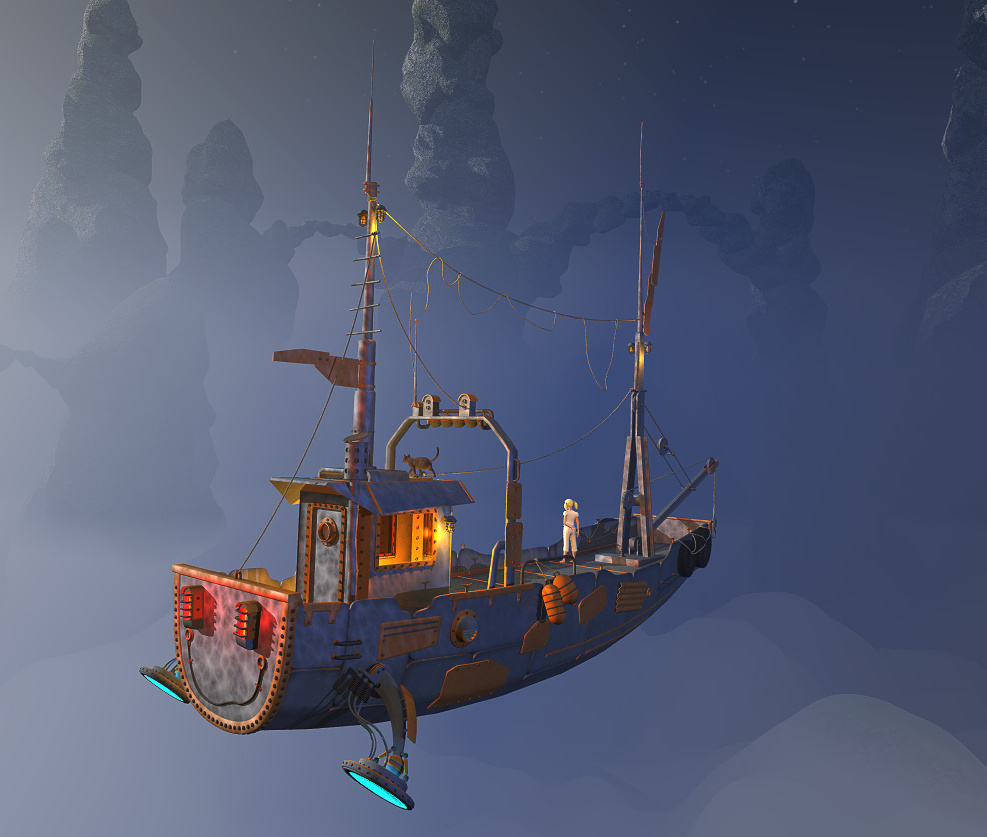
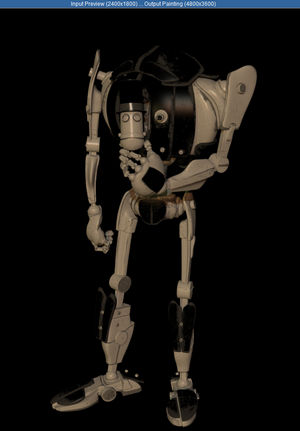
Yes! I’ve now coded a working automated multipass render script in PoserPython, and it’s debugged and working. It can switch between Preview and Sketch render modes, and can also control the real-time Comic Book Preview toggles (though it can’t adjust the dials). I never thought I’d have such a thing, but it’s amazing what can be done with enough Bournville dark chocolate and a sufficient supply of mugs of Yorkshire tea on a rainy Saturday night.
Category Archives: Automation
Poser script: render each figure/prop separately
Here’s how to get MarkDC’s 2002 render_separate.py Poser Python script working in the latest Poser 11.2.
What it does: It looks at your Poser scene, hides everything, then selectively shows each figure (character) and prop to make a render of it. Then it moves on to the next. One figure or prop, one standalone render. Once the script’s run has completed, it restores the visibility of all the scene elements. “Child props and conforming clothes are rendered with the figure” says the author’s info, but I haven’t tested this bit.
1. First, download and extract the script. The above links are Archive.org links and should be durable.
2. Open the script with Notepad++ and remove the © copyright symbol in Line 3. This symbol is non-standard and it’s what’s causing the fatal error message in Poser 11.
3. Then find the section…
dirPath=”C:\\Program Files\\Poser 4\\PoserFiles\\naoko\\naoko\\”
ext=”tif”
… and change it to something like…
dirPath=”C:\\Users\\YOUR_USER_NAME\\YOUR_OUTPUT_DIRECTORY\\”
ext=”png”
This needs to be a directory where Windows is happy to let scripts save stuff. We want .PNG because we need the masking and transparency.
4. Save. Install the Python script as usual.
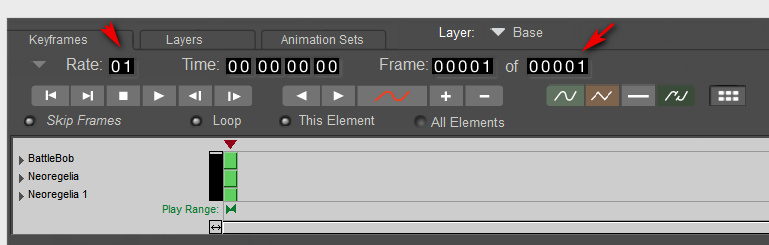
5. Build your scene in Poser and set a Main Camera. Then on the top menu go: Window | Animation Palette.
Change the settings to a single frame and keyframe, thus…
If you don’t do this you get 30 renders of each prop or figure, and it’s going to take a looonnngg time to get all the renders for the scene. And there’s no way to stop the script once it starts running, short of Crtl + Alt + Del.
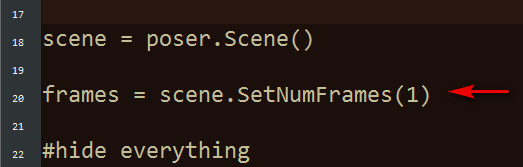
If you’re absolutely sure you have no animation in your scene, or cameras set to render from later frames in the timeline, then you can add this line to the script. It will use the SetNumFrames command to force 1 frame only on the timeline, rather than 30…
6. To see it in action, switch render settings to something quick, like Preview mode and 900px. You’re now done with setup.
Once invoked the script will do its thing, running through the scene’s figures and props one by one and making a standalone render of each.
For some reason it will also make a FocusDistanceControl_0.png render of the camera. Because of this, on completion this will lay a big black X across the live scene. This X is the focus distance assistant in the camera. To clear it, simply switch to the Main Camera parameters tab and turn the focus_Distance dial back to “0”.
7. Now you can use Photoshop 64-bit to go… File | Scripts | Load Files into Stack | Browse…
Do not tick “Attempt to Automatically Alight Source Images”, as these are PNG files with transparency and Photoshop will make a mess of them. They’re all the same size and thus will align fine by themselves.
Note that “Load Files into Stack” does not work in 32-bit Photoshop, and never has.
That’s it. This script works in Preview as well as Firefly, making it useful for comic book work. Run in Preview it can also effectively serve as a ‘mask outputter’ for Photoshop postwork on a full render made with FireFly / SuperFly / Reality, or even with Sketch (though in that case the mask-edges may not quite line up). One can also make a ‘ground shadow’ for a character, by duplicating their render, making it black and then skewing it into the approximate position of a cast shadow.
MarkDC (Markcus Dunn)’s script should probably be included as standard in Poser 12, with a pop-up dialogue added to help newbies set the file path and type, and a reminder to set the scene’s animation frame length to “one” before starting to render.
How to easily combine and merge selected sub-folders in Windows
Problem: You have a massive .ZIP or .RAR file, perhaps an old archive of Poser content you archived a decade or more ago. It has a structure that looks like this:
MyAmazingContent1
| Runtime
|Textures
|Libraries
|Geometries
MyAmazingContent2
| Runtime
|Textures
|Libraries
|Geometries
MyAmazingContent3
| Runtime
|Textures
|Libraries
|Geometries
What you want to do: You want to extract just the sub-folders named “Runtime”, combining them into a single new folder named Runtime, while keeping their lower directory structure intact-but-merged. Because that’s what you’re going to need to do, to merge them back into your main Poser Runtime folder and thus make them usable.
The solution: It can be done quite simply in Windows, and without freeware or command-line code or PowerShells. And without several-hundred tedious manual click-copy-merge operations.
1. First, simply extract the entire .ZIP file. (Don’t waste time messing around with tricky command-line controls for the like of 7-Zip and WinRAR, trying to extract just the Runtime folders. You may be able to do that, but you won’t also get the merged sub-folder structure you want).
2. Now open the resulting extracted folder with the standard Windows Explorer. Add there a new empty sub-directory called Runtime, as a newly added folder among all the extracted folders. We’ll be using it a few steps later.
3. Now use Windows Explorer to keyword search inside your huge extracted mega-folder for the word “Runtime”. A huge list of sub-folders will appear as the search results…
4. Shift-click and scroll on these found Runtime folders to select them all. Then right-click and copy-paste them into the top level of your newly extracted folder. NOT directly into the new Runtime sub-folder we just created. Windows 8’s mighty cyber-brain then spots the empty Runtime folder and thinks… “so that’s where all these same-name folders should go, ok let’s merge ’em all in!”
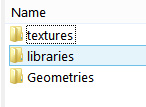
This method works and takes advantage of an auto-merge feature in Windows, which many Poser folks used to manually dealing with installing to runtimes will be aware of. If you copy-paste a folder with the same name, it merges without any fuss. Thus, in this case, your 250+ Runtime folders become one, while retaining their sub-folder structure…
| Runtime
|Textures
|Libraries
|Geometries
All our Runtime folders are now nicely amalgamated, and ready for a final check and then to be copy-merged in the same way into the main Runtime used by Poser.
Just note that those still on Windows 7 may get a prompt about merging. On Windows 8, you won’t, it’ll just go ahead and do it. I’ve no idea about Windows 10, but I assume it behaves much the same as Windows 8.
BodyPix 2.0
Google has released the free BodyPix 2.0. This offers automatic identification of people against a relatively noisy background, and then spots and tracks each person’s twenty-four body parts. It then segments, ID’s and colours each body-part. It can do this even while being fed around 20-25 frames per second, on fairly standard hardware such as an iPhone.
Version 2.0 adds “multi-person support and improved accuracy”.
They also offer the sister-software PoseNet, enabling a basic emulation of what a Kinect does but via standard Webcams…
both BodyPix and PoseNet can be used without installation and just a few lines of code. You don’t need any specialized lenses to use these models — they work with any basic webcam or mobile camera. And finally users can access these applications by just opening a url. Since all computing is done on device, the data stays private. For all these reasons, we think BodyPix is easily accessible as a tool for artists, creative coders, and those new to programming.
So… how to plug this stuff into a nice little DAZ/Poser-friendly Webcam utility? One that, at the flick of a drop-down menu, will happily real-time puppet and animate any stock figure from an Aiko 3 up to a G8 or La Femme?
F-clone at $33
Some may remember F-clone (aka fClone) from about three years ago. It’s “expression capture” software that outputs to the DAZ/Poser .PZ2 file format. When last seen F-clone was in an over-priced $199 version 1.0, and the results were apparently a little basic.
Now it’s in 1.12, has a free trial, and is currently on sale for $33 for personal use. It’s nothing to do with iClone, despite the name.
I got it working with an 2008 HD (1280px) Microsoft zoom-able webcam I picked up in a sale way back. I was pleased to find there are now Windows 8 drivers for the cam at last, yay! So it was worth keeping it in a drawer all these years. Seems to work best when the highest res in the webcam is selected, and the initial calibration is good.
Even in poor lighting conditions F-clone gave me results. However, once the facial data was captured the “Video processing…” then took so long, even on a mere 20 second clip, that I gave up on it for a few hours. Possibly it doesn’t like also capturing audio as well as video, though it appears to have this capability.
But returning to it after a PC reboot solved these problems instantly, and another 17 second capture resulted in a near-instant saving out of the finished .PZ2 animation to the desktop.
I then dragged and dropped the animation into DAZ Studio and onto a Genesis 2 base figure. I left “Limits on” for the figure and got a nice subtle idle animation. I then tried a G3F and turned “Limits off” on import of the animation, and got a much more expressive animation. G8F also took the animation, and the movement was quite nice. But the best was the G3F. Apparently G3 was the first Genesis to have facial bones, and the F-clone software is obviously targeted on those. The clue here is in the name of its file output: F_Clone_Daz_Genesis3_0.pz2
In Poser there was very little success, obviously because the animation process was targeting Genesis 3 which is a DAZ figure. Though Star and Doctor Pitterbill took head and eye movements quite well, but not the mouth movements. But for some that may actually be a feature, since it would allow you to lay in another “track” of mouth animation (e.g. from the Talk Designer in Poser) and another for blinks. That was about the limit of the success in Poser, with limited testing on A3, V4 and M4, and La Femme. Note that for Poser you have to add enough frames first (i.e. 3000) otherwise the .PZ2 will only animate the default ‘first 30 frames’ and you will likely get a ‘nodding dog’.
So… I was idly expecting F-clone to only target the older DAZ/Poser characters, but I found the reverse. It works on Genesis 3 to 8. The Star 2.0 toon figure (G3) also works very well.
Add eye-blinks to G3 with the free EyeBlink Plugin which writes a timeline for them.
For $33 and with very easy .PZ2 output, it may be worth trying the free trial if you need to make long facial animations for your G3-G8. It also has sliders for smoothing and boosting, and for targeting of “toony faced” characters. With better light, in a proper mini-studio, and with calibration, you may find it has value for more expressive / subtle animations too. Perhaps even lipsync, though there are likely better tools for that if you’re serious about story-and-dialogue movie-making.
The .PZ2 files are human-readable text, so a little converter utility seems possible.
Incidentally, it seems there’s no cheap/free software that can input any still picture or short video clip of an expressive face, and then pop out a .BVH which can be dropped onto a 3D character so that they take the same expression(s). Perhaps there should be? Unless perhaps it’s actually in F-clone and I just haven’t found that feature yet?
Update: Tested on Windows 7 with the same webcam using older Lifecam 3.22 drivers (possibly geared to Win 7?). Seems to work much better even in low light. Note also that F-clone will only launch from the C: drive, so if you have problems launching that may be it.
Update: If anyone was thinking of making a converter script, here are the actor labels that are in the .PZ2 file. Here we see why mouth is not affected when applied to a Poser figure. All the action is going on in the lips and jaw.
actor head
actor lowerJaw
actor lowerFaceRig
actor lNasolabialLower
actor rNasolabialLower
actor lNasolabialMouthCorner
actor rNasolabialMouthCorner
actor lLipCorner
actor lLipLowerOuter
actor lLipLowerInner
actor LipLowerMiddle
actor rLipLowerInner
actor rLipLowerOuter
actor rLipCorner
actor LipBelow
actor Chin
actor lCheekLower
actor rCheekLower
actor BelowJaw
actor lJawClench
actor rJawClench
actor upperFaceRig
actor rBrowInner
actor rBrowMid
actor rBrowOuter
actor lBrowInner
actor lBrowMid
actor lBrowOuter
actor CenterBrow
actor MidNoseBridge
actor lEyelidInner
actor lEyelidUpperInner
actor lEyelidUpper
actor lEyelidUpperOuter
actor lEyelidOuter
actor lEyelidLowerOuter
actor lEyelidLower
actor lEyelidLowerInner
actor rEyelidInner
actor rEyelidUpperInner
actor rEyelidUpper
actor rEyelidUpperOuter
actor rEyelidOuter
actor rEyelidLowerOuter
actor rEyelidLower
actor rEyelidLowerInner
actor lSquintInner
actor lSquintOuter
actor rSquintInner
actor rSquintOuter
actor lCheekUpper
actor rCheekUpper
actor Nose
actor lNostril
actor rNostril
actor lLipBelowNose
actor rLipBelowNose
actor lLipUpperOuter
actor lLipUpperInner
actor LipUpperMiddle
actor rLipUpperInner
actor rLipUpperOuter
actor lLipNasolabialCrease
actor rLipNasolabialCrease
actor lNasolabialUpper
actor rNasolabialUpper
actor lNasolabialMiddle
actor rNasolabialMiddle
actor lEye
actor rEye
However, f-Clone can live-broadcast the following data via a websocket…
Head rotation X
Head rotation Y
Head rotation Z
Brow Left UP
Brow Left Down
Brow Right UP
Brow Right Down
Brow Centering
Brow outer left down
Brow outer right down
Eye Close Left
Eye Close Right
Mouse Open [he means mouth]
Mouse Left Smile
Mouse Right Smile
Mouse Left Spread
Mouse Right Spread
Mouse Left Frawn [he means frown]
Mouse Right Frawn
Mouse Left Centering
Mouse Right Centering
Cheek Left UP
Cheek Right UP
Left Eye Rotation X
Left Eye Rotation Y
Left Eye Rotation Z
Right Eye Rotation X
Right Eye Rotation Y
Right Eye Rotation Z
The .CSV output also has the same labels, though the .FBX appears to have the Genesis 3 labels. Thus it may be possible to make a .CSV to Poser .PZ2 converter. There is a csv_to_bvh.py for Blender which looks a promising converter template, though it fails in Poser 11 and VSC – it appears it can only run from Blender due to its need for the import BYP module. There is also a csv.to.bvh converter script, which seems to be in the R language?
But since there are now Websocket clients for Python the F-clone software could be a way of driving a Poser face in real-time in the viewport. f-Clone can output a real-time mo-cap stream via a websocket.
Ecstasy motions for Poser
The 2012 CMU Ecstasy Motion BVH release v1.0: CMU_EcstasyMotion_BVH-Poser-friendly-2012.zip (138Mb .ZIP, expands to 383Mb).
In summer 2012 Chris Calef of BrokeAssGames used his Ecstasy Motion software to correct and clean the full set of CMU’s 2,600 motion-capture files, targeting for Poser, DAZ Studio and others. These motion files had been freely released into the public-domain by Carnegie Mellon University. Chris worked with a 2010 DAZ Studio friendly, “hip-corrected” set of these CMU files, which had already been produced. Chris’s release further cleaned and rectified the files: re-sampling at 30 fps instead of the original 120 fps; removing data for fingers, eyes, buttocks if the animation didn’t use them; and trimming back the over-specified joint rotation data. This work reduced the file set from a huge 5.12 Gb down to just 380 Mb.
So far as I’m aware, this is the latest Poser/DAZ-friendly set of these useful BVH motions. The .ZIP has a text list of the motions, which are grouped as folders by type of motion. So far as I know there there is not yet a handy visual-preview PDF catalog of the CMU library that looks like this…
Thus, some trial and error is required. Finding ‘swordfight’ is easy, but seeking a ‘walk’ gives you a huge range of choices and no visual previews. In which case, it’s a case of “try it and see”.
Update: Shriinivas has an animated directory at Github.
Import of a BVH into Poser is fairly simple:
1. Load your character to a starting T-pose, or use a preset to restore the default T-pose if they load with some fancier pose. Ensure the character’s BODY remains selected, and that you haven’t then accidentally grabbed a light or a bit of clothing.
2. Top Menu | File | Import BHV. Zoom the camera out. (Sadly there is no drag-and-drop of a BVH… maybe in Poser 12?)
3. Top Window | Window menu | Animation Palette.
4. Scrub along the opened Animation timeline. Usually the starting and ending segments are just the performer getting started or coming to a halt.
5. When you have found a pose you like, zoom in and view it from various angles. For more toony characters you want want to make the foot angle and head-tilt a little more believable, if needed.
6. Frame the character up for the Library thumbnail picture. Switch to the character’s existing poses folder in Library | Poses. Save the pose as a single frame animation. Poser will include a thumbnail preview picture for the pose.
I had success with Nursoda characters, as well as stock V4, M4 etc.
Especially useful for comics, as you can quickly scrub through the equivalent of 100 poses, and just choose the best. Rather than laboriously trying one pose after the other picked from store pose-sets.
I’m fairly sure it’s just as easy for DAZ Studio. Note, however, that in 2010 it was said of the DAZ conversion that… “The new conversion is for the DAZ 3rd-generation and 4th-generation characters such as Aiko 3, Aiko 4, Victoria 3, Victoria 4, Michael 3, Michael 4”. A quick search shows someone trying a dance on Genesis 2, way back, and failing — so the BVHs may not suit the later Genesis line of figures. That said, Genesis 1 apparently had a lot of the V4 rigging left in her and so the first Genesis may work better.
Billboards for DAZ Studio
There’s a new free billboard import script for DAZ Studio users, Load Image as Plane. This automatically imports your image and places it on a correctly sized 2D billboard. (Doing it the old way was a bit complicated and fiddly).
I couldn’t quickly find a good picture to illustrate them in DAZ, but here’s an indicative visual from SketchUp. They look much the same in DAZ…
As you can see here, you need to ensure a clean cut-out, and that you don’t have a colour fringe lingering around the edges of your cutout.
I see that the DAZ Store also has the Billboard Plugin currently on sale at $10. This has your billboards “always align to the user. Works automatically with all cameras”. In other words, your billboards will always face the camera.
Since billboards are flat 2D and are ready-rendered, they can speed up scenes. They’re also known as “2D cutouts”, “alpha planes”, “faceme elements”, “camera-facing planes”, and as “fog planes” when their picture is of semi-transparent fog. Commonly used for render-time hogs such as trees or waves, to have big crowds in the back of your scene, for fog and mist, or FX such as lightning bolts.
They tend not to play nicely with Preview (OpenGL) mode, as I seem to recall that the box around the element is usually shown. But Poser Comic-book Preview users might experiment there, re: pre-tooned hair as a 2D plane.
Release: MagicTints 1.0
Just released, an interesting new “tint transfer” engine for Photoshop called MagicTints 1.0. I especially like the apparently semi-generative ability to…
“iterate through moods, matte color spaces and ideas”
It needs a later CC 2014+ versions of Photoshop and it works as a Panel. There’s a 15-day demo.
I’d just suggest that someone wanting to save $39 could probably wait six months on this. To find that something very similar has been added to G’MIC, and thus to Krita, for free. G’MIC already has 2D style-transfer, auto-colour of line-art, and automatic greyscale-to-colour (see below)… and thus instant-and-acceptable tint-transfer between 2D pictures can’t be far behind.
PoseNet 2.0
Google has just open sourced its PoseNet 2.0 pose-detection magic. Which suggests we might get a simple affordable “video to Poser/DAZ pose preset” software, in due course. Without having to stick day-glo markers over clothing and faces. I don’t know of any such thing currently, that’s markerless and sub $50 and works without an enormously expensive iPhone or similar kit.
Apparently Disney also has markerless motion-capture for faces that focuses on the jaw. It detects skin deformations around the jaw, as a proxy of jaw bone position.
Automatic Shading of Hand-Drawn Characters
A new academic paper, “Deep Normal Estimation for Automatic Shading of Hand-Drawn Characters” (Jan 2019)…
“We present a new fully automatic pipeline for generating shading effects on hand-drawn characters. Our method takes as input a single digitized sketch of any resolution and outputs a dense normal map estimation suitable for rendering without requiring any human input.”
Currently an ugly and unconvincing effect, which in the examples gives a heavy raised-relief shading. It reminds me of a child’s slightly-padded plastic puffa-sticker…
… but it’s interesting that such shading can be done at all in an automated manner, from basic 2D line-art without any reference to either the coloured version or a 3D model.
Storyboarder adds semi-automated ‘Shot Generator’
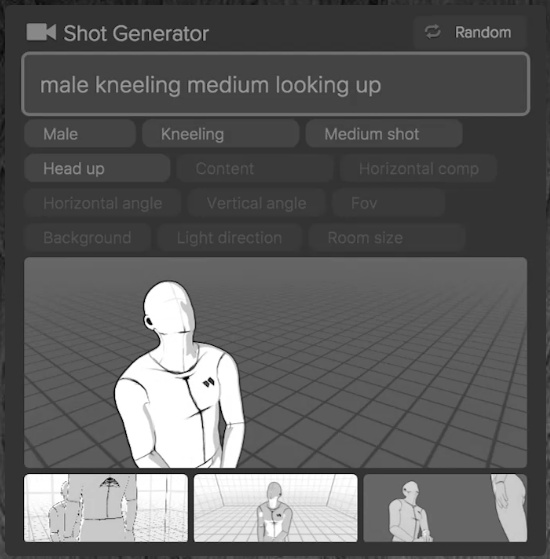
The open source Storyboarder (beta with email-only access) has added a new ‘Shot Generator’. It’s a basic stage on which you have 3D objects and basic dummies. What’s nice is that the camera angle and framing is somewhat “auto”…
“Just type a description into the Shot Generator in the sidebar, press return, and generate as many shots as you’d like. Change parameters as you want. Shots are fully customizable.”
There’s also a “Random” button. You can see it in action about half way down the page, or in the 25 minute tutorial video.
Storyboarder seems to also be re-creating a sort of minimalist Poser / DAZ Studio / iClone, in some measure, but with ‘smart awareness’ of where the camera is in relation to the figures.
Once set up, you can instantly whisk the frame back into Storyboarder. Looks good.
Random City Maps
The UK’s Marcus Johnson has a new 2D RPG Random City Map Generator for just $1 on ArtStation, and the licence allows… “up to one commercial project (up to 2,000 sales or 20,000 views).” It hooks into the free Substance Player, and needs it to work. Not sure what the output resolution and anti-aliasing is like, but presumably one could wrangle these into an isometric view and then pop 3D rendered PNGs on top.
ClipStudio – innovative new features demo
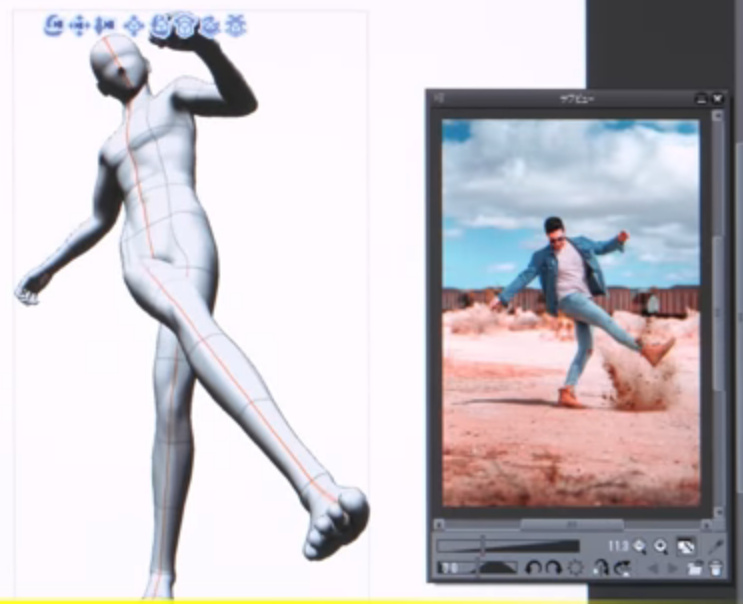
The paid ClipStudio (aka Manga Studio) has a new short video demo of its new ‘autocolour line art’ and ‘pose extraction’ tools. The autocolour gives ClipStudio parity with the free Krita 4.x, and the semi-automated pose extractor is only in quite experimental stage at present. Notice how there’s an abrupt jump-cut in the video as we jump from the basic and rather clunky pose extraction…
… to something that’s obviously had a quite a bit of hand-tweaking…
Still, that it can be done at all is very promising for the future. And it’ll surely be coming to other software, as the research for it is in the public domain.
New post-tag on this blog: ‘Automation’
I’ve been blogging quite a bit recently on automation in graphics software, and have gone back over the posts and tagged them with a new tag: “Automation”.
Manga Studio: automated pose-extraction from photos
A nifty bit of automation, added to the latest Clip Studio Pro (aka Manga Studio), 1.8.6 which was released 28th February 2019. Feed the “Pose Scanner” a picture of a pose, and it will attempt to automatically pose the 3D dummy that resides inside Manga Studio and which is meant as a drawing-guide.
Note how, in the example given, it’s only getting a rather approximate fit. You’d probably do better, in terms of getting pose both believable and lively, by just inking over the photo itself. Still, if you wanted to save a repeatable preset and were willing to further tweak the auto-pose, then it could provide a starting point for crafting the preset. You might also get better results from photos made in your own green-screen setup in your home-studio.
This feature is only a beta “technology preview” at present, but I’d assume it’s based on public research and thus may be coming to other software in time. I assume that the approximate pose extraction is automatic, and doesn’t require the user to draw lines on the photo.
Possibly this sort of thing is already common as a visual toy in smartphone apps. But, not being a connoisseur of such things, I don’t know about them.