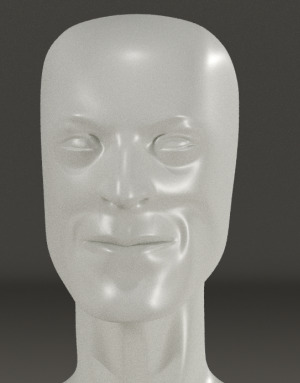
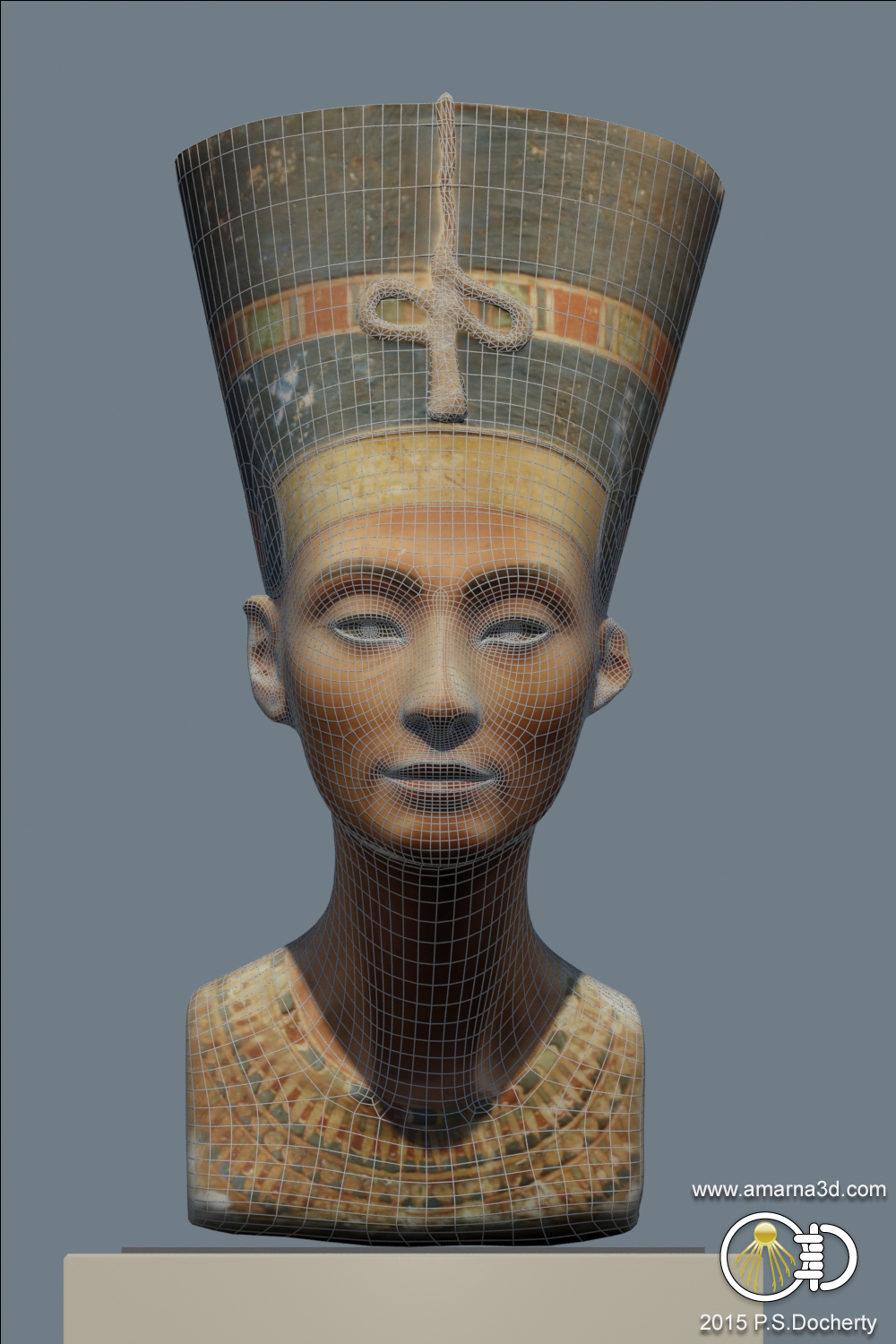
Historical 3D graphics consultant Paul S. Docherty has recreated the famous bust of Nefertiti (Ancient Egypt, c. 1340 BC) in hi-res 3D, using only a variety of public photos (“photogrammetry”). His detailed account of the process is here. The Swiss microengineering specialist C. Yamahata has duplicated Docherty’s process and kindly offers a free .obj for download.
Author Archives: jonahjameson
How to Make Clothing for Poser
There’s a new book out for Poser clothing content-creators, How to Make Clothing for Poser: A Step By Step Guide, with 278 pages in 21 chapters. Seems to be written for beginners, since it helpfully explains the basics and technical terms.
A sample page…
GPU’s power NVIDIA
NVIDIA, whose most expensive videogaming graphics cards can now power Poser 11 and DAZ Studio 4.8x and higher, is doing rather well at selling its cards…
“In the three months to January 31, revenues from the graphics chip giant’s PC cards rose 25.4 per cent on the year-ago period to US $810m. … its gaming wing more or less doubled in revenue [and] it absolutely dominates the company’s [accounting] books”
Poser 11, comic book mode
Another example of Poser 11’s comic-book mode. Runtime DNA’s ‘Ninja Sprite’ toons up especially nicely, although the top of the hair needs a little Photoshop…

Digital Art LIVE #5
Pro-tastic prices
Poser 11 Pro currently has a $120 discount at Smith Micro. And Reality 4.2 for Poser is currently 50% off at Renderosity.
Ten tips for comics production using Poser 11
Here’s my quick selection of the ‘top ten’ tips I spotted during the recent two-hour official Poser for comics webinar. Thanks to Charles Taylor for the first tip, and Brian Haberlin for the rest. There are more tips than these ten, though, so watch the whole webinar. It’s free online.
1. Apply canned stock animations to your character, then scrub along Poser’s animation timeline to find exactly the right pose — the pose and angle that fits the story-moment happening in your comic panel.
2. When using an Infinite light with Poser 11’s Comic Book Preview mode, dial up the Preview Shadow Map Size to 4096 to get quality shadows.
3. Improve texture quality in Preview, by going to Render Settings | Preview | Texture Display, and dial it up to 4096 for quality textures.
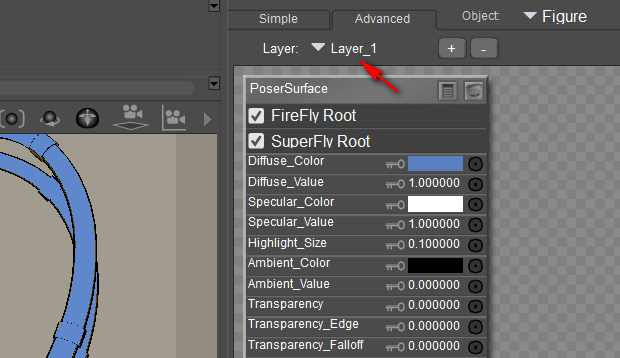
4. Different parts of a character or prop can be given a thinner or thicker ink line, when using the Comic Book Preview mode. Simply switch to the Material Room, and then dial the Geometric Edge setting up or down.
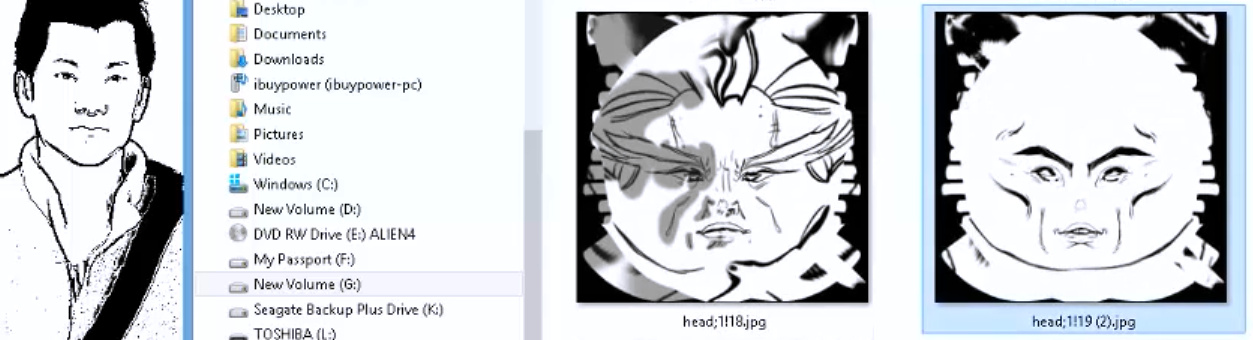
5. Simple hand-inking of a face texture can get you nearer to a production-quality comic-book character, when starting with a V4 or M4 character which was intended for photoreal rendering. Hair can also be painted as ink lines.

You can also re-colour individual lines of polygons directly on the mesh, to serve as quasi ‘ink lines’ in the render.
6. For very large landscapes, having the far distance as a wallpapered dome won’t get you the toon ink lines you need. For that you need real geometry. So don’t forget about the low-poly royalty-free game landscapes now being sold fairly cheaply in .obj for Unity.
7. A lone ToonID layer rendered in Firefly (a Poser 11 Pro-only feature) can be used later, in Photoshop, to quickly ‘paintbucket’ flat colour into large areas of the comic panel.
8. Don’t accept the default camera lens for a scene, spin the Focal dial on the camera and see what dramatic effects it can give you.
9. Once you have all the thumbnail planning of your panels and pages firmly nailed down, it’s possible for Brian to produce up to six pages a day when everything is going smoothly. Thumbnailing is vital to prevent wasting hours in fiddling with all the possibilities that 3D offers.
10. It can take a day to fully ‘design’ a production-level Poser character from a stock M4 or V4, runtime-bashing clothing items together to form a unique look, finding or making textures that suit the Comic Book Preview mode, etc. But once the final character is “drawn” in 3D and looking right, the rest of the work is mostly posing and rendering.
Free online: 2hr Poser comics webinar
Now online for free at YouTube, the recent 2-hour official Poser webinar on using Poser for making comics. There’s a very poor microphone being used by the initial tutor, but you can’t sniff at free + two hours long. You might want to start at 27:30 mins then loop back to the starting section later on, to avoid getting bogged down right away in the first 25 minutes of fiddly animation timeline wrangling.
Vue 2015 and the NPR feature
I’d almost forgotten that Vue XStream 2015 added a new NPR (Non-Photorealistic Rendering, or ‘toon and paint’ to the rest of us) module, when it shipped last spring. I took a quick look at what people have been saying about it, and doing with it over the last nine months.


Unfortunately there seems to have been very little interest in this feature. Judging by the half-dozen 2015 NPR renders shown online, there was even less use of the feature. Just a few tests.
Here are the better ‘not-too-Photoshoppy’ demo pictures made with Vue 2015’s NPR: Vue’s own planes’ promotional picture; some trees by CG-Garlic; and (with some Photoshop) Dave de Kerf’s “Trench Run”.


This again confirms my general theory that the mass of 3D users only really want “photoreal, photoREAL, PHOTOREAL!”. Though we may may occasionally go “oooh!” at an NPR picture for five seconds, before going back to using the magnifying glass to get each of Genesis 2 Female’s individual SSS skin pores looking just right.
But I also have a theory that the professional artists — those who can massage these sorts of NPR effects up to the level where most paying clients can’t really tell if they’re 3D or 2D — they just don’t want to say anything about it or show it off in public. Because they’re making money off it. Mostly that’s just my educated guess, but I have heard various people say things along those lines. Did you know, for instance, that the artist Dave Gibbons extensively uses Poser and he made one of the all-time-great graphic novels, Alan Moore’s Watchmen? Yup, Poser. And I bet most readers can’t get a third of the way through a copy of ImagineFX, without muttering: “they must have used Poser or DAZ for the basis of that one…”.
Anyway, here’s everything I could find on Vue 2015’s NPR. There’s not much. Nothing official from Vue on YouTube, which is kind of amazing. But Vladimir Chopine of Russia has a good solid 35-minute tour of the NPR module for free on YouTube, part of his longer paid-for GeeksAtPlay video introduction to using Vue 2015. The NPR module looks very powerful and flexible, able to combine and merge multiple lines and effects. If this was a Photoshop plugin for sketching and painting over imported 3D models in Photoshop, there would be a mini-industry built around it by now…
GeeksAtPlay’s video tutorial continues in Part 2, Part 3 and Part 4, to get the full 35 minutes.
And 3D World magazine #196 (July 2015) offered a free downloadable preset (48Mb) for the NPR module, as part of its review of 2015. No-one else seems to have whipped up some cool presets for NPR in Vue 2015 and given them away free, so far as I can find. The same issue of 3D World also had a short Vue 2015 review, which said of the NPR…
“Vue contains a new, extraordinary NPR (non-photorealistic render) engine, which is simply awesome. There are several NPR engines in different applications, but e-on did something truly revolutionary and created a free and customisable tool for artistic abstraction. Here you can determine the full artistic style of the rendered image. This is a valuable addition because you have the opportunity to combine, for example, the brush weights with the colours of the pictures and other manipulators. […] For backgrounds in animation and feature films this could bring a strong uniqueness. Unfortunately, NPR engine only currently supports Vue xStream module.”
For artists to read that about a major 3D software in a major magazine review, and then give a collective shrug of the shoulders to it… it seems a bit sad.
1971s sale
I spotted another content designer who has a Renderosity sale, 1971s. Nice 25% discounts, on the following and more, with 65% discounts for Prime ($29.99 USD) members. His sale ends today (28th Jan, USA time). Update: sale extended to 2nd February.


Littledragon’s freebies
List of SuperFly shader packs for Poser 11
Poser 11 is only just out recently, but here’s a list of the known packs of SuperFly shaders presets / materials presets, at January 2016:
* Node-god Seachnasaigh’s “misc Sfly MATs” pack. Including a very useful and fine glass preset in both plain and volumetrics versions. Make sure you get all his .zip files. Update: This appears to be one of the items which vanished with the demise of the RuntimeDNA store.
* 8 Speciality materials. Including glowing alien gloop! (free)
* Superfly Metals Basics (free)
* Glass pack. Just made for fun, not super-realistic. (free)
* D3D SuperFly Materials. Cloth, glass, metals, textures such as cork, settled snow. This is also labeled as a Merchant Resource. ($12)
* Zoe’s SuperFly Satin Shaders (free)
We’ll no doubt see more in 2016, since it’s fairly easy to port over the zillions of free Blender Cycles shaders into Poser 11.
Anyone reading this will probably also want the free EZSkin 3, which enables older SSS or more-complex DAZ SSS skin shaders to work in Poser 11 SuperFly, in just a few clicks.
Tutorial: working with the new real-time Comic Book mode in Poser 11
How to get the best from the Comic Book preview mode in Poser 11: a basic workflow using two masked PNG renders of a character.

AIM: to show how the Comic Book preview mode works within a workflow. To get the ink lines onto their own Photoshop layer, with the flat colours underneath the lines on another layer.
USERS: This is for those intending to spend serious time creating a narrative comic-book or graphic novel, and who need the artwork to stand up under the scrutiny of seasoned buyers of comics and comics reviewers. If you’re just making a webcomic gag-strip, shown at a small size on a phone or tablet and seen by readers for 0.3 microseconds, then you don’t need this tutorial — instead just accept the ink lines that the Comic Book Preview mode gives you, rendering them to a big masked .PNG with anti-aliasing enabled.
REQUIREMENTS: Poser 11 Standard or Pro, Photoshop. Please note: this tutorial requires you to be familiar with using Photoshop, and that you can remove a flat colour from across a picture and replace it with 100% transparency.
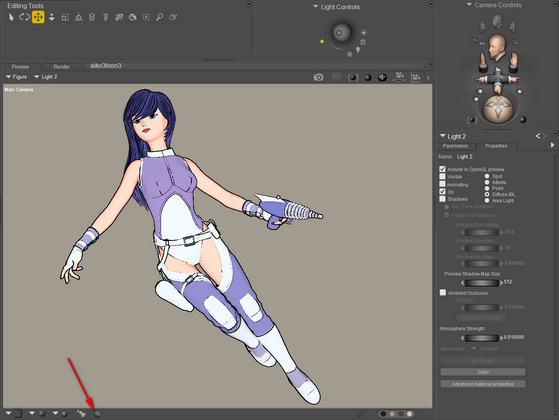
1. Set up a new Poser 11 scene with a flat single-light IBL light at perhaps 30% intensity, so as to get a toon flatness across your character. Turn off the Ground (i.e.: make any backdrop plate and the floor invisible, even as a mesh), since we want to output a masked PNG later on. ‘Flat’ here means it’s pointed fairly directly at the camera is is not causing many shadows… the lighting that results is ‘flat’.
Note that as well as having a dial setting for Intensity, your single IBL light also has Red | Green | Blue dials. Dialing back the Green a little can add a subtle extra warmth to a character’s skin when using IBL flat ‘toon’ lighting.
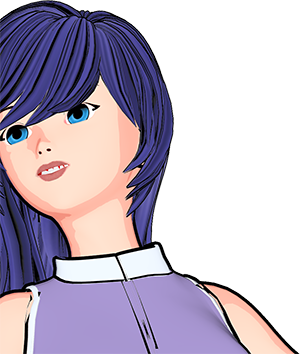
2. Then load a suitable character such as Aiko 3, seen here, who is still excellent for comic book tooning. Here she is with toon materials, but in Poser’s default lighting. As you can see it’s a bit ugly — this is what is about to get cleaned up by the special single-IBL light which will give us relatively flat toon lighting. Without an anime/manga ‘flat’ light (we’re adding that in step 3) you can’t tell if the toon materials do actually toon or not.
One of the nice things about Poser 11’s Comic Book mode is that older vintage characters such as Aiko 3, who are misleadingly deemed to lack something in the age of photoreal rendering, suddenly become useful again for comics and cartoons.
Once you’ve loaded your character then you’ll need to locate a dedicated toon skin material in your runtime, and apply it to the character. You don’t want one that gives you an ink line, though, since we’ve already got that. Ideally the toon skin material will just incorporate a very subtle paint wash effect, as seen in the example below. This helps to suggest rounded limbs, noses, and chins, but without the need for ugly dark shadows…

This example also illustrates why this tutorial’s method is needed. Close-ups will show errors in the ink lines, such as are seen here on the clothes at the shoulders. Having the ink lines on their own Photoshop layer makes these errors so much easier to correct or erase.
3. Activate Poser 11’s Comic Book preview mode panel (centre of the screen, at the bottom), and tweak this effect to your liking. Note the new flat head-on light.

Now drop the flat or almost-flat colour materials, that you’ll already have scoured your runtime for, onto the clothes and skin. Ideally — in this special lighting and mode — the chosen materials will have just a tiny bit of shadow set to appear at the edges (as seen above on the clothes). Once you have found a suitable material, you can save it out and just use it again and again, simply tweaking its exact colour to your liking via a quick trip to the Materials room.
Find suitable hair, then apply a toon hair material that looks good with the new Comic Book mode (easier said than done, because such materials appear to be rare).
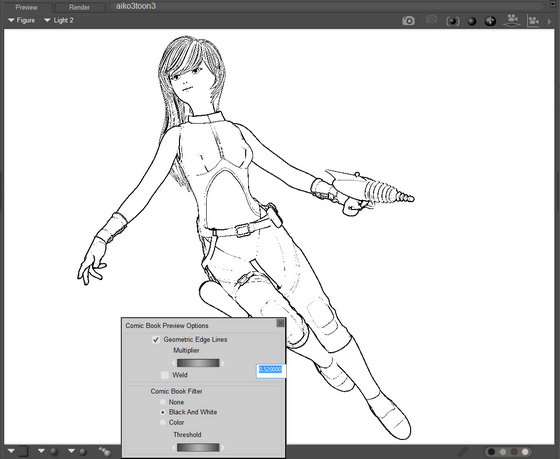
Ensure that any legacy materials are “burned off” by turning up the Threshold dial in Black and White mode, so you just have line-art when in Black and White.

4. Once you’re happy with your Comic Book look in both colour and black-and-white modes, ensure that “Enable Hardware Anti-aliasing” is enabled in the Preview rendering settings, and that the Style Options panel there has “Antialias rendered image” ticked. These should both be on by default, but it’s worth checking. Those without a graphics card should note that Poser 11 no longer requires a GPU for anti-aliasing.

Then set the render size to BIG. For this tutorial I worked with 5000px by 3750px. Render size just doesn’t matter here in terms of speed, since we’re working with real-time OpenGL rendering.
5. Ensure that you are in B&W Comic Book Preview, then Render your Preview + export a PNG. Even at 5000px the Preview render this should not take more than five seconds.
(NOT: OpenGL preview + anti-alias + export, since that won’t give you a masked PNG).

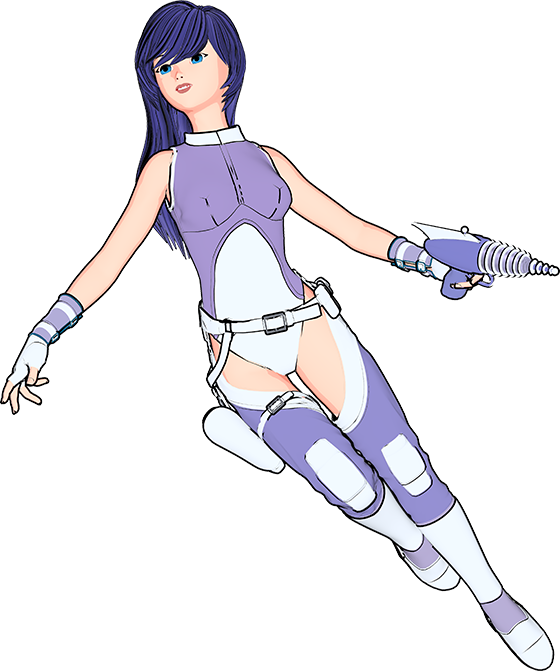
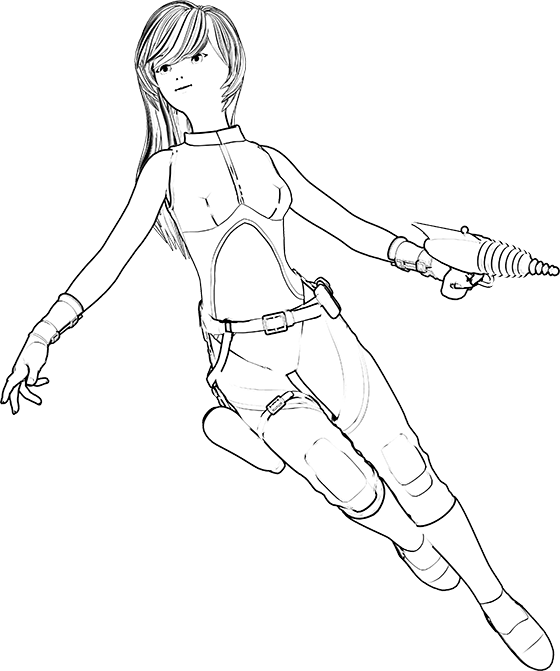
Note here that the line inking is not perfect. The mouth is a fairly ugly line. Bits of the gunbelt are missing lines. A bit of boot is missing a line. Her clothing top’s ink line goes haywire as it approaches her shoulder. There are also some thin mis-placed lines on the top of the thighs, and a line across the eyes (though the latter can’t be seen in this reduced-size picture). Anyone who wants to make a comic that deals in close-ups and a medium-shots is going to have to deal with problems like these.
6. Now turn off all the Comic Book preview inking effects. Yes, that’s counter-intuitive. But, now that we have the ink lines as a render, we only want the Colour Flats or as close to flats as you can get. Without moving the camera or character pose, render the flats out to a 5000px .PNG.

Quite pretty on its own, admittedly. But if it’s going to be part of a narrative comic panel then Aiko needs the quick ‘visual readability’ that strong ink lines will give her, and which will help her to stand out from the background.
The hair still has lines, since they’re coming directly from the toon hair material I added.
7. OK, we’re done with Poser (you might also add a shadows-only render, but that’s not covered here). Close it and start Photoshop. Open the colour flats .PNG in Photoshop. Copy | Edit | Place Special | Paste in Place. Doing it like that helps to avoid the clunky mis-registration of the two layers that might otherwise happen.
Now use Photoshop to knock out all the white in the B&W ink lines layer, so that you just have the black lines on top of the colour flats. Set the line art’s Layer Blending mode to Darken, 100%.
(Ideally, a future update of Poser 11 would enable a dual-layered .PSD from the Preview renderer, for this sort of work).
8. So, why do all this? It’s because you now have the ink lines on their own layer, which allows you to clean up the line-work in a quick way that would otherwise be impossible. Simply chop out any ink lines you don’t like, with the Lasso tool. Or more carefully erase or soften ink lines with the Eraser.
Here you can see that I’ve removed the odd-looking stray lines that had crept up over the thighs, have totally removed the ugly ink line which had been placed across the mouth, and removed two tiny lines that were going right across her eyes. This sort of work may be especially important for larger comics panels containing close-up artwork of your characters.

Because of the large 5000px size it’s also now easy to ink in any lines that may be missing. Or if you have a shaky hand you can just steal nice lines from elsewhere in the ink lines layer, copy+paste them, then rotate and re-size. For instance I did this on the end of the belt-pull.
One can also use Photoshop’s Liquify tools to nudge, smooth and reduce certain lines, and because you’re working at a large size the resulting blurring won’t be too apparent. Make sure the nudged line still aligns with the colour flats render, though.
You may also want to do some very light Dodge and Burn work at this point, just to bring back a little shape and weight to selected aspects of the character. The gun holster and gun body, for instance, might benefit from a subtle visual cue as to their roundness. Or if you’re skilled with art rendering, paint a whole greyscale values layer, blend it and then add highlights.
Perhaps you might even paste in a Shadows Pass or AO pass from Firefly (Shadows-only render) as an additional layer. Though maintaining consistent self-shadows across all panels of the comic will likely generate vast amounts of extra work, and the result probably won’t be satisfactory as either 2D or 3D.
If you need your final .PNG cutout characters to cast a ground shadow, there’s Lyne’s Cast Shadows Action for Photoshop.
There may be a slight overall mis-registration of the layers, but that can add to the comic-cook art effect by making the art just a bit less than perfectly done.
9. Once you’re happy, save the picture as an un-flattened .PSD for future tweaks, emergencies and re-use. Then select the character, Edit | Copy Merged and paste into a new document. Reduce that to the size you need for the target comics panel and save it as a .PNG (so that it retains its transparent background).
10. Your output .PNG is now suitable for dropping into a comic-book page’s frame, and because it’s a .PNG output it will be seamless with any pre-existing background layer you already have in the frame. (You can also Stroke the edge of your output .PNG in Photoshop, if it needs to stand out more from the background, and note that Stroke can be run in Inside and Centred mode as well as along the Outside edge. Alternatively, a black Outer Glow can also give you an edge Stroke, but softer than a Stroke).
Seasoned comic-book readers are now far less likely to sneer at your artwork because of oddly placed ink lines on noses, mouths, or other important areas, or because of some curiously missing lines.
A few additional things I learned in the process of this tutorial…
* In the Black and White mode, turning on Depth Cueing can very subtly change some toon outlines.
* In Black and White mode, adding a 50%-power Spotlight and swinging it around can cause interesting extra ink lines to appear, at the cost of some loss of lines elsewhere.
* Conforming accessories such as belts and goggles etc seem to take toon ink lines especially poorly. I suspect it may just be poor edgework due to the conform.
* And as I’ve written elsewhere, the Sketch Render can be applied to just the ink lines of a B&W preview, for a nice pencil effect. Try the Charcoal preset, with the stroke lightened up a bit and with no background sketching.
* If you really feel you also need 3D-style shadows on the character, you can do an extra render with just a shadows pass, and then blend and partially erase this in Photoshop. Keep in mind that that character shadows may be difficult to control consistently across a 24-page comic-book, especially across multiple characters and settings, and thus may be more trouble than they’re worth.
Update 2020: I’ve learned a lot more in the four years since this tutorial. See my other posts tagged “comics”.
DAZ/Poser Content Survey for Jan 2016
Next weekend I may not have the time to do my usual survey of the month’s new content for DAZ Studio and Poser. So, here’s the latest roundup of the quality and unusual items that have caught my eye since December 31st.
Wear Them All – Autofitting Clones and Clothing Smoothers for Genesis 3 Female and for Genesis 3 Male. Looks incredibly useful for DAZ Studio and G3 users….
“Wear Them All autofitting clones are created to smoothly fit any Genesis 2 Male, Genesis, Victoria 4 and Michael 4 conforming clothes to Genesis 3 Female(s) using the Autofit feature in DAZ Studio.”

There’s also a big Male + Female ‘Growing Up’ bundle to easily get different age-shapes onto Genesis 3.
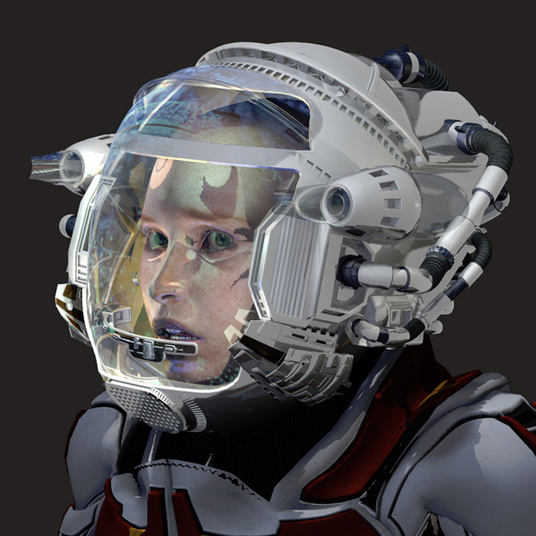
There are of course plenty of generic/chain-store G3 outfits this month, plus a useful base set of Office Wear for Genesis 3 Female. But a few more unusual items stand out for me. The AntFarm has an impressive Flight Gear head-piece for G3 and G2, which someone will no doubt produce a steampunk materials makeover for soon.

Demian’s Misterio Outfit for Genesis 3 Female is an interesting blend of ancient Greek, steampunk and sci-fi, with a smidgen of pirate. Those with large runtimes could probably mix-and-match items from different outfits to get something similar, but this is nicely done…

Oskarsson has a classic Alice in Wonderland outfit for Genesis 3 Female, which is sure to be popular and to attract a large number of texture makeovers…


Grand Siecle Hair for G3 female, big French-style hair from the 18th century…

For Genesis 2 there’s High Top Canvas Sneakers, which look usefully generic and which come with a wide range of textures and scuffs/stains…

Also for G2 is a freebie Chef outfit, worth having simply for the unusual hat — even if you don’t need a chef…

Poser 11’s new Pauline flagship figure has a goth makeover Jana for Pauline (Poser 11) and an Asian makeover Asami for Pauline (Poser 11)…


In science fiction Predatron’s Star Wars-inspired 14MU Space Dock might be hard to get good camera views inside of, but it certainly looks superb from above. It could equally well be a futuristic gladiatorial arena for battle-bots?

Atlantida Weapons are attractive Fifth Element-style hybrids between sci-fi and Ancient Atlantis, including a very desirable helmet…

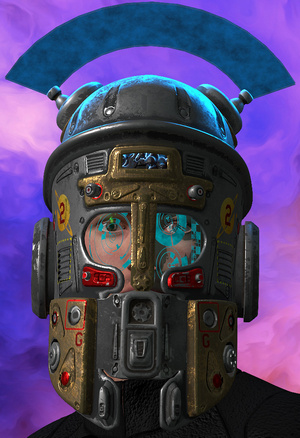
Also in sci-fi head-wear, Poisen has a fabulous set of Helmet-Z2 helmets this month…


Is your default grey-blue Poser startup figure, Andy, looking a little humdrum? The freebie Andy2.0 Ancients gives him a colourful sci-fi makeover…

Pin-Up Gynoid Phase3 for G3F Base is unusual…

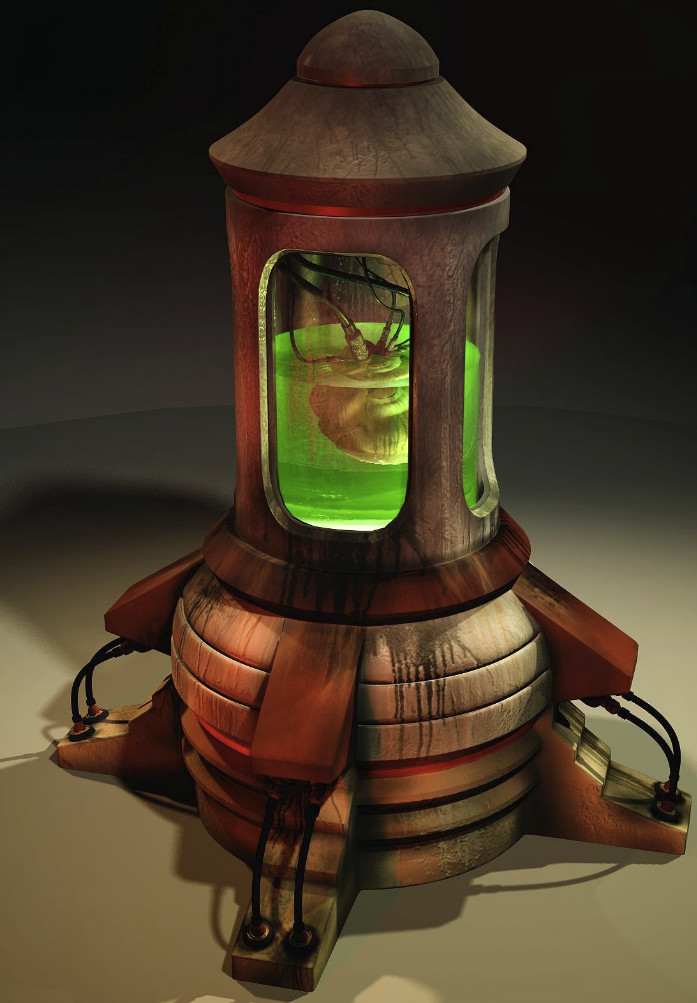
There’s an even more unusual storage chamber for the Gynoids, Valentine’s Hive…

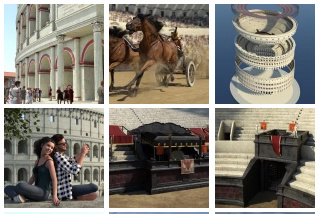
There are a couple of classic history scenes this month, including i13’s new Greek Arena and Greek Chariot…

Borgia’s Opulent Hall looks like an excellent place for a renaissance swordfight, a Venetian ball scene, or perhaps even a steampunk battle-planning conclave…

Pre-Raphealite paintings in DAZ Studio or Poser? No problem. Mada Hair Genesis 3 Female, G2 and V4, complete with the daisy hair wreath — and (over at Renderosity) NaturalHC colors for hair and wreath…

I covered the recent wave of Ancient Egyptian content in my survey of such, a few days ago…

There’s a crop of urban gangster/police scenes this month. The AntFarm has The Back Room…

And Coflek-Gnorg has an I Spy stakeout scene…

Coflek-gnorg also has MO Ghetto Props 3D Models, which could also be part of the stakeout…

The guy who lives in the box probably sports the epic new fuzzy-face beard from Mortem Vetus, Facial A-Hairness…

Fitting into this crime genre, perhaps a little more than into sci-fi, is Cybertenko’s Military Exoskeleton. It might be a possibility for outfitting and super-charging your gangster-busting hero…

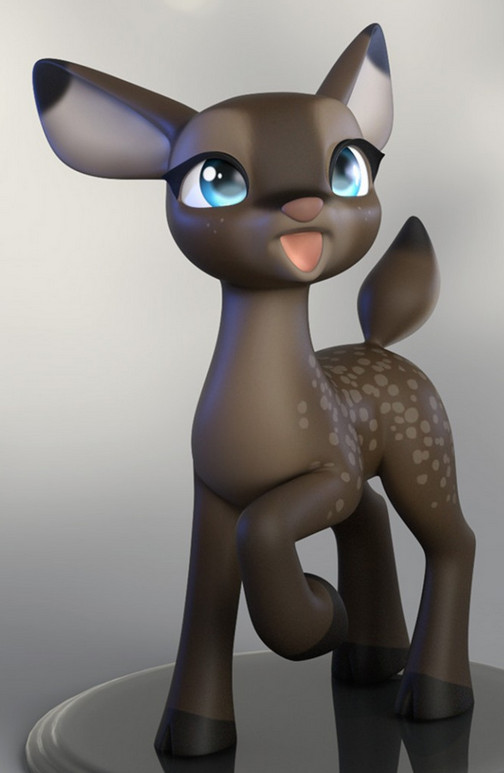
Not much in semi-toon this month, but what there is is quality. The humanimal Reindeer Dusk & Dawn looks great fun…

Also surfing the humanimal trend is Baby Rhino for Baby Luna. Though sadly Baby Rhino appears to have been pulled from the store. Hopefully that’s not due to complaints…

A Witch’s Gingerbread House has a nice baked glaze on the gingerbread…

At Runtime DNA there’s new winter clothing for the popular Star! figure, Vintage Looks for Star…

Skinny in a very different way from Star! is the modern-folklore character Skinnyman. He’s a new standalone character for Poser 6 or later, with a suit that has an excellent silhouette on the shoulders…


Animals continue to attract top Poser/DAZ designers. AM has his Wolf 2.0 for Poser out now, complete with fur.

AM also has a new Thylacine (Tasmanian Tiger), a sort of curious marsupial blend between a dog and fox, with zebra stripes…

Too late for Christmas, but you can now turn your Hivewire Horses into Rocking Horses…

The maker of the top-quality Songbird Remix series continues his new Moths series with Moths of the World Vol. 1 and Vol. 2…

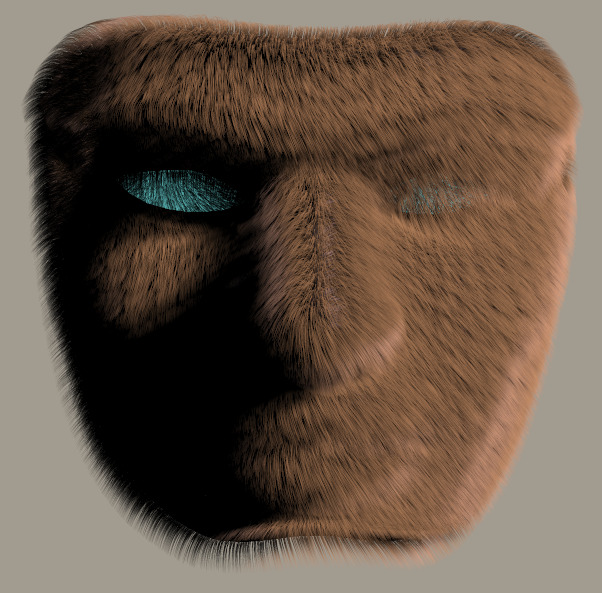
Mortem Vetus’s Facial A-Hairness for Micheal 4 can also give a man-beast an epic amount of animal hairyness…

All that in just 24 days since Xmas. Thanks to the designers who make all this cool content happen!
That’s it for now, more next month.
Poser 11 free webinar – get the best from Poser’s SuperFly render engine
Now online, the recent 76-minute webinar for users of the new Poser 11: “How to Get the Best Results from Poser’s SuperFly render engine”…
Update, video was at /l0yjSRMsAjY but is now dead.
A rather unfortunate frame (above) for YouTube to decide to dwell on. Don’t worry, you really don’t have to learn math and draw complex diagrams to use Poser! However, the graphic does indicate the nature of the video.
BE WARNED: this video is a highly technical look at the innards of SuperFly, and is not ‘pretty pictures of space babes and a half-dozen hot rendering tips’. Basically, if you don’t know what “bucket size” is and what “shader nodes” are, your head will explode about half-way through the video 🙂
Poser newbies who do try to watch it should be aware that all this complexity is hidden behind simple presets for render-quality and materials.
I did learn something interesting right at the end of the video though. “Bucket size” can affect the speed of a CPU render, but it depends on the type of scene. Doesn’t seem to work for my simple CPU though, on a test scene…
Bucket size (default Fast Preview preset is 64) | seconds:
16 | 31 seconds
32 | 30 seconds
64 | 30 seconds
128 | 43 seconds
256 | 59 seconds
Update: Those with multi-thread workstations (e.g. 12 fast cores, 24 threads) can go higher up this list and get faster not slower.