DiffusionLight. An AI looks at a 2D photo scene, and then it makes the HDR lighting ball (aka ‘light probe’) that would have produced the scene’s lighting. Using this new light probe, you can then seamlessly render a 3D figure against the backplate photo. The sort of thing that should be in Poser 14, I’d suggest.
Author Archives: jonahjameson
Out of the Meshbox…
A quick proof-of-concept test. Miyre/Meshbox’s old H.P. Lovecraft figure for Poser, a simple Poser render with no line-art…
This was fed to InvokeAI 3.0, where it was used as a control for the text-prompt. A 1024px image was generated with SD 1.5…
Just another type of rendering from 3D, in my view. And think of how valuable it makes a big Poser/DAZ runtime, when you can reach into it and find items and angle them perfectly for use as control images… to get exactly what you want from the AI. And even the oldest and naffest 3D content can be used. Bad old textures and iffy modelling are not all that important.
How to make a quick real-time z-depth (“depth cued”) render from Poser
How to make a quick real-time z-depth (“depth cued”) render from Poser.
The result:
How it’s done:
1. Save the Poser scene file you’re working on.
2. Turn on the Smooth Shaded display.
3. Turn on the Depth Cueing.
4. Delete all lights from the scene.
5. Make the background white.
6. Make a real-time Preview render, save it as a .JPG file.
7. Revert to the last saved file, undoing the changes.
Ok, that probably doesn’t sound all that quick. But here’s my Python script that automates all this grunt-work.
You need to make a one-time edit to the file path, in the script. Just indicate where you want rendered images to be saved. Make this simple change, save as a .PY file and then add to the C:\Program Files\Poser Software\Poser 13\Runtime\Python\poserScripts\ScriptsMenu folder. Restart Poser, and you’re ready for real-time depth map renders of your scene.
|
1 2 3 4 5 6 7 8 9 10 11 12 13 14 15 16 17 18 19 20 21 22 23 24 25 26 27 28 29 30 31 32 33 34 35 36 37 38 39 40 41 42 43 44 45 46 47 48 49 50 51 52 53 54 55 56 57 58 59 60 61 62 63 |
# Make a quick depth-qued auto-render from Poser. # Version 1.0 - December 2023. Tested in Poser 11 and 13. # With thanks to bwldrd for the 'SetBackgroundColor' tip. # From a saved Poser scene, auto render a quick real-time depth-map # as a .JPG on white, then revert the scene to the last saved scene file. # NOTE: The user will needs to change the output directory 'dirPath=' to their chosen path. import poser import datetime # Set up the saving and timestamp parameters. Change the save directory to suit your needs. # Remember that the \\ double slashes are vital!! This is for Windows. Mac paths may be different? dirPath="C:\\Users\\WINDOWS_USER_NAME\\FOLDER_NAME\\" ext="JPG" current_date = datetime.datetime.now().strftime ("%a-%d-%b-%Y-%H-%M-%S") # Are we dealing with a Poser scene? scene = poser.Scene() # First, we make the Ground invisible. Thus, no ground shadows or grid. # Comment out these two lines with #'s if you dont want this to happen. scene.SelectActor(scene.Actor("GROUND")) scene.Actor("GROUND").SetVisible(0) # Now we make sure the render is set to use a DPI of 300. # And switch the render engine to real-time PREVIEW mode. # This assumes the user has already set their preferred render size. scene.SetResolution(300, 0) scene.SetCurrentRenderEngine(poser.kRenderEngineCodePREVIEW) # Now delete all lights in the scene. Then redraw the Poser scene. lights = scene.Lights() for light in lights: light.Delete() scene.Draw() # Now turn on the 'Smooth Shaded' display mode. poser.ProcessCommand(1083) scene.Draw() # Now Toggle 'Depth Cue' display mode on. poser.ProcessCommand(1044) scene.Draw() # Figure style is now set to use document style, in case it wasn't for some reason. poser.ProcessCommand(1438) scene.Draw() # Set the scene's background color to white. scene.SetBackgroundColor (1.0,1.0,1.0) scene.Draw() # Now we render the scene in Preview at 300dpi and save to a .JPG file. # It must be .JPG otherwise we get a .PNG cutout with alpha and fringing. # The file is timestamped and saved into the user's preferred directory. scene.Render() scene.SaveImage(ext, dirPath + current_date) # Done. Now we revert the entire scene, to its last saved state. This means # that it doesn't matter that we changed the display modes and deleted lights. poser.ProcessCommand(7) |
Why do all this? Because AI image making can use depth-maps to recreate 3D scenes, in combination with the descriptive text prompt. AI + Poser’s content = accurate AI visuals of anything Poser has in its Library.
In DAZ Studio, the paid utility ‘Atmospheric Effects Cameras for DAZ Studio’ can do this, via its depth camera.
What’s new for Poser and DAZ Studio, November/December 2023
New for Poser and DAZ Studio, November/December 2023, Here are my latest picks from the latest goodies for Poser & DAZ creators, and with some overlap with AIs at the end. Though there is increasingly overlap, as people start to use Poser and DAZ to produce the poses and depth renders that guide the AI generation.
As usual, freebies are only featured if the renders are ‘commercial use’.
My last round-up was 3rd November, so we’re looking at six weeks worth here rather than just a month.
Science fiction:
UltraScenery – Planet Taira, a set of alien plants.
G…Glitch is a new near-future sci-fi ISS Space Station like interior from Coflek-gnorg.
DD PBR Alien Rock Shaders for iRay Vol. 3.
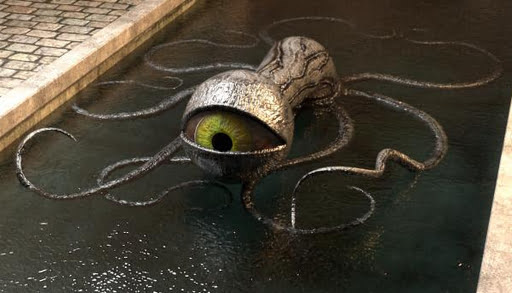
Sci-Fi Octopus, obviously for Matrix fan-art only rather than commercial use.
Fantasy:
Army Of The Dead. Plus ogres lugging rocks.
Medieval Village Destruction Kit.
Demonarium by Poisen, for Poser. 3D models.
Free, More Conforming Tails and Tentacles for Poser. Including what appears to be a squirrel tail.
Steampunk:
Free, a Pirate Outfit for Genesis 8/8.1 Female. With steampunk runtime-bashing potential.
New free Poser Shaders: Corrosion.
Beach:
Heading for the beach in January? Don’t forget the Castle Made of Sand, in two parts.
Beach bar set for Poser from 1971s.
Free Summer Casual Deck Shoes for La Femme 2.
Storybook:
Moonlight, three free Moon / Sun figures in 3D.
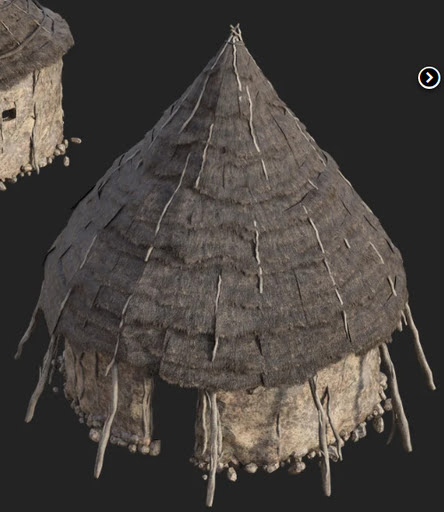
A free playroom Wigwam.
More conventional modern play-tents are in the new Backyard Playset Bundle for DAZ Studio. Or can be had as TF Playground Tent.
B.E.T.T.Y Teen Accessory Pack. Backpack and smartphone for young teens.
CNB Calvin for Genesis 9, a young boy.
Toon and semi-toon:
RA Chull Christmas, a Xmas outfit makeover for Nursoda’s Chull figure.
He’ll be dancing around the new Steampunk Christmas Tree.
Possibly with pixies. Currently free at DAZ, over a hundred Power Pixie morphs for the 3D Universe Pixie.
Need ‘a right Charlie’? King Charles for M3 LowRes.
Superhero and comics production:
A new series of pose sets, SuperHero Dexterity for G8M Volume 1. Specifically intended for the new Red Devil (Marvel’s Daredevil) Set for G8M.
Grid Suit G8M, an overlay of guide-lines for those producing rough layouts and pencils for comics.
See also the “AI” section.
Character helpers:
Free, Reset the face V4 and Reset the Hand V4. It “also works on M4”.
Cheryl for V4. Free and definitely taking V4 away from the ‘usual look’.
Animals:
DS Fantasy Owl Species for last month’s DS Fantasy Owl.
Landscape, oceanscapes:
Mediterranean Juniper High Resolution Plants and Trees from Martin J. Frost.
Ultrascenery : The Ultimate Guide.
Maelstrom, for when you need an ocean whirlpool or river sink-hole.
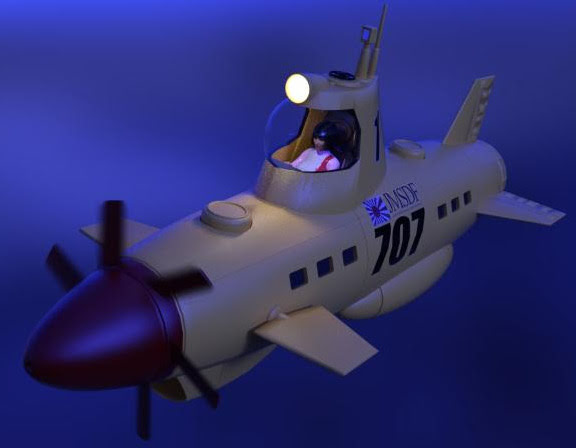
Remote Mini Sub for underwater landscape exploration.
Historical:
A Complete Roman Tavern from the Ancient Roman period, in .OBJ and .FBX formats.
Roman Villa with garden, interior, pool, for DAZ Studio.
The Three Wise Men (The Magi) for the Christmas story.
Viking Jewellery for Genesis 9 and 8. Not something you see every day.
Medieval Tinker – Package #1 and Package #1 FBX, with basic metalworking tools said to be accurate for the medieval period.
dForce Monk for G9. I can’t tell if you also get the character morph or not. The pictures suggest so, but the inventory doesn’t mention it.
Renaissance Gloves for G8M, G8F and G9
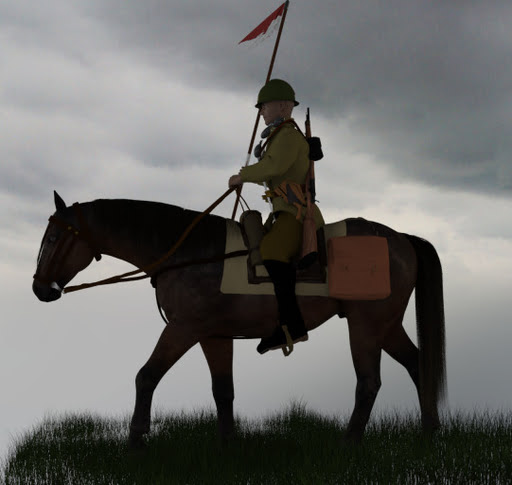
Napoleonic Scottish Highland Infantry for G8M.
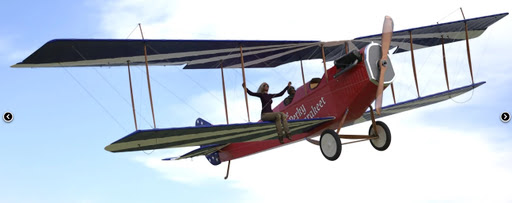
Ilya Muromets WWI Bomber for Poser, a First World War bombing plane. With detailed interior and accessories.
Need air defence? Try the new Pom-Pom Gun for Poser. Also available for DAZ.
Bridport West Bay Station, a classic British train station by Dryjack.
Skippy Racer in two parts. A nice 1940s/50s children’s push scooter.
dForce Picnic Pinafore Outfit for Genesis 9, a classic 1950s / early 1960s girls outfit.
Hurricane Aircat prop for Poser. Amphibious assault craft.
And finally the Snow System for DAZ Studio. Because “snow is a thing of the past”. Or so we’re supposed to believe, as it falls abundantly from the sky.
Coding for scripts:
Beginners Guide to Scripting in DAZ Studio.
Camera-facing billboard script for Poser, working in Poser 12/13.
Starting the Mac OS finder with Python in Poser. Seems to be the equivalent of Windows Explorer.
Tutorials:
DAZ Studio Render Engines : Essentials Guide.
On YouTube, What you need to know about the five types of Poser/DAZ hair.
“Bondware continues making small but meaningful Poser improvements” and there’s a video summary of what they are. Who knew that the latest Poser 13 apparently no long needs Snarlygribbly’s EZSkin for rendering older V4/M4 etc figures in SuperFly? They kept that one quiet, if correct. However, my tests just now suggest you’ll still very much want the new and latest “EZSkin 3.2 (Updated version maintained by Y-Phil)”, for the realism it adds to the skin of older figures. I don’t see Poser 13 adding that in the same way, if at all. It may well handle recalcitrant old textures better, as the video seems to suggest… but no nicer skin. I find EZSkin 3.2 works fine with Poser 13, but note that you will need to import the older figure .def definitions file from the 3.1 .zip file. The definitions are not also in 3.2, so you will need both files. My test: M3 + Draguul dragon-rider, plus EZSkin in Superfly…
How to create fog, mist, spotlights and ‘god rays’ in Poser.
DAZ Studio Techniques – Rendering in Layers for Faster Results.
AI items of interest:
The freeware InvokeAI standalone installer 3.2.0 at the Internet Archive. It’s otherwise a single 32Gb non-resuming .zip file, which many find impossible to download due to line-drops.
DAZ Studio G8F to Openpose, tested. For use in ComfyUI, InvokeAI and others. Pose in DAZ, export the special pose picture, then have the AI image conform to the same pose. Free, but doesn’t do hands.
There’s also a free Openpose Editor, online, with hands. Or an offline Windows Openpose editor free on Itch.io, for which 1.0.9 came out last month. Poser 12 and 13 also has a paid Openpose plugin, which can do hands.
AI can also use depth map renders to guide the image generation. New this month, the paid Basic Depth Map Maker for DAZ Studio. Poser will get you a depth map for free, either in a .PSD after a Firefly render, or as an automated real-time Preview render. These are used in a ‘depth T2I-Adapter’, not a Controlnet’s depth slot.
Reposer, a free and relatively simple ComfyUI workflow for “Consistent Stable Diffusion Generated Characters in ANY pose from one image”. Basically, it does a quick face-swop and pose in one easy workflow. The developer has his stuff here. Obvious potential for comics makers who have lots of ‘talking heads’.
A free Render To Real batcher workflow for DAZ Studio and ComfyUI. Render in DAZ, pop out photographic photoreal. For advanced users, “this is a ComfyUI workflow to batch image-to-image process rendered scenes from something like a Ren’py game with DAZ3D-rendered graphics to photo-real scenes.” Tagged as NSFW, as the guy is making a ‘nudist colony’ game. Thus it may not show up if your site settings forbid it. But it can of course be reworked for other storytelling such as comics.
Green Screen LORA. Does what it says, in three flavours of greenscreen. Again with obvious potential for comics makers, with the resulting generated images being used with Photoshop greenscreen knock-out plugins such as Primatte.
But since animation seems to be all AI users can think about at present, now real-time generation can be done, I’ll also add a couple of related links…
Chromox – Transforming Ideas into Visual Stories. A new online service. See also the free MagicAnimate demo.
DiffusionAvatars: Deferred Diffusion for High-fidelity 3D Head Avatars. Impressive.
That’s it. More picks and links in the New Year! Merry Christmas!
Release: Lightwave 2023 for Windows
The venerable Lightwave is now back, newly led by a team of veterans from the NewTek years. They’ve released a new version for Windows. Lightwave 2023 adds plugins for GPU-accelerated fluid turbulence (smoke, fire etc), a 3D sculpting plugin, and it can now use ‘instancing’ for quickly populating a 3D scene. Including a new Vue-style ‘paint the instancing onto the scene’ brush designed to work with things like “rocks or vegetation”. Plus an integrated OctaneRender, and it sounds like you might even be able to use this for free on a single GPU(?).
Fantasy Attic’s Christmas Gifts
2023 Fantasy Attic’s Christmas Gifts, now online and all set to pop, as a Christmas ‘advent calendar’ style freebie page. Donations of Poser or DAZ freebies are most welcome, right though Christmas and the New Year. Contact details are on the page.
Grotto’s Vampire demo and AI test
A quick demo of the Grotto’s Vampire for Michael 3 Poser figure from Renderosity, which I had in this year’s ‘Black Friday sale’. Rendered in the Poser software, with some ‘secret sauce’ for the final rendering.
Install and load:
1. Install both .ZIP files to the Runtime, as usual.
2. Figures | DAZ People | and load Michael 3 to the Poser stage. Select BODY rather than Hip. No special M4 morph packs are required.
3. Figures | Grotto’s Vampire | add wings and tail to M3.
4. Pose | G VAMPIRE MORPH-MATL | and load GROTTO VAMPIRE ALL. This loads the morphs. There are 60 custom morphs with dials.
5. Pose | G VAMPIRE MORPH-MATL | and load GROTTO VAMPIRE. This loads the default textures.
6. Pose | G VAMPIRE POSES has a range of preset poses for the figure. See also: Expressions | G VAMPIRE EXPRESSIONS and Hands | G VAMPIRE HANDS
7. Save the base vampire figure to the Library, choosing “Whole Group” when prompted. Now you won’t have to set up the figure again in future.
Here are a few demo render in Real-time Comic Book. Less successful at taking line-art than Mr. Happy, a figure from the same maker. But still well worth having, packed with morphs, and it can take M3 poses and expressions. Possibly also additional M3 head and body morphs.
OK. Now a little experiment. Render to a basic real-time Comic Book + Smooth Shaded render. Make it a 768px square .PNG from Poser…
I then tried “rendering” it with AI. Specifically with InvokeAI and the epicRealism v5 photoreal model. I dropped the .PNG into a ControlNet (‘Canny’ edge trace) and after a few goes and some tinkering with the text-prompt I had this in about six seconds…
The final prompt was…
Positive: A vampire at night, kneeling on a building in Gotham, stormy night, red eyes, dead shiny meat skin, fangs, wings, high detail, dramatic lighting, film-noir lighting
Negative: Batman, female.
Is it Poser, is it AI? It’s both. Just another way of rendering.
Black Friday is here
More Black Friday notes.
The usual DAZ and Renderosity sales.
The worthy 2D animation software Moho has 40% off both the Debut and Pro editions. Use the discount code BLACKFRIDAY at the checkout. Moho can also now be had mailed to you on physical media, for those with flaky Internet connections (or none at all).
OctaneRender Studio has discounts on subscriptions. Last time I looked, DAZ Studio could run Octane.
Richard Rosenman’s worthy Photoshop plugins have 40% off. Add the discount code BLK40 at the checkout.
30% off all Mediachance software with BLACK2023 coupon code.
Clip Studio Paint has discounts on both editions. Note also “One-time purchase of version 2 will get a free update to version 3 when that’s released in March 2024.”
TyranoBuilder Visual Novel Studio, 35% off. Steam only.
XP-Pen has substantial discounts on its worthy ‘draw on the screen’ pen monitors.
QuadSpinner has discounts on Gaea pre-orders.
Planetside Software has chosen Black Friday to release of Terragen 4.7. Improved exporting of clouds and terrains.
Renderosity and DAZ start their Black Friday / Cyber Monday sales
Looks like a fairly hefty Black Friday sale has started on Renderosity. Much of my Wish List appears to be 50% off. Even items that are rarely on a discount sale. DAZ also has a lot of 50% and 65% discounts.
I splurged $13 of my meagre Renderosity store credit on Grotto’s Vampire for Michael 3, and the M4 and V4 Child Dials. Grotto’s Vampire being from the guy who made the quality Mr. Happy, which takes Poser’s real-time comic-book line-art really well. And the morph dials being of potential use in creating hobbits, gremlins, etc that can wear M4 and V4 clothes. And all three being the sort of thing that is likely to vanish, as people’s interest in M3 and M4 fades.
Demos when I get the time to install and test.
Pre- Black Friday deals
A round-up of pre- Black Friday deals, spotted so far:
E-on’s Vue 3D landscape software has subscription discounts up to 40%. Still imports Poser scenes.
KitBash3D has discounts on the model packs.
Topaz has the usual deal on Gigapixel AI enlarger software.
DxO Nik Collection (worthy Photoshop filters) has 24% off.
Escape Motions is offering 80% of preorder for the new version of Rebelle (version 7) painting software.
PD Howler has discounts.
Serif’s Affinity line of Adobe-clones is said to have 40% off. Be aware the UI’s small font sizes can’t be enlarged. Try before you buy.
And a seemingly perpetual offer, Poser 12 for $49.
AI-ing now
Yes, I got InvokeAI 3.0 installed on Windows 7 and it’s working fine with my new RTX 3060 card. I’m now a proper member of the PC desktop AI-ing crowd!
All a Windows 7 install needs is a slightly earlier cudart64_110.dll placed in the following locations in the InvokeAI installer folder structure:
..\env\Lib\site-packages\torchvision
..\env\Lib\site-packages\torch\lib
And then it installs and runs without any OS errors.
Installing and troubleshooting a RTX 3060 graphics card
Hurrah! Through the great kindness of a benefactor, who was upgrading to a blisteringly fast 40x series card, I now have a MSI GeForce RTX 3060 Ventus 2X 12GB graphics-card. I had sort of expected I might be gifted it, but I wasn’t sure until he actually got his new card.
So… for the aid of other perplexed card-wranglers, here is my step-by step guide to how to install a 3060 12Gb card to a HP Z600 workstation PC (with Windows 7 as the OS).
1. First, the happy Z600 owner needs to acquire a 6pin to 8pin PSU cable adapter. A Z600’s PSU has only one cable to power a graphics card, and it’s the wrong sort for a 3060 card. But first unlatch the PC’s case-front, and make absolutely sure the card cable is clipped to the PSU box and is actually available. It should be a small black 6-pin connector marked “P10”. Ok, it it’s there you now purchase a ’10cm PCI Express PCIe 6 Pin to 8 Pin Graphics Card Power Adapter Cable’ for a few dollars, from eBay. This additional cable will adapt the Z600 power supply cable to feed the new card’s 8-pin.
2. You may also need a newer type of monitor cable. My MSI graphics-card has one HDMI out (v2.1, supporting 4k display) socket and several DisplayPorts (v1.4a) sockets. Work out what cable you need and order accordingly, to connect the card to the monitor(s).
3. Ok. Download the Display Driver Uninstaller (DDU) freeware for Windows. Unless you first uninstall your existing card’s drivers, the new 3060 will send “no signal” to the monitor and the new NVIDIA drivers will also refuse to install. To get around these joint problems we need to first cleanly uninstall everything from NVIDIA, and shutdown the PC ready to fit the new card. DDU does this easily and automatically. Place DDU in its own folder, and extract. Don’t run it yet.
4. Download the NVIDIA GeForce 472.12-desktop-win7-64bit-international-whql.exe drivers for Windows 7. These are recommended on Windows 7 forums, and are also recommended by rival card company GigaByte for exactly the same card specs. Rival card maker MSI just sends buyers to the NVIDIA website and hopes for the best, which… won’t end well with Windows 7.
5. Ok, unbox and unwrap. Gently remove the thin protective sleeve from the card’s PCI slot connectors, to reveal the row of gold ‘teeth’ at the base of the card. These will soon be connecting the card to the motherboard PCI slot. Make sure there are no flecks or damage on these, but try to keep your fingers off them. Place the extracted card on top of its protective wrapper, ready for lifting in and fitting into the PC.
6. Open the PC case. With a flat-head screwdriver, remove the foam-top box. Four screws hold this to the inside of the Z600’s case box. If it’s not removed then the new big card will prevent the case lid from closing, later on.
7. Right, we’re ready. Load the Display Driver Uninstaller freeware, choose the third option (‘close down the PC on finishing, to fit a new card’). The old drivers are then fully uninstalled and the OS cleaned of traces of NVIDIA. The PC shuts down.
8. Now with the PC shut down you ease out the two restraining clips at the back of the Z600, which allows the pulling back of a metal bar holding in the fitted PCI cards. You can now gently ease out the old graphics card, and carefully unclip the end section. Place it somewhere safe. Now remove a second small metal panel-cover from the back of the PC, as the new card is big and needs not one but two panels empty. One rear panel-slot will allow access to the card’s monitor connectors, while the other will vent heat.
9. Fit the new card. It’s heavy, so get a good grip. Ease it in at one end of the slot, then slowly press in the other end until you hear the socket’s clip ‘snick’ home. Close the two clips at the back of the PC, to restore the small metal retaining bar. Once the card is firmly seated and locked in, connect the power cable via the short adapter cable you purchased.
10. Connect the monitor cable to the card, and restart the PC. Turn on the monitor and press on its plastic ‘internal buttons’ to tell it to use HDMI or Displayport, if you were using something else before. If the cables are working and the monitor is in the same era as the card, then you should see Windows starting up. In super-tastic old-school VGA 800px mode! That’s because we don’t have the new drivers installed yet.
11. Ok, now go to your saved 472.12-desktop-win7-64bit-international-whql.exe installer and run it. The installer will (hopefully) refrain from saying ‘not compatible’. As it might have done, had you had tried to install with the old card and drivers still in place. Instead it will now install the new fresh drivers, and then reboot the PC. You have two choices, drivers or drivers plus NVIDIA extras. If you want some control then include the extras. My particular MSI card also has MSI’s Afterburner software (free, download it from their site) which can make it easier to ‘overclock’ the card and also gives you your juicy card stats in a slick GUI.
12. Your new 3060 card should now be driver powered, running properly and driving your monitor. With the full 12Gb of memory detected on the card, too. Make sure all physical connections are secure, and close up the case. In the Windows Control Panel, switch your audio back to ‘via Speakers’ to get it working again. NVIDIA’s own sound driver, installed along with the graphics driver, will have hijacked the audio and that’s why your headphones will suddenly be silent.
That’s it.
I don’t recommended installing later NVIDIA drivers than 472.12 (Sept 2020), for Windows 7. I tried a later installer, but then the software windows and menus became noticeably sluggish and the NVIDIA Control Panel crashed on launch. I used DDU to uninstall, and re-installed 472.12. Everything was nice and smooth again. With these drivers you won’t get the TensorRX speed-up that NVIDIA added to the drivers for generative AI users. But with the magic new LCM Lora that hardly matters any more.
By the way, I don’t know who informed me that Poser 11 didn’t support 30x series NVIDIA cards, but they were wrong. A big 3600px SuperFly render happens in seconds on the new card, using Poser 11. Possibly what they meant was that P11 doesn’t support the advanced OptiX capabilities of a 30-series card.
Update: Some comments from gamers suggested it sounds really noisy. But for even heavy AI generation (a batch of eight) using InvokeAI 3 the card stays whisper quiet. I have no problems with fan-noise, but the fans are on (you can feel the air flow). I can only assume the gamers were running a heavy game at 120fps at 4k, and stressing the card.
Big November discounts for E-on’s Vue
Black Friday is still a week away, but some are jumping the gun. Topaz has its usual discount offers on software such as Gigapixel AI. And e-on’s Vue 3D landscape software has…
“Save massive 40% on all annual licenses of VUE & PlantFactory and PlantCatalog until 5th December 2023.”
Yes, it still imports Poser scene files.
Release: EmotiVoice AI
EmotiVoice AI: a Multi-Voice and Prompt-Controlled TTS Engine. Open source and free, for text-to-speech audio generation…
The most prominent feature is emotional synthesis, allowing you to create speech with a wide range of emotions, including happy, excited, sad, angry and others.
An easy-to-use web interface is provided. There is also a scripting interface for batch generation of results.
Thus, if you can get past the fiddly command-line install and Python dependencies (there’s at present no simple standalone Windows installer), then this may well be of interest to 3D and 2D animators, as well as creators of TTS voice-overs for YouTube videos etc.
G8F to Stable Diffusion Openpose
Free and easy, G8F to Openpose, for Stable Diffusion UIs with ControlNet. Available now.
1. Get the free Daz Studio G8_OpenPoseRig V1.0. The end result is intended for Stable Diffusion’s ControlNet / Posenet module, which accepts images of poses in the Openpose format.
2. Once unzipped and manually merge-installed to the DAZ top-level content folder, open DAZ Studio and find G8_OpenPoseRig in the Library. It’s not under People | G8 Female. Instead it’s under Figures | Rogue Pilot | Open Pose Rig. Great if you know that, but almost un-findable if you don’t.
3. Load the G8F via !FullScene and switch the DAZ Studio viewport’s real-time rendering to Smooth Shaded. Apply a pose. Add another figure, if you want a two-person picture from SD. Tweak the bone positions in Posing / Shaping, if required. You can also load a proper G8F alongside, to see the pose on a more human figure.
Ideally you’ll then render this special Openpose skeleton at the standard SD image-generation size of either 512px, 768px (for SD 1.5) or 1024px (for SDXL), output to a .PNG file. It doesn’t matter if figures are highlight-selected or if viewport widgets are visible. The viewport clutter won’t be in the render.
(Yes, they look like .BVH stick-figures, but are not. So far as I can tell the only way to convert .BVH to Openpose is by dropping the .BVH onto this special G8F and then rendering a frame).
4. That’s it. Drag and drop the .PNG render into your ControlNet’s input window. Your subsequent Stable Diffusion image generation will then, assuming you have a suitable workflow and a pose-aligned prompt, ‘more or less’ conform to the figure poses in your Openpose guide-image. It’s not going to be exact, the Openpose being more of a guideline for SD. (If you want ‘exact’ you instead need Bondware Poser 12 or 13, and drop a Firefly lineart render into a Canny Controlnet, then use a low CFG with Img2Img using a full render).
Expressions are instead controlled with a prompt, and perhaps guided by the addition of a LORA. SD is weak at generating several things, and subtle controllable expressions is one of them.
Note the comment on the G8_OpenPoseRig page asking for this freebie to be updated for ControlNet 1.1, which he says can handle finger-bones and thus hands. This freebie doesn’t support these 1.1 style hands, and it hasn’t yet been updated for them. Thus… for 1.1+ hands support you would instead need Poser 12 or 13 with Ken’s paid OpenPose for Poser 12 plugin script.
Note that Ken’s scripts are encrypted and thus require Windows 10 or higher. Note also that Poser 12 can currently be had for $29.
Free scripts and workflows to convert older poses to G8F:
Many old poses in .PZ2 Poser format can just be drag-dropped to a G8, and may be ‘good enough’. But if you need more precise conversion, try…
V3/A3 Pose Transfer to G8F (Victoria 3, Aiko 3). Also try these scripts.
V4/A4 Pose Transfer to G8F (Victoria 4, Aiko 4).
G1F Pose Transfer to G8F (Genesis 1)
G2F Pose Transfer to G8F (Genesis 2).
G3F to G8F Pose Adjust Scripts.
You might also look at the DAZ Pose Converter (Standalone), also free. Half the many commenters just can’t get it to work, the other half think it’s ‘the best thing since sliced bread’. Apparently it can do batch conversion, if you can get it to work. I couldn’t.