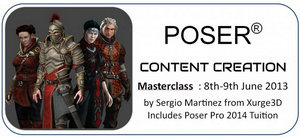
There’s to be a free Poser 2014 webinar with Steve Cooper, Senior Product Manager at Smith Micro Software. The one-hour live webinar will walk you though the new features in Poser 10 and Poser Pro 2014, on 23rd May 2013.
Category Archives: Tutorials
Free official Poser webinar
Smith Micro is putting on a free online seminar (or ‘webinar’) on 11th April 2013. It’s part two of Steve Cooper’s “Getting Started in 3D with Poser”, and looks at the real basics…
* what’s in the included free content and how to find it
* how to pose and dress both Miki and Tyler, and customize them
* the basics of rendering, turning your 3D scene into a 2D picture.
You can get a feel for the webinar format by looking at the archived webinars, including part one of “Getting Started in 3D with Poser”.
Paint filters for CG
An interesting tutorial on paint-ifying a DAZ or Poser CG picture using Photoshop blend-layers and filters, rather than actual digital brush overpainting.


He uses the Sketchy Painting and Old Book Illustrator addon filters in the Filter Forge plugin (which, sadly, sells for the crazy price of $149 for even the Basic edition).
Free Poser-and-comics webinar
Booking now, a new free webinar from Smith Micro, “Using Poser to Create the Ground-Breaking Graphic Novel Anomaly“. With artist Brian Haberlin the creator (with writer Skip Brittenham) of Anomaly. The date is Thursday 28th of February 2013 (11am Pacific Time USA, 7pm UK Time).
“Anomaly is one of the most innovative and rousing epic adventures I’ve seen. This story of a team of explorers marooned on a distant planet marries action and ideas in spectacular fashion, and holds important lessons for our society today.” — Harrison Ford, actor.
“They have uncovered a shrewd world in Anomaly, one where simply fighting for survival is not enough. Loaded with offbeat characters and idiosyncratic socio-structures, Anomaly does a smashing job of bringing us back to the fundamentals of humanity.” — Ridley Scott, movie director.
MotionArtist for motion comics
I’m always been a fan of comics, and the chance to combine comics with animation seems like a dream come true — to someone who was a kid in an age when the coin-operated photocopier was the best advanced comics-production technology we had access to. So it’s exciting that Smith Micro, of Poser fame, have announced that they are to very shortly release MotionArtist, for making interactive digital motion-comics…
“MotionArtist is going to be released very soon with amazing improvements over the public beta version. These span from HTML5 output to animated panels, text and word balloons, 3d Parallax effect, and Anime Studio input. Start counting your pennies and watch for additional news about the official launch coming very soon!”
Reallusion also reportedly have something similar in the works, and it’ll be interesting to see what CrazyTalk Animator 2.0 looks like when it arrives. I’d expect Reallusion may learn a lot from letting MotionArtist launch first.
It’ll also be interesting to see how MotionArtist interfaces with Smith Micro’s comics production software Manga Studio, if at all. It sounds like it might interface more with their animation software Anime Studio and with Poser 2014.
Toon it with Poser 2012
A cool new tutorial video from Content Paradise, “Poser — Toon Render: Create Cartoon Style Renders in Poser”…
Also a brilliant and more advanced trick for better-looking toon lines…
Update: this was a nice hack, but has now been bypassed by the superior Comic Book mode in Poser 11.
3D Art mag – using Poser 2012 with Vue 11
The latest free 3D Art magazine (#25) has a lead article with Arthur Dorety, on using Poser Pro 2014 and Vue 11.
CG Arena
The latest edition of the free (after registration) magazine CG Arena is out now…
Free webinar: What’s new in Manga Studio 5?
Digital comics makers who draw or paint over their DAZ Studio or Poser renders for might be interested in a free webinar from Smith Micro on “What’s New in Manga Studio 5?”. Despite its somewhat misleading name, the specialist graphics software Manga Studio 5 is not just for manga artists. It’s just about the best dedicated comic-book production software available. MS5 also has the industry’s best range of pressure-sensitive digital “black ink” brushes.
The free one hour webinar is on 5th February 2013, at 3pm in the afternoon (US Pacific time). It’ll be presented by Doug Hills, comic book artist and author of the training book Manga Studio For Dummies.
“Doug will explore the new, fully-customizable interface and show you how it can help to improve your workflow. He will also review the stunning new coloring and painting tools, demonstrate how it is even easier to import and use 3D character and background images, create word balloons, and much more. We will conclude the hour with a brief Q&A session where you will be able to ask questions and have them answered.”
The pro “Ex” version of Manga Studio is set for a summer 2013 release.
Space for monkeys
Nice little tutorial at 3D Universe, on making a basic spacesuit helmet using DAZ Studio, for the new 3DU toon Monkey…

Tutorial: a DS3 workflow with Light Dome Pro 2 and Mood Master 2
Here’s a quick and easy ten-step workflow tutorial for DAZ Studio 3 users, on how to use a combination of Light Dome Pro 2 and Mood Master 2, to quickly light and then to fog/haze a large-scale outdoors scene. Followed by an easy compositing of the renders in Photoshop, and adding some FX.
Here’s the final picture which this tutorial will work toward…
Please note that LDP2 and MM2 only work in DAZ Studio 3.x.
1. Load and position your large-scale test scene in DAZ Studio 3.x. Here I’ve swiftly thrown together Stonemason’s Urban Sci-fi / Block 39 / Urban Future, pushed one tall building way back in order to try to create a sense of depth, and pointed a 35mm camera at it from the pavement corner. I didn’t apply any special DAZ MATs to the buildings. The “canyon” nature of the scene aimed to give LDP2’s system a good “workout”, in terms of getting the lighting to reach down into the canyon.
2. Find and load your Light Dome Pro 2 plugin, from DAZ’s “View” menu…
Then open up LDP2’s lights presets window…

3. Now simply double-click on a LDP2 lighting preset, to load its lights into the scene. In the example shown I’ve used the basic sunlight “Sundsvall 25” LDP2 preset. Note that you can go to LDP’s “Move and Scale” tab, and rotate the LDP2 dome so that the sunlight falls where you want it to.
I then switched from “Raytracing” to “Shadow Mapping” for my LDP2 shadows, and lightened the shadows with a 200% slider setting. It doesn’t look too bad, at least in DAZ’s real-time OpenGL preview, although note that this OpenGL image is not at all an accurate preview for your final render…
4. Important! Now save your DAZ Studio scene file [ File | Save | Scene ]. Call it something like “MyScene-Lights”. From now on, do not move the camera.
5. Open your DAZ Studio render settings, and ensure that you’re using DAZ’s native 3Delight renderer. You may want to do a few tiny thumbnail test renders first, say 300px with the default 16 lights.
Once you’re happy with the general look, switch over to the “Light Settings” tab again in the LDP2 control-panel. There bump up the Light Intensity from the default “16” to “32”. Doing this doubles your lighting quality (but it’s unwise to go beyond 32, unless you have a very speedy modern rendering PC)…
Then do your full render (1920px is the size I’m using here) to a file called something logical like render1.png.
On starting to render, LDP2 may automatically swop out all the preview lights for its LDP dome lights. This is nothing to worry about. This what this temporary effect looks like…
Here’s my final 1920px render using the above preset and settings, which took 14 minutes (inc. calculating 32 shadow maps) on what’s now a fairly old PC…
Yes those shadows look too dark, but we’re going to be using Photoshop’s Screen blending mode several times later on — which will lighten up those shadows as we blend.
(Of course, you could also get a similar quality ‘global illumination’ render with an external renderer like Reality 2.2 (for DAZ 3 + a PC with an Nvidia graphics card). So feel free to substitute Reality etc as your renderer, at Step 5. But by using the LDP2/MM2 method and DAZ’s native renderer I’m explaining here, we avoid the need to tediously adjust all the scene’s textures to suit Reality.)
6. Now save your scene again — this time using “Save as” [ File | Save As… | Scene ]. Name the new file something logical like “MyScene-MoodMaster”. It’s vital to make a second extra copy like this, since in the next step MoodMaster is about to destroy all the Light Dome Pro 2 lights! So make sure you have two DAZ scene files saved out: “MyScene-Lights” and “MyScene-MoodMaster”.
I then deleted all the LDP2 Pro lights from the Mood Master version of the scene, and applied a very dark light (in this case, DNA Winter_3’s “WN 004”) and then made a basic OpenGL render of it. This gave me a basic “glowing lights only” layer to work with later, in Photoshop…
Another way of doing this type of simple mask might be to use Dreamlight’s Mask Creator for Daz Studio.
7. Without moving the camera at all (very important!) in your scene, apply Mood Master 2. MM2 is not a plugin, so you’ll find it over in your Contents library…
Like LDP2, Mood Master is quite simple to use. Double-click the icon to “Add Mood Master 2” to the scene, then apply the simple “Z Depth” preset. This is what we get…
Now save this as a new render. Be careful not to save over your precious main render! Rendering this “Z Depth” render will be a lot faster than the main render was! For me, this MM2 Z Depth render took 90 seconds.
Now apply and render out any of the other Mood Master settings that you’d like to play around with blending in Photoshop. For this picture I also saved out “Miami Haze and Gradient” and one of the “Rain” presets. Remember that if you use a MM2 “Rain” render, then you’re going to have to create an extra “wet pavement + reflections” layer later in Photoshop.
OK, now we have all our required renders we can close down DAZ Studio…
8. Open up Adobe Photoshop and start a blank document that’s exactly the same size as your renders. Paste in your main base render. Then open the MM2 “Z-Depth” render and paste it over the top of your main render. Blend it [ Layer | Layer Style | Blending Options ] in “Blend Mode” set to Screen at 100%…
Hurrah, you just got a nice but basic Vue-like distance haze on the tower. Now save it out as a starter Photoshop file.
9. Looking good, but we’ve lost all the sky detail. Let’s bring back the sky, but better.
i. Merge the Main and Z-depth layers and name them “Main”.
ii. Create a new blank layer called “Sky”, and copy into it a suitably stormy sky photo. Send this layer backwards, then set its Layer Blend Mode to “Soft Light” at 100%. With a big soft 200px Eraser, remove most of the overlap, leaving just enough to suggest a damp sky that’s roiling above the tower and creeping down over the building edges. Then roughly select the tower itself with lasso, feather 50px and delete the selection — doing this helps retain the original Z-depth haze.
iii. Paste in your Haze render, desaturate it, and then blend it exactly as you did with the Z-Depth layer…
Now we have a nice convincing rainy sky…
Now paste in your OpenGL lights layer, and blend with our old friend the Screen 100% mode. Then duplicate this blended lights layer and add Gaussian Blur to it at about 6%. This will make the lights look like they’re being diffused into the rain. To remove any unwanted intensification of the Screen mode lightening, then use the Magic Wand on both Lights layers, and erase anything that’s not a light…
10. Now you can continue to play around in Photoshop with the extra MM2 layers you rendered, such as Rain. In the final picture I used the Rain layer twice, once slightly tilted. Then I added a reflections layer to serve as a “wet” pavement, some steam escaping from the manhole cover and two vents, the flower, some rain seepage staining onto the concrete, and another application of the Haze layer (which served to generally lighten the shadows on the main render)…
Then I added the final layer — a DAZ/Poser character which I posed then exported as an OBJ (without its reflection maps). I used Photoshop to match the robot’s colour to the background, and then used a dodge brush on it to correct a few inconsistencies in the lighting.
That’s it!
To summarise the basic workflow:—
Open your DAZ scene, import 3d models, pose, and set the camera view.
Apply Light Dome Pro 2 preset. Adjust Sun, Shadow Density, Light Density.
Save scene file. Render.
Save scene file again, as a new Mood Master copy.
Apply Mood Master 2, and then render out its Z-depth and other renders.
Open Photoshop and blend the Z-depth and Main renders (Screen, 100%)
Blend in other Mood Master layers (Screen, 100%), as you see fit.
Please note that this workflow is best used on large-scale open views/scenes.
Note also that there’s also an LDP2 addon which adds presets for sci-fi and fantasy scenes, Sky Pack: Out Of This World.
CrossDresser 4 test and review
I’ve been having a look at the free CrossDresser software for DAZ Studio and Poser. CrossDresser is a speedy and simple utility which quickly converts DAZ/Poser clothing from one character, to fit and conform to another character.
I downloaded CrossDresser and the install went swiftly. If you have a hard firewall such as TinyWall then you need to whitelist both exes, and also the processes that they launch, so they can go online. It can be a bit tricky in such circumstances, getting it all running and downloading and installing the main XD 4.exe and figure files.
It then popped up an updater, and offered to download an unavoidable update — and a bunch of character-conversion data files. I selected most of the Nursoda figures and Sam + Sadie. That part went smoothly too, but the character files are rather chunky — even my limited selection took about three hours to download. If you forget to download any desired character conversion files, and want to install them later, just start XD_Updater.exe.
During the download I did wonder if, for instance, an M4 -> Pitterbill conversion would require CrossDresser licences for both characters. But I found that you can convert any clothing (and from a very wide range of characters), and that you only need one licence — per target character.
On loading up CrossDresser, the software sat there loading morphs for a minute, then finally launched. I then went to the website and purchased licences for 3DU Sam and for Nursoda’s Pitterbill, which at the current 50% sale price meant less than $10 for both licenses. PayPal is accepted. Sadly, on completing the order via PayPal, the download links were not active inside the invoice. What you need to do is to look over on the Store sidebar for the link to “My Downloadable Products”. It’s rather in-intuitive that the downloads are nowhere near the account/invoices sections. The .zip files I downloaded extracted to .exe files, and the installs went smoothly and the licenses were installed in seconds.
I run PzDB as a Poser/DAZ content library manager, so locating the .cr2 clothing to convert went very smoothly. Once you’ve found the clothing you want, you just “copy path” in PzDB, and paste it into Crossdresser. My first conversion was the main suit of the V4 SpaceGirl retro outfit (breasts and all!), and Crossdresser was intelligent enough to automatically know that the spacesuit was a V4 and not a V3 outfit. Conversion took about 15 seconds. I then converted collars, gloves, boots etc for the same outfit. I had no success in converting .pp2 props, such as a belt, for the same outfit.
On re-indexing in PzDB, I found the new Pitterbill versions of the Spacegirl suit among the “new” items. These were correctly labelled with the prefix “Pitterbill-“. Loading the main suit to Pitterbill showed a little poke-through, but otherwise the conversion was good. The V4 breasts had even been suitably flattened for Pitterbill.
Crossdresser conversions are placed in the Windows folder ..\content\Runtime\Libraries\Character\!Converted\ In the Poser Library this shows as ..|Figures|Content|!Converted. Due to the poke-through, I found this folder, deleted, and started over using the simple Fix Poke-through solution and a better and less silly choice of clothing.
This time I chose a more suitable male costume — a classic M4 tweed jacket and trousers. With the 0.25 conversion tweak applied to these, I had much more success with Pitterbill, combined with some converted Eepo boots (not ideal, but this was just a test).
The clothes loaded fine. I turned off visibility on Pitterbill’s toes to cure a tiny poke-through. Applying a mild pose was fine, but a more active pose led to poke-through and slight tearing at the clothing joints. There’s a Poser specific fix tutorial for that, but for most people and for DAZ users it’s probably more easily cured by turning off limb visibility and/or fixing it in Photoshop. Here’s the before-and-after result on the Pitterbill as “tweedy English country gentleman”, with the larger version showing the picture after ten minutes of Photoshopping …

Click on the picture for the large version. (Suit is Victorian Country Gentleman at Poser World)
Overall, CrossDresser 4 is useful for still renders (but probably not animation, due to the likely poke-through) and it’s only currently going to cost about $15 to $20 for three or four key licences. Considering the value you’d get out of that over the years, getting clothing onto characters you would never otherwise have outfits for, it’s a bargain.
The Crossdresser store is for some reason rather difficult to navigate and find the key licenses. Here’s a linked list of the pages for key licenses on the store:
Victoria 4 and Michael 4.
Doctor Pitterbill, Kali and Kelm, and Mavka, all Nursoda characters.
The manga characters Deco and Decoco and NearMe, all designed for tooning and popular in Japan for making manga comics. I believe that NearMe is still available on a AIO (all in one) installer.
Also at the Crossdresser store are free plugins to load Universal Clothing (another possible output of the Crossdresser software) into Poser and DAZ. These automatically handle the conversion via CrossDresser when the clothing is loaded to the figure from your regular Library, and the plugin will even auto-conform the newly applied clothing. This extended feature of Crossdresser wasn’t tested for this review.
DAZ Studio: lipsync for dummies
Wendy Vanity has a new two-part video tutorial on DAZ Studio: lipsync for dummies…
Carrara video training – 60% off
Another good deal has cropped up, in the current DAZ sale. A healthy 60% off the cost of video training DVD Learning Carrara 8 (10.5 hours), and also 60% off the more advanced video tutorials set

A partial Visual Style Shaders step-by-step tutorial
Here’s my partial step-by-step tutorial for Visual Style Shaders toon shaders pack, sold for DAZ 4 or higher. I ultimately failed to get the effect, but here’s the tutorial anyway, as far as I got in the far-too-convoluted process.
It’s a pack likely to lead to massive frustration for many purchasers who have never tried to wrestle with using DAZ shaders before.
Anyway, what follows took me about two days to figure out and painfully piece together, and yet I still failed to actually get the toon effect to render… but this partial tutorial might be useful as a base for someone else:
1. First, you will (of course) need to have installed a copy of DAZ Studio Pro, at version 4 (patched) or 4.5. Thankfully, DAZ 3D Studio is currently free.
2. Find the installer that you downloaded for the Visual Style Shaders package. Install this to your usual DAZ content folder/directory. For me as a DAZ Studio 3 user this is always:
… / My Documents / DAZ 3D / Studio3 / Content.
The Shader files should then be installed in: …
… / Content / Shaders / Visual Style Shaders

3. Now launch DAZ Studio 4.x. If you normally run DAZ Studio 3, and are running DAZ Studio 4.x simply to try to use Visual Style Shaders, then you may need to wrestle with the first-time nightmare of showing DAZ Studio where your usual content folders are — I have a tutorial for that in Version 4 which shows you how to do that.
4. Once DAZ Studio 4 is told where you keep all your runtime content, then (over in the left-hand content library folders in DAZ) you can then navigate to:
/ DAZ Studio Formats / Studio[x] / Shaders / Visual Style Shaders
(Note that if you use the PzDB third-party library system, as I do with DS3, that the new shaders will not show up in PzDB on re-indexing your content database. You must use the native DAZ 4 Content Library system to locate the icons that activate/place the Visual Style Shaders).
5. If you can successfully navigate to the Visual Style Shaders library folder, then you should see two large icons that look like this…

There are also two further folders, a little deeper into the folder structure, named “Noir Presets” and “Visual Presets”. We’ll get to those later.
6. OK, so now we know where those pesky shaders have actually been placed, we can back out and go find some suitable content to load onto the DAZ Studio stage. Choose something that you think may look good with a toon look. It needs to be something that has various materials mapped to it, rather than something that uses a single texture-map. Characters are best. Here I’m using a toonish ‘Jane Frost’ character…

7. Now look near the top part of your Content Library interface. Switch to the “Scene” tab. Ensure your Character and all their clothes and accessories are highlighted there…

8. Now switch over to the “Surfaces|Rendering” tab, then use the Content Library to find your Visual Style Shaders folder again. Then on the other side of the screen, expand the Texture Editor list for your character or prop, then Select (Shift + click) all materials…
9. Now hold down the Crtl button on your keyboard, while double-clicking on the “Visual Style Base” icon in the Content Library. After a moment a small dialogue window will pop up. Keep Ctrl pressed down, and in this window you switch the Map Settings drop-down choice to “Ignore”…

Then click “Accept”. The pop-up window will vanish, and the Visual Style Shaders ‘base’ should be applied. Exactly why this shader base layer is needed, I have no idea. But apparently it does need to be applied first.
10. OK, now in the DAZ Studio Viewport it looks like all our textures got stripped off. This seems to be usual. The “Ctrl” keyboard press was meant to tell DAZ Studio not to replace the textures. But that trick doesn’t (often?) work with these particular kind of shaders in DS 4.x. /Sigh…/

So we now need to re-apply the original textures by hand. Hurrah! 🙁
11. Here you can see that I’ve:
* Selected a texture (the fingernails).
* Located the two Diffuse texture channels for it.
* Found the drop-down arrows which sit at the end of each diffuse channel slot.
* And then from these arrows I’ve selected the correct original texture from the pre-filled list.
You can usually figure out the texture name required. although it may be abbreviated (for the nails here, “…frstBDY” meaning the BODY texture).
You need to do this texture replacement process for both Diffuse channels, and for each and every texture, in order to place the original textures back on the prop or character. Just go down the list, and replace. Note that the texture replacement may not show on the preview until you click down to the next texture.
Note that some fabric positioning magnets (as with the skirt, in the picture above) are meant to be invisible, and may have been made visible. Simply select them and turn their opacity down until they vanish.
Once you’ve complete all this, and the OpenGL preview viewport looks satisfactory, it’s probably useful to “save as…” the scene with a filename that includes “retex-complete” or something meaningful like that.
12. Ok, now what? You’ve applied the shader base. You’ve corrected all the diffuse channels, retexturing the character. So where is that long-desired toon effect? If you do a test render now, it’s not there.
13. Before we attempt try to get a toon shader effect, first let’s set up some simple lighting and get away from the default lighting. It will apparently improve the toon effect in a major way. One simple direct (‘Distant’) light will work best with toon shaders. So go into the Lighting/Cameras tab. Select “Distant light” and click it to drop a new light into the scene. Zoom out a bit, and you should see your new light sitting on the stage floor…

To move a light in DS you have to (un-intuitively) switch to the “Posing|Shading” tab, where you can position and tilt the lights…

Do a test render to check if the light is too harsh or not. Here’s mine using 3Delight, at this stage…
14. Now we need get back to the place where you can find and change those Visual Shader control sliders. Ensure you are in the “Surfaces|Rendering” tab, Then, over on the far right of the screen, you’ll see Surfaces / Editor. The words “Shader: Visual Shader” should be showing just under the selected “Editor” tab button. Here I’ve selected the Skin Body, and then I have access to the shader control sliders over on the far right…
15. Now you’re finally at the point where you can look at the technical specs documentation PDF that came with Visual Style Shaders, and you might make some sense of those specs. Load up the PDF (online here, if you can’t find it on your PC) which gives you some idea how to adjust the Shader’s effects.
The sliders and settings the PDF is talking about are the ones now on the far right of your screen.
16. OK, now there are apparently some presets, which save us from having to fiddle with the sliders. With the character’s SkinBody texture selected, go back to the Content Library and find the “Visual Skin – Texture” preset. Double-click it.
Oh joy, the textures vanished again! You need to re-apply them again, and this time in all of these channels:
Having done this, now might be a good time to save another version of your file.
Apply the same preset to the head skin texture, then re-apply the original textures. Then try a test render.
17. Still not getting that pesky toon effect on the render? Me neither. At this point I experimented for another hour, trying various settings, various methods including new lights, to get anything like the advertised toon effect. But eventually I just had to give up. No doubt the Shader Gods know how to do this insanely complex stuff. I obviously just don’t know how to do it…
But anyway… here’s the basic tutorial, if someone wants to finish it for me… and to actually show the world how these shaders can be made to work as advertised.
Update: Just get Poser 11 instead. Get an inked comic-book look in real-time, no hassles.