Blender has record-able Actions, like Photoshop. Who knew? It’s a free third-party add-on, now in v.3.3.1 (August 2020).
Category Archives: Freebies
How to make custom Poser thumbnails, with Windows freeware and a free Python script
I found gnuThumbnailer 1.2. It’s a free thumbnail generator and batch image-processing tool from 2015, in English and German.
What can it automatically apply to a batch of thumbnail renders?
Images can be stained (sepia effect, grayscale, user-defined color).
The colors of images can be overlaid.
Can make images lighter or darker.
You can add a colored or a transparent border to your images.
You can add a watermark to your pictures.
Very nice, especially since I can’t get the Netherworks Thumbnail Designer to work, which I bought a couple of years ago. gnuThumbnailer appears to do more or less the same thing as Designer, albeit working outside of Poser.
gnuThumbnailer is free for non-commercial use, and is pay-what-you-want if you use it for commercial work. It’s for Windows and Linux and requires Java, but it has a portable version (which means, if a future Java upgrade breaks the software, as can happen, the Portable should still keep running because it bundled the required Java runtimes).
So, Poser content makers reading the above description will see the options here, for helping to automate the making of standard 91 x 91 pixel Poser thumbnails in 16-bit .PNG, but… with your own border and brand overlay easily added via an automated batch process.
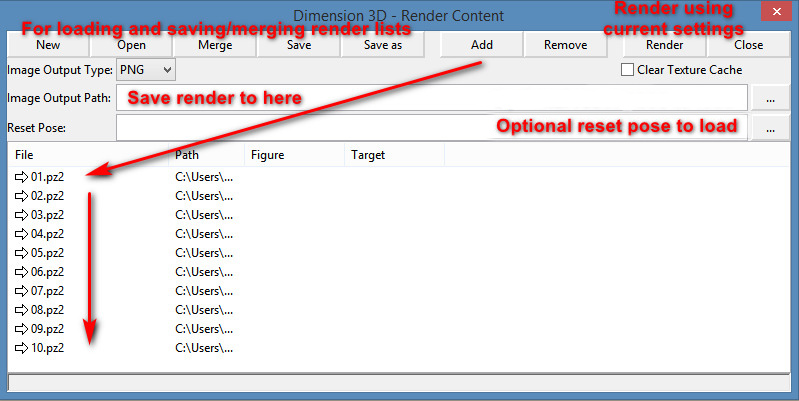
Ah, but how to get a nice set of uniform thumbnails for gnuThumbnailer to work on? What you want there is D3D’s batch “Render Content” script that ships for free with Poser 11, as an ‘official partner’ script. This is found at… Top Menu | Script | Partners | Dimension3D.
This script appears to be a expansion of what used to be his “Batch render poses” script (which no longer loads for me in Poser 11, even with AVfix). The new “Render Content” can make batch renders from a set of Poser poses, and there’s also a slot to load a reset pose in…
There’s no Help or entry in the Poser PDF manual for this, but it’s fairly easy once you’ve spend 20 minutes figuring out what the buttons do and testing it. Your Poser pose sets should be found down on the folder path…
..\content\Runtime\Libraries\Pose
… though a few freebie makers may have used ..\Poses But I guess if you’re a maker you have have saved out the finished poses saved out elsewhere, in a production folder.
The script does not also move the camera to frame the applied pose, which means some poses may fling the figure out of view of the camera. You might want to hack it, so that the figure is placed back at the scene origin before rendering.
The batch “Render Content” script then uses your current render settings, so be sure you don’t set it running on 100 SuperFly renders at 4000px, or your PC will be running through that for days. The script has no QUIT! option, once the renders are underway.
Release: EBSynth moves to beta
EBSynth has moved into beta. 10x faster, and batch auto re-naming of files when you drag-and-drop. Still free.
It’s style transfer for video frames. You first extract a still keyframe from a video, and give it a nice manual artistic paintover. Then you use the resulting painting as a style-source in EBSynth for processing all the other frames. Once done, the whole video clip should have taken on the same painterly style.
Obviously you have to work ‘per sequence’ of the video. For instance, you can’t just take a frame out of an exploding tropical volcano scene, overpaint it, and then also expect the same painted frame to work on the next scene… which may show James Bond in a speedboat racing over the sea.
Thus the way EBSynth works is a bit different than just running an entire video through an automated paint-emulation filter. One of the advantages may be, judging from the test footage, that the resulting ‘art emulated’ video is less flickery, depending on how wild your paintover was.
With a bit of careful work it seems it can also be used to remove or add wrinkles, and thus change age. It’s still at the “interesting tech-demos” and “light-show hippies getting freaky with footage of Terence McKenna” stage, but it’s one of several free and relatively easy style-transfer options worth keeping an eye on. Though it looks like we’re still a long way from “grab a Jack Kirby comics frame, apply the style to my basic lineart”.
There’s an official tutorial here (starts at 4:54, once the introductory guff is out the way).
Poser script: Change Shadow Intensity of Selected Lights
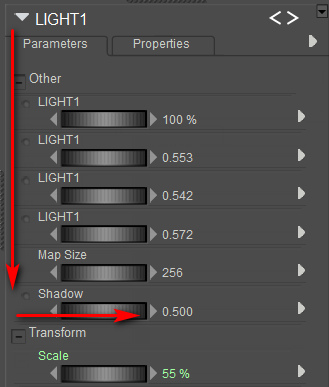
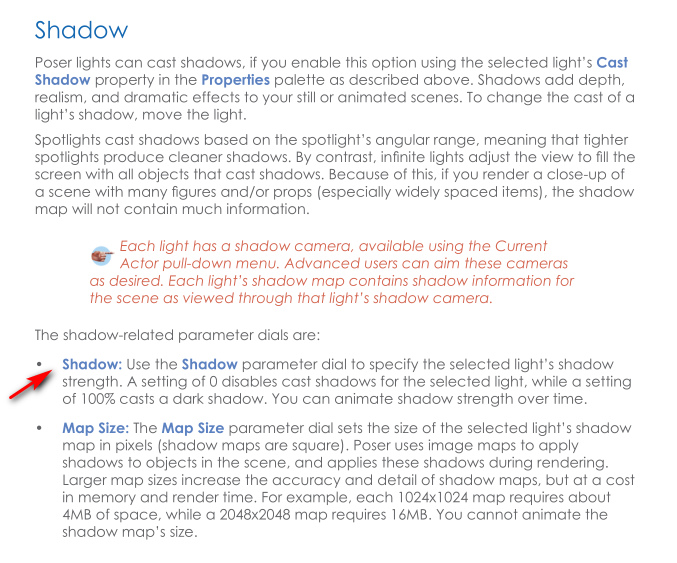
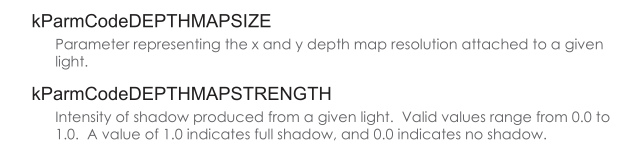
There’s a useful new Poser script, “Change Shadow Intensity of Selected Lights”. It doesn’t change the brightness intensity of the lights, only their shadow intensity when rendering…
In plain English, it adjusts “how dark or faint the cast shadow is” in the final render. It doesn’t affect the Preview shadows.
To use, copy out the script from the forum and save it as a text file, re-name that from .TXT to .PY and then install as you usually would for a Python script.
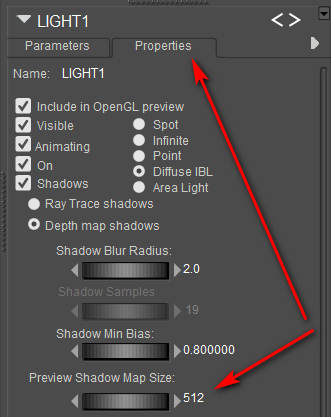
Theoretically it should also be possible to hack the script so the user can also input a number that controls the dial located above Shadow, “Map Size”…
Over on the Preview tab of each Light there’s also a “Preview Shadow Maps Size” dial, and this is independent of the rendering “Shadow Map” dial. “Preview Shadow Maps Size” only affects shadows as seen in Preview.
The larger the “Preview Shadow Maps Size”, the better the quality, and lowering light intensity can also help to soften shadow-edges. However, this dial defaults to the lowest value of 512, while Comic Book Preview users would like to have this up at 1024 — so as to get better shadows on Preview renders. You can have it even higher, and if you’ve heard the Brian Haberlin webinars on Poser comics then you’ll know the ideal for Preview shadows is actually 2048 or 4096 and he wishes it could go ever higher than that. Possibly it can, if you have a ninja graphics card but for me it tops out at 4096. But… you should know that Poser will reliably have a fatal crash if it’s over 1024, and you then try a Firefly render from the same scene.
Unfortunately there’s no possible way in Poser 11 to control this particular “Preview Shadow Maps Size” with a Python script. There’s just no parameter ‘hook’ or ‘command’ for doing that. But you can save light presets to the Library which remember their “Preview Shadow Maps Size”, and Comic Book Preview users are probably only using two or three lights anyway, so it’s no great hardship.
Dragonspace
“Dragonspace (Poser props)” added to Freebie downloads, over on the Directory sidebar of this blog. I already recently linked his Logan’s Run fan-art freebies there.
“Stuff for free” links updated
This blog’s “Stuff for free” page has had its download links updated. The three main free models are now together in a master .ZIP file, which is on Dropbox. This .ZIP should be operating in ‘shared’ mode, and thus be downloadable for anyone who follows the link.
New free Bridges from DAZ to C4D and Blender
DAZ now has a new open-source DAZ to Cinema 4D Bridge, and it’s free. It transfers “Genesis 8 and 3 content” from DAZ 4.10 onwards, into seemingly any version of Cinema 4D from R15 onwards. It will also “Transfer Figures/Props/Environments”, but judging by the description it sounds like the poses don’t get sent. Facial morphs do, though. With the Poser equivalent, the whole scene is sent to C4D, poses and all.
Scrolling down the page a bit reveals a family of such plugins, also free. Maya, Blender, 3DS Max.
The Blender one is interesting, potentially making a DAZ figure real-time in Eevee? Yes, it seems so…
“Supported Blender Render Engines: Eevee …”
There’s no manual download of these new Bridge plugins, and the install has to be done through the DAZ Install Manager. Once installed they’re then found under: Scripts > Bridges. YouTube has new tutorials on their use.
Freebie: Ronk and roll
Ronk Aednik, Nursoda’s free add-on pack for his new Ronk figure. Commercial use.
Millennium Cat animations packs
Two unique animation packs for DAZ’s Millennium Cat are currently discounted by 55% at Renderosity. Both packs have a .ZIP of Poser .CR2s and a .ZIP of AniBlocks for DAZ Studio.
Animations for Millennium Cat for Poser and DAZ. Video demo.
There’s also more dramatic animations (prance, a jump up, an arch back and arch back and walk away) as Animations and aniBlocks for Millennium Cat 2. Meaning the second such pack, not that there was a version 2 of Millennium Cat.
Even if you don’t want to do animations, there are effectively hundred of static poses to be had here, currently for just $9 for the two packs.
Lots more animated animal pack-demos at AnnieMation’s YourTube channel.
The latter pack is also stated to be “Also compatible with DAZ House Cat with dForce Hair”. I wonder if the first is also? I’ll have to test that, and also see what else can take these animations.
It appears that DAZ have removed the original Millennium Cat from sale in favour of the DAZ House Cat, but I see that the Millennium Cat LE is still listed as being in the 3D Starter Pack. LE offered the same cat but without so many morphs embedded. Many will however already have the original Millennium Cat in the runtimes. While now somewhat superseded for close-ups by the DAZ House Cat and the Hivewire House Cat, Millennium Cat is still useful for artist reference, painterly Sketch renders and Poser Comic Book renders, and it can of course also take Poser dynamic fur and has two Look At My Hair presets. Incidentally, this LAMH presets link also has presets for House Mouse, Squirrel, Lyne’s Fox, an Arctic Rabbit for Lyne’s Domestic Rabbits, Silverkey’s Giraffe and others. All free.
MilCat with LAMH preset, 3Delight render.
Freebie: Dody for Aiko 3
There’s a quality new free Aiko 3 character. Dody Character Preset For Aiko 3. This requires the Aiko 3 base figure, which most people will have in their runtime, and also the Aiko 3 Morphs and Maps pack (also found in various Aiko 3 bundles and Anime bundles). Also its dependent, Capsces’s Kioki morphs and faces pack for Aiko 3. If you have all those, you’re set.
Once installed this is what you do in Poser…
1) Figure | CDI Koiki (not Aiko 3!) | load.
2) Poses | CDI Koiki | and inject head and then body into the CDI Koiki figure. (You thought you just loaded Koiki in Step 1? Nope, think again…)
3) Then go find Dody under Poses | Ethin. Inject the Head first, then Body.
4) Select body, apply an Aiko skin MAT of your choice.
5) Head dials | ‘OpenMouth’ slightly, so you get an inked line in Poser’s Comic Book mode under flat lighting.
Looking good already in Poser’s real-time comic book inks…
Nursoda’s Kali hair fits well, with just a little scaling. But it does not toon well. Nursoda’s Fehn Hat proved to be better, but is difficult to position. Nursoda’s Anceata hat/hair combo was the best and needed only minimal fitting for a ‘Brian Froud look’.
A storybook combo, combining a saturated Sketch render from Poser using my custom Incredulize! preset, and an inks-only Comic Book render from Poser that was faded out to look like pencil…
Total render time for both renders at 1800px, about 20 seconds.
Yes, I know, “this is 3d, so where are the shadows?” They can be put in too (and there’s an ugly spodgy one on her neck already, ouch), but they weren’t for this quick demo. She probably also needs a more mud-rolled and rain-dropped skin MAT to be a convincing forest spirit.
Poser: how to toggle all scene lights when making Preview renders
Selecting GROUND in a Poser scene is a handy trick that does not, in every single instance, make the guide-wires of Lights invisible in a scene. I’ve seen instances where spotlights don’t toggle off when GROUND is selected.
Why would we want to toggle the lights? Well, when working with lights the last-selected light leaves ‘guide wires’ showing in PREVIEW, and these will mess up a comic-book render. This picture of a live scene in OpenGL shows the problem…
If one were to render this in real-time, the picture would have the light’s ‘guide wires’ arrows and circle on it. Easy to miss, easy to forget until it’s too late and you’re dropping it into a panel on a comics page.
Willyb53’s free Light Toggle script can be hacked to do this for us. Willy’s script was set up to turn all the scene lights off and on, but a few simple tweaks keeps them shining while only their guide-wires are turned off in the scene. To do this we simply open his script with Notepad++ and change it to read…
… then save, rename Toggle_Visibility_All_Lights.py and place the new script wherever you keep your Python scripts. Mine are in…
C:\Program Files\Smith Micro\Poser 11\Runtime\Python\poserScripts\ScriptsMenu\FavoriteScripts
You can then iconise the new script using Dimension3D’s $10 eXtended Access. This runs fine so long as you have the AVFix for it, and I load it at every Poser startup. Attached to a meaningful icon (here a red closed eye), the new script then becomes one-click and it can be handily positioned near the Poser lights control panel.
If you have the neat and attractive Scene Toy addon for Poser, and if all you mostly use the Hierarchy Editor for is to click on GROUND to get rid of the guide-wires, then this script lets you hide that window and reclaim a little more screen space in the Poser UI. “Begone, ‘o great space-wasting panel of grey ugliness”…
Finally, the other thing to keep in mind, re: lights and Preview renders, is that OpenGL is limited to eight lights in a scene. This is an OpenGL limitation, not a Poser limitation. In practice, that “eight lights limit” may be even less, because your PCs’ hardware may not be able to support that many interacting lights and their shadows. For working in Comic Book Preview mode it’s probably best to try to stay at three or four lights in a scene. Sketch only supports three, in terms of having the strokes follow the light directions.
Poser to Clip Studio – the solution
Hurrah, I found a viable solution for the massive problems encountered in trying to go from Poser 11 to the latest Clip Studio.
It’s a 2010s Python script from Smith Micro, specifically designed to get .OBJs out of Poser in a format that the old Anime Studio understood. It works in Poser 11 and without placing impenetrable and un-rememberable export-settings dialogues in front of the user. It just quickly saves the posed .OBJ, conformed clothing, and textures.
So I figured… since Anime Studio was the sister software of Manga Studio, they’re going to require the exact same .OBJ settings. They do indeed, the evidence suggests. The script’s export .OBJ loads into the current Clip Studio (formerly Manga Studio) fine. The existence of this script, and its official status, suggests I wasn’t the only one who had problems in getting Poser to talk with Anime Studio / Manga Studio via .OBJ files. Idle YouTube blather about “just do any OBJ export, Clip Studio doesn’t care” is obviously wrong.
The Python script is, of course, long gone from the Smith Micro site. But the WayBack Machine has a copy of the Web page, and the .ZIP download for the script is still live on it. Download, un-zip, pop it in your Python scripts directory.
The script appears to have another nice advantage: perfect front-and-centre sizing to the canvas on import of the .OBJ to Clip Studio, with basic rotation tools and ground-shadow….
… and several non-skin textures seem to load fine too. As you can see, some grey bits. But you’re going to ink over it, right? Using it more like an artists’ reference image.
Phew, ok… well that’s enough for today. I’m not going to wrestle with Clip Studio to get Poser Steambetty looking tooned. At least I now have a viable Poser-to-Clip Studio workflow, and it’s blissfully un-fiddly.
Release: MeshMolder 2020
Added to the sidebar links on this blog, the free MeshMolder. A new 2020 64-bit version has just been released, in a fairly fully-featured freeware version, and also a $5-by-PayPal Professional version. It’s perpetual desktop software for Windows. A quick test shows there are a lot of ‘Professional version only’ alerts on using the freeware version, but at a mere $5 it’s easy enough to unlock.
Update: Meshmolder 2024 Pro, now available. Freeware in the 2022 version or $6 for the latest Pro.
Release: MeshLab 2020
Decimation of a model is done as follows: Top Menu / Filter / Remeshing > Simplification: Quadric Edge Collapse decimation. Set target poly count, tick ‘Preserve Normal’. Save.
ZBrushCoreMini
ZBrushCoreMini is a new entry-level free version of Zbrush, sitting below its budget ZBrushCore in the Zbrush range. It’s relatively confusion-free, with just eight sculpting brushes and a few basic materials. There’s also .OBJ export, with no watermarks. Downloading ZBrushCoreMini requires a sign-up, and it appears to be perpetual free desktop software.
It would be interesting to see if this could be hooked into GoZ or an equivalent, for round-trip calling from DAZ Studio, Poser etc like the big ZBrush.