This blog has been found to be very sluggish, at several times over the last four days or so. My apologies if you’ve also encountered the slowdown. It’s not the site itself that’s slow, but rather the WordPress install, which is patched to the latest version. As such I assume that some other site, hosted on the same server at my ISP, has been periodically hogging back-end database access. The blog’s speed seems to be fine now, but this problem may return. There’s nothing I can do about it, and it’s up to the ISP’s techies to spot the excessive traffic/database-use and fix it.
Author Archives: jonahjameson
De-grunge 1: Poser and Topaz Clean 3
In the absence of a good ‘Matcap’ script for Poser, a strong scrubbing with the Topaz 3 Photoshop plugin remains the best way I know of to quickly strip grunge off default textures. While retaining colours and a level of crispness. The user saves out a Preview render of just the colours, rendered under a flat IBL light. Then loads this render to Photoshop, where it goes through Topaz Clean 3.
For models and characters that are used repeatedly in comics production, one could also run Topaz on the Firefly materials themselves, and thus make an ad hoc set of textures more suited to tooning.
A matcap script would examine each texture in a scene and then automatically replace it with a good approximation of the average colour for that material zone. The effect would be visible in real-time Preview mode, and might even have a limit — within which the darkness or lightness of each replacement colours would be constrained. Thus preventing jet blacks or too pale colours.
While we’re waiting for that, Topaz is a moderately-costly $30 — but might just be less on the forthcoming Black Friday / Cyber Monday weekend. There may be something in the free Krita’s G’Mic filters that can do this, but the great advantage of a Photoshop plugin is that it can be automated via Actions.
Update: Sadly at summer 2021 Topaz Clean 3.x appears to have been taken off the market, so that Topaz can focus on their AI software. It is not in their $90 Topaz Studio 2, but was in the earlier Studio 1 which ran on Windows 7 up and could also do batch. It may have been removed from Studio 2 due to Windows 10 problems?
KeyShot 9 webinar
A free webinar: What’s New in KeyShot 9. The forthcoming KeyShot 9 will include, among other things such as Substance Painter conversion, hairiness…
“add randomized, hair-like growth from the surface of any material”
Test: Poser 11 Sketch Designer to Painter 2019
Perhaps the least-documented feature of Poser is the ability to send your Sketch Designer sketch over to the Corel Painter software, and have Painter re-paint it stroke-by-stroke. The script runs in Painter with whatever Painter brush and brush-size is currently selected.
The Poser 11 PDF Manual merely says that this feature has been ‘tested with Painter 6, but is not guaranteed to run in later versions’.
Does it still work? Yes. As a test I exported a script from Poser 11.2.x and tried it on a handy copy of Painter 2019.1. It still works fine.
Here’s how to do it. Turns out it’s remarkably easy to get running, and is potentially very powerful.
In Poser:
First make a Preview render at about 1800px. Doing this will ‘set’ the Sketch Designer’s internal real-time Preview window to the correct dimensions.
Then go to: Top Menu | Render Settings, and open the Sketch Tab. Click the “Sketch Designer” button. Find a saved custom Sketch preset you’d like to try and preview it. Suitable? Then save your Sketch to a Painter .txt file rather than a render. Here I tried a more painterly sketch preset.
When you do this Poser’s Sketch Designer will run the Sketch again in its internal Preview window, then save the script for that out as a .TXT file. This file will embed the size of the picture the sketch is intended for, in its header. If you want to see what the lines of the script look like, just open it with Notepad.
In Painter:
Open a new document, ideally at the same size as the Poser Sketch Designer was using.
Select and size a suitable brush. Go: Top menu | Window | Brush Palette. I found that Pastels | Real Soft Conte | 25 size worked nicely for the first test. Digital Watercolour | Fine Tip 2 | 10 size also worked nicely.
Go: Top Menu | Scripts. This opens Painter’s Scripts panel. The panel is very simple and obvious to use. Importing the script is then very easy, and playing the script back is simply a matter of choosing a suitable brush and pressing “Play”.
The drawback is that the painting/sketching process will be far slower than it is in Poser, and what took 10 seconds in Poser may take 30 minutes or more in Painter. Yet Painter is no longer the circa-2003 ‘Hog-beast That Ate Your PC’, and as such a script can paint lightly in the background… while you do other stuff on the PC with ease. Note also that newer versions of Painter have significantly boosted their script-running speed.
I found that a Poser Painter Script cannot be paused or stopped once playing, despite the Stop | Pause | Play controls on the Script panel. The manual’s suggestion of using ‘Ctlr Alt .’ to force a script to stop did not work either. So, on an overly-long playback, your only option is to Ctrl-Alt-Del in Windows and kill Painter. Possibly this is a problem only with Poser scripts?
Despite the lack of speed in playback, the advantage of using Painter is that it is possible to replay the script with different Painter brushes and on different ‘paper’ type. For instance, here is the ‘Blumi and Onats’ picture in several brush-types and tip-sizes on plain paper.
The Poser script plays back with whatever Painter brush is currently in use. Above are several examples of using different brushes on plain paper.
There is no indication that a script has finished running through its painting process, other than that the brush-tip icon returns to the screen and is ready for you to do manual painting or inking.
It appears that there is no way to control playback speed of the script, and I assume it’s locked to how fast the chosen brush can go on your PC. It seems that some types and sizes of Painter brush will run through the script slightly faster than others, but the difference is not great. Changing DPI does not affect speed. Expect a 25 minute ‘paint’ on a couple of simple figures.
The Poser script ‘knows’ what colours to use, since these are specified in the script along with the brush-tip position and direction of stroke. Some brush/pen types, such as Mechanical Pens, obviously have just black colour (because they use black ink).
A strong advantage of Painter is that one can run the same script on different layers with different Painter brushes, and thus can “build up” a more complex painting or ink drawing. Its layer stacking and blending system is standard, much like Photoshop, with a few Painter-specific blending modes.
Painter can apparently ‘scale up’ its scripts on the canvas, by up to 4x. It seems that one can’t simply use a larger canvas size, and have script’s brush-strokes scale themselves accordingly. It looks like you have to edit the pixel width and height values in the script itself, to scale.
Conclusion:
Thus, on test I find that the Poser Sketch Designer to Painter workflow is still useful, and is simple to manage. The work will come in your initial testing of Painter brushes, to find a couple of good ones that Poser can’t do natively. Mostly that’s going to mean soft bleed-over watercolours, as tried on the demo-picture above, or perhaps even thick gloopy ‘impasto’ paint. One could probably nail down a workflow for something quite impressively ‘hand-made’ in watercolours, given a day of experiments. But for speed leave it to Poser to do the super-quick pencil sketching, graphic charcoals and inks, fine dash-shading, and basic under-painting for manual over-painting of digital oil-paintings. Also consider if you can get something similar and faster with a real-time Preview render in Poser, by pushing it through either: i) the excellent G-Mic filters in the free Krita 4; or ii) the painting presets in the paid-for Dynamic Auto-painter 6 (DAP).
DAZ and Poser content survey – October 2019
It’s that time of the month again, and here’s my survey of the new DAZ and Poser content which caught my eye during October 2019.
Science-fiction:
The Matrix-style outfit, dForce Tepes Outfit for Genesis 8 Male.
Free Superfly MC6 materials for AppleJack’s Futuristic Base 2. Futuristic Base 2 shipped for free with the Poser 11.2 official megabundle.
Also the free Funky Sofa for Poser, for those needing additional futuristic sci-fi furniture for their Futuristic Base 2.
The unusual Voxelized for G8M and G8F.
Need a sci-fi desert creature, as an alternative to a camel? The new Camezard HD for DAZ Studio.
Where’s your Camezard going to take you? Why, to 1971s’s lost city of the Technomages of course…
And beyond the door… perhaps the Spacequalle…
Or the cool $10 Skull, pitched as sci-fi but also easily adapted for steampunk-ery…
Steampunk and dieselpunk:
The Count Outfit for Genesis 8 Male. I like the dForce folds on the trousers. There’s also a short ‘Musketeer’ type cape.
My Edwardian Hair for Genesis 8 Female. Fancy up-do styles suitable for steampunk.
Long gloves with wrinkles/folds for G3F and G8F. That’s something you don’t see every day. Comes with three fold presets.
Nor do you see a dForce Fur Coat everyday. For G8F, using strand-based hair. Just the thing to keep you warm on your airship or in your flying car.
Coflek-gnorg’s retro Flying Car for Poser and DAZ.
Fantasy:
Prae-Bramble Crown For V4, M4 and La Femme, with nice shaping and detail on the tips. Also has a G3 and G8 version.
The free Grizzlymen Morph Package for Genesis 3 and 8 Males. 98 presets for designing stylised fantasy male heads.
Storybook:
Scamp The Fox – Plushies 2.0, plus poses and action-movie hero poses.
BBarbs continues her series of believable young child poses for G8F, with new kiss a horse/dragon and whirling around poses, suited for storybook tales.
5 Toadstool Lane, a makeover for 3 Raven Court and its Expansion Pack. Trees and ravens not included.
The low-poly Country Cottage could provide the bemused neighbours for 5 Toadstool Lane, in distant pictures of the street.
Halloween Pie for G8F and Expression presets. An unusual prop that would lend itself to a Hansel & Gretel type fairy-story.
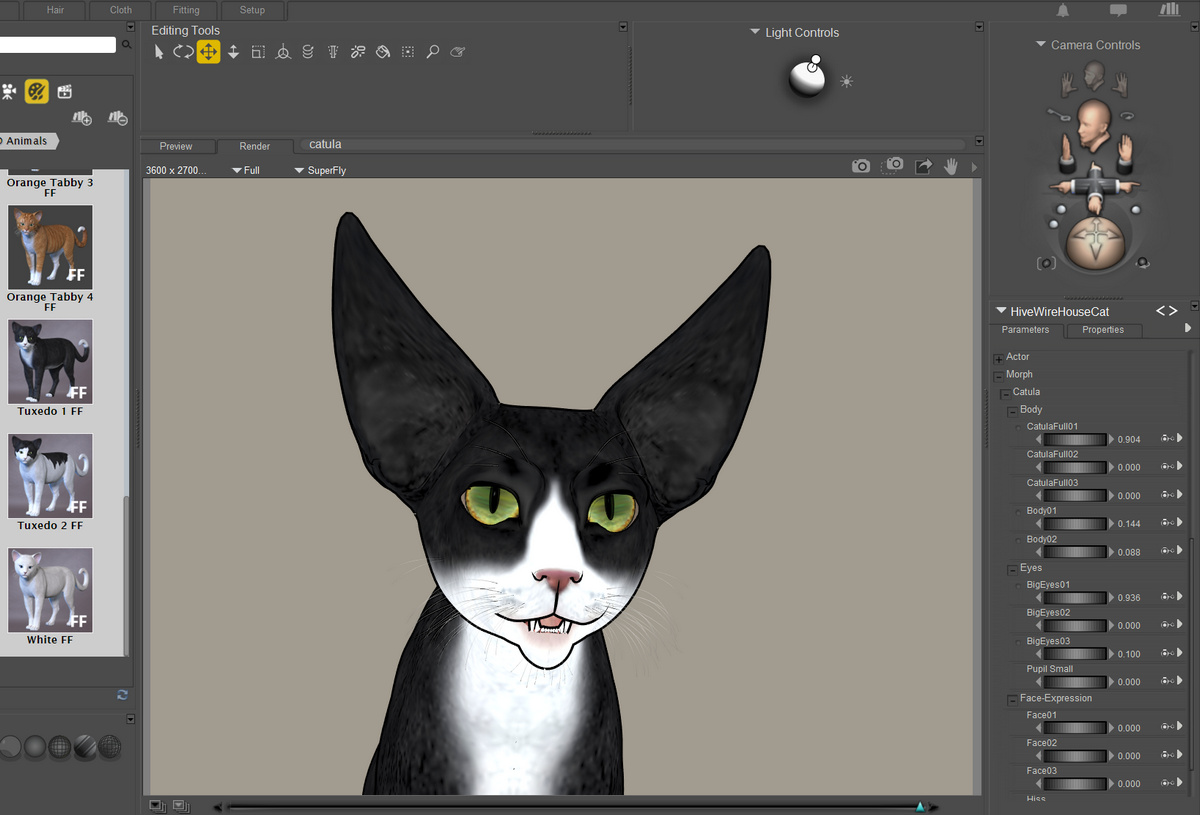
Grimalkin for the HiveWire House Cat. Grimalkin was an old British folk-name for a big old ‘king among the cats’.
Haunted House Pro for Poser and newly updated for DAZ. As classic Haunted Houses go, this is one of the best I’ve seen in 3D.
Web your haunted house with the free Mystics Spiderwebs (Dforce) for DAZ Studio.
Historical:
dForce Gunslinger for Genesis 8 Male and additional textures. Possibly also useful for Doctor Who (the classic ‘Tennant years’) or Sherlock Holmes type fan-art. For a more Matrix-style trenchcoat, see the top of this post.
Photo Props: Stick Collection. Lots of uses here, from Old Master paintings where an old peasant is carrying a basket of sticks through an icy wood, to a big stack of brushwood around the feet of a witch, to clutter for your prehistoric village.
A free Ancient Minoan vase.
Landscapes and plants:
Howie Farkes has developed a UltraTrees – Realistic Tree System for DAZ Studio. The pack has 24 tree models and instancing is used to “place 1000s of branchlets on the tree model, giving lifelike foliage density without the overhead of needing millions of polygons”. They certainly look good.
Wild Flowers – Water Plants Vol 2. Duckweed and other surface plants, as transmapped geometry rather than flat textures. Likely to be useful for small scenes of frogs, dragonflies, dancing water-nymphs and the like. Possibly also doomed pre-Raphaelite maidens.
Rocky terrain for Vue. A huge Vue-sized landscape of big mounded rock-domes and scrubby desert between them.
Somewhat similar for DAZ Studio is the smaller Desert Depression, with a more of an Australian or Southern Africa feel to it.
Autumn Decor Bundle 2. It’s not often you see a vase of Chinese Lanterns modelled, but here they are, albeit at $15.
Scripts, shaders and utilities:
UHD Fur Builder for DAZ Studio. Interesting new shaders, promising fur-look materials without a hefty render-time. A Merchant resource. It would be interesting to see how good these can look on some cats.
MDBridge for Poser Beta. Interfaces Poser with Marvelous Designer 7 (digital-clothing design-and-cut software).
Bring Us Together for DAZ Studio. There’s an over-complicated description and video, but as far as I can figure it out… this could be a very useful mover-script set. You’ve loaded in three or four items, they’ve loaded way off-stage, you have no idea where they are… and you just want them all moved to be right in front of the camera. That seems to be what it’s about.
There’s also a free version of this, which apparently is “automatic”. One to test soon.
La Femme CrossDresser License for “La Femme Pro – 1.1 Pro Base Figure for Poser 11”. Quickly convert clothes for La Femme, from hundreds of other figures. The CrossDresser 4.0 software, that does the conversion, is free.
Tutorials:
3D Printing : Best Practices and Approaches using DAZ Studio and ZBrush.
That’s it! More picks next month.
Tsathoggua sketched
I recently picked up Sixus1’s Tsathoggua for Poser for just $1.79, and for a slightly chunkier $4.49 I also had Sixus1’s Triceratox. Here’s my demo of Tsathoggua as a Triceratox rider, which also evolved into a quick demo of a few of the many capabilities of Poser’s Sketch renderer (when you take it away from the default presets).
Default ‘raw’ real-time comic-book Preview. No Sketch in action here. It’s not ideal, mostly because the textures are gungy as heck, and thus unsuited to tooning. But here I was experimenting to see what Sketch could do in such cases.
1930s pulp illustration scan. Not bad, some of the grunge seems more tolerable when made into ‘chalky-pastel’, and it has a badly-printed look that says ‘pre-1990s comics and pulps’. 20 seconds.
Shadows could be lifted with Photoshop’s ‘Shadows/Highlights’.
A light base for over-painting. For a painting with a lighter feel. 10 seconds.
A heavy base for over-painting. For a darker ‘oil painting’ type over-painting. 10 seconds.
“Bernie Wrightson called, he wants his pens back…” This took a little longer, two minutes, but is viable (i.e. doesn’t crash Poser). Could be paired with very-thin pen outlines for more definition, and the few bits of whorling could be fixed with some dabs of Photoshop’s Healing Brush.
A new leaf…
As well as 1971s items (see preceding tutorials) I also recently picked up a couple of Nursoda’s characters a while back and have only just had a chance to install and test along with the rest of the sales haul. Here are Nursoda’s new Onats and Blumi, together…
They led me to explore the possibilities of the colour merge slider in Poser’s Sketch render controls. It’s always been an annoyance before, as I was focusing only on painterly effects, line-art and then the Moebius dash shading. So I turned over a new leaf and started to explore it. Adding a slight merge-back to the Sketch preset can work nicely, and the results provides a base for very easy hand-drawn storybook look…
The disadvantage is not having an inks-only layer to edit, but the advantage is there’s no need to ‘blend colour back in’ via a colour-flats render layer (i.e.: Comic Book Preview without any inks, under a relatively flat light) in Photoshop.
Another quick Vue experiment: can it handle Poser Hair Room hair?
A simple experiment: can Vue render hair from Poser’s Hair Room?
The test rug: the old Poser 6 Ben hair, which is a default Poser hair made with the hair-room. It’s shipped with Poser for ages.
It was loaded, test-rendered (fast!) and then saved as a Poser scene file…
Then the saved scene was loaded in Vue. It can indeed be rendered in Vue, with the Poser Hair Room running the back-end. The drawback is that even with a fairly simple ‘sunny’ atmosphere, it’s going to take a long long time to render, and it won’t look as good as a Poser Firefly render. This basic 1200px render took 31 minutes and I halted it half-way through. Ugh.
Conclusion: Even if you had a cunning plan to have Poser provide unusual hairiness (such as thatched roofs for your medieval structures rendered in Vue, for instance), it’s not viable. While Hair Room ‘grown’ strand hair is very quick in Poser, it definitely isn’t in Vue.
On the other hand, it’s better than the calamities currently being perpetrated with Blender’s Eevee under the name of “NPR”…
How to get a 15 minute render in Vue at 2800px
In last night’s tutorial-experiment with Vue I showed you how speed up Vue. Here’s how to add sea to Vue in Photoshop, and thus save even more render time.
How much time will this save? Out of interest, I re-rendered my same Vue tutorial scene (see above) again. But this time the sea was replaced by the “Simple Pottery Clay” material, and this was coloured green to match.
Render-time at 2800px was cut to just 14 minutes. No clouds, no sea, and… they both get added in Photoshop. It’s a heck of lot faster, and clouds and sky can even look better.
1. Ok, so how to add a realistic sea on this demo scene? First get the Photoshop plugin Flood 2 from Flaming Pear. There’s a free trial. Install.
2. Render your Vue scene as normal, but after adding a simple quick-rendering material to the sea, such as “Simple Pottery Clay”. Give it a scene-matching colour.
Make sure you are rendering the scene with auxiliary render passes (aka ‘multipass’) turned on, and that you give yourself what Vue calls a ‘materials ID’ pass (aka a ‘clown pass’). The usual simple ‘alpha pass’ won’t get you the bits you need for this tutorial. The extra render has to be a ‘materials ID’ pass. This is what one looks like in Vue, using the demo scene…
As you can see, a random flat ‘clown’ colour has been automatically applied to all materials, with no colour being quite the same as any other. This makes doing selections in Photoshop really easy.
And this is where to find and save it after the render completes. Best to save it out as a .PNG file, in case you find that Vue didn’t bundle it in the Photoshop file for the main render…
(I’m still trying to figure out how to force Vue to bundle all render passes into a single .PSD. Ticking “Save to disk” in render settings is supposed to do it, but doesn’t. One of the problems with Vue is that, to force it to do simple stuff like that or just turn off the automatic lens-glare, you have to hunt down multiple tick-box settings on different panels).
3. Now you’ve opened the render in Photoshop. Let’s bring on the flood. You have your main render open, and a clown pass layer sitting above it in the layer stack. Make a working copy of the main render as a new layer. Run the Flood 2 plugin on this working copy. Find the horizon, then go slightly above it into the sky and render a sea using Flood 2. (We need the extra headroom so we can feather a bit off later, without creating a razor-sharp horizon line).
Flood 2 rendering took about two minutes on this 2800px render, and may vary depending on complexity of the sea. The effect is very realistic, with sea-swell and reflections. Doing the same thing in Vue could take hours if not days.
4. Go to your Clown Pass render. On the top menu in Photoshop, find: Select | Colour Range | + set a fuzziness of about 20. Use the eyedropper to select just the sea colour…
You’ll see that automatically takes account of the legs of the structures, something a standard alpha-pass layer could not do.
Keep the selection active.
5. Now switch layers, back to your working copy of the render with its Flood 2 sea. Turn off the clown pass layer. We now have a perfect selection for the water, and the water only.
6. Copy this selection over from the temporary layer to your original render layer, and paste it in with: Top Menu | Edit | Paste in Place. Blend the layer to taste. You’re done.
Multiple objects at different distances:
“Ah, but Flood 2 has no masking options”, you say. True. “So what to do where there are multiple objects at different distances in the sea, as there are in this demo picture?” In that case you create not one placeholder render-copy to work on, but three. On each one you render a different horizon on your Flood 2 sea…
Then you select each temporary layer by using the clown pass as before (see instructions, above). Then you copy out and blend the three Flood 2 sea renders together in Photoshop. With a bit of work combining and blending them, you can get far more interesting and artistic reflections that you could get after many hours of finding, choosing and then rendering a sea in Vue. As you can see in this comparison…
Original demo, Vue sea:
Flood 2 multi-distance Photoshop-combo sea:
So, there you have it, two tutorials on how to get better clouds and better sea in a Poser-to-Vue seascape scene, while cutting render time to 15 minutes at 2800px.
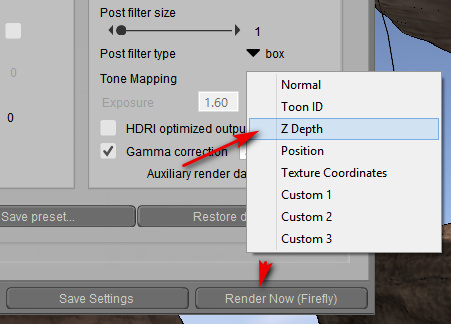
These methods will also work on any advanced 3D software that can give you a ‘materials ID’ / ‘clown pass’ / ‘Toon ID’ render, and will thus let you precisely mask the sky and sea. Which, since we’re now all using Poser Pro, includes all Poser users. In Poser Pro 11.2, you enable this render pass by ticking the Firefly render settings thus…
Poser calls it ‘Toon ID’ instead, but it’s the same thing as Vue’s ‘Materials ID’ render pass. You’ll just need to Auto Colour / Auto Contrast it in Photoshop to make its areas visible.
There’s even a free Poser script that lets you pick which Toon ID colours you want to assign to sea and sky, potentially making them even easier to select in Photoshop.
How to render 1971s scenes, ‘fast and green’ in Vue.
1971s is one of my favourite model-makers at Renderosity. Here’s a little help along the way to making ‘green fog’ scenes with his models, similar to many of his Store renders.
This tutorial sends a Poser scene to Vue. Poser 11.2 still works fine in Vue Xtream 2016, in terms of import of a saved Poser scene with materials. Here’s how to do ‘fast and green’ via the old Vue 2016, and get a render rather like many of the 1971 store preview renders.
1. First, make your basic scene in Poser. Use the top camera to get a good distance between the props.
2. Then save and load the Poser file into Vue as normal. You don’t need re-pose-ability or animation. Once the scene is loaded, keep your models grouped and raise them all up off the floor, as we’ve going to have sea under them in a minute. Then un-group the models so you can fine-tune their position. Load a sea and surface for it. Find your camera view and lock it.
3. Load the atmosphere preset, and my ‘Fast AA’ render settings preset, both in .ZIP file (this is on SendSpace, so may time-out if no-one downloads it for a month). User presets can be copied to C:\ProgramData\e-onsoftware\Vue xStream 2016\Atmospheres
4. My presets, when used together, should remove the utterly pointless and auto-run lens flare / lens glare (whose clever idea was it to have that timewaster on by default?) If you find you still need to turn off default lens-flare in Vue, along with other post-processing time-hogs, this is how you do it…
i. In your Scene Browser selected the Sun, right-click on it and Edit Object. Find the Lens Flare tab and turn it off.
ii. Think that’s it? Nope. This is Vue, so think again! Now go up to the top menu, them ‘Render’ | ‘Post-processing Render Options’. From here you can also turn off Lens Flare. ‘Copy settings to scene’. Press OK.
iii. Go to Render, and… you should not be warned that “lens-flare is enabled”. If you are still prompted about it on starting the render, it’s possible you forgot to ‘Copy settings to scene’ before you pressed OK to exit the Post-processing Render Options.
5. Render. You should be able to do 2800px in a reasonable amount of time, with my Atmosphere / Render Settings Preset combo. With the sort of sea I have in my demo picture, perhaps 50 minutes. The water is the big time-hog here, as we have no clouds to speak of.
6. All done. Save the render as a .PSD Photoshop file. The render preset should have given you useful extra render data such as Z-depth and various material zone masks and alpha masks. Save these out too if you need to. Save the scene file and exit Vue.
(Note that using “Save to Disk” bundles the extra render data in the .PSD, but otherwise you need to manually save them out one by one).
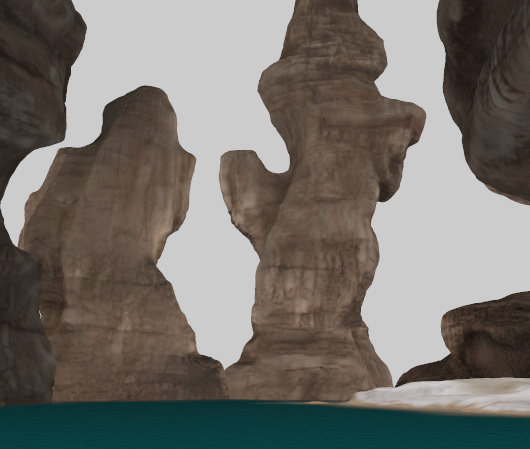
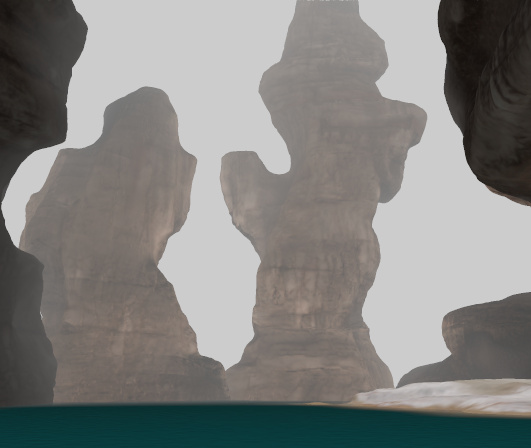
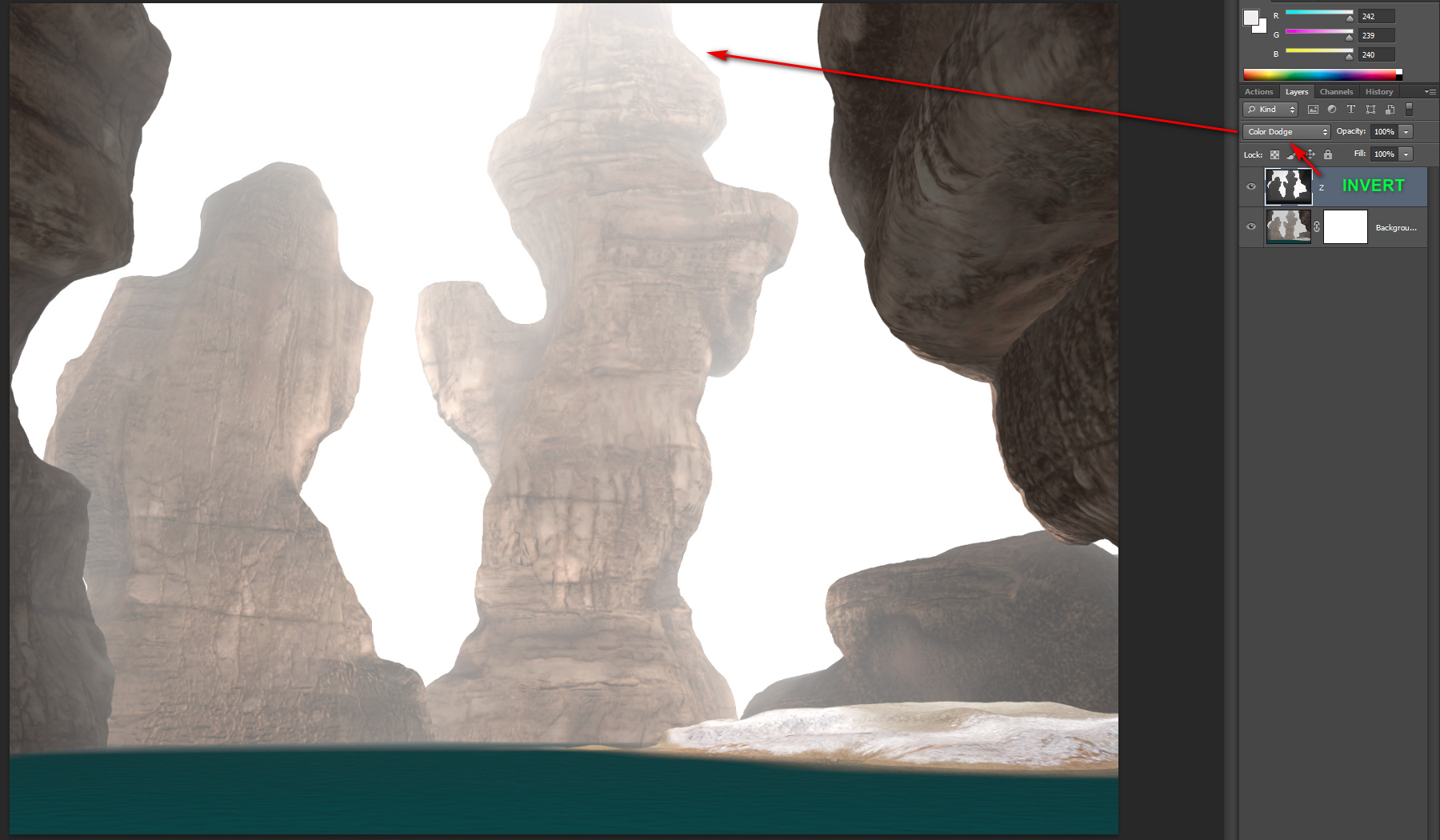
7. Now you can use the z-depth render on Photoshop (invert, layer-bend using Lighten) to add extra depth fog, and the materials zones pass (aka clown pass) to select particular materials with the Magic Wand. You don’t actually get the pretty clouds in the Atmosphere, as seen in my demo. They’re added later. Using one of the Vue masks output with the .PSD file, one can quickly create a masked selection for the sky. Paste that onto any suitable sky picture, copy what it selects, and paste it in, blend to suit. That way you get nice real clouds, but without the massive render time.
Demo as raw Vue render:
Demo after some work with Vue’s additional z-depth and multipass render types:
Renderosity outlines possible tweaks to Poser
Some additional news yesterday, about possible directions for further improvements to the Poser software. The news in a new Renderosity blog post “Poser has a new home: What can we expect?”.
“the next steps for the software may include render engine and Cloth Room improvements, and also performance improvements. They are also planning improvements in other areas, like scripting, vendor tools, fitting tools, etc.”
* Render engines: Yes, I can see that it would make sense to robustly integrate Reality, now that it’s open source. And perhaps give Reality a tab on the Render Settings, rather than hide it away. It probably wouldn’t be viable to then keep on chasing changes in the underlying Lux renderer, but one could presumable stick with a single stable version of that.
* “Cloth Room improvements” / “fitting tools”: I never use those, but I imagine they’re important for content makers.
* “performance improvements” / “scripting”. Always welcome. Adding the equivalent of Photoshop’s recordable ‘Actions’ would be a kind of speed improvement, enabling the recording and automatic re-playing of tedious steps in a workflow.
There’s also reassurance that there will be a 64-bit Mac version. Apple seems to have thrown 32-bit software overboard with its new OS, and the Mac version of Poser was still 32-bit.
Tutorial: how to grow eyebrows in the Poser Hair Room
10 steps to grow eyebrows in the Poser 11 Hair Room:
1. Ensure Poser’s units are set to “Feet” in the main Preferences.
2. Enter the Hair Room. Select “Figure” | “Head”.
3. Press “New Growth Group” button. Accept its default name.
4. “Edit Growth Group” button. The character goes a funny colour. Selection buttons: “+” and “Draw”…
5. Now use the Pencil to draw on the skin of the character’s head. Where you draw is where the hairs will grow from…
draw.jpg
The reverse on the panel, the “minus” button, is extremely clunky to use. It also appears not to work at all once hair is grown, and so it’s best to get the placing right the first time!
Close the panel.
6. “Grow Guide Hairs”. Adjust Hair Length to something like 0.1 and Length Variance to 0.01. Don’t worry that the hairs are still long and floppy at this stage…
7. Put Hair Density up to 14000 (28 guide hairs, for 14000 hairs) and Tip Width to 0.8. Tick “Show Populated” to get a thicker real-time preview of the hair.
8. Now click “Style Hairs”. This is the bit where the Hair Room becomes somewhat un-intuitive.
First you click the highlighted selector button on the styling panel. Then you click-and-drag a box across the hair to select it all. This turns the tips of the selected hair into a yellow square. If this is done, the other buttons on the panel can be selected.
light.jpg
Now you can click the “Scale” button, and turn the dial wildly to the left again and again in order to make your long strands much shorter. Exit the Styling panel.
9. Now move over to the “Calculate Dynamics” panel. First set Gravity to 1.0 for eyebrows (default is -10, meant for flopping head-hair). Click “Calculate Dynamics” and physics is applied to the hair (it’s similar to dForce in DAZ). If that’s not enough try perhaps 3.0, for a more upward sweep on the eyebrows.
10. Done. Parent the brows to the head and “inherit bends of parent”. Not bad for a first try…
And, as you can see, they show up in the real-time Comic Book Preview, including inks-only. This is, after all, why such strand-based eyebrows are needed…
However, their inking is not controllable by the Multiplier dial…
This is, however, actually a useful feature. As you don’t want your fine eyebrows inking locked to the thickness of your other edge lines.
The only problem is that, while parenting to the head works, it does not allow the brows to move to new positions when new expressions are applied to the face. Even growing the hairs on the eyebrows material (not ideal in terms of hair distribution) doesn’t manage to get them to move in sync with the facial expressions. I guess this is why strand hair uses invisible skull caps and the like.
In practice, the above is an interesting tech-demo useful for one-off stills. But it’s not ideal for a comics character who needs many facial expressions applied. It may be better to omit brows entirely and ink them in by hand and in a slightly stylised and ‘graphic’ way, for maximum expressiveness.
Webinar: make a graphic novel with Poser Pro
On 3rd November 2019, a free webinar on how to make a graphic novel with the aid of Poser Pro, focusing on the recently completed The Traveller. By my calculations, making 2.5 finished pages a week would get you a good-length graphic novel in a year.
Sixus1 – 70% sale
Sixus1 has a 70% 24-hour sale on Renderosity. I was pleased to get the Poser version of Tsathoggua for just $1.79. Not especially convincing as the Lovecraftian toad-monster-god, but a good ‘monster’ companion to the Nursoda characters. Might be interesting to experiment with the Poser Hair Room on him, re: adding hair, and he seems fairly straightforward in terms of where you’d grow it from.
At $4.49 I also picked up Sixus1’s Triceratox, as a fantasy war-beast complete with tack, which seems a potential fantasy mount for Tsathoggua to ride. I’m not sure if the chain-mail will toon in inks-only mode, or if it’s just a texture, but $5 seems to be worth the gamble to get a complete ride-able creature with saddle etc.
The latest DAZ Studio – fast and furry!
I recently finally got around to installing the latest DAZ Studio version 4.12.0.8x beta.
iRay is definitely significantly faster. I use the Scene Optimizer plugin + the CPU, for iRay renders to screen-size (1200px tall). Contrary to popular belief, you don’t actually need a Nvidia graphics card to run iRay. The latest DAZ Studio makes this approach significantly easier, integrating iRay RTX 2019.1.3 — which the Nvidia developers have stated on their dev-blog runs fine on non-RTX cards and should also give a 2x speedup of CPU-only rendering of iRay. In my tests, it’s definitely faster.
The very-very latest 4.12.1.16 (15th October) even integrates “iRay RTX 2019.1.4”. No speed-improvements there though, just bug-fixes, according to the iRay 1.4 release notes.
Also interesting, in the most recent releases of DAZ Studio, is the Strand-Based Hair. This seems to be production-ready now, judging by this Store product preview of the just-released Plushies 2.0: Scamp The Fox from Lady Littlefox…
It’ll be interesting to see what sort of render-time hit this fur type makes, if any, and if render-time increases with strand-length / curliness or not. Also how it compares on render-time with a Look At My Hair preset, and with Poser’s Hair Room fur.