
White Label Taxi for DAZ Studio or Poser, to run you to that all-important Xmas party!


White Label Taxi for DAZ Studio or Poser, to run you to that all-important Xmas party!
A fine pipe and some good Shire cider in a jug, to celebrate the release of The Hobbit movie.

Star guitar for DAZ Studio or Poser. Rock around your living room playing the classic Slade Xmas songs, and get in the Christmas party mood!

Renderosity Holiday Giveaway: Week 2. Lots of nice freebies, including three steampunk orrery models, a waterbike, a toon igloo (also given away in previous years), and a microscope.
An interesting new graphics software release. Corel’s features-heavy natural-media software Painter has a new Painter Lite version now available. Price is just $69 (about £47 in the UK).
There’s already the Painter Essentials version, but even that was too confusing for some. So Corel has stripped Painter down even more. The Macworld magazine review of Painter Lite says that…
“Corel really has stripped Painter right down to the bare wood for this Lite version … [ Lite has ] everything anyone starting out with Painter would actually need, but it’s a huge reduction on the facilities offered by the parent program … makes painting much quicker and simpler.”
Lite lacks Painter Essentials’s Photo Painting Palette — but given the naff results which auto Photo Painting gives, that lack may be no great loss. Lite seems like one for digital painting beginners to consider, if they want to learn how to manually overpaint DAZ/Poser renders using layers and ‘proper’ natural-media brushes/papers.
Added to my sidebar Directory’s “Freebies” listing: Freelancecomic’s sci-fi armour selection. Note that there are file passwords along with the download links.
Here’s a quick and easy ten-step workflow tutorial for DAZ Studio 3 users, on how to use a combination of Light Dome Pro 2 and Mood Master 2, to quickly light and then to fog/haze a large-scale outdoors scene. Followed by an easy compositing of the renders in Photoshop, and adding some FX.
Here’s the final picture which this tutorial will work toward…
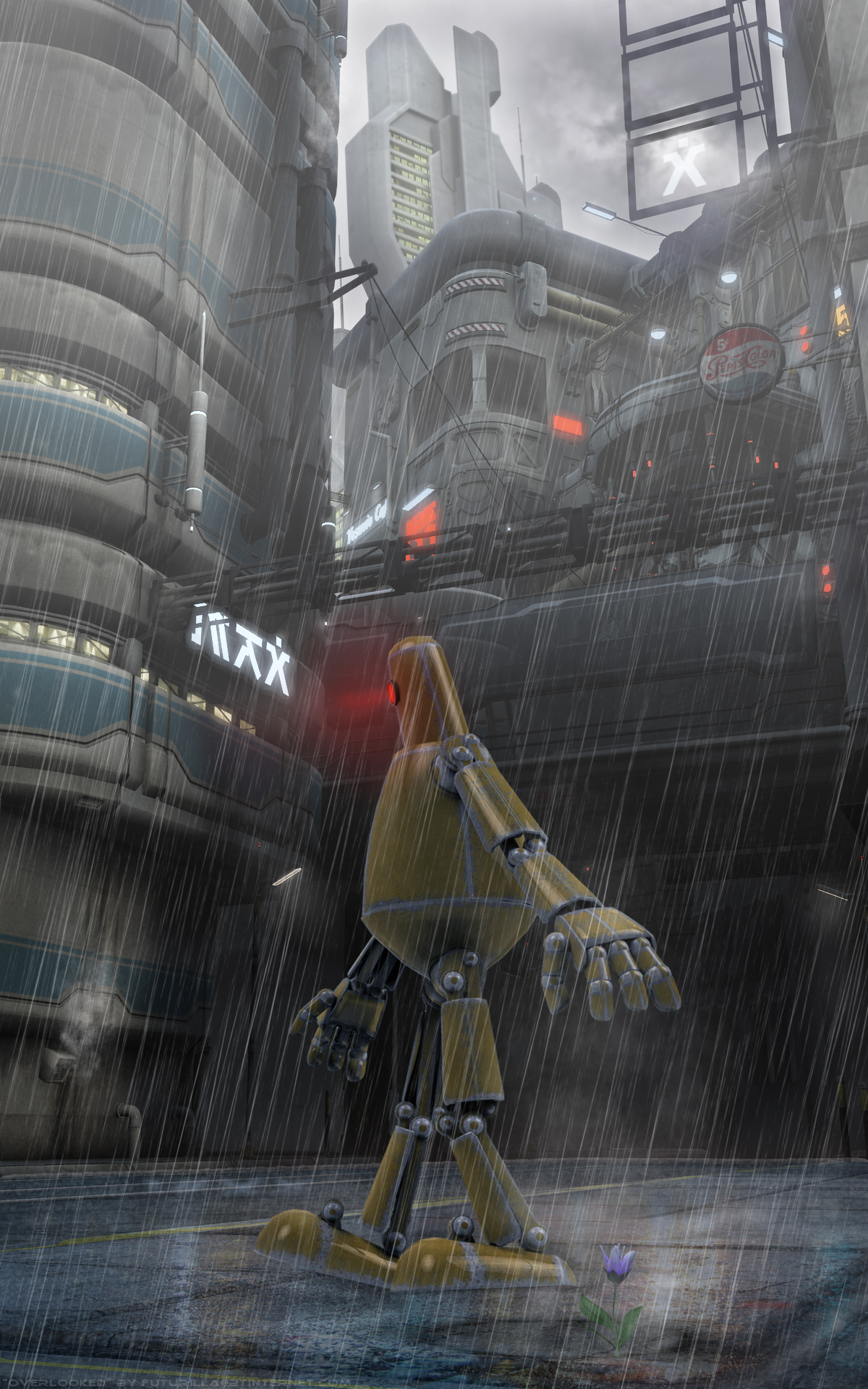
Please note that LDP2 and MM2 only work in DAZ Studio 3.x.
1. Load and position your large-scale test scene in DAZ Studio 3.x. Here I’ve swiftly thrown together Stonemason’s Urban Sci-fi / Block 39 / Urban Future, pushed one tall building way back in order to try to create a sense of depth, and pointed a 35mm camera at it from the pavement corner. I didn’t apply any special DAZ MATs to the buildings. The “canyon” nature of the scene aimed to give LDP2’s system a good “workout”, in terms of getting the lighting to reach down into the canyon.
2. Find and load your Light Dome Pro 2 plugin, from DAZ’s “View” menu…
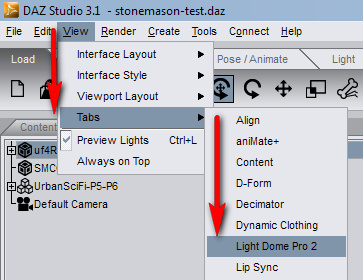
Then open up LDP2’s lights presets window…

3. Now simply double-click on a LDP2 lighting preset, to load its lights into the scene. In the example shown I’ve used the basic sunlight “Sundsvall 25” LDP2 preset. Note that you can go to LDP’s “Move and Scale” tab, and rotate the LDP2 dome so that the sunlight falls where you want it to.
I then switched from “Raytracing” to “Shadow Mapping” for my LDP2 shadows, and lightened the shadows with a 200% slider setting. It doesn’t look too bad, at least in DAZ’s real-time OpenGL preview, although note that this OpenGL image is not at all an accurate preview for your final render…

4. Important! Now save your DAZ Studio scene file [ File | Save | Scene ]. Call it something like “MyScene-Lights”. From now on, do not move the camera.
5. Open your DAZ Studio render settings, and ensure that you’re using DAZ’s native 3Delight renderer. You may want to do a few tiny thumbnail test renders first, say 300px with the default 16 lights.
Once you’re happy with the general look, switch over to the “Light Settings” tab again in the LDP2 control-panel. There bump up the Light Intensity from the default “16” to “32”. Doing this doubles your lighting quality (but it’s unwise to go beyond 32, unless you have a very speedy modern rendering PC)…
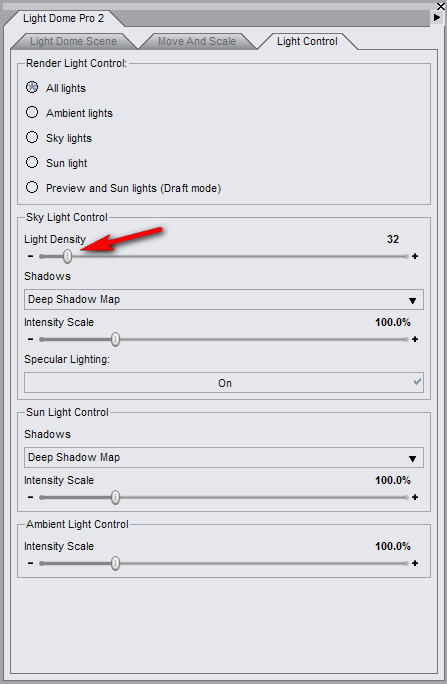
Then do your full render (1920px is the size I’m using here) to a file called something logical like render1.png.
On starting to render, LDP2 may automatically swop out all the preview lights for its LDP dome lights. This is nothing to worry about. This what this temporary effect looks like…
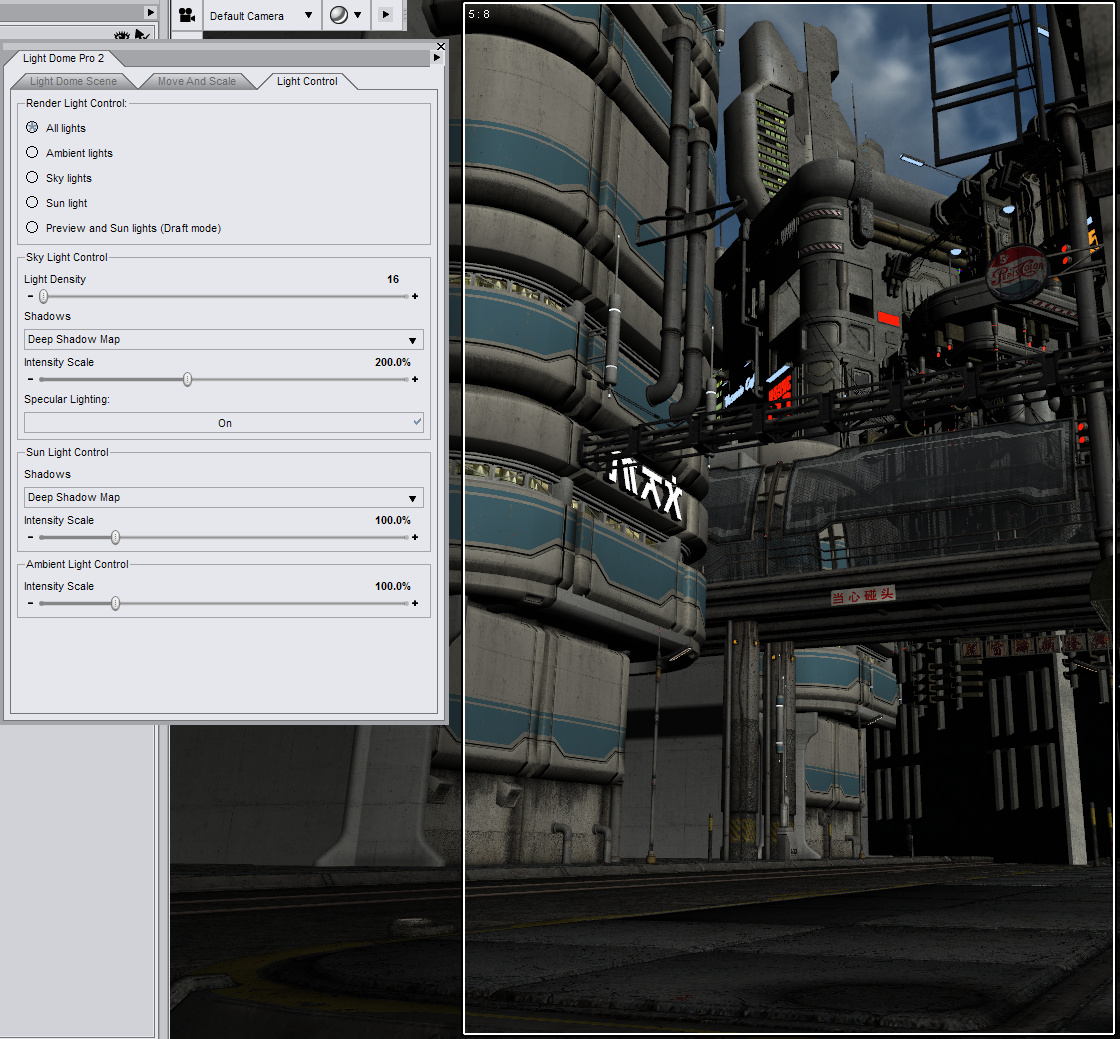
Here’s my final 1920px render using the above preset and settings, which took 14 minutes (inc. calculating 32 shadow maps) on what’s now a fairly old PC…

Yes those shadows look too dark, but we’re going to be using Photoshop’s Screen blending mode several times later on — which will lighten up those shadows as we blend.
(Of course, you could also get a similar quality ‘global illumination’ render with an external renderer like Reality 2.2 (for DAZ 3 + a PC with an Nvidia graphics card). So feel free to substitute Reality etc as your renderer, at Step 5. But by using the LDP2/MM2 method and DAZ’s native renderer I’m explaining here, we avoid the need to tediously adjust all the scene’s textures to suit Reality.)
6. Now save your scene again — this time using “Save as” [ File | Save As… | Scene ]. Name the new file something logical like “MyScene-MoodMaster”. It’s vital to make a second extra copy like this, since in the next step MoodMaster is about to destroy all the Light Dome Pro 2 lights! So make sure you have two DAZ scene files saved out: “MyScene-Lights” and “MyScene-MoodMaster”.
I then deleted all the LDP2 Pro lights from the Mood Master version of the scene, and applied a very dark light (in this case, DNA Winter_3’s “WN 004”) and then made a basic OpenGL render of it. This gave me a basic “glowing lights only” layer to work with later, in Photoshop…

Another way of doing this type of simple mask might be to use Dreamlight’s Mask Creator for Daz Studio.
7. Without moving the camera at all (very important!) in your scene, apply Mood Master 2. MM2 is not a plugin, so you’ll find it over in your Contents library…

Like LDP2, Mood Master is quite simple to use. Double-click the icon to “Add Mood Master 2” to the scene, then apply the simple “Z Depth” preset. This is what we get…
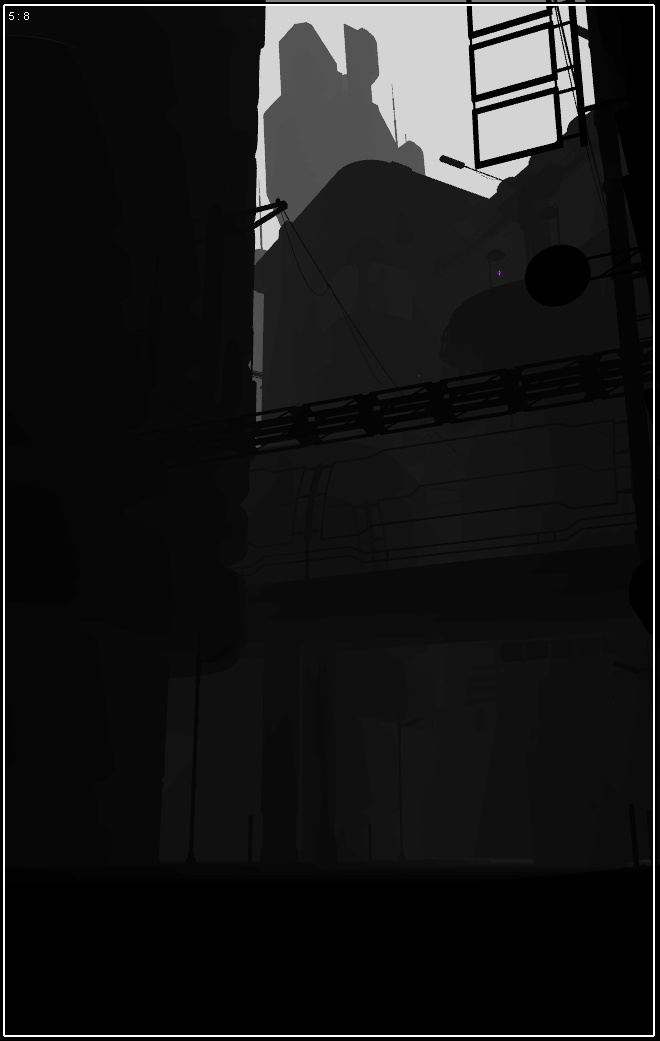
Now save this as a new render. Be careful not to save over your precious main render! Rendering this “Z Depth” render will be a lot faster than the main render was! For me, this MM2 Z Depth render took 90 seconds.
Now apply and render out any of the other Mood Master settings that you’d like to play around with blending in Photoshop. For this picture I also saved out “Miami Haze and Gradient” and one of the “Rain” presets. Remember that if you use a MM2 “Rain” render, then you’re going to have to create an extra “wet pavement + reflections” layer later in Photoshop.
OK, now we have all our required renders we can close down DAZ Studio…
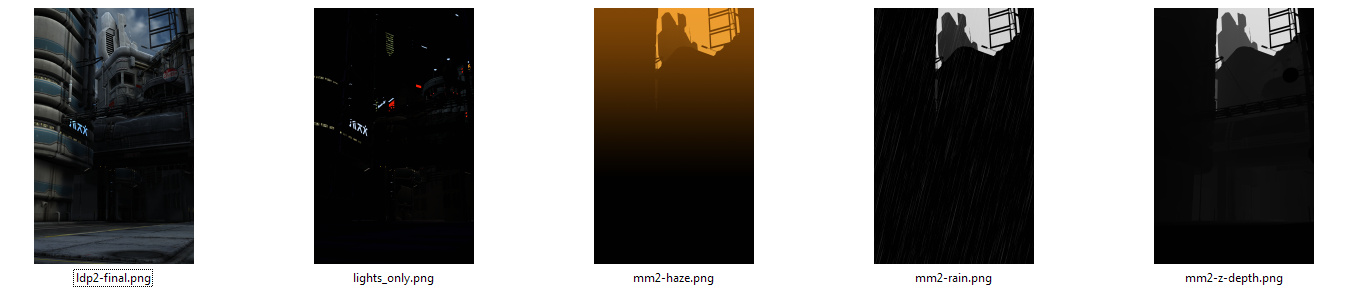
8. Open up Adobe Photoshop and start a blank document that’s exactly the same size as your renders. Paste in your main base render. Then open the MM2 “Z-Depth” render and paste it over the top of your main render. Blend it [ Layer | Layer Style | Blending Options ] in “Blend Mode” set to Screen at 100%…

Hurrah, you just got a nice but basic Vue-like distance haze on the tower. Now save it out as a starter Photoshop file.
9. Looking good, but we’ve lost all the sky detail. Let’s bring back the sky, but better.
i. Merge the Main and Z-depth layers and name them “Main”.
ii. Create a new blank layer called “Sky”, and copy into it a suitably stormy sky photo. Send this layer backwards, then set its Layer Blend Mode to “Soft Light” at 100%. With a big soft 200px Eraser, remove most of the overlap, leaving just enough to suggest a damp sky that’s roiling above the tower and creeping down over the building edges. Then roughly select the tower itself with lasso, feather 50px and delete the selection — doing this helps retain the original Z-depth haze.
iii. Paste in your Haze render, desaturate it, and then blend it exactly as you did with the Z-Depth layer…
Now we have a nice convincing rainy sky…

Now paste in your OpenGL lights layer, and blend with our old friend the Screen 100% mode. Then duplicate this blended lights layer and add Gaussian Blur to it at about 6%. This will make the lights look like they’re being diffused into the rain. To remove any unwanted intensification of the Screen mode lightening, then use the Magic Wand on both Lights layers, and erase anything that’s not a light…
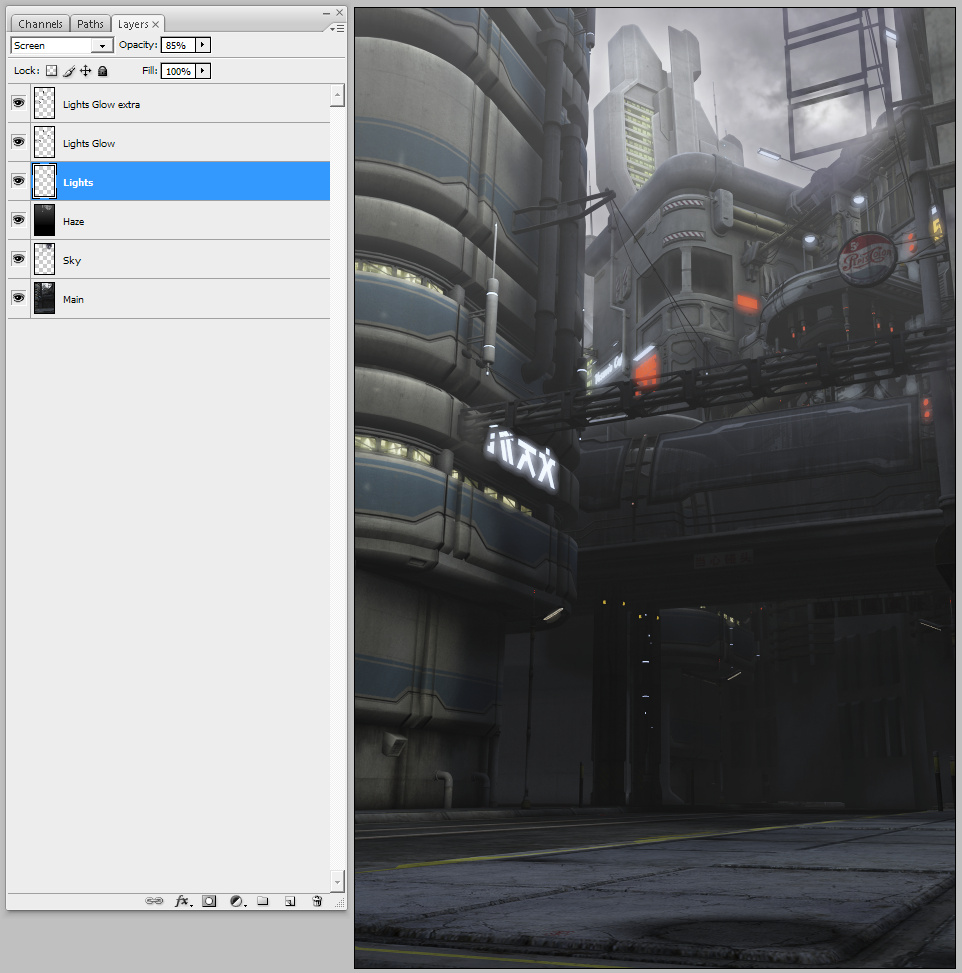
10. Now you can continue to play around in Photoshop with the extra MM2 layers you rendered, such as Rain. In the final picture I used the Rain layer twice, once slightly tilted. Then I added a reflections layer to serve as a “wet” pavement, some steam escaping from the manhole cover and two vents, the flower, some rain seepage staining onto the concrete, and another application of the Haze layer (which served to generally lighten the shadows on the main render)…
Then I added the final layer — a DAZ/Poser character which I posed then exported as an OBJ (without its reflection maps). I used Photoshop to match the robot’s colour to the background, and then used a dodge brush on it to correct a few inconsistencies in the lighting.
That’s it!
To summarise the basic workflow:—
Open your DAZ scene, import 3d models, pose, and set the camera view.
Apply Light Dome Pro 2 preset. Adjust Sun, Shadow Density, Light Density.
Save scene file. Render.
Save scene file again, as a new Mood Master copy.
Apply Mood Master 2, and then render out its Z-depth and other renders.
Open Photoshop and blend the Z-depth and Main renders (Screen, 100%)
Blend in other Mood Master layers (Screen, 100%), as you see fit.
Please note that this workflow is best used on large-scale open views/scenes.
Note also that there’s also an LDP2 addon which adds presets for sci-fi and fantasy scenes, Sky Pack: Out Of This World.
A nice new bit of steampunk for Poser, the Oculus Mechanicus…

CGChallenge ‘Ten’ competition. Prizes? Um… how does a prize pool of over $140,000 sound? Entry deadline: 11th January 2013.

I’ve hand-checked all the DAZ Studio or Poser Directory links, over on the sidebar of this blog. Web links were repaired or deleted, if broken or moved.
Pixeluna’s amazing range of free V4 poses and expressions, added to the Poser/DAZ Freebies section.
Just arrived on Renderosity, and rather cool and unusual, the famous Trojan Horse for Poser & DAZ, from new vendor London224…

Given the obvious quality of this, I’ll be looking out for more new London224 models in future. A full range of stylish Syd Mead -like futuristic ground vehicles, like London224’s MS12 Service Transporter but even more Syd Mead -like, would certainly appeal. But that’s just me — they might not sell too well.
A neat new feature has been added to the Octane third-party render system for Poser (and soon for Daz), alpha masks that include shadows…

Currently free on the DAZ Store, U.S. mailboxes…

I’ve been having a look at the free CrossDresser software for DAZ Studio and Poser. CrossDresser is a speedy and simple utility which quickly converts DAZ/Poser clothing from one character, to fit and conform to another character.
I downloaded CrossDresser and the install went swiftly. If you have a hard firewall such as TinyWall then you need to whitelist both exes, and also the processes that they launch, so they can go online. It can be a bit tricky in such circumstances, getting it all running and downloading and installing the main XD 4.exe and figure files.
It then popped up an updater, and offered to download an unavoidable update — and a bunch of character-conversion data files. I selected most of the Nursoda figures and Sam + Sadie. That part went smoothly too, but the character files are rather chunky — even my limited selection took about three hours to download. If you forget to download any desired character conversion files, and want to install them later, just start XD_Updater.exe.
During the download I did wonder if, for instance, an M4 -> Pitterbill conversion would require CrossDresser licences for both characters. But I found that you can convert any clothing (and from a very wide range of characters), and that you only need one licence — per target character.
On loading up CrossDresser, the software sat there loading morphs for a minute, then finally launched. I then went to the website and purchased licences for 3DU Sam and for Nursoda’s Pitterbill, which at the current 50% sale price meant less than $10 for both licenses. PayPal is accepted. Sadly, on completing the order via PayPal, the download links were not active inside the invoice. What you need to do is to look over on the Store sidebar for the link to “My Downloadable Products”. It’s rather in-intuitive that the downloads are nowhere near the account/invoices sections. The .zip files I downloaded extracted to .exe files, and the installs went smoothly and the licenses were installed in seconds.
I run PzDB as a Poser/DAZ content library manager, so locating the .cr2 clothing to convert went very smoothly. Once you’ve found the clothing you want, you just “copy path” in PzDB, and paste it into Crossdresser. My first conversion was the main suit of the V4 SpaceGirl retro outfit (breasts and all!), and Crossdresser was intelligent enough to automatically know that the spacesuit was a V4 and not a V3 outfit. Conversion took about 15 seconds. I then converted collars, gloves, boots etc for the same outfit. I had no success in converting .pp2 props, such as a belt, for the same outfit.
On re-indexing in PzDB, I found the new Pitterbill versions of the Spacegirl suit among the “new” items. These were correctly labelled with the prefix “Pitterbill-“. Loading the main suit to Pitterbill showed a little poke-through, but otherwise the conversion was good. The V4 breasts had even been suitably flattened for Pitterbill.
Crossdresser conversions are placed in the Windows folder ..\content\Runtime\Libraries\Character\!Converted\ In the Poser Library this shows as ..|Figures|Content|!Converted. Due to the poke-through, I found this folder, deleted, and started over using the simple Fix Poke-through solution and a better and less silly choice of clothing.
This time I chose a more suitable male costume — a classic M4 tweed jacket and trousers. With the 0.25 conversion tweak applied to these, I had much more success with Pitterbill, combined with some converted Eepo boots (not ideal, but this was just a test).
The clothes loaded fine. I turned off visibility on Pitterbill’s toes to cure a tiny poke-through. Applying a mild pose was fine, but a more active pose led to poke-through and slight tearing at the clothing joints. There’s a Poser specific fix tutorial for that, but for most people and for DAZ users it’s probably more easily cured by turning off limb visibility and/or fixing it in Photoshop. Here’s the before-and-after result on the Pitterbill as “tweedy English country gentleman”, with the larger version showing the picture after ten minutes of Photoshopping …
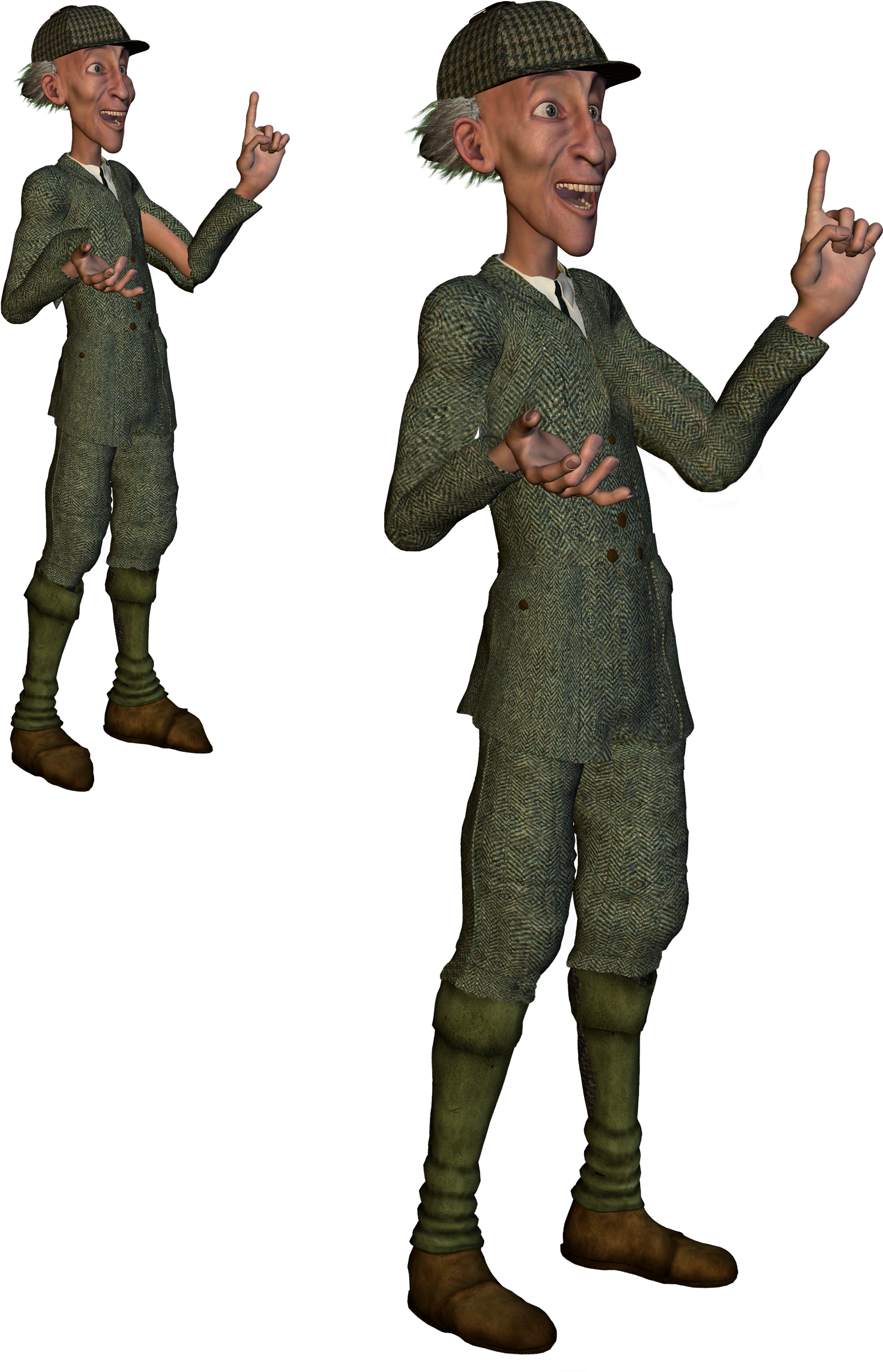
Click on the picture for the large version. (Suit is Victorian Country Gentleman at Poser World)
Overall, CrossDresser 4 is useful for still renders (but probably not animation, due to the likely poke-through) and it’s only currently going to cost about $15 to $20 for three or four key licences. Considering the value you’d get out of that over the years, getting clothing onto characters you would never otherwise have outfits for, it’s a bargain.
The Crossdresser store is for some reason rather difficult to navigate and find the key licenses. Here’s a linked list of the pages for key licenses on the store:
Victoria 4 and Michael 4.
Doctor Pitterbill, Kali and Kelm, and Mavka, all Nursoda characters.
The manga characters Deco and Decoco and NearMe, all designed for tooning and popular in Japan for making manga comics. I believe that NearMe is still available on a AIO (all in one) installer.
Also at the Crossdresser store are free plugins to load Universal Clothing (another possible output of the Crossdresser software) into Poser and DAZ. These automatically handle the conversion via CrossDresser when the clothing is loaded to the figure from your regular Library, and the plugin will even auto-conform the newly applied clothing. This extended feature of Crossdresser wasn’t tested for this review.
Holiday Giveaway: Week 1 over at Renderosity. These are the new set of freebies I got in my runtime…
