• Directory
  • FAQ: about JURN
  • Group tests
  • Guide to academic search
  • JURN’s donationware
  • Links
  • openEco: titles indexed

News from JURN

~ search tool for open access content

News from JURN

Category Archives: JURN tips and tricks

How to use the new bloated Flickr again

30 Thursday Oct 2014

Posted by futurilla in JURN tips and tricks

≈ Leave a comment

Here’s a way to use Flickr again, following the foul and bloated changes that have made it all but unusable for speedy searching. Speed is especially important for those on a deadline, for instance those who need to use the Creative Commons Flickr search for picture sourcing via http://search.creativecommons.org/ in a timely manner…

* In the Chrome browser: Install the addon Chrome User Agent Spoofer. Set it so that Chrome pretends to be Internet Explorer 8 (that worked for me, and apparently for most others). It enables much quicker loading of images, compared to either no loading or the painfully slow loading in any of the other browsers on my PC. The click-through and “View all sizes” still works. The addon can be set to always emulate IE8, when it lands on https://www.flickr.com/

* In the Firefox browser: Install the addon UA Control. Not quite as easy to setup to emulate IE8, and the loading is not as fast as in Chrome, but it works. Add this string…

Site:   https://www.flickr.com/
String:   new_flickr_sucks (compatible; MSIE 8.0; Windows NT 6.1; Trident/4.0; GTB7.4; InfoPath.2; SV1; .NET CLR 3.3.69573; WOW64; en-US)

This will work, but not via http://search.creativecommons.org/ Instead you will need to bookmark and access the Flickr Advanced Search with CC via https://www.flickr.com/search/advanced/?l=cc The click-through and “View all sizes” still works.

How to archive a free WordPress.com blog with images

21 Saturday Jun 2014

Posted by futurilla in JURN tips and tricks

≈ Leave a comment

One of the problems found in making a local archival backup of your free WordPress.com blog is that users are not allowed to bulk export their images and other uploaded files. Just the archive .xml file, which has all the HTML of the blog posts inside it. WordPress.com unhelpfully suggest: “uploads and images may need to be manually transferred to the new blog”. That’s possible for the lazy blogger who only ever squeezed out six posts before exhausting their intellectual energies, but not so useful for uber-bloggers with thousands of posts and images.

For those who are self-hosting a WordPress install, archiving all images is a simple matter. Just copy over the relevant folder by FTP access. But for free WordPress.com users that’s not an option.

Similarly, those moving from a live WordPress.com blog to a new self-hosted WordPress blog are also in luck. Import the .xml backup of your blog and the new self-hosted WordPress install should go fetch the old blog’s live images and import them, even reworking all their links to conform to the new site URL. Once everything has been ported across, the old WordPress.com blog can then be deleted.

However, there may be instances where someone wants to make a more long-term local archive of a free WordPress.com blog, especially one that is set to be deleted. A literary executor, for instance, may want to properly archive then close a writer’s substantial blog. Perhaps there are legal problems with the estate that means the blog needs to come down. Perhaps they intend to publish it in book form or online again at some time in the future, but… they’re not sure yet.

But they do know that they want the archive to remain more-or-less portable and flexible into the future. I’m assuming that that person doesn’t have time or the technical savvy to: buy web space; get to the host to activate the database on their website space; get a hosted WordPress install set up and configured with the database; then save the blog out from that. Or to set up a local MySQL etc install on their desktop, something which is dangerously unstable in terms of later moving it to a new PC or a fresh OS install.

In such a case the easiest option for doing this appears to be…

1. Download and install a website ripper (or in more polite parlance, “mirroring”) software. Such as the excellent free HTTrack Website Copier. Use its simple wizard to make a full local mirror of your blog. You’re only doing this to get at the images, and have them accurately mirrored inside their correctly named sub-folders.

Unfortunately the downloading of your target blog may take quite some time, even for a relatively small blog. A test run with JURN’s substantial blog took a ridiculous 90 minutes to mirror, using HTTrack 64bit Windows and standard broadband, including 18,000 “ooh, ooh, share this post on CrapUpon!” and similar WordPress fluff-files.

2. Then download an export backup .xml of your blog, from your blog’s own Dashboard (Dashboard | Tools | Export | Export | Complete | Download Export File). This export will be a text only .xml file, which won’t include any of the blog’s images. (What to do when the export email never arrives)

3. Copy out the images folder (look for a folder titled yourblogname.files.wordpress.com) from the local ‘mirror’ of your blog that HTTrack made. Place this below the location of your blog’s exported .xml file.

4. You now have a relatively clean and simple backup archival copy of your blog, with the folders of blog images aligned (in terms of everything but the base URL) with the URL references contained in the .xml archive file.

5. Make a copy of the blog’s main index.html page, so as to capture any sidebar blogroll links. Perhaps also take a screenshot, and also download the .zip of the template that was used by the blog. Place these items with the .xml and images folders.

6. Save and zip an archive of the blog .xml and and the blog images, plus the index.html, the template .zip, and the screenshot.

The advantage of doing it this way is that the blog is now much more portable across longer periods of time. If — five or ten years down the line, once the author’s estate has been sorted out — you want to put the blog online again, or port it into a book or timeline or whatever, you still have a single-file local .xml copy with code that’s fully accessible for search/replace with a simple text editor. You’d upload HTTrack’s folder(s) of the archived images somewhere, then tweak the archive’s .xml via search-and-place of the image links (perhaps by using the free Notepad++, which can cleanly handle and save huge .xml files without injecting them full of Microsoft Office bloat on saving), such that the .xml archive image links all point to your new online images folder. A new self-hosted WordPress install should then go fetch those images and import them, reworking all the links to conform to the new site URL.


Update, March 2019.

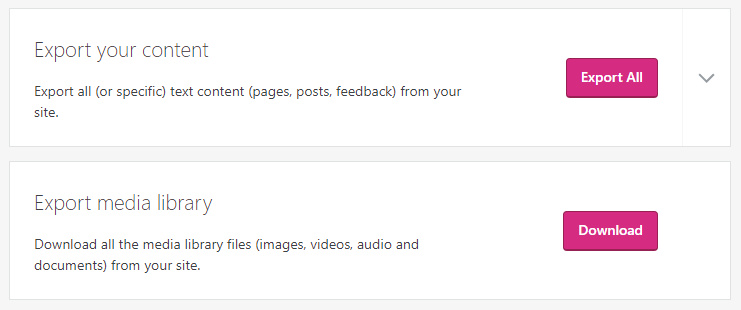
Via the new dashboard, “Export Media Library” newly added…

Firefox: RSS Icon in URL bar

29 Thursday May 2014

Posted by futurilla in JURN tips and tricks, Spotted in the news

≈ Leave a comment

Lost the RSS button in your Firefox address/URL bar? The Firefox 32 upgrade lost it for me. RSS Icon in URL bar 1.5 is the current addon solution. It works fine in passing through feeds to my desktop FeedDemon reader.

Capture text from any picture

30 Wednesday Apr 2014

Posted by futurilla in JURN tips and tricks, Spotted in the news

≈ Leave a comment

Project Naptha, a free browser plugin to easily copy text from inside a Web picture. Only works with Google Chrome at present, but…

“Depending on the number of sign-ups, a Firefox version may be released in a few weeks”.

Reportedly works on Web-res pictures and at angles, although I’m guessing that the excellent MS Office OneNote: Insert | Screen Clipping | ‘Copy text’ function might work better on tiny text.

naptha

Handy for those occasional screen captured TOCs, journal page scans without OCR, Google Books pages, and also for unfunny cats. Don’t like a LOLcat caption? Just…

“Right-click and you can erase the words from an image, edit the words, or even translate it into a different language”

Tabula

16 Sunday Mar 2014

Posted by futurilla in JURN tips and tricks

≈ Leave a comment

Tabula. Free Windows software to copy-and-paste rows of data out of PDF files, and into plain CSV format, through a simple interface. You do need the Java runtime installed on your PC, though, which is a huge security risk. But it may be worth it, if you regularly need to move tables of data from PDFs to MS Excel or similar database software.

tabula

How to set Foxit Reader to always launch PDFs in ‘magazine mode’

31 Friday Jan 2014

Posted by futurilla in JURN tips and tricks

≈ 3 Comments

I’ve finally found a decent PDF reader, for speedily launching straight into full-screen, double-page spread + cover page. It’s the free Foxit Reader, set thus…

1. Set it to always launch “Full Screen Mode”, in Preferences…

foxit1

2. Set to always launch with “facing pages” and “fit page”, in Preferences…

foxit2

While you’re in Preferences…

* uncheck “Show Advertisment” in General. (To prevent future updates forcing advertising on you, also uncheck “auto-update”).
* uncheck “Enable Javascript” in Trust Manager (doing this increases your security).
* you probably also want to enable clickable Web links in PDFs. This is hidden deep in: Preferences | Trust Manager | Internet Access from PDF files… | Change Settings | “Allow PDF files to access all web sites” | OK | OK.

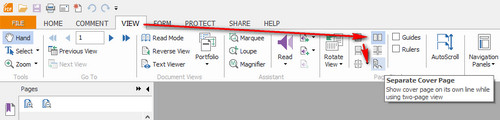
3. Set View to use double-page spread + cover page. Close and reopen the software, and the cover-page setting will hopefully “stick”…

foxit3

As you can see from all the wrangling shown above, Foxit still needs a one-click settings button marked: “Always launch a PDF straight into magazine mode (fullscreen + facing pages + show cover page + fit page)”.

Tapping “Esc” on the keyboard will escape you from fullscreen.

Foxit is very fast to launch on 64-bit Windows 8, only a few milliseconds slower than the almost instantaneous Microsoft Reader. But unlike Microsoft Reader it always shows crisp text. And you get access to the page thumbnails.


The alternatives:

Microsoft Reader for Windows 8: Lovely speed, simple interface. But the awesome launch / page-turn speed comes at a price: the page often looks fuzzy, which makes reading small text unpleasant. No page thumbnails support, either.

Firefox browser: A very capable and fast integrated PDF reader for use during Web browsing, with an intuitive user interface. But it can’t remember user settings between sessions, and doesn’t respect any “display as double page spreads” settings embedded in the PDF. Copying and pasting text from such a PDF display sometimes shows garbled text, so Firefox may be compromising letter fidelity in order to get a good visual display.

Nitro PDF Reader: Not that bad, I had it on my system for a few weeks. But it can’t launch straight to fullscreen, while Foxit Reader can. Foxit also has the nicer user interface.

Adobe Reader: Ugh… Clunky user interface, and a proven and persistent security risk. Plus, that nasty new “visit links to Adobe!” sidebar that’s impossible to remove. Uninstalled.

Slim PDF Reader: Installed. Very lightweight, free, but meh… it was rapidly uninstalled.


Update, September 2017: It’s goodbye to Foxit, which added one to many nags, extra bits of unwanted software such as its Connected module, and generally got bloated.

I’m now using the freeware Sumatra PDF, with its Book view (Cover + Facing pages) which is found under Settings | View | Book View. Super-quick launch and very smooth page-turn.

You can set it to always launch in Book mode by editing the Advanced settings list. Find:

DefaultDisplayMode = automatic

and change this to…

DefaultDisplayMode = book view

The other initial drawback appears to be a slight sliver of gutter between double-page spreads, which spoils magazine spreads in art / architecture / fashion etc magazines. This can also be fixed in the Advanced settings. Find:

PageSpacing = 4 4

and change this to…

PageSpacing = 0 0

Identify and extract duplicates in an Excel 2007 column list

18 Saturday Jan 2014

Posted by futurilla in JURN tips and tricks

≈ 1 Comment

Identify and extract the duplicates in an Excel 2007 column list. It should be a simple one-button task, but Microsoft expects users to jump through hoops to do it. To the rescue: the free Duplicate Master 1.4, which deftly handles the task with a simple four-click wizard…

1. Download Duplicate Master and extract.
2. Double-click on The Duplicate Master.xla file, and accept Excel’s warning about ‘enabling macros’. Duplicate Master should load into Excel, to be found in the Add-Ins tab.

access

3. Load your .xls and select your column of data.
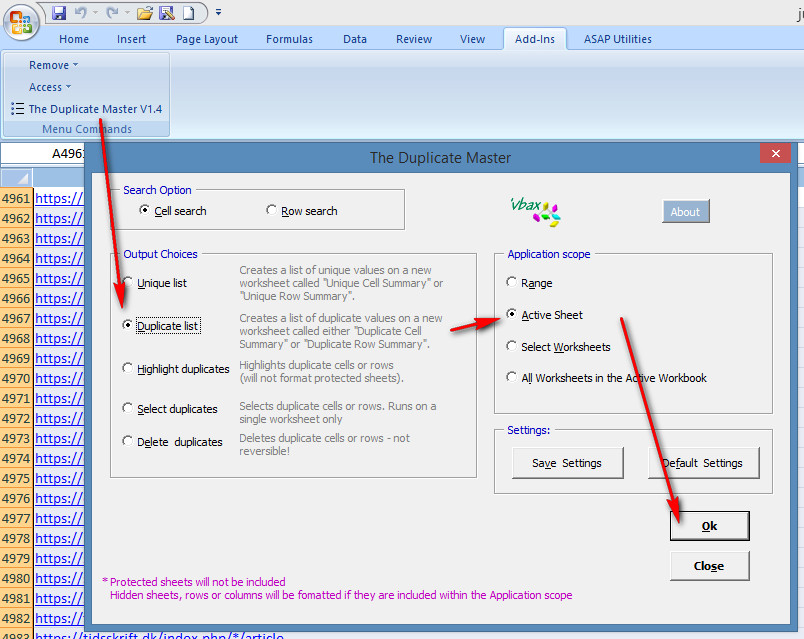
4. Call up Duplicate Master, and select your options in it…

dupextract

Duplicate Master then copies your column’s duplicate entries, automatically opens a new sheet, and copies in the duplicates.


For future use, either:

1. Make a desktop shortcut to The Duplicate Master.xla, put it in the Windows Start menu, and then call as it up as if it were a program when you have Excel loaded.

or… 2. Pin Duplicate Master to the Add-ins tab by following these steps: Open the Excel 2007 Start Orb | Excel Options | Add-ins | Managed Excel Add-ins + GO | Browse… load The Duplicate Master.xla | OK, OK, and quit.

Excel: Are those blank cells really empty? How to scrub them quickly, then fill them with text

28 Saturday Dec 2013

Posted by futurilla in JURN tips and tricks

≈ Leave a comment

Another handy hard-won tip for MS Excel 2007, which may save time for someone new to the software. This shows how to blank cells in Excel that are not really blank (because a formula left some hidden junk in them).

Scenario: You tried copying the data and pasting it back in again, as “Values”. It had no effect. You removed trailing and stray spaces. With no effect. You still couldn’t get Excel to select all the blank cells. Here’s what worked for me, without running more formulas or macros:

1. Download the free ASAP Utilities add-on for Excel. Install, and locate its top button bar.

2. Select all cells in your target column.

3. In ASAP Utilities choose: Numbers & Dates | “Convert unrecognised numbers (text?) to numbers”. This has the very useful side-effect of clearing all the hidden junk that may be clogging up your apparently blank cells.

4. Now in Excel you can go: Home | Find & Select | Go To Special… | Blanks | OK. All your blank cells will be selected and highlighted, whereas before this operation would not find all the blank cells.

To place a text marker into all your selected blank cells: press F2, then type a word or phrase into the first selected cell. Then, instead of pressing Enter as normal, hold down Crtl on the keyboard + press Enter. All your blank cells will then be filled with the typed text.

ASAP Utilities also has a simpler “fill blank cells” option, but it seems to be unable to handle more than 400 rows at a time.

Excel example sheet: compare lists and extract non-duplicates

28 Saturday Dec 2013

Posted by futurilla in JURN tips and tricks

≈ 5 Comments

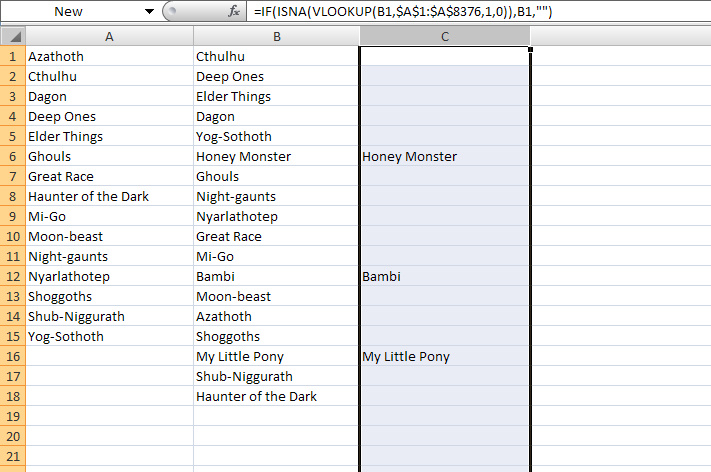
I’ve been playing around with MS Excel 2007, and found that I wanted to paste in two lists and then have Excel automatically identify and extract all the non-duplicates. The second list is a jumbled up variant of the first, with some new additions in it.

Here’s a working .xls file showing my example: excel-sort-two-lists-find-non-duplicates (20kb). The embedded formula spots and extracts the new additions, handily placing them directly alongside their occurrence.

excel-example

Tip: The formula currently only goes 18 cells down in Column C. To extend it further, click that 18th cell, spot the little “+” in the corner of the cell, and then drag the “+” down for as many extra cells as you need.

There are a zillion bits of advice on using Excel to identify duplicates, but not so many for spotting and extracting non-duplicates in this manner. So hopefully this working example will be of use to someone.

10 steps to move from Chrome to Firefox

23 Monday Dec 2013

Posted by futurilla in JURN tips and tricks, JURN's Google watch

≈ 4 Comments

Google has announced that Google Chrome browser users will not be allowed to install their own choice of plugins, addons, and userscripts, from January 2014. Today I moved over to using Firefox, as a result. Here are my notes on the “how to” of the move from Chrome to Firefox, in the hope the notes may help a few others:


1. Backup any old bookmarks from any existing install of Firefox. It seemed best to start fresh, so I removed the old version of Firefox via a full uninstall.


2. Download and install the very latest Firefox. As this was a fresh install, the first time Firefox loads it should offer to automatically port over all your bookmarks, toolbar bookmarks, passwords, etc. from Chrome. (The tiny favicons will only reappear, next to bookmarks on your toolbar, when you revisit those bookmarked pages).


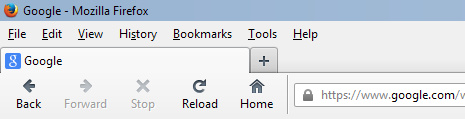
3. Tweak the Firefox interface. I prefer to get back to a retro look with Classic Reload-Stop-Go Buttons.

Then go View | Toolbars | Customize. While this Customize library window is open, you are able to drag around the navigation icons in the navigation bar. Get the icons positioned how you want them, then before you close the Customize library window choose “Icons + Text”. Then click “done”. This is how I like the top left on my browser…
navmenu


4. Get the RSS newsfeed icon back in the address / location bar by installing this addon. The RSS button it adds had success in passing over the feed to my free desktop RSS news reader Feeddemon.


5. Add some basic advert and click-jacking blocker add-ons:

Adblock Plus

Flashblock

NoScript (annoying initially)

And then in Firefox go to: Tools | Addons | Plugins and disable all the craptastic media-player plugins that ship with Firefox (RealPlayer and the like, ugh). I only left Flash on “Always Activate” — since the Flashblock add-on (above) keeps it under control.


6. Then block the web’s other annoyances with these add-ons:

Facebook Purity (and import any blocklist / settings from your Chrome version of F.B. Purity)

Comment Snob


7. Add userscript capability to Firefox:

Greasemonkey (required for running all userscripts). Followed by…

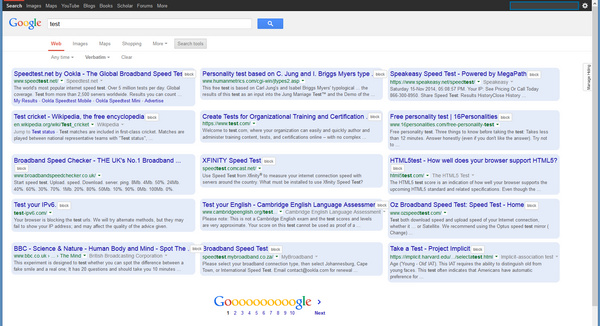
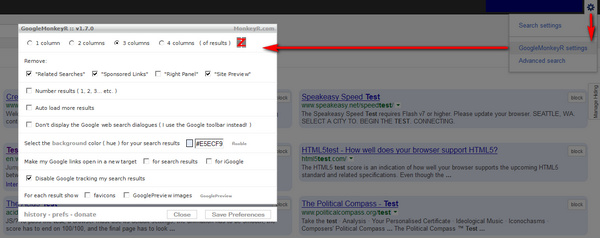
GoogleMonkeyR. Vital for working with Google Search, in my opinion. I set it up to display results in three columns, and also to block several bits of Google Search cruft.
googlemonkeyr

monkeyr

(To find GoogleMonkeyR settings: make any search in Google, then right-click on the grey cog. Bear in mind that ticking “Don’t display the Google Web Search dialogues” may prevent the search box appearing above the top of search results in Google Images, and Google Books).

Direct Links in Google Search. This forces direct URLs to be used in the search result links.

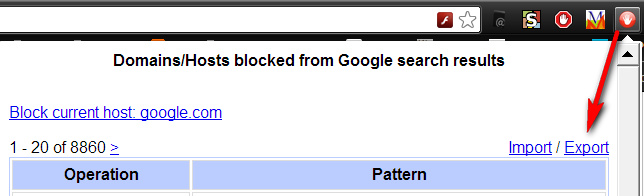
Google Hit Hider by Domain (blocks Google Search results by unwanted domain). Import your old Google Search blocklist from “Personal Blocklist (by Google)”, then use the de-duplicate tool in Google Hit Hider…
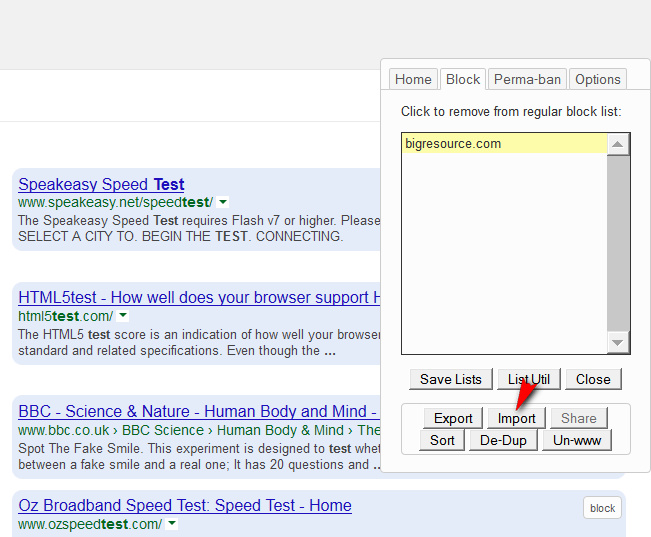
export

import


8. Finally, go to Tools | Options | General | Home Page. There paste in this handy home page URL, which will send you to the main Google Search when you click on the Home button in Firefox:

https://www.google.com/webhp?hl=en&complete=0&tbo=1&num=18&tbs=li:1

This special URL has certain parameters embedded in it, which:

* forces Google Search to use Verbatim (it searches on just what you type, not what it guesses you might want)
* sets the number of results to 18 (perfect with a widescreen monitor and GoogleMonkeyR using three columns)
* forces the top Search Tools open, displaying drop-down items
* forces Google Search to use its complete main USA index, without making an automatic switch to a local version
* and turns Google Search’s Autocomplete off.

It also seems to have the advantage of turning off nagging on the Google Search front page, re: “we use cookies!” and “download Chrome now!”.

The resulting ad-free nag-free search results layout, with GoogleMonkeyR and the above fixes:
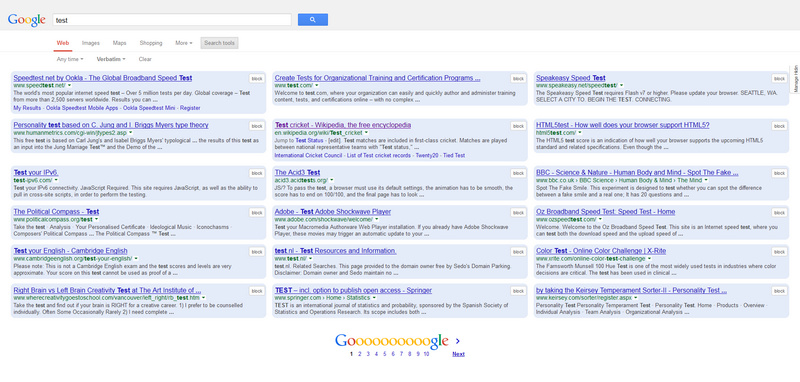
searchfinal


9. You can use the same URL trick with a Google News search, dragged onto your bookmarks bar, thus:

https://www.google.com/search?hl=en&gl=uk&tbm=nws&authuser=0&q=keyword&num=18&tbs=sbd:1

Replace the keyword in the above URL with your own. Switch out “uk” for “us”, etc.

Also handy is this Google Books link, with parameters included:

https://www.google.com/search?lr=lang_en&tbo=p&tbm=bks&q=%22beautiful+roses%22&tbs=,bkv:p,bkt:b&num=12


10. Other Firefox add-ons that are also very useful:

* the free grammar and spelling checker After the Deadline + Menu Editor to reverse AfterTD’s impudent hijacking of the top of the right-click context menu in Firefox. Sadly there’s no way to have AfterTD use British English spelling.

* Google Translator for Firefox.

* Paste Email Address

* Make Link

* FEBE Backup

* Bookmark Favicon Changer 2.0 (is the only one that works with the latest Firefox)

* Instasaver (Instapaper saver button for Firefox) (works with the latest Firefox including Nightly developer version, requires an Instapaper account)

* NoSquint (a nice flexible and easily resettable zoom tool)

← Older posts
Newer posts →
RSS Feed: Subscribe


Please become my patron at www.patreon.com/davehaden to help JURN survive and thrive.

JURN

  • JURN : directory of ejournals
  • JURN : main search-engine
  • JURN : openEco directory
  • JURN : repository search
  • Categories

    • Academic search
    • Ecology additions
    • Economics of Open Access
    • How to improve academic search
    • JURN blogged
    • JURN metrics
    • JURN tips and tricks
    • JURN's Google watch
    • My general observations
    • New media journal articles
    • New titles added to JURN
    • Official and think-tank reports
    • Ooops!
    • Open Access publishing
    • Spotted in the news
    • Uncategorized

    Archives

    • February 2026
    • January 2026
    • October 2025
    • May 2025
    • April 2025
    • September 2024
    • June 2024
    • May 2024
    • April 2024
    • March 2024
    • February 2024
    • January 2024
    • December 2023
    • November 2023
    • October 2023
    • September 2023
    • June 2023
    • May 2023
    • January 2023
    • December 2022
    • November 2022
    • October 2021
    • September 2021
    • August 2021
    • July 2021
    • June 2021
    • May 2021
    • April 2021
    • March 2021
    • February 2021
    • January 2021
    • December 2020
    • November 2020
    • October 2020
    • September 2020
    • August 2020
    • July 2020
    • June 2020
    • May 2020
    • April 2020
    • March 2020
    • February 2020
    • January 2020
    • December 2019
    • November 2019
    • October 2019
    • September 2019
    • August 2019
    • July 2019
    • June 2019
    • May 2019
    • April 2019
    • March 2019
    • February 2019
    • January 2019
    • December 2018
    • November 2018
    • October 2018
    • September 2018
    • August 2018
    • July 2018
    • June 2018
    • May 2018
    • April 2018
    • March 2018
    • February 2018
    • January 2018
    • December 2017
    • November 2017
    • October 2017
    • September 2017
    • August 2017
    • July 2017
    • June 2017
    • May 2017
    • April 2017
    • March 2017
    • February 2017
    • January 2017
    • December 2016
    • November 2016
    • October 2016
    • September 2016
    • August 2016
    • July 2016
    • June 2016
    • May 2016
    • April 2016
    • March 2016
    • February 2016
    • January 2016
    • December 2015
    • November 2015
    • October 2015
    • September 2015
    • August 2015
    • July 2015
    • June 2015
    • May 2015
    • April 2015
    • March 2015
    • February 2015
    • January 2015
    • December 2014
    • November 2014
    • October 2014
    • September 2014
    • August 2014
    • July 2014
    • June 2014
    • May 2014
    • April 2014
    • March 2014
    • February 2014
    • January 2014
    • December 2013
    • November 2013
    • October 2013
    • September 2013
    • August 2013
    • July 2013
    • June 2013
    • May 2013
    • April 2013
    • March 2013
    • February 2013
    • January 2013
    • December 2012
    • November 2012
    • October 2012
    • September 2012
    • August 2012
    • June 2012
    • May 2012
    • April 2012
    • March 2012
    • February 2012
    • January 2012
    • December 2011
    • November 2011
    • October 2011
    • September 2011
    • August 2011
    • July 2011
    • June 2011
    • May 2011
    • April 2011
    • March 2011
    • February 2011
    • January 2011
    • December 2010
    • November 2010
    • October 2010
    • September 2010
    • August 2010
    • July 2010
    • June 2010
    • May 2010
    • April 2010
    • March 2010
    • February 2010
    • January 2010
    • December 2009
    • November 2009
    • October 2009
    • September 2009
    • August 2009
    • July 2009
    • June 2009
    • May 2009
    • April 2009
    • March 2009
    • February 2009

    Proudly powered by WordPress Theme: Chateau by Ignacio Ricci.