JURN is five years old

JURN is now five years old, having launched in early alpha form with just 951 titles on 3rd February 2009. The current headline total of 4,690 titles works out at an average growth of around 750 titles per year, although in the calendar year of 2013 this had slowed to indexing around 350 new English language titles. However, the 350 figure was from my simple tallying from the “new titles added” blog posts — and this blog doesn’t report additions of non-English titles.

Actually, JURN’s headline total is probably an undercounting, since JURN can index nearly all French and Spanish language journals with a few “catch all” URLs for services such as Redalyc, Raco, Dialnet, and Revues. Also JStage in Japan. As their totals in humanities and arts steadily mount up, uncounted by me, so the total number of journals indexed by JURN automatically grows. The same is true of JURN’s use of single wildcard URLs that index all articles on a university’s dedicated open journal system (such as: http://ojs.library.dal.ca/*/article/). These two factors mean that, if I were able to do a complete recount from scratch, the real headline figure for JURN would probably be well over 5,000 arts and humanities titles.

The centralised nature of science and biomedical meant that thousands of open journals in these areas could be added with little effort, and so they were experimentally included in JURN in late 2013 — although their numbers were not added to the headline total of journals indexed.

The Directory of over 3,000 titles published in English continues to grow.

JURN continues to be robustly maintained and repaired.

Overall usage of JURN continues to grow, although it would be nice to have a publicity professional or two to help more people become aware of the service.

How to set Foxit Reader to always launch PDFs in ‘magazine mode’

I’ve finally found a decent PDF reader, for speedily launching straight into full-screen, double-page spread + cover page. It’s the free Foxit Reader, set thus…

1. Set it to always launch “Full Screen Mode”, in Preferences…

foxit1

2. Set to always launch with “facing pages” and “fit page”, in Preferences…

foxit2

While you’re in Preferences…

* uncheck “Show Advertisment” in General. (To prevent future updates forcing advertising on you, also uncheck “auto-update”).
* uncheck “Enable Javascript” in Trust Manager (doing this increases your security).
* you probably also want to enable clickable Web links in PDFs. This is hidden deep in: Preferences | Trust Manager | Internet Access from PDF files… | Change Settings | “Allow PDF files to access all web sites” | OK | OK.

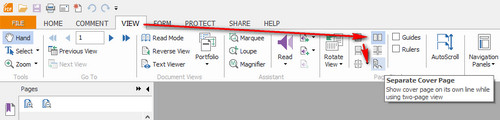
3. Set View to use double-page spread + cover page. Close and reopen the software, and the cover-page setting will hopefully “stick”…

foxit3

As you can see from all the wrangling shown above, Foxit still needs a one-click settings button marked: “Always launch a PDF straight into magazine mode (fullscreen + facing pages + show cover page + fit page)”.

Tapping “Esc” on the keyboard will escape you from fullscreen.

Foxit is very fast to launch on 64-bit Windows 8, only a few milliseconds slower than the almost instantaneous Microsoft Reader. But unlike Microsoft Reader it always shows crisp text. And you get access to the page thumbnails.


The alternatives:

Microsoft Reader for Windows 8: Lovely speed, simple interface. But the awesome launch / page-turn speed comes at a price: the page often looks fuzzy, which makes reading small text unpleasant. No page thumbnails support, either.

Firefox browser: A very capable and fast integrated PDF reader for use during Web browsing, with an intuitive user interface. But it can’t remember user settings between sessions, and doesn’t respect any “display as double page spreads” settings embedded in the PDF. Copying and pasting text from such a PDF display sometimes shows garbled text, so Firefox may be compromising letter fidelity in order to get a good visual display.

Nitro PDF Reader: Not that bad, I had it on my system for a few weeks. But it can’t launch straight to fullscreen, while Foxit Reader can. Foxit also has the nicer user interface.

Adobe Reader: Ugh… Clunky user interface, and a proven and persistent security risk. Plus, that nasty new “visit links to Adobe!” sidebar that’s impossible to remove. Uninstalled.

Slim PDF Reader: Installed. Very lightweight, free, but meh… it was rapidly uninstalled.


Update, September 2017: It’s goodbye to Foxit, which added one to many nags, extra bits of unwanted software such as its Connected module, and generally got bloated.

I’m now using the freeware Sumatra PDF, with its Book view (Cover + Facing pages) which is found under Settings | View | Book View. Super-quick launch and very smooth page-turn.

You can set it to always launch in Book mode by editing the Advanced settings list. Find:

DefaultDisplayMode = automatic

and change this to…

DefaultDisplayMode = book view

The other initial drawback appears to be a slight sliver of gutter between double-page spreads, which spoils magazine spreads in art / architecture / fashion etc magazines. This can also be fixed in the Advanced settings. Find:

PageSpacing = 4 4

and change this to…

PageSpacing = 0 0

Google Scholar and DSpace

A new study, “Google Scholar and DSpace”

“The average indexing ratio [in Google Scholar] for our sample of 10 recent DSpace repositories is 64.8%”

I wonder if the interface presentation has an influence? http://circle.ubc.ca/ is totally hardcore in presentation and keywording, and is indexed at 99%. Whereas http://dash.harvard.edu/ has a more student-friendly blog-like look and feel to it, and is indexed at just 26% despite the harvard.edu domain. But perhaps not, as I guess its more likely due to the presence or otherwise of good machine-readable metadata.

Radio search engine

Cool new Radio search engine. Indexes 400,000 radio station streams in real-time, tags artist metadata to the songs they’re streaming, then lets you search and load those streams. Works fine, and is an excellent method of discovering online radio stations playing artists you like. Would be great to see this technology extended to intelligent speech radio and intellectual podcasts. It serves as a sort of podcast-and-BBC search at present, but my search for “economy” showed it to give very poor results when it strays outside of music.

Blogs begone

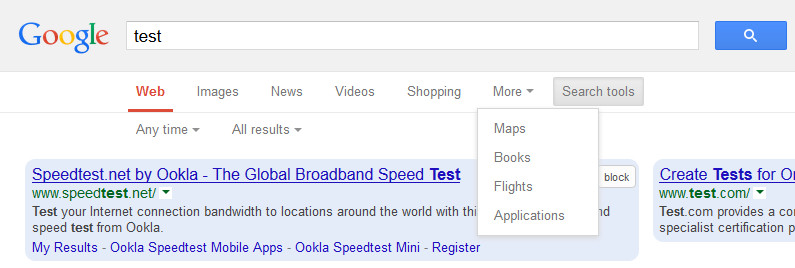
Just when blogs were making a comeback, after the inane collective Twitter-gasm of the last few years… today Google has removed “Blogs” from the switch-through options at the top of the Google Search results …

blogs-removed

They’ve also recently made some pointed comments to bloggers about allowing spammy “guest bloggers” to use their blogs.

ROAD

ROAD is a new unified ISSN lookup tool, apparently from UNESCO, drawing records from a handful of big databases. What makes it notable is that search results only show records of open access titles. ROAD looks like it might be useful for finding out what’s currently listed where, e.g.: what open access title is in Scopus but is not yet in the DOAJ. ROAD also gives ISSN records that are otherwise held behind paywalls, in databases such as ISSN Register (with which ROAD appears to be associated).

Drilling down through the sidebar filters shows ROAD listing only 338 titles in the Arts and Humanities + published in English, despite its accessing the DOAJ and many other databases. Odd.

OAN

I found a German search-engine for material in repositories, OAN. The precision of its single-box keyword search is very poor, at least when using the English language. But OAN does have the ability to filter down to records for periodical articles only, and then to filter these records again by broad subject area. OAN also seems to have made a very strong effort to only include repository records that actually lead to full-text.

Identify and extract duplicates in an Excel 2007 column list

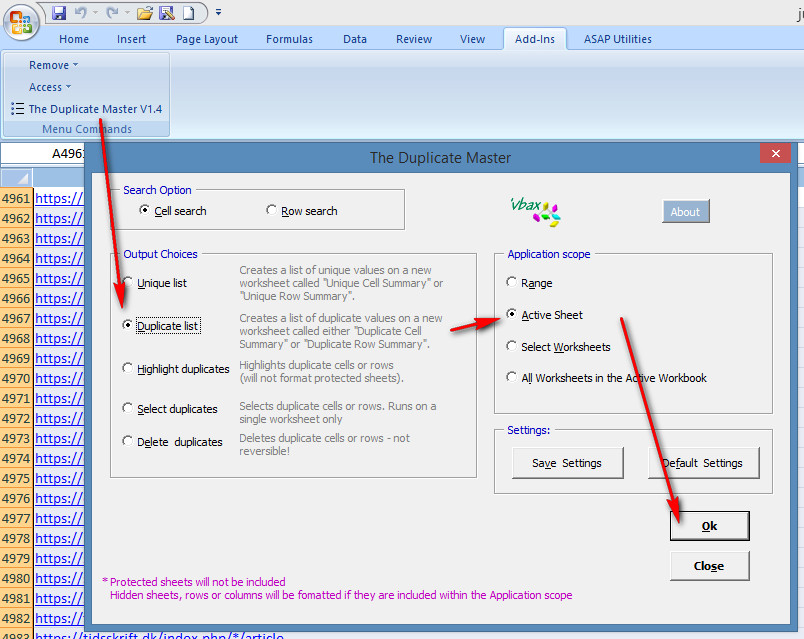
Identify and extract the duplicates in an Excel 2007 column list. It should be a simple one-button task, but Microsoft expects users to jump through hoops to do it. To the rescue: the free Duplicate Master 1.4, which deftly handles the task with a simple four-click wizard…

1. Download Duplicate Master and extract.
2. Double-click on The Duplicate Master.xla file, and accept Excel’s warning about ‘enabling macros’. Duplicate Master should load into Excel, to be found in the Add-Ins tab.

access

3. Load your .xls and select your column of data.
4. Call up Duplicate Master, and select your options in it…

dupextract

Duplicate Master then copies your column’s duplicate entries, automatically opens a new sheet, and copies in the duplicates.


For future use, either:

1. Make a desktop shortcut to The Duplicate Master.xla, put it in the Windows Start menu, and then call as it up as if it were a program when you have Excel loaded.

or… 2. Pin Duplicate Master to the Add-ins tab by following these steps: Open the Excel 2007 Start Orb | Excel Options | Add-ins | Managed Excel Add-ins + GO | Browse… load The Duplicate Master.xla | OK, OK, and quit.