• Directory
  • FAQ: about JURN
  • Group tests
  • Guide to academic search
  • JURN’s donationware
  • Links
  • openEco: titles indexed

News from JURN

~ search tool for open access content

News from JURN

Category Archives: JURN tips and tricks

How to delete the invasive new “Share with Skype” menu item

17 Friday Apr 2020

Posted by futurilla in JURN tips and tricks

≈ 5 Comments

Here’s how to delete the invasive new “Share with Skype” menu item, newly located on your right-click menu in your Windows PC. This has been added without permission by the latest update for desktop Skype, and is a pointless distraction for anyone who just uses Skype for calls.

There appears to be no way to turn it off from within Skype. I can’t get it to show up in any context menu-editor except the Windows Registry Editor.

How to remove it…

1. Go to the Windows Start menu. In the search box type regedit to launch the Windows Registry Editor.

2. The key you want to delete is easily found under…

HKEY_CLASSES_ROOT\*\shell

3. Right-click on the key’s label (shown here highlighted in blue). Delete it.

4. Exit the Registry Editor.

The menu item is gone, but not gone for good. It will return when desktop Skype is next updated, and the key will thus need to be repeatedly deleted.

How to extract hardcoded subtitles from an old video

29 Sunday Mar 2020

Posted by futurilla in JURN tips and tricks

≈ 1 Comment

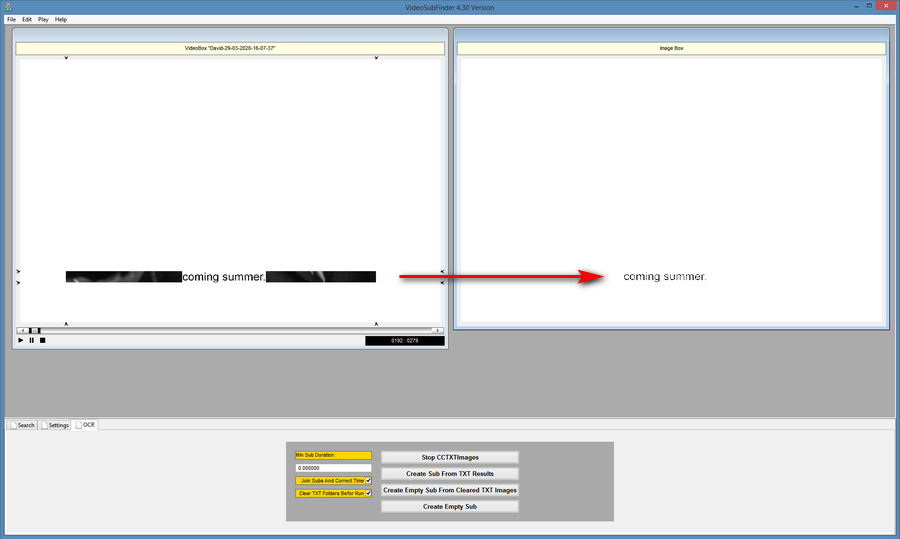
VideoSubFinder is Windows freeware to auto-detect and extract hard-coded subtitles from videos, saving the results to a series of screen grabs — containing only the subtitle lettering at large size and thus ready for OCR. VideoSubFinder appears to be the best option for occasional use by media archivists, and also publishers and editors who want to extract to text.

It’s been tested by me and is working nicely ‘out of the box’ on an old 17 minute video. It does not appear to have native dependencies other than requiring the Microsoft Visual C++ Redistributable for Visual Studio 2017, which most Windows users will already have installed. Its output does however require Finereader or similar for OCR processing (see below).

The use-case here is: you have an old interview where where the audio is degraded and/or the speaker has heavily accented English, or where the subtitles are translations, which means you can’t just upload it to YouTube and have closed captions automatically generated in a twinkling by eager Googlebots. But you do have good hardcoded English subtitles on the video frames, which someone spent time creating — perhaps decades ago.

Using the software is tricky, despite the simple interface, as there’s no Help. My noted workflow is as follows…

1. Open your video.

2. Scrub the video’s timeline to the desired starting frame. Then on the top menu: Edit | set Beginning Time.

3. Drag down the little sliders (they look like black fly-specks and are easily overlooked) seen in the corners of the video, so as to precisely frame the area where the subtitle line appears.

4. In the lower panel, switch to the OCR tab and press “Create cleared TXT images”. Subtitles should be extracted from the video frames as ‘lettering only’. This should take a while, but less time that actually playing the video. Now might be a good time for a coffee break.

5. Once this process has completed, you then open up the software’s TXTImages folder…

..\VideoSubFinder_4.30_x64\Release_x64\TXTImages

And inside there are a series of large .JPEG images containing the extracted text as large cleaned image-captures, all ready to be OCRd.

So far as I can tell there’s no built in OCR engine with VideoSubFinder, nor any way to plug one in. So now you switch to OCR software such as Finereader.

6. In Finereader, sort the files correctly and then open all the files (Ctrl+A) found in the ..\TXTImages folder. There is no need to resize as Finereader can handle humongous file sizes, unlike the full Adobe Acrobat. Processing should be straightforward and fast, just let it finish. Then save the results out to a single .TXT file and edit.

Apparently, for making new .SRT subtitles, one can then also use this Finereader output file with the “Create Sub From TXT Results” button in VideoSubFinder, and the result should be a timecoded set of subtitles. But for the purposes of an archivist or editor extracting a text interview, this step is not needed.

If you’re going to need to do this sort of thing often and you have a generous boss, then Microsoft Video Indexer is likely to be your friend.

UserScript ‘Google search in several columns’ – temporary fix

26 Thursday Mar 2020

Posted by futurilla in JURN tips and tricks, JURN's Google watch

≈ 1 Comment

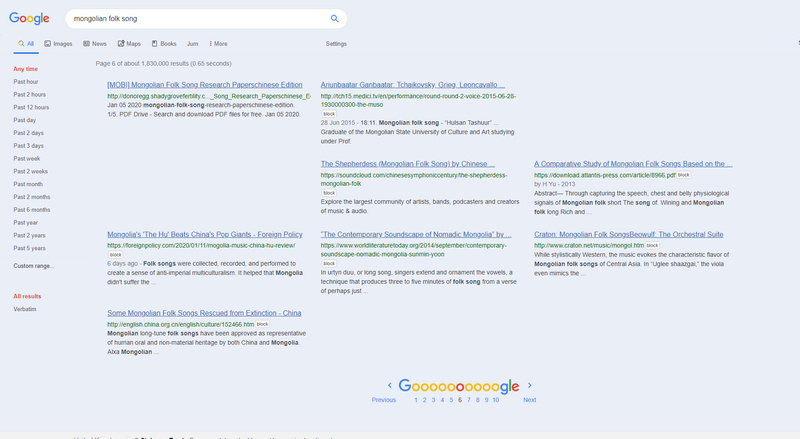
This is an update to my January 2020 Google Search in three columns: how to do it in 2020 tutorial post. It’s needed because the key UserScript Google search in several columns has stopped working, due to changes in the Google page code. Even with this script installed, Google Search reverts to a long scrolling page of links, a format highly unsuited to searchers who use a widescreen desktop monitor.

For the time being, the fix is to keep on running this script, but also run these two at the same time…

* Stylus UserStyle Google – show search result in two columns and hack the script to show “3” columns.

* Stylus UserStyle Google Search in columns with “3” columns set on install.

On a widescreen monitor, a manual fix the top of the Stylus UserStyle ‘Google Search in columns’ also helps with overlap between results…


/* columns */

.big .mw,
.s {
max-width: unset !important;

to…


/* columns */

.big .mw,
.s {
max-width: 80% !important;

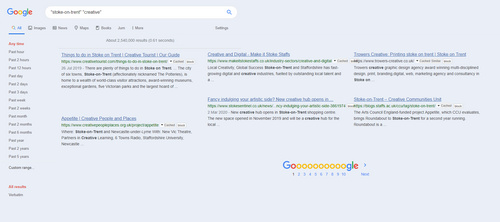
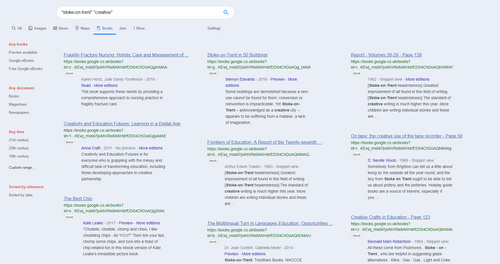
The result gives imperfect but reasonably acceptable three-column display for Google Search and Books results…

‘Google – show search result in two columns’ will need to be temporarily turned off for Google News results.

Note that I have the UserScript Google search in several columns set not to work on Google Books, having added a couple of lines to the script. See my linked post for instructions on how to add that blocking.

See my full Google Search in three columns: how to do it in 2020 tutorial for details of how to bock other page elements, such as huge ‘video suggestions’ blocks and cover thumbnails for Google Books results.

Best desktop PDF reader for magazines at 2020

05 Thursday Mar 2020

Posted by futurilla in JURN tips and tricks

≈ Leave a comment

Several years ago I surveyed PDF reader software for desktops, with an eye to: 1) speed of opening, and 2) being a “magazine reader”.

There were only two free ad-free winners, The Windows Reader desktop app and Sumatra PDF. Sumatra won because, unlike MS Reader, you can turn off the “gutter” line for two-page magazine spreads. Being able to do that is a vital feature, for viewing magazines that run pictures across double-page spreads.

I took another look at the range of PDF readers, just now. Surprisingly, no-one has yet produced a dedicated elegant free “PDF magazine reader” for desktops, with a big idiot-proof one-click button for: “two-page spreads + cover-page, no gutter line”. Sumatra PDF is still the closest, with its Book view (Cover + Facing pages) which is found under Settings | Options | Book View. But the gutter line still has to be removed by fiddling in Advanced Settings, to manually change: PageSpacing = 4 4 to PageSpacing = 0 0

I tried a few other free desktop readers, to see if anything had changed and there were any new contenders. I ended up trying the following…

* PDF-XChange Viewer. Painfully slow to render pages, uninstalled. Apparently the whole of CERN is forced to use this, for security. Secure it may be, but fast it is not.

* PDF Architect. The interface looks slick, like MS Office. It’s still available free, but has been superseded by a more advanced paid version. It was a 13Mb download, then it needed to go online to get a “Startup module”. This download stuck at 1% and never completed. Killing the downloader process revealed it was 32-bit anyway, something that was also confirmed by further research. There doesn’t appear to be a standalone version.

* MuPDF, open source… but it’s what Sumatra is built on. Basically it’s Sumatra but without the advanced controls.

* Evince is also open source. Curiously it doesn’t feature on lists of the best Adobe Reader alternatives, or at Major Geeks (now the best freeware directory). Possibly this is because Evince is said to ignore DRM in PDFs, and/or because people think it’s not for Windows. Yet there is Evince for Windows. It’s somewhat fast, but sadly it has a fat ugly gutter on double-page spreads which can’t be removed. Nor can it handle PDFs from Microsoft Publisher, not being able to display semi-transparency correctly. Uninstalled.

* I assume that Adobe Reader is still bloated and also a major security risk.

Thus, as far as I can tell, the only real free / ad-free / nag-free, fast, 64-bit and reasonably secure option for magazines at the start of 2020 is still Sumatra PDF. One can of course send a PDF magazine to your tablet or megavision TV for leisurely sofa-and-chocs browsing, but desktop-based professionals often need a quicker desktop solution for flicking through PDF magazines.

There is a portable version that can run with its own settings file. This can be useful if you need a second installation with a tiny gutter line — to check for slight gutter-overlaps in the output PDF.

Image Composite Editor 2.0

20 Thursday Feb 2020

Posted by futurilla in JURN tips and tricks

≈ 2 Comments

Microsoft’s Image Composite Editor 2.0 is free photo stitching software for desktop PCs. (Also backed up at Archive.org). Although it bills itself as yet another panorama-stitching software, if can also stitch hand-held ’tiled’ sequences of images, provided there is overlap. Such as multiple images of a large old poster. The software is the product of Microsoft’s Photosynth years, and both very fast and accurate.

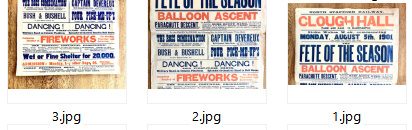
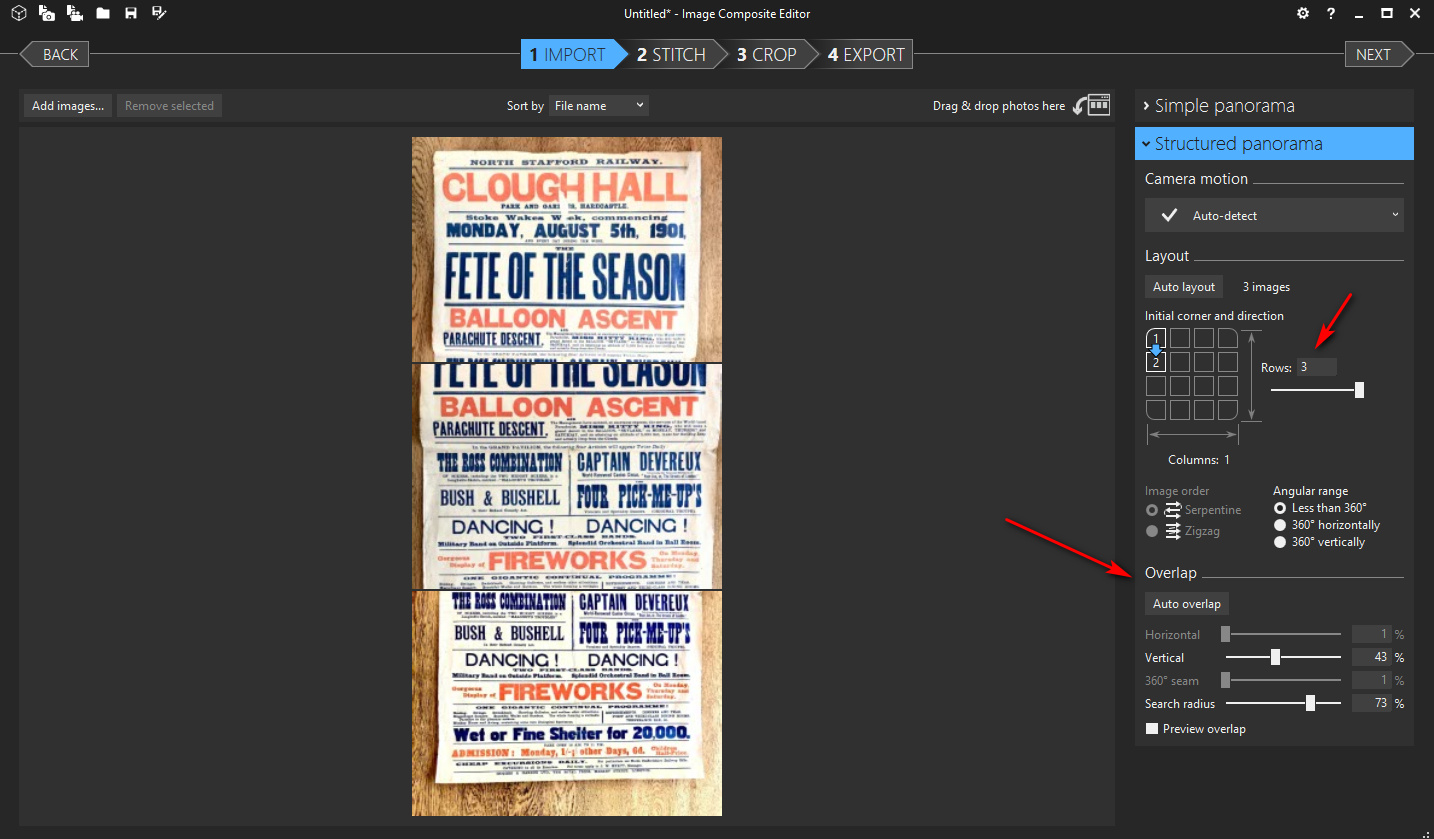
As a test I started with three images from eBay, non-scanned and made with a hand-held camera…

After import the files were automatically arranged by file-name numbering: 1, 2, 3. Then by using the Structured | Layout section it was easy enough to get the three images into a column…

Automatic can be used, but the best results come from jiggling the Structured | Overlap sliders until you have an approximately good fit. It seems the fit doesn’t have to be perfect.

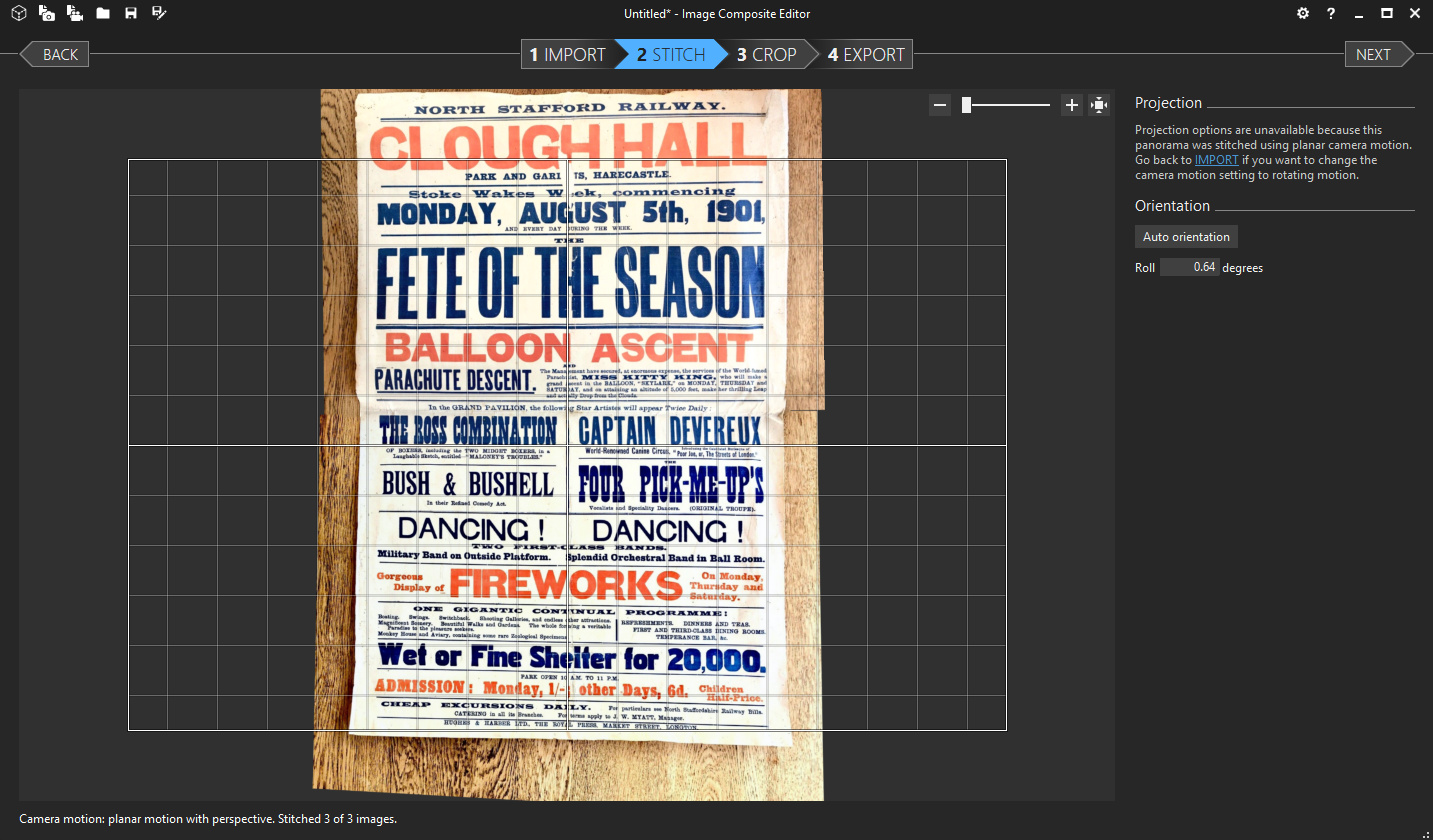
From there you go to the next step, Stitch, and if it’s not done right you go back and adjust the Overlap sliders again. It only took me two tries to get a perfect stitch.

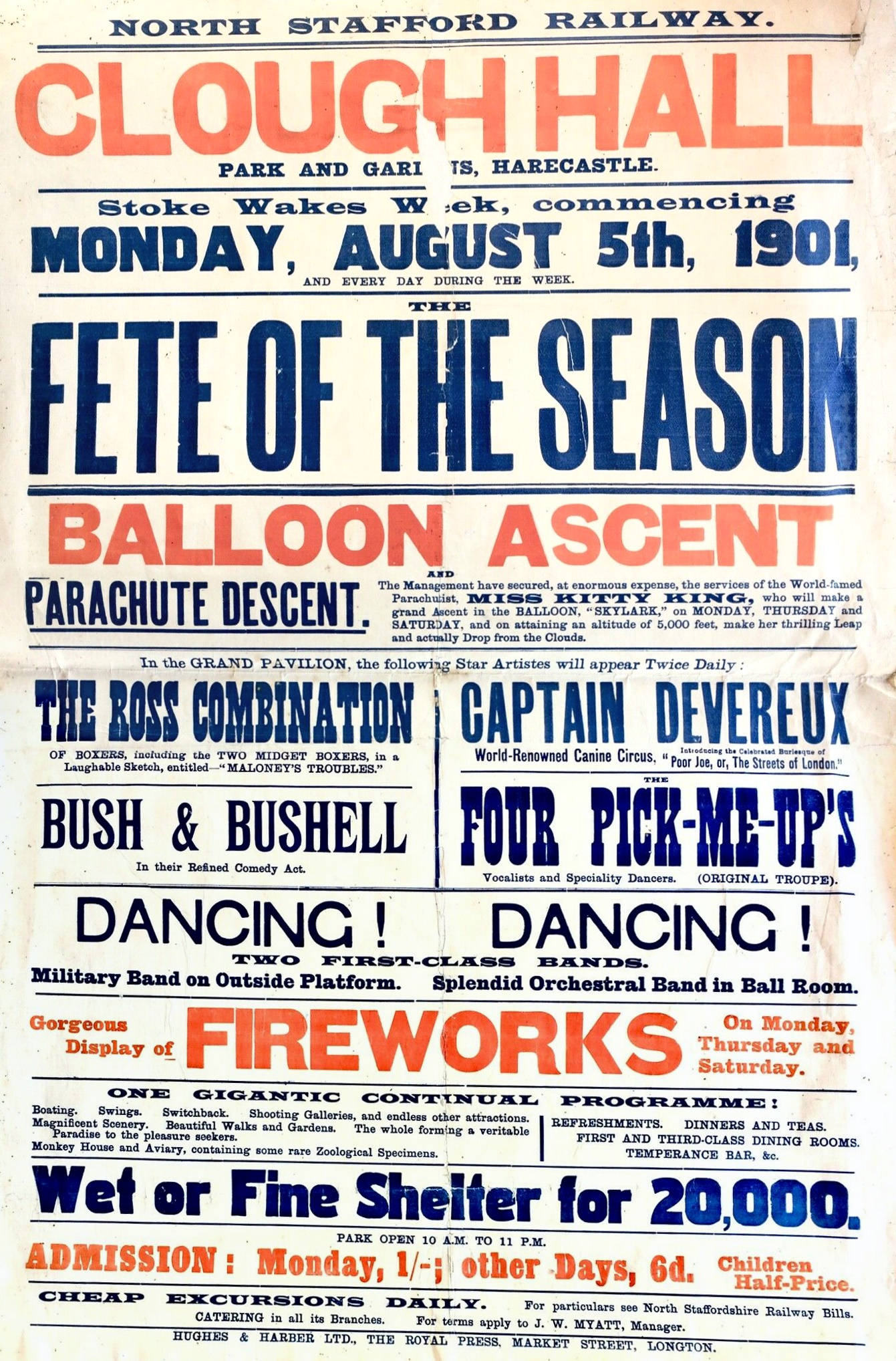
Cropping and export is then very straightforward. As you can see there’s a slight skew at the top and bottom, but further finessing of the Overlap sliders might fix that.

A very nice bit of free software, and so much easier and faster than other possible options. One could, theoretically, use this with screenshots of a public-domain picture trapped inside a tiled viewer, quickly re-combining these into a large whole image.

How to get direct downloads from SourceForge

25 Saturday Jan 2020

Posted by futurilla in JURN tips and tricks

≈ Leave a comment

Problem: Downloading from SourceForge may be impossible from the UK and EU, due to cookie madness. This occurs if your cookie-alert blocker and/or overlay-blocker automatically removes SourceForge’s huge “ACCEPT COOKIES!” blocking screen, which means that the SourceForge download-timer will never start. You never get your file.

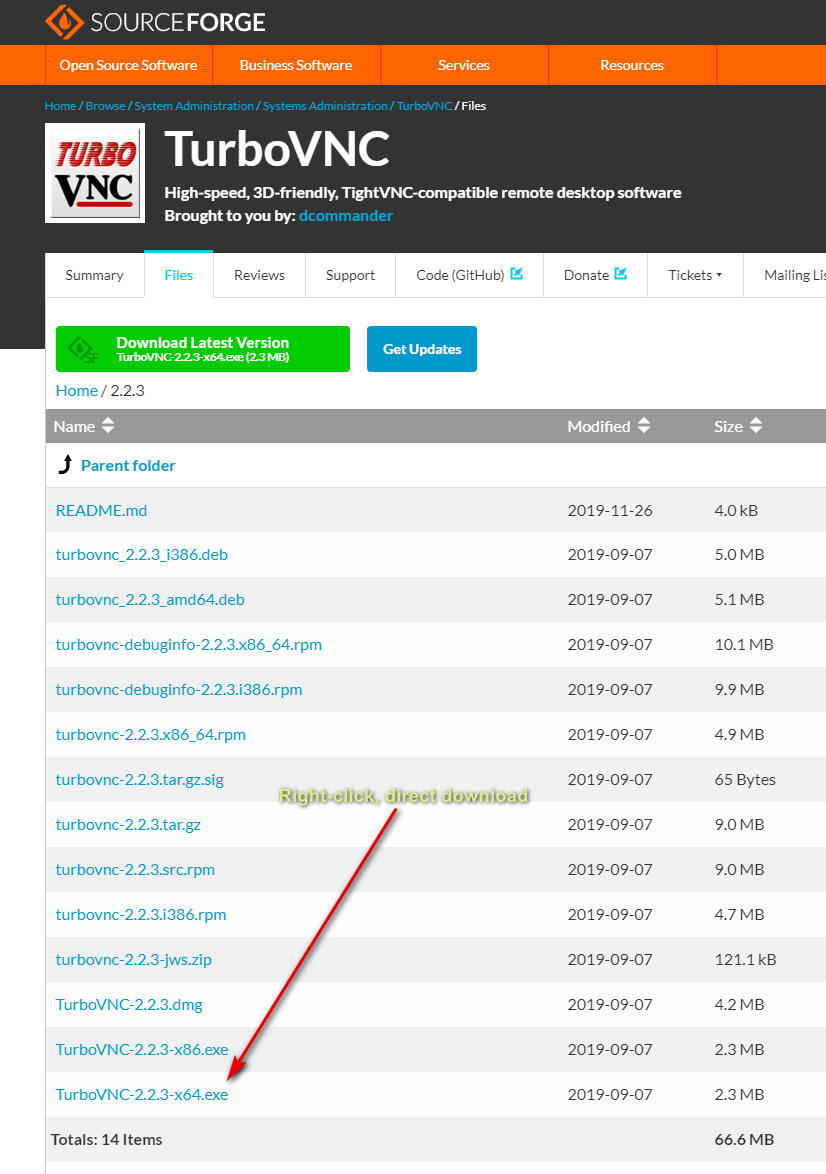
Solution: Bypass all that junk, and go straight to the direct download. Do this by simply installing the SourceForge: Direct download links UserScript.

Result: You get a direct download from the Files tab. Right-click on your desired file and then “Save linked content as…” (or whatever your Web browser’s equivalent is of that right-click menu item).


Incidentally, the UK is to opt out of the EU’s questionable new copyright laws, once our glorious Brexit is done, and hopefully we’ll also stomp on the EU’s hated cookie alerts too. Which means that UK users may not need this solution, at some point in the near future.

Google Search in three columns: how to do it in 2020

17 Friday Jan 2020

Posted by futurilla in JURN tips and tricks

≈ 5 Comments

Following on from my testing of new scripts in recent days, here’s a basic summary list and quick-start on what you’ll need for three column search in Google in 2020. This follows the effective demise of the much-loved GoogleMonkeyR.
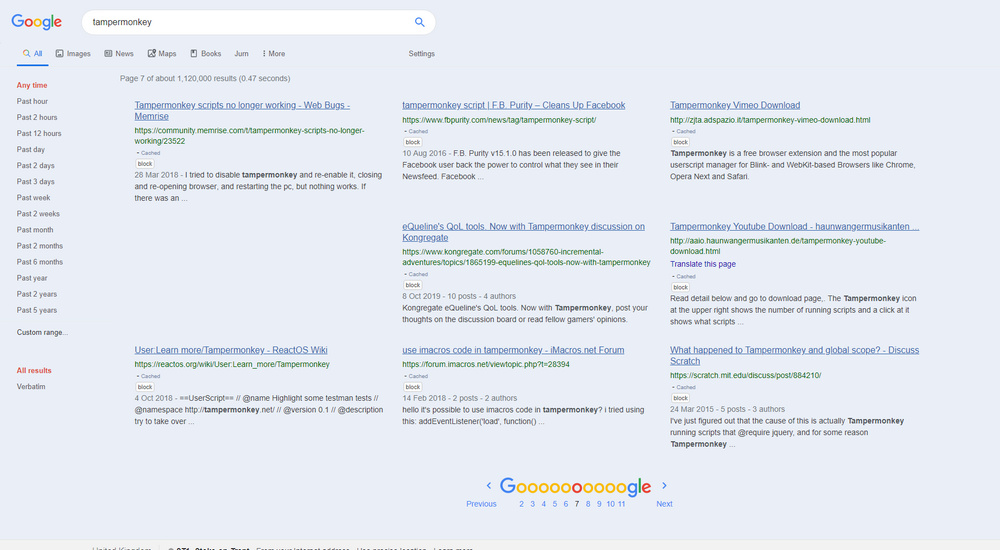
First you want a good Chrome-based browser. Opera for Desktop is in use here, at 1920px. Turn off addons and scripts likely to conflict with the new ones listed below.

I assume you already have auto-suggest etc turned off, when formulating search-queries at Google, and are using a widescreen desktop PC.


Core script-management and element-blocking addons:

1. Tampermonkey for installing and running UserScripts.

2. Stylus for installing and using UserStyles.

3. uBlock Origin for blocking, and knowledge of how to use its element picker and how to edit its “My Filters” list. (I suggest that you unsubscribe from the “Peter Lowe’s Ad and tracking server list” after install, due to over-reach. It’s found under Filter Lists | Multipurpose).


UserScripts and UserStyles:

1. Google search in several columns for Tampermonkey.

And then tell it to exclude Google Books, by adding the following lines to the top of the script…

// @exclude http*://xxx.google.*tbm=bks*
// @exclude http*://xxx.google.*.*tbm=bks*

… where xxx = www

You may want to tinker a little with the script’s column-width settings, in certain parts of the script, to better fit your widescreen monitor. If you plan to use Google Search Sidebar (see below) then install that before you start tinkering with these widths.

Update at end of March 2020: script broken by changes at Google Search. Temporary fix.

2. Then let the Stylish script Google Search in columns handle the three columns for Google Books results, having first set the script to three columns when you downloaded it. This script also appears to have the very useful effect of preventing the other UserScript columnising script from splitting an individual search-result across two columns, with a bit awkwardly placed in each column. The two scripts seems to be able to co-exist on Google Search, News etc.


Cosmetic:

1. Re-order the top menu in Google, and remove links to “Shopping”, “Flights” etc, if unwanted.

2. Google Search restore URLs (undo breadcrumbs) + Old Google Search. Together these two place a full URL path, under the link title in your results, like it’s always been. Another script noted below will make the URL path green, like it should be.

3. Google Search Sidebar and its expansion Google Search Various Ranges. This also works with News, and “two weeks” seems a good recent time-point at which the Googlebot has cleared a lot of the robo-spam from Search but results are still fresh.

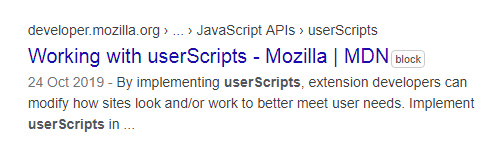
4. Google Hit Hider by Domain (Search Filter / Block Sites). Dynamically and automatically remove results according to a user’s own URL blocking list. But it leaves a space in the results page, so that the layout is not ruined and the user knows something was removed. Blocking is done by a little “Block” button placed next to each result.

5. Fix Google Images a bit with Google Search – Always Show Image Size.

6. Google Search – Visible Cached + Similar links. Add back the “Cached” link (which still works). Then hack the script to make the Cache links small and also colour-matched to your theme — simply add “font-size: 10px;” and a basic color fix in the /* Actual Link */ section of the script; and then add this wholly new section and tweak its colour chip…

/* li background */
.ab_dropdown {
background: #eaeff7!important;
}

7. Google Search – Classic Links. I’ve adapted mine for use in combination with the above and a preferred coloured background, and it looks like this…

/*** Basic fix of the main links to appear less shouty ***/
#search a h3, #search a.l {
text-decoration: underline !important;
font-size: 16px !important;
color: #3666aa;
/*** Since URLs paths are visible in results, make them green ***/
}
cite.iUh30.bc.iUh30 {
color: darkgreen;
}


Blocking tweaks:

You’ll then need to use the Picker tool in UBlock Origin as you search…
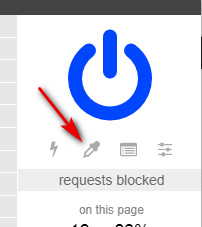
…to block all the spammy ‘suggestions’ panels, massive ‘helper’ panels, nags and suchlike that will appear from time-to-time on your page to clutter up your Google Search.

The following will also be useful for en-masse blocking of images in search results in News and Books, using UBlock. Paste them into your UBlock Origin “My Filters” list, save it, then reload Google.

! Block any page-panel containing the keyword X - here the word is 'videos'
google.com##g-section-with-header:has-text(/Videos/)

! Block all Google News Thumbnails
google.*##[id^="news-thumbnail"]
google.*##[alt^="Story image"]
google.*##[class^="gs_md_"]

www.google.*##*.sYpfDb
www.google.*##*.QyR1Ze

! Remove remaining image-block padding spaces on the News results
! and block the image favicons on results while we're at it
google.com##a.top.NQHJEb.dfhHve
google.com##.xA33Gc

! Block all Google Books cover thumbnails en-masse
google.com##*.th

The Google Books cover-thumbnail space cannot be removed, only the thumbnail images that sit on top of that space. The empty space left behind seems to be ineradicable.


That’s it. Enjoy your newly columnar, cleaned and tweaked Google search experience.

Back on the menu…

17 Friday Jan 2020

Posted by futurilla in JURN tips and tricks

≈ 1 Comment

Another useful Google UserScript that works in 2020, Fixed Order Google Categories.

This cryptically-named December 2019 script puts the Google top menu-bar into the following order, and prevents Google from pushing items around or pushing sales-oriented items forwards…

Before:

After:

You can then also very easily edit the script to remove “Shopping”, “Flights”, “Finance”, while having “Books” on the main menu. These items are still available if needed, but are hidden under “More” along with a “Books” duplicate.

Custom:

The new addition of “Books” happily passes through the search query as usual. Note that “Jurn” is being added here via my own additional script, and that “Videos” is also gone as I never use it.

So, now Google is fully “fixed up” again for me, following the demise of GoogleMonkeyR. With a slight toning down of the background colour, this is what it looks like for me in January 2020. The gaps being Google Hit Hider in action…

All ‘auto-suggestions’ and ‘quick answers’ panels and similar junk removed, and just the search results left. No images anywhere, except in the search results from “Images”. Robust blocking via Google Hit Hider. Full URL paths, in green below blue links.

Update: I now have a tutorial on how to do this: Google Search in three columns: how to do it in 2020.

Update: Reorder Google Categories

Save the URLs

16 Thursday Jan 2020

Posted by futurilla in JURN tips and tricks, Spotted in the news

≈ 2 Comments

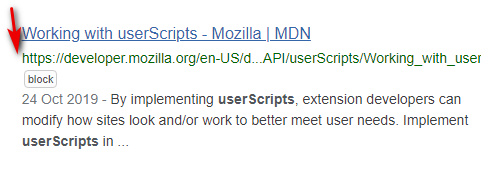
Lovely. Another useful new UserScript for Google Search and Google Books. Old Google Search simply brings the URL back down to below the link title, where it’s been for decades. Works fine on combination with the Google Search restore URLs (undo breadcrumbs) script.

The ugliness Google would like you to endure, with ‘screaming’ page titles…

What you get while using Old Google Search / Restore URLs / and the Classic Links UserStyle…

Also works on Google Books, and plays nicely with the Google search in several columns script I blogged about and tested earlier today.

Incidentally, those with sharp eyes may note above that the URL fails to wrap nicely and is slightly truncated and masked at the end, in a multi-column view. This has just this minute been fixed in the Google Search restore URLs (undo breadcrumbs) by a new update to the script.

New script: Google search in several columns

16 Thursday Jan 2020

Posted by futurilla in JURN tips and tricks, Spotted in the news

≈ 2 Comments

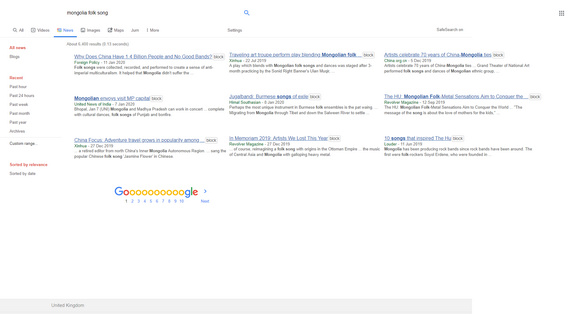
There’s a new Google Search ‘in columns’ script: Google search in several columns (Dec 2019). It’s the only one I know works on Google News results in 2020 (I mean the proper Google News search results, not the ersatz variety also available), for those using a desktop PC and widescreen monitor.

I found that 3 columns on a 1920px widescreen was possible, though I had to tweak the script a little for fitting and beautification. For instance I had to blank the silver dividing line between columns to accommodate the “block” buttons generated by my HitHider addon.

I also removed the “Cache” link on search results, which otherwise lays on top of and partly blocks the view of the URL title. “Cache” can be blocked from appearing, via adding a line in uBlock Origin thus…


! 16/01/2020 google com
! remove cache link button
xxx.google.com##div.yWc32e

Update: this cache link-removal/fix not needed if you have the latest version of Google Search restore URLs.

If you have image thumbnails blocked on News search results, via uBlock Origin thus…


google.*##[id^="news-thumbnail"]
google.*##[alt^="Story image"]

… then to aid this script’s columns you may also want to make sure you remove the space-padding left behind by such images, so as to straighten up the looks of the three column layout…


! 16/01/2020 google com
! remove empty image-block padding from results
! and also block tiny favicons from results
xxx.google.com##a.top.NQHJEb.dfhHve
xxx.google.com##.xA33Gc

Other items at work on the above screenshot are Google Search Restore URLs, and Google Search Sidebar. I haven’t yet figured out how to get the Goooooogle footer to centre on the page.

If you want to tell the script not to load on Google Books, then add…


// @exclude http*://xxx.google.*tbm=bks*
// @exclude http*://xxx.google.*.*tbm=bks*

The script also plays nicely with the Stylish UserStyle Google Search in columns, which takes care of showing Google Books in three columns and does a far nicer job of it. For the main Google Search also appears to prevent result-breaking, where half a result is in one column, and half in another column.


In the above code, replace xxx with www — despite wrapping the code in code tags, WordPress refuses to respect the actual code and shows www. as a linked http://www.

← Older posts
Newer posts →
RSS Feed: Subscribe


Please become my patron at www.patreon.com/davehaden to help JURN survive and thrive.

JURN

  • JURN : directory of ejournals
  • JURN : main search-engine
  • JURN : openEco directory
  • JURN : repository search
  • Categories

    • Academic search
    • Ecology additions
    • Economics of Open Access
    • How to improve academic search
    • JURN blogged
    • JURN metrics
    • JURN tips and tricks
    • JURN's Google watch
    • My general observations
    • New media journal articles
    • New titles added to JURN
    • Official and think-tank reports
    • Ooops!
    • Open Access publishing
    • Spotted in the news
    • Uncategorized

    Archives

    • February 2026
    • January 2026
    • October 2025
    • May 2025
    • April 2025
    • September 2024
    • June 2024
    • May 2024
    • April 2024
    • March 2024
    • February 2024
    • January 2024
    • December 2023
    • November 2023
    • October 2023
    • September 2023
    • June 2023
    • May 2023
    • January 2023
    • December 2022
    • November 2022
    • October 2021
    • September 2021
    • August 2021
    • July 2021
    • June 2021
    • May 2021
    • April 2021
    • March 2021
    • February 2021
    • January 2021
    • December 2020
    • November 2020
    • October 2020
    • September 2020
    • August 2020
    • July 2020
    • June 2020
    • May 2020
    • April 2020
    • March 2020
    • February 2020
    • January 2020
    • December 2019
    • November 2019
    • October 2019
    • September 2019
    • August 2019
    • July 2019
    • June 2019
    • May 2019
    • April 2019
    • March 2019
    • February 2019
    • January 2019
    • December 2018
    • November 2018
    • October 2018
    • September 2018
    • August 2018
    • July 2018
    • June 2018
    • May 2018
    • April 2018
    • March 2018
    • February 2018
    • January 2018
    • December 2017
    • November 2017
    • October 2017
    • September 2017
    • August 2017
    • July 2017
    • June 2017
    • May 2017
    • April 2017
    • March 2017
    • February 2017
    • January 2017
    • December 2016
    • November 2016
    • October 2016
    • September 2016
    • August 2016
    • July 2016
    • June 2016
    • May 2016
    • April 2016
    • March 2016
    • February 2016
    • January 2016
    • December 2015
    • November 2015
    • October 2015
    • September 2015
    • August 2015
    • July 2015
    • June 2015
    • May 2015
    • April 2015
    • March 2015
    • February 2015
    • January 2015
    • December 2014
    • November 2014
    • October 2014
    • September 2014
    • August 2014
    • July 2014
    • June 2014
    • May 2014
    • April 2014
    • March 2014
    • February 2014
    • January 2014
    • December 2013
    • November 2013
    • October 2013
    • September 2013
    • August 2013
    • July 2013
    • June 2013
    • May 2013
    • April 2013
    • March 2013
    • February 2013
    • January 2013
    • December 2012
    • November 2012
    • October 2012
    • September 2012
    • August 2012
    • June 2012
    • May 2012
    • April 2012
    • March 2012
    • February 2012
    • January 2012
    • December 2011
    • November 2011
    • October 2011
    • September 2011
    • August 2011
    • July 2011
    • June 2011
    • May 2011
    • April 2011
    • March 2011
    • February 2011
    • January 2011
    • December 2010
    • November 2010
    • October 2010
    • September 2010
    • August 2010
    • July 2010
    • June 2010
    • May 2010
    • April 2010
    • March 2010
    • February 2010
    • January 2010
    • December 2009
    • November 2009
    • October 2009
    • September 2009
    • August 2009
    • July 2009
    • June 2009
    • May 2009
    • April 2009
    • March 2009
    • February 2009

    Proudly powered by WordPress Theme: Chateau by Ignacio Ricci.