How to block image thumbnails in Google News search results

The problem:

Hmmm, not really adding a lot, are they? Nearly all news reports these days use shovelware stock/library photography or logos of some kind, or are occasionally grabby click-bait. These irrelevant distractions can be blocked with no loss, allowing you to focus on the headline, source and snippet.

The solution:

Block image thumbnails of news media pictures from appearing in your Google News search results. To do this efficiently and precisely, in the uBlock Origin browser addon, go: Dashboard | My Filters | then paste in these two lines…

google.*##[id^="news-thumbnail"]

google.*##[alt^="Story image"]

At July 2020, also add:

google.*##*.sYpfDb
google.*##*.QyR1Ze

Then “Apply changes” and exit. Reload the Google News results, and the thumbnail images are gone. And gone in an elegant manner, without leaving behind an ugly block of ‘alt’ text.

Why two filters? Because while most Google News thumbnails have “news-thumbnail” in their id class, the top one per page does not. To also block this thumbnail you need the second cosmetic filter, which blocks any images with an alt tag which has the phrase “Story image” in it.

The empty padding can be removed with…

...com##a.top.NQHJEb.dfhHve
...com##.xA33Gc

… where you add google.dot in place of the three dots.

These filters have the advantage of not interfering with thumbnail loading over on Google Images, Google Books etc. Though if you do want to block book cover thumbnails on Google Books, for some reason, then add this line…

...com##*.th

(I also have a post on how to block YouTube’s new animated ‘thumbnail previews’ of videos in its search results)
GoogleMonkeyR fix – stop it running on Google Images

Here are some updated fix instruction for the latest GoogleMonkeyR UserScript, which many desktop power-searchers use to give their Google Search results a three-column multicolumn layout.

* Problem: the script breaks Google Image search results, by running on such searches. Specifically, the script appears to be preventing the central ‘slider’ div from opening up, when an image is selected from the Google Image search results.

* Solution: In your Web browser, access the raw GoogleMonkeyR script. For instance, in Opera this is done via: Extensions | Tampermonkey | Installed UserScripts | GoogleMonkeyR | Edit.

You then need to paste in a line of code that explicitly turns off GoogleMonkeyR, but only whenever the browser is running a Google Images search. To do this, add the following line to the header of your GoogleMonkeyR script, below all the // @include lines…

// @exclude http*://www.google.*/search?*isch*

Google Image searches have “isch” in their URL, so we can grab onto that and exclude such URLs. Save (click the disk icon) and exit. You should now be able to operate the Google Images results as usual, which still retaining your usual three-column layout for the main Google Search.

Completed: the JURN URL list re-check

JURN’s entire URL list has now been checked, looking for continuing presence of the URL path on Google Search results. This is the annual re-check of the core list that drives JURN’s search results, not the approx. six-weekly re-check of the JURN Directory.

I checked the specific URL path being indexed, and not just the basic domain. For example, for ITJ: The Intel Technology Journal, the URL checked was http://www.intel.com/content/www/us/en/research/ rather than just http://www.intel.com.

Broken URLs were re-found and fixed, or deleted as required. Roughly 1 in every 50 URLs had broken.

How to extract multiple zip files to a single folder

It’s surprisingly difficult to discover the right settings in .ZIP-file handling software to extract multiple .ZIP files into a single subfolder. Without making multiple subfolders within that new folder, one for each .ZIP file. That latter arrangement is not so good… if you have scans of 10 journals in 10 .ZIP files and want to visually pick out just five images from their combined 800 pages.

The popular 7-zip for Windows has what appear to be the right settings (“No pathnames”), but fails to respect this. I tried multiple configurations, but 7-zip always extracted each .ZIP into its own subfolder regardless.

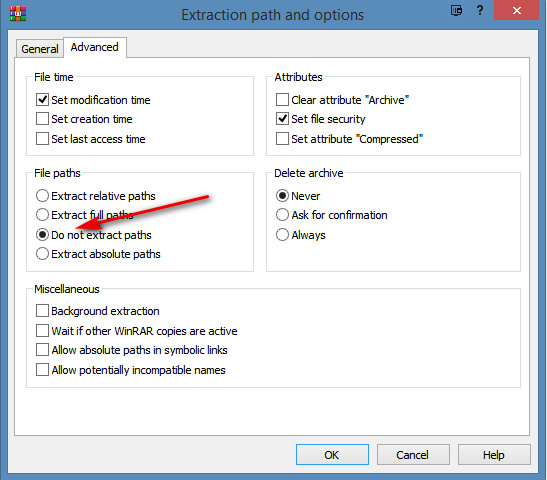
The solution is WinRAR. Use its “Do not extract paths” setting when extracting…

How to enable keyword search for .ePub files in SumatraPDF reader

How to enable text search of ePub files, in the SumatraPDF reader…

1. Go to: top left corner icon | Settings | Advanced Options.

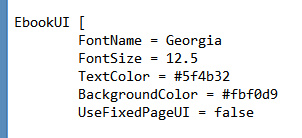
2. At the top of Sumatra’s config file you’ll see:

3. Change false to true. Save and exit.

Mostly you’ll be sending an ePub over to a mobile device, where it will be handled by better apps. But the choice of reader is limited on the Windows desktop where you may also be archiving the .ePub files, and where you may want to sometimes hop into one of the files to swiftly find a specific name or title.

I don’t yet know of desktop freeware that can search across and inside of multiple .ePub and .mobi files.

NAVER Academic

NAVER Academic is an attempt at a Google Scholar-alike for South Koreans. It’s fast and neatly designed, and is interesting because (unlike Scholar) it has a “Free” filter for its search results.

My quick test search suggests it’s mainly interesting for those seeking non-English content from the region. A search for mongolian folk song filtered by “free” had 19 results. Six of these had English titles and were checked…

1. English abstract. No full-text.
2. English abstract. No full-text.
3. Very short English abstract. CORE record. No full-text.
4. Short English abstract. CORE/JSTOR record. No full-text, DOI link led to 20 Euro paywall.
5. Very short English abstract. CORE record. Link led to full-text PDF “Music Classes of Elementary School in Mongolia” in Japanese.
6. English abstract. No full-text.

Of the 19, only one was actually free. Thus the main problem here is that “free” does not = “full-text”, unless you have academic log-ons within South Korea.

Persistent bookmarking for audiobooks in Windows freeware

I’m very pleased to find freeware for the Windows desktop that offers persistent and editable bookmarks for audiobooks and long podcasts. AIMP 4.51 (Ghacks review) is maintained and mature, has a well-designed interface, is genuine freeware, and the playlist and bookmarks system is both simple and robust.

AIMP’s bookmarks are stored in XML at C:\Users\YOURUSERNAME\AppData\Roaming\AIMP\Bookmarks.xml and can thus be backed up.

It also has a graphic equaliser, supports pitch shift and subtle speed changes of playback, and has many plugins including one for podcatching via RSS.

The Shadow over Google

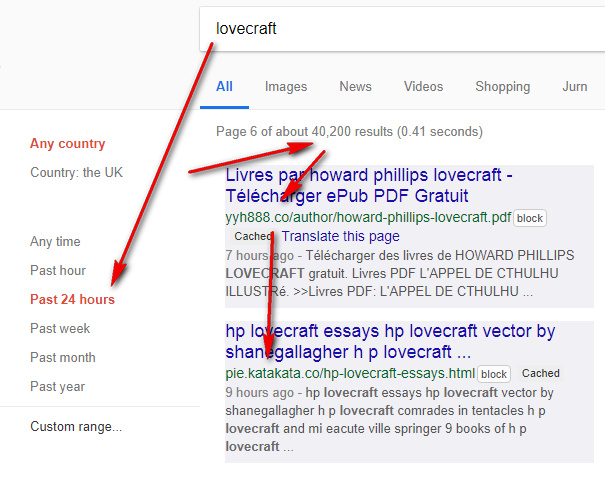
What Google Search has to filter out every day… demonstrated by a sample search for Lovecraft (as in the author “H.P. Lovecraft”) for just the last 24 hours. About ten valid hits, which Google has usefully brought to the top of the results — but also thousands of malware-laced fake ebook PDFs and spam pages offering ‘essay writing’ services (of the sort that claim to help students cheat their way through university).