Merge multiple folders of the same name

How to easily merge multiple folders of the same name, using only Windows Explorer.

You have a folder structure that looks something like this:

ResultsSet1
   | Data
         |Photos
         |Meta
         |Location
ResultsSet2
   | Data
         |Photos
         |Meta
         |Location
ResultsSet3
   | Data
         |Photos
         |Meta
         |Location

You want to extract and merge just the “Data” folders. Each sub-folder should follow along and also be merged with its brethren.

1. If your folder structure is inside a .ZIP or .RAR, then extract. Then open up Windows Explorer and go to the top-level view for your target folders.

2. Make a new empty folder there called “Data”, to sit high among the ResultsSet1, ResultsSet2, ResultsSet3 etc folders.

3. Keyword-search for “Data” using Windows Explorer, and constrain the search to just your target folders.

4. Shift-select the results (they should be all the sub-folders named “Data”), then right-click to copy them.

5. Paste them into the top level of your target folder set. Window will spot the empty “Data” folder you just made, and merge in all the pasted “Data” folders.

You end up with a single amalgamated…

   | Data
         |Photos
         |Meta
         |Location

This takes advantage of a Windows 8 feature where copy-pasting folders of the same name will cause an automatic merge operation. This operation will interrupt the user only with a query about replacement of any duplicate files.

Thus there is no need for use of the Windows command-line, Windows PowerShell, 7-Zip or third-party freeware to accomplish such a basic “copy and combine” operation on folders of the same name.

Remove spam “Likes” from WordPress posts

How to remove spam “Likes” from WordPress posts:

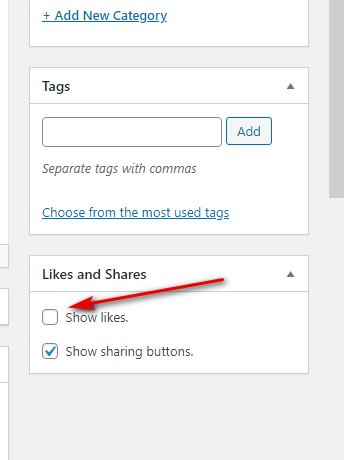
1. “Edit” the post in question, in the usual Post Editor.

2. Look over on the right-hand sidebar, and scroll down.

3. There’s a “Likes and Shares” tab in the Post Editor. Uncheck the “Show Likes” check-box.

4. Scroll back up the sidebar, and click the “Update” button.

This works on both free and hosted WordPress blogs. Be aware that the above is using the Classic Editor, and things may look a little different if the newer Editor interface is being used.

You can also turn off Avatars (personal icons), if those are too spammy. The check-box for that is in: Dashboard | Settings | Discussion | Avatars | Avatar Display.

The worthless Peter Lowe ad-blocking list

The Peter Lowe ad-blocking list is obviously now worthless, due to its over-reach and scattergun blocking of all sorts of legitimate things. Back in June I found it blocking Harvard. I’ve since found all sorts of similar blocks on things that should not be blocked. I’ve unsubscribed my browser’s ad-blocker addon from the Peter Lowe list, and I suggest that you also consider doing so.

Carrot2 search – a new script for multi-column results

The Carrot2 search-engine has changed both URL and layout. It was at search.carrot2.org/stable/search and it’s now just at the search.carrot2.org URL. I guess the public-facing search may have come out of beta? This is what their new layout looks like…
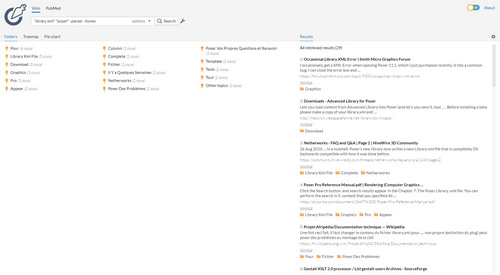
Not good, on a widescreen desktop monitor.

Which means I’ve made another custom CSS for it. This slices the Carrot into a multi-column layout suited to a widescreen 1920px monitor. It works in the Stylus browser addon, and you need to tell the script to target the search.carrot2.org site

Yum, crunchy Carrot! All the z-depths are set up nicely, so you can still click on/in the filters and search box.

I like to read the URLs in search-results and so I’ve turned them dark green and wrapped them to make this possible. The results look good with URLs that line-wrap by up to three lines. But it’s unavoidable that some very long URLs will wrap over four lines, and will thus spill over the element below.

In most cases there should be no need for any scrolling.

It only works in Day mode, with the Carrot’s new toggle-able Night and Day mode…

If you want a night mode, you’ll have to manually change the colour chips to a charcoal black on…

body, body.light {

and

div.ResultList

The other drawback is that whereas the old multi-column fix showed about 25-30 results, now we’re down to about 16. If you want it up to 20+ add the following code…


.ResultClusters {
display: none;
}

There’s also the lack of a “more…” button, but this usefully forces the user to use the Carrot’s innovative faceting systems over in the left-hand pane.


To install my fix, simply go to Carrot2, then left-click on your icon for the Stylus browser addon and click “Write style for…”.

Then paste in this…


/* ==== CARROT2 - Multi-Columns v.02 Oct 2019 ==== */
/* run this Stylus script on search.carrot2.org */
div.document div.url {
overflow: hidden;
color: #3a7730;
font-size: 110%;
}
body, body.light {
background-color: #ece5db;
}
.ResultList > div > a > span.url {
color: #3f7126;
font-size: 80%;
font-weight: bold;
white-space: pre; /* CSS 2.0 */
white-space: pre-wrap; /* CSS 2.1 */
white-space: pre-line; /* CSS 3.0 */
white-space: -pre-wrap; /* Opera 4-6 */
white-space: -o-pre-wrap; /* Opera 7 */
white-space: -moz-pre-wrap; /* Mozilla */
white-space: -hp-pre-wrap; /* HP Printers */
word-wrap: break-word; /* IE 5+ */
}
a {
font-size: 100%;
}
.SearchForm {
z-index:20;
}
div.ResultList {
z-index:4;
position:absolute;
background-color: #ece5db;
padding-top: 180px;
top:0;
bottom:0;
right:0;
column-count: 5;
width: 70%
}
.ResultList > div > a >div {
font-size: 80%;
}
div.sources {
padding-top: 25px;
}
div.ClusterList {
background-color: #ece5db;
padding-top: 10px;
column-count: 2;
}
div.clusters-tabs {
width: 40%
}
div.clusters {
z-index:4;
width: 50%
}

Tested in Opera, which is a browser that runs on Chrome. It will probably work with other CSS style injectors.

Be warned that Carrot2 will perma-block an entire IP address (in the case of BT in the UK, or VPNs, that can mean hundreds of thousands of users) if it detects “excessive traffic”.

WordPress to ebook – without plugins

Needed: an easy three-click “WordPress to ebook” service that works on any free WordPress.com blog account. Such a thing doesn’t currently seem to exist. I can only find ebook plugins for install on third-party hosted installs of WordPress, or which need WordPress.com’s £240 per year Business account upgrade (which allows use of plugins).

Zinepal used to be a service that would do it from an RSS feed, but has been withdrawn. The similar ebookGlue is dead. I would have thought this would be an in-demand service for the millions of free WordPress blogs. But no, it seems not. Ideally such a service would allow you to mark only your wanted posts by previewing a snippet as well as the title, then let you re-shuffle them into themed chapters and sections, before outputting to an editable ebook-friendly format. I’m assuming a non-fiction blog here, with perhaps 3,000 posts.

What it doesn’t need to be is something just pushes the whole blog into an ePub and calls it done.

Update: Solved. WordPress2Doc – a free ebook converter for free WordPress.com blogs.