“Commander! Did you threaten to grab hold of this episode by the collar and throw it out an airlock?”

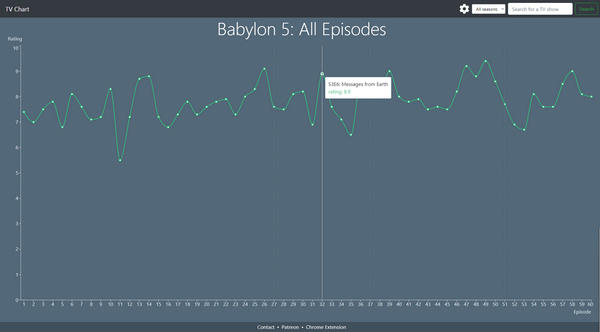
TV Chart offers an interesting bit of data smushing. It presents a sentiment graph of TV series, showing viewer-rating sentiment about each episode. Or at least, of the type of viewer who is inclined to rate each episode at a ratings site.

Their Babylon 5 Chart is not at all comparable to a good ‘view or skip’ guide. To be made more useful such charts probably need to have a toggle to ‘see the data adjusted by a panel of expert fans’. And then the option to save out a handy view/skip list.

Towards a meta-pedia browser add-on

An interesting idea: a meta-pedia browser add-on, to consult all public encyclopedias at the same time. Presenting the results as an elegant full-screen dashboard with a strip of side-links to Google Books, Archive.org, Scholar, JURN etc. Ideally with configurable sources…

* Wikipedia
* Current Britannica
* 1911 Britannica
* Specialist public encyclopedias is they exist for the topic, e.g. Philosophy, Catholic, Science-fiction etc.

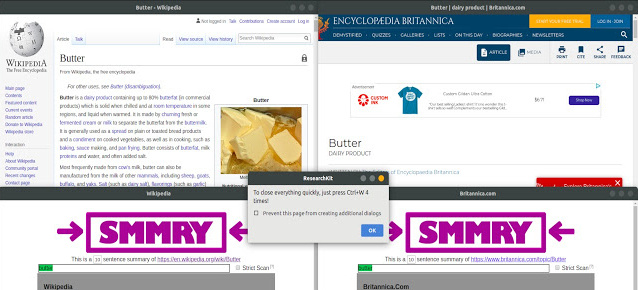
I’m assuming this would need to be a browser add-on, as a cloud service that did this would face lawsuits and frame-busting scripts. The closest I can find is 2019’s free ResearchKit which shows Wikipedia and the current Britannica side-by-side, above bot-driven auto-summaries of their text. It’s not exactly elegant to look at it, but it works.

Obviously some fuzzy-lookup might be needed to align search topics, though the individual encyclopedias strive to do that on their pages via navigation strips and links.

But rather than jumping straight to a presumed page, perhaps each encyclopedia panel might first show sub-panels with a half-dozen ‘possible’ hits, colour-shaded by order of likely relevance to the search. If such a browser addon was in widespread use, the data gathered from such mass human-driven topic-selection/alignment might be rather useful, over time being judiciously used to augment existing ‘knowledge navigation trees’ that are able to cope at a meta-level with shifting topic titles (e.g. Aetheopia > Abyssinia > Horn of Africa > Eastern Africa > Ethiopia).

Another way to do it might be for the addon to ‘read’ such existing navigation on the encyclopedia pages, make its own deft distillation of such, and then use that to ‘prime’ with keywords the sidebar links to Google Books, Archive.org, Scholar, JURN etc.

New editor UI for free WordPress users

The new fancy editor UI has landed for free WordPress users. Yes, they’ve given it a radical makeover, again. Thankfully I haven’t even needed to look at it, nor the one it replaces, as the trusty old editor is still chugging away — if you know how to get to it. To use the very old ‘original’ one, you simply install the vital UserScript WordPress.com edit post redirects. Every time you press ‘Write’ to start a new post, you go to the lightweight interface you’re familiar with.

It is a little too lightweight in just one respect. You will not get a button to add a ‘center’ code on the old editor UI, which you do on the fancy one. This can be replaced by a right-click browser addon such as ‘Paste email‘ which you set up to paste…

No need to add the end p tag. Here there are also Italics tags. I’m assuming you want a centred picture-title, in italics to clearly distinguish it from the body text.

Note that you will need to switch to the new UI in order to successfully download a .ZIP backup of your blog. You can go through the motions on the old UI, but you’ll not get the .ZIP file.

The borrowed page

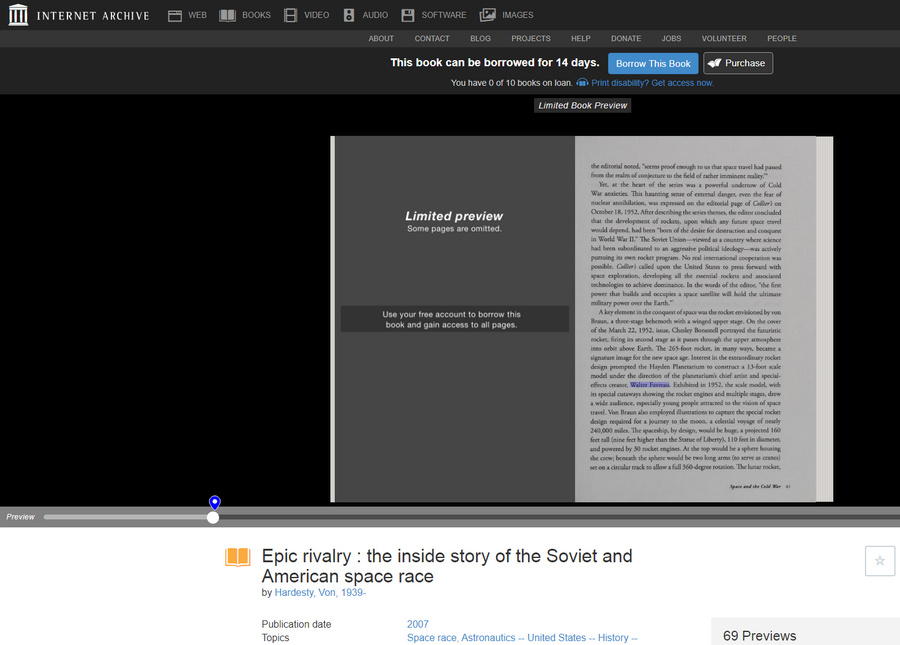
I see that the Archive.org now has a ‘no-Borrow preview page’ on search-landing pages for its ‘Borrow’ books. They’ve also announced that their extended “Borrow” feature is to come to an end, as was always to be the case after the emergency period had passed.

One wonders if this new ‘page preview’, similar in nature to Google Books, is about bringing Google in on the new lawsuit from publishers? ‘If this goes down, so does Google Books?’ Just my guess.

How to print a list of what’s in a Windows folder

How to print a list of what’s in a Windows folder. No need to wrestle with the Command prompt or Outlook. It can be done with most Web browsers…

1. Open a Web browser (not Internet Explorer). Highlight your folder, and drag it to the browser’s Address Bar (not onto the page itself).

2. The folder structure will then display as a Web page. Copy and paste to the clipboard.

3. If, for some reason, you can copy everything except the actual file-names, then simply print the page to a PDF. Copy-paste them from the PDF.

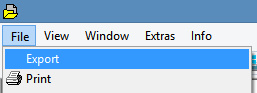
There is also a Windows freeware option called DirPrintOK. This looks fiendishly complex when you open it up. But it’s actually just working much like any normal Windows Explorer replacement, except it has a handy export option up in its top left corner…

This can save the list of a folder/directory’s files out to a .CSV file, as well as to plain text. Thus, this is the option to choose when you have a huge folder, and you want to divide the file-names from the datestamps and file-size information.

I’m worried about Google Search…

Google has announced a new anxiety stress-test. No, it’s not one of their infernal ‘captchas’ on Google Search, guaranteed to send stress levels through the roof. This is a post-lockdown “seven-question survey” about one’s personal anxiety, developed with the National Alliance on Mental Illness. The Googlebots will keep the results private and locked down forever, or so they promise. But I’d be a little worried about that.

Verizon OneSearch

Verizon OneSearch, a new Google competitor which appears to have been launched in February. Initially reported as being Bing-powered.

I had strange results. When first used it, it showed stuff I know Bing doesn’t index. I know what Bing (and by extension, DuckDuckGo) looks like for certain searches, and the OneSearch results were nothing like what I saw. I saw the exact results I’d expect from Google Search.

But on a second try with the same search 30 minutes later, the same search results reverted to looking exactly like the mediocre Bing / DuckDuckGo. Very curious.

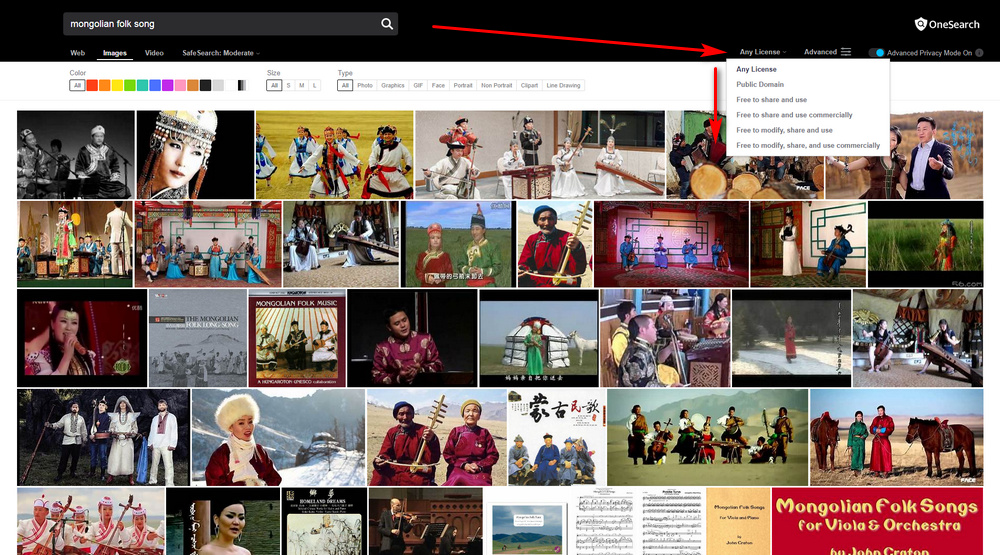
Anyway, also of note is its Image search, with Google Images-like filters for size and CC licence…

The big drawback to everyday use is its curious 30 seconds of complete unresponsiveness, which seems to kick in every few minutes. When it’s actually responding, it’s fast.

The Brazilian SciELO is updating its criteria

The Brazilian SciELO is updating its inclusion criteria. There are of course half a dozen other SciELO aggregators around South and Central America, but Brazil’s is the biggest.

According to the English-language summary, to stay in after 2020 the indexed journal must…

* accept for consideration articles “that are posted in a preprint server”

* be “citing and referencing all data, software codes and other content underlying the article’s texts”

* have in place “options for opening peer review”

No. 1 sounds good, and might be usefully extended to blog posts that included part of what later became an article.

No. 2 may be a bit problematic for those who rely on big closed computer-models, but I guess that simply “citing” that the model (presumably) exists may be deemed good enough. But it would be nice if SciELO required that the link should always lead to the full public data or model.

No. 3 appears to leave “opening” curiously unspecified. What options are acceptable, and by what criteria will a journal be judged to have engaged in “opening” its peer review? And how will this impact perfectly valid small single-editor journals in the arts and humanities? In which, for instance, the editor is the world-expert on the niche topic and single-handedly does a ‘light-touch’ peer-review on the year’s articles? Will they be forced to take on a new Peer Review Board, and then run and chase it, or else leave the Brazilian SciELO?

WordPress2Doc – a free ebook converter for free WordPress.com blogs

Hurrah, there is freeware to get a free WordPress site to Word as a .DOCX file, and thence to an ebook. Only the one, and hardly known to search-engines, but it’s for Windows and it works. WordPress2Doc comes from Germany and was last updated by the author, Raffael Herrmann, in December 2017. The source code for WordPress2Doc is on Github.
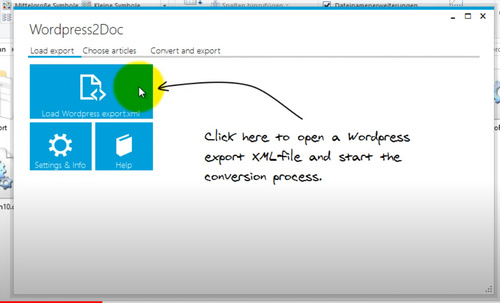
It has some nice features…

* Select only certain posts from your exported .XML feed.

* There’s a post preview, over in a side-panel.

* Images are called and embedded (so long as the source WordPress blog is public, presumably).

* Images are correctly sized for the page (if you just copy-paste straight into Word from your blog post, they’re not).

* The blog’s pages are also exported and can be selected, as well as the posts.

* You can also save straight to a PDF, as well as Word.

* Can save each post as named Word .DOCX file.

There’s a PDF Help guide in the download, but there’s also a good Help video at YouTube. But it’s very simple and easy to use. Once you have your Word file, it’s then relatively easy to save to an ebook.

If you’re still using the old WordPress UI, then you may want my guide to how to export your site as an .XML export. Because using the old interface won’t get you a viable export. Incidentally, it seems WordPress are now chunking the .XML export of large blogs. I had two .XMLs in the backup .ZIP, for my medium-sized test blog.

The only bother for an ebook maker will be re-ordering into themed sections or chapters without a whole lot of tedious select-copy-paste, and WordPress2Doc can’t help even partly with that as it lacks tag-support and list re-ordering before saving the .DOCX file. The best way to tackle the problem is probably to export in themed batches, one per intended chapter or section, though that would entail making ten passes of what might be 4,000 posts. Which is not ideal. But it looks to me like WordPress2Doc works best with smaller blogs anyway.

But note that WordPress can export posts to .XML by category, at least. Also, WordPress2Doc can save multiple selected posts as ‘one file per-post’. You could then sort into chapter folders by dragging and dropping, and then use a Word joiner to join them together.


Update: I don’t like the over-compression of images with this method, and some of the text formatting is also lost. I’m coming to the conclusion that one would ideally tag posts with the category “ebook-ch1”, “ebook-ch2” etc in the blog itself, then view that category, then copy-paste the page(s) into (Libre Office) LibreOffice Writer. Unlike Word, this retains formatting, including italics and indented quotes, and also retains picture quality. In almost all cases the pictures are scaled correctly to the page width, which they’re not when using Word to do the same thing. Small pictures such as icons are not scaled. Word cannot do this, even with a macro.

This all assumes, however, that you still have a live blog with its CSS, and not just the .XML export files.