• Directory
  • FAQ: about JURN
  • Group tests
  • Guide to academic search
  • JURN’s donationware
  • Links
  • openEco: titles indexed

News from JURN

~ search tool for open access content

News from JURN

Category Archives: JURN tips and tricks

A survey of automated book index making software

27 Tuesday Dec 2016

Posted by futurilla in JURN tips and tricks

≈ 6 Comments

Updated: 13th July 2020.

Want to home-brew a classic “back of the book” index from a Word file, ideally using freeware? Here are all the current software options I could find:


* TExtract can handle a wide variety of input files and seems to be favoured by pro book indexers. From $79 (use for a single title) to $595 (buy outright). Seems likely to take a while to learn.


* WordEmbed. £80. A MS Word Macro that helps to automate the process where your pre-made book index gets slotted in as an intrinsic ‘living/linked’ part of the MS Word document. It seems to be well regarded as a helping hand, but is not an automated maker of the index in the first place. Not likely to be used by amateurs but it might be something you could tell your hired low-cost ebook freelancer about — they might be interested in learning how to use it and thus adding to their skills-base.


* PDF Index Generator. $69.95, with a free demo limited to the first ten pages of the book. Create a basic automatic index, and then trim back and supplement it as needed.

Version 2.4 added a new feature, a… “new query template has been added to allow indexing capitalized phrases” which works this way: get to “Step 2” in the initial PDF import | “Include words” | Click on pencil icon | “Add Query” | Choose “Capitalised Phrases” from the dropdown | this then forms Query 1 | Make sure Query 1 is ticked, and “Index these words only” | OK.
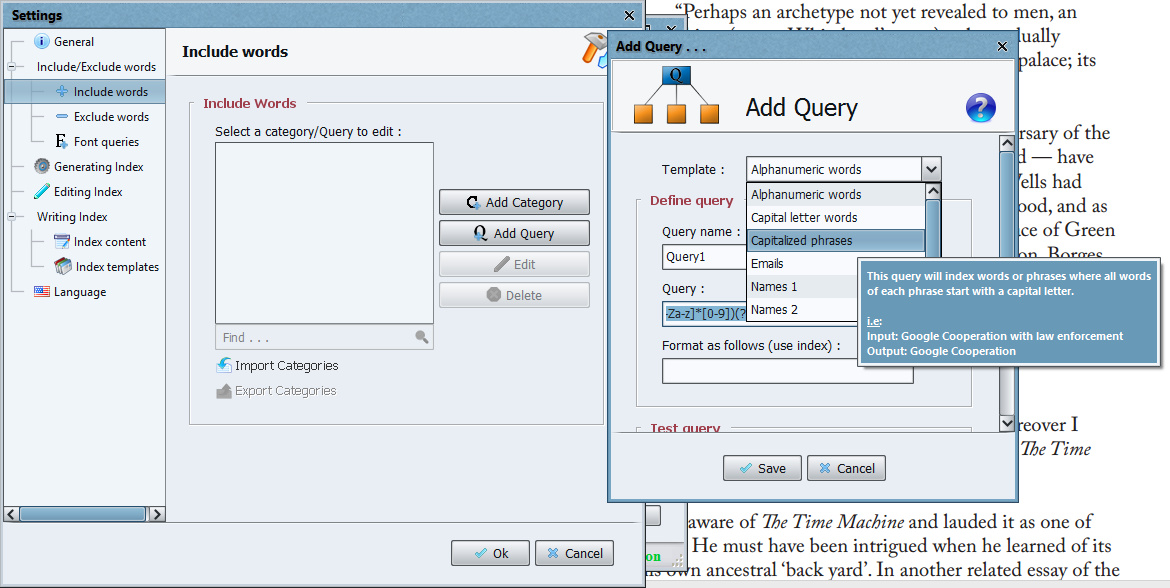
You now have a vastly more useful starting point for a first-pass at an index than otherwise, with all your place-names and personal names done…
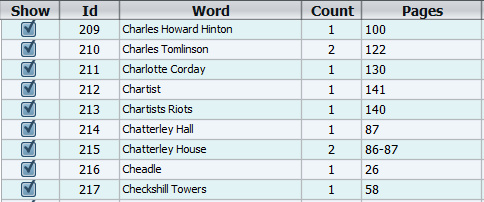
There’s also a filter to get the “surnames, forenames” switched over. You can stack filters and/or run multiple indexes and then merge them (video tutorial link: see video at the 3 minute mark) and thus work in stages.

You’d then un-tick the irrelevancies and cut out the mis-steps, and then go through your book manually and add to the index various concepts and ideas which readers might want to look up. That wouldn’t be the end of making a polished index, but it’d be a big chunk of the grunt-work done.

A note on Java:

However, useful as such automation is, note that PDF Index Generator requires that you install Java to run it, and having Java installed on your PC these days is a very very major and ongoing security risk…

Network World reported that in 2014 U.S. Homeland Security… “recommended users uninstall Java completely” throughout the USA. In 2014 PC Magazine advised “Users should either uninstall Java, disable it entirely in the browser, or take other steps to protect themselves from attacks against Java.” In 2015 InfoWorld magazine wrote… in 2015, it’s really, really tempting [for a network admin] to simply uninstall Java from user machines.” In 2017 even Java World wrote, of yet more new and critical vulnerabilities, that… “Users should uninstall Java from their systems”.

Still… one might safety install Java on an old laptop and run from there, if the laptop has sufficient memory, where it would be quarantined from your main PC. Or, for a one-time use on your main PC, you might: i) download the standalone Java installers, ii) disconnect from the Internet; iii) install Java and then PDF Index Generator; iv) do your indexing output and refining work; v) completely uninstall Java and then re-connect to the Internet. Only with the standalone (full, about 58Mb) Java installer and the Internet disconnected does the installer NOT collect and send your system fingerprint to a remote location at Oracle, makers of Java. After install you should also look down the Java Security settings and disable things like Web browser integration (most Web browser makers block all Java plugins by default, but it’s best to check).

Update, July 2020: As of PDF Index Generator 2.9…

The Windows edition of the program now comes with Java embedded inside it, so you don’t have to worry about installing the right Java edition to run the program.


* Index Generator is un-crippled freeware for PDFs. It’s more basic than PDF Index Generator (above), lacking things like Phrase Query filters, but is quite capable and easy to use. I found that it doesn’t require an install of Java to launch or work. It’s available for Windows, Mac and Linux (the latter two do seem to require Java?). The very major drawback is that it currently appears to lack any Query ability to select only capitalised items such as Names and Place Names, and seems to actually case-shift every word in its pick-list to lower-case! Still, it’s in active development, and we may well see it catching up with PDF Index Generator over time.


* For a simple table of: word | language | times used the free Calibre ebook management and conversion software can also give you a quick output from an ebook of all words in the book. Calibre’s simple word table can then be exported to .csv and thus sorted in MS Excel. To access it from inside Calibre: load your ebook and convert to ePub (it only works with the ePub format) | click the tiny top-right “more” arrows | drop down the extra hidden toolbar | Edit Book | Tools | Reports | Words | Save…

The Word file’s word capitalisation is retained in the resulting Calibre list. On loading into Excel and sorting for capitalised words, one may thus quickly create a rough checklist of important name items, for reference use when selecting words with the likes of Index Generator (which regrettably appears to have no such ‘show capitalised name words only’ function).


* Indiscripts’ IndexMatic 2 plugin for Adobe InDesign (which is Adobe’s flagship DTP software).


Possibly someone will eventually whip up a script to automatically check if a word or phrase in an index has a corresponding Wikipedia or Infogalactic page, thus offering another way to filter a word-list down to the more important items.

How to get a free and approximate audio transcription via YouTube

12 Monday Dec 2016

Posted by futurilla in JURN tips and tricks

≈ Leave a comment

How to get a free and approximate audio transcription via YouTube’s automated transcription:

Update: this tutorial may no longer be needed: YouTube now provides a ‘Closed Captions’ panel which allows you to turn off the time-coding, and then copy-paste the text.

1. Use the free Audacity or other desktop audio software to split your .mp3 into segments of less than 15 minutes each. I assume that’s still the limit. Or make it whatever time-limit YouTube sets on uploads in future.

2. Upload the .mp3s to YouTube as a “Public” video via TunesToTube. This is a free service that lets you upload an .mp3 to YouTube and quickly add a single picture visual, to become a video which is then uploaded to YouTube. No longer works. Try Audioship. MP3 to video will also get you a MP3 to MP4 file that can be uploaded to YouTube. Neither are perfect for those with slow uplinks.

Solid desktop software such as Slideshow Studio HD can also quickly create a simple YouTube friendly video, without you having to load a huge lumbering video editor such as Adobe Premiere Elements. If then uploading the .mp4 manually, ensure you tell YouTube that the video is in English, as otherwise it may later get confused and try to use Spanish etc for the captioning. Google also has a 15 minute upload limit, and may still have this in some nations.

3. Once uploaded, then go to YouTube and find your Channel, click the Settings cog on the uploaded video, and turn on “Automatic Subtitling”. If it won’t let you do this, you may need to go into the Dashboard and find the Subtitles tab.

4. Wait a minute or so for the subtitles to be made. Then go to DownSub.com to download and save the video’s subtitles as an .srt standard subtitles file. The Dashboard in YouTube may also let you download a subtitles file without needing this third-party service.

5. Get the Open Source Subtitle Edit 3.5 desktop software. Load the .srt file. In Subtitle Edit: File -> Export -> Plain Text.

6. Load the resulting text into Word, and edit and correct. It’s accurate enough for a ‘speech radio’ type podcast, though without much punctuation and you’ll need to work on it to polish it up.

You can of course get willing hands around the Web to transcribe, but you have to pay them (it’s surprisingly affordable, try Fiverr) and there’s usually at least a 12 hour turnaround time. The above method would help you to meet a much tighter deadline.

Leaving Twitter? How to gather and save your archive

07 Wednesday Dec 2016

Posted by futurilla in JURN tips and tricks, Spotted in the news

≈ Leave a comment

Leaving Twitter for something better? New today, a handy concise article, “How to Own & Display Your Twitter Archive on Your Website in Under 10 Minutes”.

Changes at the Facebook filter F.B. Purity

19 Saturday Nov 2016

Posted by futurilla in JURN tips and tricks

≈ Leave a comment

Just a note on the popular third-party Facebook filter F.B. Purity. Changes are obviously afoot in how their blocklist blocks items from appearing in your personal Facebook feed. I’ve noticed a number of changes so far, and possibly there are more…

1) Under the “Photo Stories” settings, the option to block “Meme” stories is now much more sensitive that it was. It is blocking all sorts of legitimate items. Possibly it was boosted to help people cope with the U.S. elections?

2) “Selfie” blocking is now blocking things like Christmas event posters, that just happen to have a small face somewhere on them.

3) If you were also correctly blocking all stories from a news site such as Russia Today (aka RT, Putin’s public propaganda arm), in your personal Text Filter blacklist, using a backslash thus…

rt\.com

Then note that this now also blocks all shares from any other URL ending in *rt.com

4) F.B. Purity’s word blocking in the Text Filter also auto-expands on the root word, something I don’t remember seeing happen before. For instance, if you block “stories” then you also block all posts using “histories” and blocking “ISIS” blocks all posts with “crisis”.

‘That’s the way to do it…’

03 Thursday Nov 2016

Posted by futurilla in JURN tips and tricks, Spotted in the news

≈ Leave a comment

The latest edition of the UK’s very popular WebUser magazine gleefully ignores all the recent stupidity by the EU and others. Thankfully we won’t be in the EU for much longer.

webuser

How to get RSS from the newly locked-down www.scoop.it service

26 Wednesday Oct 2016

Posted by futurilla in JURN tips and tricks, My general observations

≈ Leave a comment

The owners of www.scoop.it have trapped all their free users. The service no longer offers any RSS feed, from mid August 2016. I’ve only just noticed, as I use RSS to bring posts into a blog and home page. Now you have to use their own “Integration” embedding, use of which requires a paid upgrade to a Business Account. Nor is there now any option to export or backup your Scoop.it blog, for which you would now need to use a third-party website ripper like HTTrack.

How to get around this bastardy…

Option 1. Really easy.

Go to the free Fivefilters Feed Creator, to solve the RSS part of the problem.

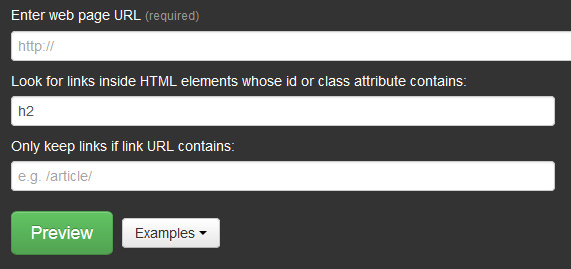
h2

Add the root URL of your blog at Scoop.it. For instance, http://www.scoop.it/t/my-scoop-it-blog/ Below it in “look for links” type h2 which is the headline tag where Scoop.it puts its post titles within the Web page. Click Preview.

This will give you a basic free 10-item scraped post-listing as a viable RSS feed, suitable for embedding in the sidebar widget of a blog or on a home page. You can also use this to replace any defunct Scoop.it feeds in your RSS Feedreader.

For a small fee you can also buy the Fivefilters script and host it on your own server.

Option 2. Incredibly complicated.

Use Feed43, to solve the RSS part of the problem. This is similar to Fivefilters and also free, but the setup definitely needs an experienced coder to get the feed working. I’m guessing that there are more advanced options than Fivefilters under the hood, though?

Option 3. Nuke Scoop.it, and go to WordPress instead.

Use a free third-party website ripper like HTTrack to backup your Scoop.it, open a WordPress.com account and in a departing post on your Scoop.it tell your subscribers that you are now blogging elsewhere. Possibly there are WordPress templates out there, and/or browser add-ons, that make WordPress work like Scoop.it?

9xbuddy

14 Friday Oct 2016

Posted by futurilla in JURN tips and tricks

≈ Leave a comment

The free 9xbuddy is very useful and has been fast and reliable for me for several years now. Paste in the URL of almost any streaming media that doesn’t offer an .MP3 download. 9xbuddy then ferrets among the HTML and javascript in search of the actual audio file, then gives you a simple link to download it. It’s actively maintained and supports a huge range of streaming services. Also works for video, which is useful for lecturers who want to show pre-loaded video clips and thus bypass the usual wi-fi connection hassles.

9x

How to get big pictures from eBay listings

25 Thursday Aug 2016

Posted by futurilla in JURN tips and tricks

≈ 2 Comments

Here’s a handy little web-whittle. It lets you save large versions of images from fleeting eBay sales listings, in which images are usually blocked by a javascript lightbox. You don’t need an add-on to save them to your PC.

In Firefox, just go: View | Page Style | No Style. This strips all formatting off the page.

Then scroll down to the bottom of what is now a much longer page than before, and near the bottom you’ll see the 1600px size pictures. You can the right-click on the picture and save.

Blocked:

blocked

Unblocked:

s-l1600

How to open a .pages file in Windows in 2016 – use Libre Office

18 Thursday Aug 2016

Posted by futurilla in JURN tips and tricks

≈ Leave a comment

Problem: You’ve been sent a .pages format document. No, I’d never heard of it either. Apparently it’s a sort of obscure equivalent of the old Windows .wps format, only it’s from word-processing software that ships with Macs. Like the old .wps format used to be, nothing on earth will open it as intended — except its own native production software.

Solution 1: (defunct) It seems there used to be a Windows trick where you’d rename the .pages file as a .zip and there would be a preview.pdf inside that which was usable. That trick doesn’t appear to work any more, at least with the newer versions of whatever Mac software makes .pages files. You may, however, at least get a .JPG image that can show you how the document was meant to look.

Solution 2: (working)

1. Get the free LibreOffice, a version of the popular Open Office suite. The developers of LibreOffice are not afraid to incur the wrath of Apple by enabling .pages import. Install. (LibreOffice has a notoriously long install time, and if you need it a bit quicker then try the portable version).

2. Open a new blank document in the Writer component of Libre Office.

3. Go: top menu bar | Insert | Document and insert your .pages file. Your document loads and appears, but looks like blank pages with a few lines of dots at the top of each page. The formatting has all been lost, but the dots are actually all the words scrunched up together.

4. Go: top menu bar | Edit | Select All | Copy.

5. Open MS Word or similar. Paste in what you just copied to the clipboard. As you’ll see, you’ve lost any fancy formatting there may have been in the .pages file, but at least you’ve got all the plain text and it’s in the right order, it flows and is editable.


Update: Insert | Document is no longer available in the current 2021 version of Writer. Seems to have been removed, presumably at the behest of Apple. Older versions of LibreOffice, inc. summer 2016, are here. Regrettably LibreOffice forces you to uninstall a new version, to install the older version.

Update 2021: There are now several online converters. The only one that worked for me was Zamzar set to convert .pages to a .txt file.

GoogleMonkeyR script fix: July 2016

14 Thursday Jul 2016

Posted by futurilla in JURN tips and tricks

≈ Leave a comment

Good news, for those who use GoogleMonkeyR to present their Google Search results in a widescreen + columns format. It’s been swiftly fixed.

duckduck

Changes at Google broke the script a couple of days ago, when Google’s layout changed the div.col value to “0”. The script continued to work fine with DuckDuckGo and sort-of worked with Google News.

‘Topogiz’ has now kindly posted a working hotfix on GreasyForum, the Greasemonkey forum. It requires a simple manual edit of the script. I’ve edited this and expanded his instructions here, so that it’s friendlier for the average user…


1. In the top menu of Firefox, go: Tools | Add-ons | User-scripts. Then select: GoogleMonkeyR | Options.

2. An Options window will then pop up. At the foot of this window is the option to “Edit This User Script”.

3. Assuming that you have the current version of GoogleMonkeyR, go to Line 681. Or find…

if(this.numColumns>1)

4. Just below Line 681 there is a line which starts with…

style += ("#cnt.singleton

code1

Find this, then just below it insert a new blank line, and into that new line add…

style += ("div.col {width: 100% !important;}");

It should now look like this…

code2

5. Up at the top of the panel, click on “Save”, and exit.

The fixed script will also continue to work fine with DuckDuckGo and Google News.

← Older posts
Newer posts →
RSS Feed: Subscribe


Please become my patron at www.patreon.com/davehaden to help JURN survive and thrive.

JURN

  • JURN : directory of ejournals
  • JURN : main search-engine
  • JURN : openEco directory
  • JURN : repository search
  • Categories

    • Academic search
    • Ecology additions
    • Economics of Open Access
    • How to improve academic search
    • JURN blogged
    • JURN metrics
    • JURN tips and tricks
    • JURN's Google watch
    • My general observations
    • New media journal articles
    • New titles added to JURN
    • Official and think-tank reports
    • Ooops!
    • Open Access publishing
    • Spotted in the news
    • Uncategorized

    Archives

    • February 2026
    • January 2026
    • October 2025
    • May 2025
    • April 2025
    • September 2024
    • June 2024
    • May 2024
    • April 2024
    • March 2024
    • February 2024
    • January 2024
    • December 2023
    • November 2023
    • October 2023
    • September 2023
    • June 2023
    • May 2023
    • January 2023
    • December 2022
    • November 2022
    • October 2021
    • September 2021
    • August 2021
    • July 2021
    • June 2021
    • May 2021
    • April 2021
    • March 2021
    • February 2021
    • January 2021
    • December 2020
    • November 2020
    • October 2020
    • September 2020
    • August 2020
    • July 2020
    • June 2020
    • May 2020
    • April 2020
    • March 2020
    • February 2020
    • January 2020
    • December 2019
    • November 2019
    • October 2019
    • September 2019
    • August 2019
    • July 2019
    • June 2019
    • May 2019
    • April 2019
    • March 2019
    • February 2019
    • January 2019
    • December 2018
    • November 2018
    • October 2018
    • September 2018
    • August 2018
    • July 2018
    • June 2018
    • May 2018
    • April 2018
    • March 2018
    • February 2018
    • January 2018
    • December 2017
    • November 2017
    • October 2017
    • September 2017
    • August 2017
    • July 2017
    • June 2017
    • May 2017
    • April 2017
    • March 2017
    • February 2017
    • January 2017
    • December 2016
    • November 2016
    • October 2016
    • September 2016
    • August 2016
    • July 2016
    • June 2016
    • May 2016
    • April 2016
    • March 2016
    • February 2016
    • January 2016
    • December 2015
    • November 2015
    • October 2015
    • September 2015
    • August 2015
    • July 2015
    • June 2015
    • May 2015
    • April 2015
    • March 2015
    • February 2015
    • January 2015
    • December 2014
    • November 2014
    • October 2014
    • September 2014
    • August 2014
    • July 2014
    • June 2014
    • May 2014
    • April 2014
    • March 2014
    • February 2014
    • January 2014
    • December 2013
    • November 2013
    • October 2013
    • September 2013
    • August 2013
    • July 2013
    • June 2013
    • May 2013
    • April 2013
    • March 2013
    • February 2013
    • January 2013
    • December 2012
    • November 2012
    • October 2012
    • September 2012
    • August 2012
    • June 2012
    • May 2012
    • April 2012
    • March 2012
    • February 2012
    • January 2012
    • December 2011
    • November 2011
    • October 2011
    • September 2011
    • August 2011
    • July 2011
    • June 2011
    • May 2011
    • April 2011
    • March 2011
    • February 2011
    • January 2011
    • December 2010
    • November 2010
    • October 2010
    • September 2010
    • August 2010
    • July 2010
    • June 2010
    • May 2010
    • April 2010
    • March 2010
    • February 2010
    • January 2010
    • December 2009
    • November 2009
    • October 2009
    • September 2009
    • August 2009
    • July 2009
    • June 2009
    • May 2009
    • April 2009
    • March 2009
    • February 2009

    Proudly powered by WordPress Theme: Chateau by Ignacio Ricci.
