• Directory
  • FAQ: about JURN
  • Group tests
  • Guide to academic search
  • JURN’s donationware
  • Links
  • openEco: titles indexed

News from JURN

~ search tool for open access content

News from JURN

Category Archives: JURN tips and tricks

How to enable keyword search for .ePub files in SumatraPDF reader

14 Sunday Oct 2018

Posted by futurilla in JURN tips and tricks

≈ 1 Comment

How to enable text search of ePub files, in the SumatraPDF reader…

1. Go to: top left corner icon | Settings | Advanced Options.

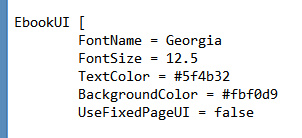
2. At the top of Sumatra’s config file you’ll see:

3. Change false to true. Save and exit.

Mostly you’ll be sending an ePub over to a mobile device, where it will be handled by better apps. But the choice of reader is limited on the Windows desktop where you may also be archiving the .ePub files, and where you may want to sometimes hop into one of the files to swiftly find a specific name or title.

I don’t yet know of desktop freeware that can search across and inside of multiple .ePub and .mobi files.

Persistent bookmarking for audiobooks in Windows freeware

09 Tuesday Oct 2018

Posted by futurilla in JURN tips and tricks

≈ Leave a comment

I’m very pleased to find freeware for the Windows desktop that offers persistent and editable bookmarks for audiobooks and long podcasts. AIMP 4.51 (Ghacks review) is maintained and mature, has a well-designed interface, is genuine freeware, and the playlist and bookmarks system is both simple and robust.

AIMP’s bookmarks are stored in XML at C:\Users\YOURUSERNAME\AppData\Roaming\AIMP\Bookmarks.xml and can thus be backed up.

It also has a graphic equaliser, supports pitch shift and subtle speed changes of playback, and has many plugins including one for podcatching via RSS.

Tutorial: assemble non-overlapping tiles in Photoshop

29 Wednesday Aug 2018

Posted by futurilla in JURN tips and tricks

≈ Leave a comment

How to capture zoomified image tiles and semi-automatically re-assemble them into a single image, with Photoshop. Even when there is no overlap between the tiles (which means you can’t use Photoshop’s Photomerge feature).

First, make sure your target picture is of an age and a state to be in the public domain and can legally be liberated. Also, note that the WikiMedia Commons has a de-zoomify advice page which offers various dezoomifying services and tips. These options may be quicker and more accurate than my method. But if the WikiMedia options don’t work, try this…

1. Install the Save All Images extension for Opera (or an addon with similar fuctionality that works in your Web browser).

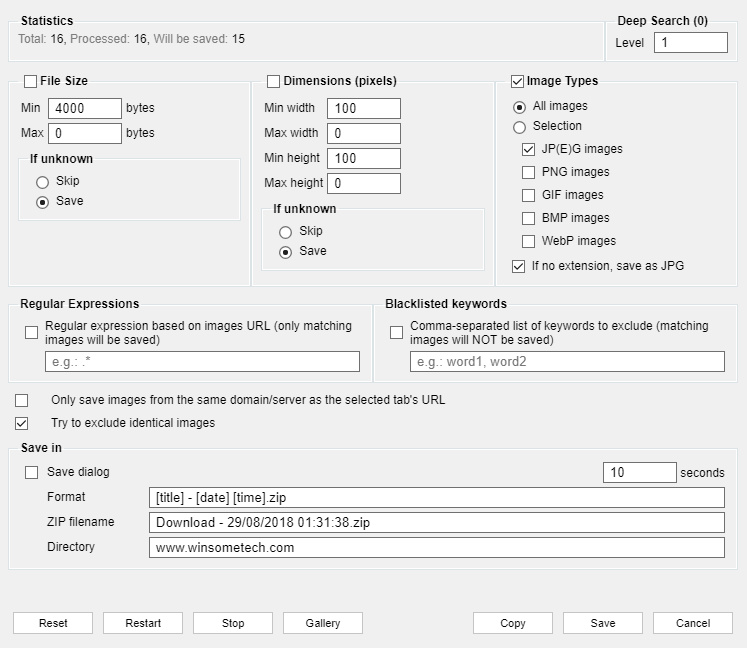
2. Visit your target page. Zoomify the image and pan around until all tiles have loaded. Then capture all the loaded images on the page with ‘Save All Images’. As you can see, it’s quite sophisticated in its filters, though unfortunately you can’t save your settings as a repeatable preset for a particular website…

Ok, ‘Save All Images’ will pack all the loaded tiles up in a zip file.

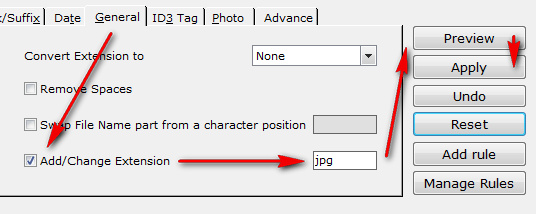
3. Extract your saved .zip of images. View the resulting folder as thumbnail images. Delete all images that are not part of the tile set. Rename .jpeg files to .jpg if needed, with Winsome File Renamer or similar. Also rename to alphanumeric order if needed — tiles are downloaded in their tiling sequence, so a sort-by-date should mean that a 1… 2… 3… re-naming should be possible even if the filenames are obfuscated. You want to end up with a folder of image tiles in .jpg and with a logical alphanumeric loading order. Make a note of how many rows and columns make up the complete image (e.g. three tiles across, and four tiles down).

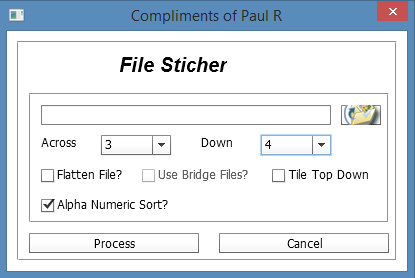
4. Get Paul Rigott’s Photoshop stitcher script File Stitcher.zip (mirror) and unzip it. This script can handle non-overlapped tiles by using an ‘alphanumeric load-order’ option.

5. Load Photoshop. Do not open a new image. Just go: File | Scripts | Browse and then find and load Paul’s script.

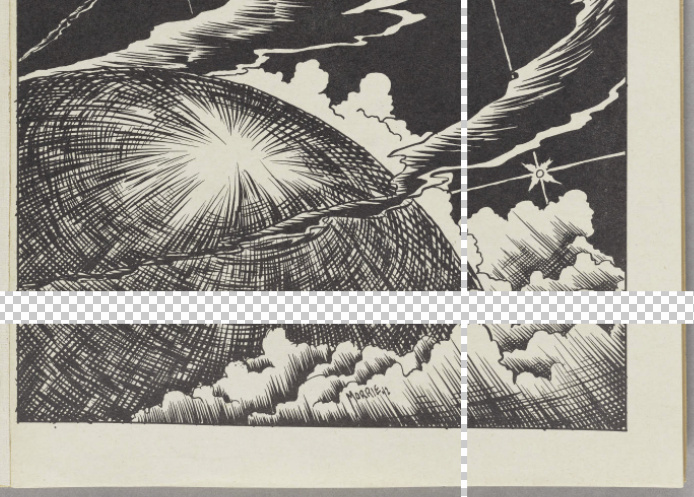
Set your numbers for the tiles across / down, and then point the script at your target folder. The images load and are automatically distributed across a newly opened image, with the script doing canvas expansion as needed. As you can see here, the result is not perfect, but 85% of the work has been done automatically. Most tiles have been accurately snapped together into the main image, but a few tiles have been assembled into strips and these remain as outliers.

Just multi-select a few relevant layers (Shift, select with right mouse-click, repeat to add the next layer to the group). Then snap the image together. More recent editions of Photoshop should help with that, if Snap is turned on.


Additional note: to assemble a set of six QTVR tiles (the old Quicktime way of present a 360-degree panorama online), use Pano2VR 6.0 or higher to save the tiles out to a single-image 360 VR panorama format that Facebook and WordPress understand.

Update: March 2020. Also try the free Microsoft Image Composite Editor 2.0. It may be able to do much the same thing, and may also work with only a quick set of screenshots.

WorldBrain for Chrome

28 Tuesday Aug 2018

Posted by futurilla in JURN tips and tricks

≈ Leave a comment

WorldBrain for Chrome : “Full-text search of your Web browsing history and bookmarks. Find previously visited websites & PDFs in seconds.” Works in Opera too, and presumably any browser which supports Chrome extensions and addons.

On install it offered to import my last 90 days of visited URLs from my History, thought it fatally ‘hung’ at 2% and couldn’t get past that even in a few hours. However, that 2% was all I needed, since it was going through the URLs in reverse date order and thus had grabbed the last few days. I cancelled and was left with what I actually wanted: not 90 days’ worth of browsing, but just the last few days to start me off.

You can also Blacklist sites that don’t need to be cached locally, and Google Maps is blacklisted by default. One very important filter you need to add before you do anything is Google and DuckDuckGo searches, or hitting them all again in an automated fashion may cause you to be blocked by those services. Once the initial import is done, you can then unblock the main search-engines and they will cache naturally as you browse.

You’ll also want to visit the Privacy settings and ensure that some things are off/on.

It’s only getting the text, stripped of HTML. Therefore partial searches for filenames of pictures and .zips presumably won’t work, since they’re in the HTML code. Even so, one potential problem appears to be that there’s no rolling “delete page files after 90-days” setting. Presumably your local cache just goes on growing and growing, which may not be so good for those with over-stuffed hard-drives.

You also get a personal annotation and tagging tool as a discreet sidebar button. This also gives you a way to get to the Search interface, if you don’t want the creepy ‘staring eyes’ WorldBrain icon on your Bookmarks bar.

SWF to PNG freeware

15 Wednesday Aug 2018

Posted by futurilla in JURN tips and tricks

≈ Leave a comment

Wrestling around trying to view and export Creative Commons .SWF files, without an Adobe Flash installation? The wholly freeware Windows Free Flash Decompiler can open even early-version Flash .SWF files and save to .PNG images with scaling. version12.0.1 is the installer Windows users need. (Link updated for new version of Free Flash Decompiler, January 2021. Works fine, post-Flash)
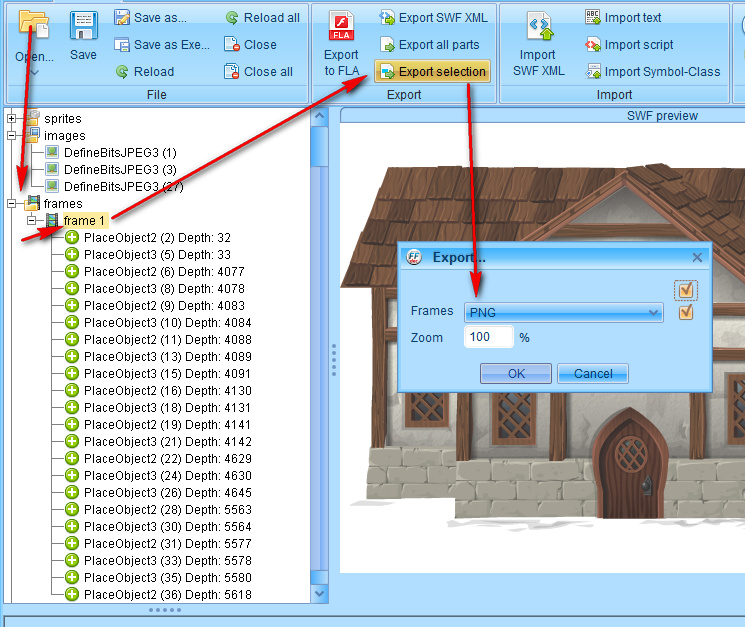
Useful where games have released their art assets under Creative Commons, such as the Odd Job Jack series. Especially if the .SWFs were output in Flash 5, which is very old now, but Free Flash Decompiler had no problem with the older assets.

The free Flash Decompiler was the only genuine freeware found, after hours of searching, which could open such Flash 5 .SWFs (be sure you’re trying to use it to open .SWFs and not .FLAs!). It only lacks a batch processing feature. It doesn’t seem to work with .SWF output from Poser 11, in terms of being able to display or save the render like the Internet Explorer browser can.

Paid options with batch are:

* reaConverter, which can read old SWFs and has batch, but has no option at all to scale up the PNG output, which makes it utterly useless. Update: the latest reaConverter 7.x has % scaling for saving .SWF files to .PNG format.

* SoThink SWF Decompiler, expensive at $80. It has a nice viewer and can read old .SWFs. But it has no .PNG output, only the .SVG vector format. However, this .SVG output can then be further batched with ConversionSVG which is a free 2008 front-end Windows GUI for the free Inkscape. Both ConversionSVG and Inkscape still work fine together. The only slight drawback is that ConversionSVG has no % upscale, so you may need to run it twice, once with 2400px on height and again on 2400px on width. Then manually go through and delete each mis-fire for the very long or very wide graphics. Also, note that not all the Flash gradients will make it to a .SVG file, either mangling or failing. Also, ConversionSVG seems to be a Java application, which is a potential security risk. If you do try it, it requires some juggling at first to switch it from French to English. But it works fine.

* VeryPDF Flash to Image Convertor, which is $20 and has batch, but its PNG output is very fuzzy and unusable at 3000px. It’s fine for making lots of little 400px preview PNGs, but not for anything larger.

Thus, a batch solution for those with 20,000 items to convert is: SoThink SWF Decompiler > batch export to .SVG > install Inkscape > install Java > install ConversionSVG for Inkscape > batch your .SVGs to .PNGs.

Of course, you could get all arcane and command-liney about it, hooking into ImageMagick or similar, but this post is for those who need Windows software with a GUI.


Update: No need for the .SVG intermediary, as I found the $15 Kurst’s SWF Renderer 2.0, which does batch SWF to PNG and has scaling and respects transparency. There’s a demo version, Windows or Mac. Works fine and fast, on Adobe AIR rather than Java. Below are the settings, for outputting a single frame from each .SWF file. Note that you can’t, as with the Free Flash Decompiler freeware above, choose which bit of the .SWF (shapes, frames etc) to output. SWF Renderer 2.0 is a frame renderer, not a shape decompiler.
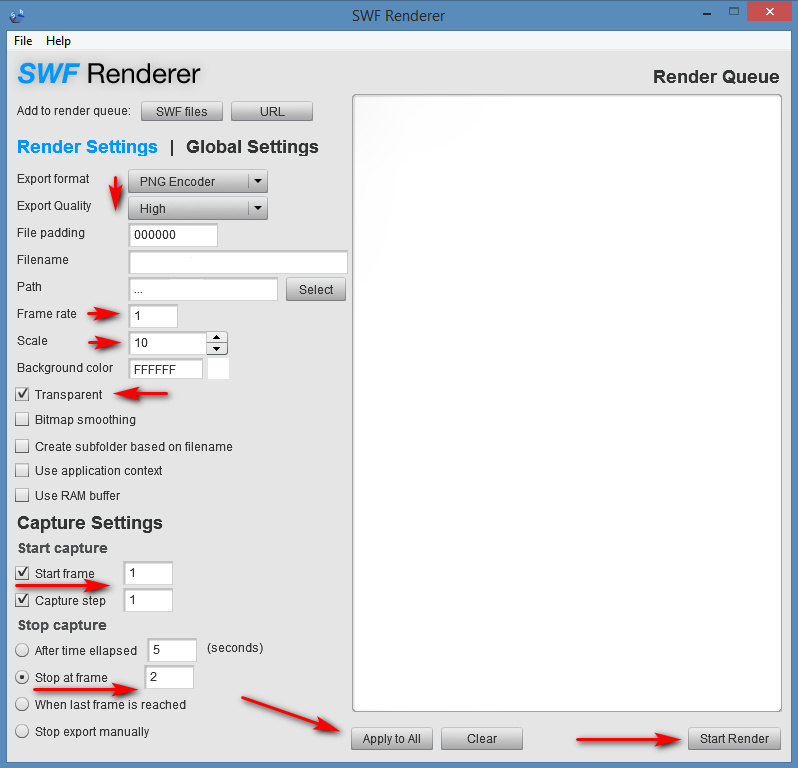
It’s best to chunk the load you give it, to around 100 at a time. You can’t just load in 28,000 SWFs and expect it to cope.

Update: reaConverter 7.x can now scale up and gives nice PNG output, albeit at a cost of $50. Needs to be scaled to 10000% to get anything big (4k+) out of it…
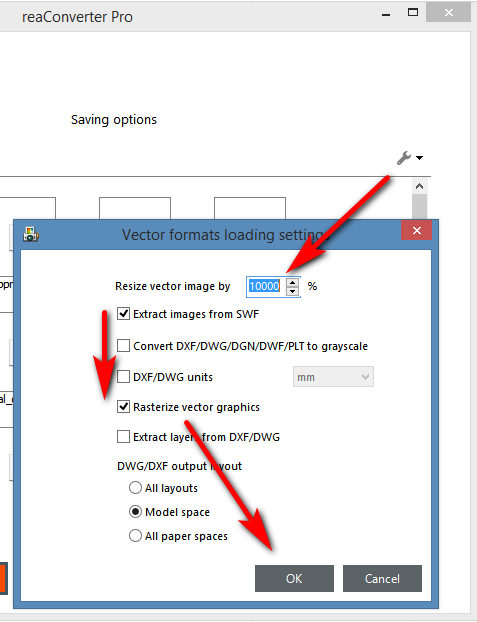
Regrettably it is not reliable at this scale, is very prone to crashes when handling folders with more than a dozen files. Also it often mis-handles transparency and clips renderings. The other viable software, on the other hand, could handle what Rea could not. With the only drawback being lack of batch in Free Flash Decompiler, and the 10x scaling limitation on Kurst’s SWF Renderer 2.0.


Update: After Adobe killed Flash in January 2021, the following results from testing:

* JPEXS Free Flash Decompiler – FINE, with previews, after an update to the latest version. Still no batch.

* Kurst’s SWF Renderer – FINE, no update needed. Still can’t export higher than 10x.

* SoThink SWF Decompiler – OK, no previews at all, but SVG image loads in Inkscape.

* reaConverter – FAIL on the latest 7.6 versions, on preview and render.

Thus, JPEXS and Kirst presumably have internal standalone Flash implementations. Testing reaConverter on a Windows 7 Xeon workstation reveals the cause of its apparently flakiness. When it hits an animated .SFW it feels the need, unlike the other software, to load and then render every frame. Rather than one frame. Naturally, this causes the SWF player module in the Java implementation to use way too much RAM and die. The Xeon Workstation has 24Gb of fast RAM, so it’s not a problem there.

JURN and GRAFT on Itty.bitty

08 Wednesday Aug 2018

Posted by futurilla in JURN tips and tricks, New media journal articles

≈ Leave a comment

Introducing… JURN and GRAFT ‘in a link’. I’ve been experimenting with the Itty.bitty service, and am pleased to learn that Google CSEs can work with it.

The Itty.bitty link is the web-page, contained inside the URL itself. Here are working links…

JURN

GRAFT

You can of course drag these to your Bookmarks bar in your Web browser, if you wish.

Open Semantic Desktop Search – free desktop search for Windows

02 Thursday Aug 2018

Posted by futurilla in Academic search, JURN tips and tricks, Spotted in the news

≈ 1 Comment

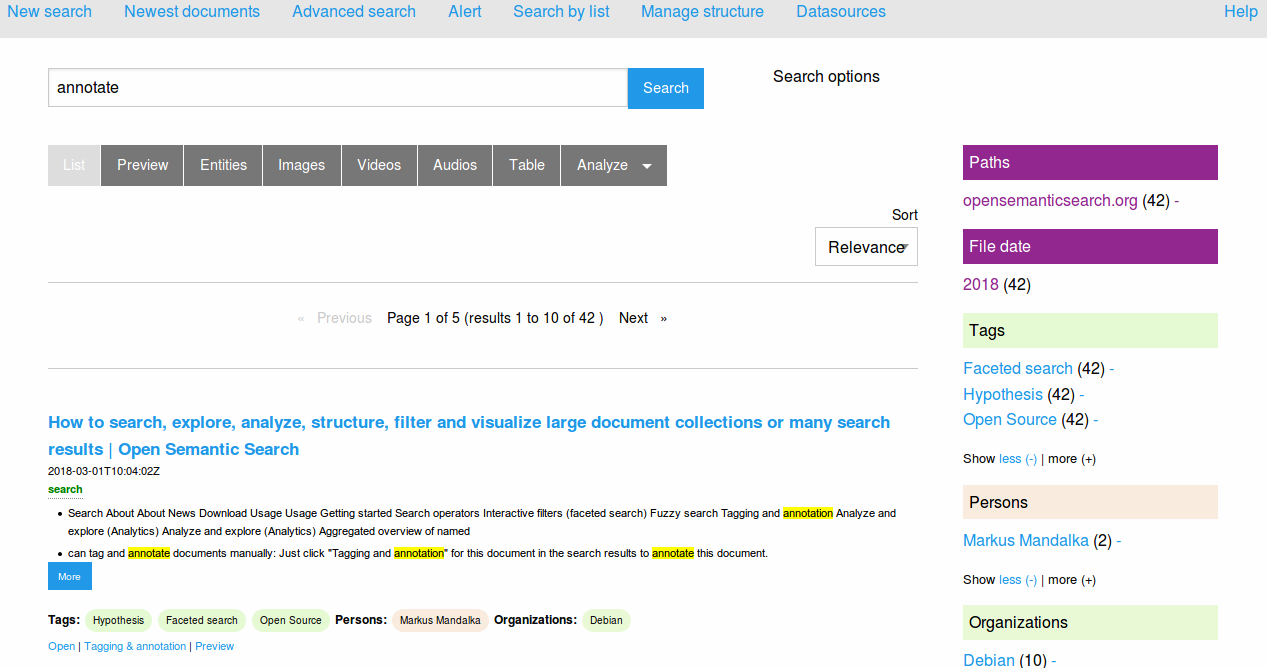
Open Semantic Desktop Search an “open source desktop search engine for full text search in documents”, that runs in SOLR on the Windows desktop through Oracle’s free VM VirtualBox. It’s been around since late 2015, and is actively being developed, but they obviously don’t employ a publicist to promote it.

It has a clean Web-like interface, supports the indexing of a great many file-types including .ePUB and .PDF files, even if they’re inside .ZIP files. Though it can’t yet index the Kindle’s .MOBI ebook files, so you’d need to do an overnight mass-conversion to .ePUB or .PDF using the free Calibre software, and your purchased encrypted Kindle files will still need to be searched using Amazon.

Despite being run in a VM (often slow in older Windows PCs), Open Semantic Desktop Search can work on…

“old standard hardware” and “The search engine works even offline or unhosted on a single laptop without need of a intranet or internet connection or a server.”

Though online comments suggest you’ll do best with a modern PC, and those with an over-stuffed hard-drive will need to clear 50Gb of disk-space to accommodate both the software and its resulting index. The disk-space needed may be less if you’re only indexing the folder containing the .PDFs and .ePUBs needed for your PhD or book research.

I haven’t installed and tested it yet, but it’s free and looks good. Apparently it can also auto-OCR inside PDFs that don’t have OCR text, a new feature added in a December 2017 update.

The search-engine software comes packaged in a 2.8Gb .OVA file that you download. This .OVA is a plugin module for the free VM VirtualBox (a 110Mb .EXE download), and the team’s Desktop Search page has instructions on how to plug your .OVA into the installed VM. It seems fairly simple to get it up and running.

How to replace Instapaper or Pocket on a Windows desktop

31 Tuesday Jul 2018

Posted by futurilla in JURN tips and tricks

≈ Leave a comment

How to replace Instapaper or Pocket on a Windows desktop, with no Cloud service required:

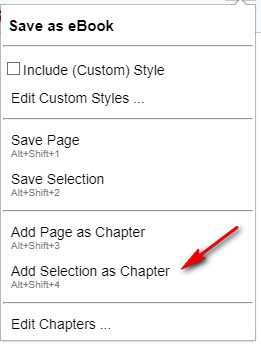
1. Install the Web browser addon Save as eBook from the Chrome store. This adds a neutral little button icon next to your Downloads icon.

2. When you visit an article in a magazine or newspaper, place your cursor at the top or bottom of the article and then drag to manually select the headline and text. Using the new addon, then “Add selection as eBook chapter”. The selected article is saved locally in the addon. It can handle scholarly-sized articles, and didn’t balk at a 14,000 word essay.

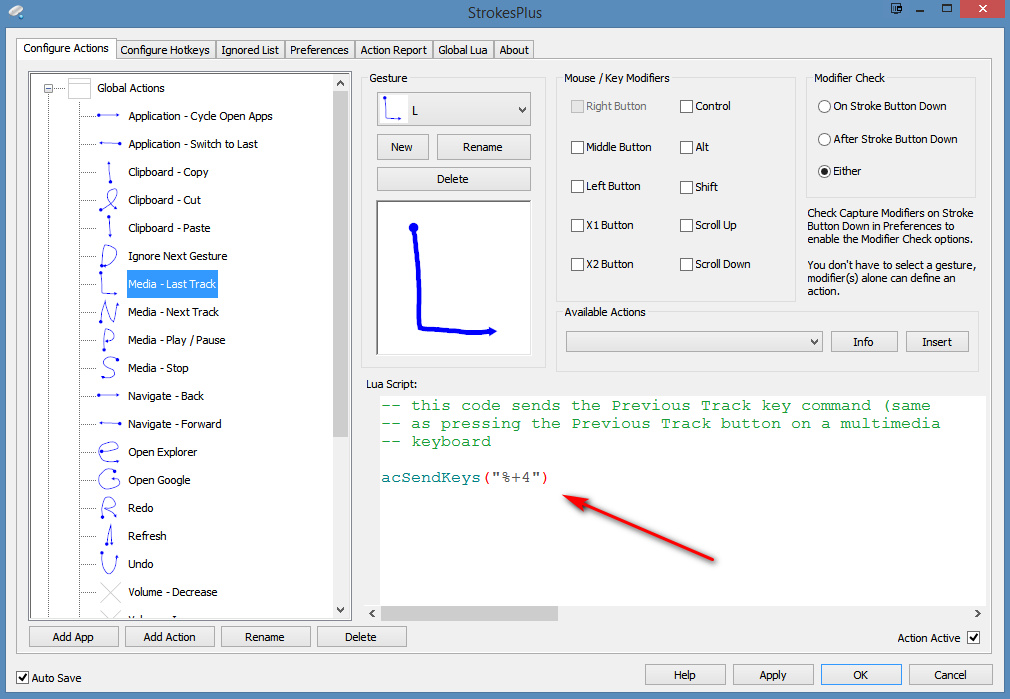
ALT+SHIFT+4 is the ‘Save as eBook’ keyboard shortcut command to save your selection. But who wants to do keyboard yoga with your fingers, when all you have is your hand on the mouse? In which case you can use mouse-gesture freeware such as StrokesPlus – with acSendKeys(“%+4”) (where % = ALT and + = SHIFT. It looks like this…

The “L” mouse gesture is easy to do, and to remember as it mimics the text selection process. Note this StrokesPlus gesture can only work if it’s in the Global actions folder.

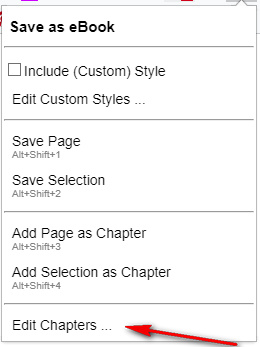
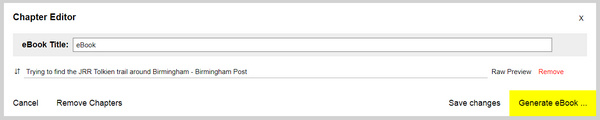
3. When you have enough articles saved in that way (10, 15, 20, a week’s worth, whatever suits you), open the Chapter Editor via the addon. You can reorder the saved articles as you see fit, and then you press “Generate eBook”. Only .ePub output is supported, and each article is saved as a chapter. Having chapters is vital on a device like the Kindle 3 ereader, as it’s then easy to skip back and forth between articles rather than laboriously paging through.

You can also title the eBook with a date.

4. Those using the older dedicated Kindle e-ink ereaders (rather than newer all-purpose Kindle tablets), and who want a Kindle .MOBI with chapters intact, can convert using the Calibre software. Chapter sections should be retained in the conversion. (If not, look at Settings in Calibre). Assuming you want a weekly batch of articles in a single file, then the Calibre .ePub > .Mobi conversion shouldn’t be too tedious to do.

5. Then either do… i) a manual USB transfer, ii) a local Wi-Fi transfer, or iii) an online “Send to Kindle…” operation from Windows.

6. When you’re ready to start saving another batch of articles, first delete the old ones from the addon.

There are a few drawbacks…

* There’s no automatic ‘readability’ detection of the body text, with stripping of page-fluff, ads, pictures etc. To do that you have to do a single sweep down the page to manually select the headline, byline and body of the article.

* Even then, it’s not possible to omit images from your selection. For instance by turning off image loading in your browser. The addon is obviously copying the underlying HTML code of the selection, not simply the visible text. That’s why it doesn’t work alongside ‘readibility’ or ‘read view’ addons. It’s calling the images from the HTML when it makes the eBook. The addon maker might usefully add a “Never save images” toggle, in future. And enable multi-part selections so as to skip mid-article text ads, or just select ‘headline/byline + several parts of the article’.

* You don’t make a ‘record’ of all the articles you’ve saved over time, other than in the form of the eBook output itself. There’s no .CSV list to download, with headline title, URL and suchlike, as there was with Instapaper. But if you archive the .ePub files, that serves as a full-text searchable archive.

* Nor is there any means of pushing your saved and linked article list to RSS for public consumption. But there are better link saving-and-sharing tools available for doing that.

A big advantage is…

* That you can grab newspaper articles accessed via ProQuest and similar closed services, which Instapaper would not be able to log on to. Any HTML you can see in your browser can be grabbed, because the browser is where it gets grabbed from.

How to block eBay sellers from appearing in search-results

25 Wednesday Jul 2018

Posted by futurilla in JURN tips and tricks

≈ 2 Comments

Some picture researchers will be tracking certain place-based keywords in eBay, looking for new public-domain pictures of historical locations, old folk-costume and similar. You don’t necessarily want to limit your search to just “postcards”, as that will omit much. So you do a search with a wider range. But then how do you filter unwanted users who regularly clutter your location-based search results with unwanted items such as key-fobs, fridge-magnets, stock or reseller aerial-photography images, and heavily watermarked images?

There’s a handy Web browser script for that problem. EBay: Custom Page Controls And Seller Block List, a UserScript for blocking users who regularly clutter your search results with unwanted items. Like all UserScripts, the script can only work inside a handler add-on such as the TamperMonkey UserScript handler.

I should point out that EBay does provide the ability to block natively, but only per search, and not as a perma-block.

Usage of the script is fairly straightforward.

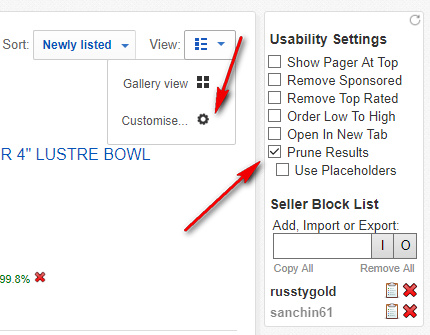
1). First, we need to enable usernames in search results. Do any eBay search. In the right-hand corner, above the results, there’s a “View” drop-down. In this you’ll find “Customise”. Put a check-mark in “Seller information” and click “Apply changes”. This is a one-time action and it ensures that the seller name turns up in results listings in future. And that means that the UserScript can hook onto the names of unwanted sellers and remove them from the results.

2). Now install the script. If you’ve hidden eBay’s useless “Browse Related” taste-matching sidebar, unhide it (for instance, by temporarily turning off your uBlock Origin ad-blocker). That’s because the Block List control panel shows up at the top of that sidebar.

3). Put a check-mark in “Prune Results” (see above screenshot), then add a few user-names of unwanted sellers. It’s just a question of copying the username, pasting it in the Seller Block List, and pressing “Enter”.

4). Once you’ve done a few test searches and are happy you’ve barred all the unwanted sellers, you can turn uBlock Origin (or any similar ad-blocker) back on, and thus once again hide the useless “Browse Related” and other unwanted page sections. This means you’ll no longer see the Block List’s control panel in the sidebar, but the script still go on working to block the unwanted users.

How to stop YouTube’s new animated ‘thumbnail previews’

14 Saturday Jul 2018

Posted by futurilla in JURN tips and tricks

≈ 3 Comments

How to block YouTube’s annoying and pointless new animated ‘thumbnail previews’ of videos in the search-results.

1. Open your uBlock Origin browser ad-blocking addon.

2. Go to uBlock’s “My Filters” tab.

3. Add …

i.ytimg.com/an_webp

…to any blank line, either at the top or start of your Blocklist, as you prefer. This leaves preview thumbnails intact, while stopping the ‘animated GIF-like’ previews that play when you mouseover the search result.

This or a similar rule should also work in other ad-blockers.

← Older posts
Newer posts →
RSS Feed: Subscribe


Please become my patron at www.patreon.com/davehaden to help JURN survive and thrive.

JURN

  • JURN : directory of ejournals
  • JURN : main search-engine
  • JURN : openEco directory
  • JURN : repository search
  • Categories

    • Academic search
    • Ecology additions
    • Economics of Open Access
    • How to improve academic search
    • JURN blogged
    • JURN metrics
    • JURN tips and tricks
    • JURN's Google watch
    • My general observations
    • New media journal articles
    • New titles added to JURN
    • Official and think-tank reports
    • Ooops!
    • Open Access publishing
    • Spotted in the news
    • Uncategorized

    Archives

    • February 2026
    • January 2026
    • October 2025
    • May 2025
    • April 2025
    • September 2024
    • June 2024
    • May 2024
    • April 2024
    • March 2024
    • February 2024
    • January 2024
    • December 2023
    • November 2023
    • October 2023
    • September 2023
    • June 2023
    • May 2023
    • January 2023
    • December 2022
    • November 2022
    • October 2021
    • September 2021
    • August 2021
    • July 2021
    • June 2021
    • May 2021
    • April 2021
    • March 2021
    • February 2021
    • January 2021
    • December 2020
    • November 2020
    • October 2020
    • September 2020
    • August 2020
    • July 2020
    • June 2020
    • May 2020
    • April 2020
    • March 2020
    • February 2020
    • January 2020
    • December 2019
    • November 2019
    • October 2019
    • September 2019
    • August 2019
    • July 2019
    • June 2019
    • May 2019
    • April 2019
    • March 2019
    • February 2019
    • January 2019
    • December 2018
    • November 2018
    • October 2018
    • September 2018
    • August 2018
    • July 2018
    • June 2018
    • May 2018
    • April 2018
    • March 2018
    • February 2018
    • January 2018
    • December 2017
    • November 2017
    • October 2017
    • September 2017
    • August 2017
    • July 2017
    • June 2017
    • May 2017
    • April 2017
    • March 2017
    • February 2017
    • January 2017
    • December 2016
    • November 2016
    • October 2016
    • September 2016
    • August 2016
    • July 2016
    • June 2016
    • May 2016
    • April 2016
    • March 2016
    • February 2016
    • January 2016
    • December 2015
    • November 2015
    • October 2015
    • September 2015
    • August 2015
    • July 2015
    • June 2015
    • May 2015
    • April 2015
    • March 2015
    • February 2015
    • January 2015
    • December 2014
    • November 2014
    • October 2014
    • September 2014
    • August 2014
    • July 2014
    • June 2014
    • May 2014
    • April 2014
    • March 2014
    • February 2014
    • January 2014
    • December 2013
    • November 2013
    • October 2013
    • September 2013
    • August 2013
    • July 2013
    • June 2013
    • May 2013
    • April 2013
    • March 2013
    • February 2013
    • January 2013
    • December 2012
    • November 2012
    • October 2012
    • September 2012
    • August 2012
    • June 2012
    • May 2012
    • April 2012
    • March 2012
    • February 2012
    • January 2012
    • December 2011
    • November 2011
    • October 2011
    • September 2011
    • August 2011
    • July 2011
    • June 2011
    • May 2011
    • April 2011
    • March 2011
    • February 2011
    • January 2011
    • December 2010
    • November 2010
    • October 2010
    • September 2010
    • August 2010
    • July 2010
    • June 2010
    • May 2010
    • April 2010
    • March 2010
    • February 2010
    • January 2010
    • December 2009
    • November 2009
    • October 2009
    • September 2009
    • August 2009
    • July 2009
    • June 2009
    • May 2009
    • April 2009
    • March 2009
    • February 2009

    Proudly powered by WordPress Theme: Chateau by Ignacio Ricci.