Screaming Frog SEO Spider as a Linkbot replacement

Can Screaming Frog SEO Spider be used as a Linkbot Pro replacement? SEO Spider is mature desktop PC software meant for SEO-focused webmasters that, in its free form will check 500 Web URLs at a time. Are they broken or moved, and if the latter then where are they now?

Yes, it can be used in this way, and here’s a short tutorial for absolute beginners who wouldn’t know the difference between SEO and a sea-otter.

1. Extract a plain-text list of Web URLs from your source page of bookmarks, or find the URL list you’ve already prepared and cleaned. Sobolsoft’s “Extract Data & Text From…” will extract without fuss from a saved HTML page and give you a one-per-line list, but there are also various bits of Windows freeware to do it.

2. Install Screaming Frog SEO Spider. Turn off: Top menu | Help | ‘Auto Check for Updates’.

3. Now whitelist SEO Spider in your Firewall, so the new software can access the Web…

C:\Program Files (x86)\Screaming Frog SEO Spider\jre\bin\javaw.exe
C:\Program Files (x86)\Screaming Frog SEO Spider\ScreamingFrogSEOSpider.exe
C:\Program Files (x86)\Screaming Frog SEO Spider\ScreamingFrogSEOSpiderCli.exe

4. Set Screaming Frog SEO Spider user-agent (i.e. its internal Web browser) to emulate Chrome. Top menu: Configuration | User Agent | Chrome. This is apt as its main internal browser agent is actually Chrome, in the form of a headerless Chrome browser driven by SEO Spider. To a web server, SEO Spider now looks like a normal Chrome browser.

5. Enable Always Follow Redirects in SEO Spider, so we have the required redirect details in the results. Top menu | Configuration | User Agent, as seen here…
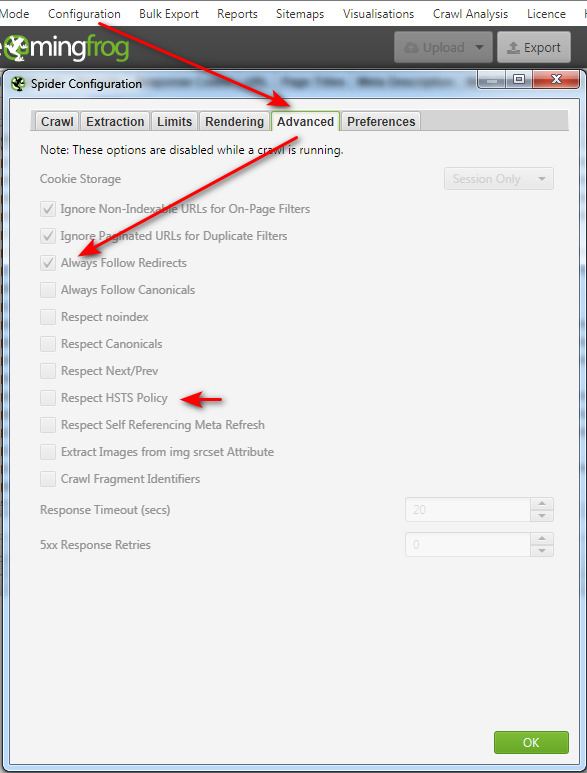
6. While you’re in that panel also ensure HSTS is off (otherwise you may get SSL security certificate errors). It should be off by default. Having this off enables the Chrome browser to still grab the status and redirect URL, even if it can’t otherwise access the https:// website due to a squiffy SSL certificate. It’s the only link-checking software I found that can do this.

7. On the top menu bar, find the “Mode” item and use this to switch to List mode. This will enable you to load your list of Web URLs to be checked for viability. By default it is set to a zero depth for following links, except when Always Follow Redirects is on. In that case it makes an exception for redirects.

8. Load and then run the list, by pressing the “Start” button.

9. Let it run until completed. Now filter the results by the Response Codes tab. This removes a whole lot of unwanted columns from the results table.
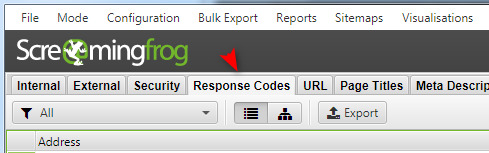
10. Then adjust the table’s columns so you only see the columns you need. Which in this case would be…

Address | Status Code | Status | Redirect URL

11. Just the one time, then save the current UI configuration as the Default. Top Menu | File Configuration | Save as Default. Now, when you switch through to the Response Codes tab in future, you should see the arrangement of columns you just saved.

12. Nearly done. Now sort the “Status” column by clicking once on it, so all the various status codes are grouped thus…
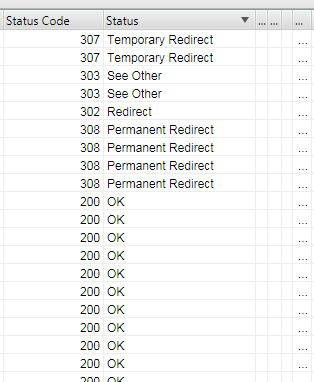
And save the project file for later reloading, or passing to a colleague for manual checking, as needed.

You can also do things like have a Dark UI (Config | User Interface | Theme | Dark). It appears you can’t make the font a touch bigger, but you can get a .CSV out which you can then do what you want with. That’s done via Top Menu | Reports | Redirects | All Redirects.


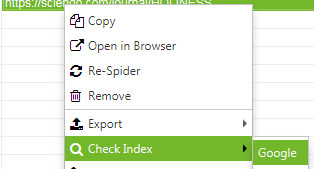
So basically SEO Spider is now Linkbot Pro, albeit with the regrettable loss of that fab 1996 Windows UI feel. It has nice new touches such as ignoring SSL errors, and even the ability to check (one at a time) for presence of the URL on Google Search…
Cheap moves

Jonathan Matthis, of the Biology Dept. at Northeastern University, has launched the open source FreeMoCap Project. ‘Mo-cap’ records human body movement in space, in a way that can then be pinned to 3D digital skeletons and ‘played back’. Very useful for animators and researchers alike.

What makes this project different? It’s a “low-cost, research-quality markerless” mo-cap system, that can run from video recorded by… two £1,000 iPhones and an £800 graphics card? Nope, that’s what I was expecting. But in this case you just need two standard USB webcams.

The aim is have… “a 14-year-old, with no technical training and no outside assistance, recreate a research-grade motion capture system for less than $100”. The early results have had animation professionals making very positive noises.

This worthy project then feeds its data to the free open source Blender 3D software. Great. The only problem appears to be that you need an NVIDIA graphics card in your PC, to process the video in a way that can get the skeleton data out of it. Where you’ll find a useful NVIDIA graphics card for less than $100 I don’t know, but I’m guessing the system may eventually be able to run on the sort of ancient graphics cards that get eBay’d for $20.

Anyway, it seems to me that this is an open project that could use some donations and volunteer coders for its early stages.

Setting up Quite RSS

I finally made the move from the trusty old FeedDemon to QuietRSS. Both are free desktop PC feedreaders for RSS feeds, but FeedDemon is increasingly old now (2013) and was starting to refuse to acquire perfectly valid Atom feeds. QuietRSS is maintained (Jan 2021) and has no such problems. It does however take some initial wrangling to set up — in terms of font choice, font sizes and CSS styles — to get it looking good and working as required. The basic steps are:

1. Tools | Options | change Font types and sizes. Arial Unicode and Segoe UI work well together.

2. Then View | Applications Style and choose a new CSS style for the UI. A number of pre-made CSS styles ship with the software, and ‘Dark’ will be the choice of many. This can then be opened with Notepad++ and hacked re: changing colours. There’s also an online ‘replace theme’ utility that can extend the Dark theme by writing a new variant of it.

3. You may find the dark blue ‘new items’ links stubbornly remain, even with a new CSS style, and thus ruin your tweaked colour scheme. Note that there are also font colours to hack in the QuiteRss.ini file, but the easier way is to use the tab tucked away at the back of the Fonts.

4. It appears the only way to compact the database is to have this done automatically at each shutdown. FeedDemon could do it manually, and compacting is important because it speeds up a feedreader running many feeds and keeps it fast. In QuietRSS the switch for compaction is reached via Tools | Options (or just press F8), and then you work through to this tab. Enable cleanup on shutdown, and also DB optimisation on shutdown…

It usually takes some time for a database to ‘learn’ what’s new and what are old posts dredged up from the past, and for the feedreader to settle down into showing you only the most recent posts.

Print Nightmare – manual fix

There’s now a manual workaround to fix the important all-Windows ‘PrintNightmare’ security hole, at least for domestic and standalone PC users who don’t need to print over a network.

See the official Microsoft Workarounds / Option 2.

Stop the Print Spooler as a Service.
Change the PC’s Group Policy to block “inbound remote printing operations”.
Restart the Print Spooler.

This will “will block the remote attack vector”. Yup, it seems the fix is that easy.

Although… some versions of Windows do not have the required Group Policy Editor. In that case AskVG has instructions for Home users.


Update: Cancel that. Ten days later and another hole has been found, which for now means that the Windows Print Spooler service should be stopped totally even on domestic and standalone PCs. From some software you may still be able to “Save as PDF” but not always. There’s now a massive commercial opportunity for someone to develop a way to print on Windows, without the Windows Print Spooler service being active. Someone is going to make millions from that, as Microsoft doesn’t seem to be interested in the possibility.

PrintNightmare – manual fix

There’s now a manual workaround to fix the important all-Windows ‘PrintNightmare’ security hole, at least for domestic and standalone PC users who don’t need to print over a network.

See the official Microsoft Workarounds / Option 2.

Stop the Print Spooler as a Service.
Change the PC’s Group Policy to block “inbound remote printing operations”.
Restart the Print Spooler.

This will “will block the remote attack vector”. Yup, it seems the fix is that easy.

Although… some versions of Windows do not have the required Group Policy Editor. In that case AskVG has instructions for Home users.


Update: Cancel that. Ten days later and another hole has been found, which for now means that the Windows Print Spooler service should be stopped totally even on domestic and standalone PCs. From some software you may still be able to “Save as PDF” but not always. There’s now a massive commercial opportunity for someone to develop a way to print on Windows, without the Windows Print Spooler service being active. Someone is going to make millions from that, as Microsoft doesn’t seem to be interested in the possibility.

The new-look DOAJ

The DOAJ site has had a design makeover. On the front page they’ve gone for a 1964 home-decor ‘modernist abstraction wallpaper’ look, which will likely have nostalgic connotations for Baby Boomer librarians, and perhaps a few who recall the early arcade videogame Pac-man, but will mean nothing to most students.

The initial ‘modernism at home’ buzz does not then sit well with the styling of the numbers or of the “Find open access journals & articles” strapline on the front page. Either the fonts are all sleekly retro-modernist or they’re not. Don’t mix the two, I’d suggest.

The main Search box button is a very unfortunate shade of yellow, made even more jarring in combination with the blue flash on the dropdown menu…

Having made a search, the search button becomes a soft orange which better matches the new logo. But this still has the jarring blue flash on the dropdown menu.

Text-selection colour leaves the selected text clear (my Web browser has a UserScript that keeps the text-selection colour the same across all sites, but I turned it off to test).

Search results are looking good, but on a widescreen desktop I have to scroll down to get them.

What I get…

What I want (and have to scroll down to every time)…

Overall, pretty good. But the front page still needs some tweaking.

SumatraPDF adds extensive annotation tools

Extensive new support for editing PDF annotations, in the latest version (June 2021) of the popular freeware SumatraPDF PDF reader.

Also here on the JURN blog, my short guides to how to set up Sumatra for book and magazine reading (cover-page + double-page spreads, no gutters), and enable keyword search for .ePub files opened in SumatraPDF.

Regrettably it’s also removed support for embedded media. You used to at least be able to right-click on an embedded video, and “save as…” then play.