One of the problems found in making a local archival backup of your free WordPress.com blog is that users are not allowed to bulk export their images and other uploaded files. Just the archive .xml file, which has all the HTML of the blog posts inside it. WordPress.com unhelpfully suggest: “uploads and images may need to be manually transferred to the new blog”. That’s possible for the lazy blogger who only ever squeezed out six posts before exhausting their intellectual energies, but not so useful for uber-bloggers with thousands of posts and images.
For those who are self-hosting a WordPress install, archiving all images is a simple matter. Just copy over the relevant folder by FTP access. But for free WordPress.com users that’s not an option.
Similarly, those moving from a live WordPress.com blog to a new self-hosted WordPress blog are also in luck. Import the .xml backup of your blog and the new self-hosted WordPress install should go fetch the old blog’s live images and import them, even reworking all their links to conform to the new site URL. Once everything has been ported across, the old WordPress.com blog can then be deleted.
However, there may be instances where someone wants to make a more long-term local archive of a free WordPress.com blog, especially one that is set to be deleted. A literary executor, for instance, may want to properly archive then close a writer’s substantial blog. Perhaps there are legal problems with the estate that means the blog needs to come down. Perhaps they intend to publish it in book form or online again at some time in the future, but… they’re not sure yet.
But they do know that they want the archive to remain more-or-less portable and flexible into the future. I’m assuming that that person doesn’t have time or the technical savvy to: buy web space; get to the host to activate the database on their website space; get a hosted WordPress install set up and configured with the database; then save the blog out from that. Or to set up a local MySQL etc install on their desktop, something which is dangerously unstable in terms of later moving it to a new PC or a fresh OS install.
In such a case the easiest option for doing this appears to be…
1. Download and install a website ripper (or in more polite parlance, “mirroring”) software. Such as the excellent free HTTrack Website Copier. Use its simple wizard to make a full local mirror of your blog. You’re only doing this to get at the images, and have them accurately mirrored inside their correctly named sub-folders.
Unfortunately the downloading of your target blog may take quite some time, even for a relatively small blog. A test run with JURN’s substantial blog took a ridiculous 90 minutes to mirror, using HTTrack 64bit Windows and standard broadband, including 18,000 “ooh, ooh, share this post on CrapUpon!” and similar WordPress fluff-files.
2. Then download an export backup .xml of your blog, from your blog’s own Dashboard (Dashboard | Tools | Export | Export | Complete | Download Export File). This export will be a text only .xml file, which won’t include any of the blog’s images. (What to do when the export email never arrives)
3. Copy out the images folder (look for a folder titled yourblogname.files.wordpress.com) from the local ‘mirror’ of your blog that HTTrack made. Place this below the location of your blog’s exported .xml file.
4. You now have a relatively clean and simple backup archival copy of your blog, with the folders of blog images aligned (in terms of everything but the base URL) with the URL references contained in the .xml archive file.
5. Make a copy of the blog’s main index.html page, so as to capture any sidebar blogroll links. Perhaps also take a screenshot, and also download the .zip of the template that was used by the blog. Place these items with the .xml and images folders.
6. Save and zip an archive of the blog .xml and and the blog images, plus the index.html, the template .zip, and the screenshot.
The advantage of doing it this way is that the blog is now much more portable across longer periods of time. If — five or ten years down the line, once the author’s estate has been sorted out — you want to put the blog online again, or port it into a book or timeline or whatever, you still have a single-file local .xml copy with code that’s fully accessible for search/replace with a simple text editor. You’d upload HTTrack’s folder(s) of the archived images somewhere, then tweak the archive’s .xml via search-and-place of the image links (perhaps by using the free Notepad++, which can cleanly handle and save huge .xml files without injecting them full of Microsoft Office bloat on saving), such that the .xml archive image links all point to your new online images folder. A new self-hosted WordPress install should then go fetch those images and import them, reworking all the links to conform to the new site URL.
Update, March 2019.
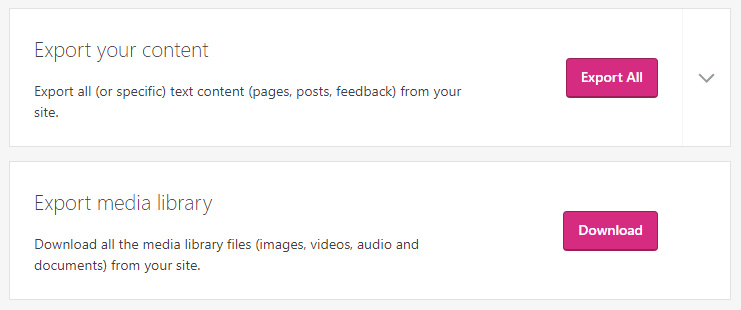
Via the new dashboard, “Export Media Library” newly added…