• Directory
  • FAQ: about JURN
  • Group tests
  • Guide to academic search
  • JURN’s donationware
  • Links
  • openEco: titles indexed

News from JURN

~ search tool for open access content

News from JURN

Category Archives: JURN tips and tricks

How to turn off the new file-picker in Opera

16 Thursday Sep 2021

Posted by futurilla in JURN tips and tricks

≈ Leave a comment

In the latest version of Opera desktop Web browser, a widget pops up whenever you want to upload a file to WordPress or a service. It adds an extra distraction and a ‘dismiss’ click, on the way to seeing your actual Windows Explorer view and your target file. This unwanted pop-up-like widget is going to become very tiresome. So let’s turn if off…

1. Go to Menu | Settings.

2. In the top-right search-box, search for “Show pop-up with clipboard and recent downloads when uploading files”, or just a fragment such as “pop-up with clipboard” will do it.

3. Turn this feature’s control-button off, via the blue button-slider.

That’s it. Exit the browser’s Settings, and your Opera browser should be back to normal.

Pinterest, begone

12 Sunday Sep 2021

Posted by futurilla in JURN tips and tricks, Spotted in the news

≈ Leave a comment

New and useful for picture researchers of various types, a UserScript to “Hide pinterest.com in Google Images” search results. Uses a simple ‘if result contains pinterest.com, do not display’ CSS method. The script is easy to tweak and as such it could be adapted for other image sites that you find are verbose/useless (e.g. Alamy and its ilk), without the need for a full-blown URL blocker add-on.

Why kill Pinterest? Because it poisons search-engines. 70% of the time you can never actually get to the image shown in the results.

UserStyle to UserScript Converter for Windows

05 Sunday Sep 2021

Posted by futurilla in JURN tips and tricks

≈ Leave a comment

Stanley Lim’s free UserStyle to UserScript Converter as a Windows .EXE file. Version 1.5, 2017. Download, unzip, drill down to ..\CSStoUserScriptConverter-1.5\CSStoUserScript\bin\.. and run.

My test-convert of a two column layout I cooked up a while back. Works fine. Although the column-splitting method used may be Opera / Chrome specific, as well as the conversion.

eTools is especially useful now that DuckDuckGo searches turn into irrelevant mush 60% of the time.

How to kill Opera instantly

25 Wednesday Aug 2021

Posted by futurilla in JURN tips and tricks

≈ Leave a comment

Google Search results are becoming an increasingly dangerous place, once you get past the first page or two, and for even the most experienced and protected surfer with Safe Surf enabled in both search-engine and browser, and various blockers running. There can be times when the searcher, on a perfectly normal search, finds that a simple click has ‘trapped’ them on an unwanted page.

Why “trapped”? Because some rogue pages give you what appears to be a regular browser alert, this spurious alert being deliberately triggered to prevent your exit. It prevents you using the usual ‘Back’ button. Behind its CSS styling, that alert button could be anything, and if clicked will likely spawn another and another alert… and thus drive the clueless surfer into a panic where they will click on anything. In such cases the savvy surfer will know not to click on the first alert, for fear of triggering further problems, or giving the rogue site some unwanted permission or data such as geo-location.

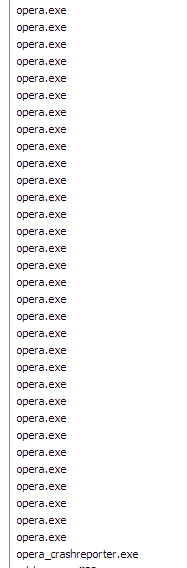
Best then just to kill the browser. So you Crtl Alt Del and… oh, wait. The Opera browser is running as 32 x Task Manager instances of Opera.exe. You thus have to click down each one and every one to kill the browser. There is no shift-select available, to select them all at one go. (You may have a few less instances than I do, depending on how many CPU cores your desktop PC has).

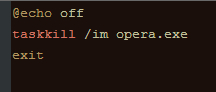
Right then… so let’s go with ‘the nuclear option’ for such rare cases. A Windows .BAT file. This then is what your .BAT file’s lines should look like….

Type the lines exactly into a normal .TXT file, save to your desktop. Rename it there as a Windows .BAT file. When you find yourself at such a rogue page, click the .BAT to kill the Web browser immediately. “Immediately” here means… in a micro-second.

In practice I find that just one termination of opera.exe is enough to kill it instantly, rather than 32. I’ve no firm idea why, when it takes multiple clicks in the Windows Task Manager. I guess it just keeps on closing instances of opera.exe until there are none left to close. So just one works via a .BAT file, and the opera_crashreporter.exe goes automatically when it no longer has an opera.exe to work with.

The above should also work for other Web browsers on Windows desktops. Just change the name of the .EXE file.

Screaming Frog SEO Spider as a Linkbot replacement

28 Wednesday Jul 2021

Posted by futurilla in JURN tips and tricks

≈ 1 Comment

Can Screaming Frog SEO Spider be used as a Linkbot Pro replacement? SEO Spider is mature desktop PC software meant for SEO-focused webmasters that, in its free form will check 500 Web URLs at a time. Are they broken or moved, and if the latter then where are they now?

Yes, it can be used in this way, and here’s a short tutorial for absolute beginners who wouldn’t know the difference between SEO and a sea-otter.

1. Extract a plain-text list of Web URLs from your source page of bookmarks, or find the URL list you’ve already prepared and cleaned. Sobolsoft’s “Extract Data & Text From…” will extract without fuss from a saved HTML page and give you a one-per-line list, but there are also various bits of Windows freeware to do it.

2. Install Screaming Frog SEO Spider. Turn off: Top menu | Help | ‘Auto Check for Updates’.

3. Now whitelist SEO Spider in your Firewall, so the new software can access the Web…

C:\Program Files (x86)\Screaming Frog SEO Spider\jre\bin\javaw.exe
C:\Program Files (x86)\Screaming Frog SEO Spider\ScreamingFrogSEOSpider.exe
C:\Program Files (x86)\Screaming Frog SEO Spider\ScreamingFrogSEOSpiderCli.exe

4. Set Screaming Frog SEO Spider user-agent (i.e. its internal Web browser) to emulate Chrome. Top menu: Configuration | User Agent | Chrome. This is apt as its main internal browser agent is actually Chrome, in the form of a headerless Chrome browser driven by SEO Spider. To a web server, SEO Spider now looks like a normal Chrome browser.

5. Enable Always Follow Redirects in SEO Spider, so we have the required redirect details in the results. Top menu | Configuration | User Agent, as seen here…
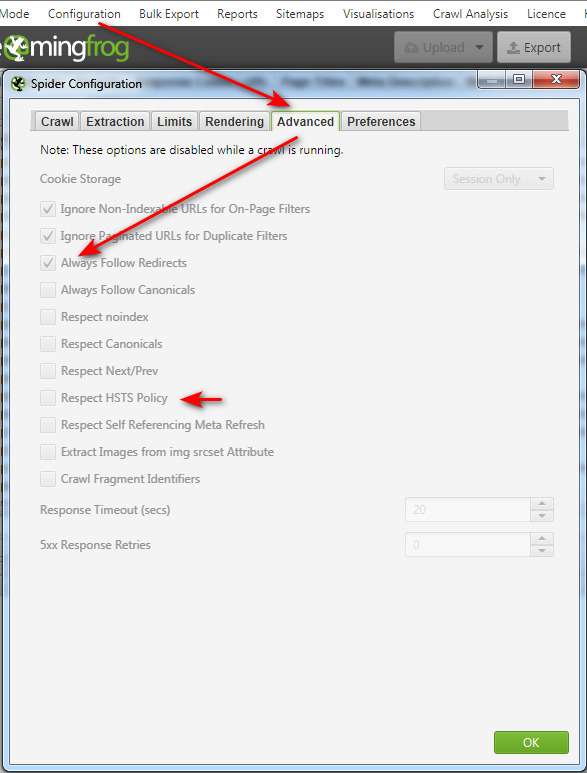
6. While you’re in that panel also ensure HSTS is off (otherwise you may get SSL security certificate errors). It should be off by default. Having this off enables the Chrome browser to still grab the status and redirect URL, even if it can’t otherwise access the https:// website due to a squiffy SSL certificate. It’s the only link-checking software I found that can do this.

7. On the top menu bar, find the “Mode” item and use this to switch to List mode. This will enable you to load your list of Web URLs to be checked for viability. By default it is set to a zero depth for following links, except when Always Follow Redirects is on. In that case it makes an exception for redirects.

8. Load and then run the list, by pressing the “Start” button.

9. Let it run until completed. Now filter the results by the Response Codes tab. This removes a whole lot of unwanted columns from the results table.
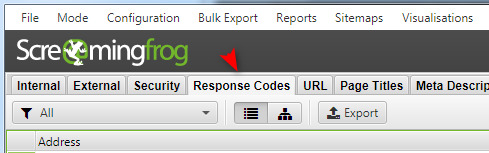
10. Then adjust the table’s columns so you only see the columns you need. Which in this case would be…

Address | Status Code | Status | Redirect URL

11. Just the one time, then save the current UI configuration as the Default. Top Menu | File Configuration | Save as Default. Now, when you switch through to the Response Codes tab in future, you should see the arrangement of columns you just saved.

12. Nearly done. Now sort the “Status” column by clicking once on it, so all the various status codes are grouped thus…
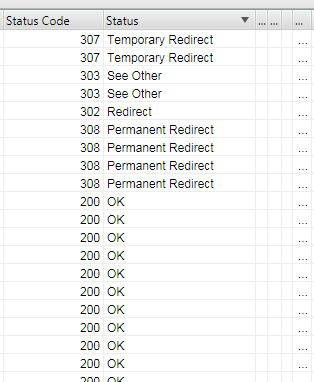
And save the project file for later reloading, or passing to a colleague for manual checking, as needed.

You can also do things like have a Dark UI (Config | User Interface | Theme | Dark). It appears you can’t make the font a touch bigger, but you can get a .CSV out which you can then do what you want with. That’s done via Top Menu | Reports | Redirects | All Redirects.


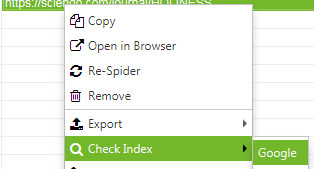
So basically SEO Spider is now Linkbot Pro, albeit with the regrettable loss of that fab 1996 Windows UI feel. It has nice new touches such as ignoring SSL errors, and even the ability to check (one at a time) for presence of the URL on Google Search…
Setting up Quite RSS

07 Wednesday Jul 2021

Posted by futurilla in JURN tips and tricks

≈ Leave a comment

I finally made the move from the trusty old FeedDemon to QuietRSS. Both are free desktop PC feedreaders for RSS feeds, but FeedDemon is increasingly old now (2013) and was starting to refuse to acquire perfectly valid Atom feeds. QuietRSS is maintained (Jan 2021) and has no such problems. It does however take some initial wrangling to set up — in terms of font choice, font sizes and CSS styles — to get it looking good and working as required. The basic steps are:

1. Tools | Options | change Font types and sizes. Arial Unicode and Segoe UI work well together.

2. Then View | Applications Style and choose a new CSS style for the UI. A number of pre-made CSS styles ship with the software, and ‘Dark’ will be the choice of many. This can then be opened with Notepad++ and hacked re: changing colours. There’s also an online ‘replace theme’ utility that can extend the Dark theme by writing a new variant of it.

3. You may find the dark blue ‘new items’ links stubbornly remain, even with a new CSS style, and thus ruin your tweaked colour scheme. Note that there are also font colours to hack in the QuiteRss.ini file, but the easier way is to use the tab tucked away at the back of the Fonts.

4. It appears the only way to compact the database is to have this done automatically at each shutdown. FeedDemon could do it manually, and compacting is important because it speeds up a feedreader running many feeds and keeps it fast. In QuietRSS the switch for compaction is reached via Tools | Options (or just press F8), and then you work through to this tab. Enable cleanup on shutdown, and also DB optimisation on shutdown…

It usually takes some time for a database to ‘learn’ what’s new and what are old posts dredged up from the past, and for the feedreader to settle down into showing you only the most recent posts.

Print Nightmare – manual fix

07 Wednesday Jul 2021

Posted by futurilla in JURN tips and tricks

≈ Leave a comment

There’s now a manual workaround to fix the important all-Windows ‘PrintNightmare’ security hole, at least for domestic and standalone PC users who don’t need to print over a network.

See the official Microsoft Workarounds / Option 2.

Stop the Print Spooler as a Service.
Change the PC’s Group Policy to block “inbound remote printing operations”.
Restart the Print Spooler.

This will “will block the remote attack vector”. Yup, it seems the fix is that easy.

Although… some versions of Windows do not have the required Group Policy Editor. In that case AskVG has instructions for Home users.


Update: Cancel that. Ten days later and another hole has been found, which for now means that the Windows Print Spooler service should be stopped totally even on domestic and standalone PCs. From some software you may still be able to “Save as PDF” but not always. There’s now a massive commercial opportunity for someone to develop a way to print on Windows, without the Windows Print Spooler service being active. Someone is going to make millions from that, as Microsoft doesn’t seem to be interested in the possibility.

SumatraPDF adds extensive annotation tools

07 Wednesday Jul 2021

Posted by futurilla in JURN tips and tricks, Spotted in the news

≈ Leave a comment

Extensive new support for editing PDF annotations, in the latest version (June 2021) of the popular freeware SumatraPDF PDF reader.

Also here on the JURN blog, my short guides to how to set up Sumatra for book and magazine reading (cover-page + double-page spreads, no gutters), and enable keyword search for .ePub files opened in SumatraPDF.

Regrettably it’s also removed support for embedded media. You used to at least be able to right-click on an embedded video, and “save as…” then play.

Setting up QuietRSS

04 Sunday Jul 2021

Posted by futurilla in JURN tips and tricks

≈ Leave a comment

I finally made the move from the trusty old FeedDemon to QuietRSS. Both are free desktop PC feedreaders for RSS feeds, but FeedDemon is increasingly old now (2013) and was starting to refuse to acquire perfectly valid Atom feeds. QuietRSS is maintained (Jan 2021) and has no such problems. It does however take some initial wrangling to set up — in terms of font choice, font sizes and CSS styles — to get it looking good and working as required. The basic steps are:

1. Tools | Options | change Font types and sizes. Arial Unicode and Segoe UI work well together.

2. Then View | Applications Style and choose a new CSS style for the UI. A number of pre-made CSS styles ship with the software, and ‘Dark’ will be the choice of many. This can then be opened with Notepad++ and hacked re: changing colours. There’s also an online ‘replace theme’ utility that can extend the Dark theme by writing a new variant of it.

3. You may find the dark blue ‘new items’ links stubbornly remain, even with a new CSS style, and thus ruin your tweaked colour scheme. Note that there are also font colours to hack in the QuiteRss.ini file, but the easier way is to use the tab tucked away at the back of the Fonts…

4. It appears the only way to compact the database is to have this done automatically at each shutdown. FeedDemon could do it manually, and compacting is important because it speeds up a feedreader running many feeds and keeps it fast. In QuietRSS the switch for compaction is reached via Tools | Options (or just press F8), and then you work through to this tab. Enable cleanup on shutdown, and also DB optimisation on shutdown…

It usually takes some time for a database to ‘learn’ what’s new and what are old posts dredged up from the past, and for the feedreader to settle down into showing you only the most recent posts.

Unsquish Google Search results

26 Saturday Jun 2021

Posted by futurilla in JURN tips and tricks

≈ Leave a comment

In recent days the snippet text in the Google Search results has been squished down in its line-height. Here’s how to fix it in a Stylus script…

#search .g {
line-height: 1.4; !important;
}

I simply paste this into my already-installed Classic Links fix, which runs inside the browser add-on Stylus.

← Older posts
Newer posts →
RSS Feed: Subscribe


Please become my patron at www.patreon.com/davehaden to help JURN survive and thrive.

JURN

  • JURN : directory of ejournals
  • JURN : main search-engine
  • JURN : openEco directory
  • JURN : repository search
  • Categories

    • Academic search
    • Ecology additions
    • Economics of Open Access
    • How to improve academic search
    • JURN blogged
    • JURN metrics
    • JURN tips and tricks
    • JURN's Google watch
    • My general observations
    • New media journal articles
    • New titles added to JURN
    • Official and think-tank reports
    • Ooops!
    • Open Access publishing
    • Spotted in the news
    • Uncategorized

    Archives

    • February 2026
    • January 2026
    • October 2025
    • May 2025
    • April 2025
    • September 2024
    • June 2024
    • May 2024
    • April 2024
    • March 2024
    • February 2024
    • January 2024
    • December 2023
    • November 2023
    • October 2023
    • September 2023
    • June 2023
    • May 2023
    • January 2023
    • December 2022
    • November 2022
    • October 2021
    • September 2021
    • August 2021
    • July 2021
    • June 2021
    • May 2021
    • April 2021
    • March 2021
    • February 2021
    • January 2021
    • December 2020
    • November 2020
    • October 2020
    • September 2020
    • August 2020
    • July 2020
    • June 2020
    • May 2020
    • April 2020
    • March 2020
    • February 2020
    • January 2020
    • December 2019
    • November 2019
    • October 2019
    • September 2019
    • August 2019
    • July 2019
    • June 2019
    • May 2019
    • April 2019
    • March 2019
    • February 2019
    • January 2019
    • December 2018
    • November 2018
    • October 2018
    • September 2018
    • August 2018
    • July 2018
    • June 2018
    • May 2018
    • April 2018
    • March 2018
    • February 2018
    • January 2018
    • December 2017
    • November 2017
    • October 2017
    • September 2017
    • August 2017
    • July 2017
    • June 2017
    • May 2017
    • April 2017
    • March 2017
    • February 2017
    • January 2017
    • December 2016
    • November 2016
    • October 2016
    • September 2016
    • August 2016
    • July 2016
    • June 2016
    • May 2016
    • April 2016
    • March 2016
    • February 2016
    • January 2016
    • December 2015
    • November 2015
    • October 2015
    • September 2015
    • August 2015
    • July 2015
    • June 2015
    • May 2015
    • April 2015
    • March 2015
    • February 2015
    • January 2015
    • December 2014
    • November 2014
    • October 2014
    • September 2014
    • August 2014
    • July 2014
    • June 2014
    • May 2014
    • April 2014
    • March 2014
    • February 2014
    • January 2014
    • December 2013
    • November 2013
    • October 2013
    • September 2013
    • August 2013
    • July 2013
    • June 2013
    • May 2013
    • April 2013
    • March 2013
    • February 2013
    • January 2013
    • December 2012
    • November 2012
    • October 2012
    • September 2012
    • August 2012
    • June 2012
    • May 2012
    • April 2012
    • March 2012
    • February 2012
    • January 2012
    • December 2011
    • November 2011
    • October 2011
    • September 2011
    • August 2011
    • July 2011
    • June 2011
    • May 2011
    • April 2011
    • March 2011
    • February 2011
    • January 2011
    • December 2010
    • November 2010
    • October 2010
    • September 2010
    • August 2010
    • July 2010
    • June 2010
    • May 2010
    • April 2010
    • March 2010
    • February 2010
    • January 2010
    • December 2009
    • November 2009
    • October 2009
    • September 2009
    • August 2009
    • July 2009
    • June 2009
    • May 2009
    • April 2009
    • March 2009
    • February 2009

    Proudly powered by WordPress Theme: Chateau by Ignacio Ricci.