• Directory
  • FAQ: about JURN
  • Group tests
  • Guide to academic search
  • JURN’s donationware
  • Links
  • openEco: titles indexed

News from JURN

~ search tool for open access content

News from JURN

Category Archives: JURN tips and tricks

Using Winrar to fix “the file name is too long” problem

12 Thursday Jul 2018

Posted by futurilla in JURN tips and tricks

≈ Leave a comment

How to delete a Windows file when you have the “the file name is too long” problem”, and everything on your system is refusing to even allow a re-name of the file.

On desktop PCs the common WinRar .rar file-compression software can handle such extra-extra-long names, and can re-name them in its file-system viewer. Simply use WinRar as if it were a Windows file explorer, find the file, and rename to something shorter. Then delete it using your usual Windows File Explorer etc. WinRar is free for a 40-day trial.

‘Sort by date’ for Bookmarks in Opera

10 Tuesday Jul 2018

Posted by futurilla in JURN tips and tricks

≈ Leave a comment

An excellent Recent Bookmarks Chrome addon, which shows your last 15 bookmarked sites in date-order and date-stamped, when you click on a toolbar icon. Very useful if your Web browser has the usual lacklustre Bookmarks system (hello, Firefox and Opera), but you don’t want to install a massive replacement just to get a simple “sort by date” function.

How to get a raw .XML display via the Opera Web browser (and very possibly other Web browsers too).

08 Sunday Jul 2018

Posted by futurilla in JURN tips and tricks

≈ Leave a comment

Update, Jan 2019: XML display is now supported in the latest Opera.

One of the very few things I miss about the Firefox browser, having recently swopped to Opera, is the elegant and fast display of XML inside the browser as if it were a Web page.

Until a few weeks ago Opera was able to display XML as a formatted page, albeit in a very slow and unsatisfactory manner (i.e.: with no .MP3 links showing up). But now even that the feature seems to have expired altogether, after the new Opera update. An .XML page now never loads, even when my various addons are disabled. There’s no option to ‘View Source’ either, as the page hasn’t even loaded.

Of course, you can plug the .XML URL into a dedicated desktop feedreader, such as FeedDemon, but often you don’t want to go to the trouble of doing/loading that just to check a feed. Or you may have missed the feed’s update amidst the swirl of 10,000+ other feeds in FeedDemon, and the consequent need to regularly expire older posts and de-fragment the database.

So, in this use-case you’re casually using your browser’s bookmarks system, or else have just encountered a new .XML feed. And you just want a quick peek inside that XML link to see if there’s something new there, such as a new .MP3 podcast link. You may also want the find the actual direct .MP3 download file link, rather than some stream.

In which case, here’s a very simple way to get an .XML display via Opera, for a feed/page such as longnow.org/projects/seminars/SALT.xml


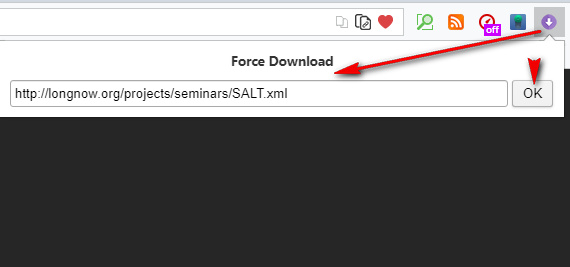
1. Install the Force Download extension in Opera. It’s really simple. Anything you paste in its URL bar gets downloaded rather than displayed/played in the browser.

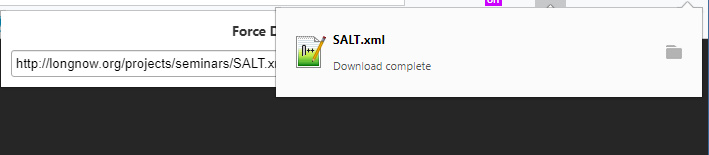
2. Visit your .XML link with the Opera browser. Opera totally fails to render it as a page, or fails to render fully (e.g. not showing the raw .MP3 links). In that case, click the new ‘Force Download’ icon on your toolbar. The .XML page’s URL is auto-filled in Force Download, so there’s no need to copy-paste the URL. Click OK and the .XML file is then downloaded.

3. Still within the browser, you can now double-click on the completed download, and the .XML will be opened with whatever desktop software you normally use to view XML files. A 64-bit install of Notepad++ is going to be your quickest-loading option for viewing the .XML code.

As you can see below, at the top of the .XML there’s the latest enclosure, and if you’re not scared by looking at code then it’s easy to spot and copy the direct download link. Copy it back into ‘Force Download’ in your browser, and the .MP3 downloads directly.

If you can’t see the direct link because of the line-wrapping of the XML, click the “Word wrap” button in Notepad++ to fix that…

Once you have it set up, display of raw editable .XML should never be less than a second away from your browser. You can of course also use the same workflow for other file types.

I should also mention that there are two XML display addons for Opera, via the Chrome store. I tried XML Tree but it failed to work. XML Viewer stated that the API was not fully supported in Opera and anyway had such horrendous use terms (“Modify all data you copy and paste”) that I didn’t want to risk installing it in my browser.

Current awareness search: last month on WordPress.com

01 Sunday Jul 2018

Posted by futurilla in JURN tips and tricks

≈ Leave a comment

How to use DuckDuckGo to do a basic ‘what’s new in the last month’ search of all posts at WordPress.com blogs…

site:wordpress.com/2018/06 “sir gawain”

All posts have the same date-based URL structure, so that’s why it works. Be aware that DuckDuckGo will freak out if you do a search like this more than five times, and assume that you’re some kind of Killer Web-Bot and temporarily block access. Also works with Google, though you may get an annoying “are you a robot?” captcha. Increasingly, doing any remotely sophisticated and intensive search is now deemed dangerous. /sigh/.

You can do the same for Blogger-based blogs:

site:blogspot.com/2018/06/ “sir gawain”

Though with far less success, in terms of relevance and spam. No wonder Google dislikes blogs and thinks them ‘spammy’, if it judges them by its own blogging service.

As for timing, you have to assume that indexing may be delayed by up to two weeks for sporadic blogs, so a regular middle-of-the-month search across the previous month is probably the best option.

WordPress does have its own search-engine, which claims to run across all its blogs, but in comparison with Google it doesn’t seem very comprehensive.

500px – Creative Commons close-down and a Getty-grab

01 Sunday Jul 2018

Posted by futurilla in JURN tips and tricks, Spotted in the news

≈ 1 Comment

Flickr-alternative 500px has announced it is set to close down the sharing of images under Creative Commons. The new owners have partnered with evil megacorp Getty and as a consequence are…

“disabling the ability for people to upload or download photos shared under Creative Commons licenses.”

So far as I can tell from tests, the CC options and search have not yet been disabled.

But it’s not that desperate in terms of effects on serious picture researchers — I mean, when did you last find a print-sized commercial-use CC picture at 500px, via Google Images? Never, in my experience. It’s probably because the 500px user-base tends strongly toward makers of naff me-too ‘stock’ and ‘tourist’ images, which are of no use to academics and historians (and of little use to discriminating stock-hunters, either). But the decision is annoying for creatives who have a 500px subscription. Which includes me, after the once-great Flickr was crashed and burned by Yahoo.

I think the way for active makers to get around the new block may be just to tag with the phrase “Creative Commons” in the keywords, and also add a ‘please freely use this image’ comment as the creator. But not to explicitly place the picture under a CC license (which it seems won’t even be an option, soon). Let’s hope the new owners of 500px are not so crass as to also go in and delete all their users’ “Creative Commons” keyword tags.

More importantly, for 500px users….

“If you’re a contributing photographer who has not opted out of distribution, your images may be selected for inclusion on Getty Images”.

I find that also applies to people who have not chosen to actively try to sell stock on the 500px site. Here’s how to prevent Getty from grabbing all your pictures, in the next day or so…

1. Go to “Settings”…

2. Find “Distribution”, tick the check-box and save.

Presumably the plan is that all the commercial-use CC 500px images show up for sale at Getty next week, and that the 500px users then have no way to pull them back and/or delete them?

How to compare two texts side by side

21 Monday May 2018

Posted by futurilla in JURN tips and tricks

≈ Leave a comment

How to compare two texts side by side, with line sync and more:

1. Get the free 32-bit Notepad ++. It must be the 32-bit version. Install, open, then close the software.

2. Get the free ComparePlugin for Notepad ++, which no longer ships with the software by default. Download the Unicode version, currently ‘Compare_1_5_6_UNI_dll.zip’. This is a 32-bit plugin and it cannot run with the 64-bit Notepad ++.

3. Unzip the plugin and extract ComparePlugin.dll, somewhere outside of C:\Program Files. Then copy/paste ComparePlugin.dll to…

C:\Program Files (x86)\Notepad++\plugins

4. Restart Notepad ++. Open two files you wish to compare.

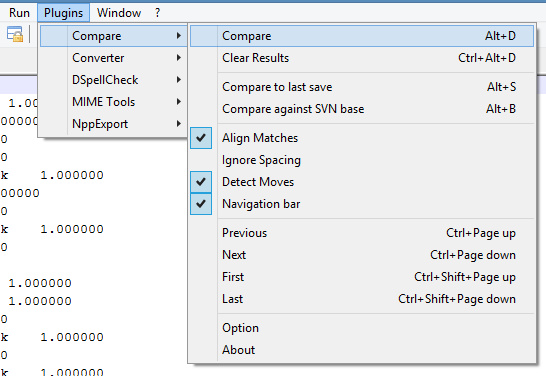
5. From the top menu in Notepad ++, run Compare from the Plugins menu…

You get sophisticated line-matching, line-synchronisation, and yet also clear identification of non-matching lines in either document.

New: JURN ‘in a UserScript’

19 Saturday May 2018

Posted by futurilla in JURN tips and tricks

≈ 2 Comments

Have a UserScript addon in your Web browser? Then here’s a new script that lets you install a link to JURN into the top links bar in Google Search, thus…

With a search-query typed into the Google Search box, you then simply click on the new “Jurn” link. This sends your search-query over to the JURN CSE (hosted by Google), and runs it there. That’s all it does, but hopefully it will prove useful to many users.


To install for Google Search:

1. If you don’t already have one, install a UserScript handler addon in your desktop Web browser. [ Opera: Tampermonkey | Chrome: Tampermonkey | Firefox: Greasemonkey | Pale Moon: Greasemonkey for Pale Moon, etc.] Un-tick any “send anonymous usage data” check-boxes etc.

2. Then visit the GreasyFork page for the JURN UserScript. Click on “Install this script”. (If the “Install” button doesn’t show up, you may need to whitelist greasyfork.org in your script-blocker)

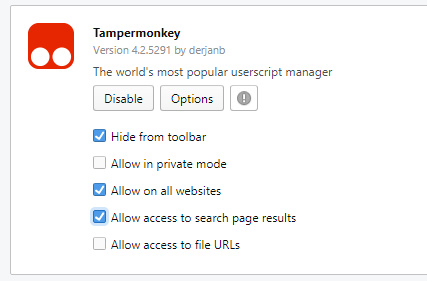
Opera users also need to make sure that “Allow access to search page results” is ticked for Tampermonkey…

3. That should be all you need to do. Check that you have a new “Jurn” link on your Google Search top-links. You can manage the script and see its code via the UserScript handler addon in your brower.


To get a similar link at the top of DuckDuckGo:

A very similar link for the excellent DuckDuckGo search-engine can be added with the DuckDuckMenu UserScript.

1. Install the DuckDuckMenu UserScript.

2. Then visit DuckDuckGo and run a ‘test’ search. At the top of the page you now have a new list of links which can be configured. Clicking on a link here will take your DuckDuckGo search query and run it in another search service.

3. To add JURN to this new menu, click “Edit menu”. Remove any unwanted default links that ship with the script, then add JURN:

https://cse.google.com/cse/publicurl?cx=017986067167581999535:rnewgrysmpe#gsc.tab=0&gsc.q={searchTerms}&gsc.sort=

To also add Google Books and Scholar alongside your new JURN link, also add these links:

https://www.google.com/search?q={searchTerms}&tbm=bks

https://scholar.google.com/scholar?hl=en&q={searchTerms}

If you find that you get sent to local versions of Google, and want to skip the transfer, simply replace the .com bit with whatever your national Google domain is (e.g. google.co.uk).

Fixing YouTube

17 Thursday May 2018

Posted by futurilla in JURN tips and tricks

≈ Leave a comment

Here’s another post arising from taming my new Opera browser. This one lists some UserScripts and an addon to make the YouTube experience better. This is for my own future reference, mainly, but the list of links and suggestions may also be useful for others on desktop PCs.

Most of the time I just use the ever-reliable 9xbuddy service to download an .M4A audio-only file of the YouTube video, for listening on wireless headphones. I’ve always found the free 9xbuddy download service more reliable than a UserScript that places a “Download .MP3” link on the page itself. Regrettably no-one’s yet made a simple script to pass the YouTube page URL across to the 9xbuddy website, so using their service does require a manual cut-and-paste of the video’s URL.

On first landing at the YouTube video page, having the Disable audio/video autoplay UserScript installed is very useful. There are two types of autoplay on YouTube. This script simply turns off the first of these, the “Autoplay video on page load”.

Also useful, when first landing on a video, is the Chrome addon Hide YouTube Comments. All of the YouTube comments, gone. The Like/Dislike icons are kept.

In some cases I do want to play the video on the page, for example if it’s a software tutorial or a product unboxing/test. In that case the UserScript Disable YouTube 60 FPS (Force 30 FPS) makes playback faster on slow broadband, by forcing 30 frames a second rather than 60. This enables the viewer to step up to a 720p or even higher resolution, and thus to see fine details in the software’s user interface or on the product being tested. It’s especially useful for those who have a bandwidth-metered or throttled connection, or who have relatively slow rural broadband.

The UserScript YouTube Thumbnails is also very handy. Forget hunting along the sliding progress bar, squinting at tiny flickery video frames and trying to find the bit you want. With this script you just click on the word “Thumbnails”, and in pops a simple static storyboard for the complete video. This calls YouTube’s own frame thumbnails, and arranges them along a timeline. Then you click on a frame, and that jumps you to that point in the video.

As I said above, there are two types of Autoplay on YouTube. The second type is the one that autoplays the next video in the list, after you’ve finished watching the current one. Often this is a “suggested” video that YouTube “thinks” you will like. Given the current pitiful state of recommendation algorithms, this means the video is almost certainly unwanted and annoying. In this context the UserScript Disable YouTube autoplay is also useful. It simply automatically turns off the relevant Autoplay slider, just after the YouTube page loads.

There are of course various ways to change the colours on the YouTube interface to your taste, including UserStyles for Stylish. They break often, and may be more trouble than they’re worth.

More shiny Chrome

16 Wednesday May 2018

Posted by futurilla in JURN tips and tricks

≈ Leave a comment

Three more Chrome addons, found today…

* LastModified. You land on a Web page, and it has a date like “16th May”. But, which year? Or perhaps it has no date on it at all. This handy little icon tells you the page’s exact last-update date, when you click it.

* Detect CCLicense. Auto-detects a Creative Commons statement on a Web page. Works, but is too subtle for me. I want the CC symbol to light up on detection, start pulsing a neon-green color at triple size, or otherwise do something that attracts attention. Especially when it hits CC-BY. Instead it just turns from grey to black, and doesn’t differentiate licenses. I couldn’t find anything similar, but more advanced. (Also has a native Opera version).

* Meow Met. Load a random cat from the Metropolitan Museum of Art collection, every time you open a new blank tab in your Web browser. With title and artist credit…

How to move from Firefox 55 to the latest Opera browser

16 Wednesday May 2018

Posted by futurilla in JURN tips and tricks

≈ 1 Comment

I see that the adblocking addon uBlock Origin now offers reasonable Element Hiding functionality on Web pages. This may help those who feel they are stuck with Firefox 55 (because of the recent radical changes to the way FF handles addons), but who want to move to the likes of the Opera browser. GHack has a good guide on how to transfer your Adblock Plus / Element Hiding Helper addon settings: “How to migrate from Adblock Plus to uBlock Origin”.

This means that Opera now looks like the most viable alternative for those currently stuck with Firefox 55. I’ve thus been encouraged to make the switch to Opera, spurred on by one-too-many ‘Heartbeat’ nags in Firefox about the need to update (it doesn’t matter if you turn off updates, they still nag). What follows is mostly for my benefit, when I need to refer to it in the future, but it may be useful for others.


Here’s my tested step-by-step on moving from Firefox 55 to Opera 53:

1. Download and install the latest version of Opera. Familiarise yourself and discover how to get extensions (aka addons).


2. Apparently Opera has a built-in adblocker, but if you’re someone who stuck with Firefox 55 then you want one with a good Element Hiding feature. So install the addon adblocker uBlock Origin and migrate your blocklist from Adblock Plus to uBlock Origin as per Ghack’s instructions. You can also copy over your Element Hiding rules. It’s fairly straightforward, just plug in any missing list subscriptions, then copy/paste into uBlock Origin | My Filters and Whitelist.

uBlock Origin’s method of Element Hiding is fairly easy and precise, once you get used to how it works. I’m happy with it.


3. Install a good script blocker (not ScriptSafe, which seems to have an agenda about which perfectly legitimate affiliate links it will and won’t accept). NoScript Suite Lite is currently the best for Opera, an Opera fork of the trusted NoScript used in TOR.

You may also want Popup Blocker Lite which offers fine-grained control over what pops and how. Although it’s going to very annoying for the first few weeks, as it works on a make-a-whitelist principle rather than a blacklist. Be aware that Opera has its own built-in pop-up blocker, which does work on a blacklist principle…


4. The Install Chrome Extensions addon also needs to be one of the first installs. Once this is in, it gives you access to Chrome store plugins such as Unseen (blocks FB’s privacy-invading “Seen by…” function) and Facebook Demetricator (removes pointless metrics micro-icons from the FB interface).

You’ll also want to be bookmarking and whitelisting the Chrome Web Store website.


5. The vital F.B. Purity for de-cluttering Facebook, of course. And Facebook Disconnect (stops FB from tracking as you travel you across the Web). Then transfer your F.B. Purity settings and block word-list from Firefox to Opera, which is easily done via the export/import of a text file.


6. Desktop search ninjas such as regular readers of this blog will want Stylus and its DuckDuckGo – Multi-Columns script, which gives DuckDuckGo search results a multicolumn layout.

I have a DuckDuckGo MultiColumns guide on how to change the colours and results-number on the DuckDuckGo – Multi-Columns addon/layout. Also links to some other useful DuckDuckGo customisation scripts, though they require a UserScript handler addon — see the next step for that.

Other useful minor search-fixes are Google Search link fix (copy the real URL from search results, not Google’s garble); and the related Google Images Fix (add back the recently removed “View Image” button).

If you want your DuckDuckGo personal settings to stick when you exit, then in Opera you need to turn on “Allow local data to be set”. DuckDuckGo’s settings (accessed from the top-right of the home page) allow you to turn off nags, ads, autocomplete, favicons and other search annoyances.


7. Add the Tampermonkey UserScript handler addon (then un-check ‘send anonymous usage data’). This enables you to install UserScripts. Desktop search ninjas will then want the latest working GoogleMonkeyR which gives Google Search results a three-column multicolumn layout suitable for a widescreen desktop monitor. Do a test search on Google, and its Settings will appear via the Tampermonkey icon, where you will be able to set the columns and colours you want.

Note that, currently, you also need to explicitly turn off GoogleMonkeyR on Google Images search, or it will break Google Images search. To do this, add the following line to the header of your GoogleMonkeyR script, below the // @include lines…

// @exclude http*://www.google.*/search?*isch*

Then, also in Tampermonkey, Google Hit Hider by Domain.


8. The Browsec extension, a free VPN for pretending to be in the USA and thus getting past region-locking of Hathi Trust books etc. Yes, there’s a free VPN in Opera desktop, but it’s just been discontinued in the mobile versions of Opera and who knows how long it will last in Opera Desktop? Browsec is free, offers a backup to Opera’s VPN, plus the chance to pretend to be in Singapore (which has been useful more than once to get academic content).


9. A selected-phrase translator that will do (for now) is Google Translator Tooltip Expanded Fork, the most recently updated of the forks. It’s not inline but it’s fast and reliable, minimal, and easily configured.


10. For daily bloggers the oh-so-vital Redirect from the new WordPress.com editor to the classic WordPress editor, for old-school ease-of-posting to WordPress.com blogs.


11. Again for bloggers, Copy Link With Title in HTML for Chrome, for copying the current URL to the clipboard ready-wrapped in HTML link code. A nice time-saver for bloggers. It was the best one of about five addons I tested. It’s not right-click, but there was no good right-click option. This one uses an icon which you click on, and the code formatting for the URL can be easily configured.

A similar tool is Paste Email. When you just want to paste in your email address or other text snippet without typing it out.


12. Bloggers and news people will also be wanting a “Force an RSS Icon to Appear on the URL Bar”. Nope, there doesn’t seem to be one for Opera, not one that can send the feed to a desktop RSS reader. Nor a UserScript or Chrome addon. A pity. The closest is RSS Finder. Click its browser-bar icon, and if a RSS feed exists, you get a link that’s easily copied to the clipboard. It’s better than nothing.


13. Transfer Google Hit Hider list. Once the addons are set up, you then need to go back to Firefox, visit Google Search, pop out the “Manage Hiding” panel. Then export your Google Hit Hider list (there’s an import-export option) of all the Web domains you never want to see in a page of Google Search or DuckDuckGo results. I see that I have over 25,000 blocked URLs on my personal block-list. Notepad++ is good for copying and saving out as a list.txt file, but you can also just copy/paste.


14. Then move the commonly used bookmarks, bookmarks bar, and plug the passwords back in for the main services. If you go to Opera’s bookmarks you can do this automatically via the Import/Export option, which can also bring over cookies and passwords from Firefox. Figure on spending an hour re-sorting bookmarks.

Once you have Bookmarks how you want them, DO NOT “sort Bookmarks Alphabetically”. There is no Undo for this!! Opera’s very primitive Bookmarks system is one of its biggest drawbacks. Amazingly, it even lacks a “Sort by Date” option. But the excellent Recent Bookmarks Chrome addon can at least add that feature.

Your Facebook bookmark bar link probably needs to be the secret Sort by date one, if you’re a blogger and timely information scooper and need your FB feed to run in date order.


15. Colour-fidelity and fonts.

If colour fidelity is important to you, then you probably need to turn off “Use hardware acceleration when available” in Opera. This is found in: Settings | Browser | System. Otherwise your colours may generally be rather washed-out. I’d rather have good colour, than a little extra speed.

Be careful in tweaking the Opera font settings. There’s no “just reset the font settings” button, and you can get into a font-settings tangle quite easily, with no way to back out of it. Be aware that DuckDuckGo has its own font settings.


16. Lastly, make Opera your PC’s default Web browser (Windows : Start | Control Panel | Default Programs | Opera). That’s it. You’ve left Firefox.


Other possibly useful Opera compatible addons:

* Reader View (similar to Firefox’s Reader View) and Instapaper, for getting a nice clean view of newspaper and magazine content. Used together they should meant that you rarely have to endure reading an article on the actual website of a newspaper or magazine, surrounded by clutter and tracking.

* Shareaholic for Pinterest. More reliable that the official one, in my experience.

* Simple Translate. Unlike other addons it doesn’t make you jump through hoops or go to Google Translate. Enable it on search-engines to get it working on Google Books.

* Turbo Button. Opera’s developers removed the Turbo on/off toggle button. This puts it back, enabling easy access to one of Opera’s most unique features.

* GIF Blocker. Block all animated GIFs. The trusty Gif Jam used to be great, but it hasn’t been updated since 2015 and appears to have stopped working. This is a good alternative. You can also stop YouTube’s new animated ‘thumbnail previews’.

* Opera has its own screenshot tool, but that only saves screenshots as a .PNG file which can be rather large in file-size. There are more capable screenshot tools out there, offering .JPG with variable compression, capture of scrolling windows etc.

* I don’t care about EU cookies. If you’re in the UK or Europe, this will help banish the EU cookies nags. You probably want to install this last, a few days after you’ve logged into Google, Facebook, PayPal etc for the first time with the new browser.

* Scholar on Google Search.

* Some scholars will prefer to open PDFs in their native desktop reader, rather than previewing the PDF inside of Opera. The setting to change for this is in: Settings | Websites | Download PDF…

When you click on the .PDF link in the built-in viewer it then downloads like any other downloaded file, but it won’t then auto-open with your reader software. Your software may have a “watch” capability to detect new PDFs appearing in the downloads folder, and it will then automatically open them up.

To auto-open a .torrent file with Opera, check the settings in your desktop torrent software. Many will offer to “watch” the default download folder for new .torrent files, and then automatically start them up.

You don’t need “Scroll back to top of page” button via an addon, in Opera you just click on the tab and you’re back at the top of the page. Click it again and you’re back where you were lower down on the page. That said, having a Scroll to Top button always be in the same place can be useful.

← Older posts
Newer posts →
RSS Feed: Subscribe


Please become my patron at www.patreon.com/davehaden to help JURN survive and thrive.

JURN

  • JURN : directory of ejournals
  • JURN : main search-engine
  • JURN : openEco directory
  • JURN : repository search
  • Categories

    • Academic search
    • Ecology additions
    • Economics of Open Access
    • How to improve academic search
    • JURN blogged
    • JURN metrics
    • JURN tips and tricks
    • JURN's Google watch
    • My general observations
    • New media journal articles
    • New titles added to JURN
    • Official and think-tank reports
    • Ooops!
    • Open Access publishing
    • Spotted in the news
    • Uncategorized

    Archives

    • February 2026
    • January 2026
    • October 2025
    • May 2025
    • April 2025
    • September 2024
    • June 2024
    • May 2024
    • April 2024
    • March 2024
    • February 2024
    • January 2024
    • December 2023
    • November 2023
    • October 2023
    • September 2023
    • June 2023
    • May 2023
    • January 2023
    • December 2022
    • November 2022
    • October 2021
    • September 2021
    • August 2021
    • July 2021
    • June 2021
    • May 2021
    • April 2021
    • March 2021
    • February 2021
    • January 2021
    • December 2020
    • November 2020
    • October 2020
    • September 2020
    • August 2020
    • July 2020
    • June 2020
    • May 2020
    • April 2020
    • March 2020
    • February 2020
    • January 2020
    • December 2019
    • November 2019
    • October 2019
    • September 2019
    • August 2019
    • July 2019
    • June 2019
    • May 2019
    • April 2019
    • March 2019
    • February 2019
    • January 2019
    • December 2018
    • November 2018
    • October 2018
    • September 2018
    • August 2018
    • July 2018
    • June 2018
    • May 2018
    • April 2018
    • March 2018
    • February 2018
    • January 2018
    • December 2017
    • November 2017
    • October 2017
    • September 2017
    • August 2017
    • July 2017
    • June 2017
    • May 2017
    • April 2017
    • March 2017
    • February 2017
    • January 2017
    • December 2016
    • November 2016
    • October 2016
    • September 2016
    • August 2016
    • July 2016
    • June 2016
    • May 2016
    • April 2016
    • March 2016
    • February 2016
    • January 2016
    • December 2015
    • November 2015
    • October 2015
    • September 2015
    • August 2015
    • July 2015
    • June 2015
    • May 2015
    • April 2015
    • March 2015
    • February 2015
    • January 2015
    • December 2014
    • November 2014
    • October 2014
    • September 2014
    • August 2014
    • July 2014
    • June 2014
    • May 2014
    • April 2014
    • March 2014
    • February 2014
    • January 2014
    • December 2013
    • November 2013
    • October 2013
    • September 2013
    • August 2013
    • July 2013
    • June 2013
    • May 2013
    • April 2013
    • March 2013
    • February 2013
    • January 2013
    • December 2012
    • November 2012
    • October 2012
    • September 2012
    • August 2012
    • June 2012
    • May 2012
    • April 2012
    • March 2012
    • February 2012
    • January 2012
    • December 2011
    • November 2011
    • October 2011
    • September 2011
    • August 2011
    • July 2011
    • June 2011
    • May 2011
    • April 2011
    • March 2011
    • February 2011
    • January 2011
    • December 2010
    • November 2010
    • October 2010
    • September 2010
    • August 2010
    • July 2010
    • June 2010
    • May 2010
    • April 2010
    • March 2010
    • February 2010
    • January 2010
    • December 2009
    • November 2009
    • October 2009
    • September 2009
    • August 2009
    • July 2009
    • June 2009
    • May 2009
    • April 2009
    • March 2009
    • February 2009

    Proudly powered by WordPress Theme: Chateau by Ignacio Ricci.