• Directory
  • FAQ: about JURN
  • Group tests
  • Guide to academic search
  • JURN’s donationware
  • Links
  • openEco: titles indexed

News from JURN

~ search tool for open access content

News from JURN

Author Archives: futurilla

The world’s remote coral reefs, mapped

26 Friday Apr 2019

Posted by futurilla in Spotted in the news

≈ Leave a comment

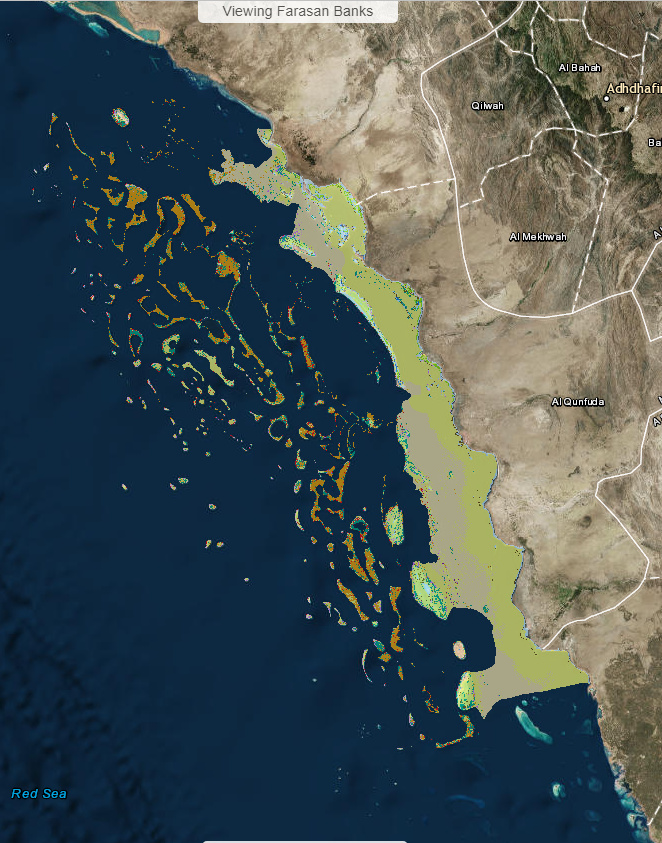
Newly published, a “High-resolution habitat and bathymetry maps for 65,000 sq. km of Earth’s remotest coral reefs”. It’s a new world-map of such coral reefs, in an interactive map where the data appears to be Attribution open access…

the Khaled bin Sultan Living Oceans Foundation embarked on a 10-yr survey of a broad selection of Earth’s remotest reef sites — the Global Reef Expedition. [producing a] meter-resolution seafloor habitat and bathymetry maps developed from DigitalGlobe satellite imagery and calibrated by field observations.”

“We are particularly grateful to our long-standing partnership with Dr. Sam Purkis’ remote sensing lab at the NOVA Southeastern University Oceanographic Center. From the satellite acquisition process, to ground-truthing field work, to creating the habitat maps and bathymetry products, Dr. Purkis’ lab is world-class. Additionally, this magnificent web application was created by an outstanding project management team from Geographic Information Services, Inc (GISi). GIS, Inc. was an absolute pleasure to work with on this exciting project.

Here’s my example zoom of the interactive map, down into the Red Sea…

The red dots in the top screenshot are the reefs, and the red dots in the last screenshot indicates the project’s video locations.

Added to JURN

25 Thursday Apr 2019

Posted by futurilla in New titles added to JURN

≈ Leave a comment

Critical Multilingualism Studies

Journal of Universal Language

Arv : Nordic Yearbook of Folklore. It’s now supposed to go OA six months after publication (“Open access: Articles printed in ARV will also be available six months after their publication”). But it looks to me like no-one told the publisher’s webmaster or delivered the post 2016 PDFs. The PDFs are there to 2016, but not the links. So here are the direct links to the PDFs, so as to keep them alive on Google (and thus JURN)…

2018 – appears to be missing.

2017 – appears to be missing.

Arv : Nordic Yearbook of Folklore, 2016

Arv : Nordic Yearbook of Folklore, 2015

Arv : Nordic Yearbook of Folklore, 2014

Arv : Nordic Yearbook of Folklore, 2013 [and a lone Mirror]


Plant Phenomics

Some perspective…

24 Wednesday Apr 2019

Posted by futurilla in Spotted in the news

≈ Leave a comment

“Perspectives on the open access discovery landscape”…

“An open question in the area of OA discovery is what proportion of the total academic literature is available in an open version. In this case, Crossref would be a solid starting point…”

“Under the assumption that a reliable and accurate database is available matching DOIs/titles/other queries to OA URLs, the computational effort to connect the former to the latter is relatively low.”

“In order to improve OA discovery, the scholarly communications community will have to focus on metadata. We expect that improvements in metadata on the side of institutional repositories and preprint servers would be the most effective to support OA discovery tools…”

How to resize a huge image without opening it

23 Tuesday Apr 2019

Posted by futurilla in JURN tips and tricks

≈ Leave a comment

This mini-tutorial may be useful for those working in museums and archives, or doing print work with big maps, who encounter image files so huge they can’t be opened.

Problem: You have been sent a huge image file, and you need to shrink and resize it. It’s very nice that the sendee only sent a 80Mb .JPG rather than their 8Gb original map sheet. But even their 28,000 pixel .JPG can’t be opened on your puny PC. Even Photoshop and IrfanView balk at loading/viewing it. You can’t use the free GigaPXTools (for re-sizing gigapixel images without opening them) because… it prefers .TIFs and can’t work with .JPG files.

Solution: the free IrafanView can shrink it, if used in batch mode.

Method: First close down everything on your PC that’s not essential and might be eating your PC’s memory. Make sure you have the latest 64-bit IrfanView.

1. Then place your target image, on its own, in a new folder called ‘batch’.

2. Open any small image in IrfanView, to launch the software.

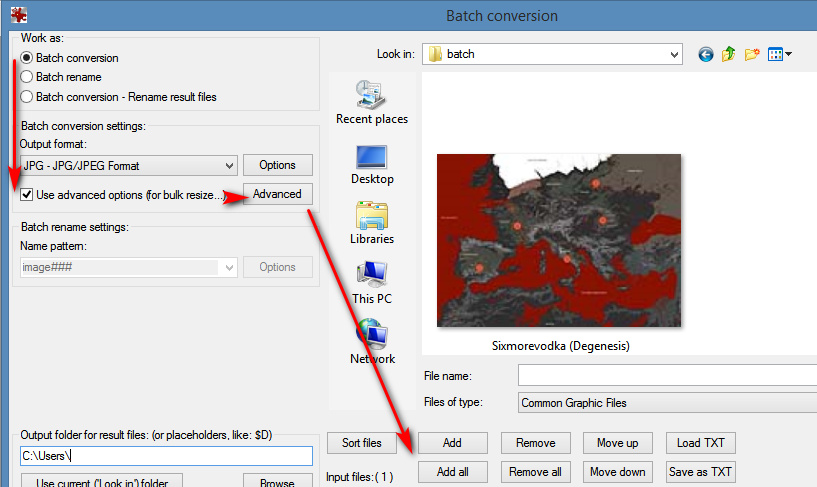
3. Press ‘B’ to open Batch conversion. In “Look in:” navigate to your target folder. You may have to do this a few times until your target image appears as a preview thumbnail. Do not click on the preview thumbnail (as this will almost certainly crash IrfanView)! This step will at least show you that file is viable as an image, and not corrupted.

Now you can see why we needed the image on its own in its own folder — IrfanView has enough to do with just showing a preview of this file, let alone previewing any other images in the same folder at the same time. If even this step proves too much for IrfanView, try switching to file-name view only, and then re-starting the process.

4. Then tick “Use Advanced Options” and set “Resize” to 3000 pixels, or whatever reduced size you want. Click OK.

5. Set your target output folder. Without clicking on the Preview thumbnail, click the “Add All” button to add the target file to the list of files to be processed.

6. Click “Start Batch”. Then you go off and have a coffee, as it’s likely to take 20 minutes. A Windows message that the software is “Not responding” is normal. Eventually there will be a message from IrfanView that the batch process has completed.

Lightkey – the free version tested

21 Sunday Apr 2019

Posted by futurilla in JURN tips and tricks, Spotted in the news

≈ Leave a comment

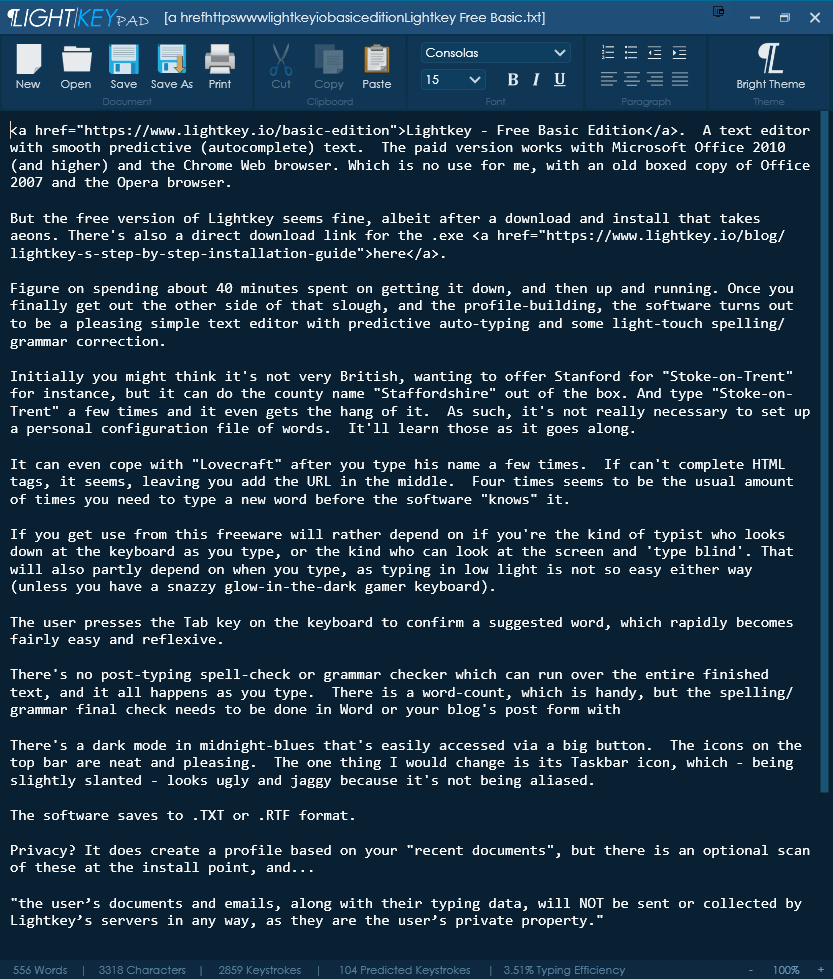
Lightkey – Free Basic Edition. This offers the LightkeyPad text editor with smooth predictive (autocomplete) text, and the editor learns rapidly as you type. The paid version works with Microsoft Office 2010 (and higher) and the Google Chrome Web browser.

But the free version of Lightkey seems fine, albeit after a download and install that seemed to take aeons. There’s also a direct download link for the .exe here, for those who want offline installs. Assume you’ll be spending a while on getting it down, and then installed and up and running. But once you finally get out the other side of that slough, and the profile-building, LightkeyPad turns out to be a pleasing simple text editor with fluid predictive auto-typing and some light-touch spelling/grammar correction.

Initially I thought it was not very British, as it wanted to offer Stanford for “Stoke-on-Trent”, but it can do the county name “Staffordshire” out of the box. And type “Stoke-on-Trent” a few times and it even gets the hang of that. As such, it’s not necessary to manually set up a personal configuration file of words. It seems the software will learn those as it goes along.

It can even cope with “Lovecraft” after you type his name a few times. “Cthulhu”, too. Four times seems to be the usual times you type a new word before the software “knows” it. It can’t correct “If can’t” to “It can’t”. Nor can it autoclose HTML tags, leaving you to add the URL and title in the middle.

If you find this freeware useful will rather depend on what sort of typist you are. Do you look down at the keyboard as you type with two fingers, or look at the screen while ‘typing blind’? That will also partly depend on when you type, as typing in low light is not so easy either way (unless perhaps you have a snazzy gamer keyboard where the letters glow-in-the-dark).

The user presses the Tab key on the keyboard to confirm a suggested word, and doing this rapidly becomes easy and reflexive.

There’s no post-typing spell-check or grammar checker to run over the entire finished text, and such things happen as you type. There is a word-count for the finished text, which is handy, but the final pass of spellchecking then needs to be done on pasting the text into Word or WordPress. I’m guessing there may be a one-click “send to Word” button in the Pro version of LightkeyPad.

There’s a ‘dark mode’ done in nice midnight-blues, that’s easily accessed via a big button. The icons on the top bar are neat and pleasing.

The software saves to .TXT or .RTF format.

What would improve it?

* A simple search-replace would be welcome, but I guess that would mess with the usefulness of the typing and word analysis. A “Select all” menu item is also curiously missing.

* It needs to save its configuration. On launch it doesn’t remember the window height, or the chosen font from the previous session. (It’s possible to work around the font problem by saving a “template.RTF” with one’s chosen font set up, and then having a Windows Startup link to that file and thus launch Lightkey. That’s not ideal, but it works. Lightkey also insists on saving to My Documents every time, instead of to the last save location.

* Loading time could be a touch quicker, as it’s not as instant as Notepad. But if you launch it at Windows Startup, as suggested above, then it’s already open and is as quick to spring into action as Notepad is.

* I disliked its Taskbar ‘hidden icons’ panel icon, which — being slightly slanted — looks ugly and jaggy (because it’s not being aliased). On closer inspection, however, this turns out to be the LightKey Control Center .exe, this having been launched as a silent Startup launch, and it’s not LightkeyPad. As such, simply Ctrl-Alt-Del to get to the Windows Startup services tab and from there disable the LightKey Control Center permanently. The LightkeyPad editor doesn’t appear to need it in order to work.

What about privacy? It does create a profile based on your “recent documents”, but there is an optional scan of these at the install point, and…

“the user’s documents and emails, along with their typing data, will NOT be sent or collected by Lightkey’s servers in any way, as they are the user’s private property.”

But some sort of unique cumulative hash from the “typing data” may be being sent, and as such you’ll want to install offline and then uncheck this item ASAP…

It also learns from your typing, so that unique word/keystroke record is presumably being stored somewhere on your PC. That’s potentially a valuable ‘fingerprint’, from which things like business secrets might be somehow reconstructed. In which case a firm won’t want such data slipping out of the user’s PC and being sent off to Whereizitagin. I’m not suggesting any malfeasance here on the part of the makers, but just that you need to be sure that such a local file — if it exists — is truly secure.

Overall LightKey is an interesting development in genuine freeware, and even out-of-the-box it’s not as annoying as you might think an auto-complete text editor would be. I loathe always-wrong Web search auto-complete as much as the next user, but this software does auto-complete and substitutions quite nicely and gets in the way as little as possible. As such I think I have a new first-draft composition Notepad replacement here, and will try it as a replacement for a few weeks.


Desktop alternatives?

* The free Notepad++ can do some Auto Completion natively, albeit via a method that’s not changed in over a decade and in a fiddly-looking way that’s aimed at coders. It can even do autoclose, with the help of several coder-focussed plugins. There’s also the Presage plugin for Notepad++, though that was last updated in 2015. There is what looks like a Presage Windows standalone, but it actually seems like it just runs a service at Windows startup that’s required by the Notepad++ plugin.

* If you really need the search-replace in similar free software, PredictEd 1.1 is open source freeware from 2018 and similar to Lightkey. But it’s very basic in design and far more clunky in its method.

* Predictive Tab Key Auto Complete for Chrome browsers. Again, free, and the only somewhat-recent one on the Chrome store. Not updated since 2015, and it’s about as annoying as you’d expect when composing a WordPress blog post. Very very fast, but not accurate and doesn’t appear to learn in any way I could discern. It would be great to see something like this that could be constrained only to a list of user-defined words and phrases (see Auto Text Expander below), but this doesn’t appear to be it.

* Windows? Well, Apparently Windows 10 has a “Show text suggestions as I type” setting in Windows, but I have no idea if it’s more than ‘Microsoft Clippy reborn’.

* In Word, one can set up custom autocorrects: select Word Options | ‘Proofing’ | ‘AutoCorrect Options’ | ‘Replace Text as you type’. #h can be set to autocorrect to href, for instance. The free LibreOffice apparently offers AutoCorrect that works with words longer than eight letters, and can be similarly customised. But who wants to launch either of these lumbering behemoths, just to do what should be done in Notepad?

* Paid? the $130 Typing Assistant 8.x works with any Windows software and Web browsers, does what is says, is 64-bit and developed. Which is presumably why it’s so expensive. The old 32-bit abandonware Smart Type Assistant for Windows is similar and is now free.


There are also paid ‘abbreviation managers/expanders’ like PhraseExpress and Breevy and FastFox, but they are: i) expensive and mostly way too complicated for such a simple task; and ii) rely on you being able to remember the abbreviation, or to remember to place a # in front of the start of a word, or which letter to stop at to trigger the expansion without overtyping. ShortKeys Lite is a rather ancient and very clunky free choice here, and there are a couple of equally ancient Notepad++ plugins whose makers used descriptions such as ‘snippet’ and ‘substitution’.

Similar Web browser addons are ProKeys, Auto Text Expander and Text Blaze (beta). Also the right-click Paste Email.

All these are useful for adding your signature, email addresses and boilerplate text, but in practice are not so useful for composing ‘in the flow’.


The Search Engine Map (2019)

18 Thursday Apr 2019

Posted by futurilla in Spotted in the news

≈ Leave a comment

New from independent search-engine Mojeek, The Search Engine Map. All the general search engines at 2019, and where they get their results from. Very useful.

Some of my observations, on spending an hour with the map and doing some tests:

* I see that Yippy is Bing, only with what is claimed to be a boost given to small and useful and hobbyist sites. And/or a slight suppression of the megasites. Well, it certainly improves Bing, from what I’ve seen of it so far (a week’s testing) looking for answers to techie queries in forums. Either that or Bing Search has improved since I last tested it. Even so the main problem is simply Bing’s lack of reach, when compared to the size and scope of Google. Key sites which Google puts as the No. 1 result are not even indexed in Bing.

* Chinese search-engine Baidu is missing from the map, although it is mentioned in the page. It is sort-of possible to search Baidu In English, but according to a 2011 Reuters report it’s just Bing, perhaps with (by now) some extra Chinese-language site indexing. I can’t find any announcement that Bing is no longer their main search supplier in 2019.

* Interesting to see that Jive is a Yandex clone, but with privacy apparently baked in. It’s new to me. Jive’s privacy aspect might make it useful if you’re paranoid about Putin. It’s also slightly faster than Yandex, and is uncensored like Yandex. The latter point is evidently not the case with DuckDuckGo, even though the Duck draws results partially from Yandex. (Update: May 2020, Jive appears to be dead).

* You are definitely not getting “the full Google” with Startpage.com, but rather results from a cut-down index. After using it for some time I’m now starting to realise how bad it is, in that respect.

* Dogpile is definitely Bing, despite the claim of multiple blended results.

* searx.me sounded good initially (a blend of Bing and Google), but on testing it was immediately apparent that Google doesn’t like them. I vaguely seem to recall that this was also the case a few years back…

Update: still dead at November 2019.

* eTools.ch is a nice blended search-engine, but I see no Google results in any tests. Its ‘News’ tab is also just Bing News, and without the up-to-the-minute timeliness (sorting by ‘last day’ seems useless). Had it been a blend of Google News + Bing News with a fine-grained ‘sort by date’ that showed the last 30 minutes, that would have been superb. But it’s not.

* Mojeek itself. Interesting that it’s not Google, Bing or Yandex, and thus offers an absolute fallback. But it’s not good on general searches, and seems to have a whole lot of old dead sites in its index (e.g. JISC’s circa-2013 opendoar.ooz.cottagelabs.com). Seems to be a little better the more specific you get. Doesn’t work with Google Hit Hider (while Yandex / StartPage / DuckDuckGo do). Despite their ‘News’ link not being clickable when search results are being displayed, a current ‘News’ section is accessible from the Home Page. However, on testing this is revealed as more of a newspaper format — and this is searchable only with the very broadest single keywords, and topical ones at that.

* There’s still no one-box way to search Common Crawl. I would have thought at least one of the Map’s engines would have plugged it into the mix, by now.

A brilliant new UserScript – CenterIt – for universal centering

18 Thursday Apr 2019

Posted by futurilla in JURN tips and tricks, Spotted in the news

≈ 1 Comment

Oh, I really like this one. CenterIt, a new UserScript browser addon. A very simple script, it just tries to force a site to centre — if the user is viewing the Web on a big 1920px widescreen desktop monitor.

Out-of-the box it only works with Wikipedia and the faculty pages at IIT Bombay, India.

But add your own URLs and it works very nicely with results from Yippy, Bing News, Google Scholar, StartPage.com and no doubt many others. It partly works with Yandex search results, too, though only takes the results in by about four inches. Nevertheless, if you’re fed up with getting a crick in your neck then this script is for you.

To add your target website, edit the script. Add the URL in the following format…

// @match https://www.bing.com/*
// @match https://*.startpage.com/*

…and save. As you can see above, some URLs that use dynamic www. replacements for the second page of results need to be given a wildcard.

Yippy, with the script:

Bing News, with the script (I also have it perma-cleaned with uBlock Origin, which is why it looks so clean):

The script has the great advantage that it can’t be broken by changes in the HTML at the target site. It’s also browser-engine agnostic. There are two recent addons for Chrome browsers, for centering, but one is hard coded for Yandex and neither will change the current Yandex in English (there are Russian, UK and USA versions of Yandex, depending on user location — and these all reside at yandex.com). So this script is the better, simpler and more secure solution.

Thank you to the script maker — Jagadeesha Kanihal, Masters student in Computer Science at IIT Bombay, India. Somebody give this guy a great job when he graduates, please!

SciRide Finder

12 Friday Apr 2019

Posted by futurilla in Academic search, Spotted in the news

≈ Leave a comment

SciRide Finder is a newly launched search tool that searches Medline/PubMed, but it limits the search to just those “statements, numbers and protocols” which cite other publications. A fine idea, but the core concept may initially be a little difficult for humanities scholars to fathom. You can see what they’re talking about, in this visual example…

SciRide Finder appears to have crashed under the initial surge of traffic, but is “under maintenance” and should be up again soon.

Plod off

11 Thursday Apr 2019

Posted by futurilla in Ooops!, Spotted in the news

≈ Leave a comment

Ooops. Apparently the EU’s police plods are demanding that Archive.org take down all of the Project Gutenberg content…

“Included in the list of takedown demands are a bunch of the Archive’s “collection pages” including the entire Project Gutenberg page of public domain texts, its collection of over 15 million freely downloadable texts”

These form-pushers obviously have no clue that this will have quite the opposite to the intended effect. Instead of suppressing it, they will cause the material to become even more widely available and known. Partly through all the publicity, and partly through the efforts of free-speech activists to mirror an uncensored Gutenberg. They’re also politically clueless, having managed to instantly bring into disrepute the EU’s new laws.

How to wrap indented quotes in Word

10 Wednesday Apr 2019

Posted by futurilla in JURN tips and tricks

≈ Leave a comment

Word Cleaner 7.x is the best desktop option for sending an old book from a Word file to genuinely clean Amazon ebook-ready HTML, via its standard template “Convert to HTML and remove formatting”. It retains linked and anchored footnotes, bold, italics etc. Two simple tweaks on this cleaning template can also convert all accents and symbols like © to HTML code entities, and also do the same for the quote marks, —’s and apostrophes. For a minute of work, you’re 90% of the way to an ebook that will validate when uploaded to the Amazon ebook system.

But there’s a big drawback. It can’t retain the indented paragraphs, of the type you used to add your scholarly quotes in Microsoft Word. What you want, then, before you export is to add some nice HTML blockquote tags on your quotes…

These tags will survive passing through the Word Cleaner template, and will display the text as an indented quote in your cleanly-coded HTML ebook.

Are you going to go through and add those tags to 300+ quotes, by hand? No, you’re going to have Word to do it for you. Without fiddling around with macros.


WORKFLOW:

Scenario: you used the Indent paragraph button to add the quotes in your scholarly book, and thus have all quotes indented by 0.5.

1. Alt + H to open the Search/Replace box. Click on “More” button in bottom-left of the box.

2. Place cursor into “Find what” box. Click “More” to open up the lower half of this box. Then click the “Format” button in the bottom-left.

3. Dial the Indentation up to 0.5 (or whatever you have it set to)…

4. Exit the Format | Find Paragraph panels and then place your mouse cursor into the “Replace With” box. Type in your blockquote tag. Run the search and replace.

5. Return both Search/Replace boxes to their default, by clicking “No formatting” on each.

6. Now you do this wildcard search-and-append, adding the required ending tag to any paragraphs that contain the word “blockquote”.

To work, this needs you to have ticked “Use wildcards”…

Once there’s a recurring unique word in the quote paragraphs, then Word can hook onto that to add the closing tag to the end of each such paragraph. The tag is added after any footnote-number at the end of the quote, if there is one.

Completing this process will have also tagged… i) indented paragraphs quotes that do not begin with ” and… ii) multiple-paragraph indented quotations and most indented lists, poetry etc. That would not have been the case had we just tagged all paragraphs starting with a “.

You should end up with this…

Note that if you have such indents in the footnotes as well, then you’ll also need to run these two there as well. You may still have some numbered lists or poems that will require search for a ^t tab or a different indentation of other than 0.5.

Finally, remove your drop caps at the start of each chapter, and then save the Word .doc, and load it to Word Cleaner 7.x. This really is the best and easiest desktop option, based on my day of intensive searching and testing in 2019. But if you really need desktop freeware then HTML Cleaner 1.02 is a Windows GUI freeware that is genuinely free, and though difficult to use is quite powerful and has a Help file. You may also want to test a half-dozen free online services, though you may find they choke on a huge 400-page book with indented quotes and footnotes, and that they may be aimed at accurate replication-in-HTML rather than tag stripping and cleaning for Kindle ebooks.

← Older posts
Newer posts →
RSS Feed: Subscribe


Please become my patron at www.patreon.com/davehaden to help JURN survive and thrive.

JURN

  • JURN : directory of ejournals
  • JURN : main search-engine
  • JURN : openEco directory
  • JURN : repository search
  • Categories

    • Academic search
    • Ecology additions
    • Economics of Open Access
    • How to improve academic search
    • JURN blogged
    • JURN metrics
    • JURN tips and tricks
    • JURN's Google watch
    • My general observations
    • New media journal articles
    • New titles added to JURN
    • Official and think-tank reports
    • Ooops!
    • Open Access publishing
    • Spotted in the news
    • Uncategorized

    Archives

    • February 2026
    • January 2026
    • October 2025
    • May 2025
    • April 2025
    • September 2024
    • June 2024
    • May 2024
    • April 2024
    • March 2024
    • February 2024
    • January 2024
    • December 2023
    • November 2023
    • October 2023
    • September 2023
    • June 2023
    • May 2023
    • January 2023
    • December 2022
    • November 2022
    • October 2021
    • September 2021
    • August 2021
    • July 2021
    • June 2021
    • May 2021
    • April 2021
    • March 2021
    • February 2021
    • January 2021
    • December 2020
    • November 2020
    • October 2020
    • September 2020
    • August 2020
    • July 2020
    • June 2020
    • May 2020
    • April 2020
    • March 2020
    • February 2020
    • January 2020
    • December 2019
    • November 2019
    • October 2019
    • September 2019
    • August 2019
    • July 2019
    • June 2019
    • May 2019
    • April 2019
    • March 2019
    • February 2019
    • January 2019
    • December 2018
    • November 2018
    • October 2018
    • September 2018
    • August 2018
    • July 2018
    • June 2018
    • May 2018
    • April 2018
    • March 2018
    • February 2018
    • January 2018
    • December 2017
    • November 2017
    • October 2017
    • September 2017
    • August 2017
    • July 2017
    • June 2017
    • May 2017
    • April 2017
    • March 2017
    • February 2017
    • January 2017
    • December 2016
    • November 2016
    • October 2016
    • September 2016
    • August 2016
    • July 2016
    • June 2016
    • May 2016
    • April 2016
    • March 2016
    • February 2016
    • January 2016
    • December 2015
    • November 2015
    • October 2015
    • September 2015
    • August 2015
    • July 2015
    • June 2015
    • May 2015
    • April 2015
    • March 2015
    • February 2015
    • January 2015
    • December 2014
    • November 2014
    • October 2014
    • September 2014
    • August 2014
    • July 2014
    • June 2014
    • May 2014
    • April 2014
    • March 2014
    • February 2014
    • January 2014
    • December 2013
    • November 2013
    • October 2013
    • September 2013
    • August 2013
    • July 2013
    • June 2013
    • May 2013
    • April 2013
    • March 2013
    • February 2013
    • January 2013
    • December 2012
    • November 2012
    • October 2012
    • September 2012
    • August 2012
    • June 2012
    • May 2012
    • April 2012
    • March 2012
    • February 2012
    • January 2012
    • December 2011
    • November 2011
    • October 2011
    • September 2011
    • August 2011
    • July 2011
    • June 2011
    • May 2011
    • April 2011
    • March 2011
    • February 2011
    • January 2011
    • December 2010
    • November 2010
    • October 2010
    • September 2010
    • August 2010
    • July 2010
    • June 2010
    • May 2010
    • April 2010
    • March 2010
    • February 2010
    • January 2010
    • December 2009
    • November 2009
    • October 2009
    • September 2009
    • August 2009
    • July 2009
    • June 2009
    • May 2009
    • April 2009
    • March 2009
    • February 2009

    Proudly powered by WordPress Theme: Chateau by Ignacio Ricci.